
TL;DR: The Taskade UI is organized around a hierarchical sidebar (Workspace → Folder → Project), a top breadcrumb bar, and a view switcher in every project. The Taskade EVE chat panel sits on the left. Everything visible obeys the permission model from Owner to Viewer and syncs in real time across web, desktop, and mobile.
Here is the whole workspace at a glance: a slim icon rail on the far left, the Taskade EVE chat panel, the in-space sidebar, and the main work area.
┌───────────────────────────────────────────────────────────────┐
│ Taskade  ›  My Workspace  ›  Launch Plan                      │
├──────────┬─────────────┬────────────────┬─────────────────────┤
│ RAIL     │ TASKADE EVE │ IN-SPACE       │ WORK AREA           │
│ Search   │ Ask Taskade │ › Projects     │ [Workspace|Preview] │
│ Recent   │ the AI chat │ › AI Agents    │                     │
│ Shared   │             │ › Automations  │ List Board Table    │
│ Memory   │ Mode ▾      │ › Integrations │ Mind Map Gantt      │
│          │             │ › Media        │ Calendar Org Chart  │
│ Help     │             │                │ your content        │
│ Settings │             │                │                     │
└──────────┴─────────────┴────────────────┴─────────────────────┘
The Taskade EVE panel runs your AI chat. Its Mode menu switches between Taskade Genesis, Projects, AI Agents, and Workflows.

Overview
What Is Taskade Genesis?
Taskade Genesis is an AI app builder that generates complete business applications from a single prompt. Describe what you need, and Taskade Genesis creates it. Every app is "living software" powered by your Workspace DNA: Projects remember (memory), AI Agents think (intelligence), and Automations act (execution).
Note: The Taskade Genesis Quick Start Guide is the best place to start building apps.
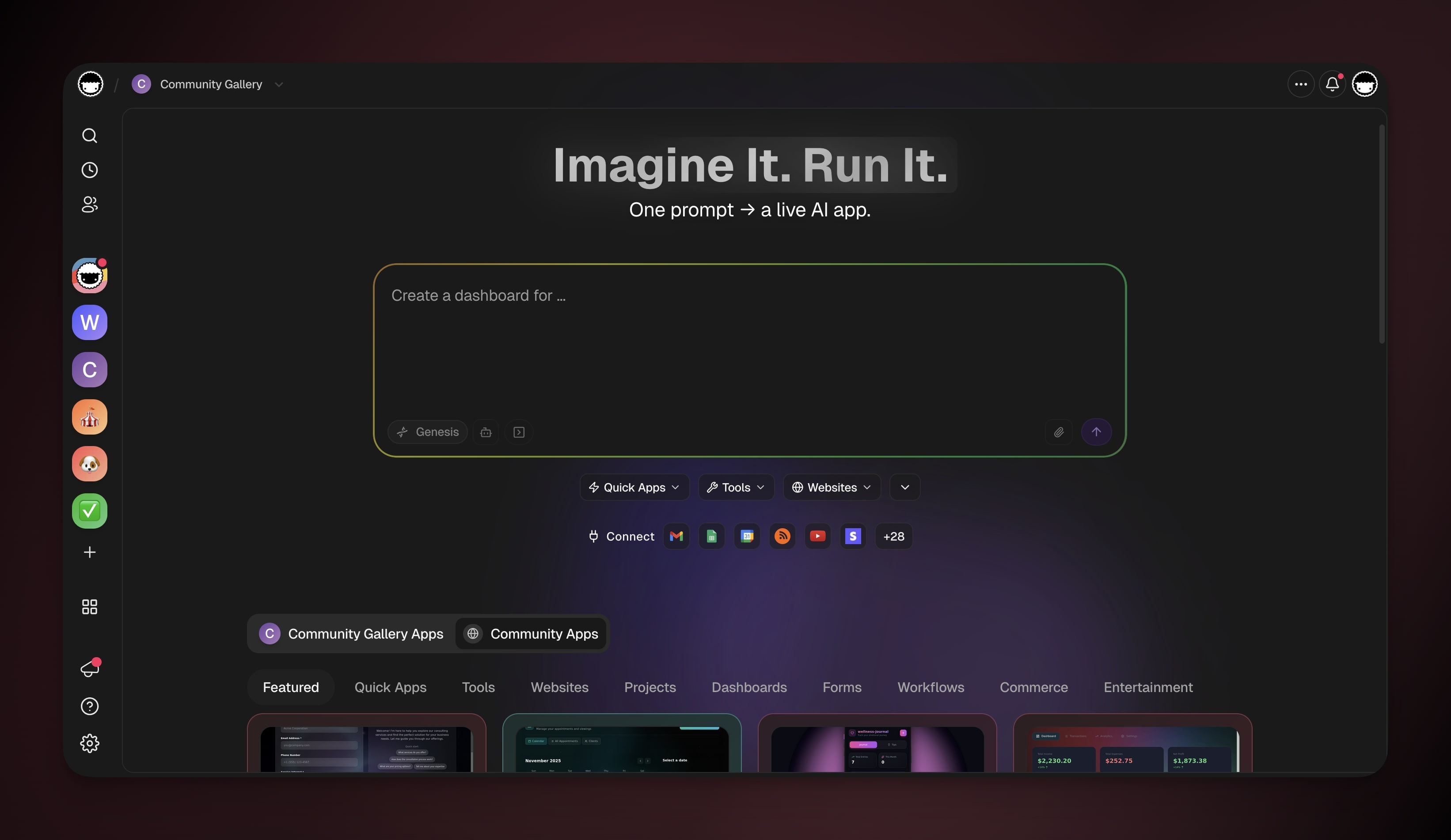
Meet the new Interface
New capability comes with the most significant UI overhaul in Taskade's history. You will notice major changes in how you navigate between your spaces.
If you know the previous layout, this guide walks you through every change.
Note: Your existing Teams, Folders, and Subspaces are still there. They appear as tiles beneath the input box, so everything stays in one place.
Set a Workspace's Default View
Pick what you see first every time you open a workspace. By default a workspace opens to your Projects list, and an app opens to its App Preview (the live Workspace App interface). You can change this for any workspace, so it lands on the App Preview instead. That helps when the running app is what you open most.
- Click the arrow next to the workspace or app name.
- Choose Edit.
- On the General tab, find Landing view.
- Pick App Preview to open straight to the Workspace App, or Projects to open the project list.
The choice saves instantly and applies the next time you open that workspace or app. Each workspace and app keeps its own Landing view, so you can mix and match across your space.
Note: The Recent list in the left sidebar holds the projects you visited last.
Breadcrumbs
Breadcrumbs appear across all screens to make navigation faster. Each breadcrumb represents a level in your navigation history.
Click on any part of the trail to jump directly to that section:
Taskade Logo: Go back to the highest level and view your recent projects.
Workspace Name: Takes you back to your workspace overview.
Current Location: Shows the active app (like "Marketing Tasks (Week 1)").
- When available, each breadcrumb item includes additional options.
- For Workspaces and Apps, a dropdown appears for quick switching.
Space Menu: Return to a high-level overview of your:
- 🗂️ Projects
- 🤖 AI Agents
- 👥 AI Teams
- 🔄 Automations
- 🔌 Connections
- 🖼️ Media Files
- 🧬 Workspace DNA
- View the active project.
AI Modes & Models
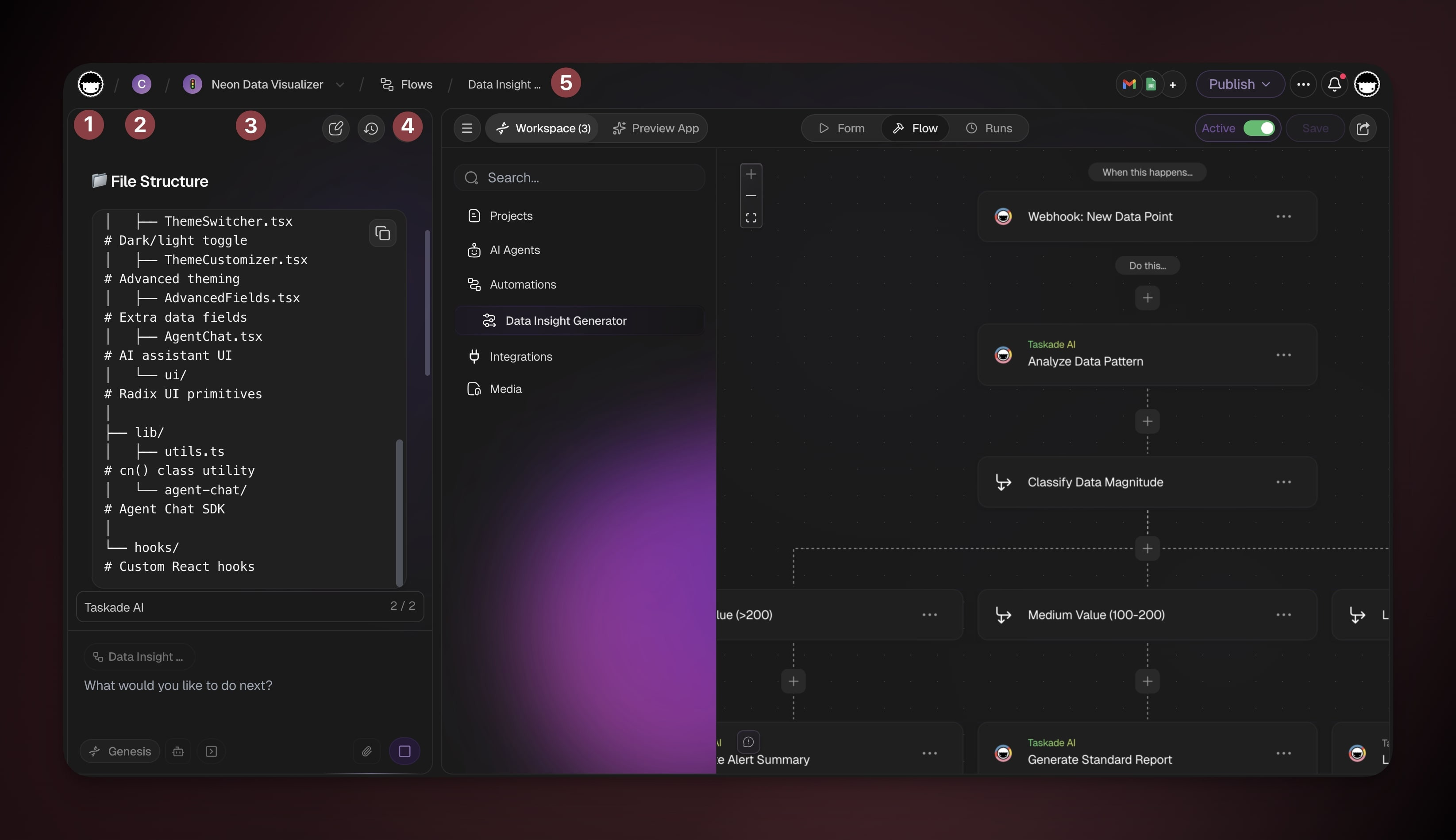
Taskade gives you control over how AI responds across the entire platform: the Taskade Genesis prompt box, the Taskade EVE chat, and AI agent conversations.
Thinking Modes
Each mode is a preset that balances speed, intelligence, and token usage for different types of work. Auto is the default and works well for most tasks.
| Mode | Best For |
|---|---|
| Auto | General use. Taskade picks the best model. |
| Standard | Quick questions and simple generation. |
| Thinking | Complex analysis, coding, and long-context tasks. |
| Reasoning | Advanced problem-solving and creative tasks. |
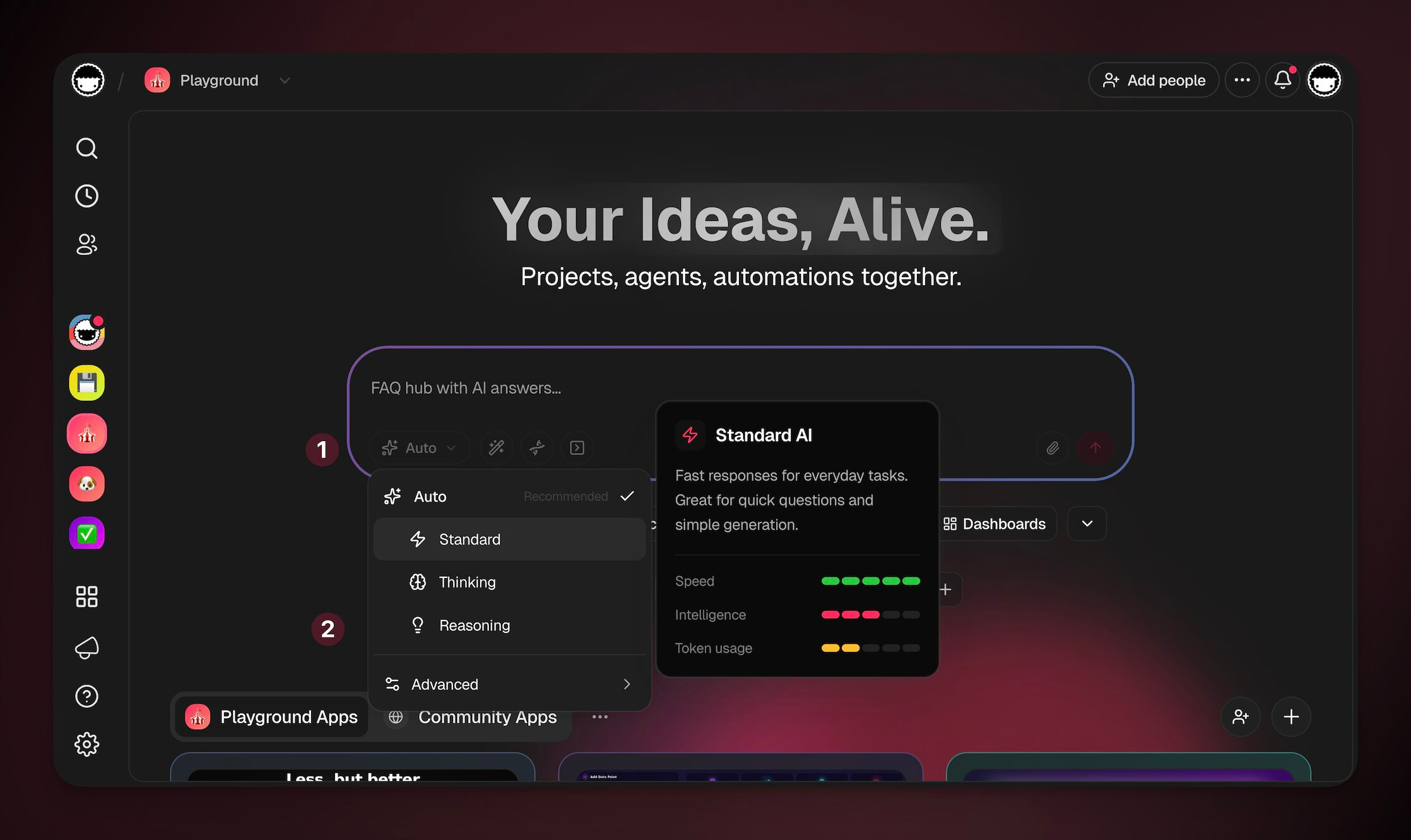
| Advanced | Choose a specific model directly |
Available Models
Taskade Genesis gives you access to 15+ frontier models from OpenAI, Anthropic, and open-weight providers. Each tier strikes a different balance of speed, intelligence, and token usage, so you pick the right one for the task.
Note: Higher intelligence models use more credits per interaction. Read our guide to Taskade AI Usage & Credits to learn more.
| Model tier | Providers | Intelligence | Speed | Token Usage |
|---|---|---|---|---|
| Frontier reasoning | OpenAI · Anthropic · Google | 5/5 | 2/5 | 4/5 |
| Code-focused | OpenAI · Anthropic | 5/5 | 2/5 | 5/5 |
| Balanced | OpenAI · Anthropic · Google | 4/5 | 3/5 | 3/5 |
| Fast | OpenAI · Anthropic · Google | 3/5 | 4/5 | 2/5 |
| Lightweight | OpenAI · Google | 2/5 | 5/5 | 1/5 |
| Open-weight | Open-weight providers | 4/5 | 3/5 | 2/5 |
New Starting Point
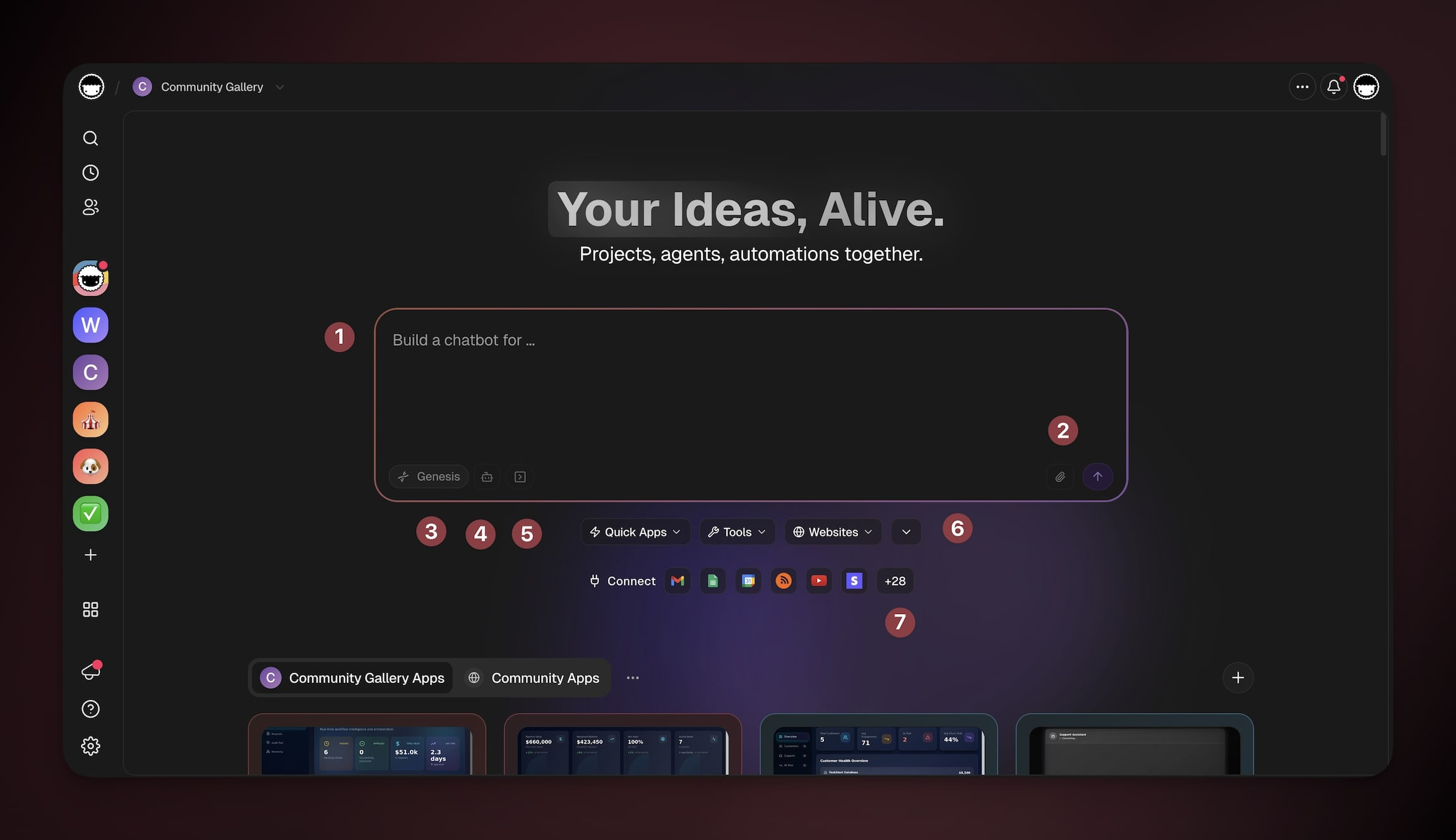
The main workspace landing page features the Taskade Genesis input field in the center. Enter a prompt, and the AI generates a complete app.
The Taskade Genesis interface features a few key sections:
- Prompt Box: Type what you want to build in plain words.
- Context Upload: Add files that help the AI understand what you want to build.
- Mode Selector: Choose build priority (Apps, Projects, Agents, Automations).
- Model Selector: Choose which AI model to use for generating your app.
- Prompt Library: Access pre-built prompt templates for common app types.
- Default Prompts: Quick-start templates for popular app categories.
- Connect: Build your app around one of 100+ integrations.
Workspace Settings
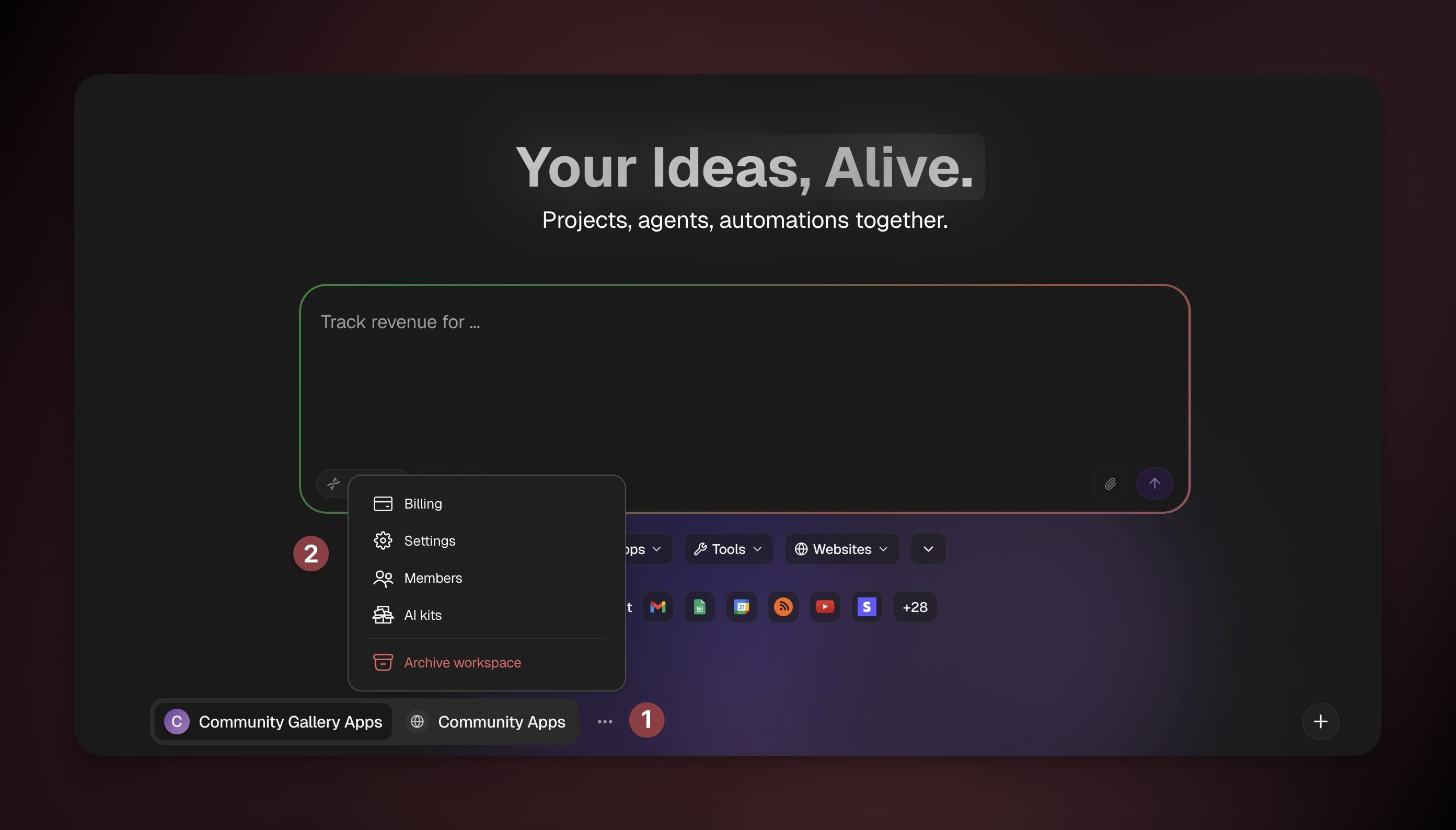
Open Workspace Settings from the three dots ··· next to the workspace name:
At a Glance
Each app in your workspace appears as a tile with key information. The bottom of every app tile summarizes what is inside:
- 📄 Number of projects
- 🤖 Number of AI Agents
- ⚡ Number of automations
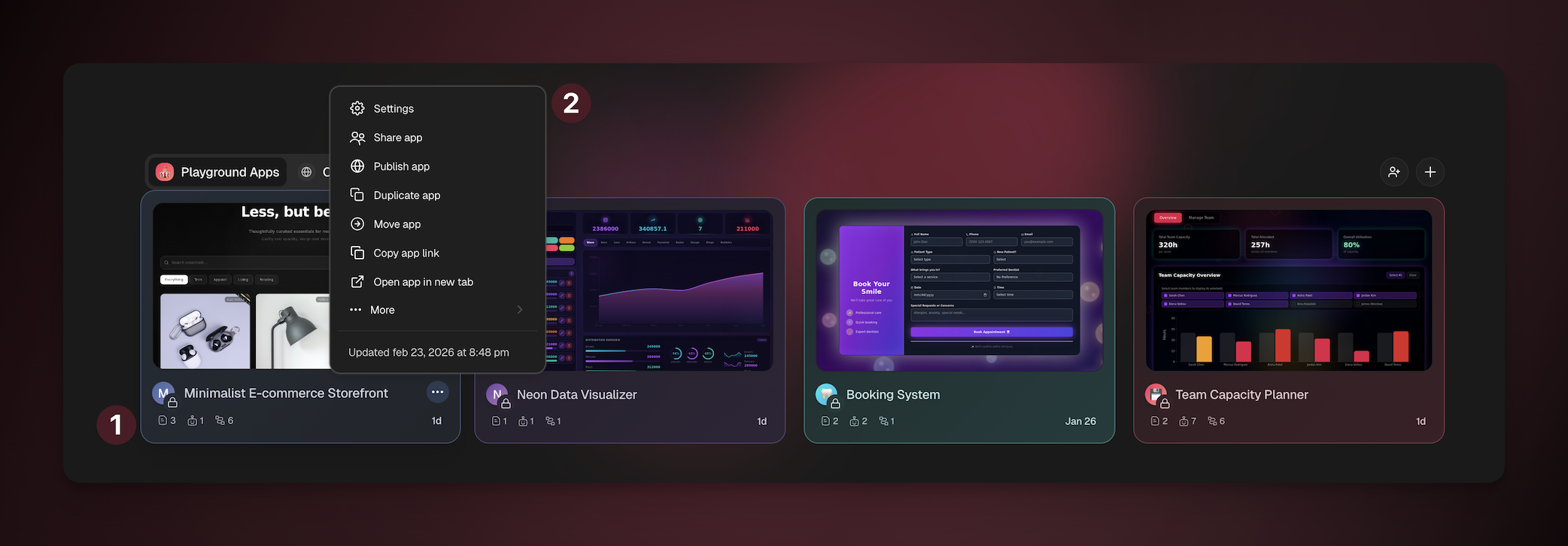
Click the ··· icon on the tile to access quick actions:
- Open Settings
- Share or Publish the app
- Duplicate or Move the app
- Copy the app link
- Open the app in a new tab
Teams & Folders Are “Apps”
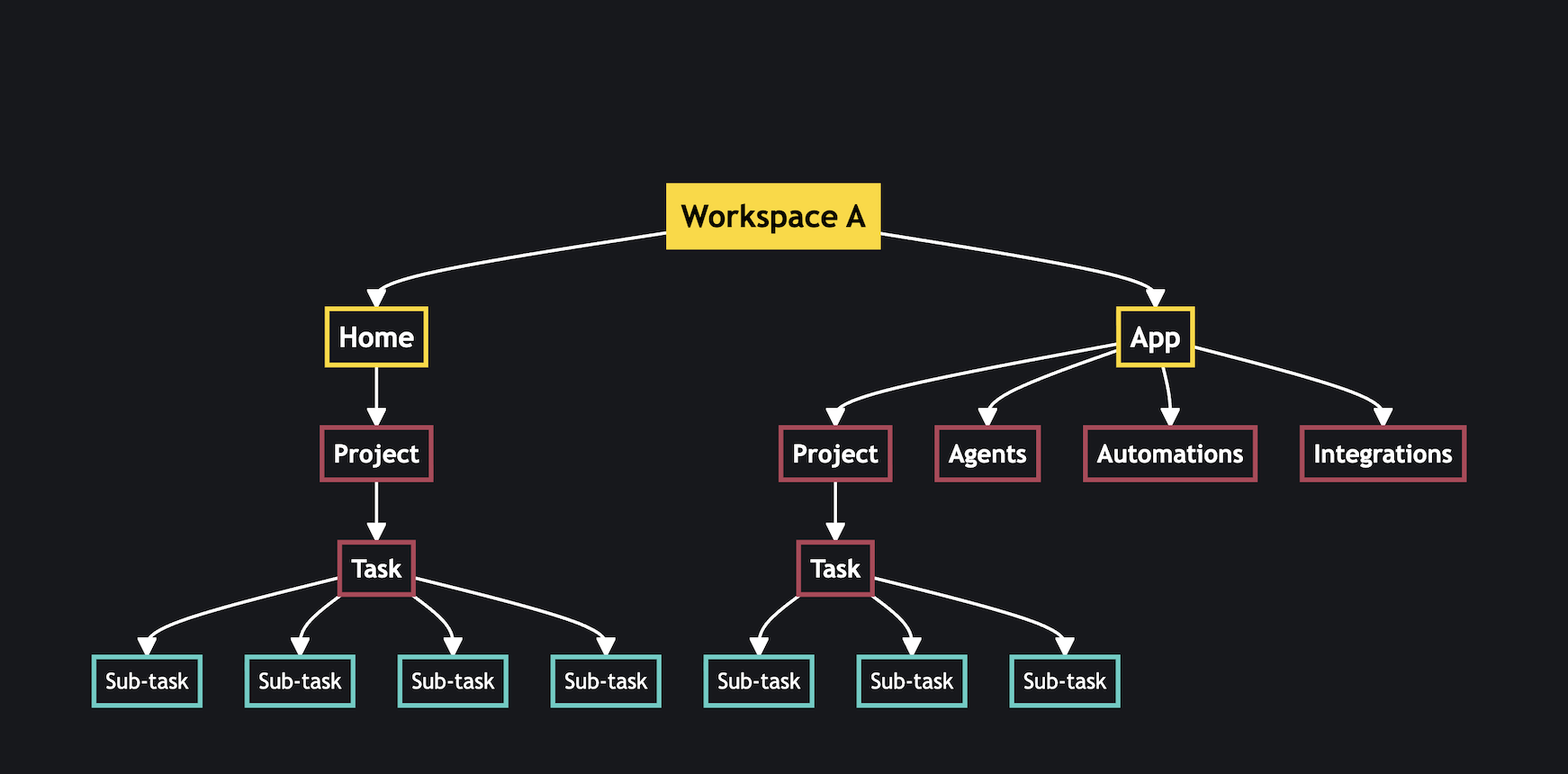
Teams, Folders, and Subspaces are now called Apps. Spaces organize your work the same way as before. One key difference: every app you generate includes a Preview tab that shows the user interface.
💡 Note: Read the Hierarchy Structure article to learn more.
New Workspace Layout
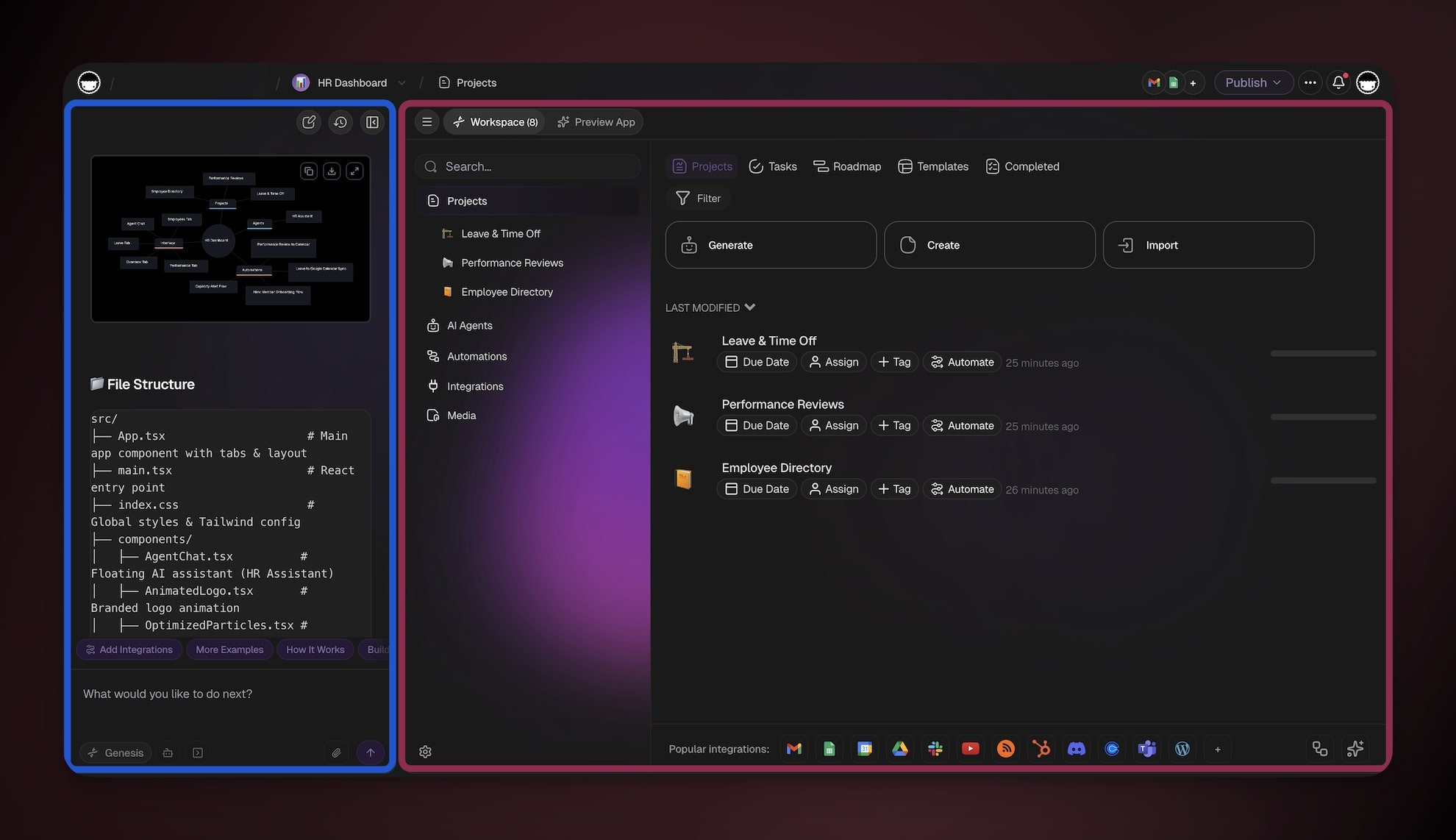
The new layout splits every space into a Taskade EVE panel on the left and your work area on the right. The sections that follow cover each part of that layout, starting with the Home space.
Home Space
The Home space of your Workspace is now divided into two parts:
The left panel features the new Taskade EVE meta-agent.
The right panel is where you interact with your:
App Preview
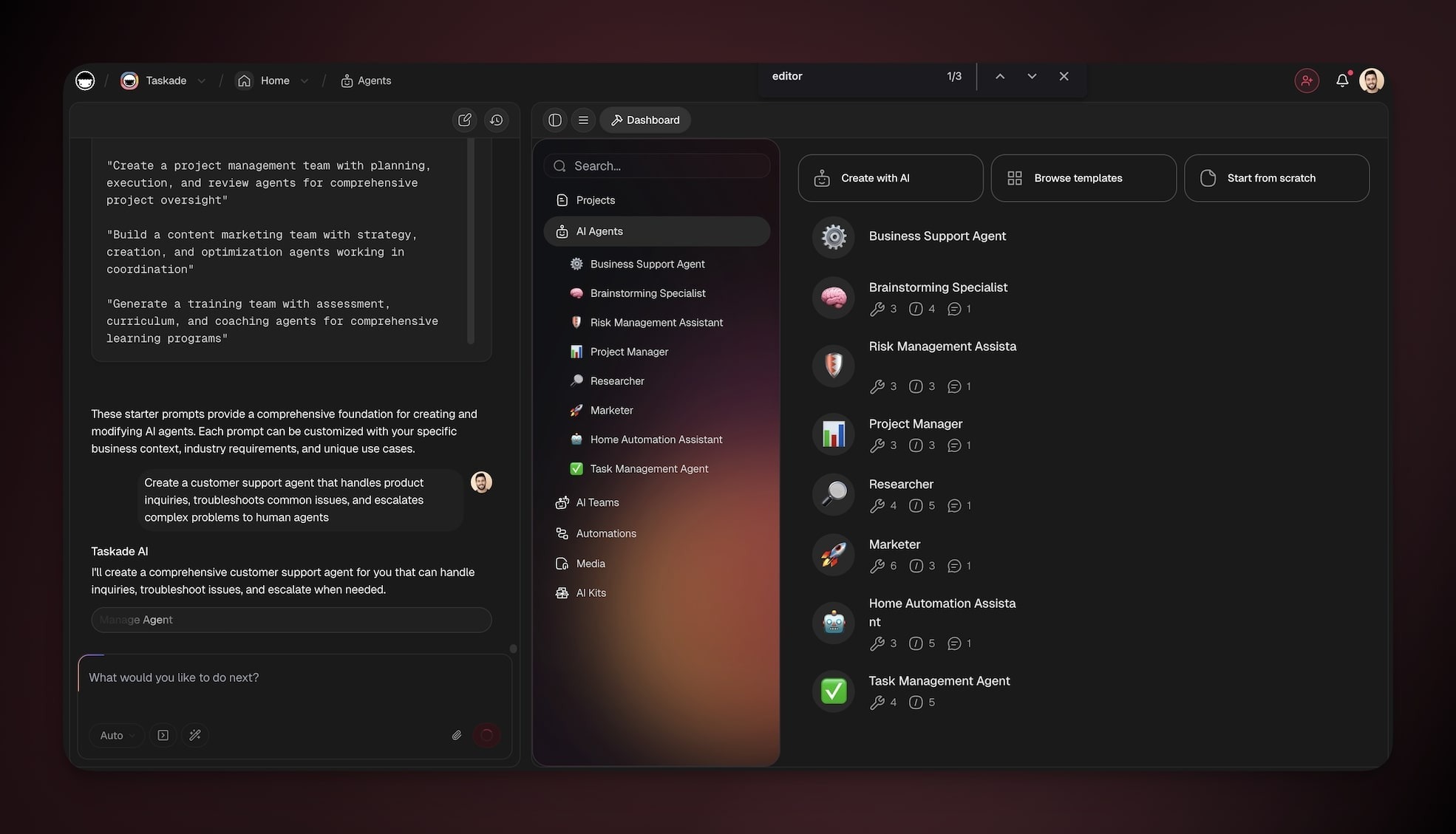
Taskade EVE (Assistant Agent)
Taskade EVE (Entity of Vision & Execution) is Taskade's central AI system, the living consciousness that connects Memory, Intelligence, and Execution into a unified whole.
With Taskade EVE you can control every area of your Taskade workspace:
- 🧬 Taskade Genesis: Build and edit complete apps in minutes.
- 📋 Projects: Create, organize, and manage your work.
- 🤖 AI Agents: Configure custom assistants for your business.
- ⚡ Automations: Design workflows that connect tools and services.
💡 Note: Read Taskade EVE to learn more.
Taskade EVE Chat Modes
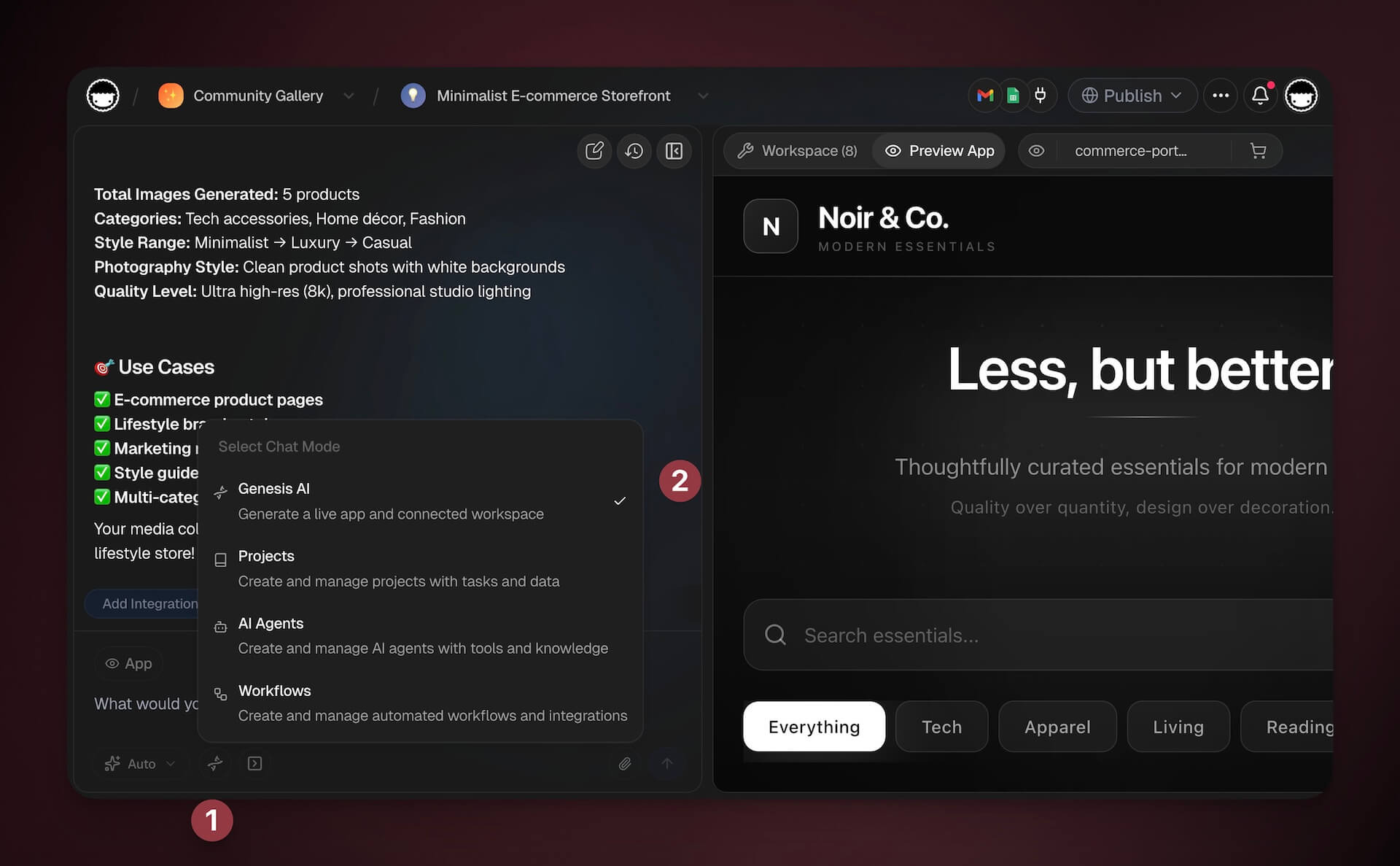
Taskade EVE runs in five chat modes. Auto is the default and covers everything. The other four narrow the work to one layer.
How to switch between chat modes:
- Open the Taskade EVE chat in the left sidebar.
- Click the mode button in the row under the prompt box.
- Select the mode that matches your current task.
| Mode | Best For | Example Prompts |
|---|---|---|
| Auto (default) | Building, editing, and running everything from one prompt | "Integrate a customer feedback form with sentiment analysis." |
| App | Editing the pages, layouts, and interface of your Taskade Genesis app | "Move the summary card to the top of the dashboard." |
| Projects | Task management, content creation, document organization | "Create a marketing campaign project with weekly milestones." |
| AI Agents | Configuring custom assistants with specific knowledge and tools | "Create a support agent trained on our product documentation." |
| Workflows | Automating processes across tools and services | "When a form is submitted, send a notification to Slack." |
App mode appears once you are inside a workspace, because there is no app to focus on before that. Read Chat modes for what each mode edits, and Taskade EVE Slash Commands to drive a mode with /build, /plan, or /automate.
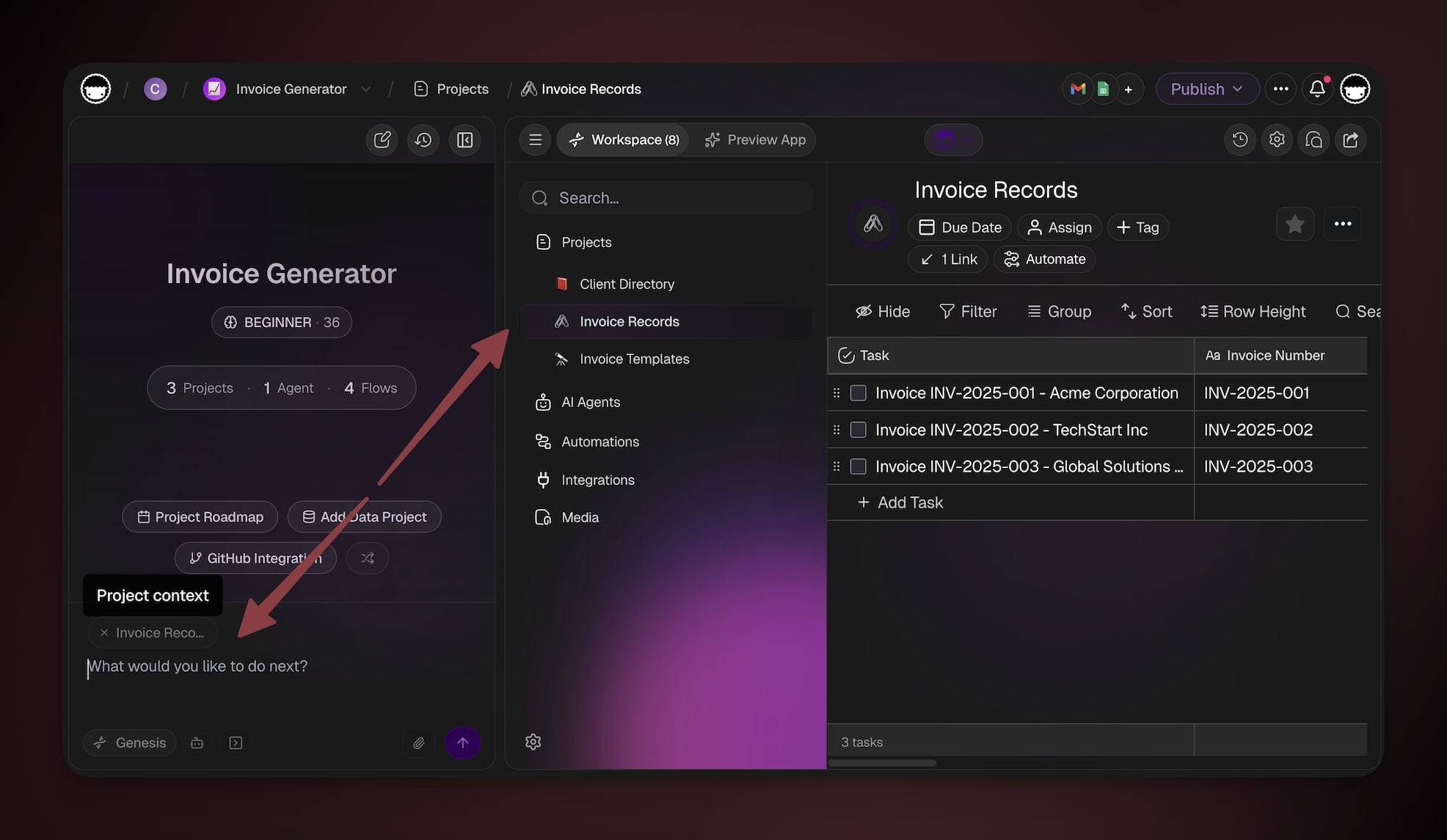
Context Pills
A context pill in the bottom-left corner of the chat shows the context of Taskade EVE. The pill tells you what Taskade EVE can see.
The AI agent works differently in each area:
- Projects: The Taskade EVE chat works as before. It can help you generate content, answer project-related questions, organize tasks, and plan work.
- Automations: Taskade EVE can view and edit your automations, and it can help debug simple errors when you ask.
- Preview Tab: In the App preview, Taskade EVE can modify your app and connect automations and projects to it. Ask for the change.
Element Selector
With the Element Selector you can edit any component in your app by clicking it. Point at any button, text block, form field, or section, then describe the change you want.
Note: The Element Selector works with natural language. You describe what you want in plain words. For example: "Make this button bigger and change the color to blue" or "Move this form to the left side."
How to choose UI elements:
- Click the Element Selector icon in the top-right corner of the preview.
- Click any element you want to modify (buttons, headers, forms, images, and more).
- Describe the change you want in the chat.
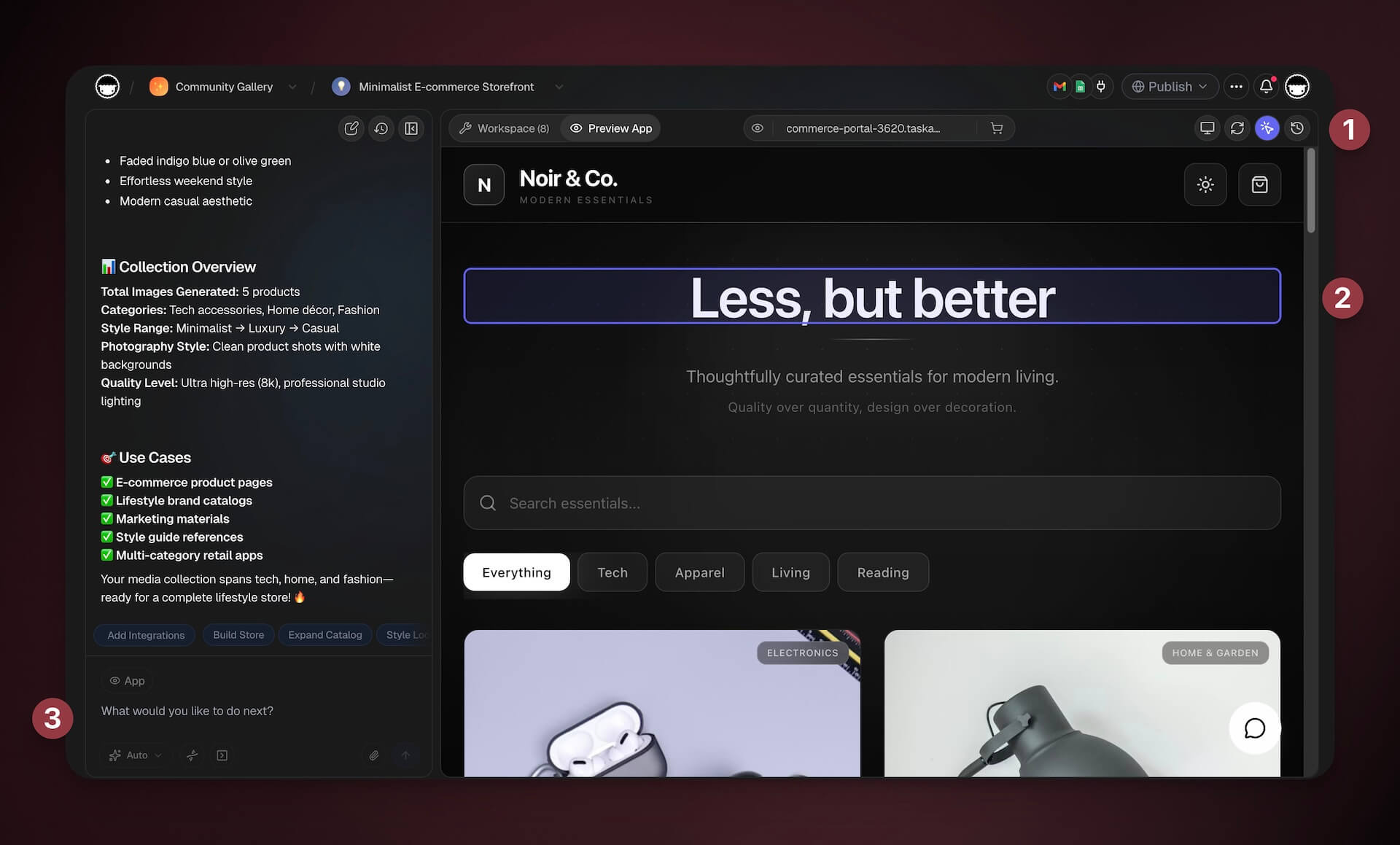
What You Can Change:
- Styling: Colors, fonts, sizes, spacing, borders
- Content: Text, labels, button copy, descriptions
- Layout: Position, alignment, visibility
- Behavior: Actions, links, form validations
📚 Learn More
- Taskade Genesis FAQ: Common questions about Taskade Genesis apps, pricing, and features