
TL;DR: Gantt view shows tasks on a timeline with dependencies. You spot blockers and critical paths across multi-week projects. Gantt shipped in v5.15 (Feb 2024) and sits in the More Views menu with the other project views. Drag bars to reschedule. Every edit syncs to Calendar instantly. The timeline is the horizontal scrolling component inside this view.
How your tasks and dates turn into bars on the Gantt timeline:
Overview
See every task as a bar on a shared timeline, so you can plan a multi-week project, spot blockers, and keep deadlines honest. Gantt Chart is one of the project views. Find it under More Views in the project toolbar, on a paid plan. The timeline is the horizontal scrolling component inside it, not a separate view.
What Is the Gantt Chart View?
The Gantt Chart shows tasks and projects on a timeline. You and your team see deadlines, task durations, and the links between tasks. Use this view for project planning and tracking.
You can use the Gantt Chart view for:
- Project scheduling and timeline management
- Allocating resources and workload balancing.
- Tracking project milestones and deadlines.
Note: Visit Project Views to learn about other workflows in Taskade.
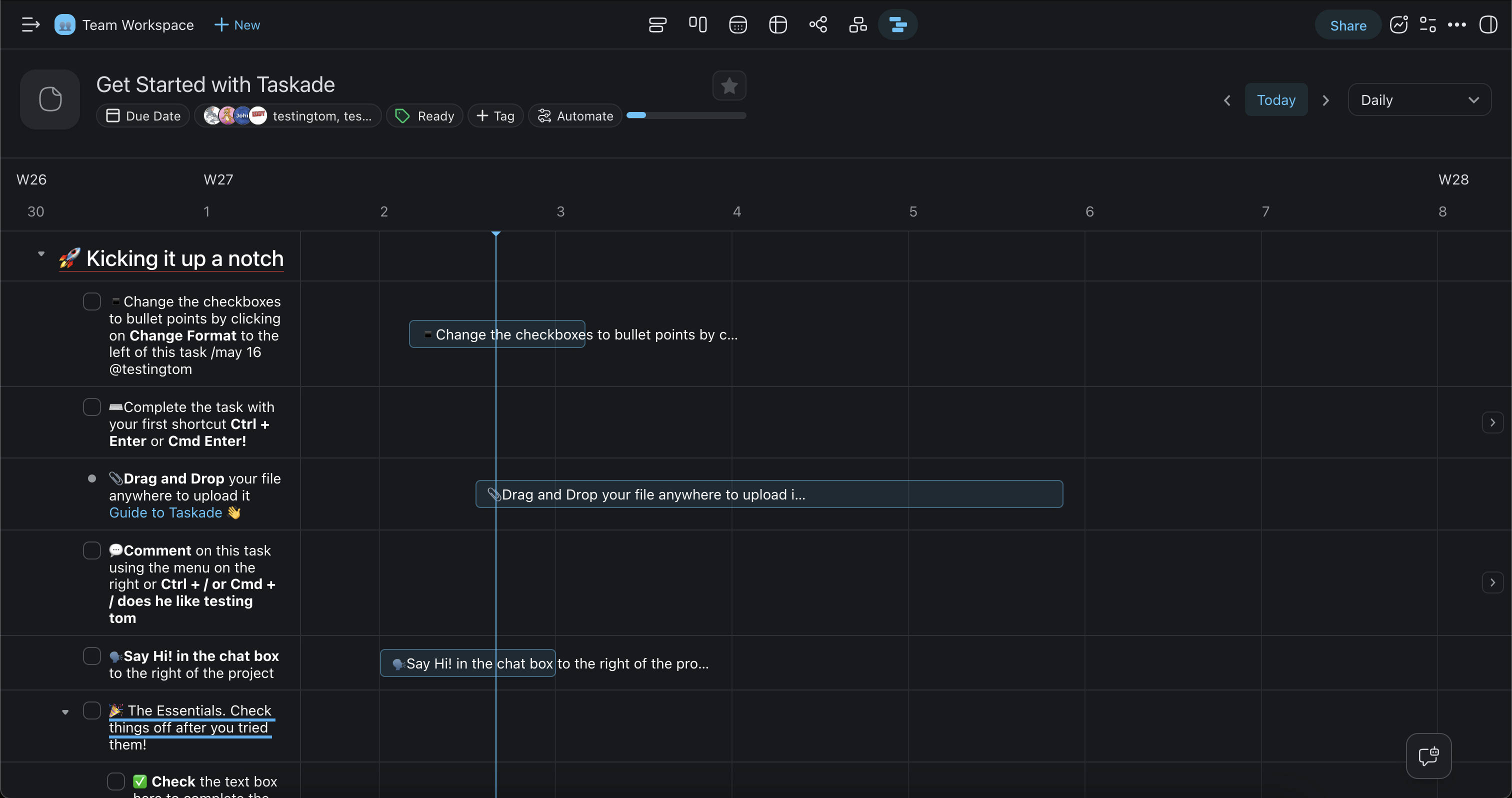
Enable the Gantt Chart View
Gantt Chart needs a paid plan.
- Click More Views in the project toolbar and pick Gantt Chart.
- Double-click the Gantt Chart icon to set the view as default.

💡 Note: A change of project view does not affect project contents.
How to Navigate the Gantt Chart
The sections below cover the controls that make the Gantt Chart more effective.
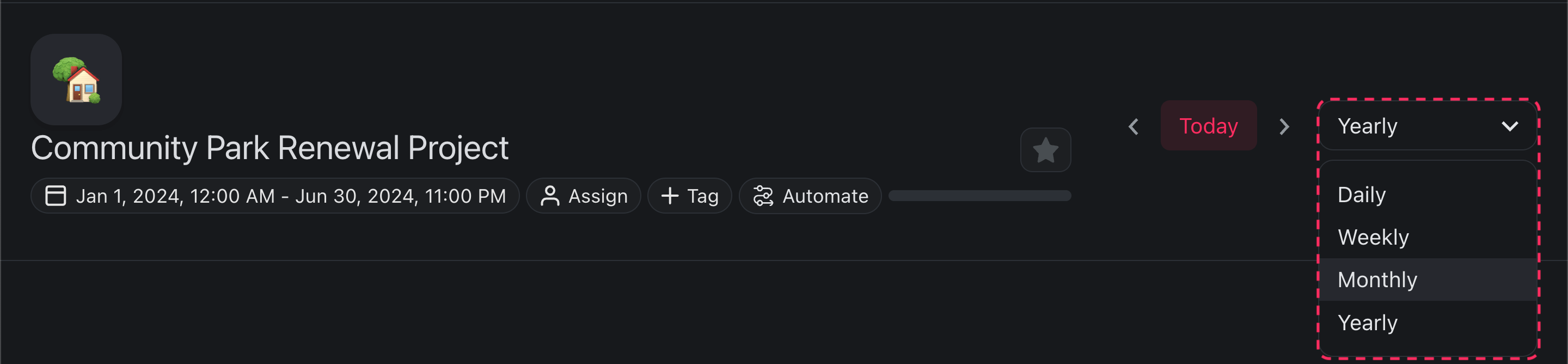
Time Scale Selector: Located in the top-right corner of the project, the selector lets you switch views between daily, weekly, monthly, and yearly timelines.
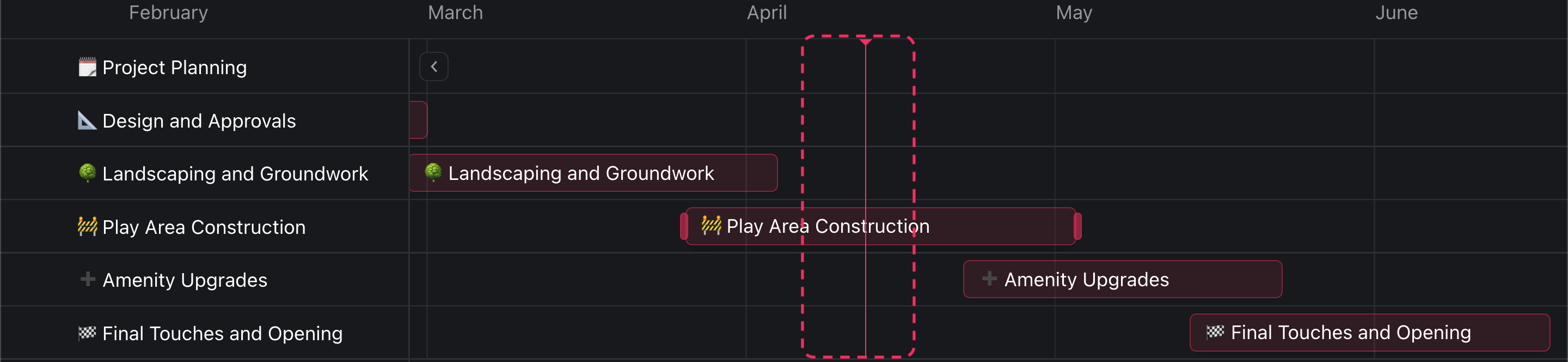
Today Marker: The vertical line on the chart signifies the current date. You can use the marker to assess how aligned the project is with the planned schedule.
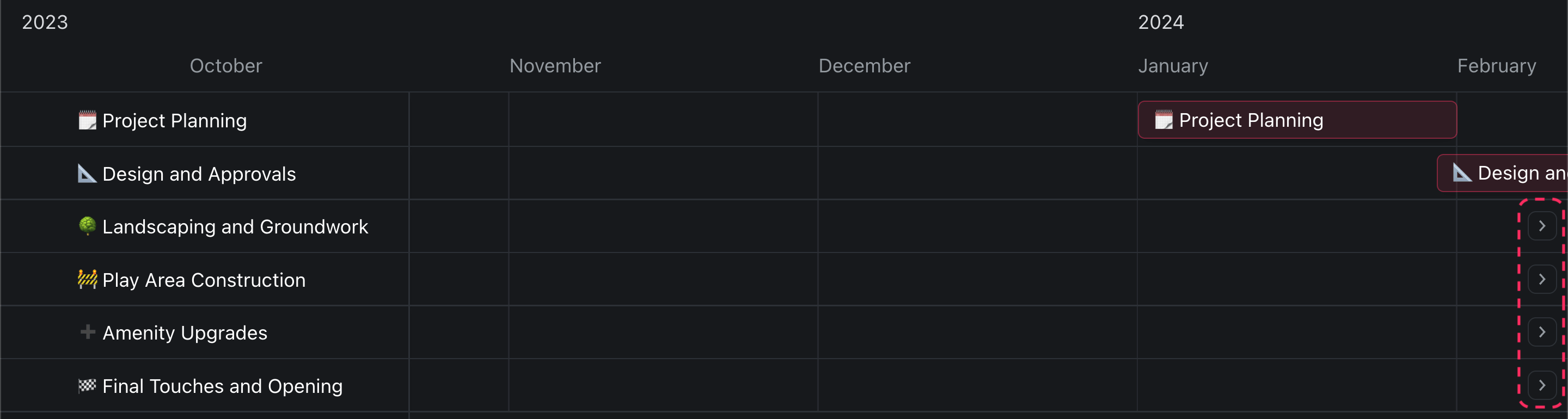
Seeker Arrows: The arrows on the edges of your timeline allow you to quickly jump to the tasks on the timeline. Use them to navigate complex, lengthy projects.
Timeline Scrolling: Swipe with two fingers on your trackpad left or right or click and drag the timeline with the mouse cursor to scroll the timeline.
Add and Edit Dates
Set task duration: Click the empty space on the timeline at the same height level as the corresponding task on the left to set the duration.

Adjust duration: Hover the mouse cursor over the edges of a task in the timeline. When you see the cursor change, click and drag the edges to adjust duration.

Reposition tasks on the timeline: Click and hold at the center of the task. Once selected, drag the task left or right along the timeline.

Pinch to Zoom In / Out
Pinch to zoom in on specific tasks or to zoom out to the whole project timeline. Here is how it works:
- ➕ To Zoom In: Place two fingers on the touchscreen or trackpad over the Gantt chart and spread them apart. This will bring you closer to the details.
- ➖ To Zoom Out: Place two fingers on the touchscreen or trackpad and pinch them together. This will give you a wider view of your project.
Frequently Asked Questions
What is the Gantt Chart view used for?
The Gantt Chart view visualizes tasks on a timeline so you can plan schedules, balance workload, and track milestones and deadlines across multi-week projects. It is one of the project views in Taskade.
Is Timeline a separate view from Gantt?
No. The timeline is the horizontal scrolling component inside the Gantt Chart view, not a standalone view. Taskade has multiple project views total: List, Board, Table, Mind Map, Docs (Beta), Gantt Chart, Calendar, Actionsheet, and Org Chart.
How do I reschedule a task on the Gantt chart?
Click and hold the center of a task bar, then drag it left or right along the timeline. Every edit syncs to the Calendar view instantly, so your dates stay consistent across views.
Can I zoom in to focus on specific tasks?
Yes. Place two fingers on your trackpad or touchscreen and spread them apart to zoom in, or pinch together to zoom out. You can also use the Time Scale Selector to switch between daily, weekly, monthly, and yearly views.
Does switching to Gantt change my project contents?
No. Changing project views only changes how your tasks are displayed, never the contents. You can switch freely between all views, and your tasks and due dates stay the same.
Which plans include the Gantt Chart view?
The Gantt Chart view needs a paid plan. See the pricing page for current details. Free covers List, Board, Table, Mind Map, Docs (Beta), and Calendar, so you can plan and track before you upgrade.