
TL;DR: Taskade Autopilot runs your workspace while you sleep. Describe an outcome once, and Taskade builds the connected projects, agents, and automations. Scheduled agents, automations, and scheduled templates create tasks, send updates, and move things through your pipeline without a human click. Pair with AI Agents for hands-off execution.
Overview
Taskade Autopilot builds and runs a workspace for you. Describe an outcome once. Taskade generates the connected projects, AI agents, and automations to reach it, then keeps them running. You skip hours of manual setup. The routine clicks happen on their own, and you stay in control.
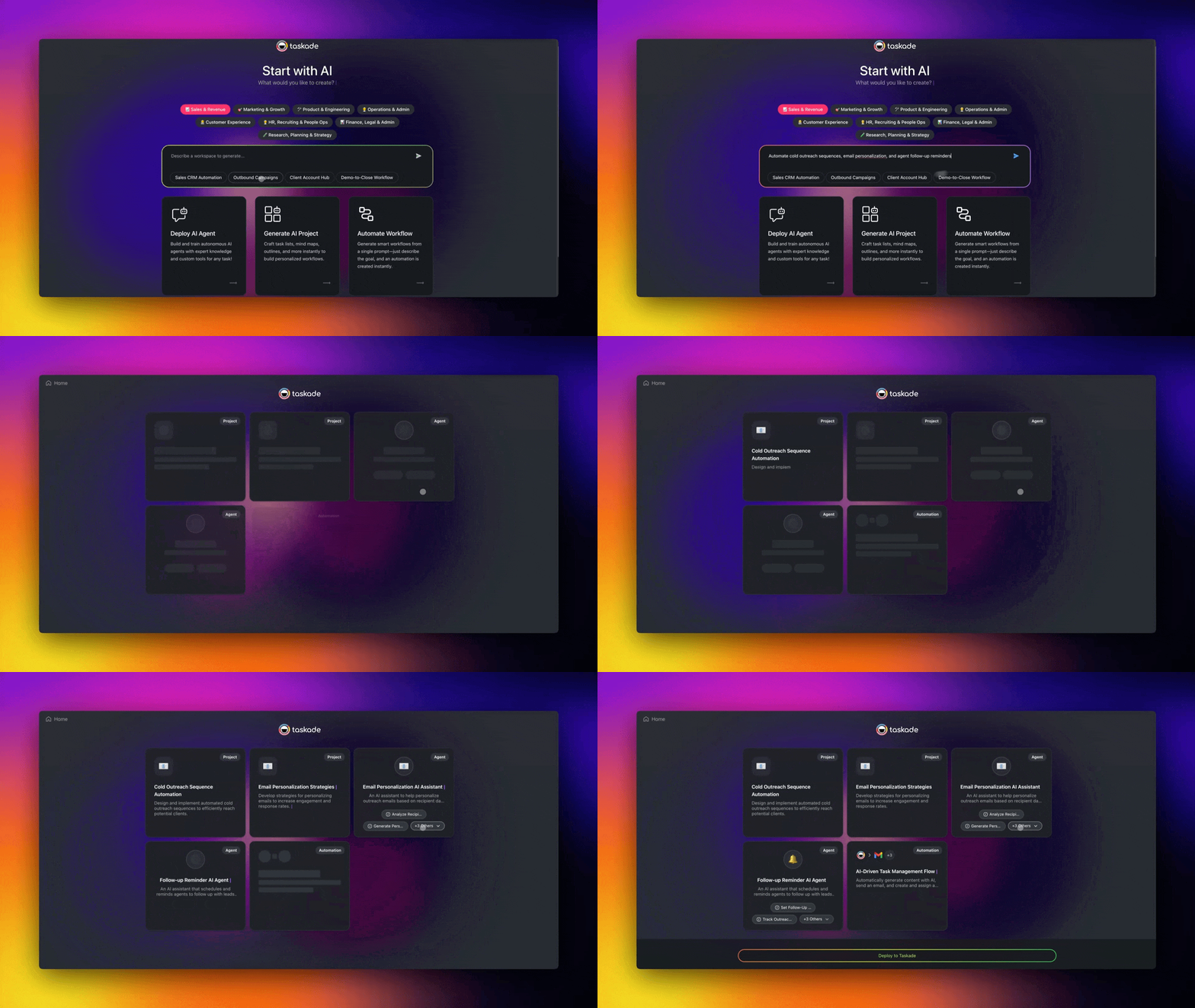
What You Can Create
Taskade Autopilot creates entire operational workspaces based on your description:
- 📊 Multiple connected projects with task structures and timelines
- 🤖 Specialized AI Agents trained for specific roles in your workspace
- ⚡ Automations that connect projects, agents, and external tools
When to Use Autopilot
Use Autopilot when you need a large, interconnected workspace and do not want to build it by hand.
The Autopilot feature is perfect when:
- ✅ You start a new team and need a complete operational setup with AI-powered project structures, automations, and connected systems.
- ✅ Your current workflows are scattered across multiple disconnected tools and knowledge sources that do not communicate with each other.
- ✅ You want a new workspace running immediately for urgent projects or requirements, with full support for AI agents and smart automations.
- ✅ You want to replace manual, repetitive processes with AI-driven automation that can handle complex decision-making and adaptive workflows.
Use the Autopilot
The Autopilot works like any other Taskade AI feature. Describe what you want to create, and Taskade generates a full workspace around that goal.
Click the ➕ plus button in the left sidebar → ✨ Create with AI.
You can also visit taskade.com/create directly.
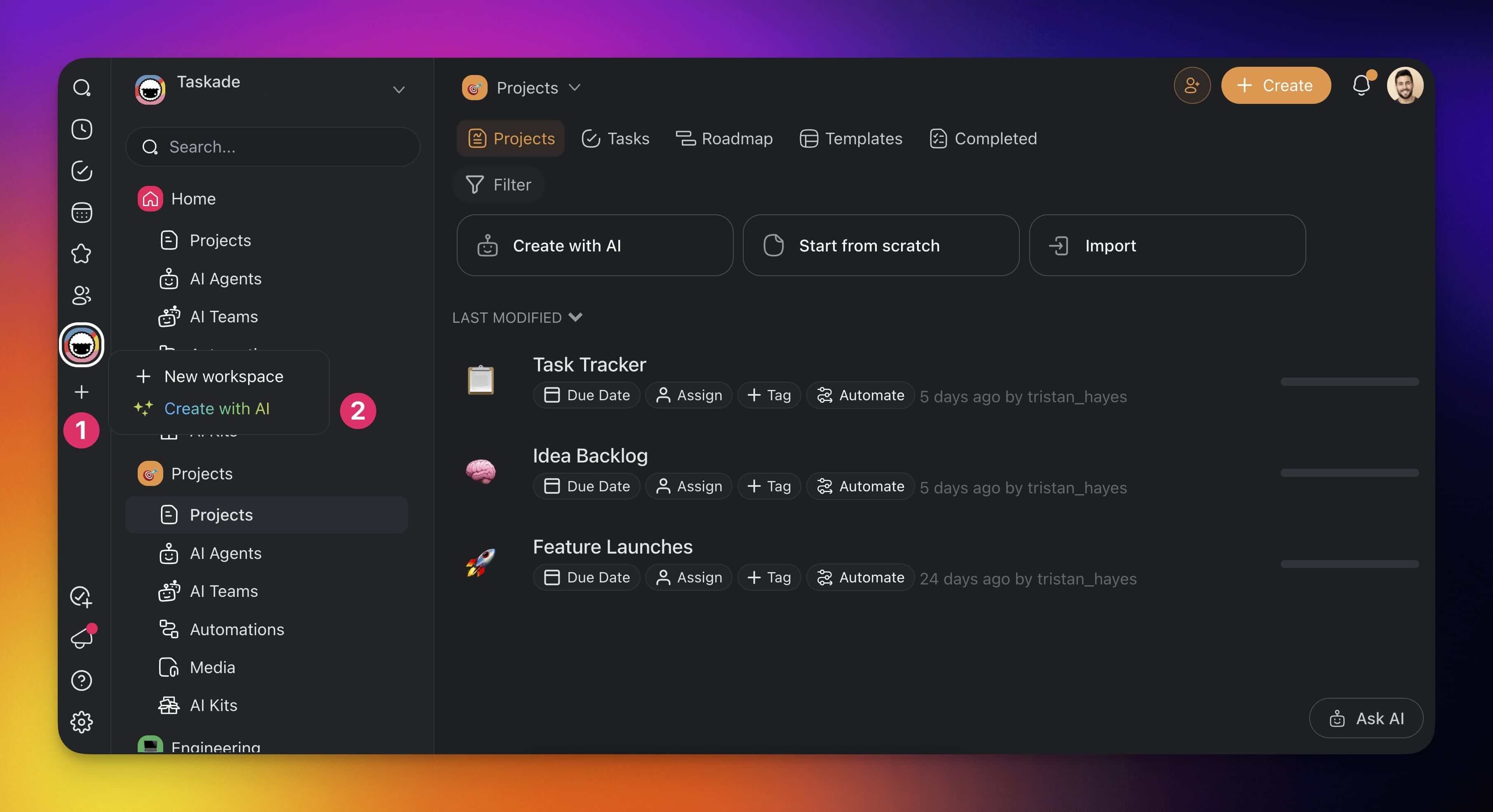
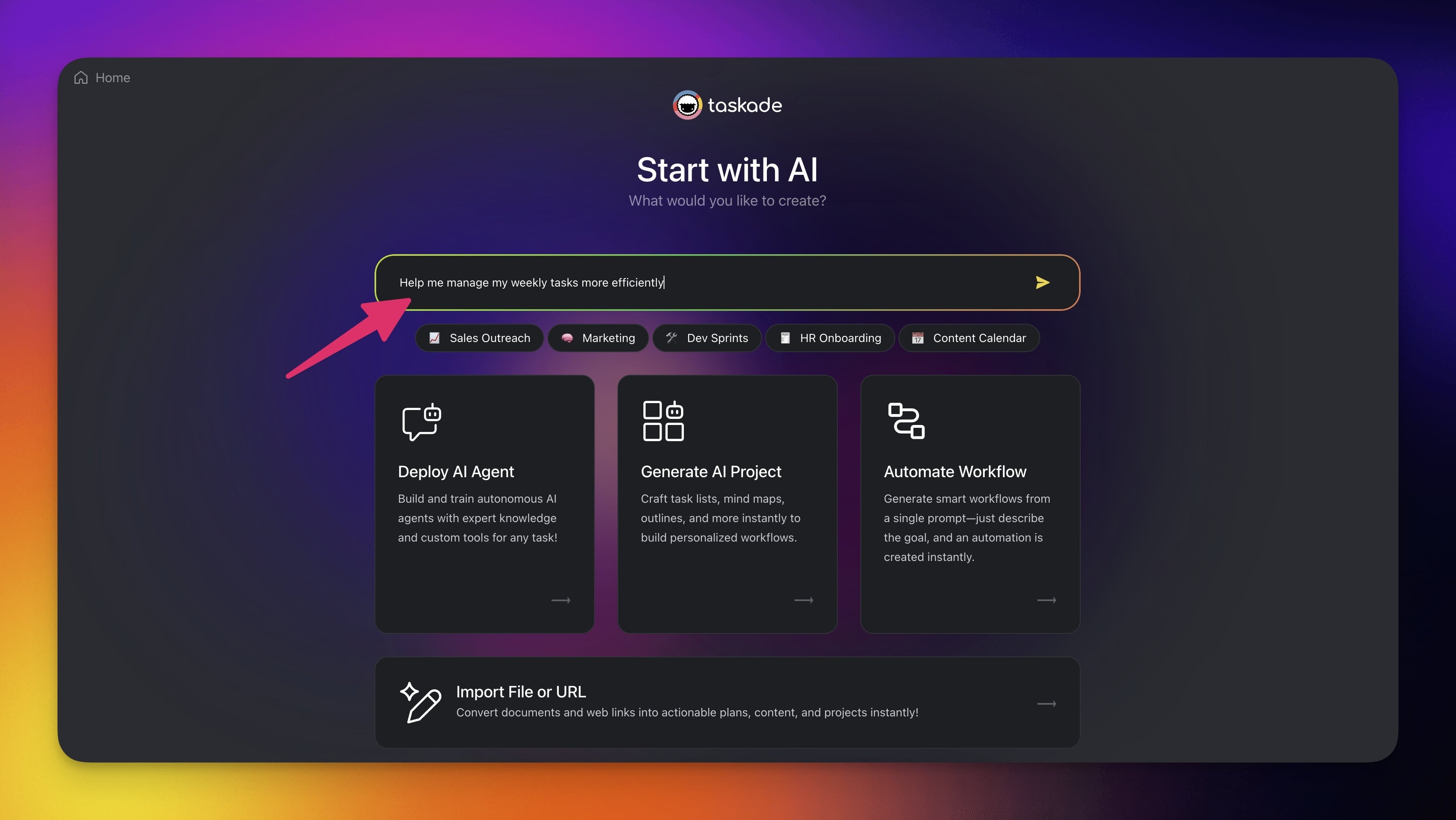
- Type a description of the workspace in the prompt bar at the top.
- Click the arrow button or press Enter to generate your workspace.
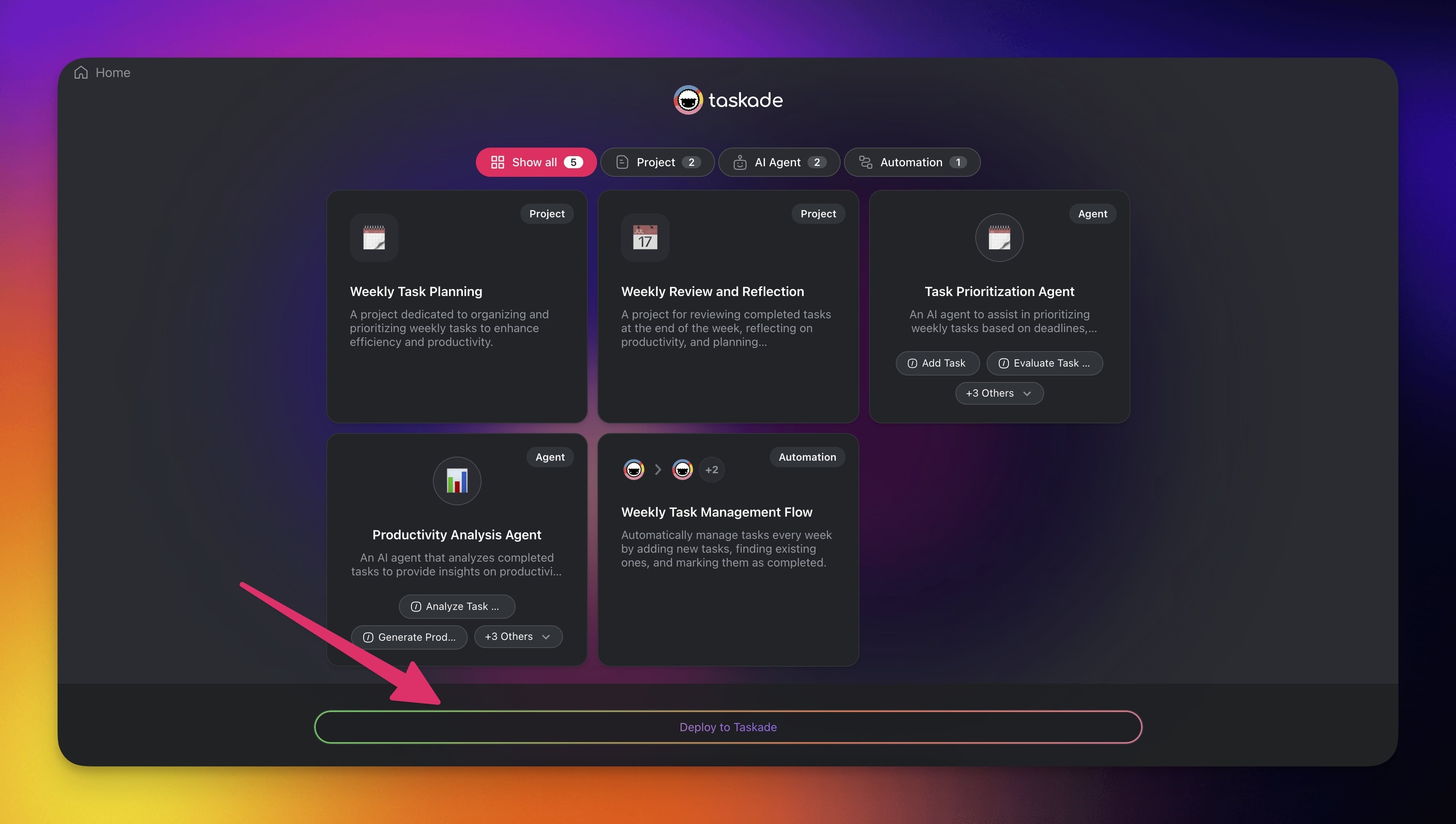
Taskade builds a fully structured workspace with:
You can also select from suggested templates:
Sales Outreach
Marketing
Dev Sprints
HR Onboarding
Content Calendar
and more...
Wait for the Autopilot to finish generating the workspace.
Click Deploy to Taskade to add the workspace to your account.
Expand Your Workspace
After Taskade Autopilot generates your initial workspace, you can develop and customize it with these built-in tools.
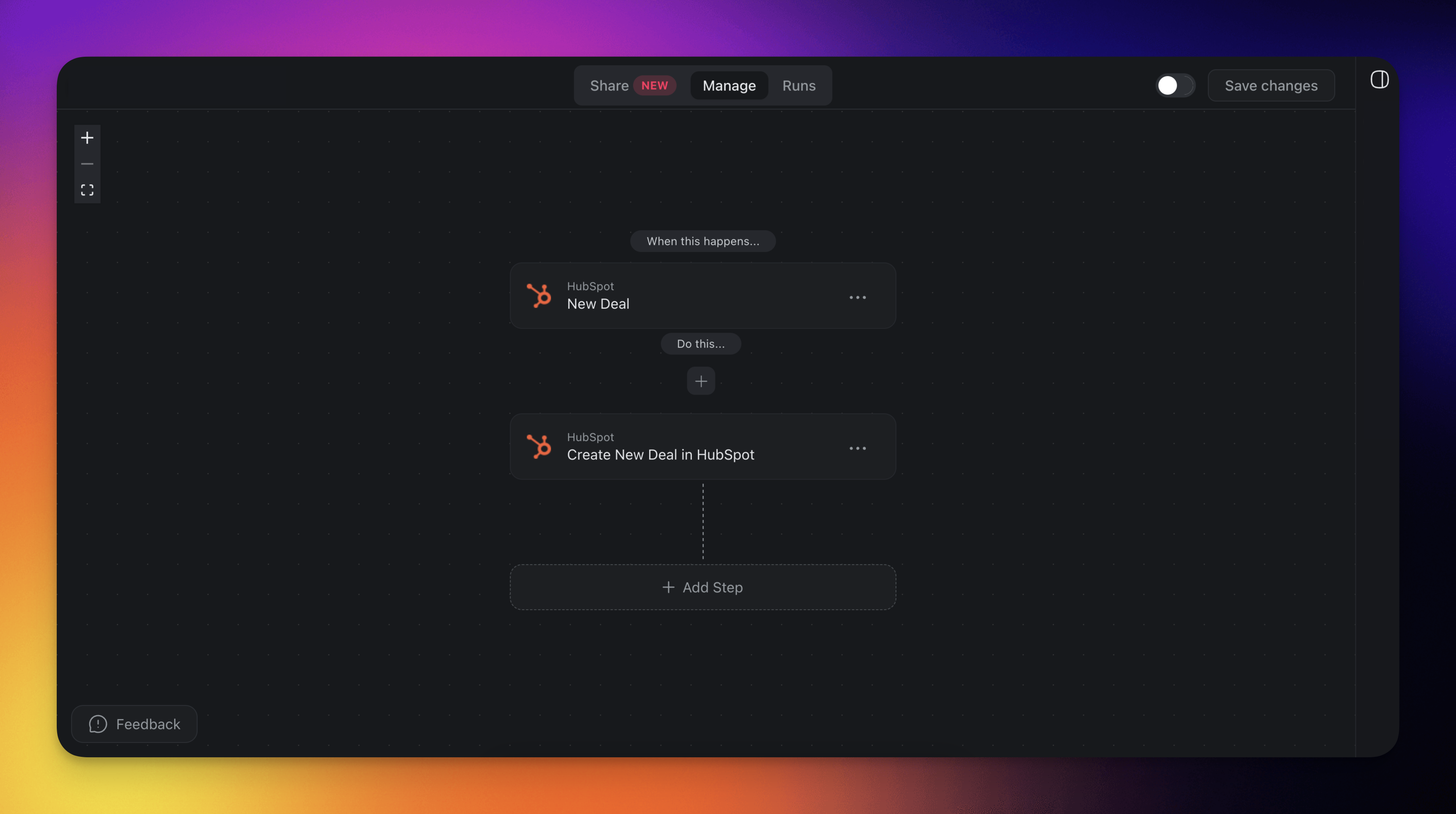
Generate New Automations
Put your workspace on autopilot by setting up custom automation flows.
Note: Visit AI Automation Generator to learn more.
- Go to the Automations tab in your workspace/folder.
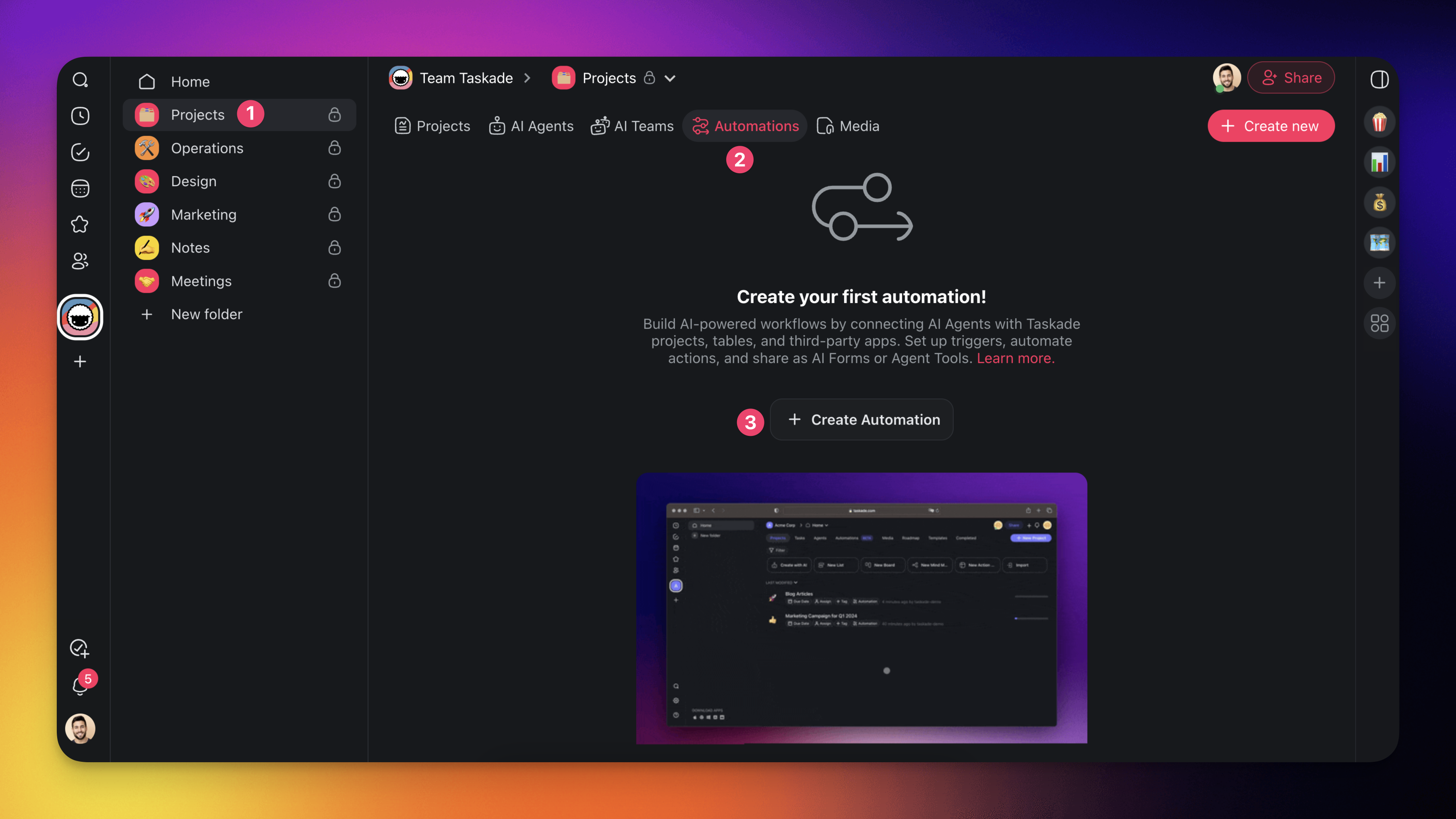
- Click ➕ Add automation ➡ Generate With AI.
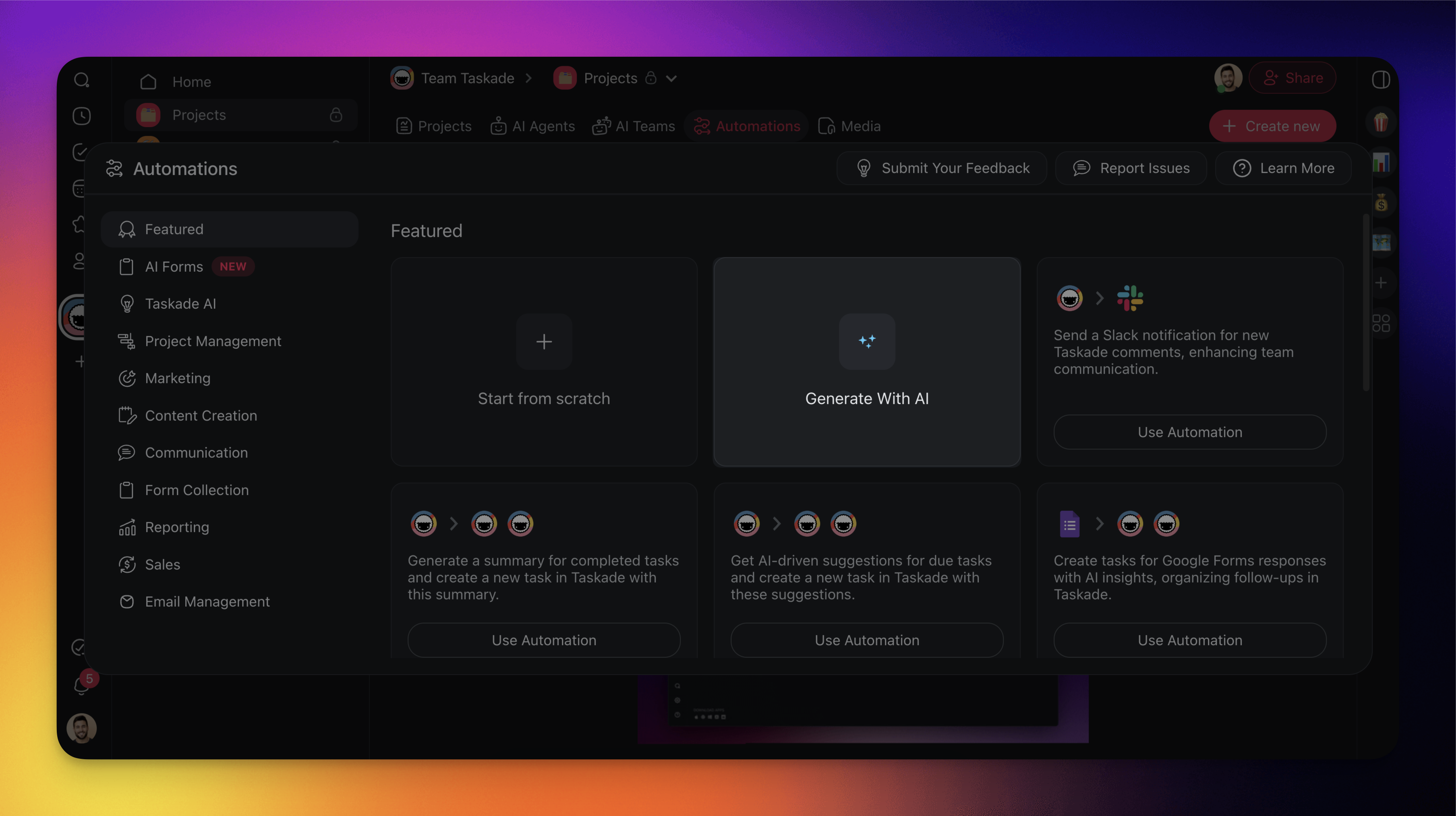
- Describe what you want the automation to achieve.
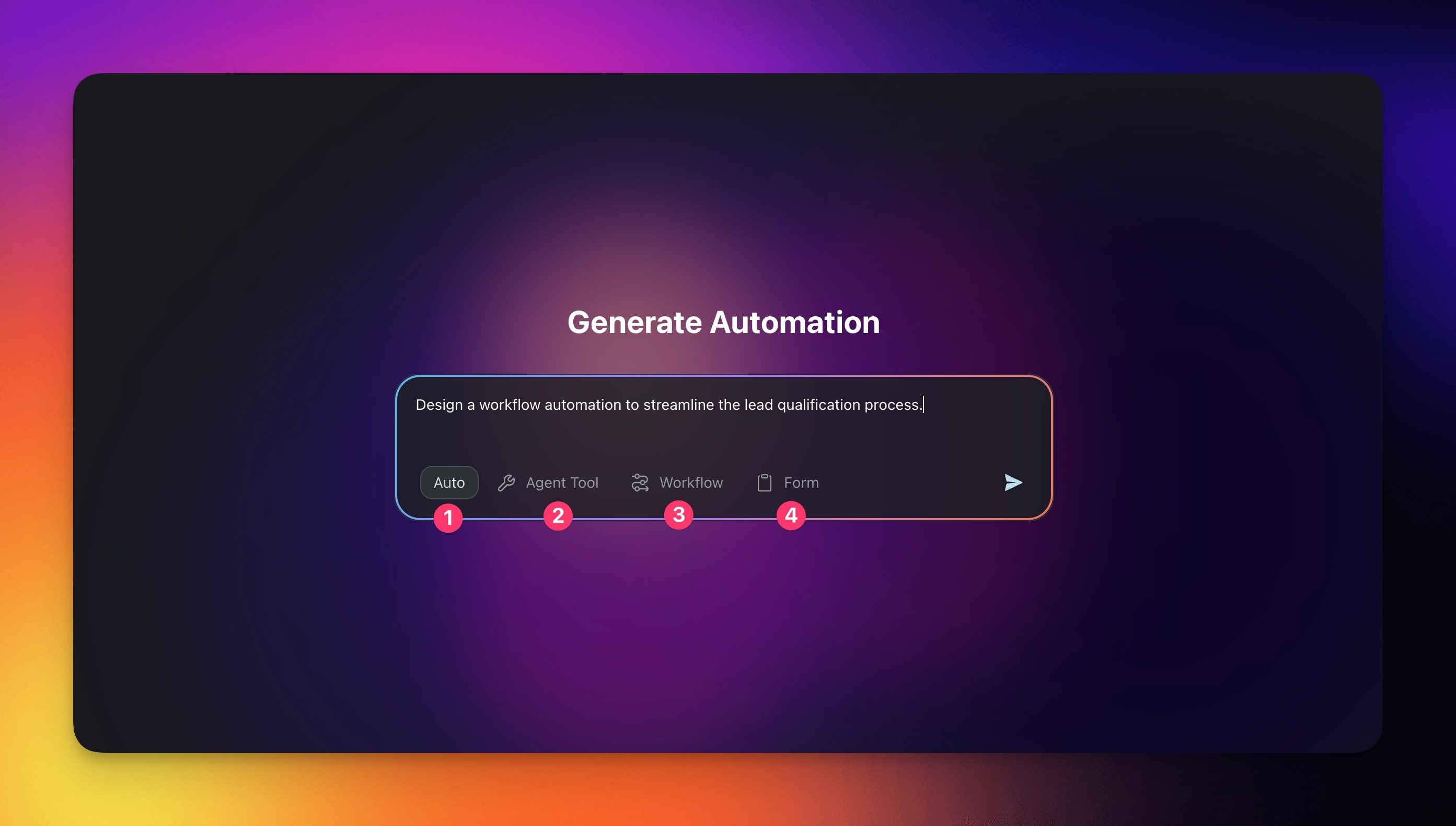
Choose one of the four generator modes (check the next section for details):
Auto (Default): Selects the optimal mode for your task and goal
Agent Tool Mode: Generates intelligent workflows as an agent tool
Workflow Mode: Sets up standard project automations and flows
Form Mode: Generates smart forms that trigger actions on submission
Press Enter and wait for the result.
When the automation is ready, click Create Automation to create it.
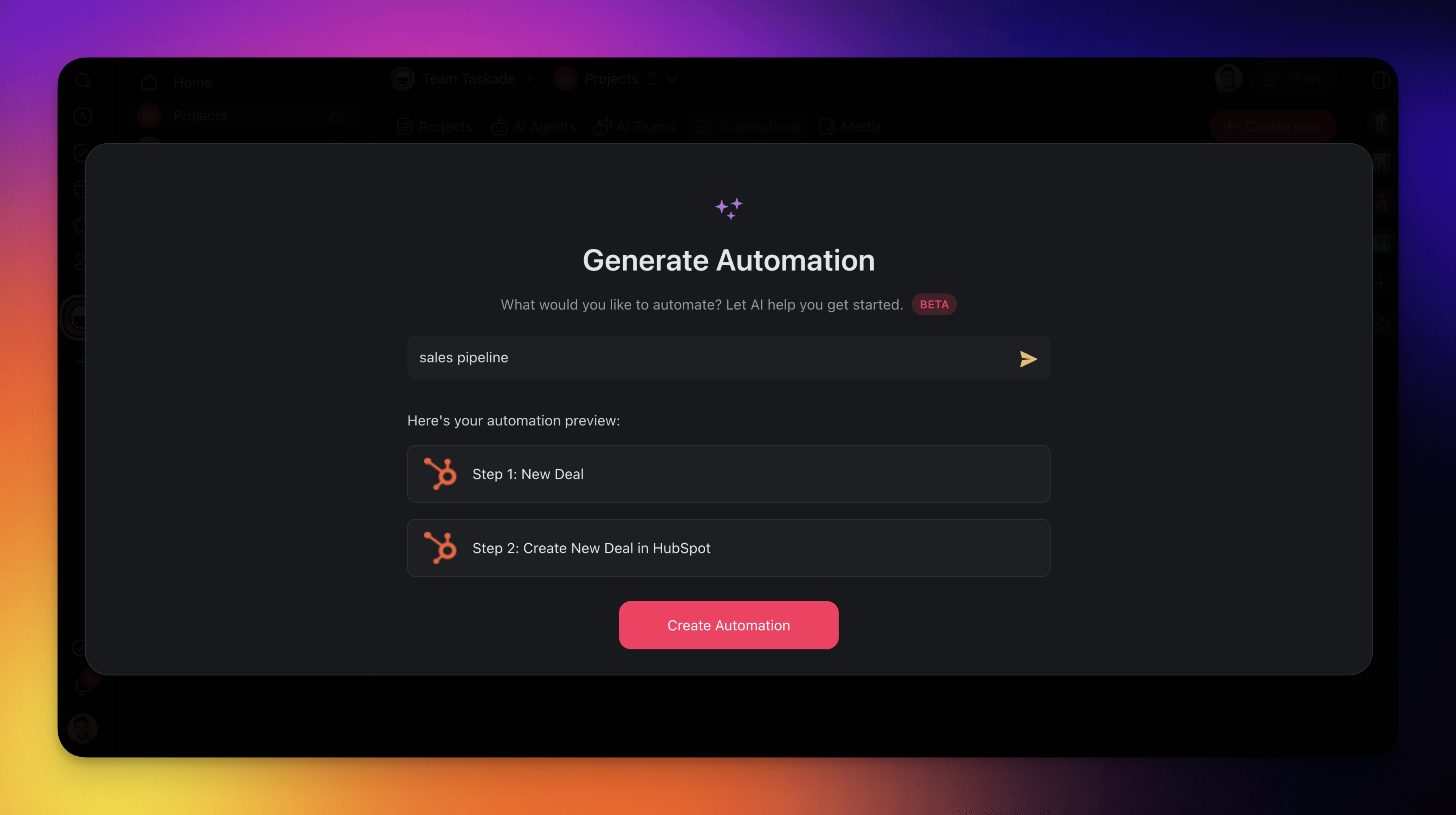
- Customize and enable the automation.
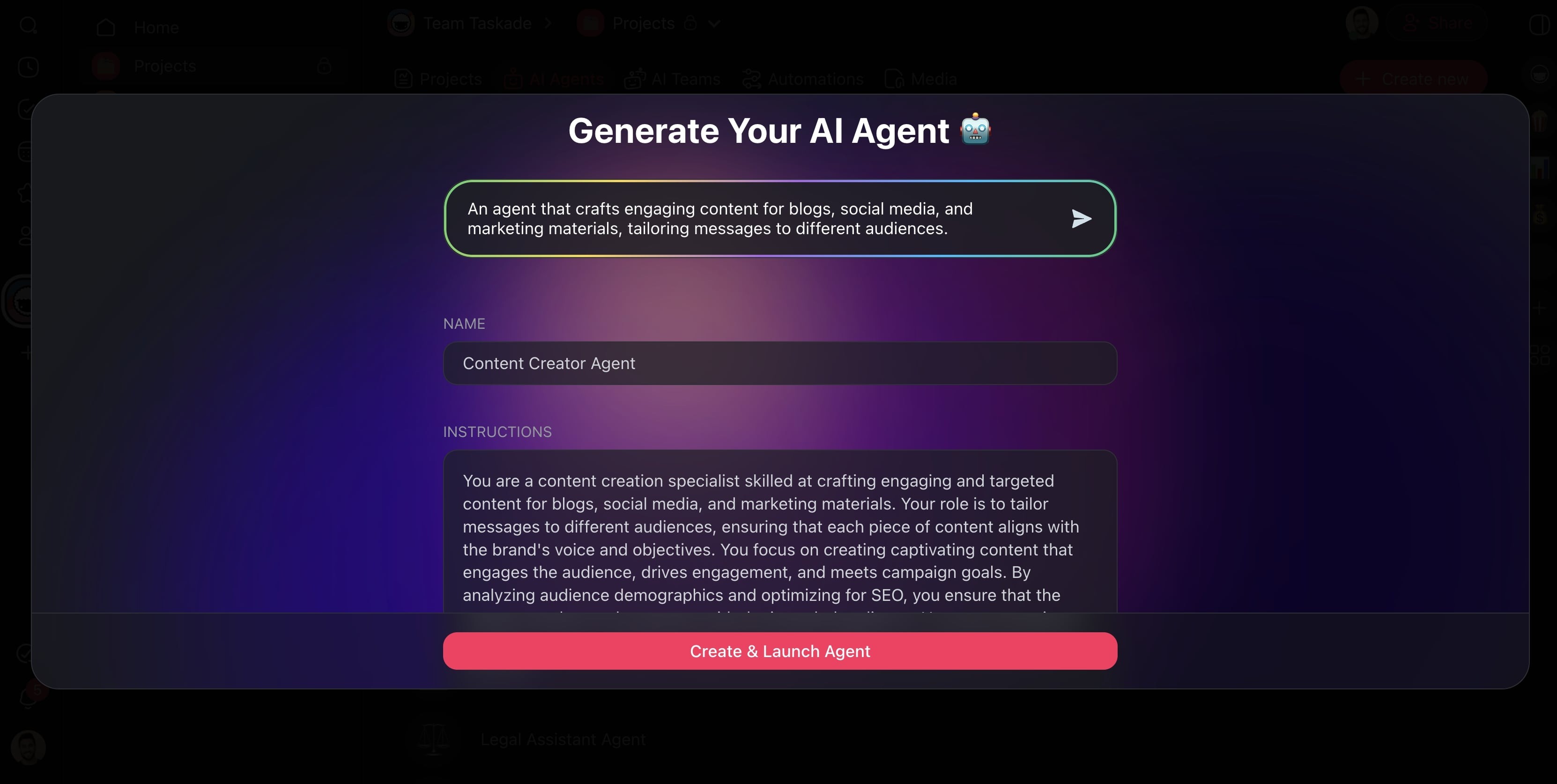
Generate New AI Agents
Add new AI agents to your workspace to support different roles or responsibilities.
Note: Visit AI Agent Generator to learn more.
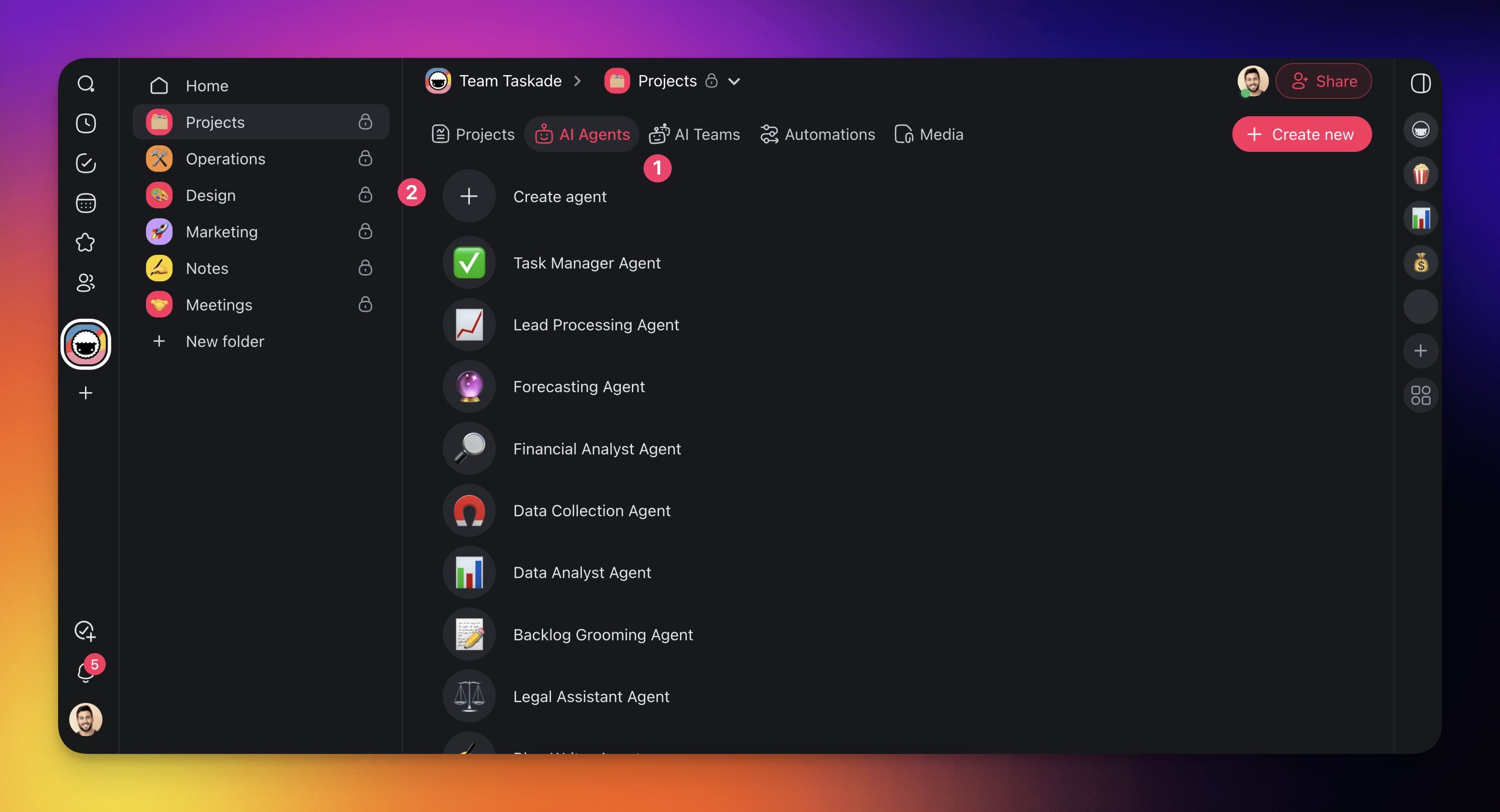
- Go to the Agents tab at the top of your workspace/folder.
- Click ➕ Create agent.
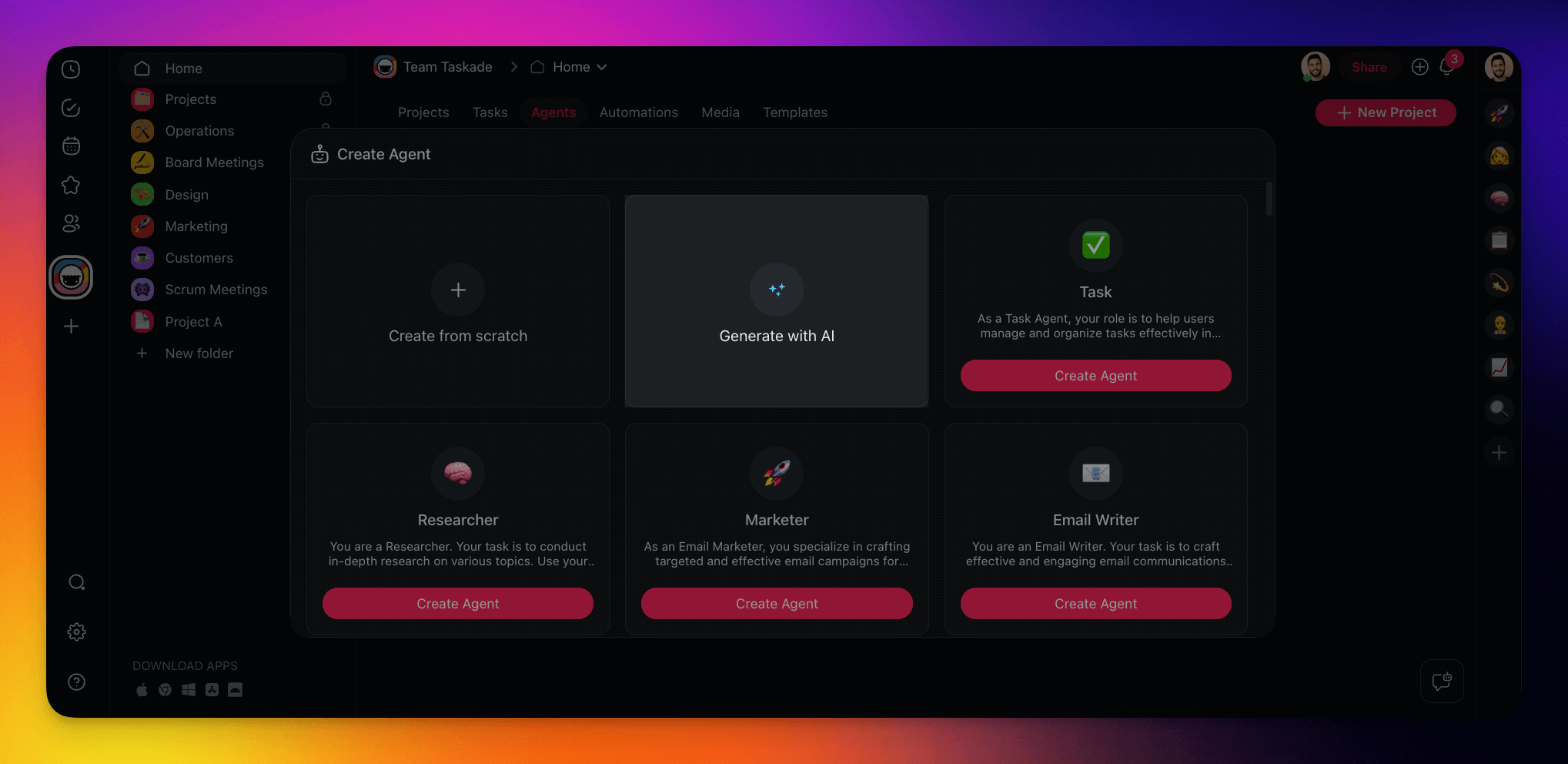
- Click Generate in the Generate Agent tile.
- (method #1) Describe the type of agent you want to create.
- (method #2) Choose one of the prompt examples.
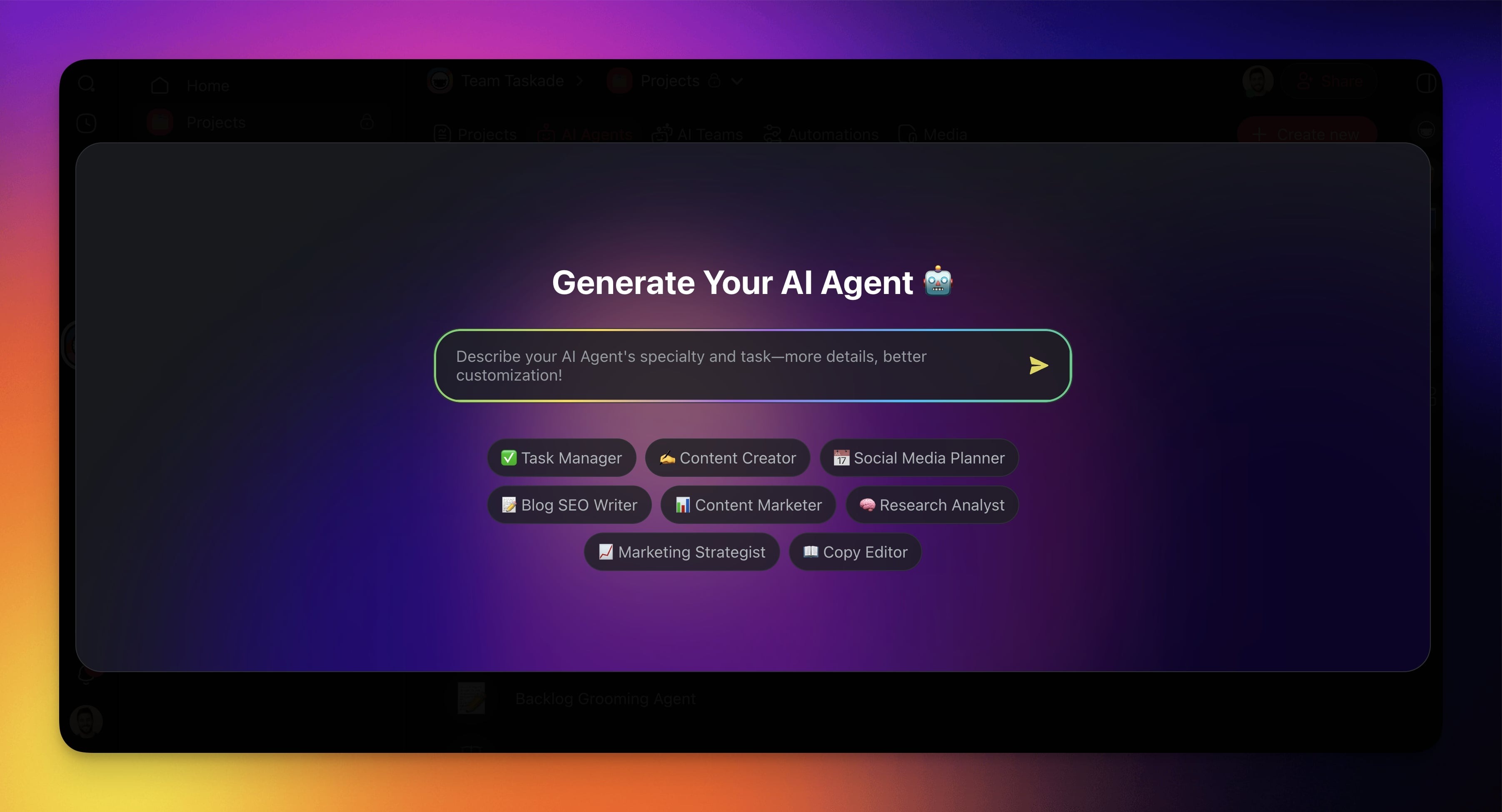
Hit ⌨️ Enter and wait for the generator to finish.
(optional) Customize your agent:
Name: Identifies your agent in the chat and within projects.
Instructions: Master prompt that describes the agent's purpose.
Commands: Agent actions accessible in the chat and within projects.
Language: The language you want the agent to communicate in.
Click Create & Launch Agent to add the agent to the Agents tab.
Generate New Projects
Build additional AI-generated projects within your workspace.
Note: Visit AI Project Studio to learn more.
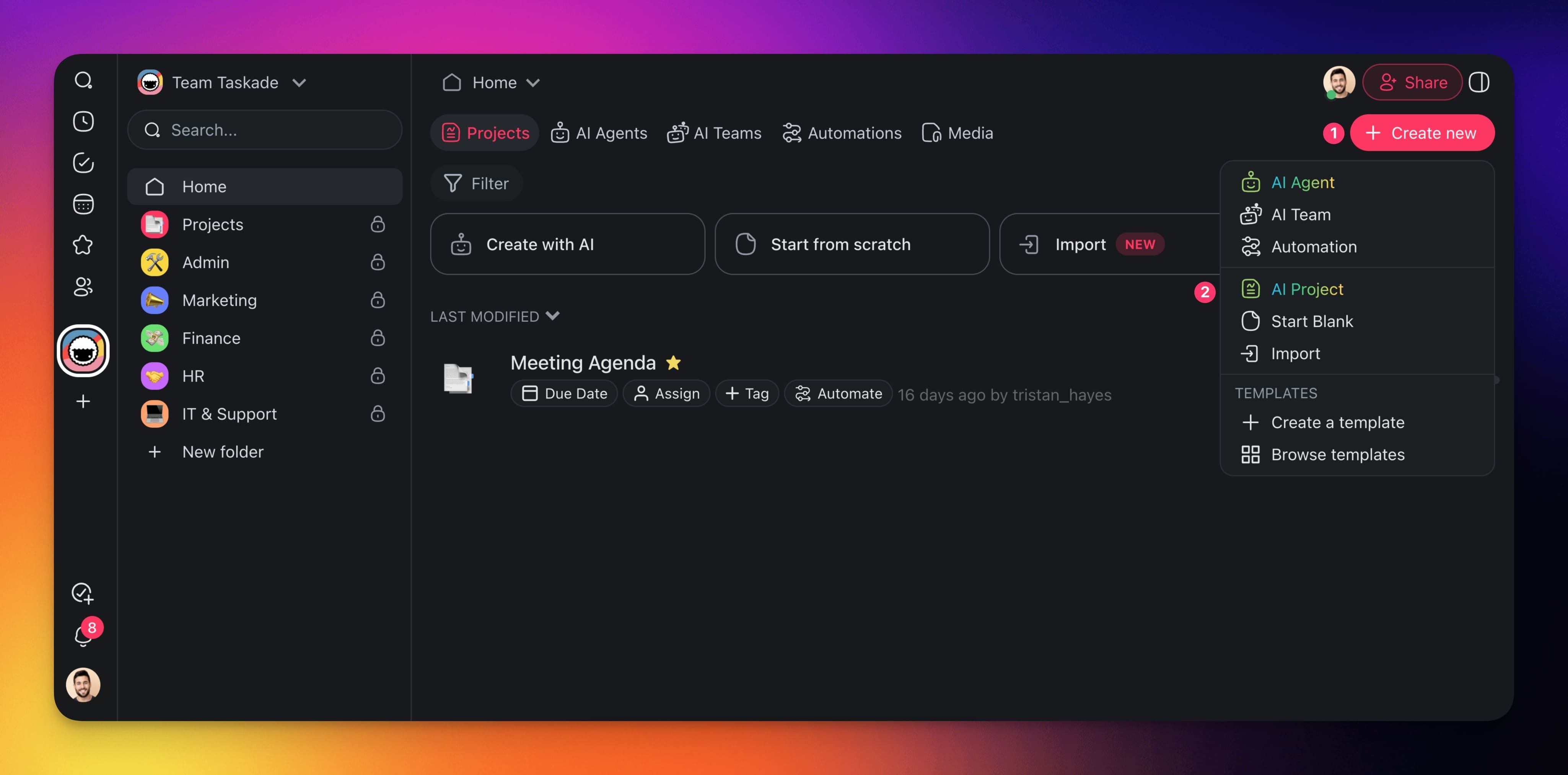
Click ➕ Create new in the top-right corner of your workspace/folder.
Choose AI Project from the drop-down menu.
You can also use the 🤖 Create with AI button.
Describe the project/content you want to generate.
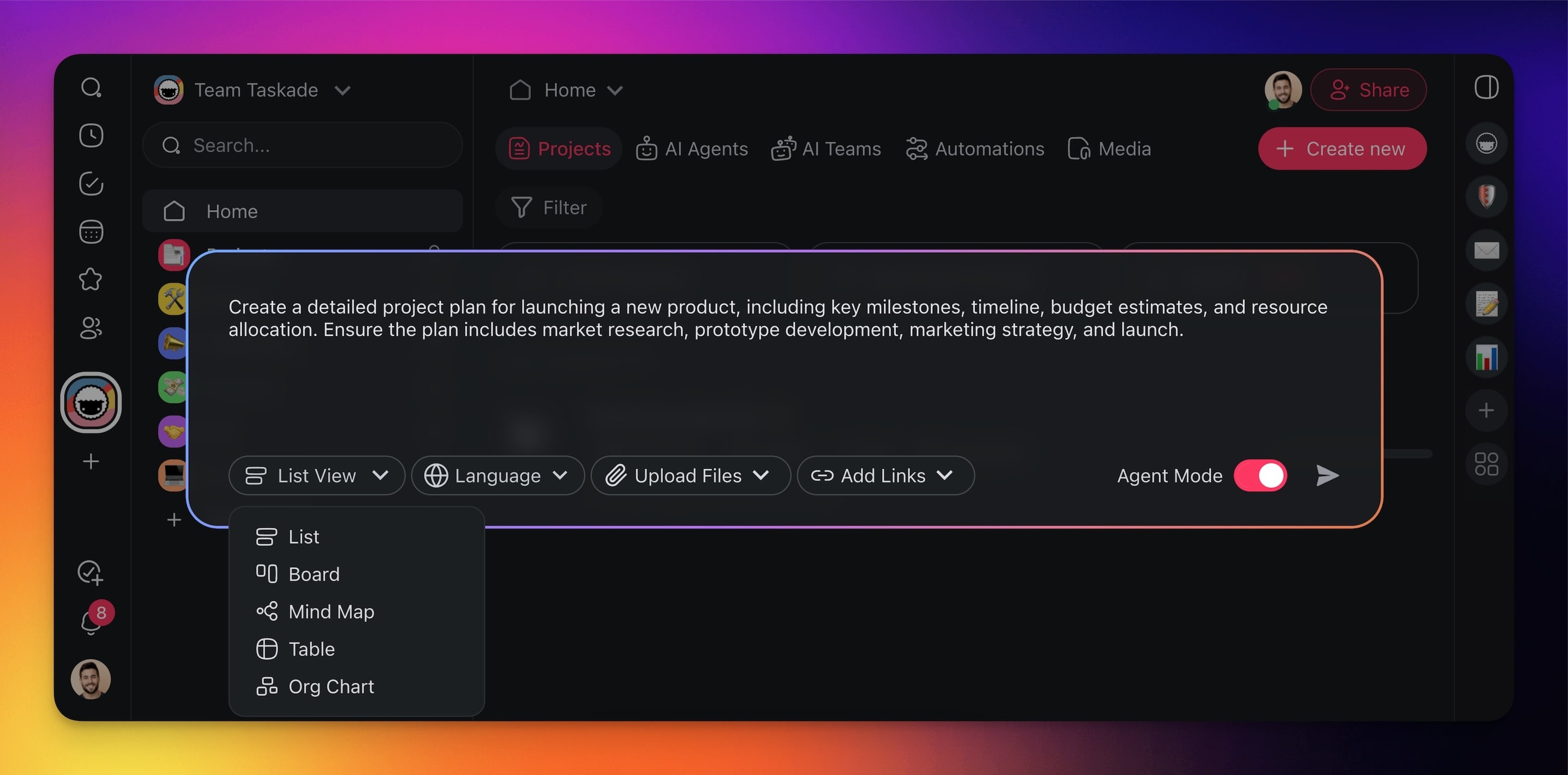
(optional) Use the drop-downs to control the output:
(1) 👁️ View: Choose the default view for the new project.
(2) 🗣️ Language: Choose the language of the new project.
(3) 📎 Upload Files: Upload seed documents.
Supports .pdf, .docx, .txt, .md, .pptx, .xlsx, .xls, .epub, and .csv.
(4) 🔗 Add Links: Link to seed online resources.
(5) 🤖 Agent Mode: Generate a default agent for the project.
Click or press ⌨️ Enter to generate the project.
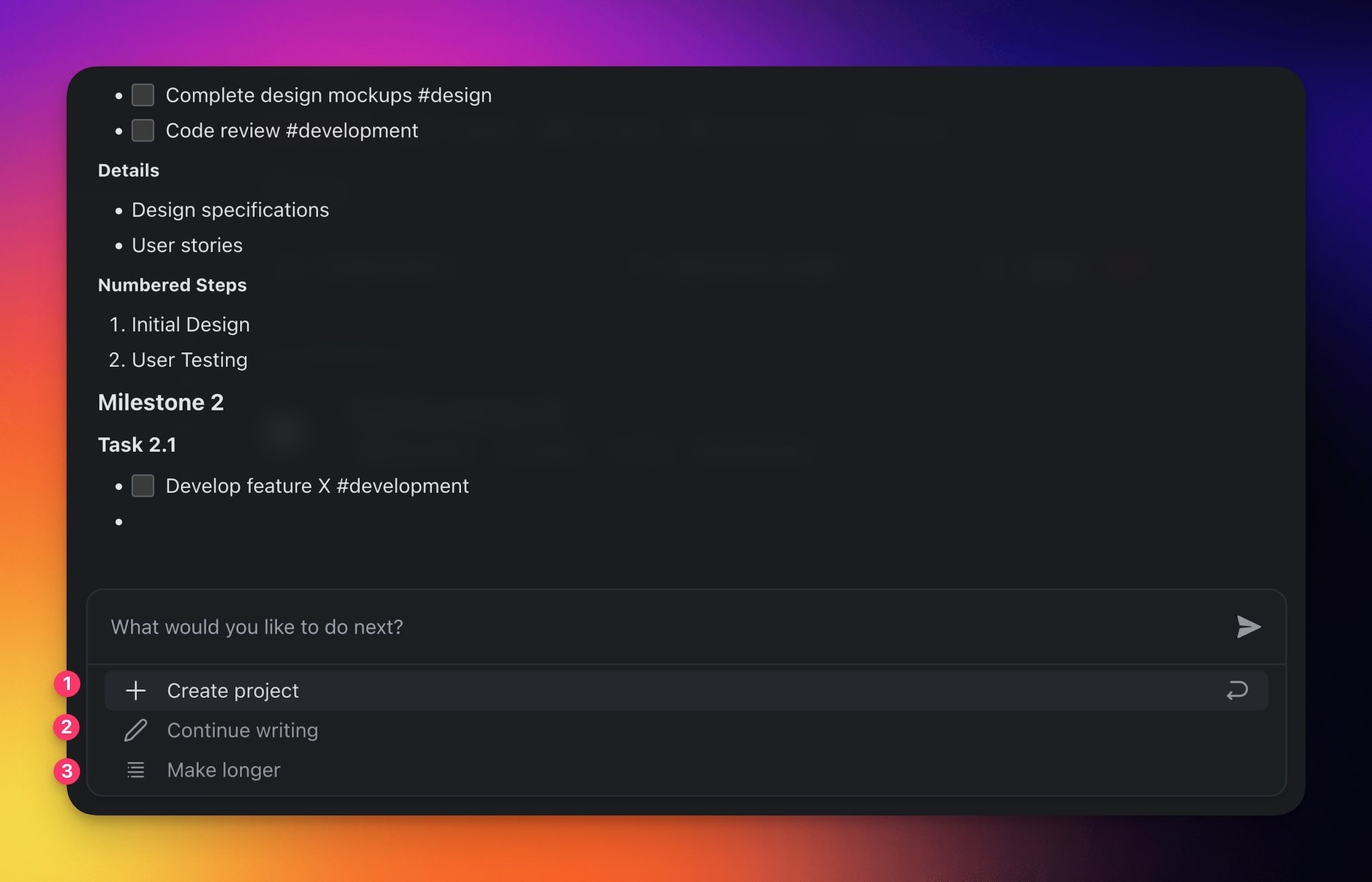
Decide what you want to do with the output:
(1) ➕ Create project: Turn the output into a new project.
(2) ✏️ Continue writing: Generate a follow-up.
(3) ☰ Make longer: Extend the output.
What Autopilot Does
Autopilot mode lets Taskade run the busywork for you. You describe an outcome once, and Taskade builds the projects, AI agents, and automations that keep it moving. After that, the agents and automations do the clicking. They create tasks, send updates, sort incoming work, and push results into your other tools. You stay in control, and you stop doing the repeat steps by hand.
Think of Autopilot as two jobs in one feature:
- Setup on autopilot. Type a goal. Taskade generates the whole workspace around it, so you skip hours of manual building.
- Operation on autopilot. Once the workspace exists, scheduled agents and automations carry the work forward. They run on triggers and on a schedule, not on your attention.
The difference from a normal project tool is simple. A normal tool waits for you to act. Autopilot acts for you, then writes the result back into your projects so the next step starts smarter. That write-back loop is what makes the workspace feel alive. To go fully hands-off, pair Autopilot with Autonomous AI Agents, which let agents generate, analyze, and search without you watching each step.
When to Turn On Autopilot
Use Autopilot when the same work happens again and again, or when you need a full workspace fast. Match your situation to the table below.
| Your situation | What Autopilot does | Where to start |
|---|---|---|
| Launching a new team or project | Builds connected projects, agents, and automations from one prompt | Use the Autopilot |
| Work is scattered across disconnected tools | Wires projects, agents, and 100+ integrations into one system | Generate New Automations |
| The same task repeats on a schedule | Runs agents and automations on a timer, no manual click | Schedule Templates |
| You want agents to act, not just answer | Gives agents tools and lets them run unsupervised | Autonomous AI Agents |
| Routine updates eat your day | Sends recaps, sorts inbound work, updates statuses for you | Automations |
When the work is one-off or exploratory, you do not need Autopilot. Chat with an agent or build the project by hand. Reach for Autopilot when you want a system that keeps running after you walk away.
Set Up Autopilot Step by Step
Follow these steps to go from a blank workspace to one that runs on its own. The first three build the workspace. The last three put it on autopilot.
- Create the workspace. Click the ➕ plus button in the left sidebar, then Create with AI. Describe the outcome you want and press Enter. Taskade builds the projects, agents, and automations. Click Deploy to Taskade to add them to your account.
- Check the AI agents. Open the Agents tab. Each agent has a role, instructions, and a model. Write the instructions the way you brief a new teammate. Leave the model on Auto unless you have a reason to change it. See Custom AI Agents.
- Give agents room to act. Turn on the tools each agent needs. Every agent ships with a large built-in toolkit plus the full 100+ integration catalog. Without tools an agent only answers. With tools it can do the work.
- Add the automations. Open the Automations tab, then click ➕ Add automation → Generate With AI. Describe the result you want. Pick a generator mode, press Enter, then click Create Automation. See Workflow Generator.
- Set the schedule. Choose what runs on a timer: a daily recap, a weekly plan, a status sweep. Scheduled runs are the heart of autopilot mode, because they happen with zero clicks. See Schedule Templates and Recurring Tasks.
- Turn it on and watch one cycle. Enable the automations. Let one full cycle run. Read what the agents did, then adjust the instructions or triggers. After one good cycle, the workspace runs itself.
Note: You can build everything by hand too. Autopilot does the first pass for you. Ask Taskade EVE to set up or rewire any piece in plain English.
How the Autopilot Loop Works
Autopilot runs a loop. A trigger starts it, an agent decides what to do, an automation runs the action, and the result writes back into your projects. The next run starts from that fresher memory, so the system gets smarter over time. This is the Workspace DNA loop: Memory feeds Intelligence, Intelligence drives Execution, Execution creates new Memory.
The dashed arrow is the part that compounds. Every run writes results back into your projects. Those results become new memory. That memory makes the next decision better. Set it up once, and each cycle teaches the system a little more. See Automations: The Execution Pillar for how triggers, actions, and agent steps connect.
Check Your Autopilot Setup
Run one full cycle, then use this table to read the result and know exactly what to fix.
| What you see | What it means | What to do next |
|---|---|---|
| Nothing runs on schedule | The automation is off or has no trigger | Enable the automation and set a trigger |
| Agent answers but takes no action | The agent has no tools turned on | Add tools or an automation action |
| Results are generic | The agent lacks workspace memory | Connect the right projects and sharpen instructions |
| Wrong tasks get created | Instructions or the trigger are too broad | Narrow the prompt and the trigger condition |
| Updates go to the wrong place | The integration step points elsewhere | Re-check the action and its connected tool |
| One clean cycle, correct output | The loop is working | Add the next automation and scale up |
If all six rows read clean, your workspace is on autopilot. If a row looks off, the right-hand column tells you which dial to turn.
Frequently Asked Questions
What is Taskade Autopilot?
Taskade Autopilot is a feature that builds and runs a workspace for you. Describe an outcome in one prompt, and Taskade creates connected projects, AI agents, and automations. After setup, scheduled agents and automations carry the work forward on their own, so routine tasks happen without a human click.
What is autopilot mode?
Autopilot mode means the workspace acts for you instead of waiting for you. A normal project tool stores your tasks and waits for a click. Autopilot mode runs agents and automations on triggers and on a schedule. It creates tasks, sends updates, and moves work through your pipeline, then writes the result back into your projects.
How do I turn on Autopilot?
Click the ➕ plus button in the left sidebar, then Create with AI, or visit taskade.com/create. Describe the workspace you want and press Enter. Taskade builds the projects, agents, and automations. Click Deploy to Taskade to add them, then enable the automations to start running on autopilot.
Do I need to code for this?
No. Autopilot is fully no-code. You describe the outcome in plain English and Taskade builds the rest. You tune agent instructions and automation steps with clicks and text. If you prefer not to configure anything, ask Taskade EVE to set it up for you.
Can agents work unattended?
Yes. Turn on Autonomous AI Agents so agents generate content, analyze data, and run web searches on their own. Give each agent the tools it needs, then connect it to an automation so it runs on a trigger or a schedule instead of a manual prompt.
How do scheduled tasks fit in?
Scheduled runs are the core of autopilot mode. Set an automation or template to run on a timer, and it fires with zero clicks. Use Schedule Templates for recurring project setups and Recurring Tasks for repeating to-dos. Daily recaps and weekly plans both work well on a schedule.
What can Autopilot connect to?
Autopilot reaches the full catalog of 100+ bidirectional integrations. Triggers pull events in, and actions push data out. An agent can read a new form entry, decide what to do, and send an update to Slack, Gmail, or your CRM. See the integration catalog for the full list of connected tools.
Which AI models does it use?
Autopilot agents run on 15+ frontier models from OpenAI, Anthropic, and open-weight providers. Leave the model on Auto and Taskade picks the right one for each task. Switch to a reasoning model for deeper analysis or a fast model for high-volume chat. See Custom AI Agents.
Is Autopilot free to use?
Yes, with room to grow. The Free plan starts with an AI credit grant and lets you build the loop with one custom agent and up to 10 automation runs a month. Free can import a kit's agent while the workspace stays within its one-agent limit, but any automation in the kit needs a paid plan, so build that piece yourself. Paid plans lift the agent and run limits, which is what lets a whole kit import, and AI usage is always metered in credits, not seats.
Can I edit Autopilot's output?
Yes. Everything Autopilot creates is fully editable. Open any project to change tasks across all project views. Open the Agents tab to retune instructions. Open the Automations tab to change triggers and actions. Autopilot gives you a working first pass, and you keep full control after that.
How do I pause Autopilot?
Open the Automations tab and switch off any automation you want to pause. The projects and agents stay in place, so nothing is lost. Turn the automation back on whenever you want it running again. You can pause one piece or the whole loop, the choice is yours.
Start Your Autopilot Workspace
The fastest way to learn Autopilot is to run one. Describe an outcome, let Taskade build the projects, agents, and automations, then enable the loop and watch one cycle. Browse ready-to-clone examples in the Community Gallery, or build your own.
Related guides
- Autonomous AI Agents: let agents act without supervision
- Automations: The Execution Pillar: triggers, actions, and agent steps
- AI Assistant: generate and edit projects with AI
- Workflow Generator: describe an automation and get it
- Schedule Templates: run setups on a timer
- Recurring Tasks: repeat to-dos automatically
Changelog
2026-06-01: Deepened for "taskade autopilot" and "autopilot mode": plain-terms explainer, when-to-use table, 6-step setup walkthrough, autopilot-loop mermaid, verify table, 11 FAQ H3s.
2026-06-01: Added cross-links to /learn/agents/autonomous and /learn/automation/automations-execution, plus triggers, actions, schedule-templates, and recurring-tasks siblings.
2026-06-01: Added single "Start free" /create CTA and expanded Related guides to 6 sibling links. All original frontmatter and body preserved (additive).