
TL;DR: Publish a project to the web behind a password. Anyone with the link enters the password and sees a read-only page. For teammates who need to edit, invite them with a Viewer or Editor role instead of the public link. Great for client proposals and reviews.
How a password gate sits between your public link and the viewer:
Overview
Password protection controls access to any public link shared from your Taskade workspace. This covers projects, AI agents, forms, kits, and automations. Use it to add a layer of privacy when you share outside your team.
💡 Note: Password protection is available on paid plans, from Pro upward. On a free workspace the Require password toggle stays locked.
When to Use Password
Password protection is useful in a variety of business scenarios:
- Share resources with external partners privately
- Limit access to sensitive internal tools
- Distribute content without managing permissions
Add a Password to Projects
- Navigate to your app/workspace.
- Click the three dots ··· next to a project → Share.
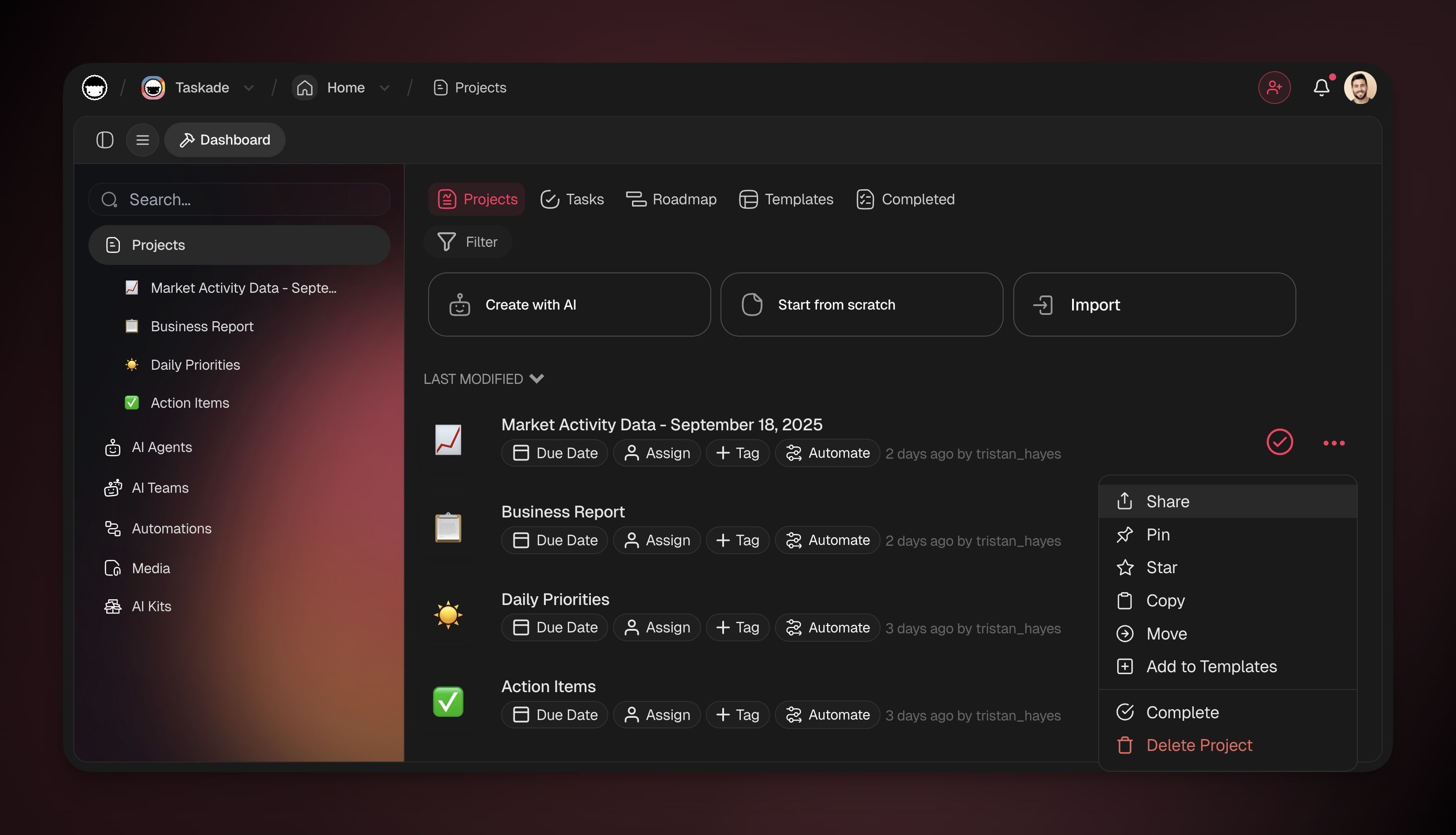
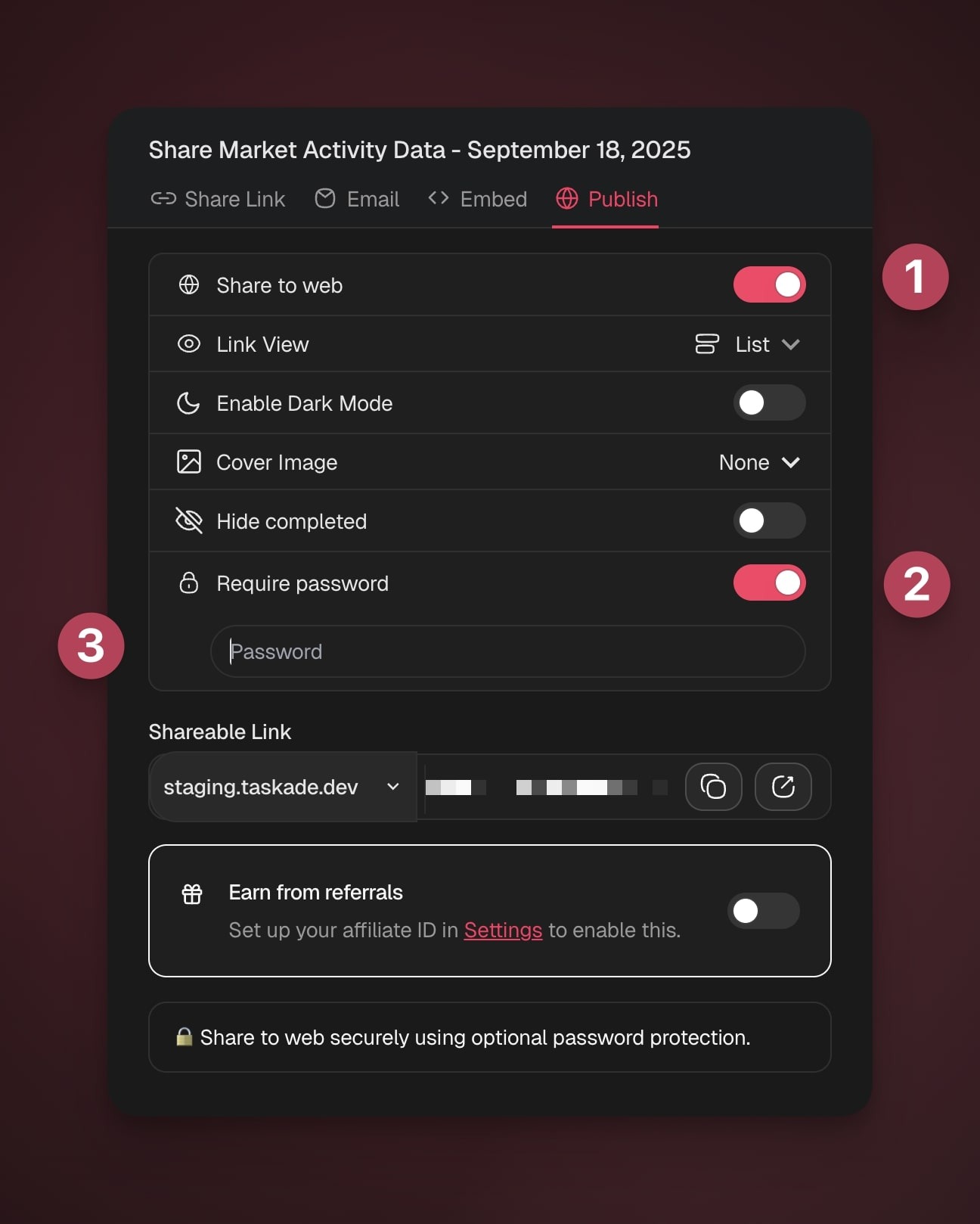
- Go to the Publish tab in the pop-up → enable Share to web.
- Toggle Require password on → type your password below.
- Copy and share the project link.
Add Password to Agents
Use password protection to restrict access to public AI Agents.
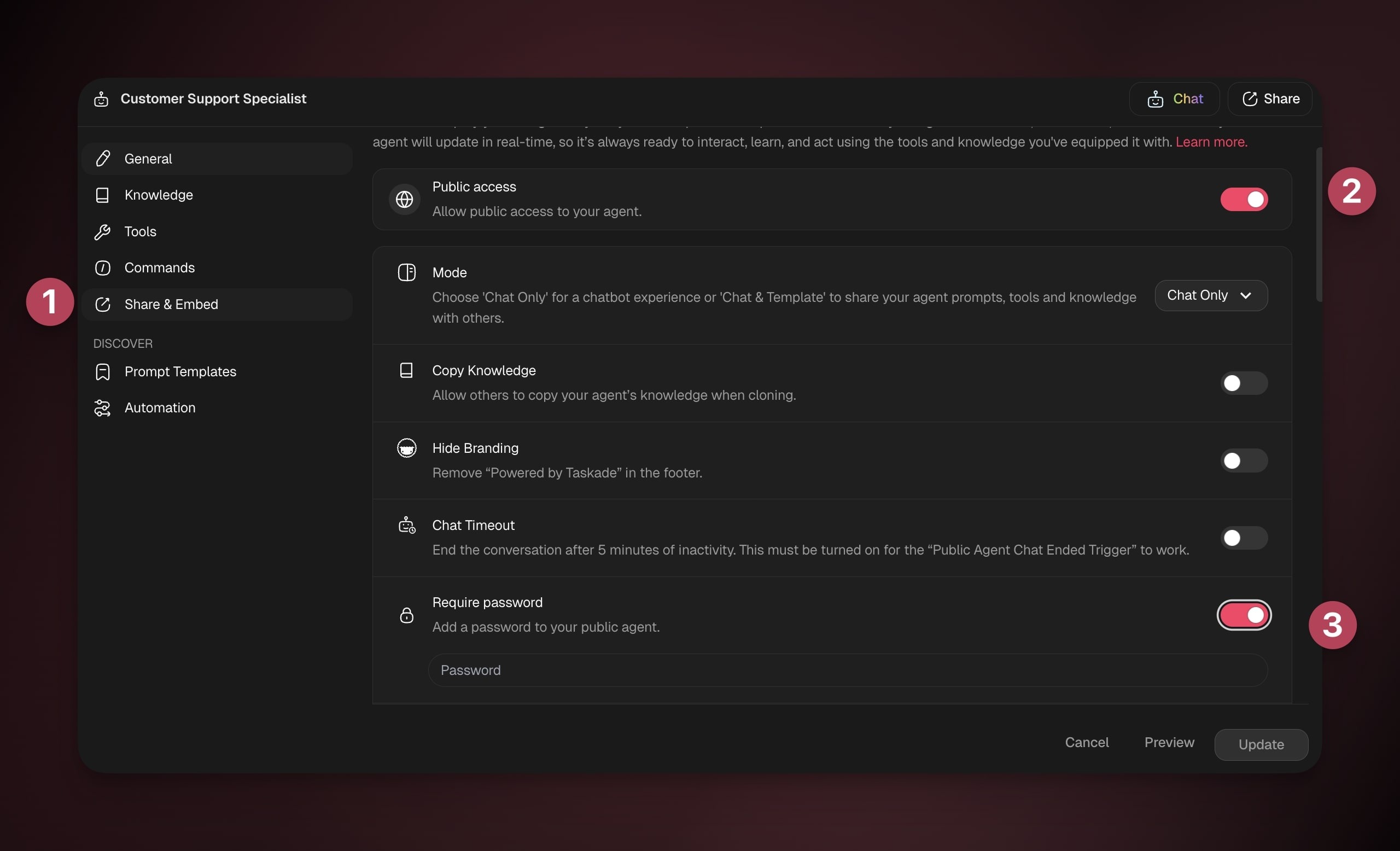
Go to the AI Agents tab.
Click ··· to the right → Share.
Toggle on Public Access.
Toggle on Require Password.
Add your password and click Update Password.
Add Password to Forms
Add a password to limit access to shared forms and prevent unauthorized submissions.
- Open the automation containing the form.
- Go to the Preview tab at the top.
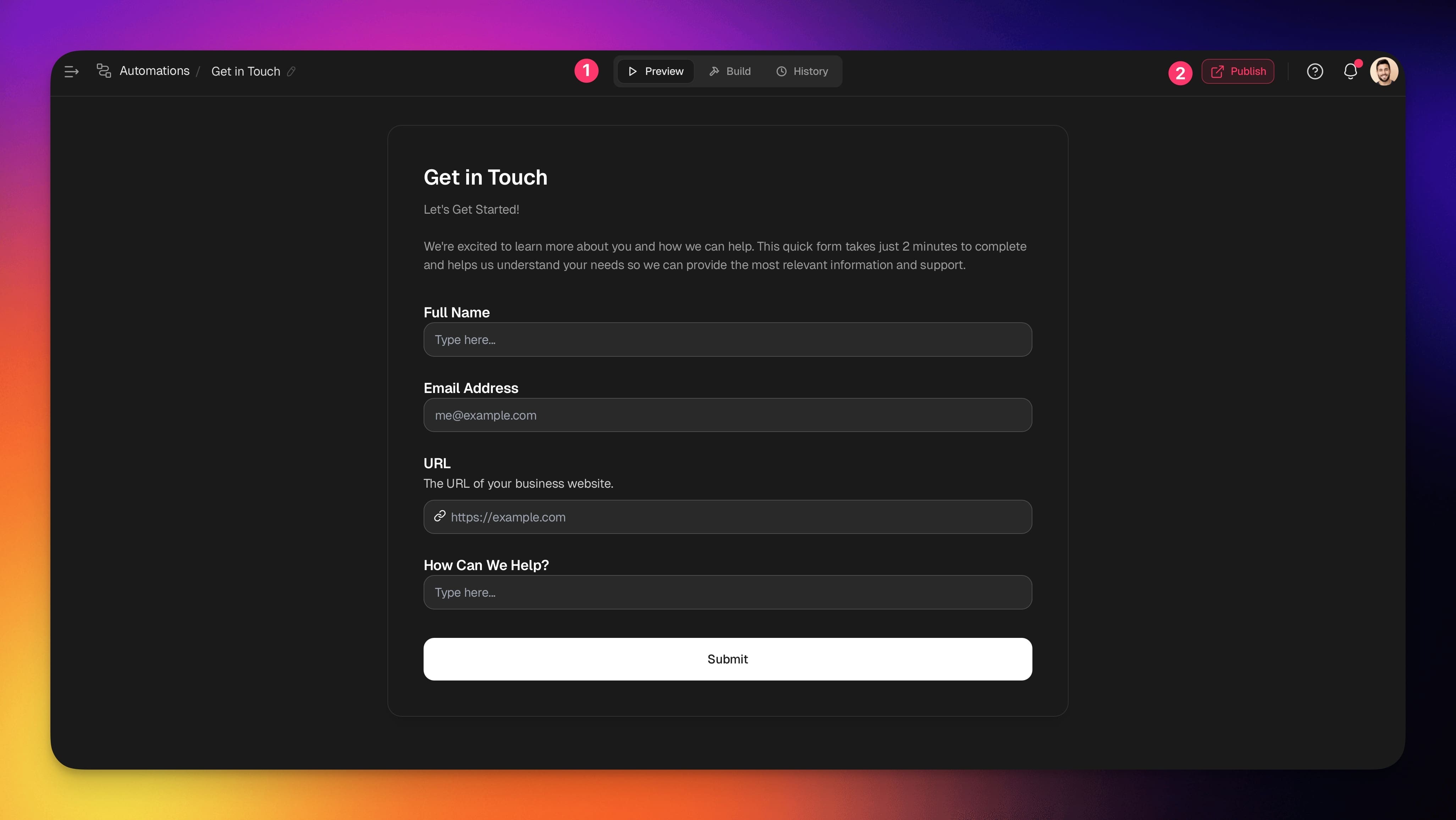
- Click Share in the top-right corner.
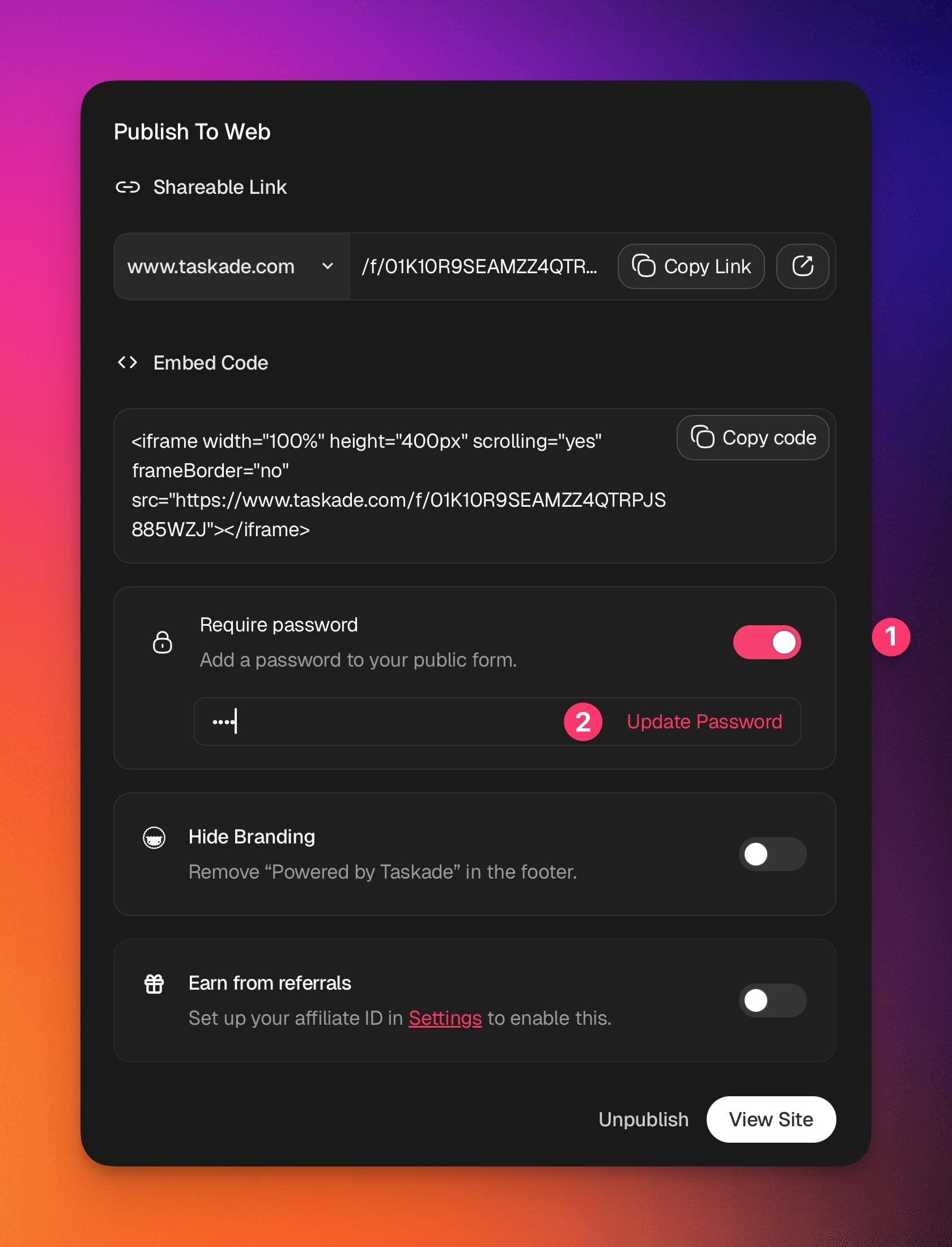
- Toggle on Require Password
- Add your password and click Update Password.
Add Password to Kits
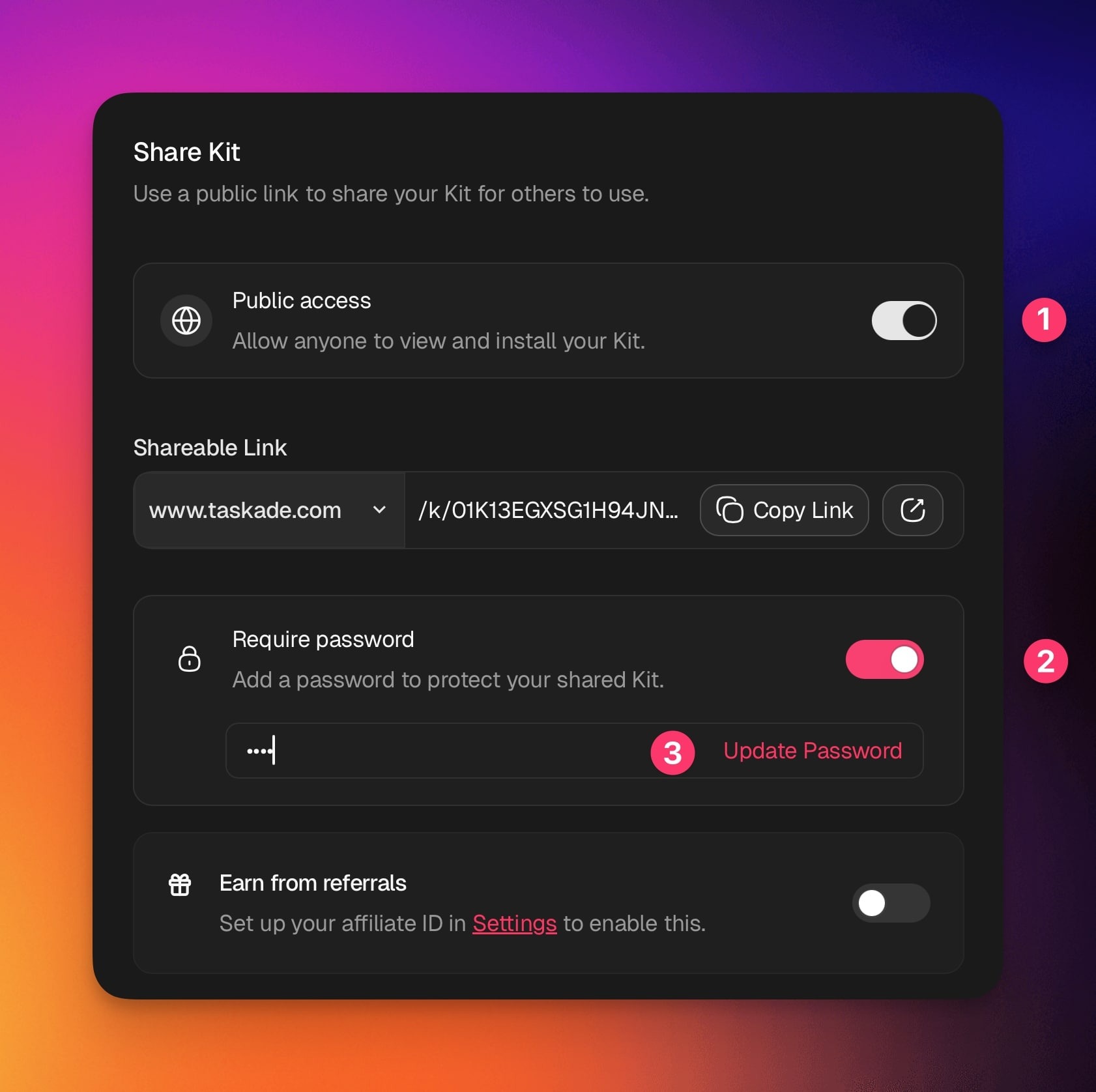
Require a password to restrict access to selected AI kits.
Open the kit you want to share.
Click Share
Toggle on Public access.
Add your password and click Update Password.
Add Password to Automations
Use password protection when sharing automations outside your team.
Go to the Automations tab.
Click ··· to the right of an automation → Share.
Enable Create a Shareable Link.
Enable Require password.
Add your password and click Update Password.