
TL;DR: Connect a custom domain, for example app.yourcompany.com, to any published Taskade Genesis app. You get a branded URL with automatic SSL. Custom domains are available on the Business, Max, and Enterprise plans, which carry one custom domain per seat. CNAME setup takes about 5 minutes, and Taskade provisions the certificate.
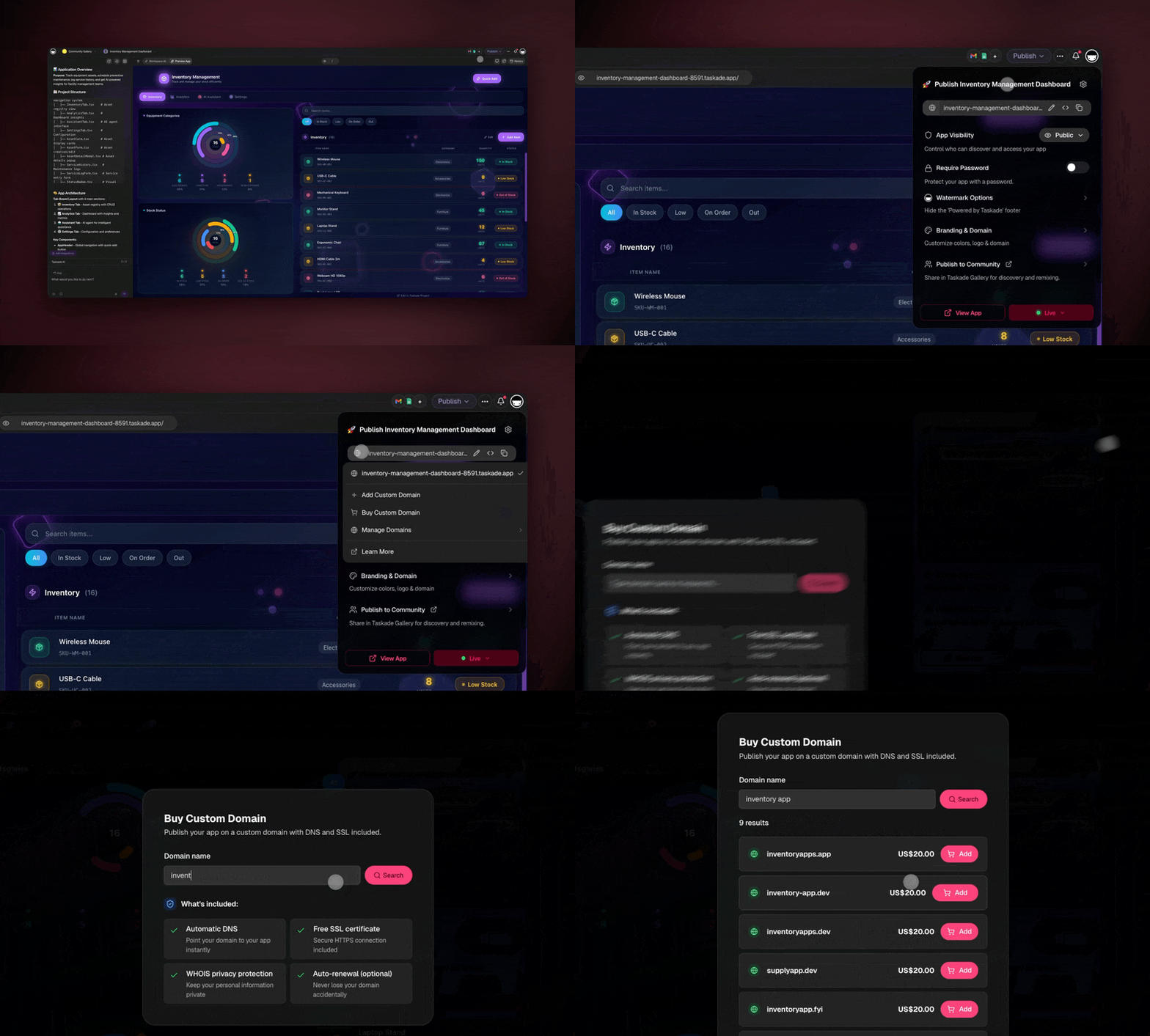
Here is the path from picking a domain to a live, branded link:

Overview
Give your Taskade Genesis app a professional address your customers trust. Connect a domain you already own, or grab a free Taskade subdomain, so every shared link, portal, and form carries your own brand. Available on Business and above.
How Does It Work?
With Domains, you can do three things:
- Set up a free Taskade subdomain for your workspace, like
mymarketing.taskade.site. This makes shared links more professional and easier to remember. - Add a custom domain you already own, like
mymarketing.my-domain.com, through your own DNS provider. - Use your new domain for any public link you share.
Here is what each kind of branded link looks like:
| Area | What you share | Branded URL |
|---|---|---|
| Published Taskade Genesis Apps | Client portals, booking systems, dashboards, or any app you built with Taskade Genesis | myapp.my-domain.com |
| Published Projects | Timelines, deliverables, or progress updates, with no account needed to view | mymarketing.my-domain.com/a/123456abc123 |
| Published Automations | Standardized processes, onboarding flows, or templates others can reuse | mymarketing.my-domain.com/flow-template/workflow456 |
| Public Forms | Contact forms, surveys, or event registrations that match your domain | mymarketing.my-domain.com/f/contact789 |
| Public AI Kits | Ready-made toolkits of agents, automations, projects, and templates | mymarketing.my-domain.com/k/aitools101 |
Note: A Custom Domain on the Home space does not affect the other spaces or Apps. Set a CNAME for each Folder or Team separately.
Get a Free Taskade Subdomain
A free Taskade domain gives you a branded link under the taskade.site domain, such as "mymarketing.taskade.site." Use it for a professional link to public agents and projects at no extra cost.
Here is how to get started:
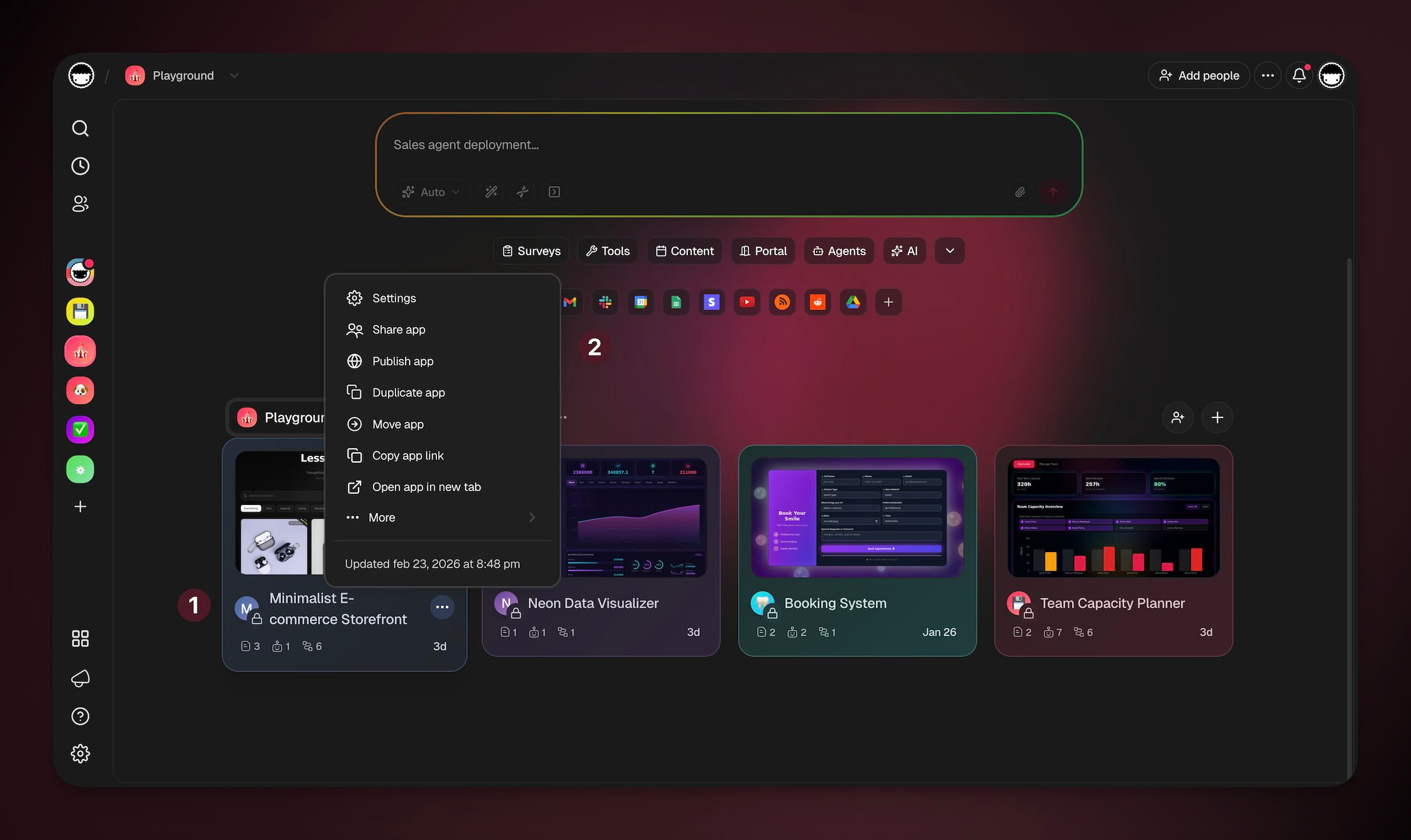
- Navigate to your workspace/ app.
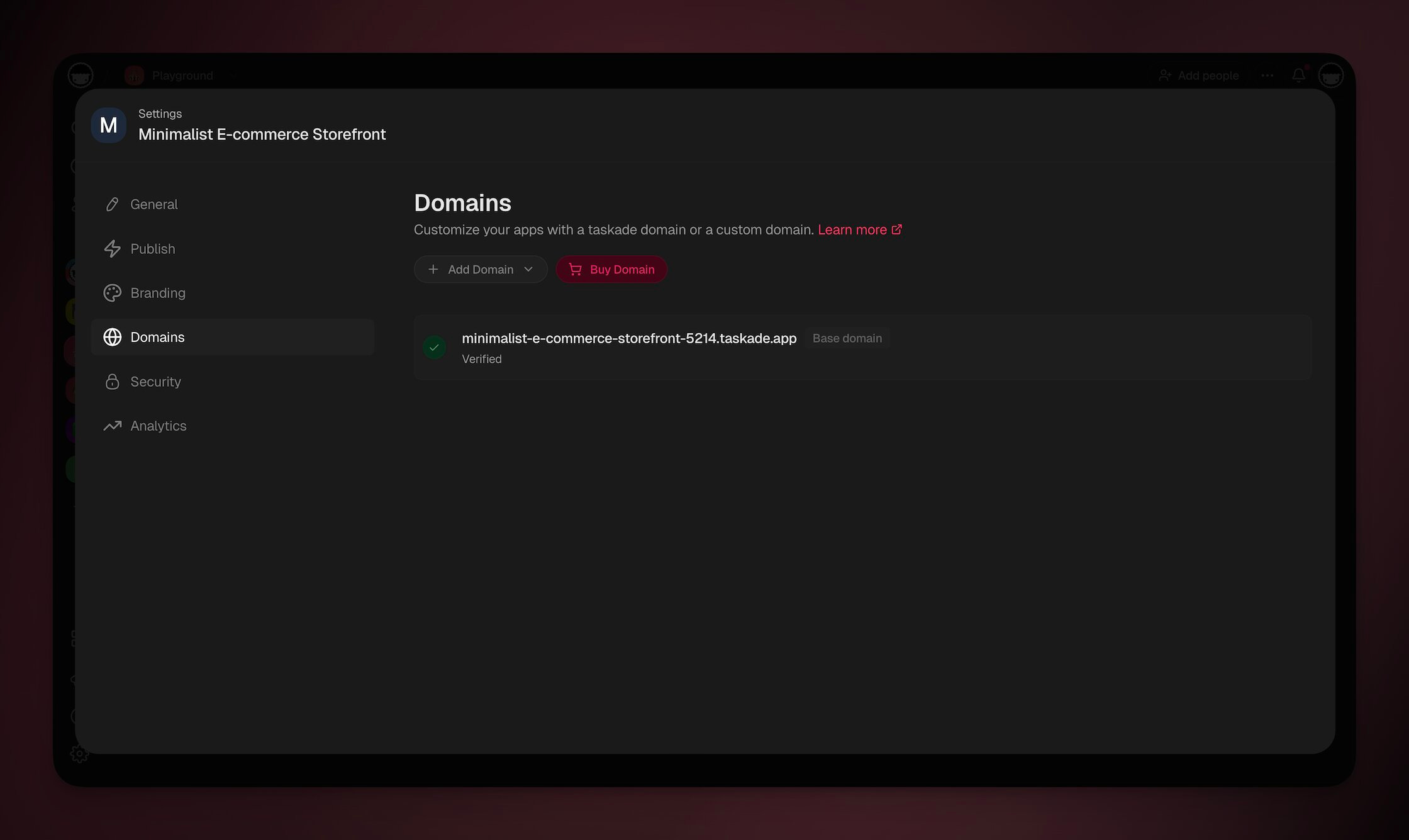
- Go to Settings → Domains.
- Choose the Domains tab from the left sidebar.
- Under ➕ Add Domain choose Taskade Subdomain.
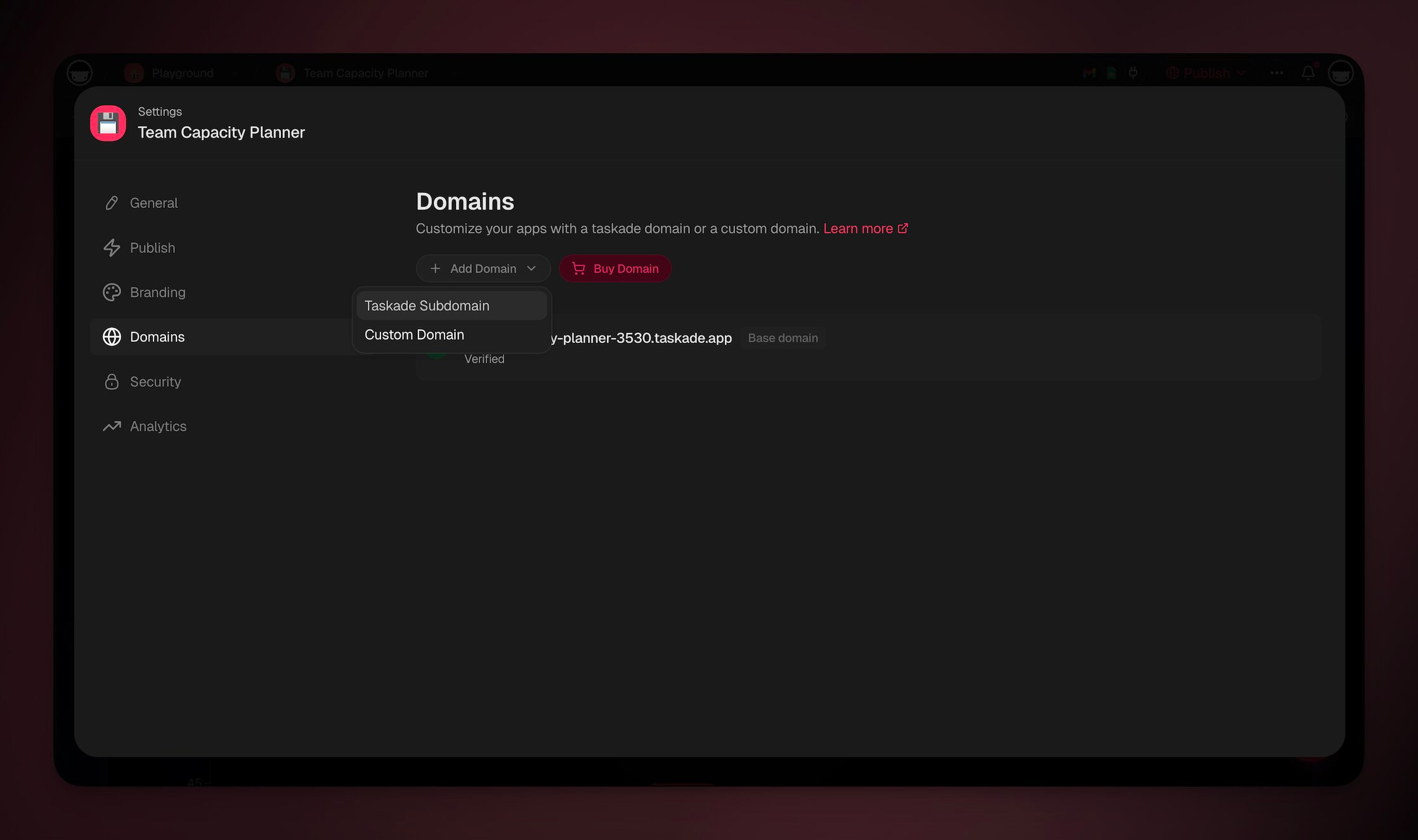
- Enter your preferred subdomain, for example "mycompany".
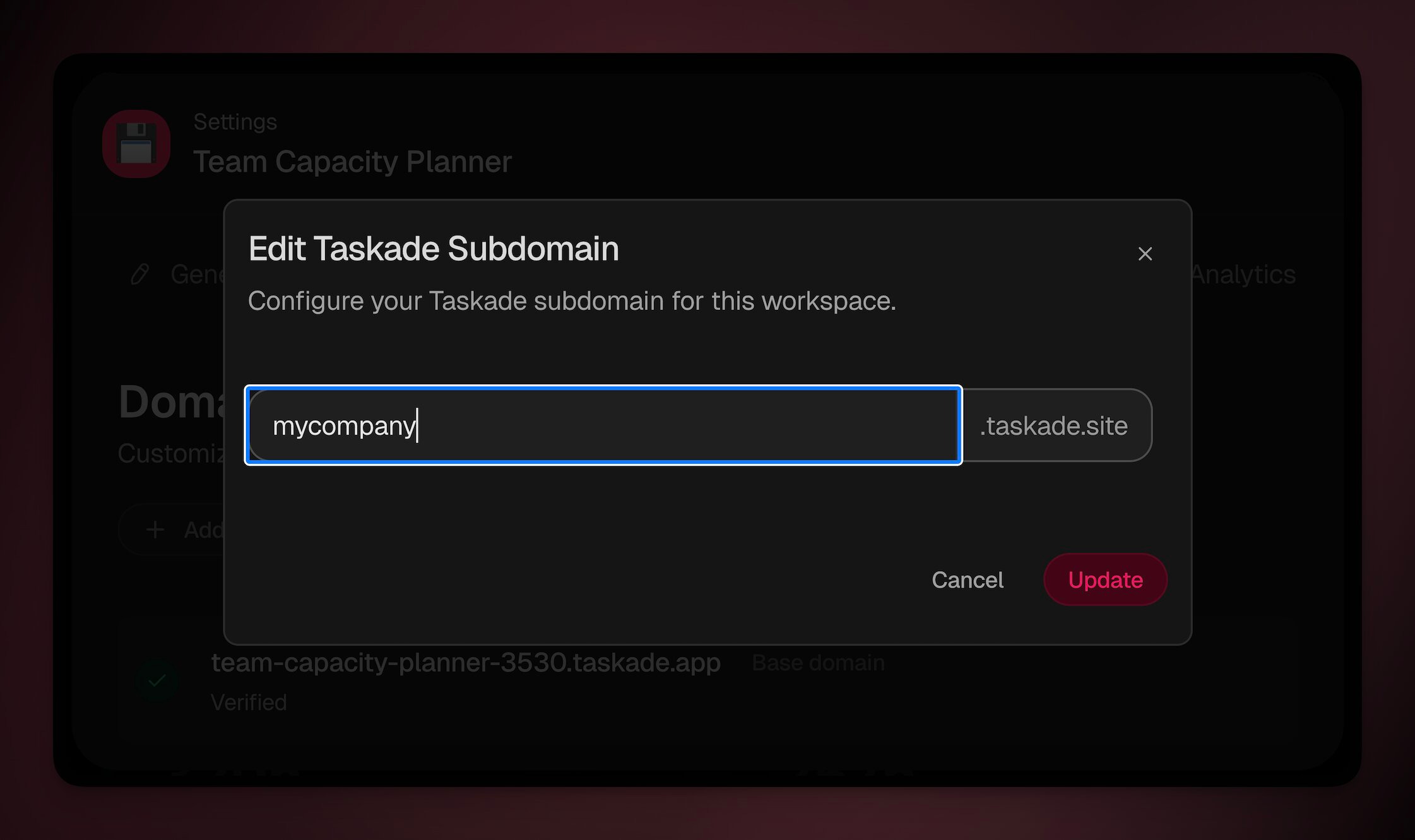
- Click Update to save the domain name.
Note: Your new subdomain will now apply to any public agents shared from your workspace. Check our guides on Sharing Public Agents to learn more.
- The domain will be marked as Verified.
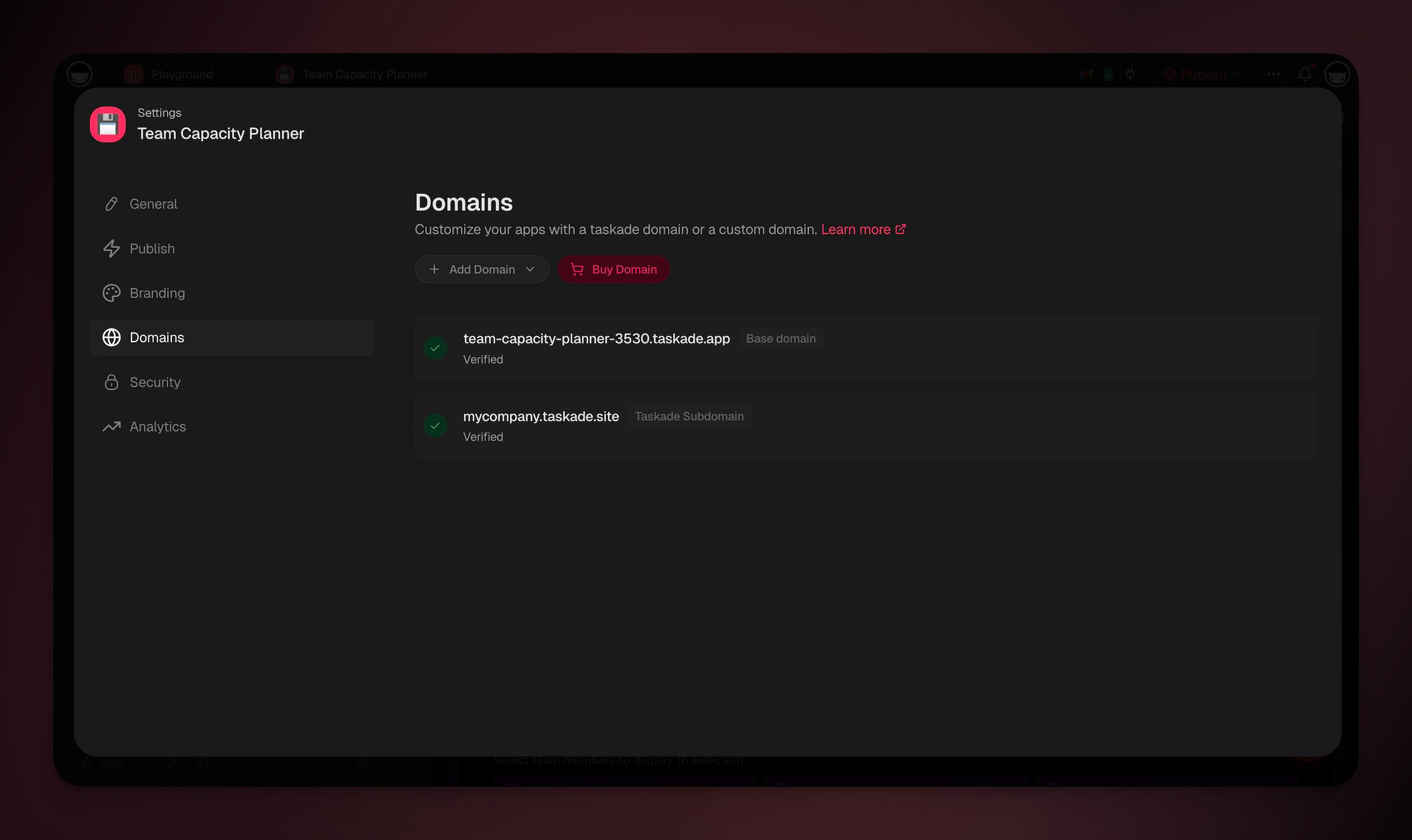
Set Up a Custom Domain
A custom domain lets you use your own branded domain name, such as "mymarketing.my-domain.com," by configuring DNS records with your domain provider. Choose this option if you already own a domain and want full customization.
Note: Custom domains are available on the Business, Max, and Enterprise plans.
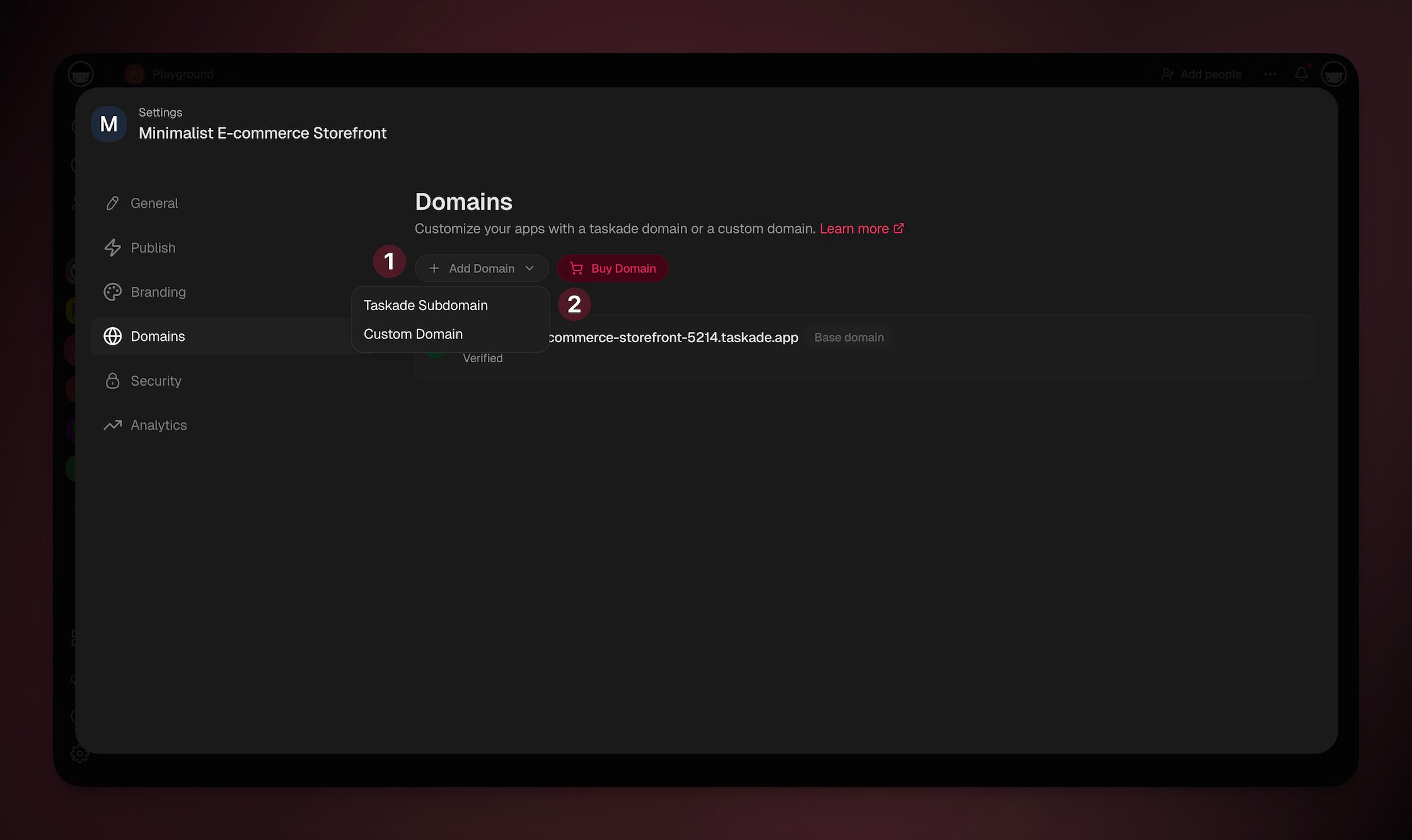
- Open your app Settings.
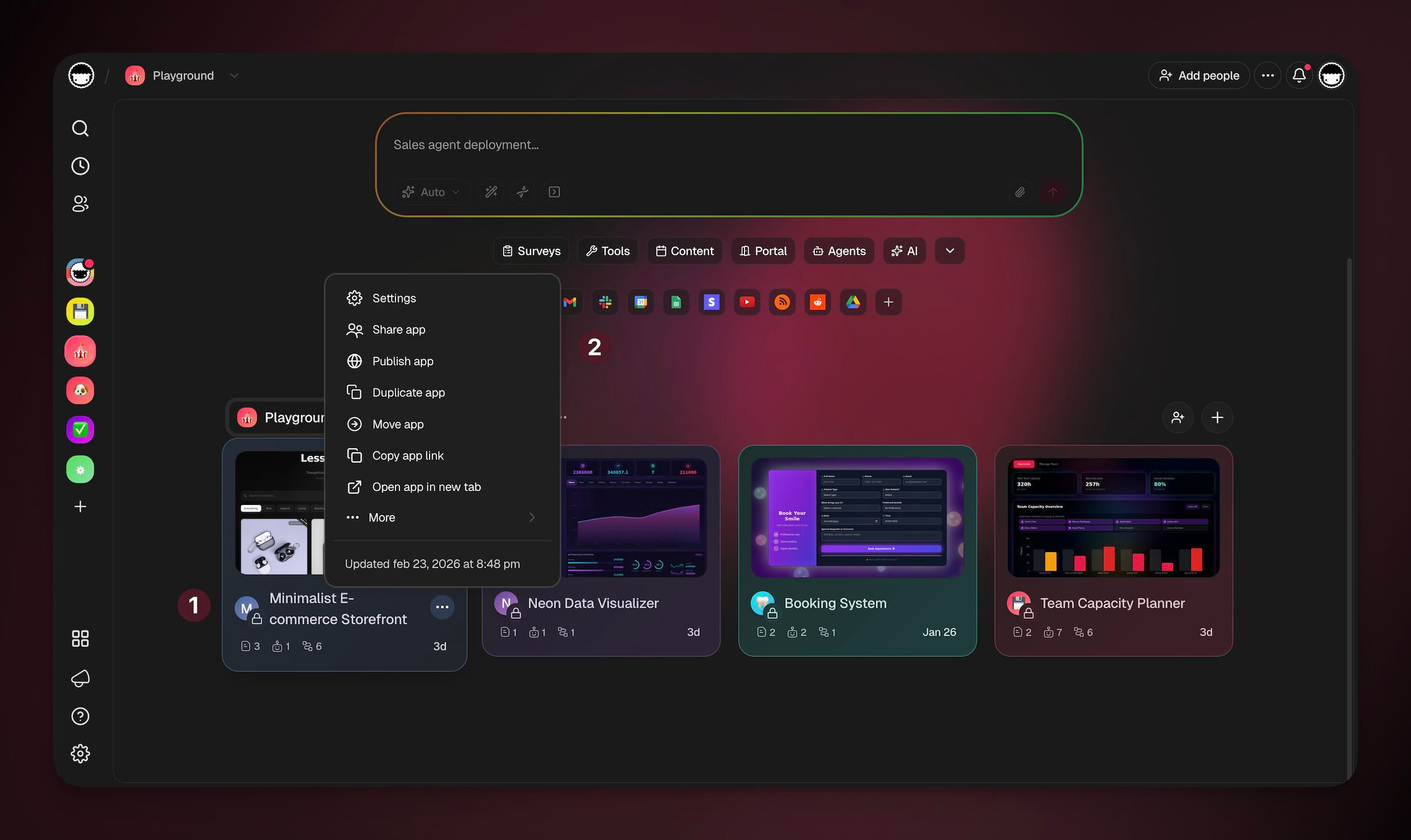
- Go to the Domains tab on the left.
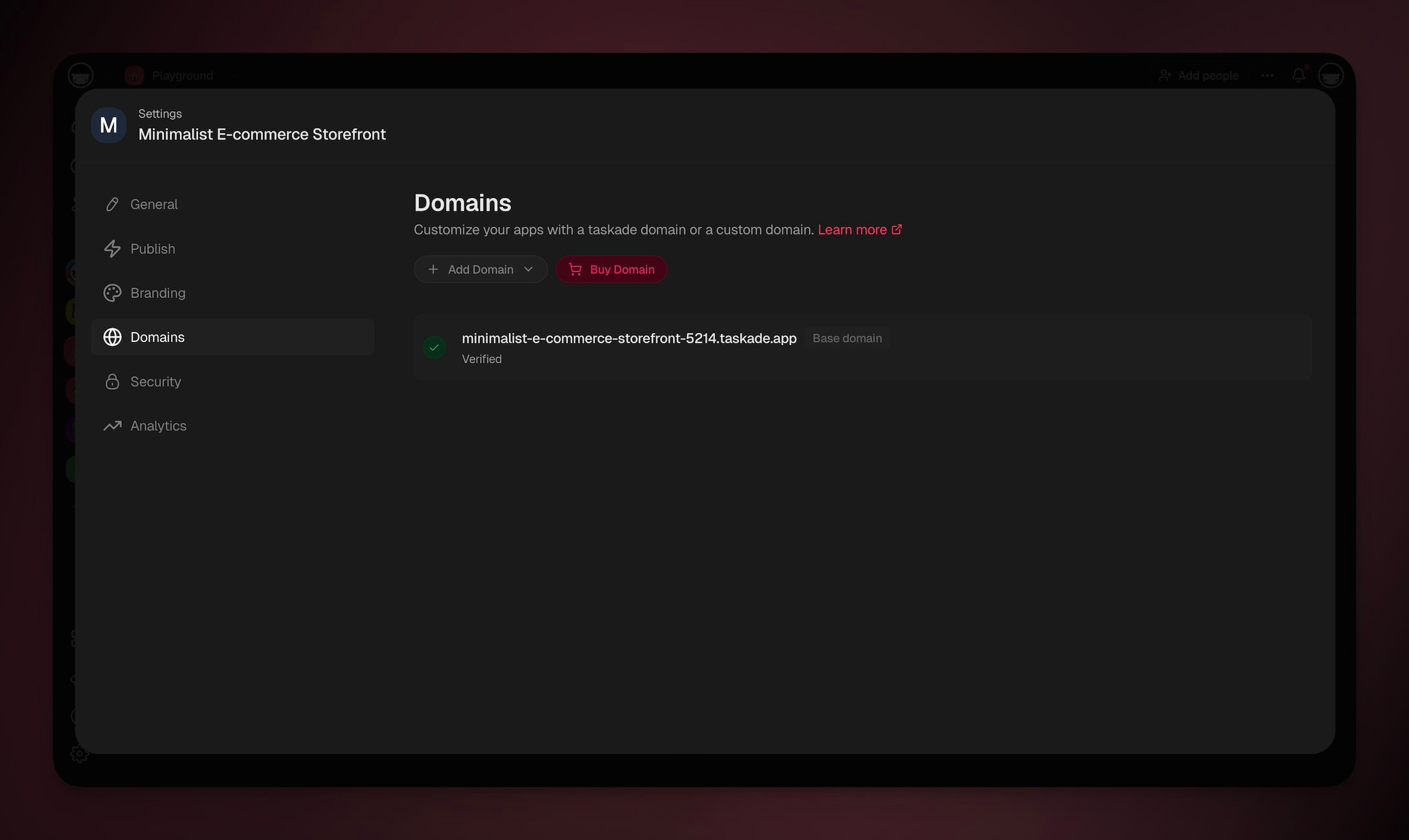
Choose your domain type.
Pick from an available Taskade subdomain or add your own.
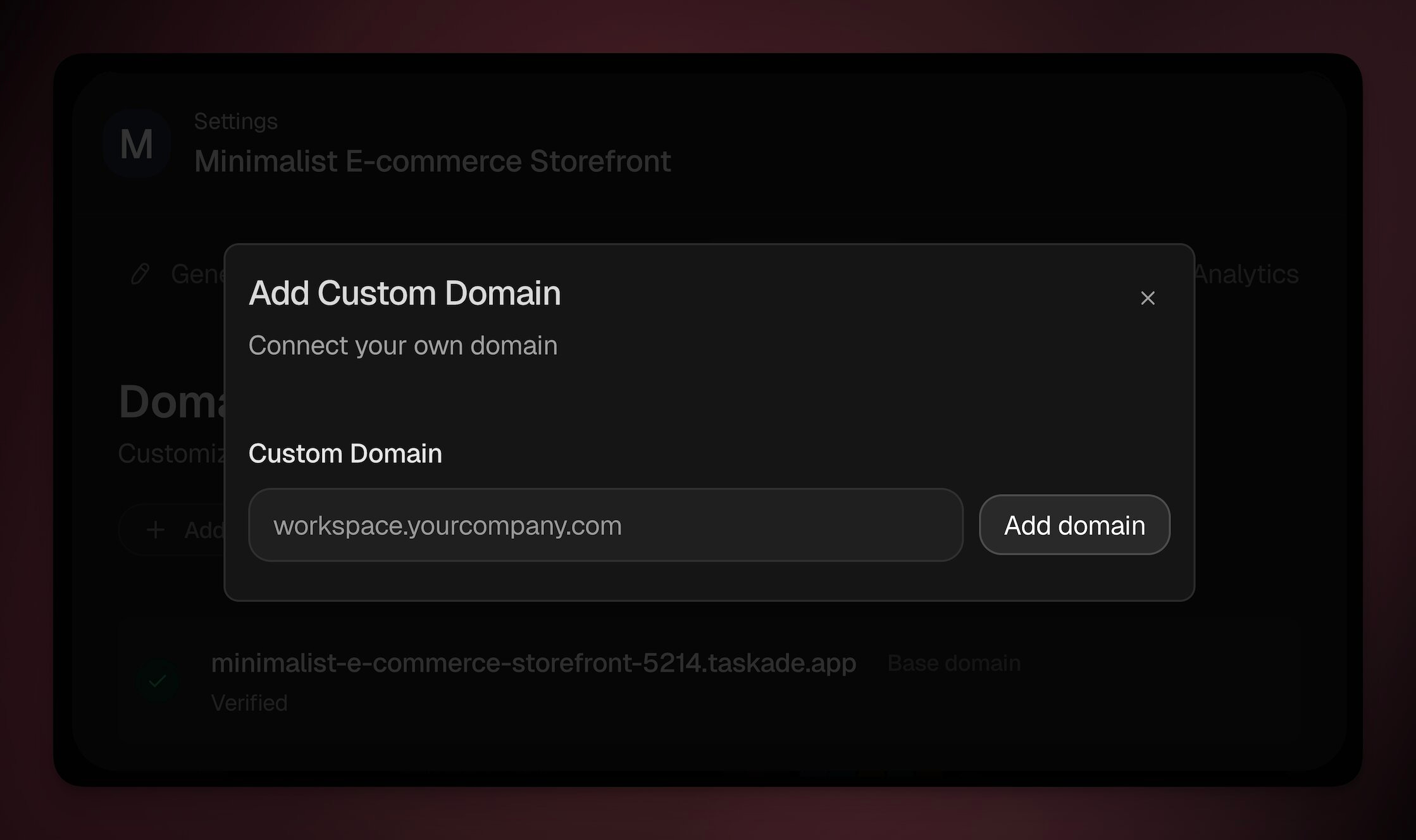
- Enter your domain and Taskade will show you the exact DNS record to add.
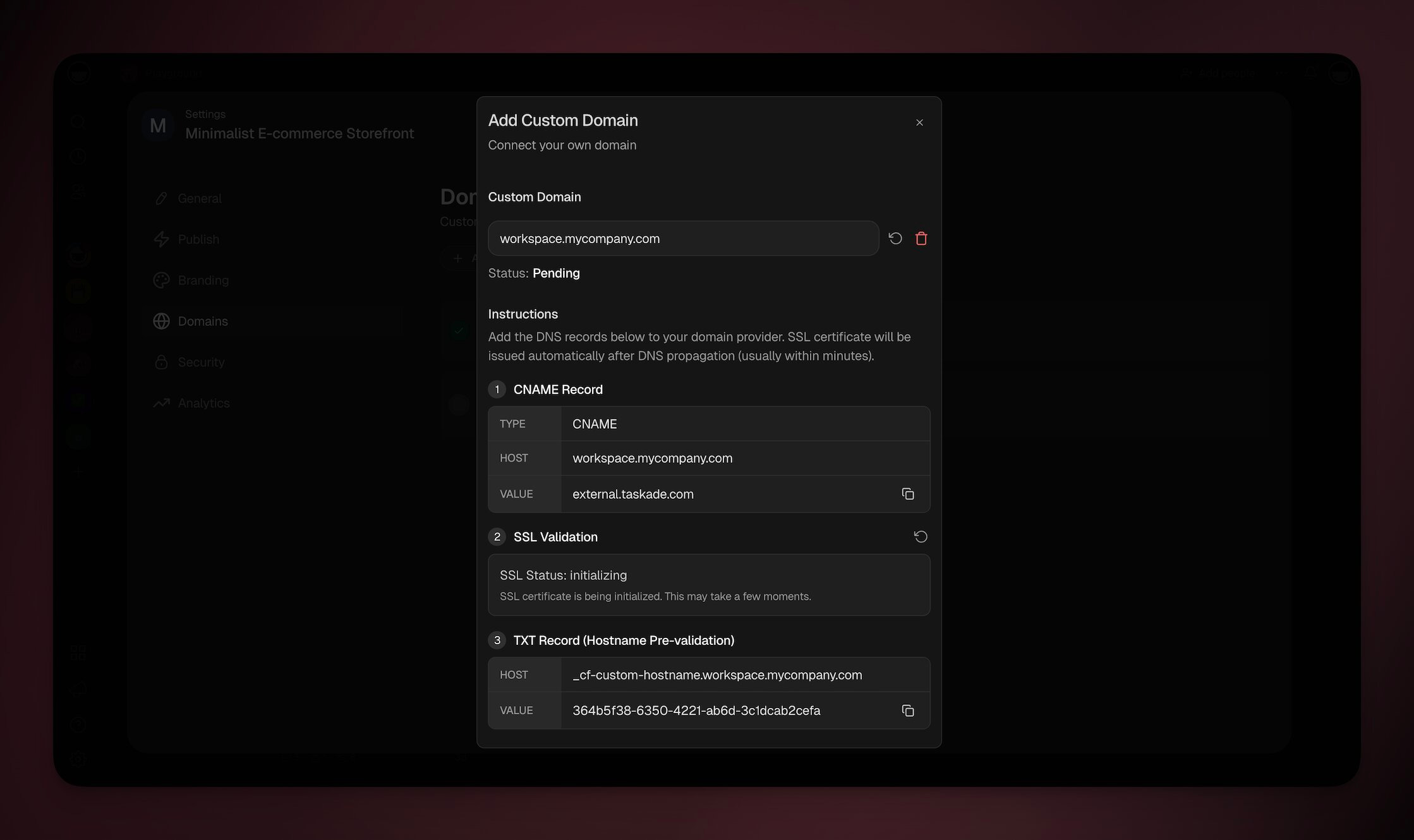
- Add the CNAME record to your DNS provider (see provider guides below).
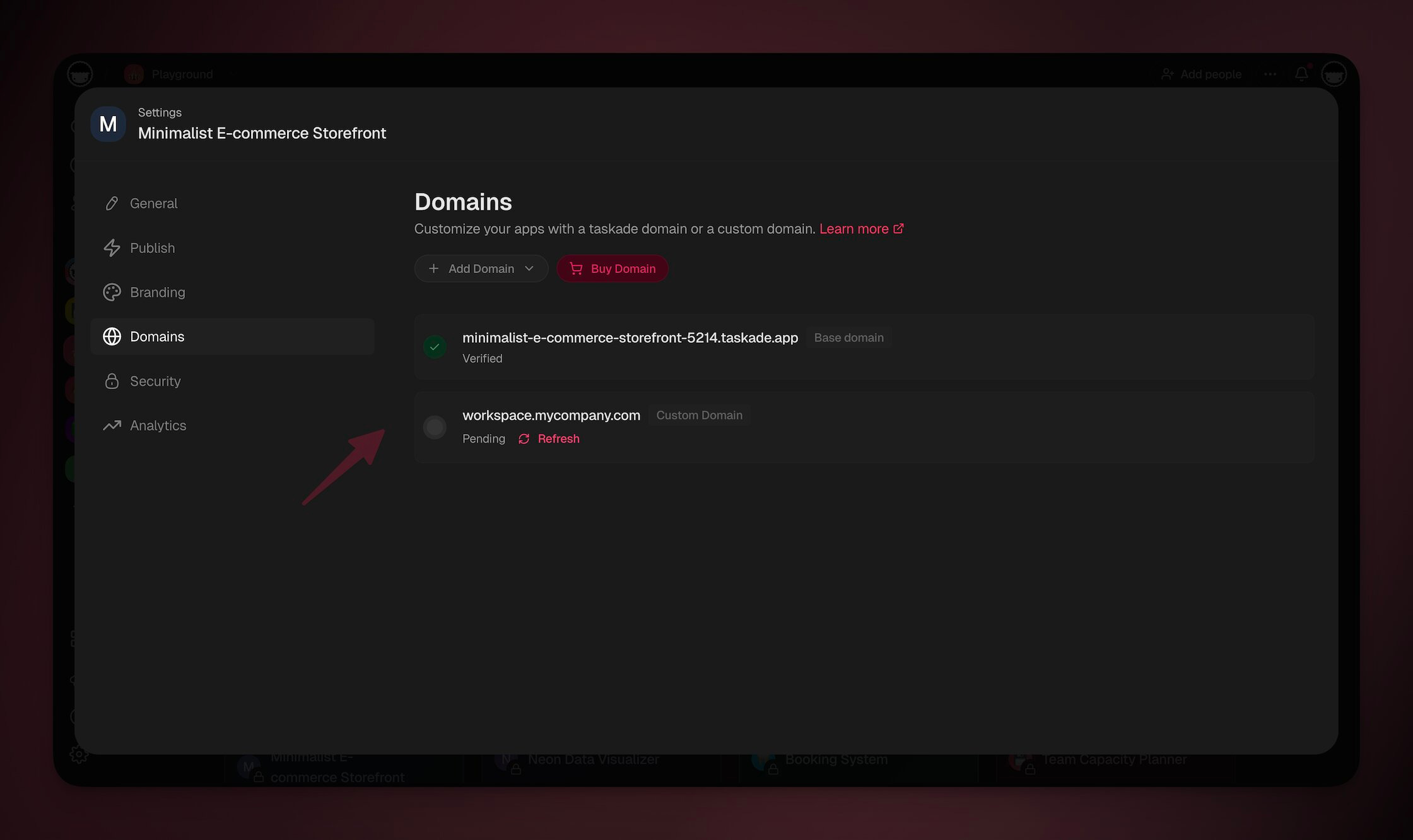
- Taskade automatically checks DNS propagation .
- SSL is auto-provisioned once verification passes (typically 5-30 minutes).
| Domain Type | Example | Plans | SSL |
|---|---|---|---|
| Taskade subdomain | myapp.taskade.site | All plans | Auto |
| Taskade subdomain | myapp.taskade.app | All plans | Auto |
| Custom subdomain | app.yourdomain.com | Business and above | Auto |
| Custom apex domain | yourdomain.com | Business and above | Auto |
Buy a Custom Domain
You can buy a domain directly in Taskade to host your apps.
- Open your app → Click the Publish drop-down (top-right).
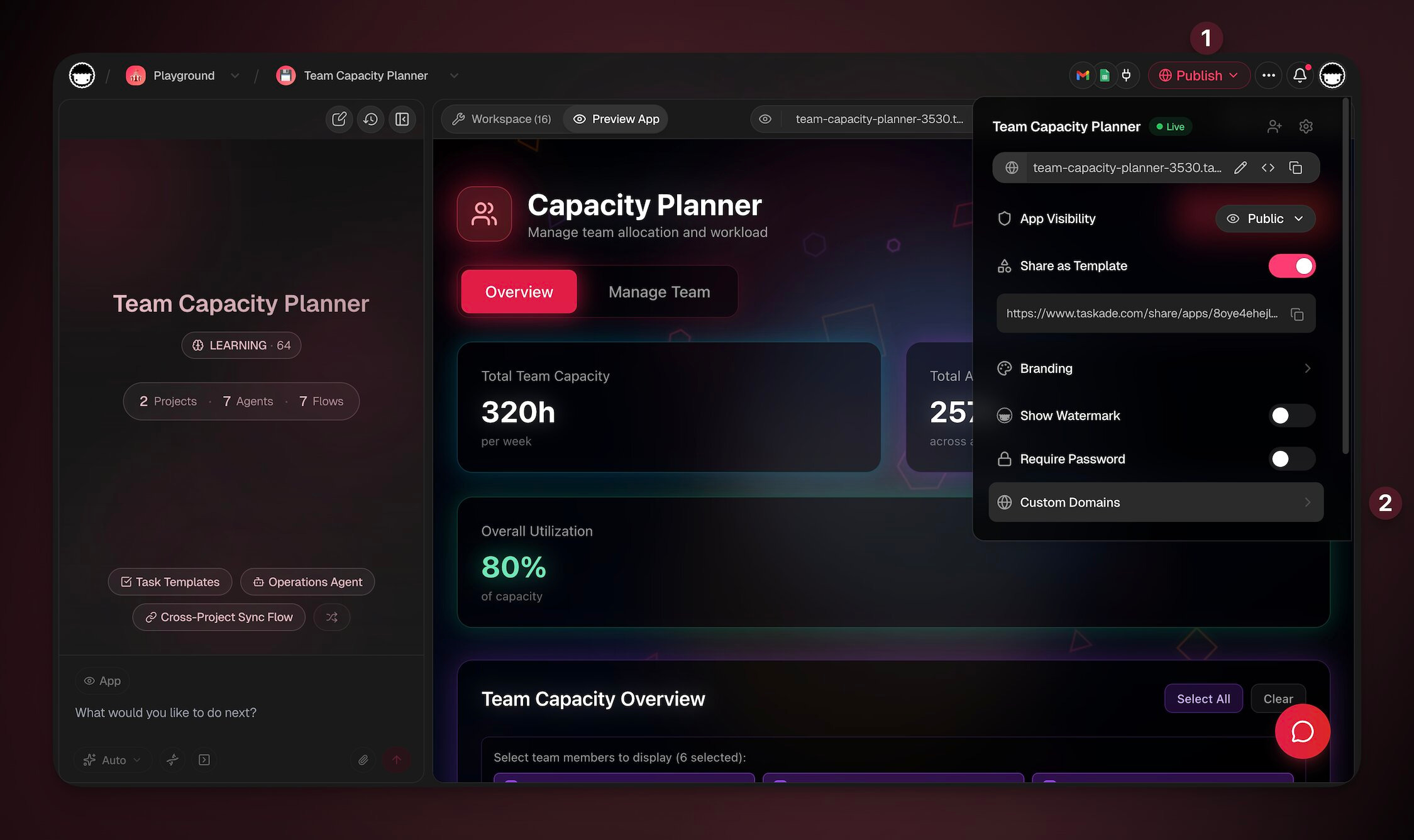
- Click Domains→ Buy Domain.
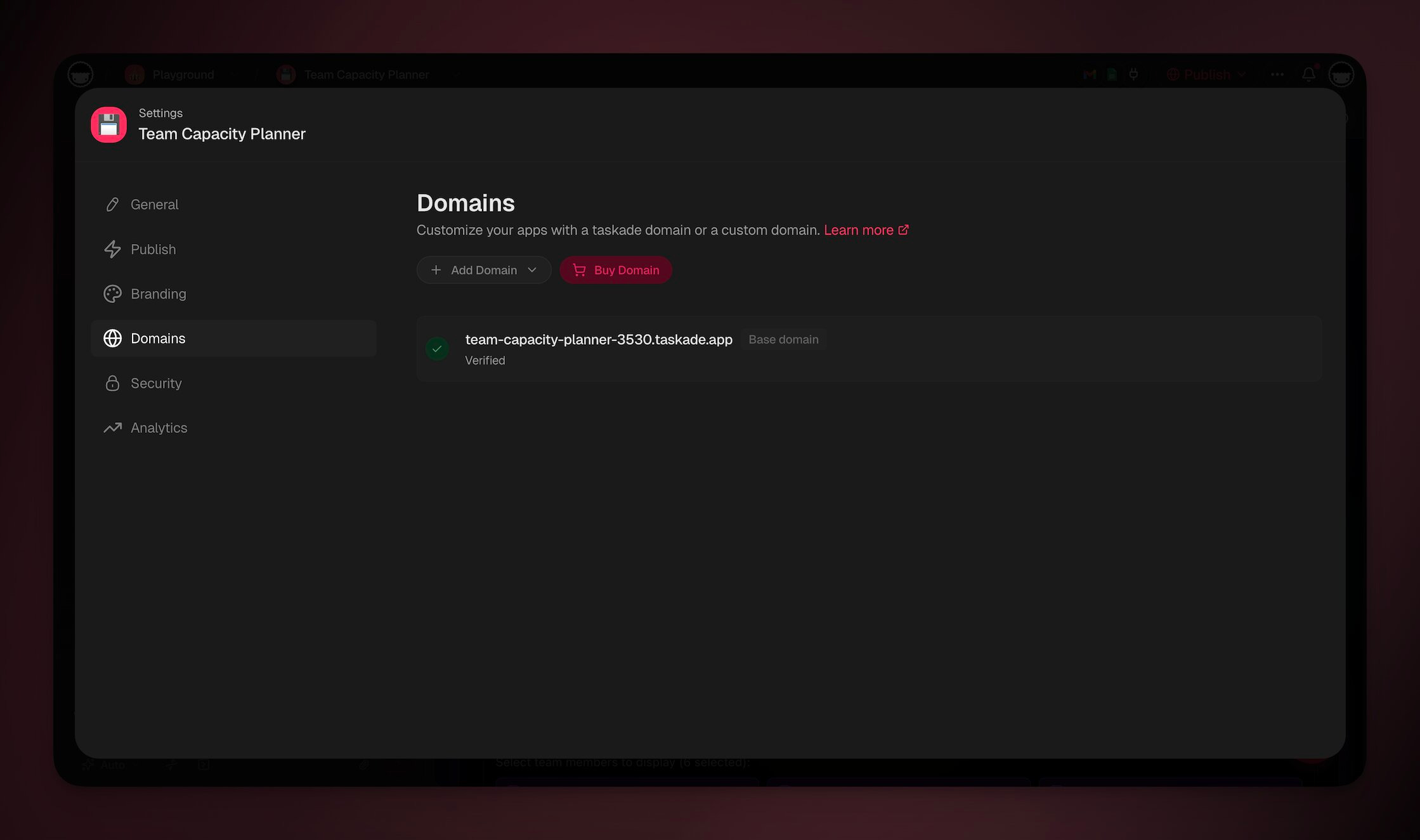
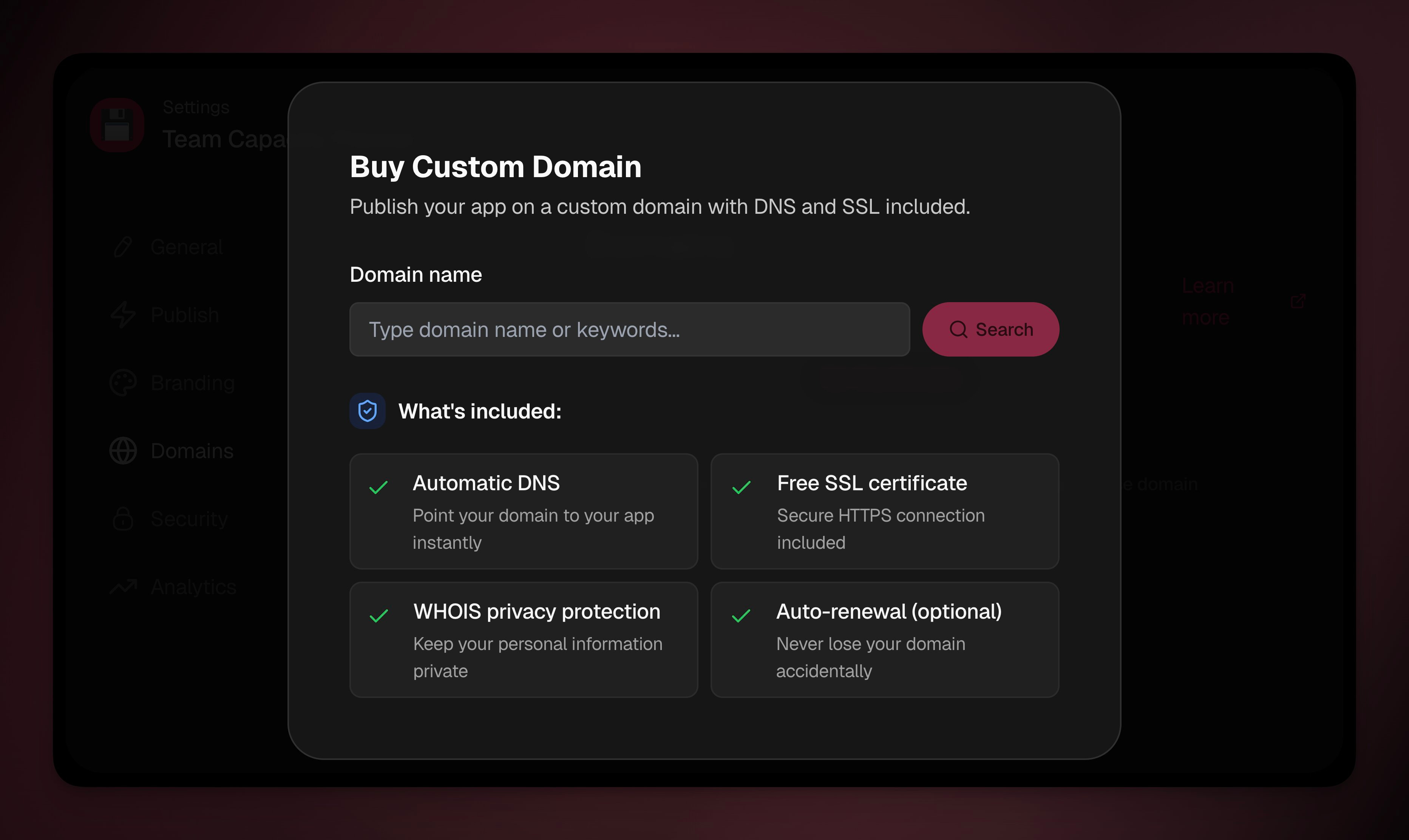
- Type domain keywords → Click Search to check availability.
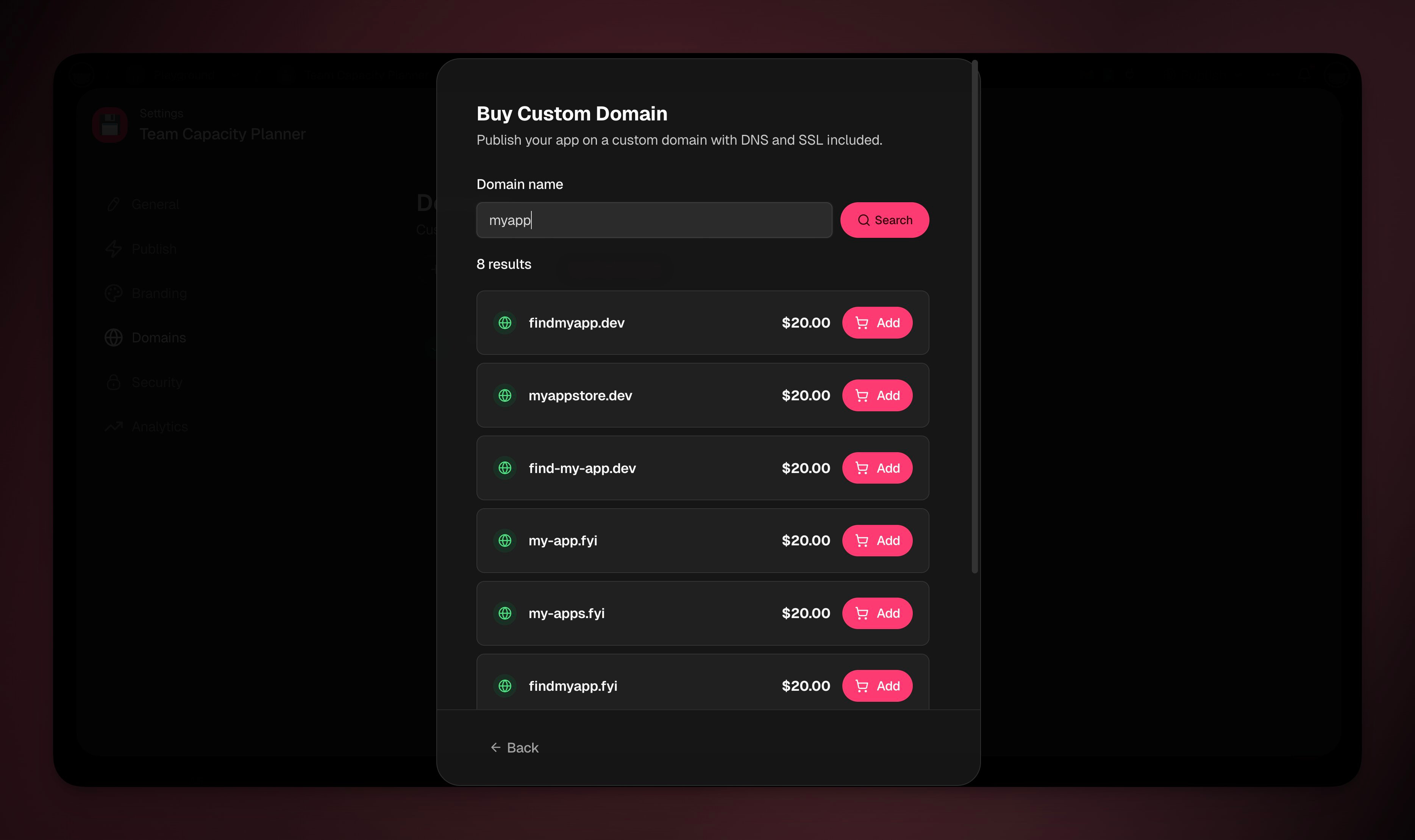
- Select a domain → Click Add → Buy and Publish.
- Follow the on-screen instructions to complete purchase.
Configure Domain Providers
The steps below show how to add your CNAME and TXT records at the most common domain providers. Find your provider, then follow its walkthrough to point your domain at Taskade.
GoDaddy
Log in to GoDaddy > Go to My Domains.
Select your domain > Click DNS.
Click Add Record > Choose CNAME:
- Name / Host: workspacename.company.com
- Value / Points to: external.taskade.com (in Taskade under “CNAME Record”)
Add a TXT Record for SSL:
- Name / Host: value shown under “TXT Record (SSL Validation)” in Taskade
- Value: token shown next to it in Taskade
Add a TXT Record for Hostname Pre-validation:
- Name / Host: value shown under “TXT Record (Hostname Pre-validation)”
- Value: token provided in Taskade
Click Save. Wait for DNS to propagate (usually 5–10 mins).
Refresh the domain status inside Taskade.
Namecheap
Log in > Go to Domain List > Click Manage.
Open the Advanced DNS tab.
Add a CNAME Record:
- Host: workspacename (just the subdomain)
- Value: external.taskade.com (in Taskade under “CNAME Record")
Add a TXT Record (SSL):
- Host: copy the value shown under “TXT Record (SSL Validation)” in Taskade
- Value: use the matching token from Taskade
Add a second TXT Record (Pre-validation):
- Host: value from “TXT Record (Hostname Pre-validation)”
- Value: corresponding token
Click the ✔ icon to save each. Wait for DNS to update.
Refresh the domain status inside Taskade.
DreamHost
Log in > Go to Websites > Manage your domain.
Click DNS Settings.
Add a CNAME Record:
- Host: workspacename.company.com
- Points to: external.taskade.com (in Taskade under "CNAME Record")
Add a TXT Record for SSL:
- Host: copy from “TXT Record (SSL Validation)”
- Value: token shown next to it
Add a second TXT Record:
- Host: from “TXT Record (Hostname Pre-validation)”
- Value: corresponding token
Save records. DNS changes are usually fast (5–30 mins).
Refresh the domain status inside Taskade.
Use Cases
Not sure how to make the most of this feature? Explore these ideas next:
| Enhance brand consistency | Use your custom domain to create a unified, branded experience for public-facing Taskade links. |
|---|---|
| Improve client-facing communications | Share public agents with a professional, easy-to-remember custom URLs to build credibility. |
| Boost marketing outreach | Use a custom or free subdomain to make it easier to promote your work and initiatives in marketing campaigns. |
| Create memorable, branded URLs | Replace generic Taskade links with short, branded URLs that are easy for your team and clients to remember. |
| Improve collaboration with partners | Share your agent's public agents and using a branded domain to offer external partners seamless access and enhancing collaboration. |
| Increase professionalism in proposals | When sharing agent links in client proposals or presentations, use a custom domain to give a polished and professional touch. |
| Simplify project sharing for events | Use a custom domain to share links to public agents fine-tuned for specific events. Make it easy for attendees to access your content with tailored URLs. |
| Own your digital real estate | Stand out in your industry by using a custom domain to fully brand your Taskade links and differentiate your business from competitors. |
Custom Domain FAQ
How do I fix the "Request HOST is not whitelisted" error?
When a subdomain or domain is set up for a workspace, only its supported public links work. For example, if mymarketing.taskade.site is your subdomain, only public links like mymarketing.taskade.site/a/123456abc123 resolve. Open the published link from the app or Domains panel rather than typing a path by hand.
How do I fix the "custom hostname does not CNAME to this zone" error?
This appears when the CNAME record at your domain provider does not yet resolve to Taskade, so no certificate exists. Make sure that the CNAME points at external.taskade.com with no typos. Then wait. DNS changes can take up to 24 hours to propagate.
Which plan do I need for a custom domain?
Custom domains are available on the Business, Max, and Enterprise plans. Free, Starter, and Pro do not include them. A free taskade.site or taskade.app subdomain is available on every plan.
Can I use a root domain, or only a subdomain?
Both. A subdomain like app.yourdomain.com uses a CNAME pointing at external.taskade.com. A root domain like yourdomain.com uses an ALIAS or ANAME record at @, or you can move your nameservers to Cloudflare. Taskade shows the right instructions when you enter the domain.
📚 Learn More
- Taskade Genesis FAQ. Common questions about Taskade Genesis apps, pricing, and features