
TL;DR: Taskade Calendar is the two-way sync between project due dates and Google Calendar or Outlook. Tasks with due dates appear on your external calendar. Events from other apps appear in Taskade's Calendar view. Works with both personal and team calendars.
How a task and an event flow between Taskade and your external calendar.
Overview
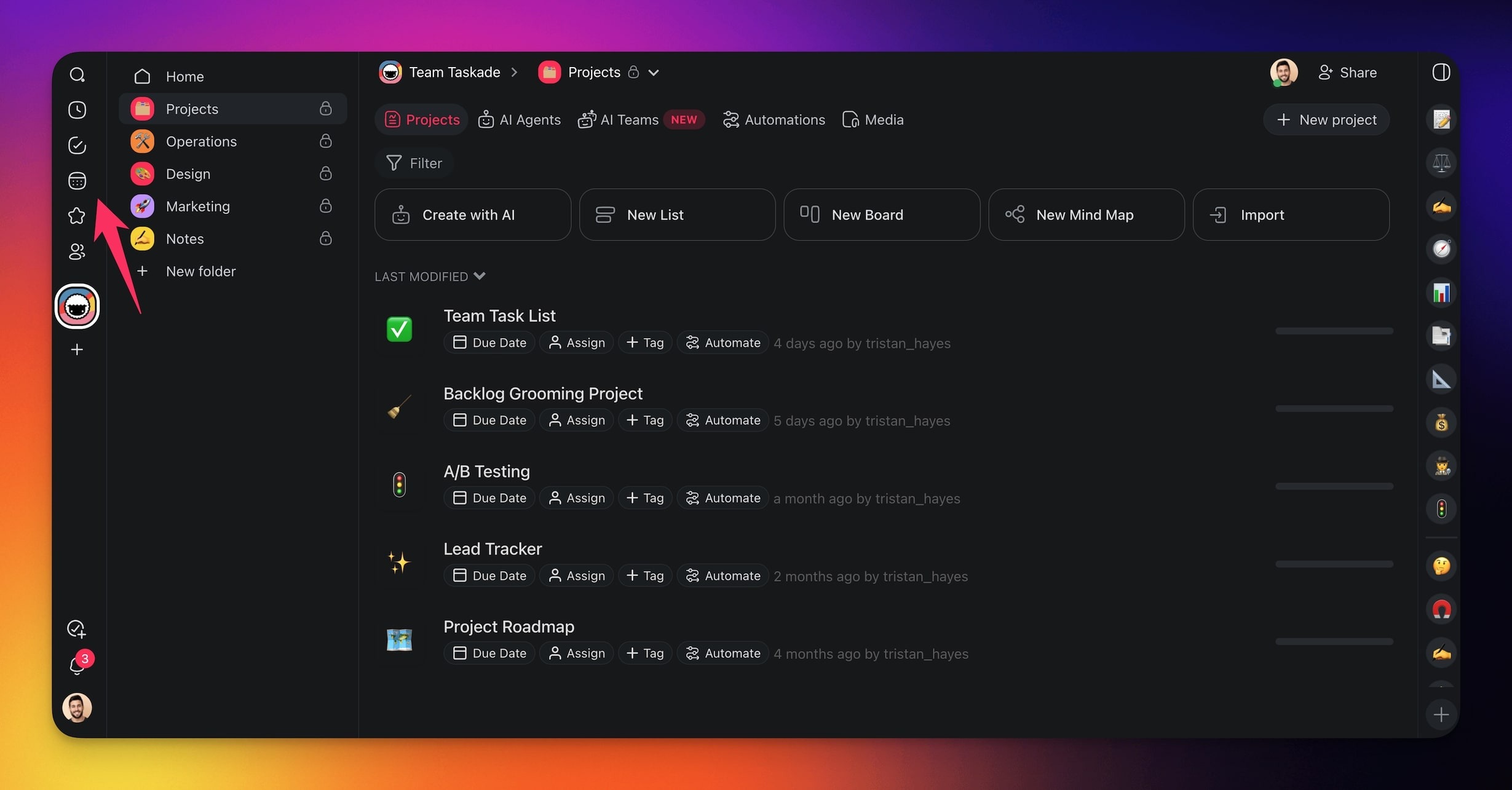
The Calendar shows all tasks and projects that have due dates or date ranges across all workspaces. To open the Calendar, click the 🗓️ Calendarbutton in the left navigation pane. You can also go to taskade.com/calendar.
Use the Calendar
- Go to your workspace or folder.
- Click the 🗓 calendar icon in the navigation menu on the left.
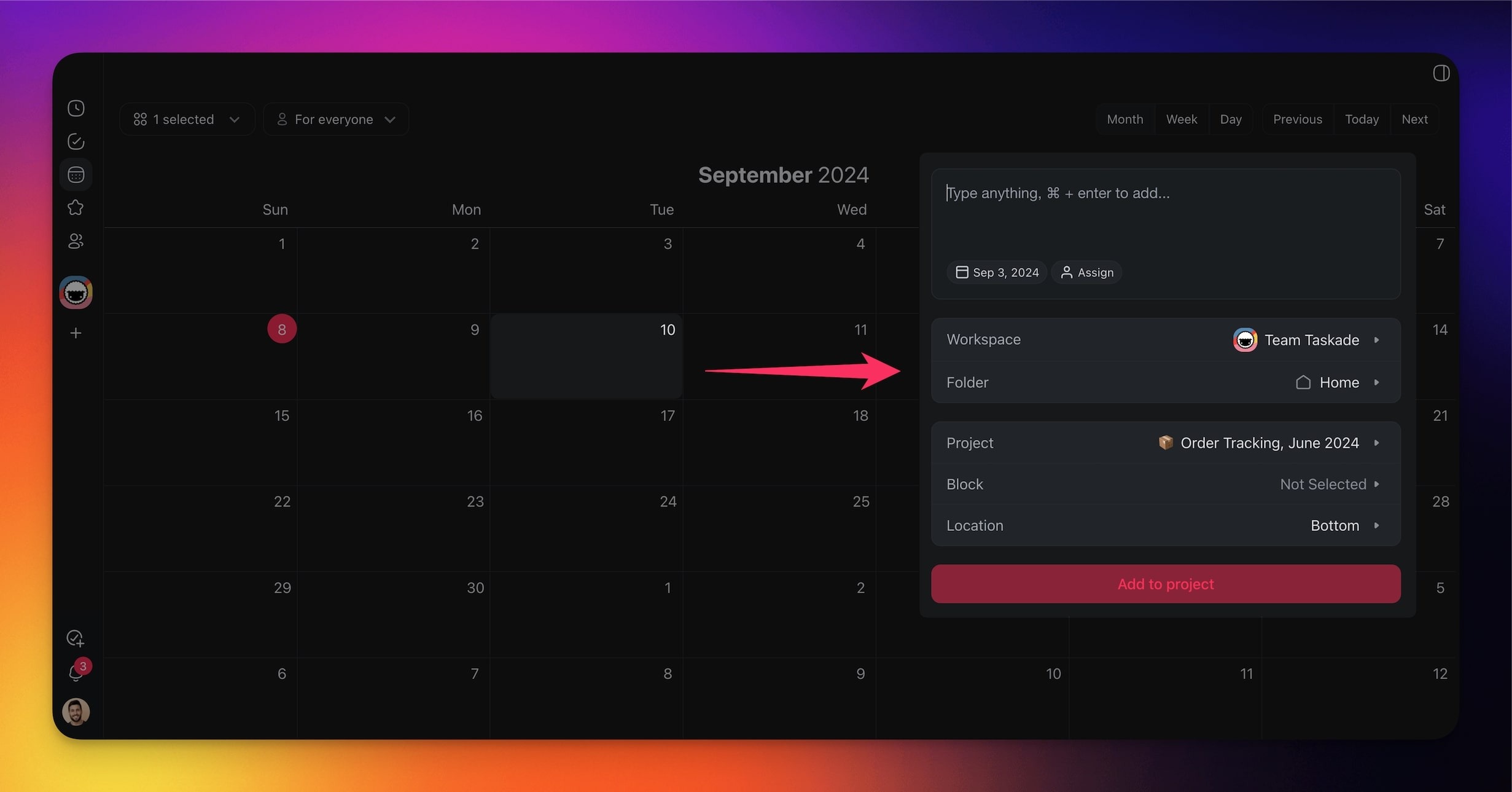
- Choose a date cell in the Calendar to add a task.
- (optional) Choose a target workspace/folder/project.
💡 Note: Visit Calendar Integrations and Google Calendar Two-Way Sync to learn how to sync Taskade with other calendar apps.
Filter Calendar Events
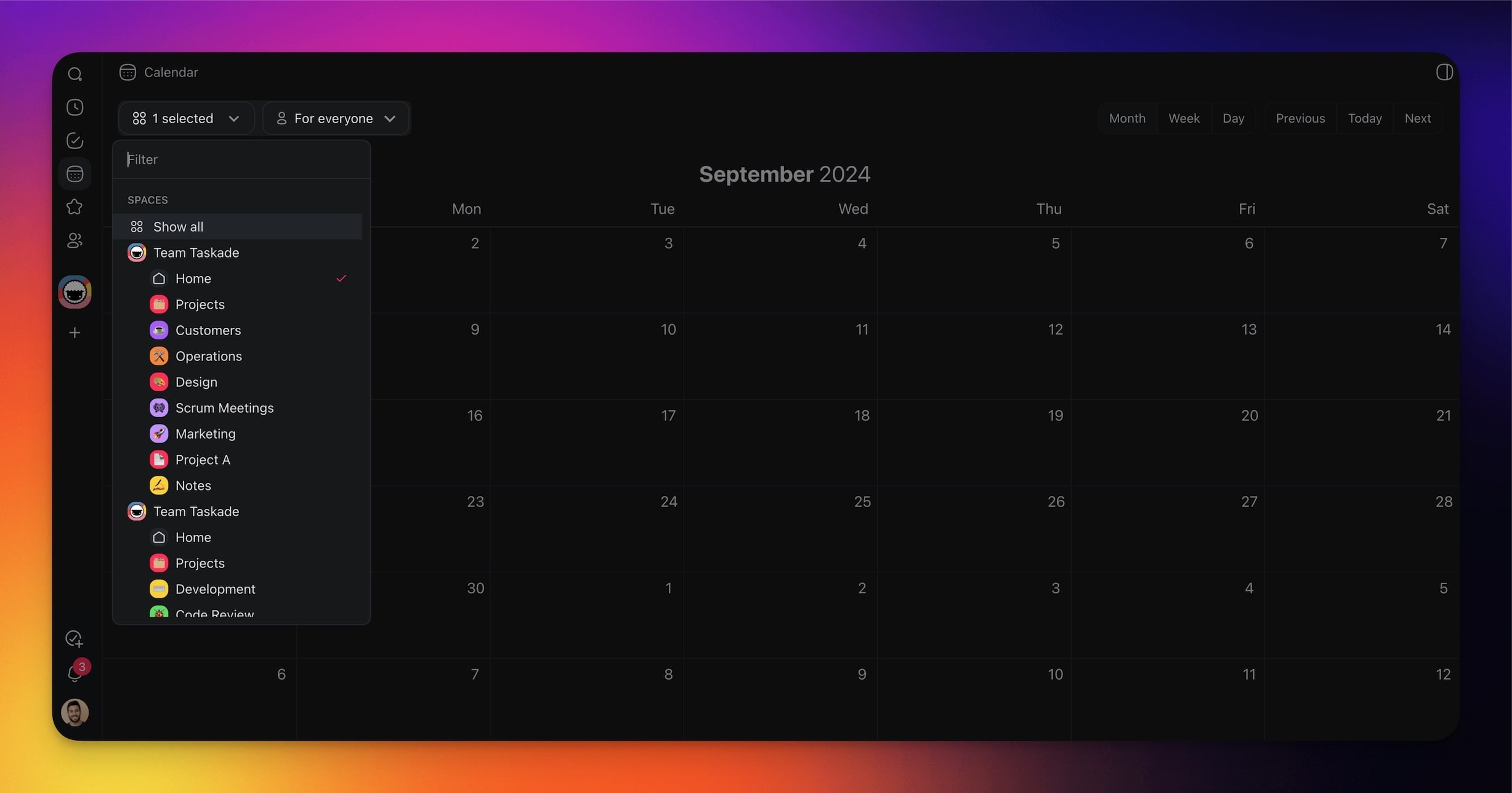
To manage several projects at the same time, filter Calendar events:
- Click the 𓃌 drop-down menu at the top of the calendar.
- Filter events by Workspace/Folder or
- Use the button to the right to filter the calendar by task owner.
Google Calendar Sync FAQ
Q) Recurring tasks only appear once on my calendar. I want to see every occurrence. How do I do that?
- A) This is intended. Recurring tasks show once on your calendar. When you complete a task, the next occurrence appears.
Q) I only see one Taskade calendar in Google Calendar but have many folders and projects. Is this an issue?
- A) All your folders and projects sync to one Taskade calendar on Google Calendar. They are not separated by folder or project.
Q) I created tasks in Taskade, but they do not show up on Google Calendar.
- A) The tasks must have due dates and an assignee. Make sure that you created the tasks in an upgraded, synced workspace or folder.
Q) I created tasks in Google Calendar, but they do not show in Taskade. Why?
- A) Create the item in Google Calendar as an event, not a task, so it syncs to the Taskade calendar. Google Calendar tasks do not sync.
Q) My other Google Calendar events do not sync with Taskade. Why?
- A) Taskade syncs only the Google calendar named "Taskade". Events in your other Google calendars do not appear in the Taskade calendar. Create the event under the "Taskade" calendar so it shows up.
Frequently Asked Questions
Where can I open the Taskade Calendar?
Click the Calendar icon in the left navigation pane of any workspace or folder, or visit taskade.com/calendar. It shows every task and project with a due date or date range across all your workspaces in one place.
How do I create a task straight from the Calendar?
Choose any date cell in the Calendar and add a task right there. You can optionally pick a target workspace, folder, or project so the new task lands exactly where you want it.
Can I sync Taskade tasks with Google Calendar or Outlook?
Yes. Taskade Calendar offers two-way sync, so tasks with due dates appear on your external calendar and events created there show up in Taskade. See Google Calendar Two-Way Sync and Calendar Integrations to set it up.
Why are my Taskade tasks not appearing on Google Calendar?
Tasks need a due date and an assignee. Make sure that you create them in a synced, upgraded workspace or folder. All folders and projects sync into a single Google Calendar named "Taskade".
How do I filter the Calendar when I manage many projects?
Click the drop-down menu at the top of the Calendar to filter events by workspace or folder. Use the button to the right to filter by task owner, which keeps a busy calendar focused on what matters right now.
Which Calendar view do I use inside a project?
Calendar is one of Taskade's project views. It sits under More Views, alongside Docs (Beta), Gantt Chart, Actionsheet, and Org Chart. Switch to the Calendar view inside a project to see that project's tasks laid out by due date.