
TL;DR: Project comments are threaded discussions on any task or block. Use
@mentionsto notify members. React with emoji, and resolve each thread when the work is done. Comments appear in the activity feed. They also start automations through the Comment Added trigger, so feedback stays with the work it belongs to.
Overview
Keep feedback attached to the work it belongs to. Project comments are threaded discussions on any task or block, so questions, approvals, and instructions stay in context instead of scattering across email and chat. Great for async teams working across time zones.
Here is the path a comment takes from a task to your team.
What Are Comments?
Context is everything in remote work across several time zones. Taskade lets you add comments to tasks and sub-tasks to keep everybody on the same page. Use Project comments to give feedback, ask questions, and give instructions.
Add a Comment
- Choose a task/sub-task you want to comment on.
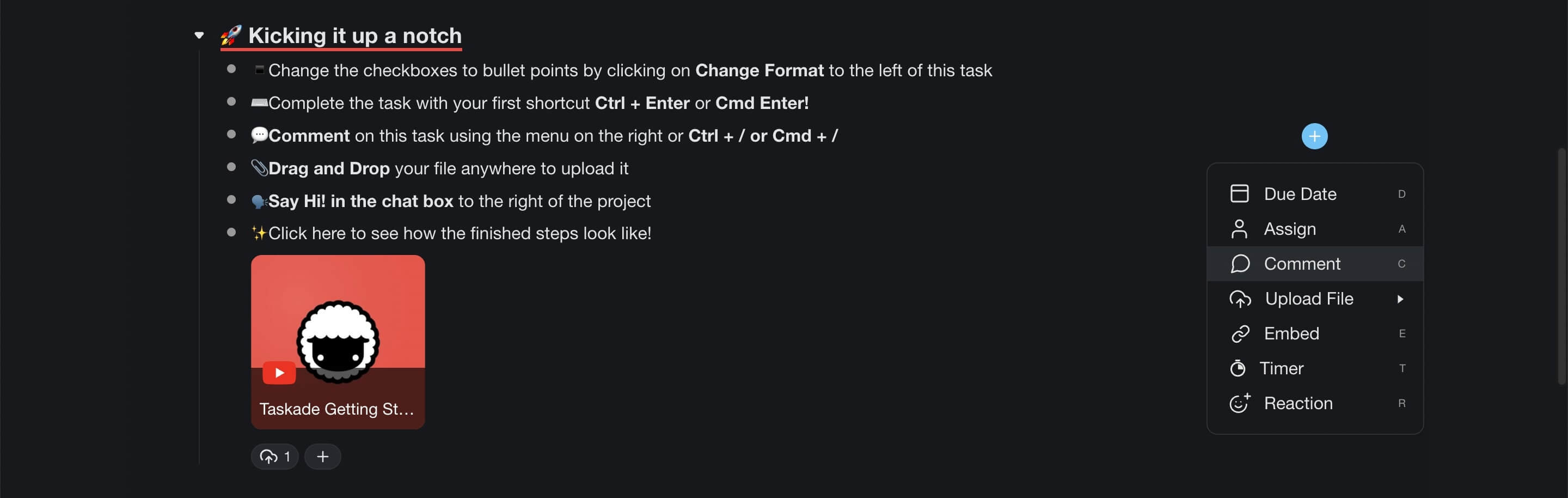
- Click the ➕ plus icon to open the Add-ons Menu.
- Select 💬 Comments or press C.
- Type your comment and click

to send it.
Note: To learn more about add-ons, visit Task Add-Ons.

Use Markdown in Comments
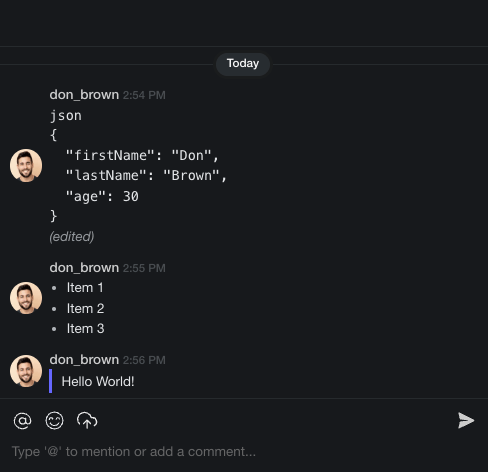
You can use Markdown syntax to communicate with your team in comments. Add the following Markdown syntax to your text to apply Markdown in a comment:
- Block quote: > text
- Code block:
code - Ordered list: 1. Item
- Unordered list: +, *, -
Note: Visit Markdown Support to learn more about using Markdown.
Attach Screencast Videos
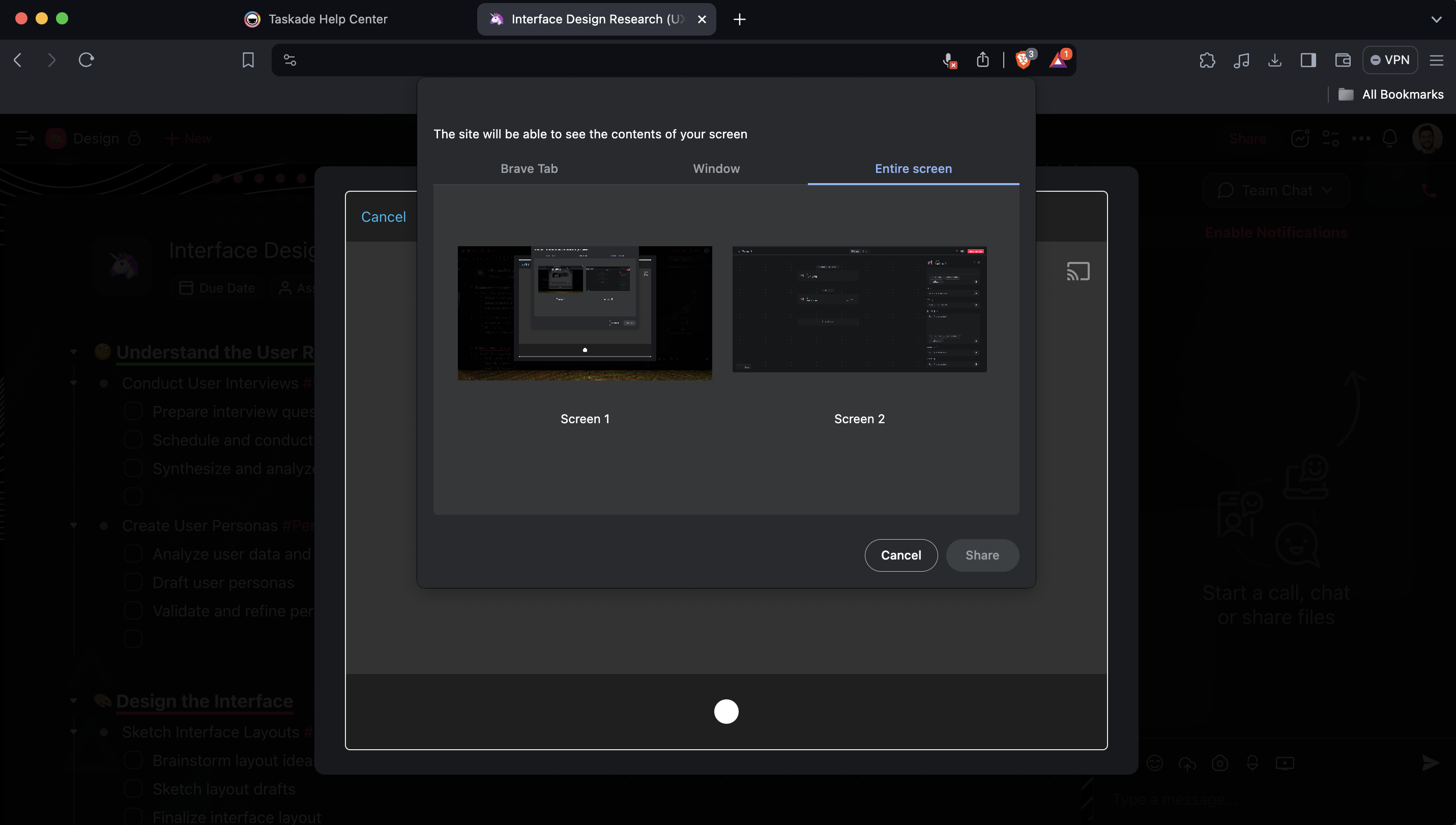
You can record your screen with the Screencast feature. Attach the video recordings directly to project comments. Here is how it works.
Note: Screencast is also available in the project chat.
- Open an existing task comment or add a new one (see the previous section).
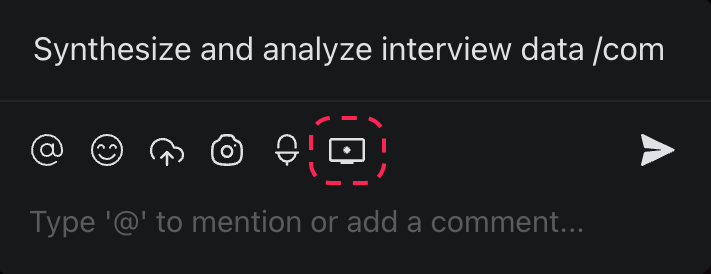
- Click the 🖥️ Screencast button.
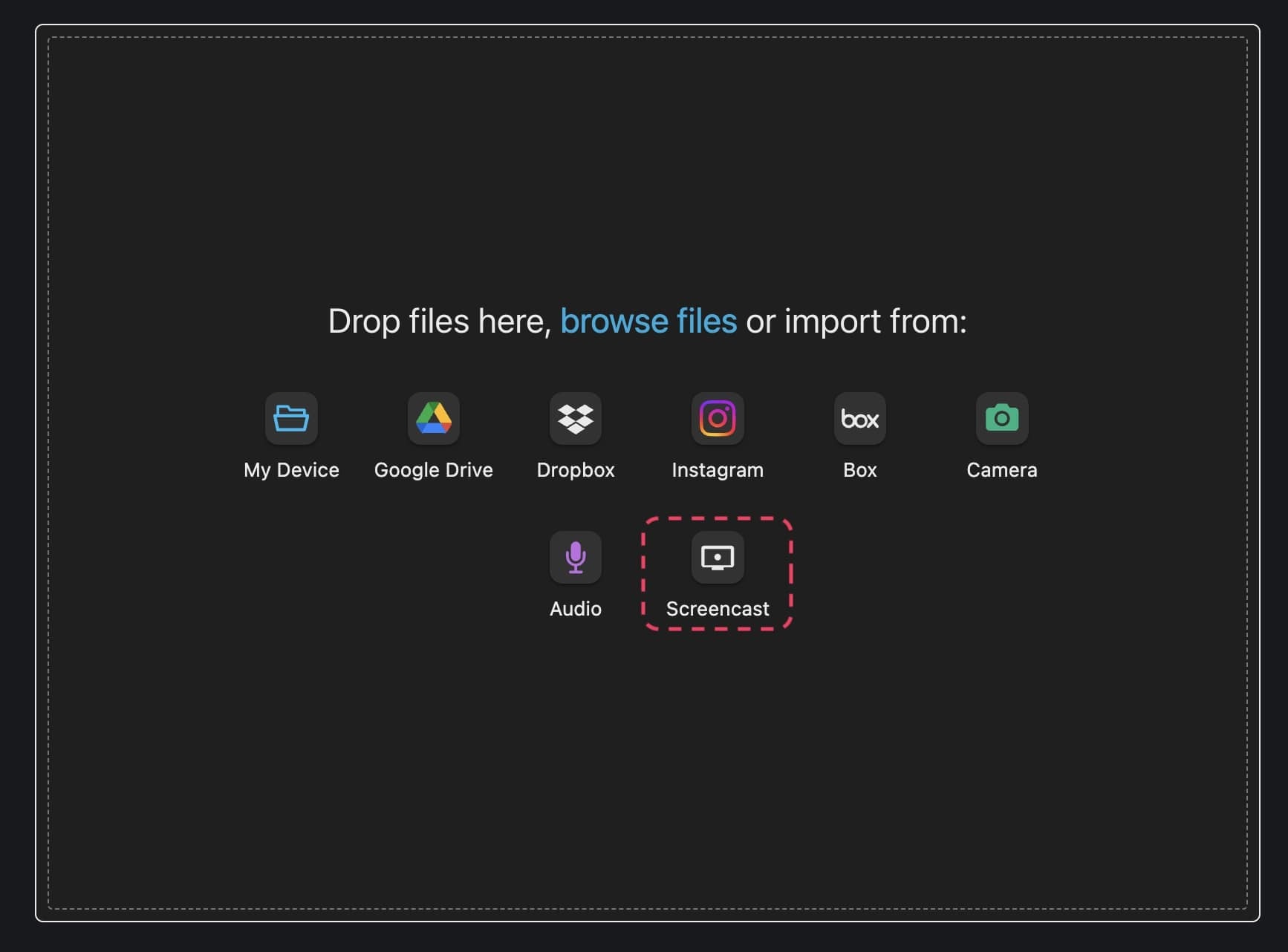
- Choose screencast from to pop-up menu.
- Select which part of your screen you want to share.
- Click Share to capture the screen.
Tips
- Use comments for asynchronous feedback. They stay attached to the specific task, so context is never lost.
- Combine comments with task assignments to request action from a specific team member.
- Visit How to Chat on Taskade if you need a real-time conversation instead of task-level comments.