
TL;DR: Taskade ships with desktop-wide keyboard shortcuts, Quick Add to capture tasks anywhere, show/hide the app, and global search. All shortcuts are remappable in Settings. Quick Add works from any app on your desktop. See Keyboard Shortcuts for the full in-editor list.
Here is the remapping flow in the Desktop app.
Overview
The Taskade Desktop app lets you customize keyboard shortcuts for your own workflow. Use the Settings panel to change all bindings or to remap a few common actions. Custom shortcuts apply only to the Desktop app. They do not change web browser shortcuts. Power users who bring muscle memory from other editors get the same key bindings across their tools.
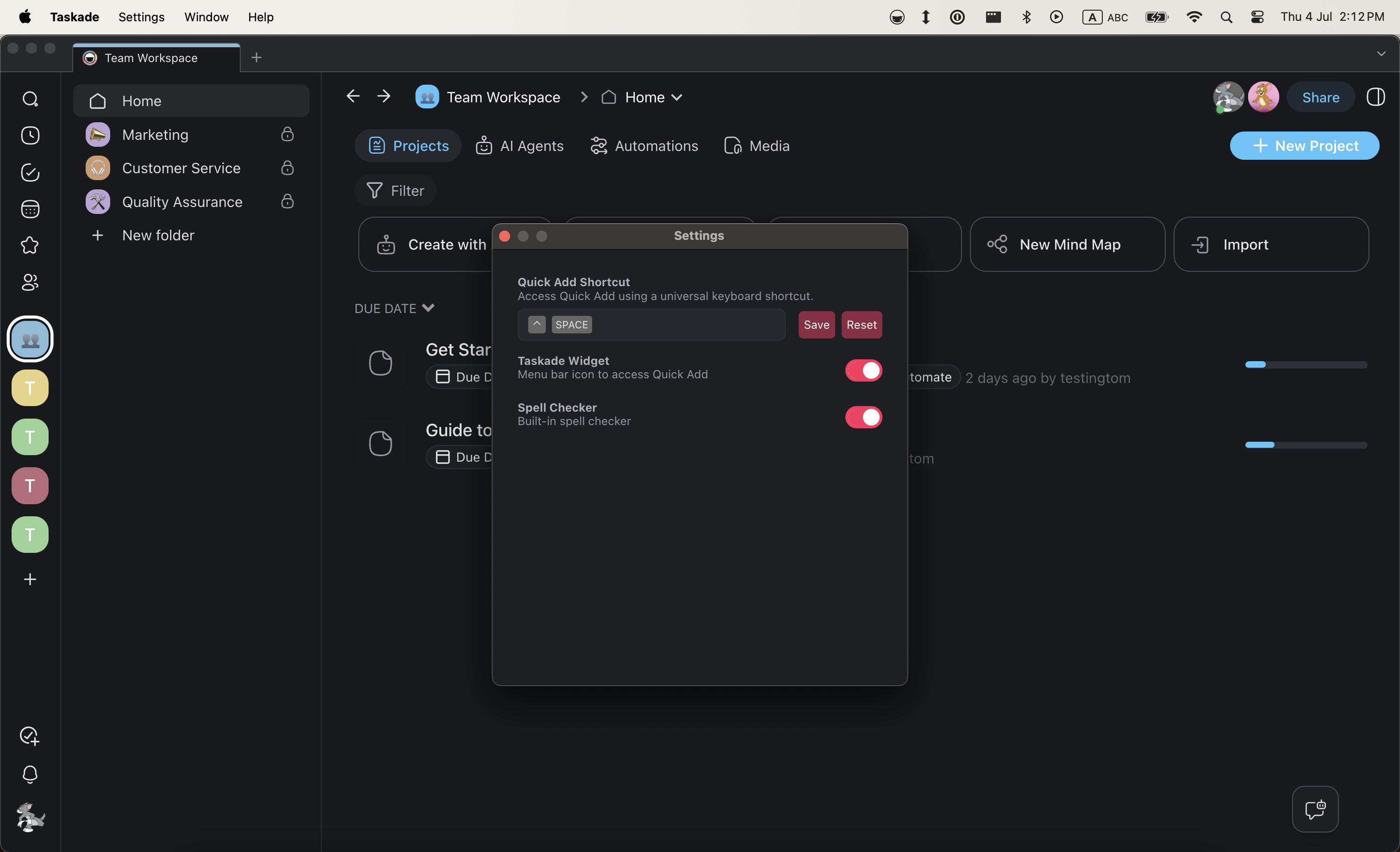
Remapping a shortcut in Settings looks like this. Click a row, press the keys you want, and Save:
┌────────────────────────────────────────────┐
│  ⌨️  Keyboard Shortcuts        [ Reset ]    │
├───────────────────────┬────────────────────┤
│  Quick Add            │  Press new keys     │
│  Show / Hide App      │  Not set            │
│  Global Search        │  Not set            │
└───────────────────────┴────────────────────┘
MacOS
On a Mac, you can change the default shortcuts for the Desktop app.
- Open the Desktop App.
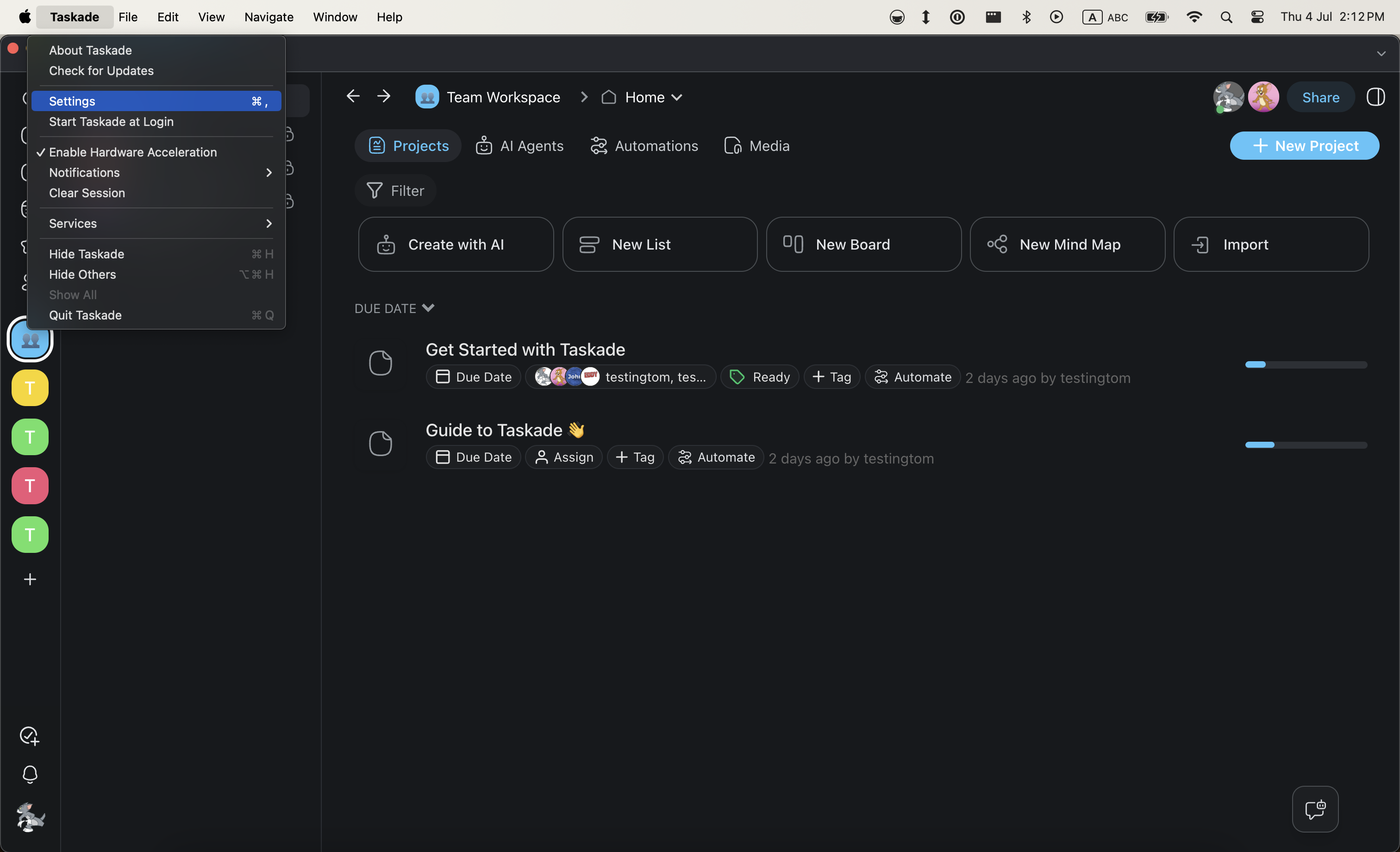
- Select Taskade from the top left corner in the menu bar.
- Select Settings.
- Choose the shortcut you want to change.
- Press the keys you want to use for that shortcut.
- Click Save.
Windows
- Click the Taskade logo in the top-left corner.
- Choose Taskade → Settings from the drop-down list.
- Click the gray area and assign a key combination using your keyboard.
- Click Save to confirm.
Tips
- If a new key combination conflicts with an existing shortcut, the Settings panel will warn you before saving.
- To reset a shortcut to its default, open the same Settings panel and click the Reset button next to the binding.
- Visit Keyboard Shortcuts for a complete reference of all available shortcuts in the web and desktop apps.
- You can also use Slash Commands and Quick Add as alternatives to keyboard shortcuts for common actions.
- Custom shortcuts sync with your Taskade account, so they persist across Desktop app sessions on the same machine.