
TL;DR: Tasks are the atomic unit of a Taskade project: a single line that can have subtasks, assignees, due dates, tags, custom fields, comments, files, and reactions. Press
Enterto add a task, and pressTabto nest it. Everything else, projects, blocks, and views, is scaffolding around tasks.
Here is what a single task row looks like, with each part labeled.
┌───────────────────────────────────────────────────────────┐
│  Anatomy of a task row                                    │
├───────────────────────────────────────────────────────────┤
│  [✓]  Design the landing page   (A)  Jun 12   Status: Open│
│  │    │                         │    │        │           │
│  │    │                         │    │        └ field pill│
│  │    │                         │    └ due date           │
│  │    │                         └ assignee avatar         │
│  │    └ task text (click and type)                        │
│  └ checkbox (click to complete)                           │
└───────────────────────────────────────────────────────────┘
Overview
Tasks and subtasks are the building blocks of every Taskade project. Use them to break down work, delegate to team members, and track progress across any of the project views: List, Board, Mind Map, and more.
Add Tasks
To add a task, click on any empty line in your project and start typing.
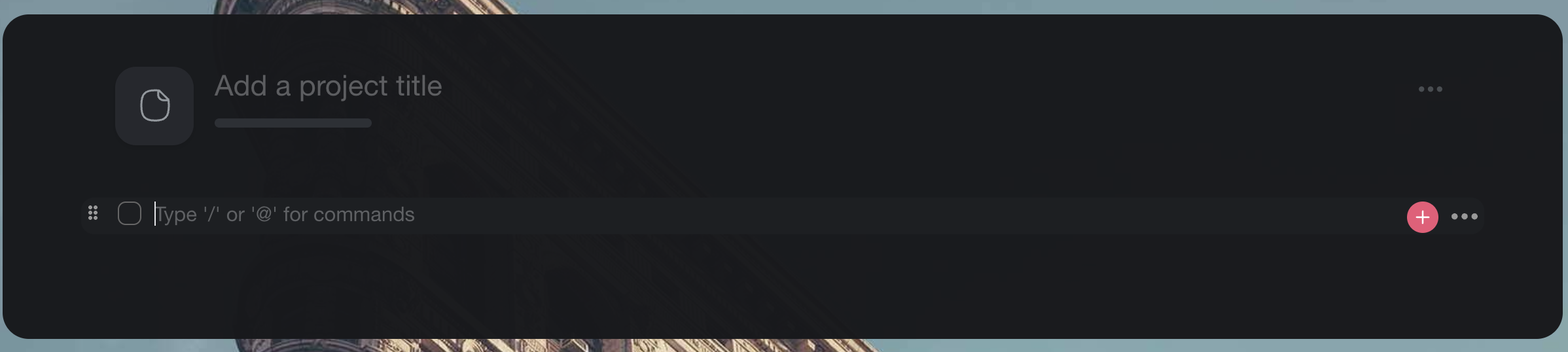
- Press Enter to create a new task below the current one.
- Click the + button at the bottom of the task list to append a new task.
- Use / to open the slash command menu for quick formatting and AI actions.
Add Subtasks
Subtasks let you nest related items under a parent task to create a hierarchy. You can nest subtasks multiple levels deep to model complex work breakdowns. Each level indents further to show the relationship visually.
- Click a task and press Enter to create a new line.
- Press Tab to indent it. This converts it into a subtask.
- Press Shift + Tab to outdent a subtask back to the parent level.
Subtasks indent under a parent, and the caret on the parent folds or unfolds them.
┌─────────────────────────────────────────────────────────────┐
│  Task and subtask tree                                      │
├─────────────────────────────────────────────────────────────┤
│  ▾ [ ]  Launch the website         ‹ caret folds/unfolds    │
│      [✓]  Write the copy                                    │
│      [ ]  Design the landing page                           │
│      ▾ [ ]  Build the pages         ‹ subtasks nest deeper  │
│          [ ]  Home                                          │
│          [ ]  Pricing                                       │
│  › [ ]  Plan the launch email      ‹ collapsed (caret right)│
└─────────────────────────────────────────────────────────────┘
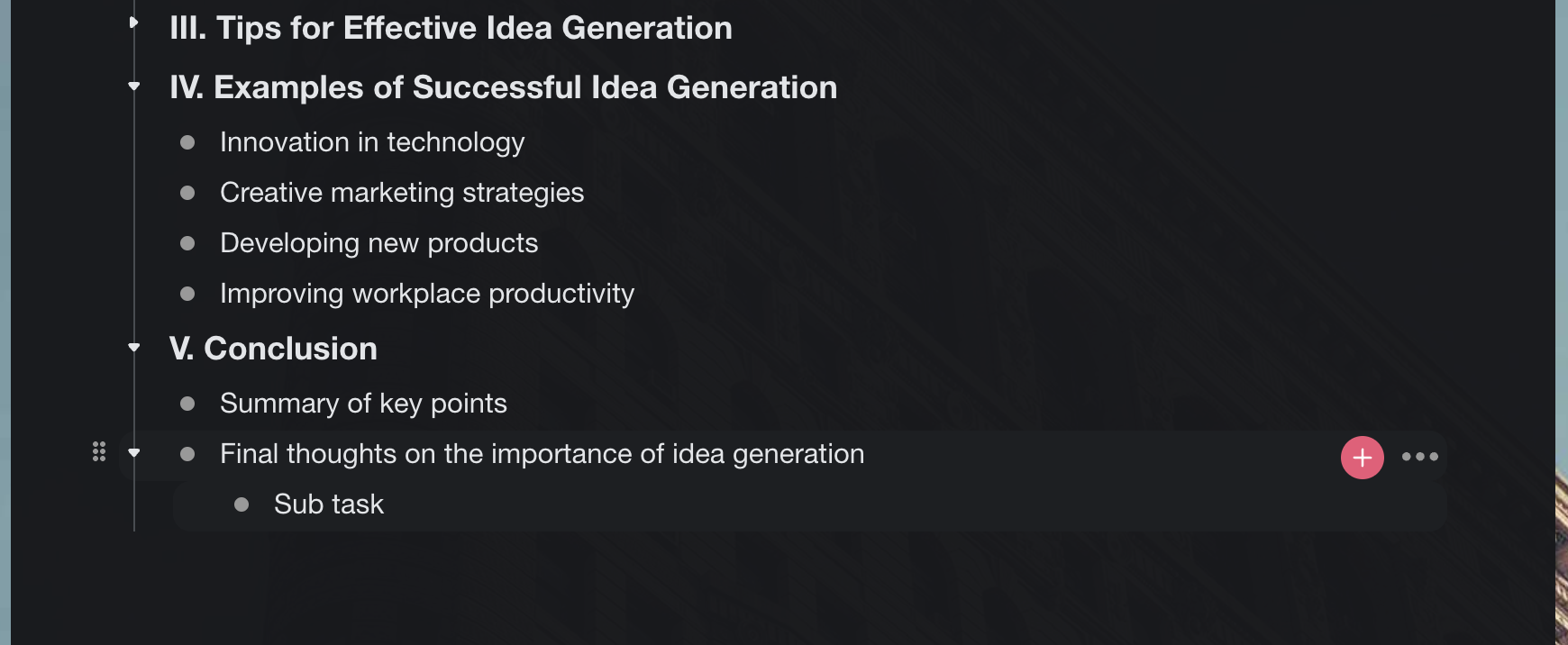
💡 Tip: Subtasks inherit due dates and assignees from their parent task unless you override them individually.
Tips
- Drag and drop tasks to reorder them or move them between sections.
- Bulk-select multiple tasks to assign, move, or delete them at once.
- Add due dates, custom fields, and comments to any task for richer context.
- Switch to Board view to manage tasks as Kanban cards.
- Use AI Agents to automatically generate subtasks from a high-level task description.
- Convert tasks to Mind Map nodes to visually brainstorm before organizing into a list.
Related
- Manage Tasks & Multi-Select Toolbar
- Assign Tasks
- Due Dates & Reminders
- Project Views
- Slash Commands
- Custom Fields