
Overview
Spin up a new project in seconds to organize tasks, notes, and documents, then reshape it into any of the views your work needs.
TL;DR: Create a project manually (blank, from template, or via AI prompt) in any workspace or folder. Every new project starts in List view but can switch to any other project view instantly. Generate a full project from a natural-language prompt with the Workflow Generator.
Three ways to start, one ready-to-use project:
What Is a Project?
Taskade projects are small but mighty. A single Project can work as a page in a notebook or as an organized hub where you chat and collaborate with your team in real time. It is your digital canvas, and you can fill it with:
- ✔️ To-dos
- ✅ Checklists
- 📑 Outlines
- 🗂️ Documents
- 🖼 Images & videos
- 🧠 Mind maps
- And more!
Create a New Project
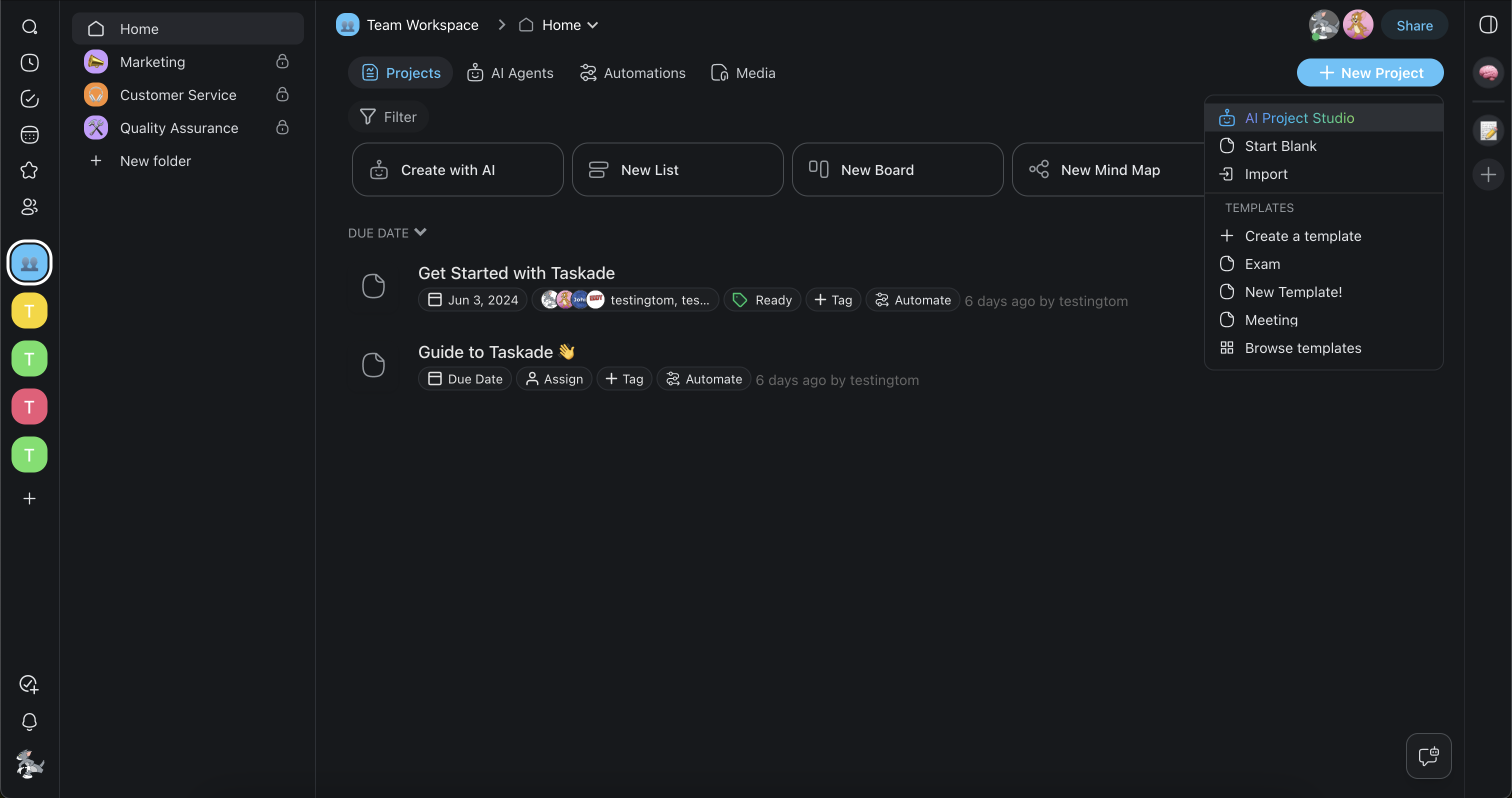
- Open your workspace or folder.
- Click the ➕ New project button (top-right corner).
- Use the AI Generator (see below), pick a template, or add your first task.
- Share your project with others. 🥳
Note: If no template fits, create your own.
Use the AI Generator
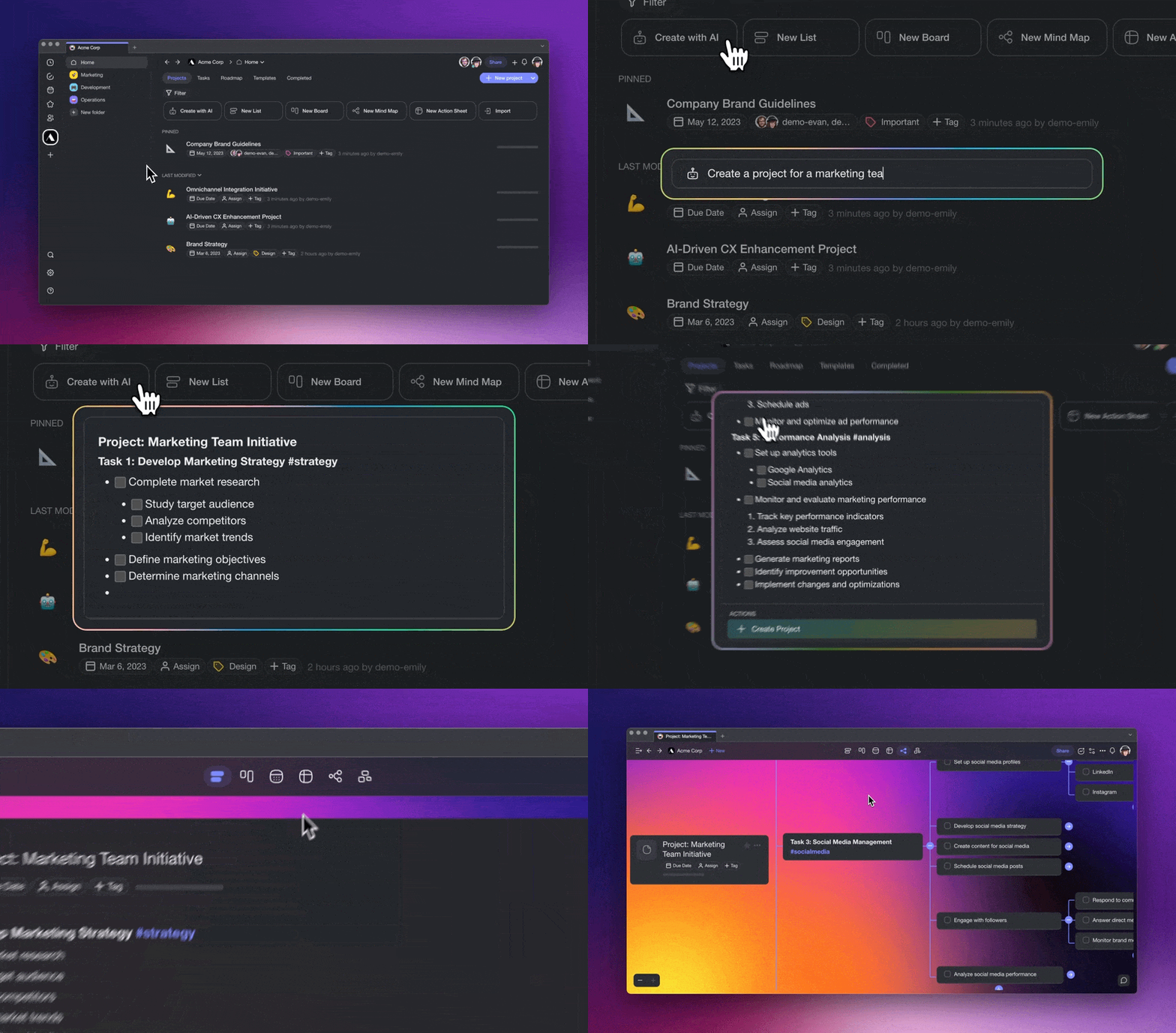
The Workflow Generator uses frontier AI models to simplify project creation. Here is how it works:
- Click the ➕ New project button (top-right corner).
- Choose the 🤖 AI Generator from the list.
- Describe your project in the generator field, or
- Choose one of the available prompts and customize it.
- Click ➕ Create Project to use the generated workflow.
Note: Visit Taskade AI Generator (Projects, Blocks, Tasks) to learn more.
Change Project Favicon
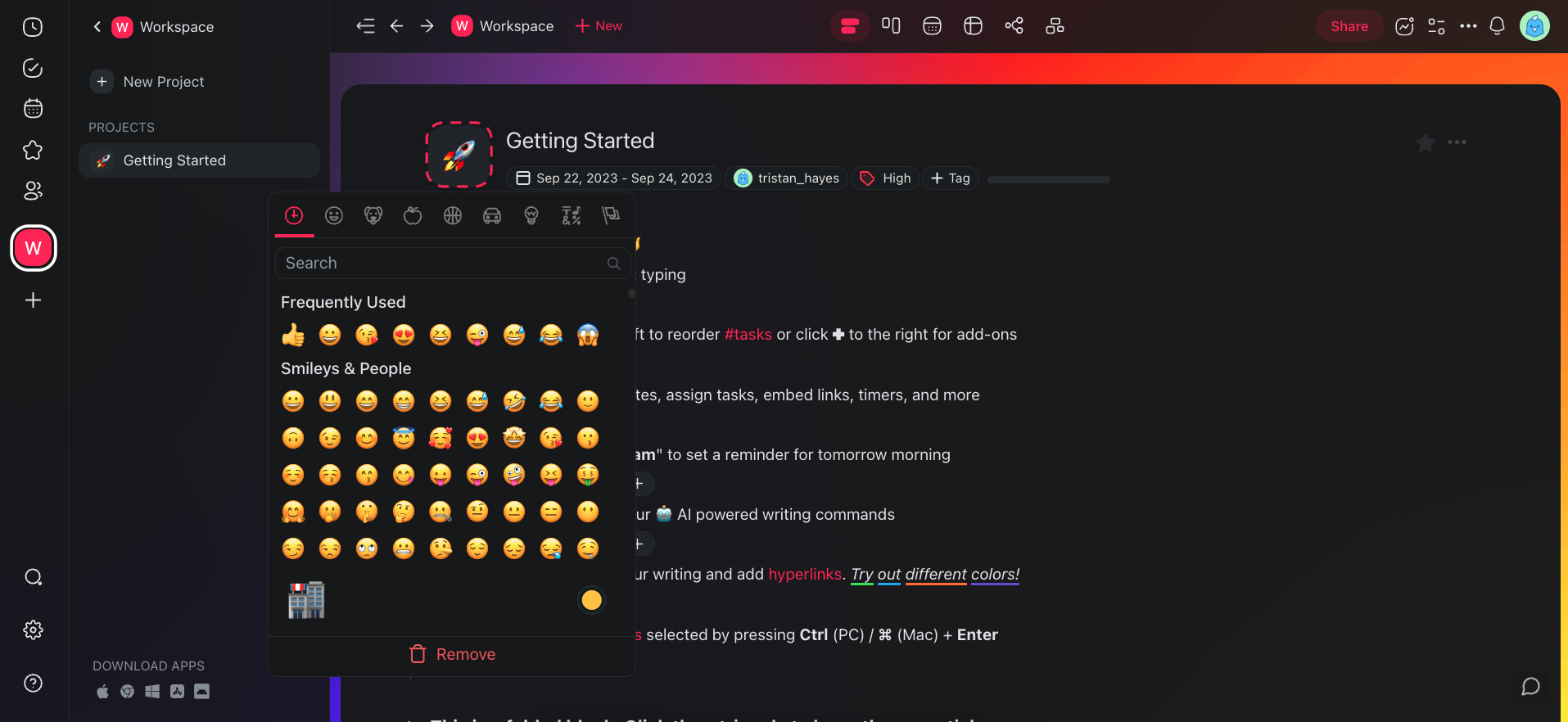
A favicon is the icon visible in a browser tab or webpage bookmark. You can set custom favicons for each of your projects by changing a project icon.
- Open a project and click the project icon at the top.
- Choose one of the available emojis. 🥳
💡 Note: Visit Change Workspace Color & Icon to learn how to change workspace/folder favicons.
Tips
- Use templates to start with a proven structure instead of a blank project.
- Switch between project views (List, Board, Calendar, Table, Mind Map, Gantt, Org Chart) at any time without losing content.
- Set user roles and permissions to control who can edit or view the project.
- Add AI Agents to your project to automate repetitive tasks and generate content.