TL;DR: Project chat is a live, persistent conversation tied to a specific project, unlike standalone messaging, every chat message can reference tasks, mentions, and files already in the workspace. Toggle it with
Cmd/Ctrl + \and combine with project comments for threaded discussion.
Open the chat box, then pick who you are talking to from the mode drop-down.
Overview
Keep every conversation next to the work it is about. Project chat lives inside each Taskade project, so questions, updates, and decisions stay attached to the tasks and files they reference instead of scattering across a separate messaging app.
What Is Project Chat?
Every project in Taskade is a self-contained collaboration space with an integrated chat. Team members can instantly start new chats or join ongoing discussions.
Start a Team Chat
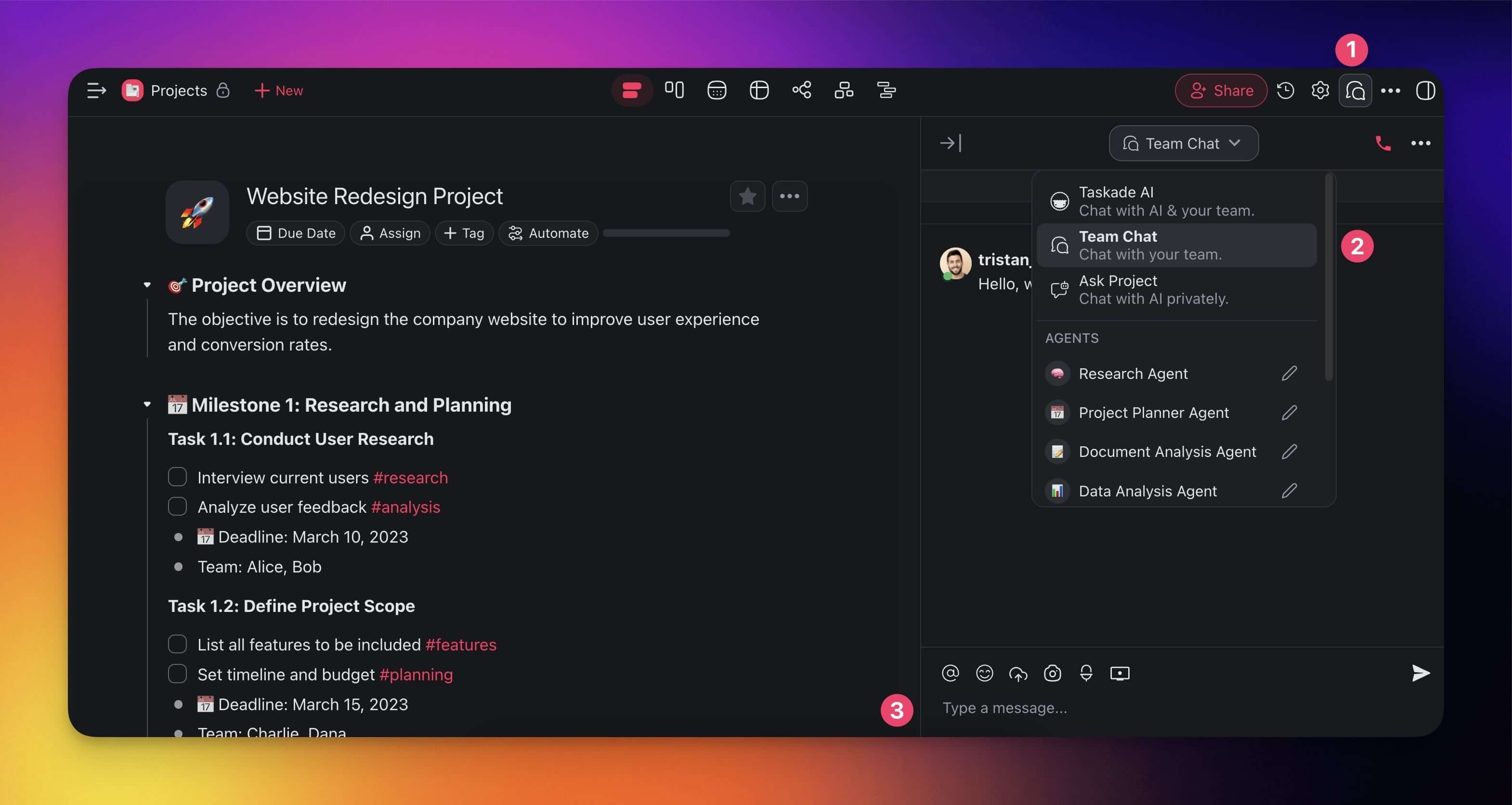
The chat box is located in the right-hand section of every project. To start a chat:
Open a project and click the chat balloon icon 💬 in the top-right corner.
Choose 💬 Team Chat using the drop-down at the top of the chat box.
Type your message and press ⌨️ Enter or click the arrow button to send it.
Start a Private Chat
Did you know that you can create a private project for 1-on-1 chats and calls?
- Create a project in your private workspace or folder.
- Click Share (top-right) ➡ Invite to project.
- Invite participants via ✉️ Email or copy a direct link under 🔗 Share Link.
- Start chatting!
Note: Unless your project is in a shared workspace/folder, only the person you invite will be able to join. You can also turn off link sharing in the 🔗 Share Link tab.
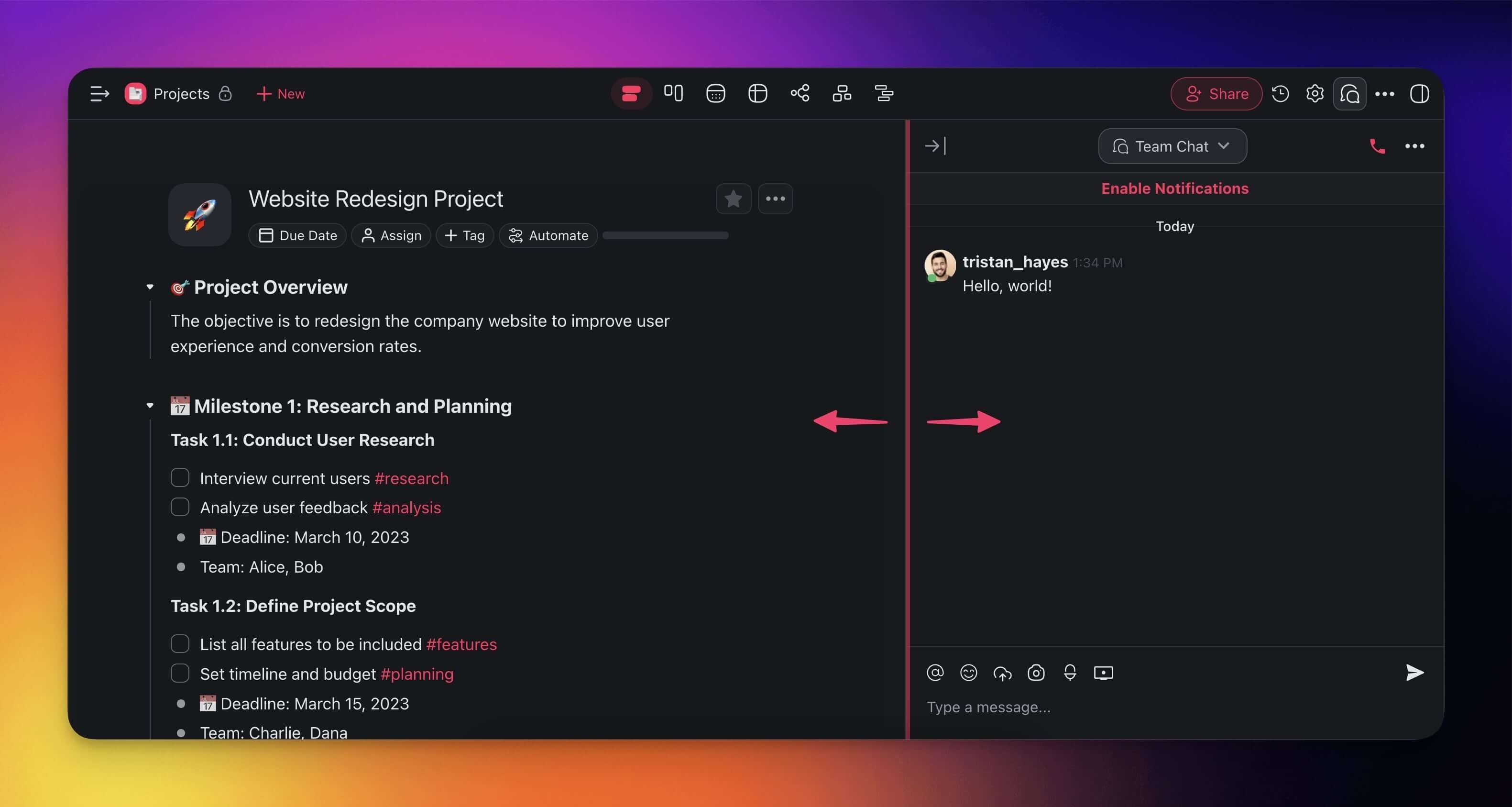
Hide / Resize Chat
- Click the chat bubble icon 💬 to open the chat box.
- Left-click and drag the edge of the chat box to the left or right to resize it.
Chat with Taskade AI
The chat box lets you talk to Taskade AI, Custom AI Agents, and your AI Teams as you talk to a team member. Ask questions and request project support.
Open a project and click the chat balloon icon 💬 in the top-right corner.
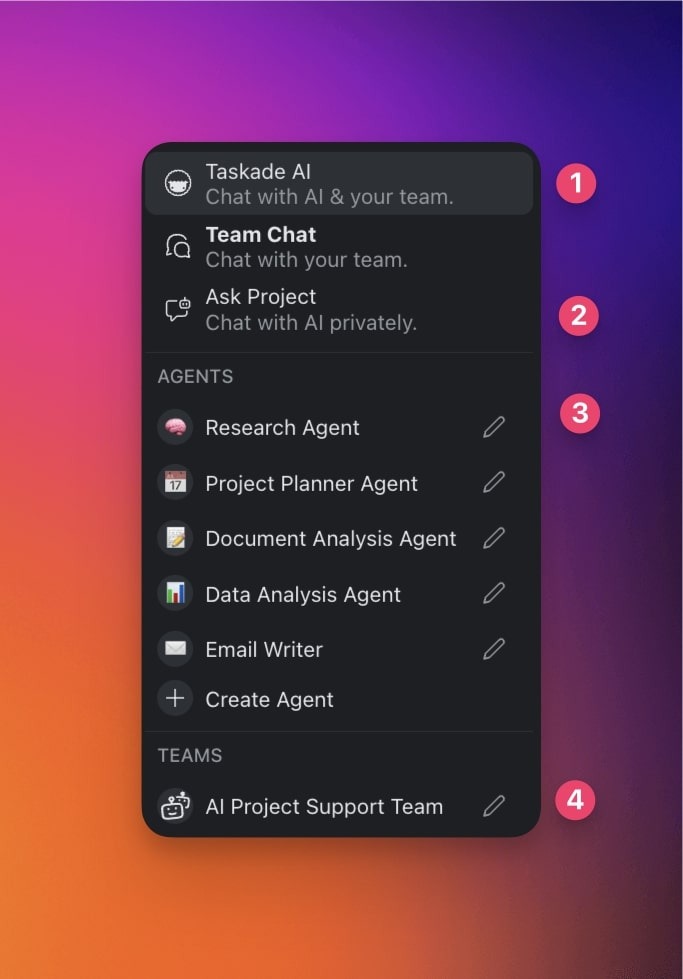
Select the chat tap from the drop-down at the top (click the links to learn more):
🟢 Taskade AI: Chat with AI and your team at the same time.
🔵 Ask Project: Chat with AI privately.
🔴 Agents: Chat with your team and a custom AI agent.
🟡 Teams: Chat with team members and an entire AI team.
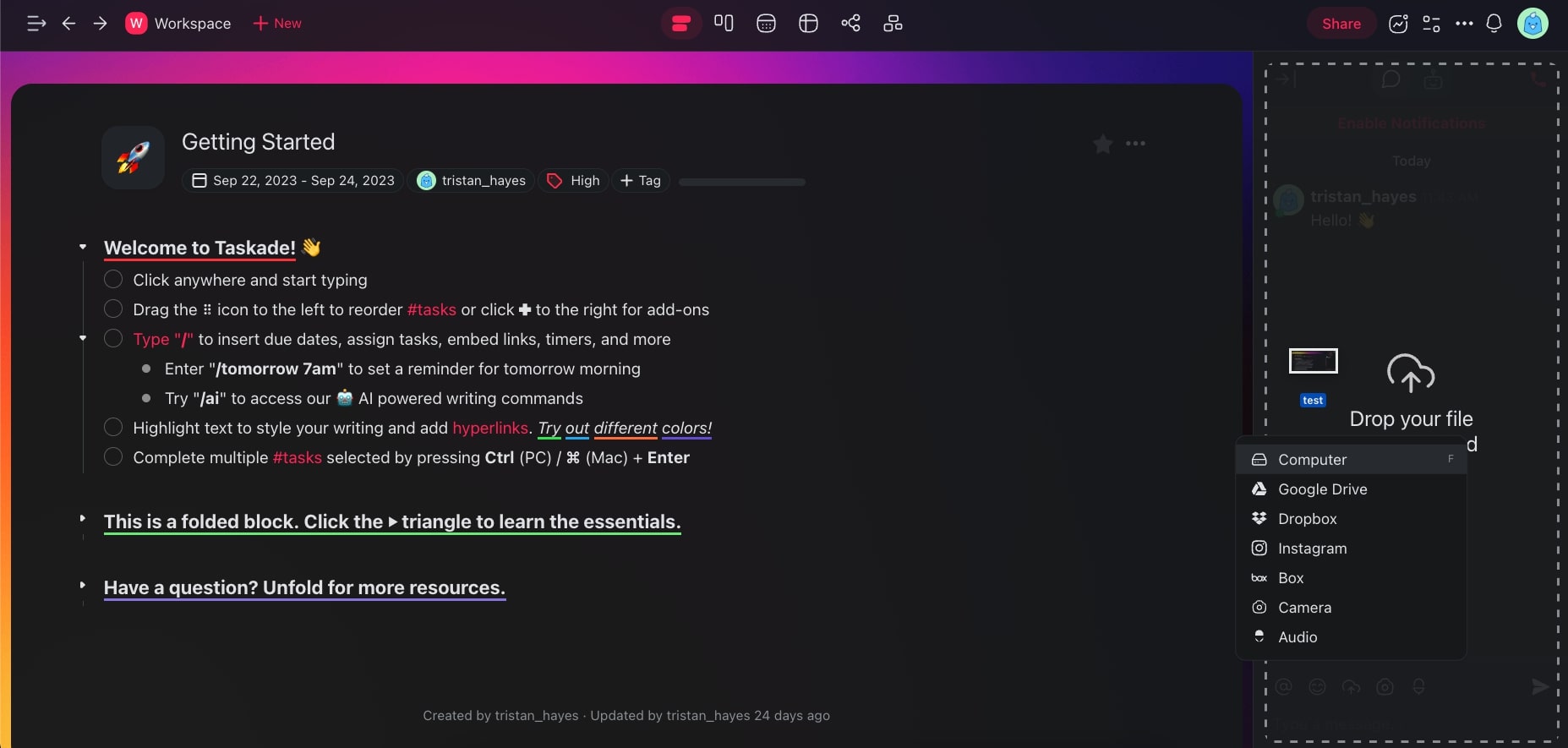
Upload Attachments
- (Method #1) Click the ☁️ Upload File button at the bottom of the chat window.
- (Method #2) Drag & drop a file to the chat window.
Send Screencast Videos
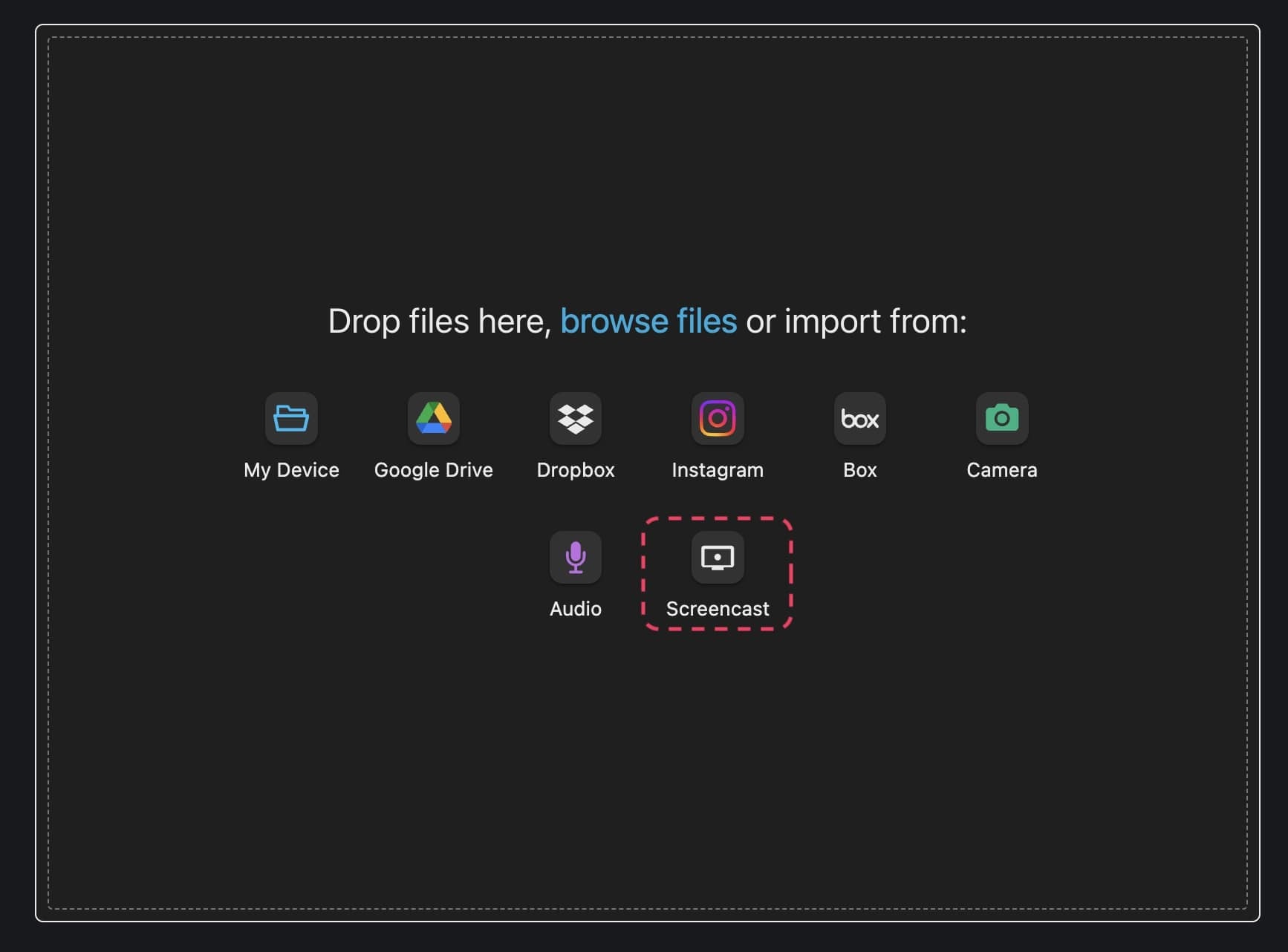
You can record your screen with the Screencast feature. Attach the files directly to tasks, comments, and team chat. Here is how it works:
- Open the project chat.
- Click the Screencast button

at the bottom of the chat. - Choose screencast from to pop-up menu.
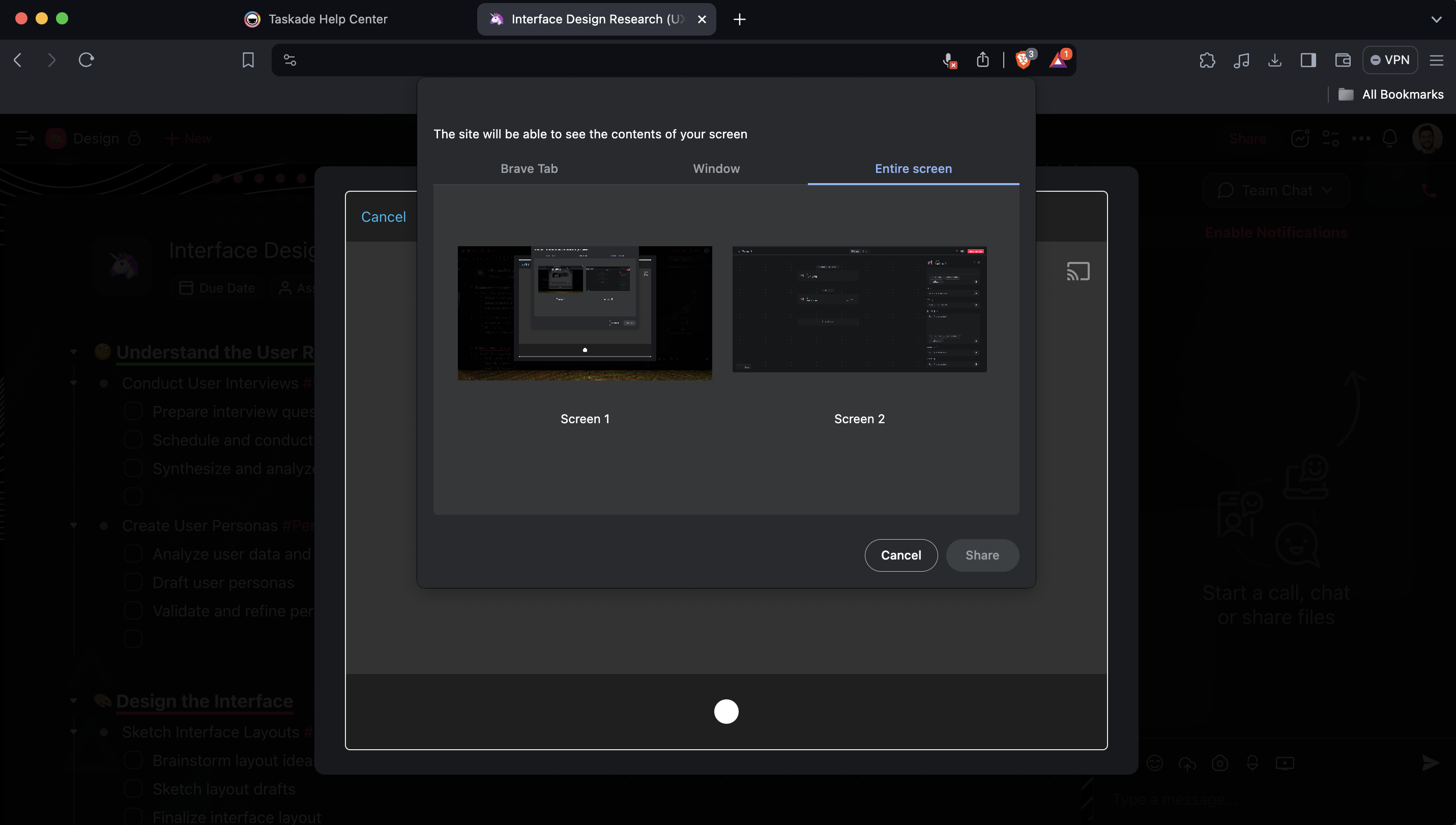
- Select which part of your screen you want to share.
- Click Share to capture the screen.
Turn Off Chat and Comments
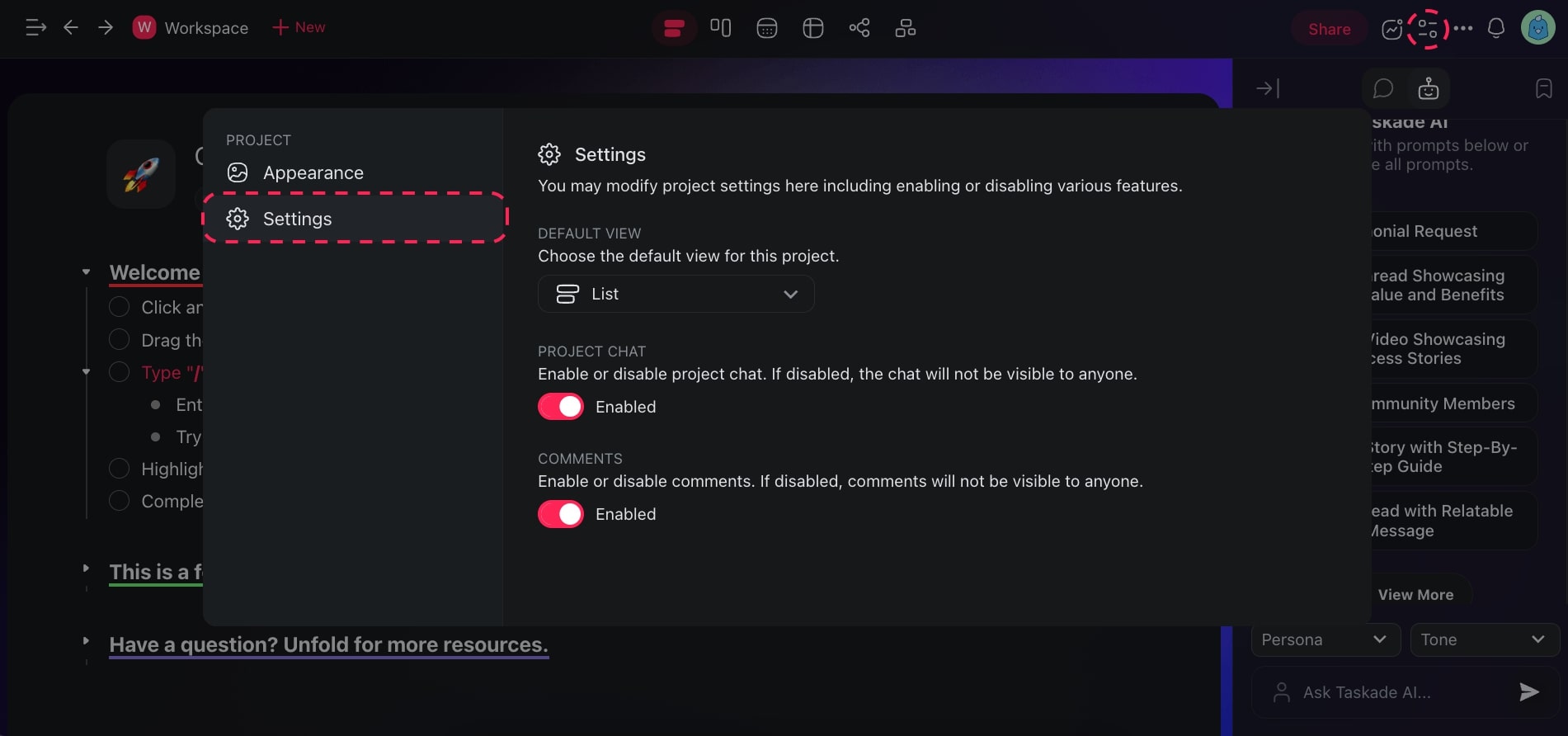
To remove messages and comments from your projects, turn them off:
- Open your project and click the settings icon

(top right). - Go to the ⚙️ Settings tab and use the sliders to edit chat/comments setting.
Use Markdown in Chat
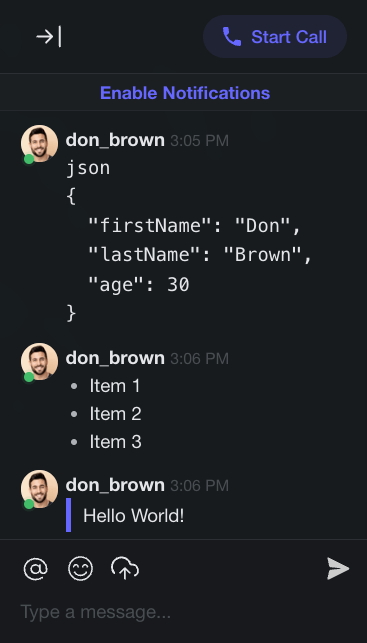
You can use Markdown syntax to communicate with your team in the chat box. Add the following Markdown syntax to your text to apply Markdown to your messages
- Block quote: > text
- Code block:
code - Ordered list: 1. Item
- Unordered list: +, *, -
💡 Note: Visit ✔️ Markdown Support to learn more about using Markdown.