
TL;DR: Every project has its own cover image, icon, color, description, and default view. Customization makes a project easy to find in the sidebar and gives clients and guests a polished first impression. Combine with templates to reuse a design across many projects.
One set of project data feeds every view and custom field. The look changes, the content stays the same.
Overview
Give each project a look that fits its purpose. Set a background, cover image, color theme, and default view so a client portal, ops dashboard, or content calendar opens the way you want every time. Save the design as a template to reuse it across projects.
Set Project Background
Taskade features a selection of beautiful backgrounds you can use to customize the looks of your Projects. Go to the Project Settings menu ➡ Appearance to browse available wallpapers or use the "Random" setting for an aesthetic surprise.
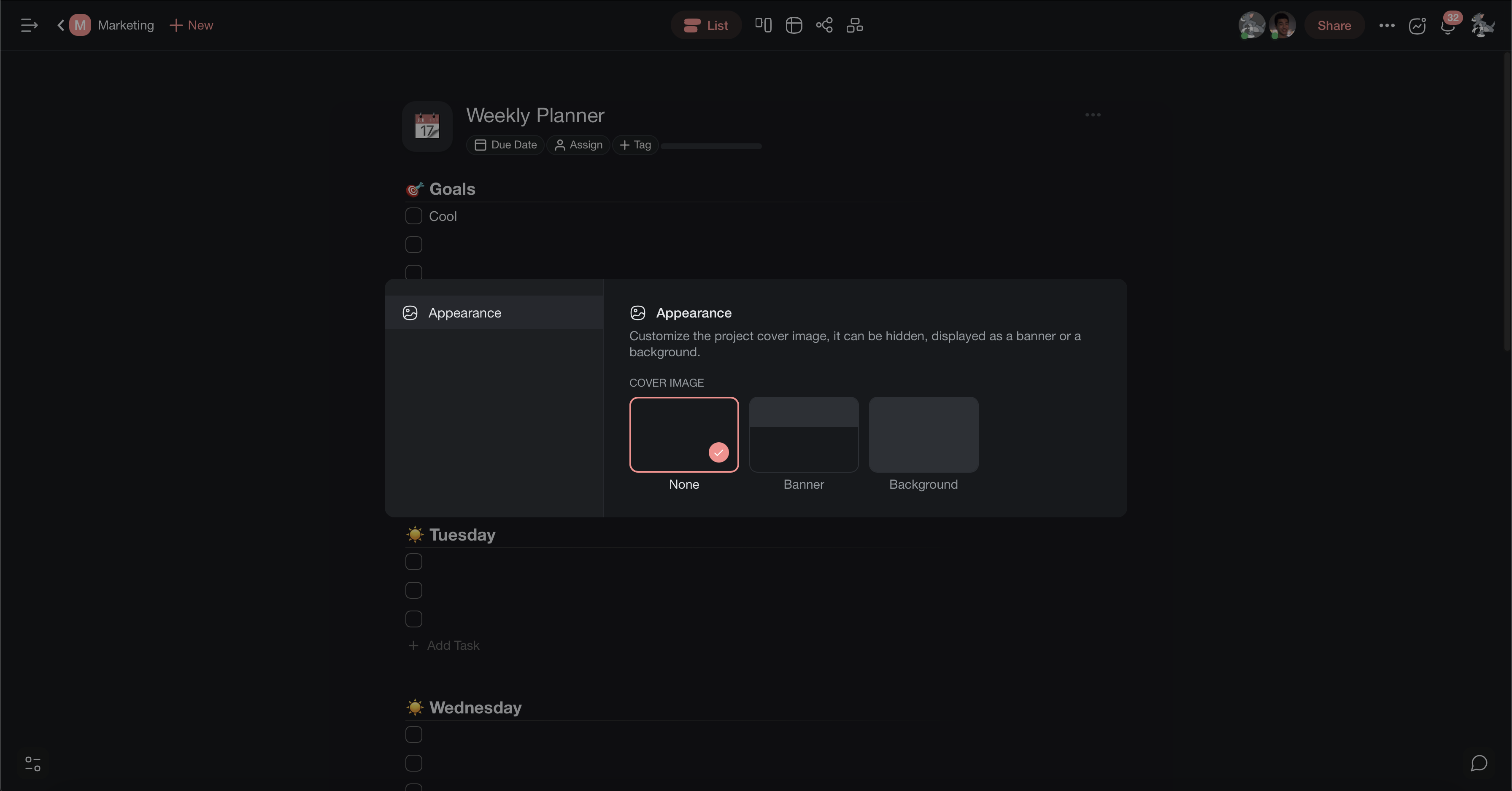
Display as Background
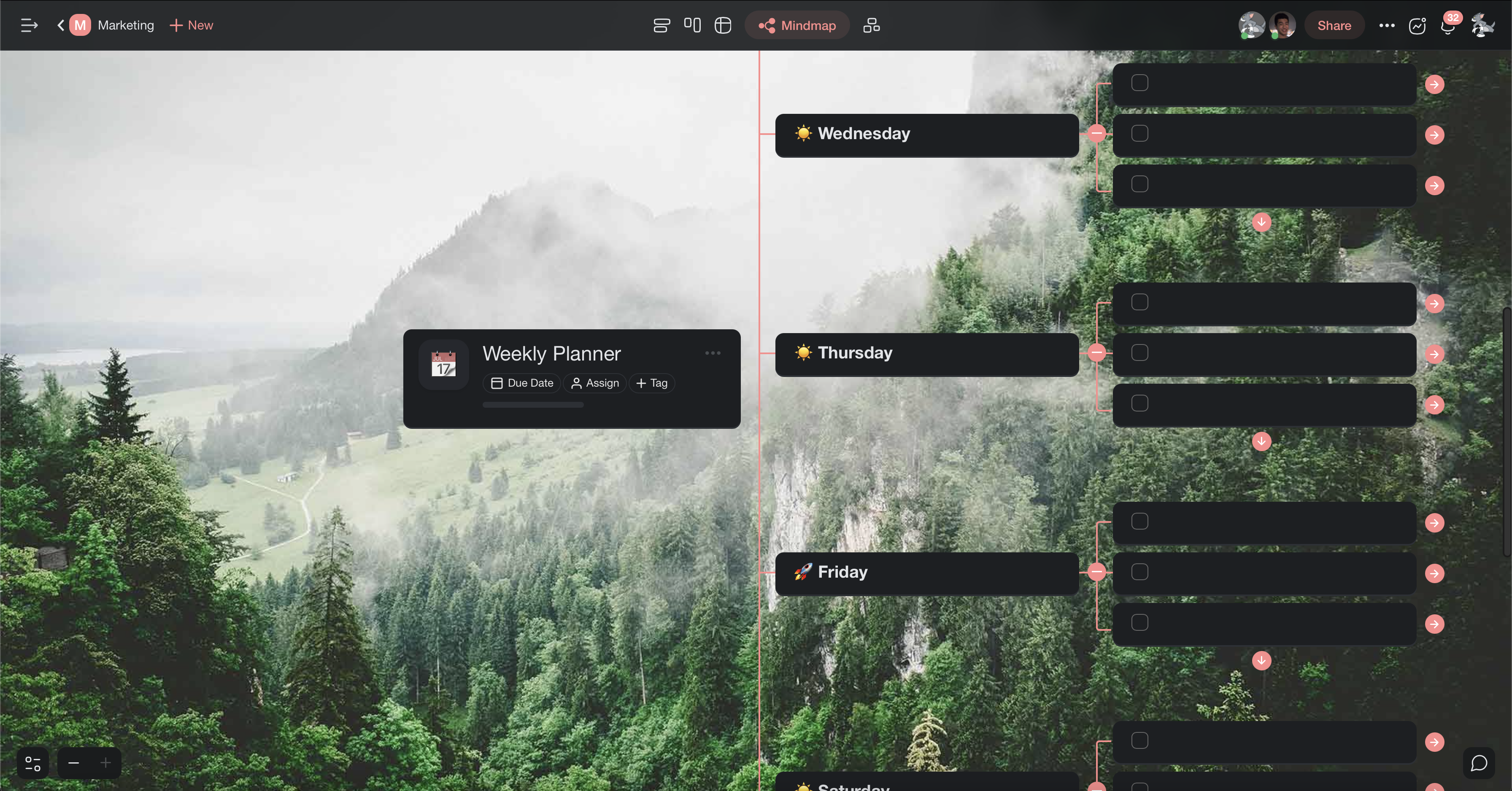
You can set the Project cover image to "Background" in the Appearance tab to fill the entire screen. Be sure to test your cover in the Mind Map or Board view!
Choose a Color Theme
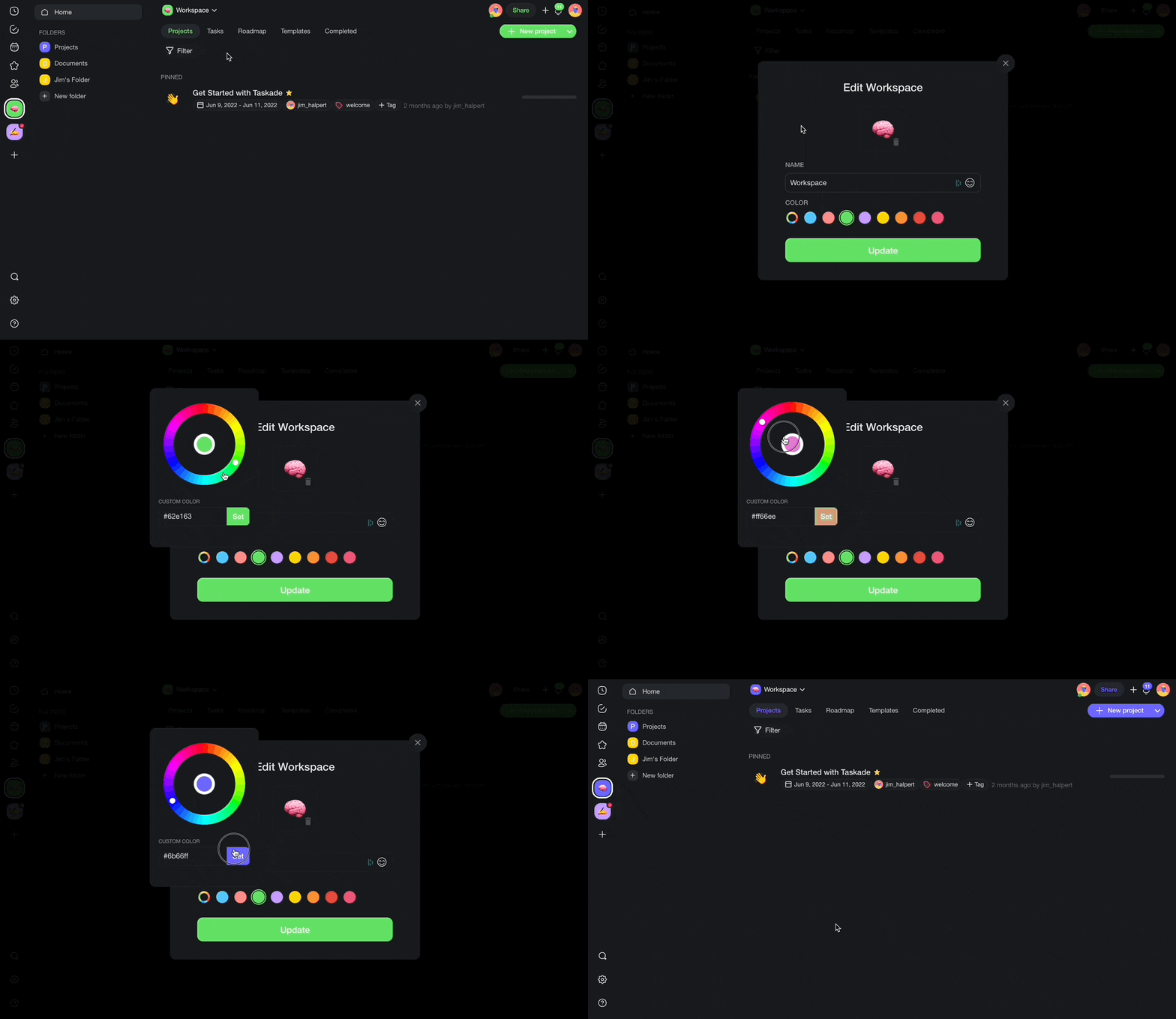
A project inherits its color theme from the parent workspace or folder. Here is how to choose the accent colors for the links and navigation elements of a project.
Note: Changing the color theme of a workspace/folder will change the color of links and navigation elements in all nested projects.
Open the workspace/folder where the project is located.
Click the arrow next to the name of your workspace.
Pick one of the pre-defined colors or use the color wheel.
- You can also paste custom Hex color codes.
Click Update to save changes.
Set Default Project View
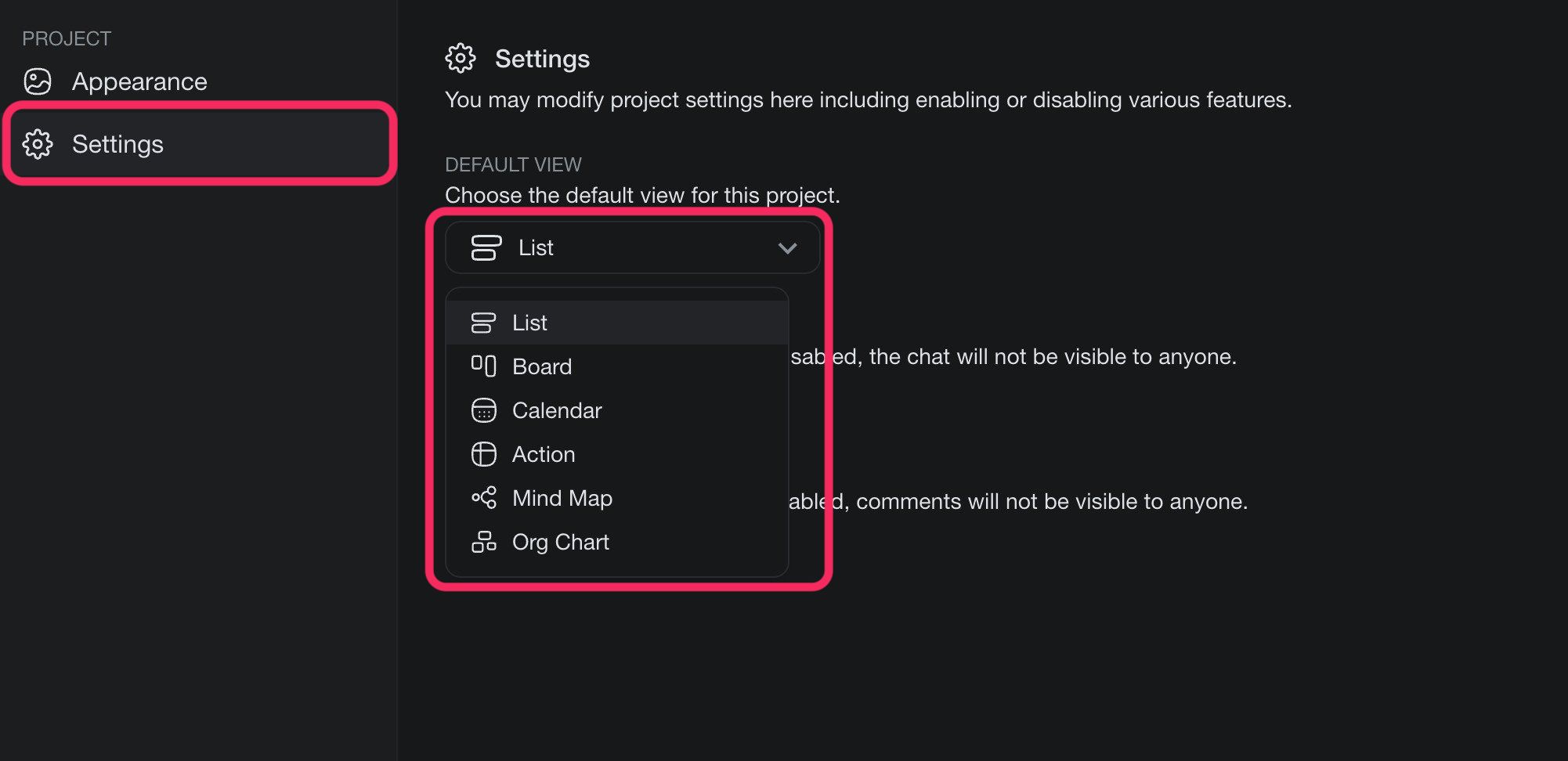
Taskade lets you decide how you want your project to display every time you or your team members open it. Follow the steps below to set a default project view:
- Click

(top-right) to open Project Settings. - Go to the Settings tab.
- Select one of the views from the drop-down menu.
- 🔵 List / Outline View
- 🔴 Board / Kanban View
- 🟠 Mind Map View
- 🟣 Organizational Chart View
- ⚪️ Calendar View
- Close Project Settings to save the default view. 🎉
Project Views Explained
Every project can be displayed in multiple views. Switch between views at any time. Your data stays the same, only the layout changes.
| View | Best For | Key Feature |
|---|---|---|
| List / Outline | Note-taking, documentation, nested content | Unlimited nesting with collapsible sections |
| Board / Kanban | Workflow management, sprint planning | Drag-and-drop cards between columns |
| Table | Databases, CRM, structured data | Custom fields, sorting, and filtering |
| Mind Map | Brainstorming, visual planning | Radial layout with branch expansion |
| Docs (Beta) | Long-form docs and specs | Document-style canvas for writing |
| Gantt Chart | Project timelines, dependencies | Timeline bars with start/end dates (paid plan) |
| Calendar | Scheduling, editorial calendars | Date-based task placement |
| Actionsheet | Simple spreadsheet-style lists | Simplified row-by-row task list (paid plan) |
| Org Chart | Team structures, hierarchies | Top-down tree visualization (paid plan) |
To switch views, click the View button at the top of your project and select a different layout.
Custom Fields
Add custom fields to any project to track additional information. Custom fields appear as columns in Table view and as properties on task cards.
Available field types:
| Field Type | Example Use |
|---|---|
| Text | Notes, descriptions, URLs |
| Number | Budgets, quantities, scores |
| Select / Multi-Select | Status, category, tags |
| Date | Deadlines, milestones |
| Checkbox | Approval, completion flags |
| Person | Assignees, reviewers |
To add a custom field: open the project in Table view, click the+ button on the right side of the column header, choose a field type, and name it.
Project Templates
Save time by starting from a template. Taskade offers hundreds of pre-built templates across categories like project management, marketing, product, engineering, and more.
How to use templates:
- Click + New Project in your workspace
- Browse or search the template gallery
- Click a template to preview it
- Click Use Template to create a new project from it
You can also create your own templates by duplicating any project and reusing it as a starting point.
Tip: Ask Taskade EVE to generate a project from scratch. Describe what you need, "Create a product launch checklist" or "Build an employee onboarding tracker," and Taskade EVE builds it instantly using the AI Project Studio.
Sorting and Filtering
Keep your projects organized with sorting and filtering options.
Sort by:
- Date created or modified
- Assignee
- Priority
- Due date
- Custom field values
Filter by:
- Task status (complete / incomplete)
- Assignee
- Due date range
- Custom field values
- Tags or labels
Sorting and filtering work across all views. In Table view, click any column header to sort, or use the Filter button to add conditions.
Sharing and Permissions
Control who can see and edit your projects.
| Permission Level | What They Can Do |
|---|---|
| Owner | Full control. Edit, delete, manage roles and billing |
| Maintainer | Manage members, roles, and billing. Cannot delete the workspace |
| Editor | Edit content, add or remove tasks, change views |
| Checker | Check tasks off and comment, but cannot edit content |
| Viewer | Read and comment, but cannot check tasks off |
To share a project: click the Share button in the top-right corner, then invite by email or copy a shareable link. You can set the default permission level for anyone with the link.
Taskade EVE Tip: You can ask Taskade EVE to customize your projects. Try: "Set my project to board view" or "Add a status field to my task list." Taskade EVE handles it for you.