
TL;DR: The Taskade iOS and Android apps match the desktop feature set, all project views, real-time collaboration, AI assistant, automations, and quick add. Offline edits sync when you reconnect. See Mobile Widgets for home-screen widgets and Quick Add for one-tap capture.
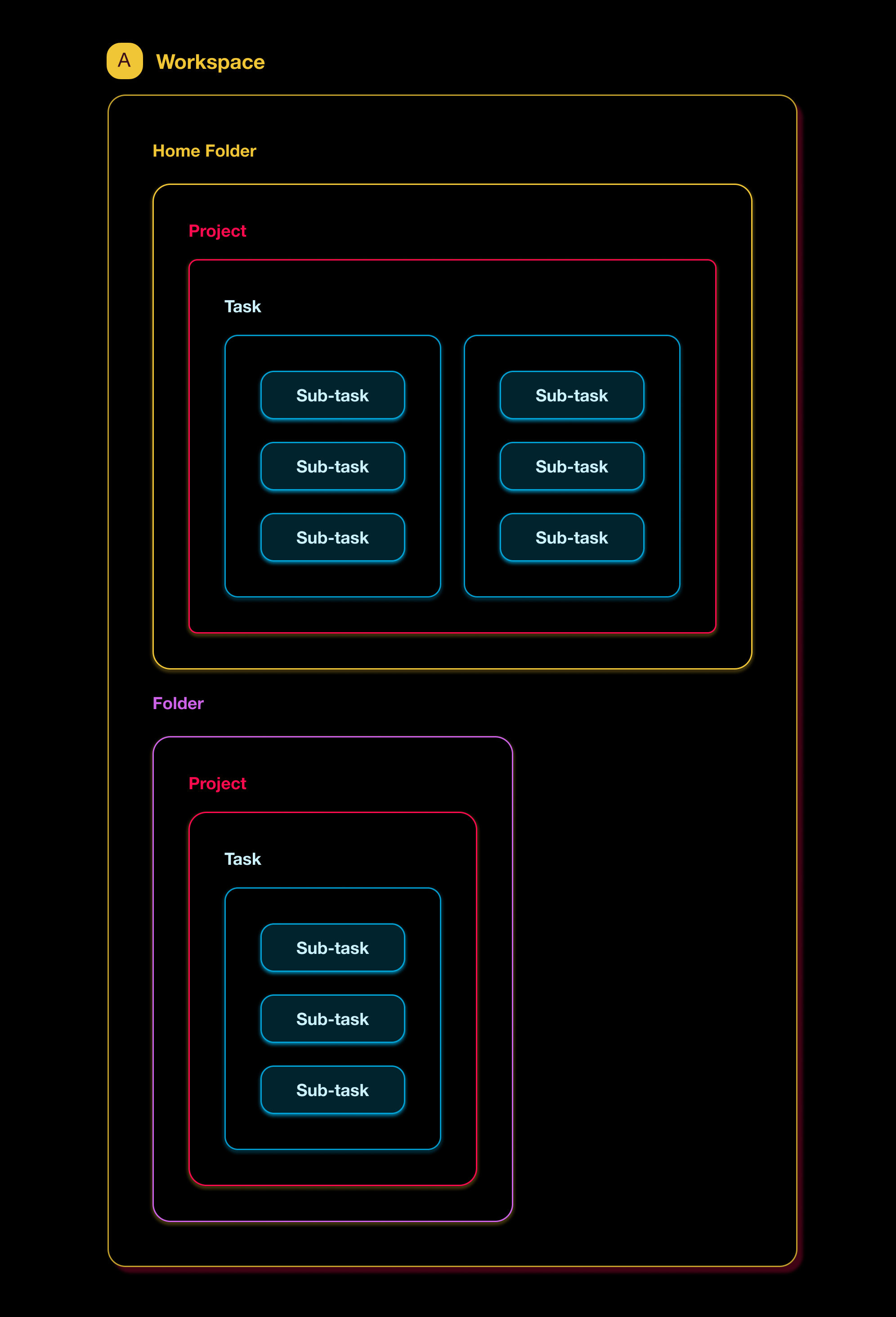
How your work is organized on mobile, from the top level down to a single task:
💡 Note: Some desktop features are not fully supported on mobile devices. We are working to bring them to iOS and Android.
Organize Your Work
Taskade is built on a simple hierarchy that consists of 🗃 Workspaces, 🚋 Folders, and 📝 Projects. This three-level structure allows you to:
- Organize your team and manage roles within dedicated workspaces.
- Centralize client interactions, feedback, and deliverables.
- Aggregate resources by categorizing them into folders.
- Use projects to break down complex tasks into actionable steps.
💡 Note: Visit Hierarchy Structure to learn more.
Create a Project
A single project can be as simple as a page in a notebook or as complex as a team collaboration hub. Here is how to create one:
- Open the Taskade app.
- Go to a workspace or folder.
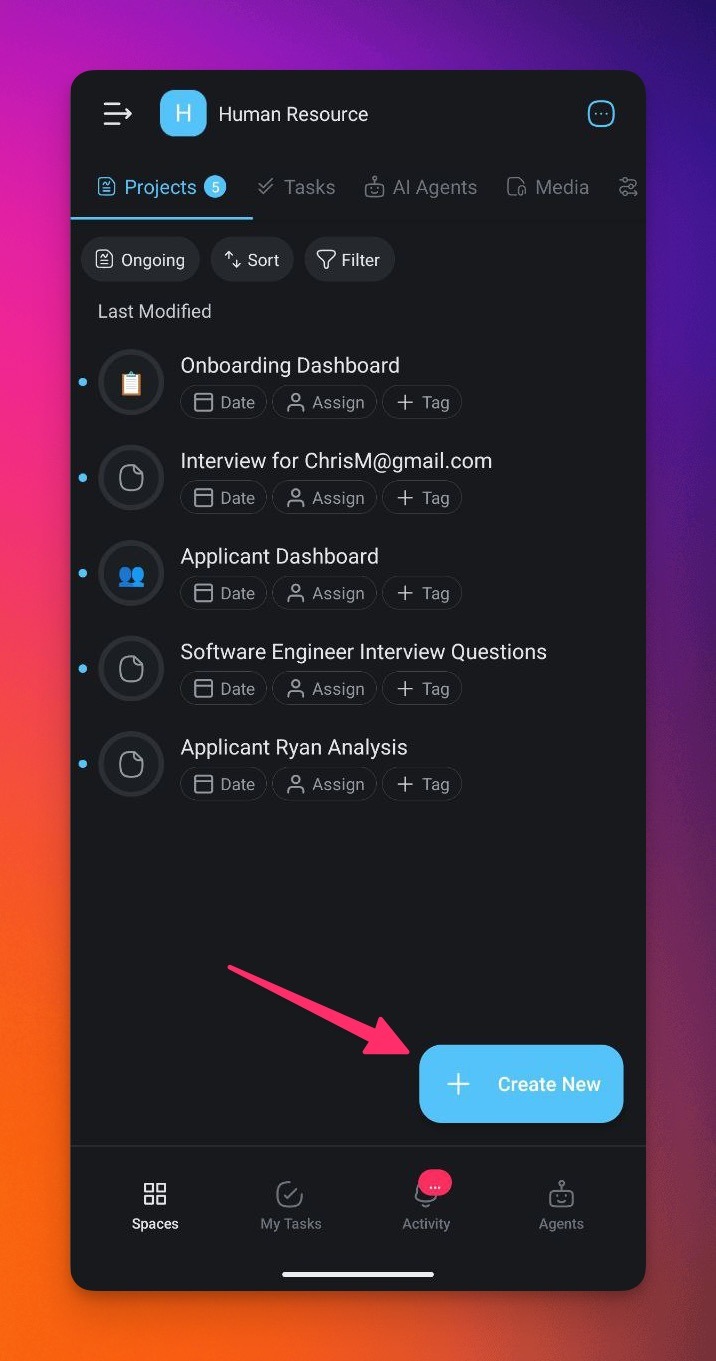
- Tap ➕ Create new in the bottom-right corner of the screen.
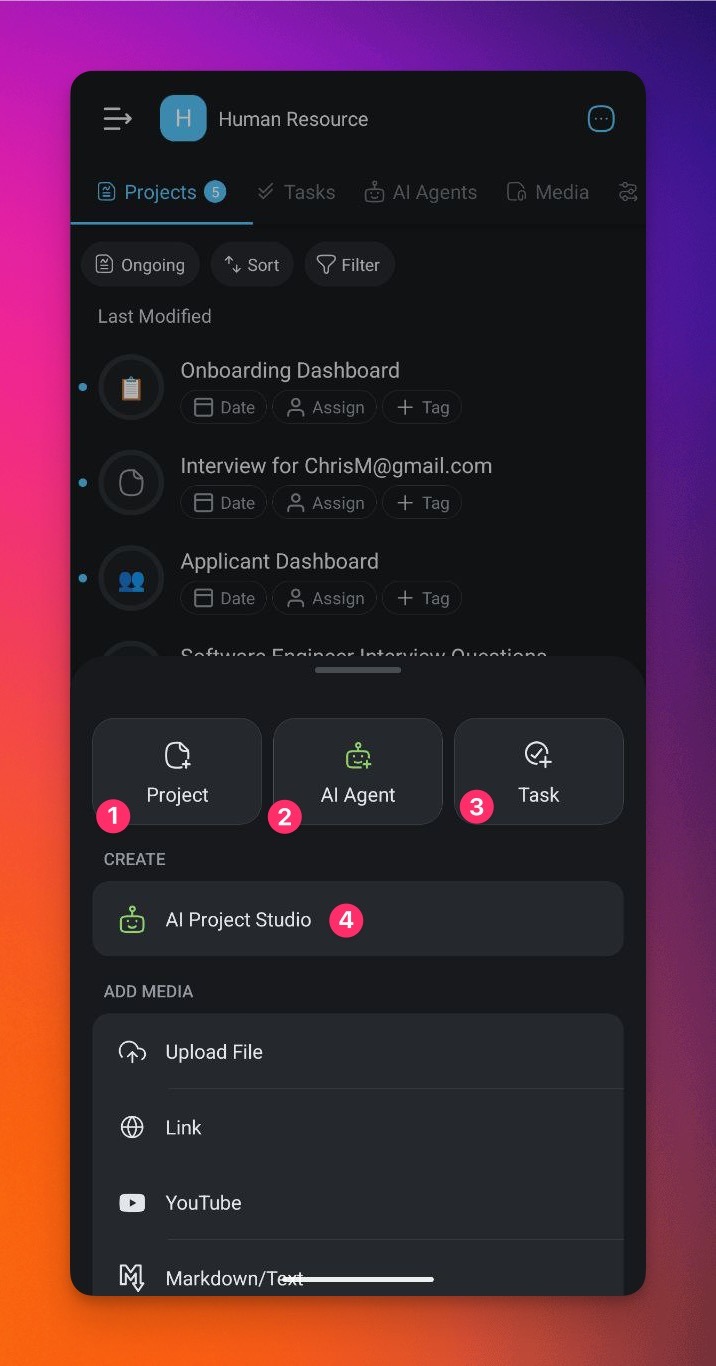
- Choose one of these options:
- (1) Start with a blank project.
- (2) Create an AI Agent.
- (3) Add a task to any Project.
- (4) Generate a project with AI Project Studio.
Note: Visit Create a Project to learn more.
Organize Tasks
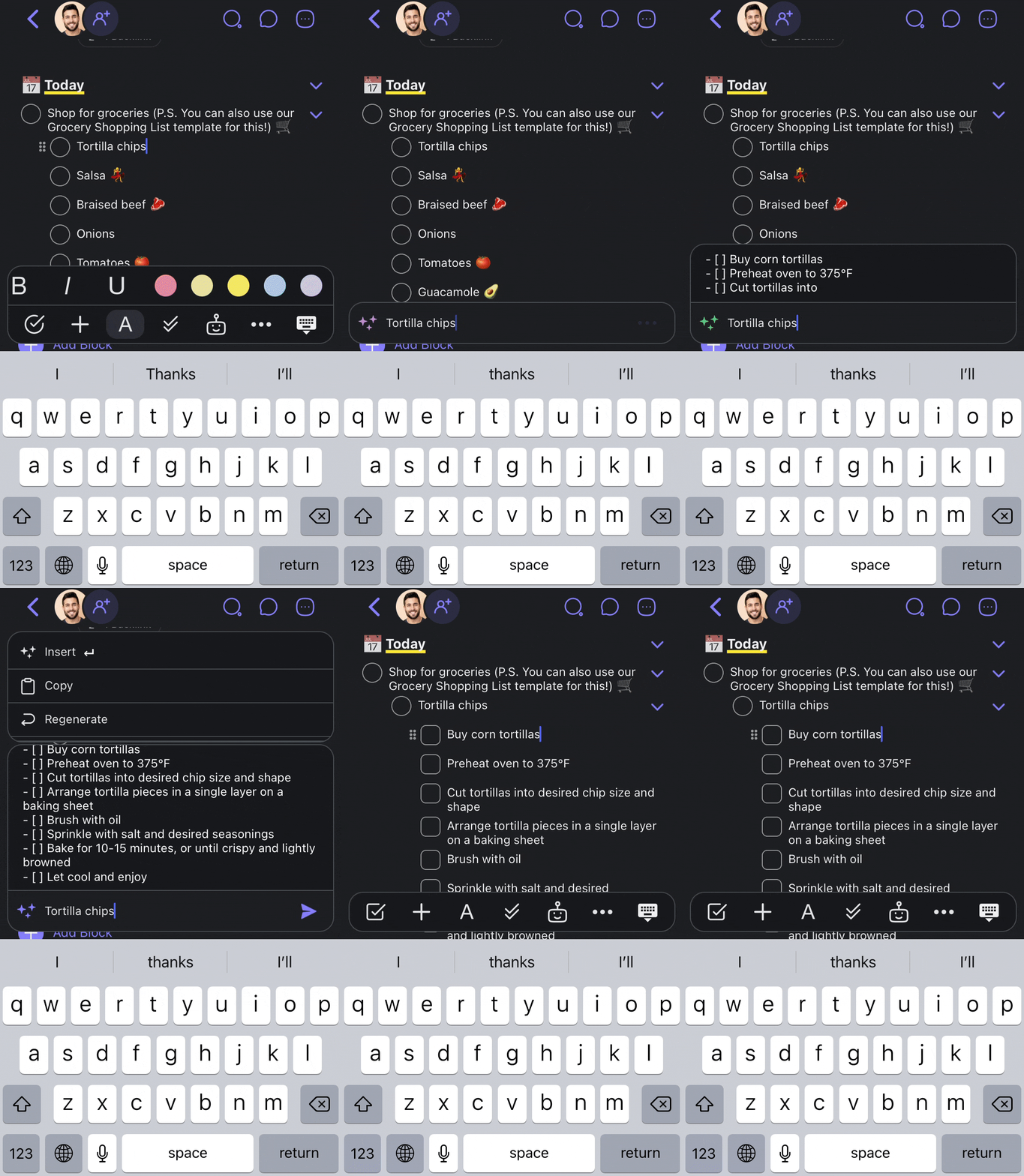
Complete tasks, add backlinks, copy tasks, and more.
- Open a project and tap a task to select it.
- Choose one of the formatting options from the toolbar at the bottom:
| 🤖 Use Taskade AI | ✔️✔️ Complete a task | 🔴 Choose task format |
|---|---|---|
| @mention | #️⃣ Tag | ❐ Duplicate task |
| 📝 Copy task to project | 🗃 Move task to project | 🗑 Delete task |
Manage Tasks
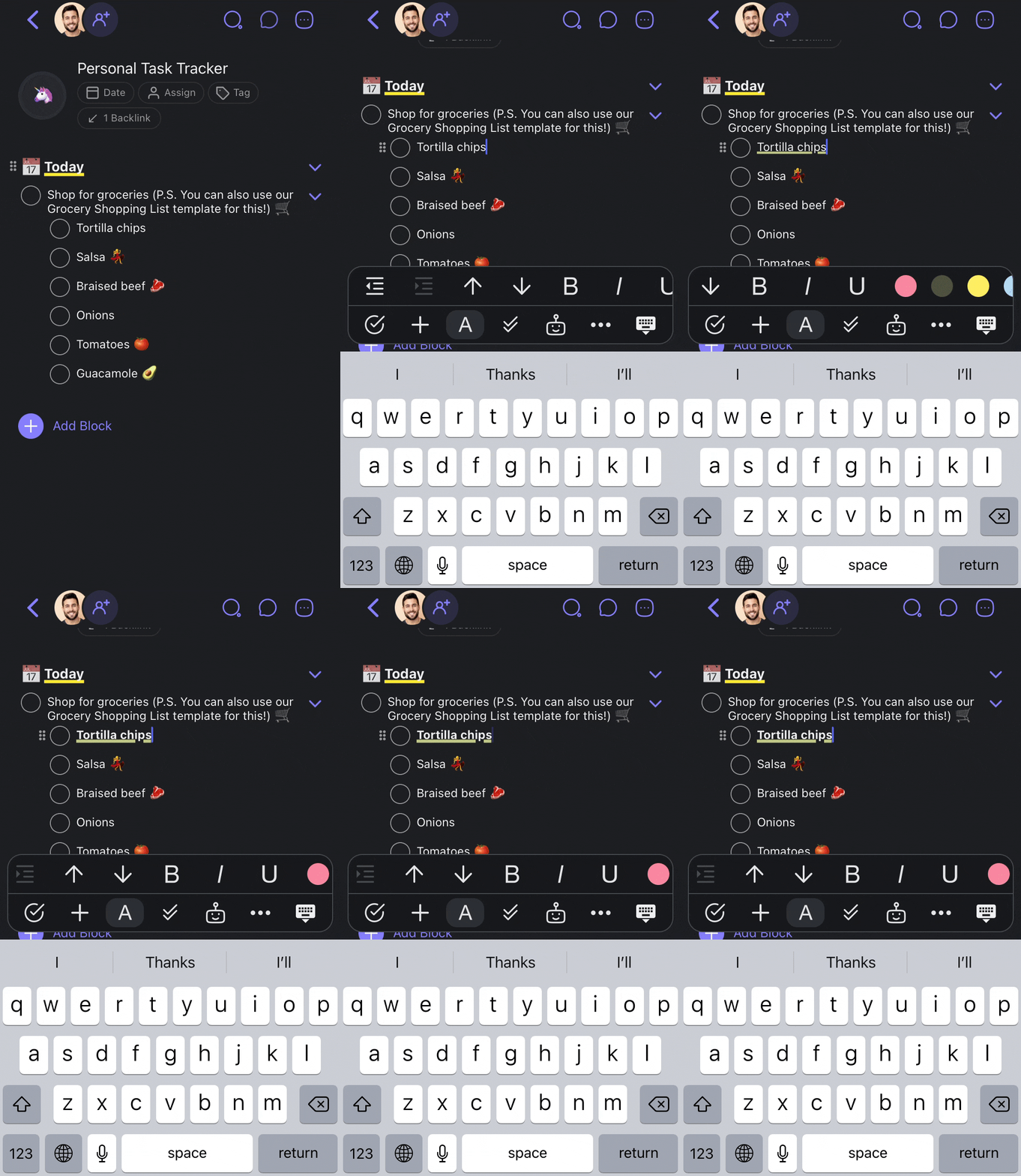
Format tasks and change their place in the document hierarchy:
- Open a project and tap a task to select it.
- Choose one of the formatting options from the toolbar at the bottom.
- Swipe left or right to show more options.
➡️ Indent task |
⬅️ Outdent task | ⬆️ Move task up | ⬇️ Move task down |
|---|---|---|---|
| 🅱 Bold | 🅸 Italicize | 🆄 Underline | 🔴 Highlight |
 |
Use Add-Ons
Add-ons add productivity features like a Pomodoro Timer:
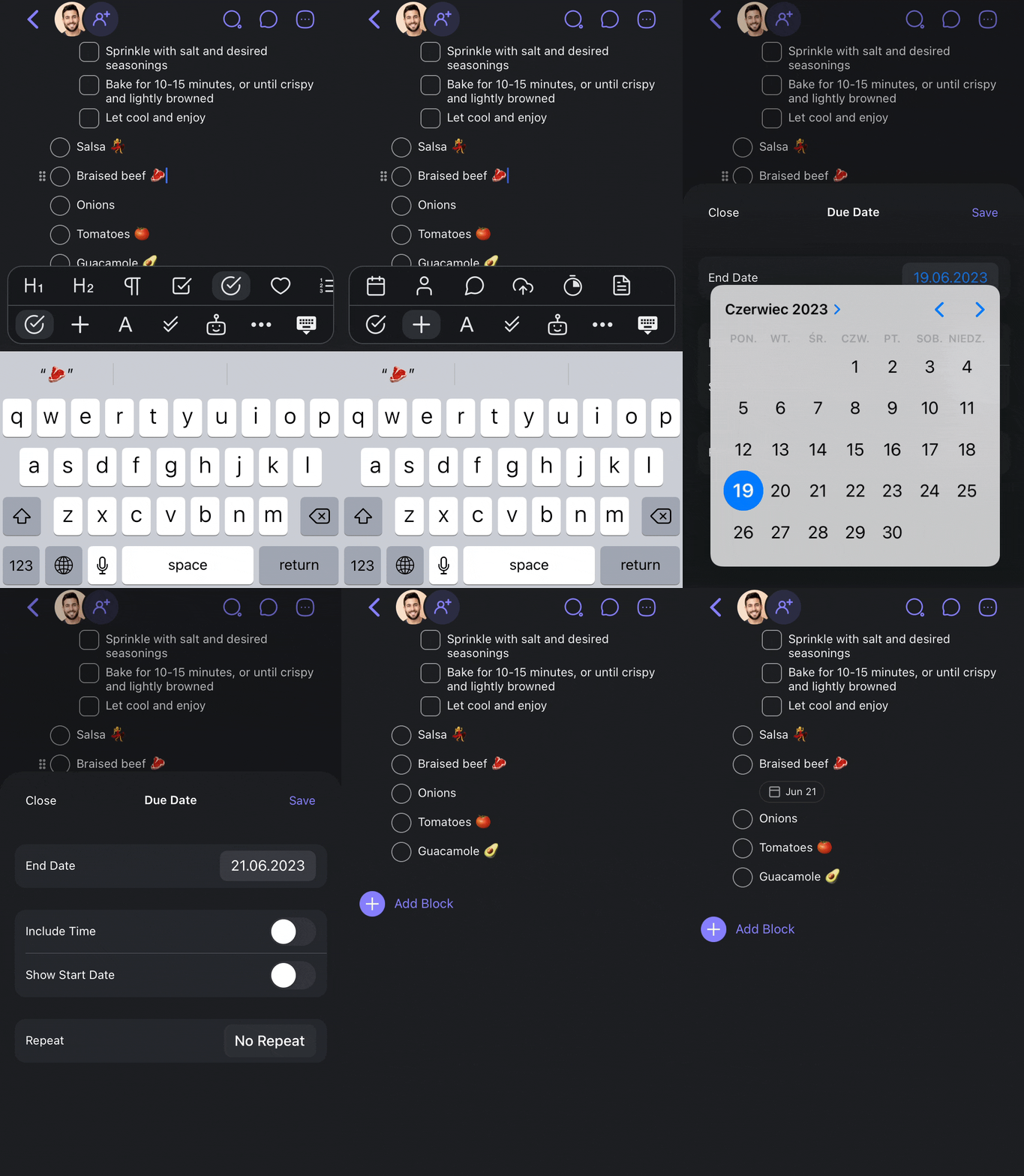
- Open a project and tap a task to select it.
- Tap ➕ in the bottom toolbar.
- Choose one of the Add-ons from the menu.
Note: Visit Project Add-ons to learn more.
| 🗓️ Set due date | 👤 Assign task | 💬 Add comment |
|---|---|---|
| ☁️ Upload file | ⏱️ Start timer | 📄 Add note |
Link Tasks And Projects
You can link to projects across folders/workspaces and jump between them in seconds.
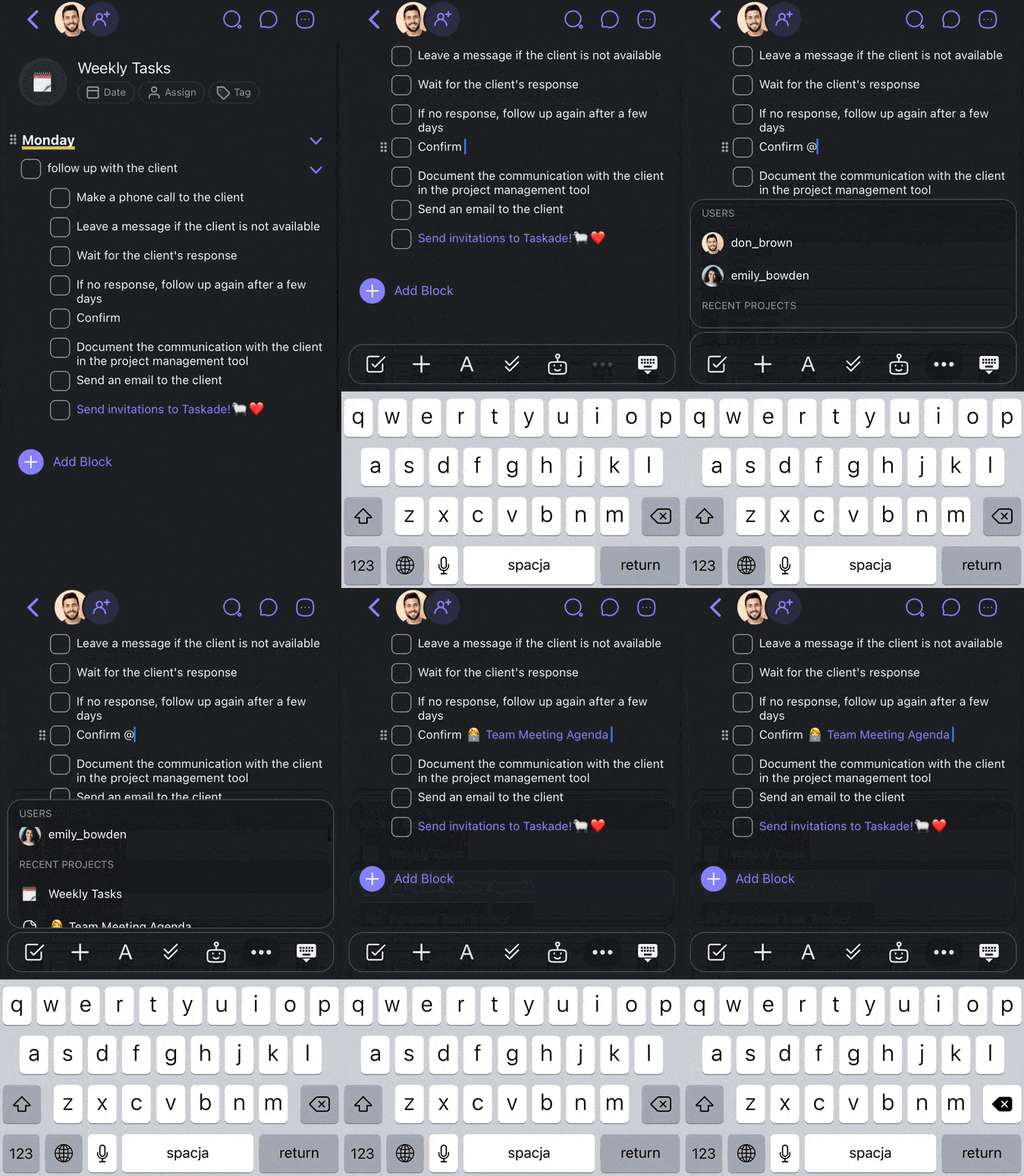
Open any of your projects and select a task/note.
Type @ + the title of the project you want to link to.
- Alternatively, tap ··· ➡@Mention in the bottom toolbar.
Select a project from the list to instantly add a backlink.
Share Your Project
You can quickly share your projects with others to chat or collaborate:
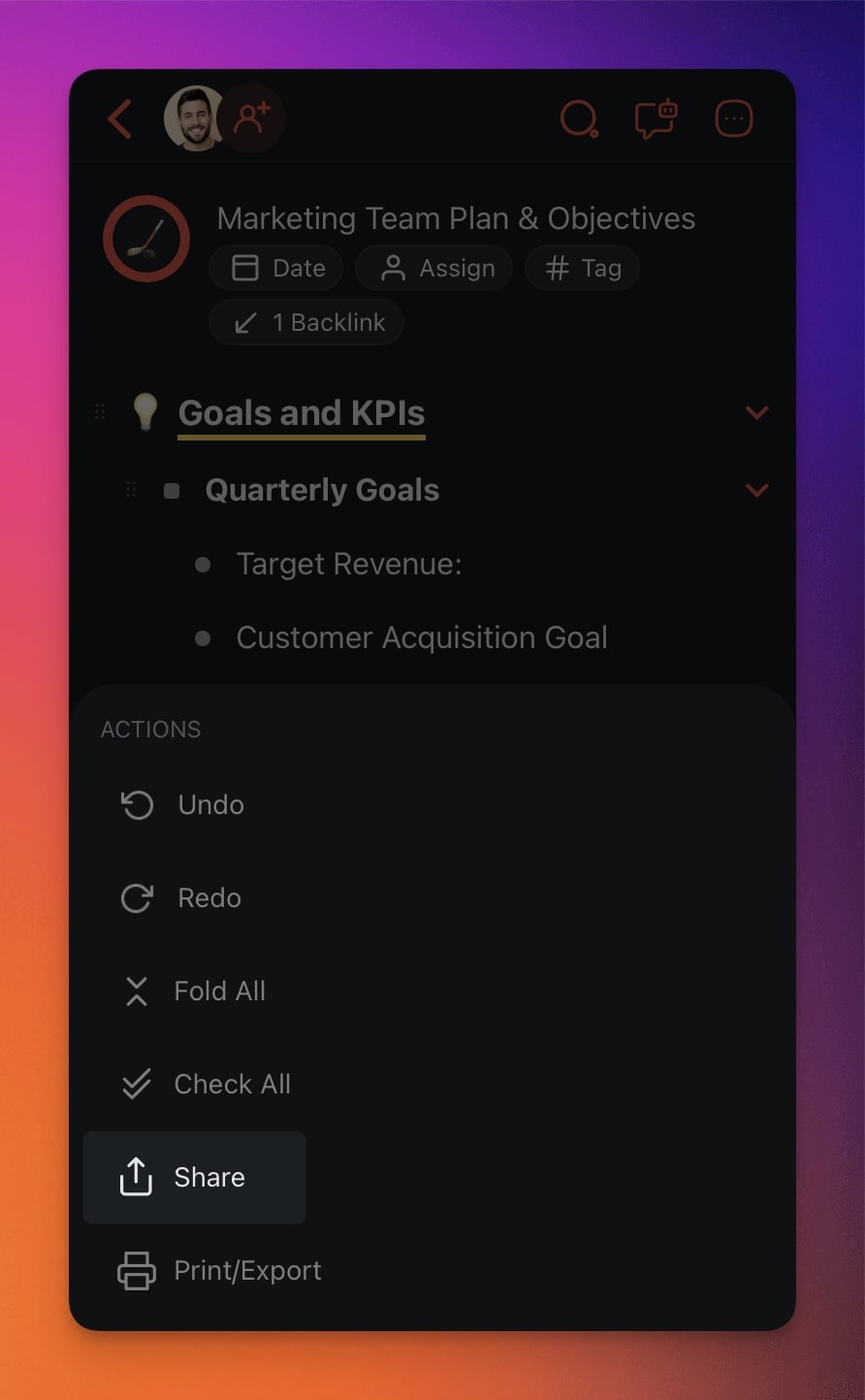
- Open a Project and tap the three dots ··· in the top-right corner.
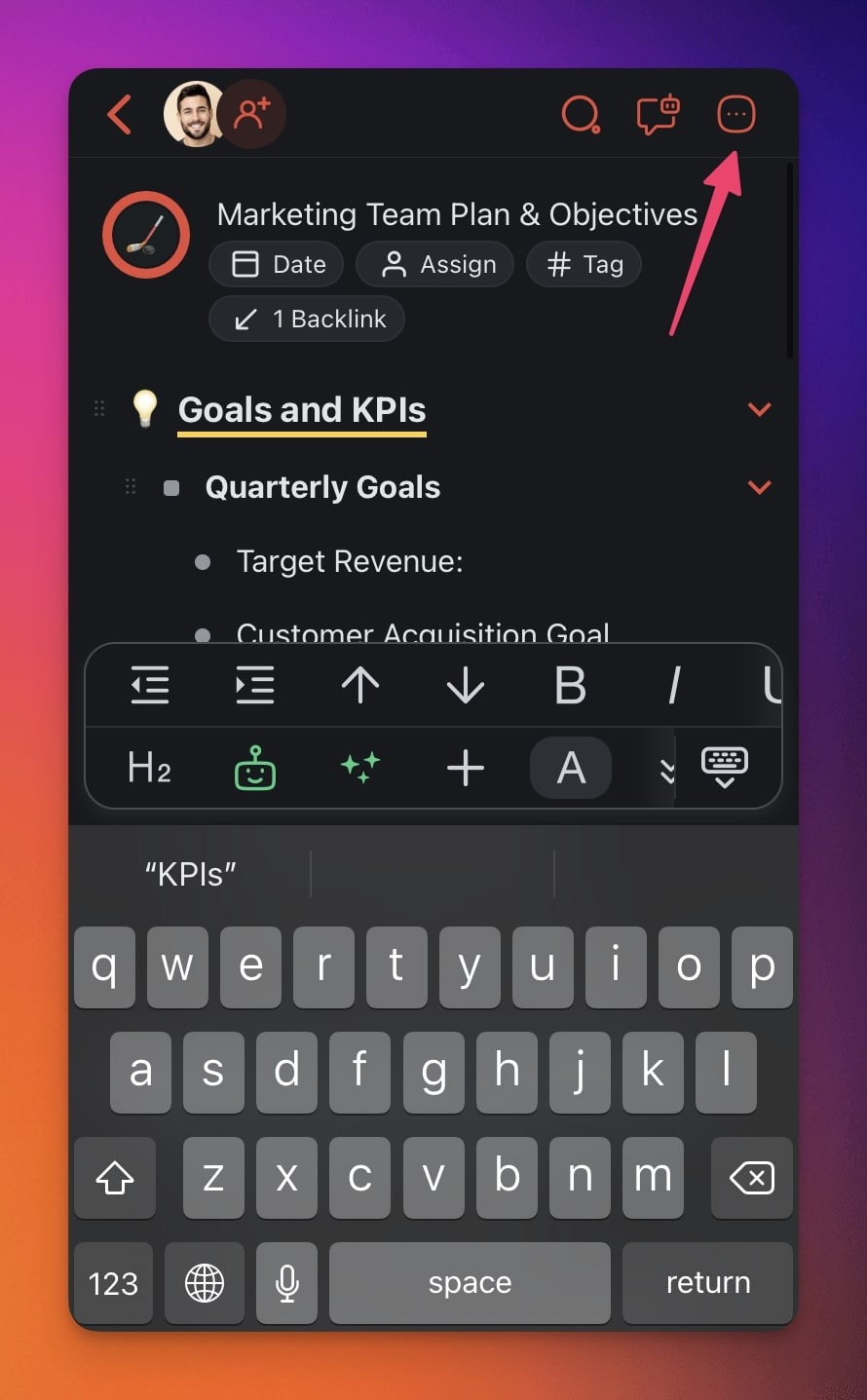
Choose 📤 Share from the list.
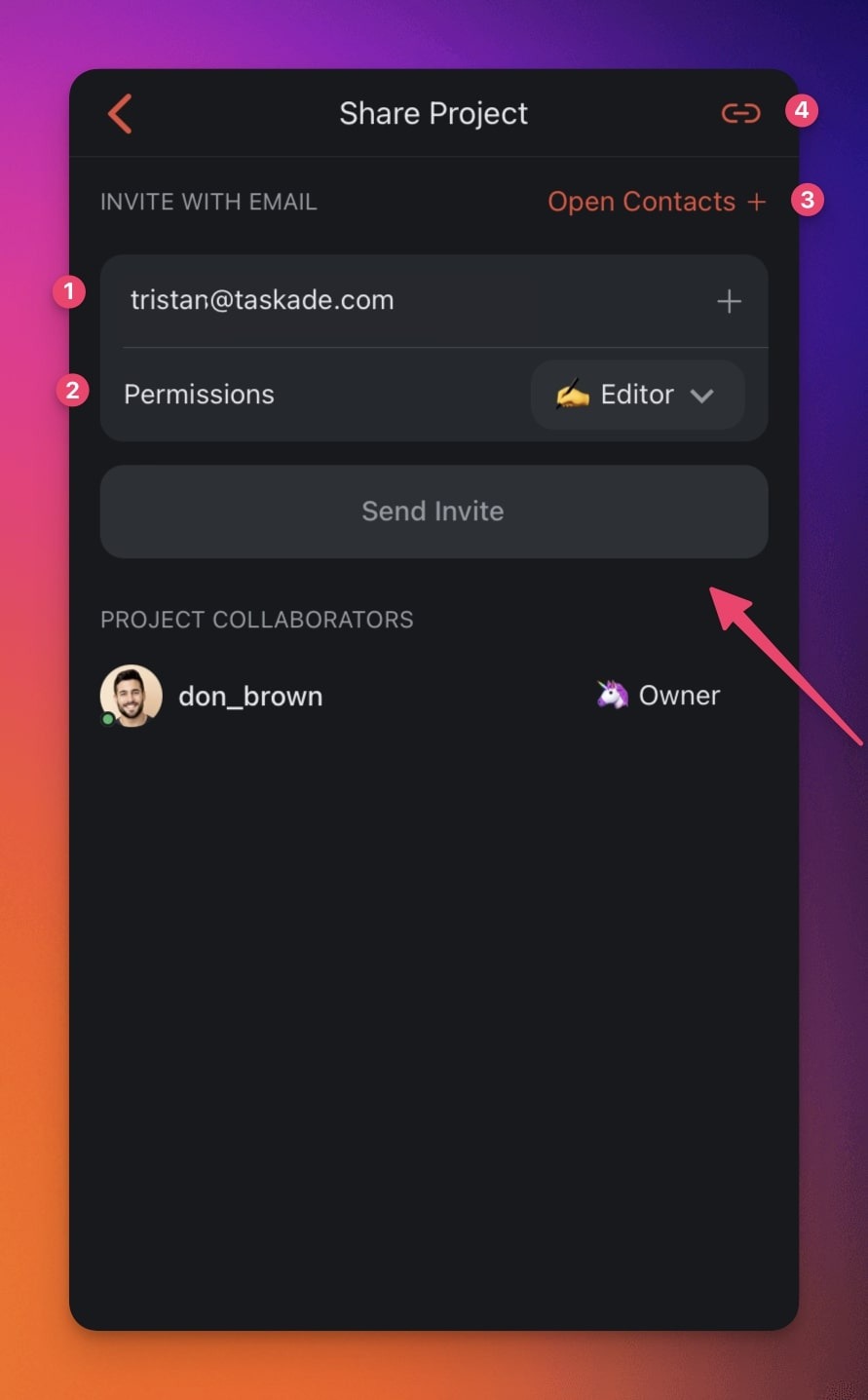
Choose one of the available options:
(1) Enter the email of the user you want to invite.
(2) Set Permissions for the new member (see the next section).
(3) Tap Open Contacts + to add contacts from your device.
(4) Copy a direct link to the project.
Tap Send Invite to finish adding collaborators.
Use Taskade AI Features
You can use a range of AI-powered features (follow the links to learn more):
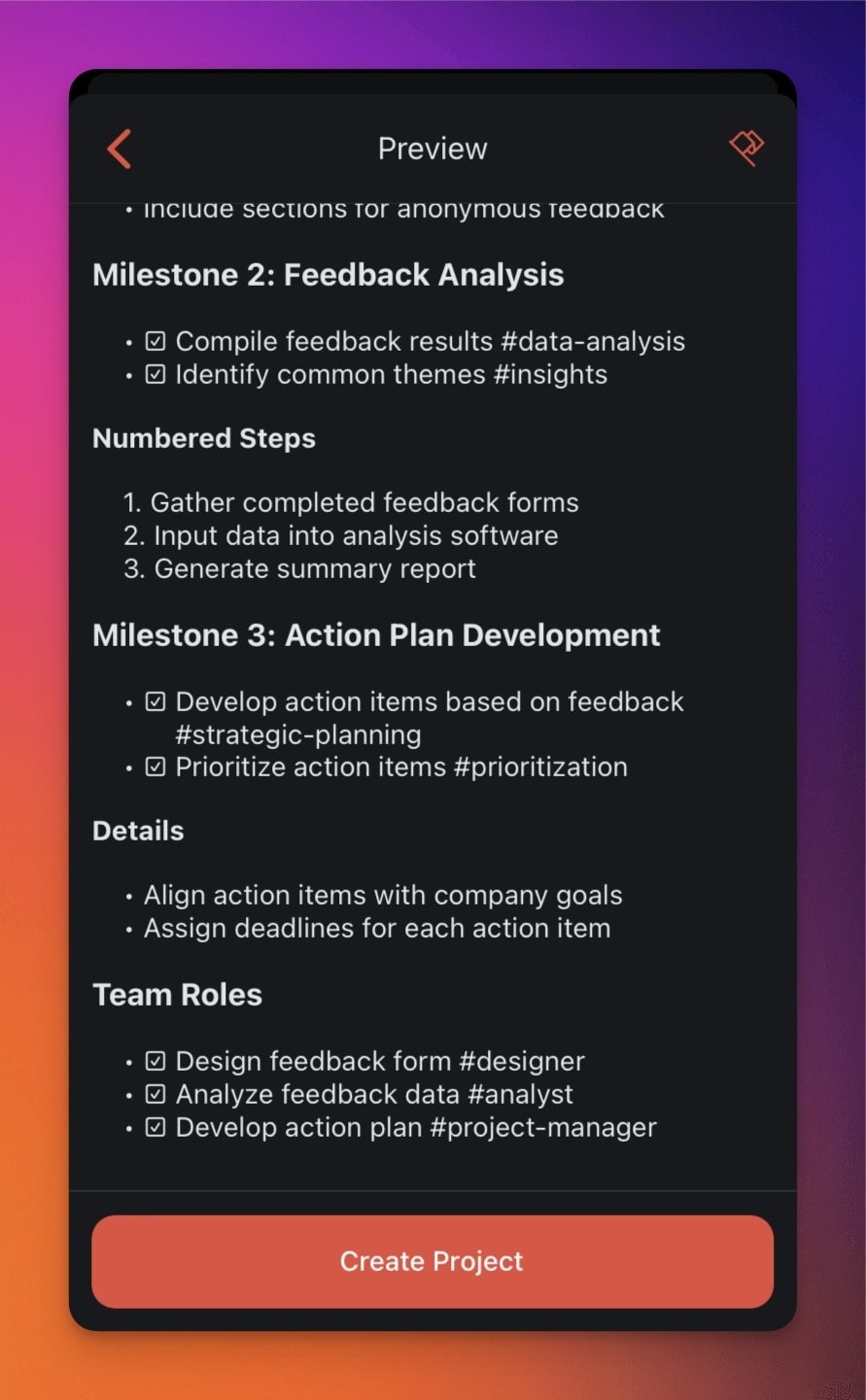
- AI Project Studio (Mobile): Generate projects, tasks, and workflows.
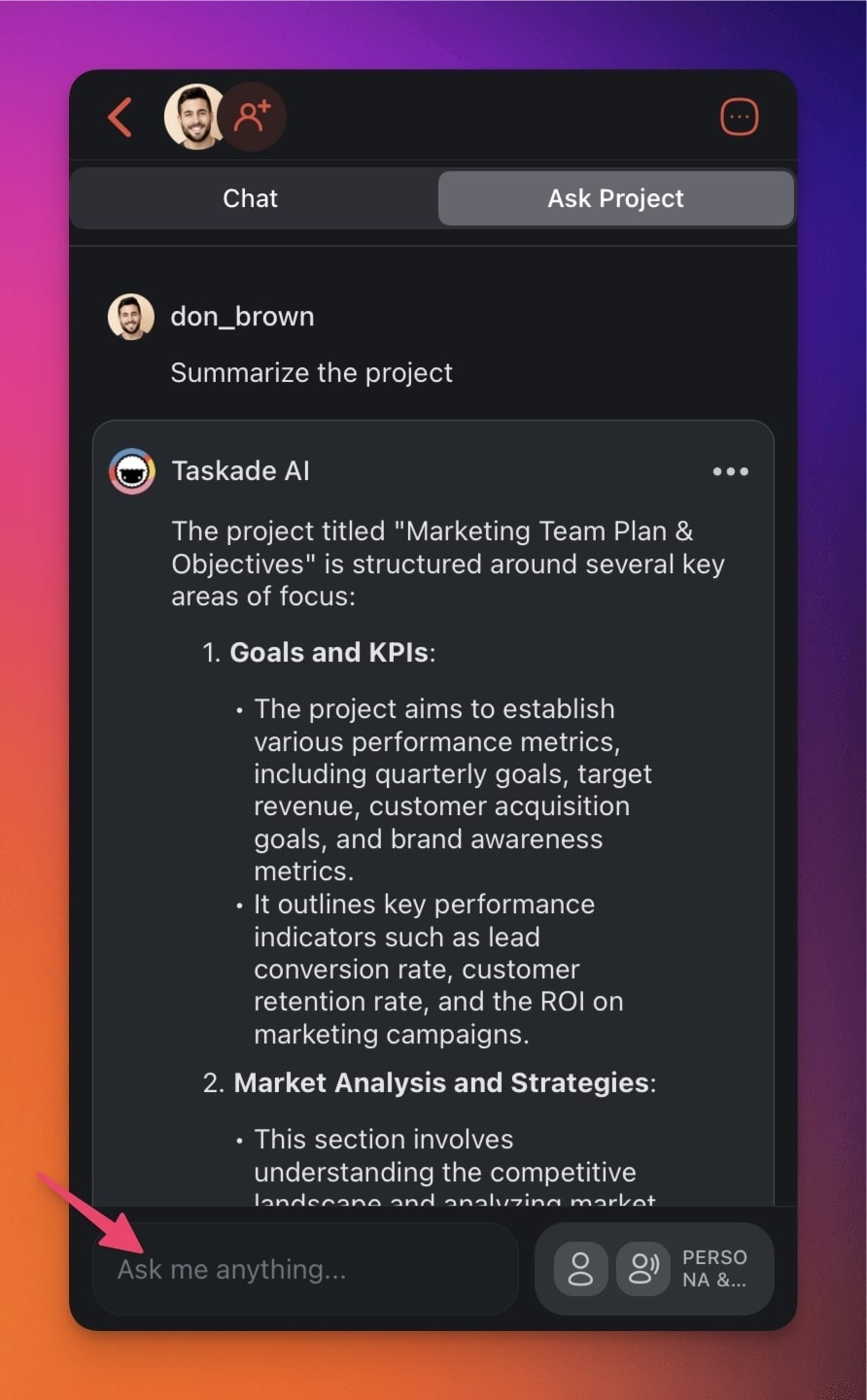
- Taskade AI Chat (Mobile): Chat with AI for instant support in projects.
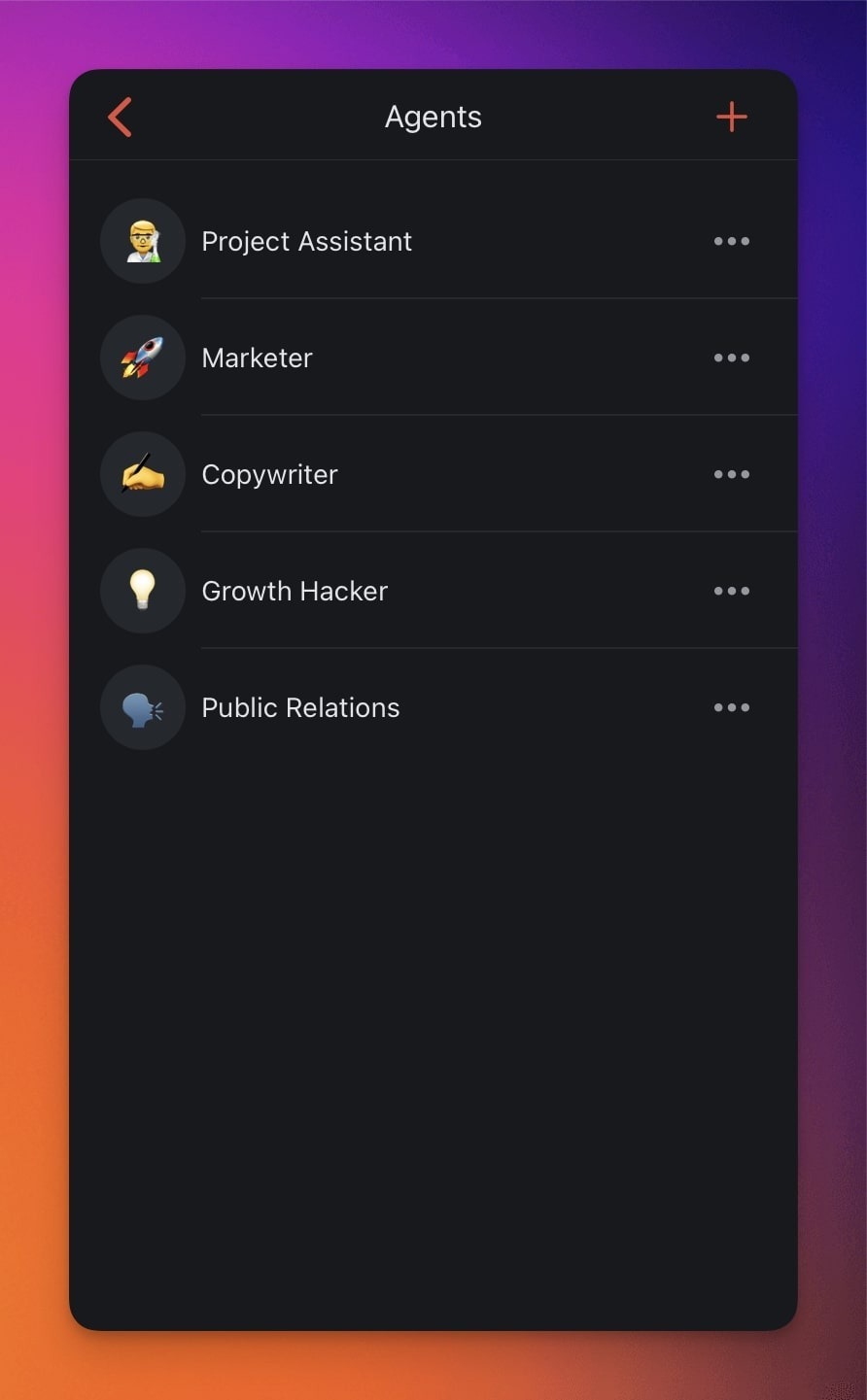
- Custom AI Agents (Mobile): Create custom AI agents on mobile to automate tasks.
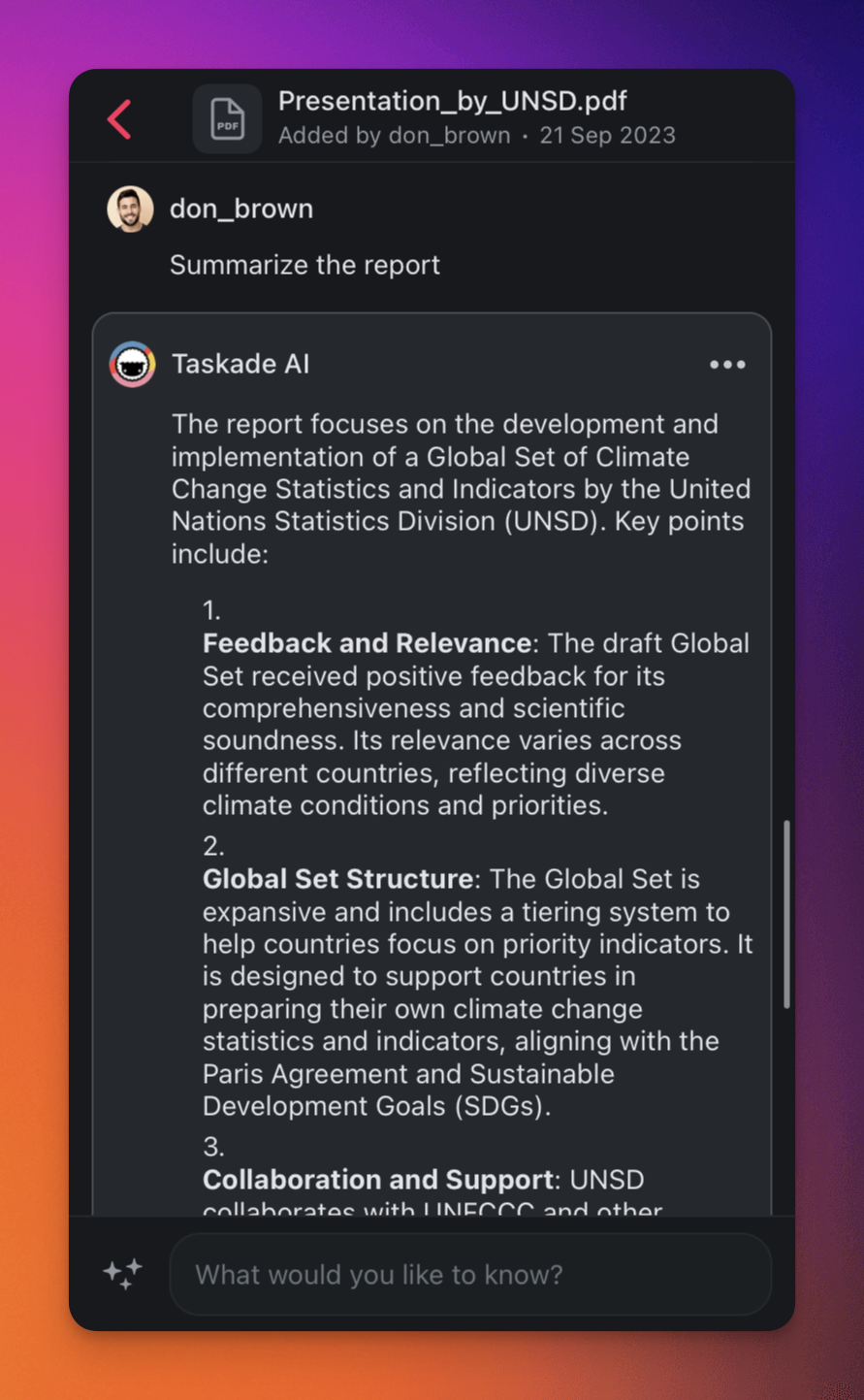
- Media AI Chat (Mobile): Engage in AI-powered Q&A sessions with your documents.
Offline Mode (iOS & Android)
Taskade needs an active internet connection to sync projects. You can still edit your projects offline. The app saves your changes locally and syncs them again when you are back online.
What's Next?
You now know the basics. Read these articles next:
- 🤖 Explore mobile AI features to work faster & smarter.
- 🗃 Create a Workspace for your team projects.
- 🗂️ Create a Folder for further organization.
- 🔍 Search across Projects, Folders, and Workspaces.
- 🗓 Add tasks and Projects to a shared Calendar.
- 🗓 Sync your calendar with other apps through Calendar Integrations.
- Work faster with our ⌨️ Keyboard Shortcuts
Mobile Toolbar Troubleshooting
Apple Users
Apple users can add shortcuts from sources outside the Gallery, such as friends and websites. Apple treats these shared shortcuts as "untrusted". To import them, allow untrusted shortcuts in Settings. This includes the Taskade toolbar.
To allow untrusted shortcuts:
- Open the Shortcuts app and run any shortcut.
- Go to Settings > Shortcuts.
- Turn on Allow Untrusted Shortcuts. This setting appears only after you run a shortcut.
Android Users
Android has a feature called Full Screen Gestures. It can stop the Taskade toolbar from appearing. Turn it off, then look for the toolbar again.
To turn off full-screen gestures:
- Go to Settings.
- Tap Display.
- Scroll down and open the Navigation bar section.
- Switch to Navigation buttons.
Still not working?
If the toolbar does not appear after all these steps, contact support@taskade.com. Include these details:
- The model of your mobile device
- The current operating system of your mobile device
- The current version of that operating system
- The current version of the Taskade app you are using
- The type of keyboard you are using
- Whether you are using a physical keyboard attached to the device
Frequently Asked Questions
Do the mobile apps include all project views?
Yes. The iOS and Android apps support multiple project views, and match the desktop feature set. The views are List, Board, Table, Mind Map, Docs (Beta), Gantt Chart, Calendar, Actionsheet, and Org Chart. See Create a Project to start building.
What happens to my edits when I lose internet on mobile?
Taskade saves your changes locally while you are offline and resyncs them automatically as soon as you reconnect. Your work stays safe even without a live connection.
Can I use Taskade AI features from my phone?
Yes. From the mobile app, you can generate projects with AI Project Studio, chat with Taskade AI Chat, and build custom AI agents. All of it runs on 15+ frontier models from OpenAI, Anthropic, and open-weight providers.
How do I invite teammates to a project on mobile?
Open a project, tap the three dots in the top-right corner, choose Share, then enter a teammate's email and set their permissions. Roles run from Owner down to Viewer, so you choose exactly what each person can do.
Is Taskade mobile free to use?
Yes. The Free plan lets you organize workspaces, manage tasks, and collaborate at no cost. Paid plans unlock more AI usage and advanced features. See pricing for the full plan comparison.
Can I add tasks quickly without opening the full app?
Yes. Use Quick Add for one-tap capture and Mobile Widgets to drop a project shortcut on your home screen, so you can jot down tasks in seconds.
Related guides
- Mobile Widgets. Quick-add widgets for iOS and Android.
- Quick Add. One-tap task capture.
- Add Widget. Home-screen widget setup.
- Keyboard Shortcuts. Desktop shortcut reference.
- Offline Mode. Work without internet.