
TL;DR: AI Chat is a per-project conversation with 15+ frontier models from OpenAI, Anthropic, and open-weight providers that can read your project, cite specific tasks, and draft new blocks inline. Switch models mid-chat to compare answers. Pair it with the AI Assistant for quick, one-off edits.
Here is how a mobile AI Chat session flows from opening the project to saving the answer.
Overview
Ask questions about your project and get answers grounded in your own tasks. Taskade AI Chat lives inside every project on mobile, so you can generate content, summarize notes, and draft new blocks without switching apps.
Note: Visit Taskade AI Chat for a desktop version of this feature.
Start a Chat (iOS / Android)
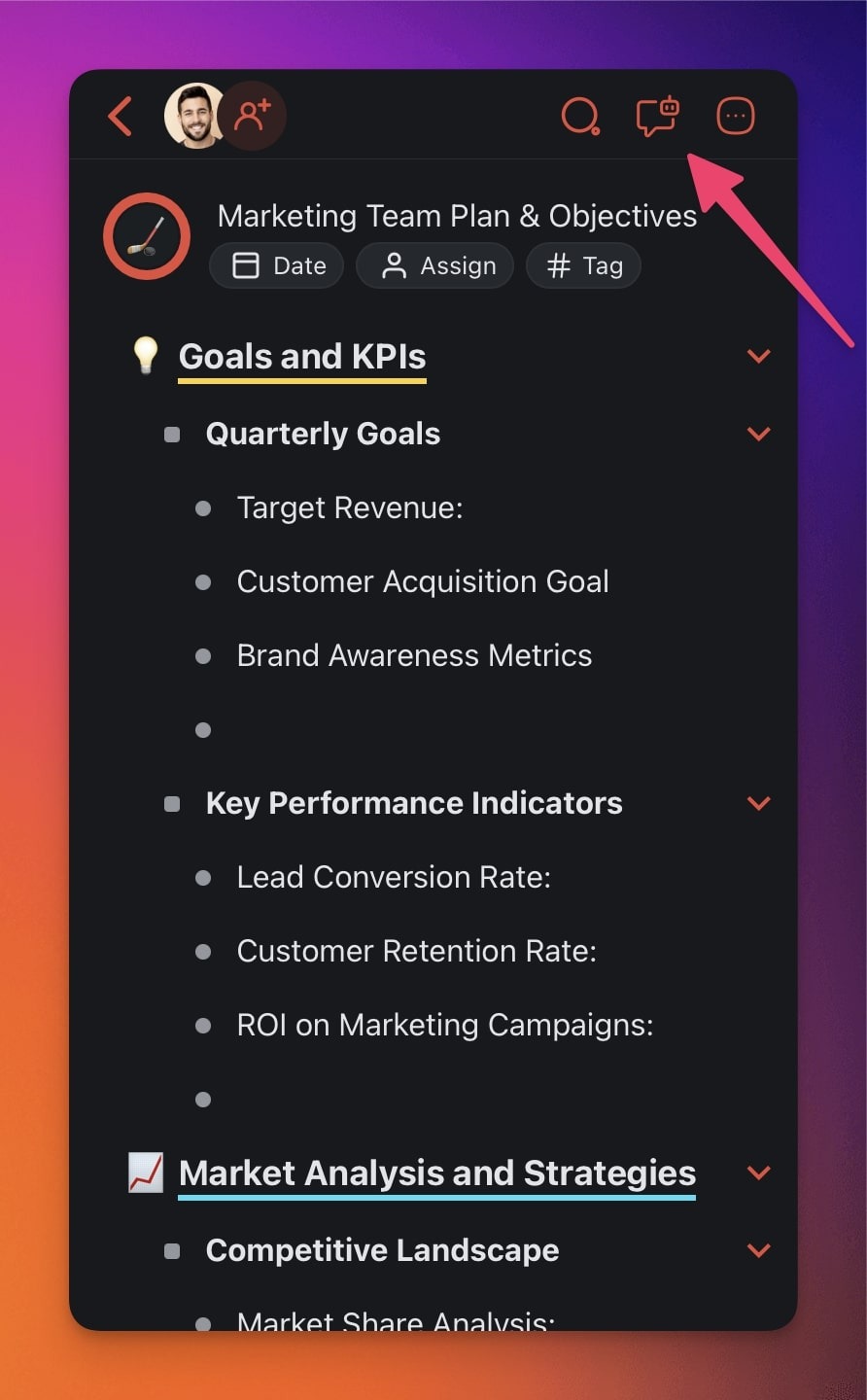
- Open a project in your workspace/ folder.
- Click the chat icon in the top-right corner.
- Go to the Ask Project tab.
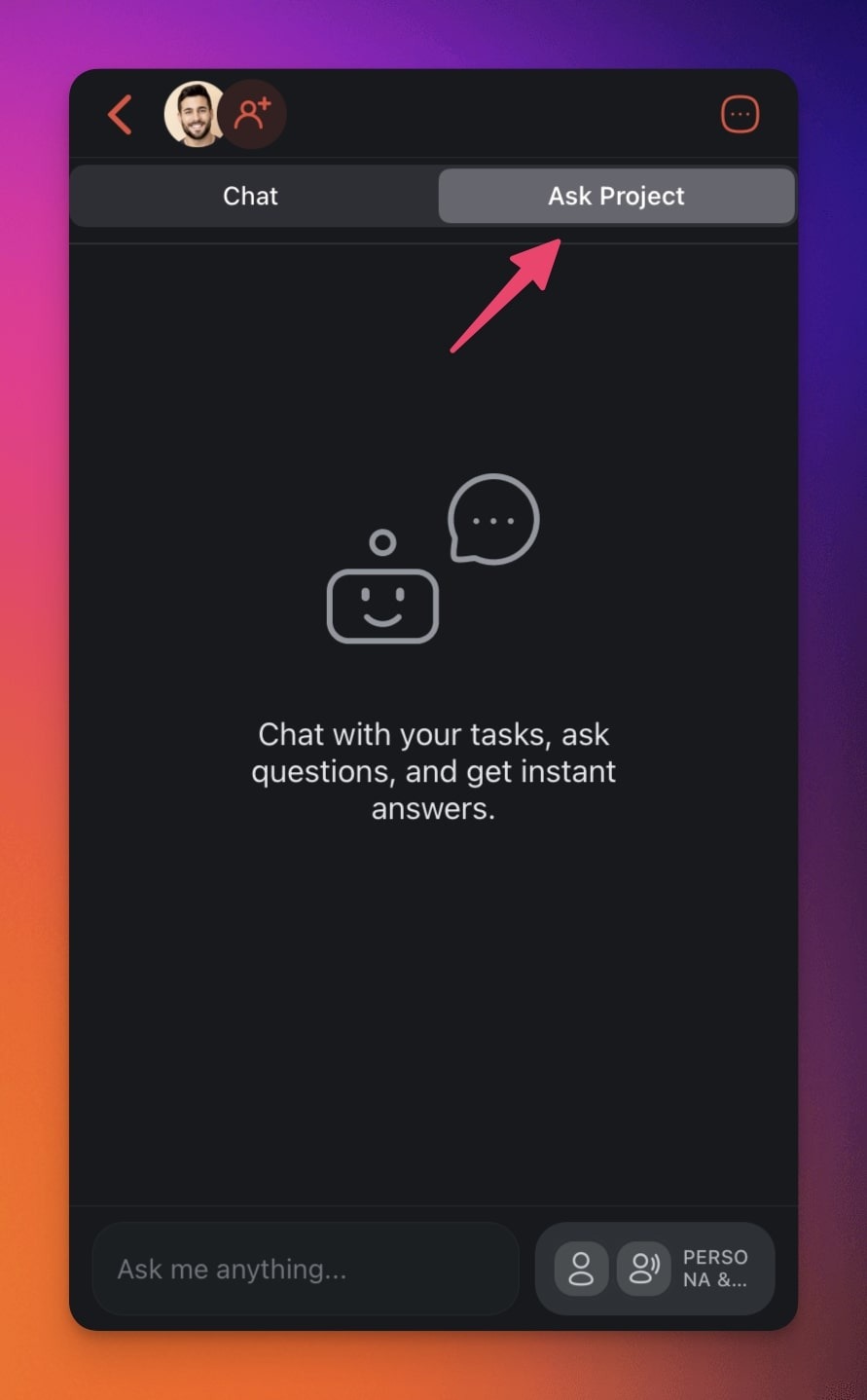
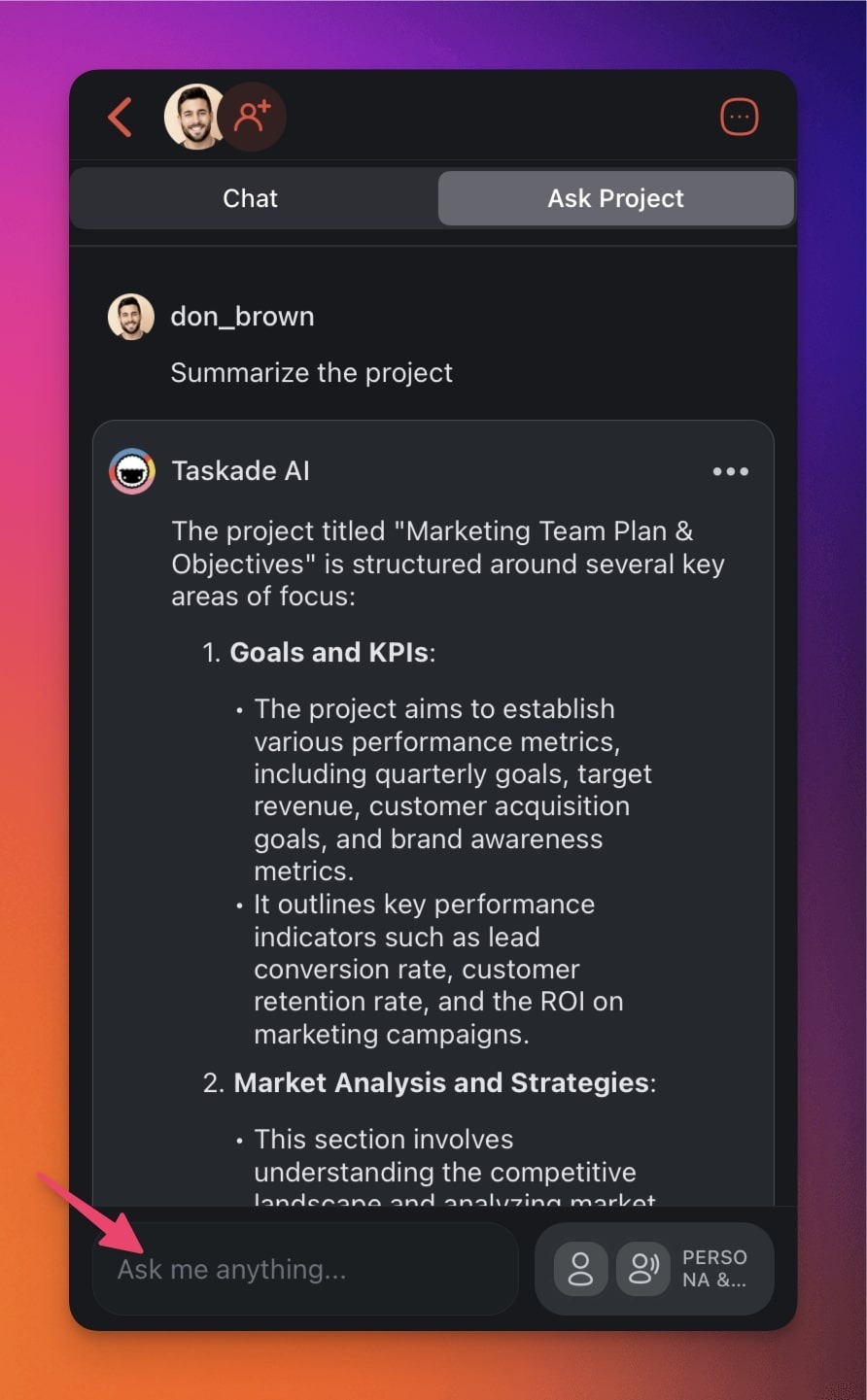
- Ask AI questions about the project or prompt it to generate content.
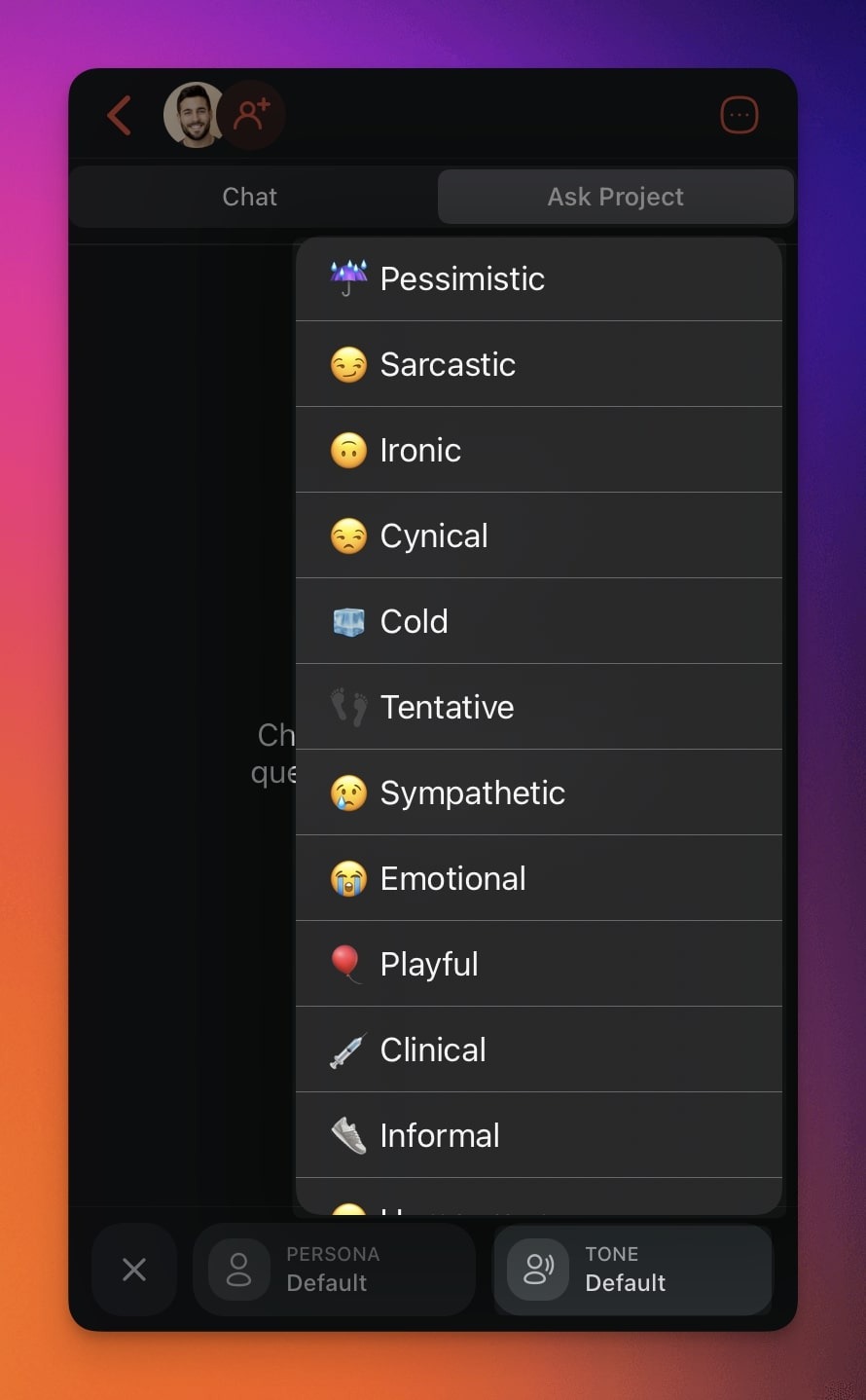
Choose Tones and Personas
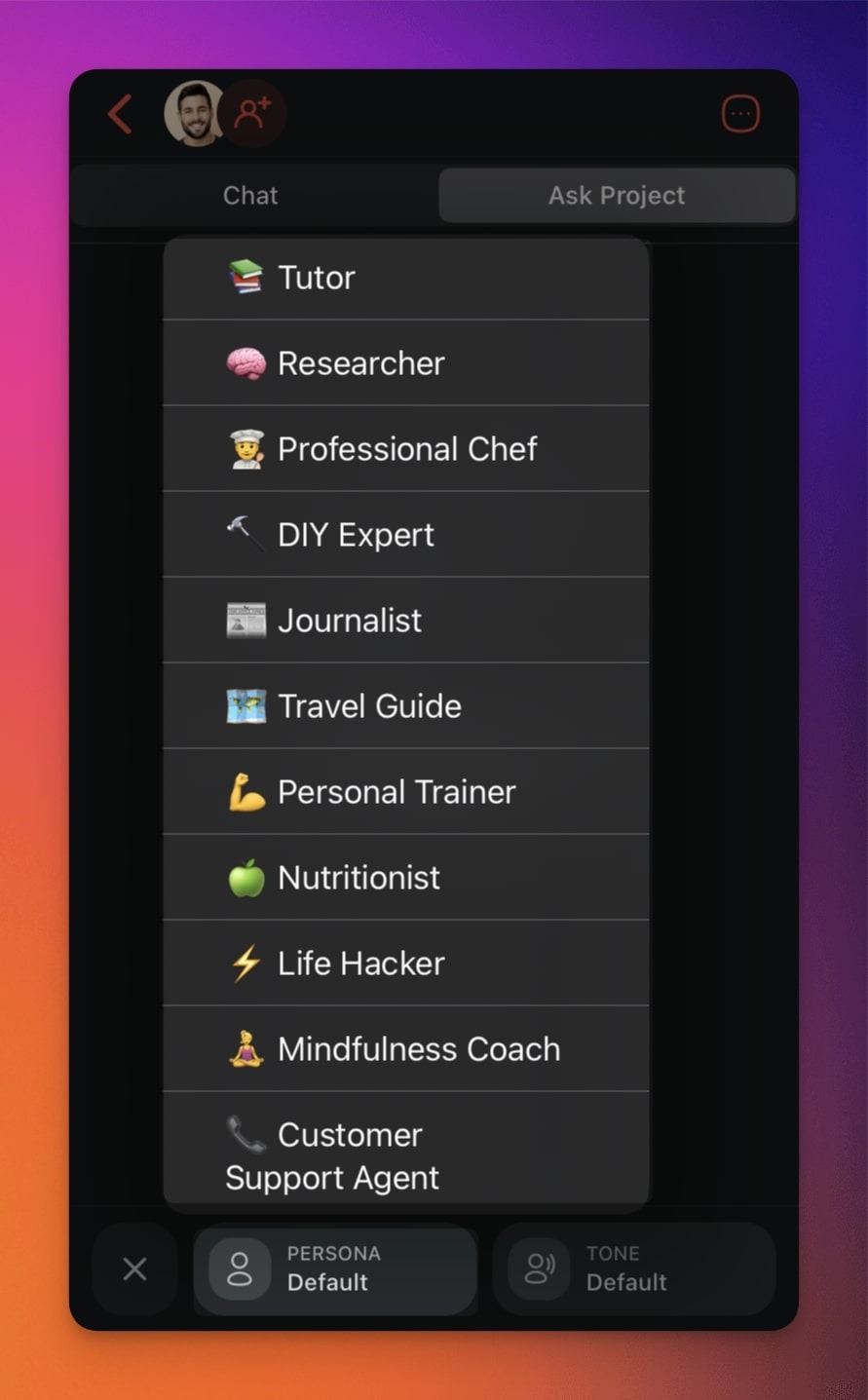
You can tailor the tone and style of responses in the chat interface.
Use the selectors at the bottom of the chat box.
👤 PERSONA: Give the AI chat a personality and expertise.
🗣️ TONE: Choose the style and tone of AI responses.
Use AI Chat Output
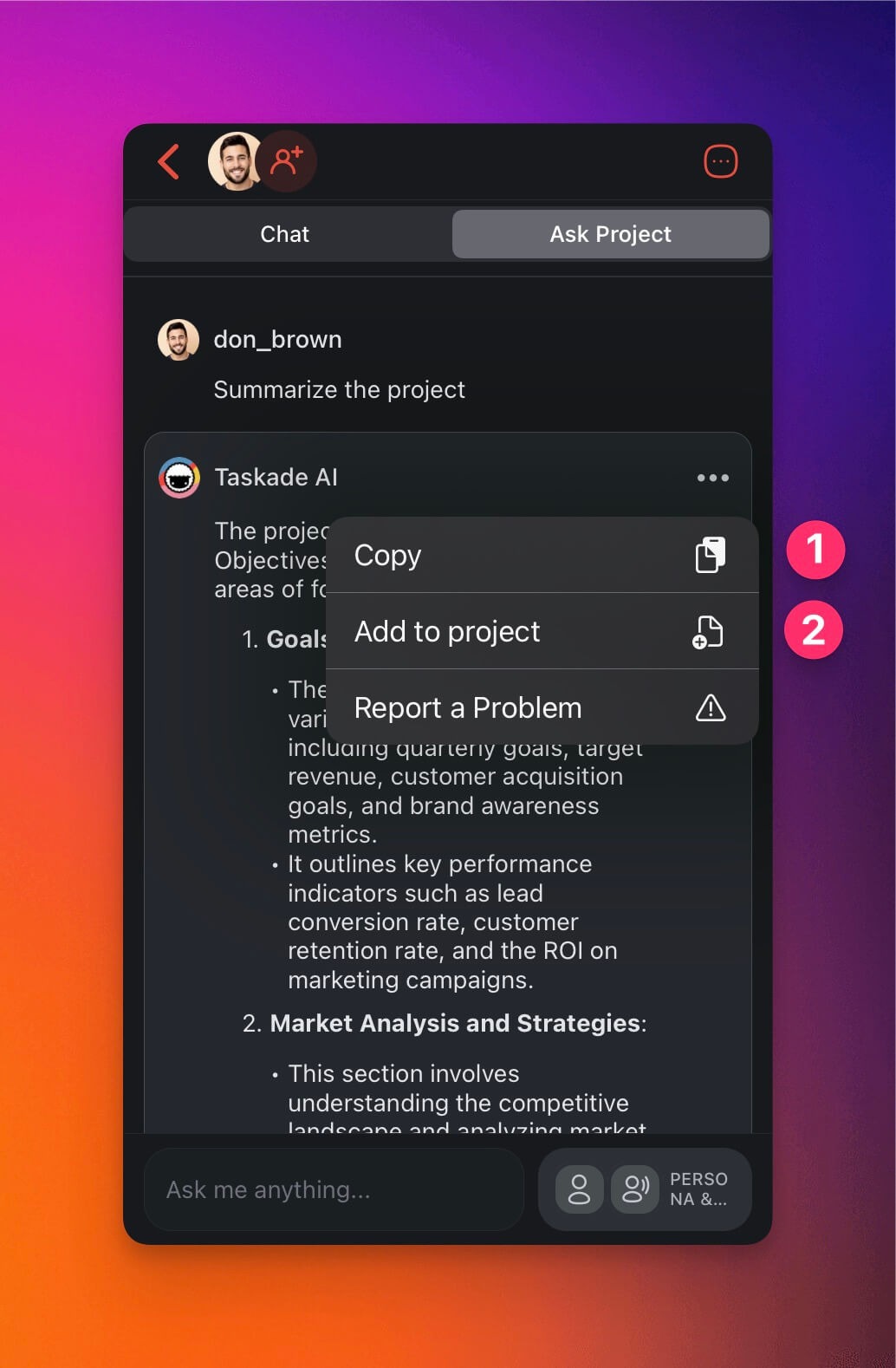
Save your conversations with AI or add them to projects:
Start a new chat with Taskade AI.
Tap the three dots ··· next to a chat output.
(1) Tap Copy to save the text to the clipboard.
(2) Tap Add to project to add the generated text to the current project.
(3) Tap Regenerate to redo the last reply when you want a different answer.
AI Chat Use Cases
Want to make the most of Taskade AI? Here are a few ideas:
| 🤹♀️ Use Case | ⌨️ Prompt Example |
|---|---|
| Summarize the project | Ask Taskade AI about the contents of the project. For example, "Provide a summary or an overview of the current project's contents and its main objectives." |
| Generate outlines | Create a full outline for your article or business report. For example, give the topic or title of your document. |
| Find information | Ask AI Chat all kinds of questions to find information on a wide range of topics. For example, "How far away is the moon." |
| Brainstorm ideas | Generate ideas, expand on topics, and come up with creative solutions to problems. For example, "Generate article ideas on topic X." |
| Create meeting agendas | Create high-level meeting agendas for your next team sync-up. For example, "Create a meeting agenda for a 15-minute meeting." |