
TL;DR: Calendar view shows every task with a due date on a day, week, or month grid. Drag to reschedule, click to edit, and connect to Google Calendar or Outlook via Taskade Calendar. Calendar is one of the project views and shipped in v4.9 (Feb 2022).
Here is how your project turns into a calendar you can act on.
Overview
The Calendar View is one of the project views available in Taskade. It shows all tasks with due dates by Month, Week, or Day. From the calendar, you can create tasks, edit task names, assign task owners, and drag tasks between days. Only tasks with due dates appear on the calendar. This keeps your view focused on upcoming deadlines.
You can use this view for:
- Keeping track of deadlines and events.
- Scheduling meetings and appointments.
- Managing project timelines and milestones.
- Planning and scheduling social media posts.
- Planning and scheduling content releases or product launches.
- (optional) Browse our free planning templates for more ideas.
💡 Note: Visit Taskade Calendar to learn how to schedule tasks and projects.
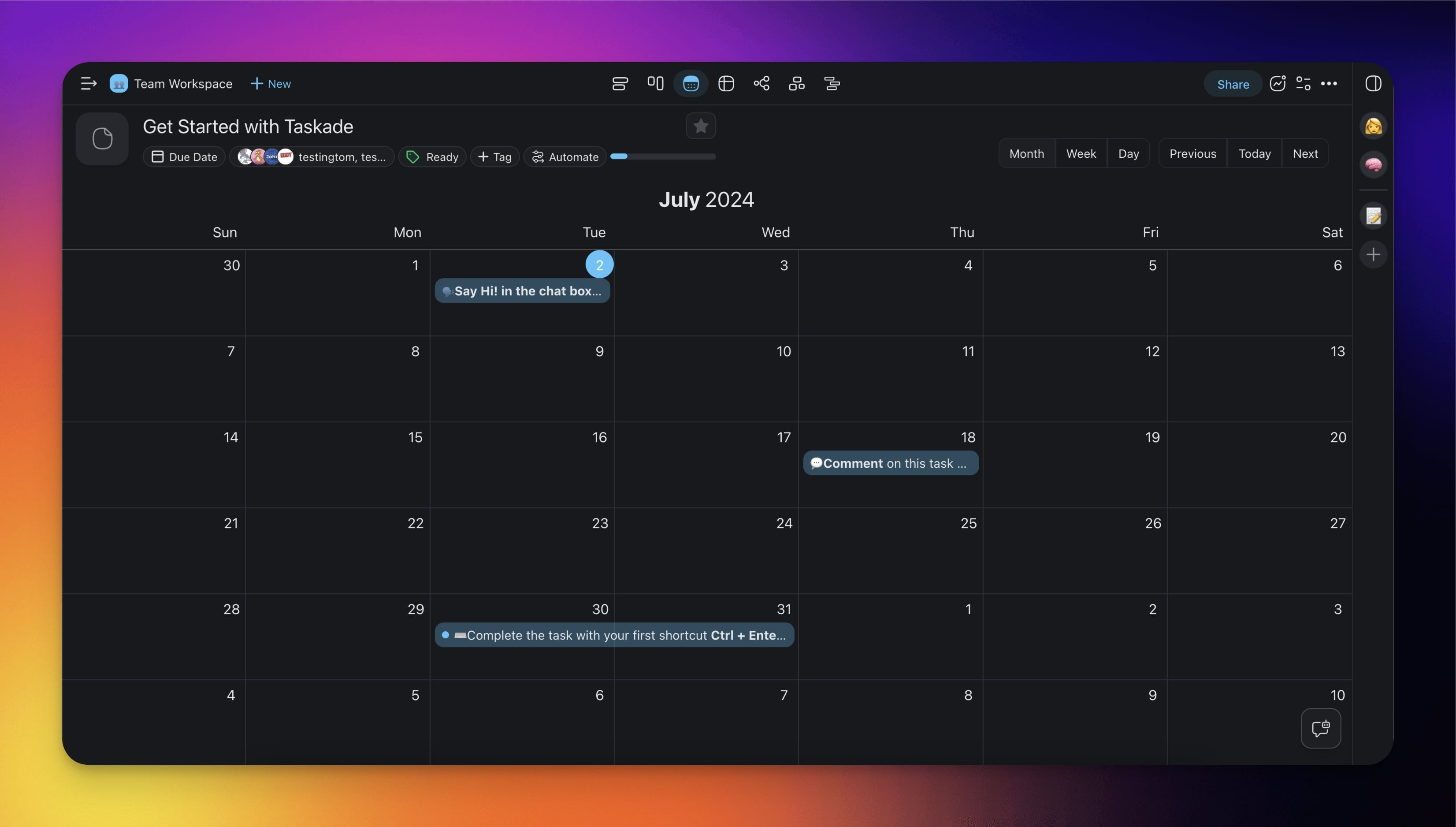
Enable the Calendar View
- Click More Views in the project toolbar and pick Calendar.
- Double-click the Calendar icon to set the view as default.

💡 Note: A change of project view does not affect project contents.
Assign a Task
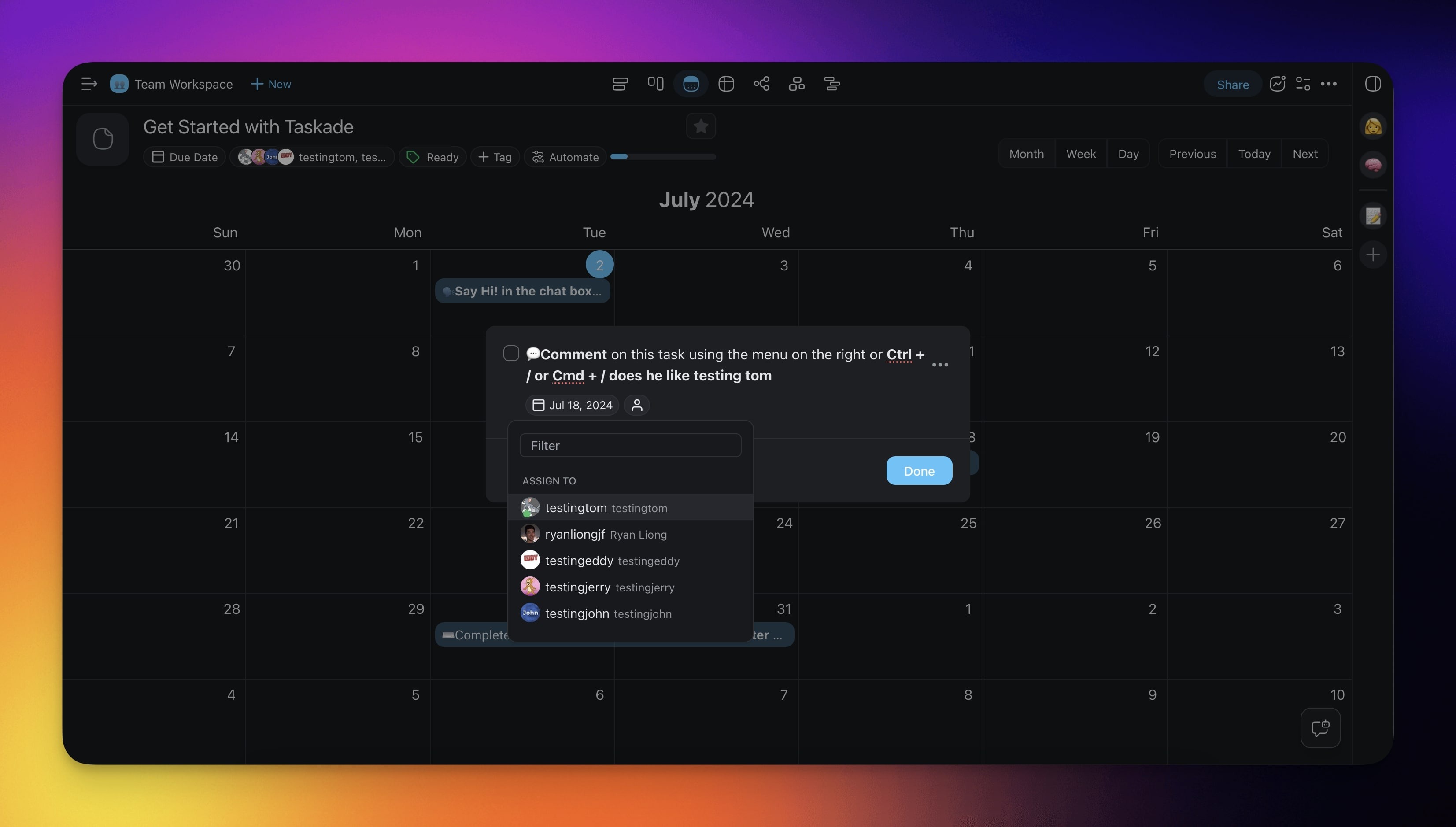
Follow the steps below to assign a calendar event in the Calendar view:
- Click the day when you want to schedule the event.
- Type the task description and click 👤 Assign.
- Use the search bar or select the user from the drop-down list.
Tips
- Drag tasks between days to quickly reschedule deadlines without opening the task details.
- Toggle between Month, Week, and Day modes using the controls at the top of the calendar to find the right level of detail.
- Combine the Calendar view with Reminders so you receive notifications before each due date.
- Use My Tasks to see a unified list of all your assigned and dated tasks across every project and workspace.
Export the Schedule to CSV
Need your dated tasks outside Taskade? Calendar view exports to CSV, alongside List, Table, Board, Mind Map, and Org Chart. Every dated task becomes a row you can open in Excel, Google Sheets, or Numbers. Use the file to build a report, hand a schedule to a client, or archive a season of events.
The one-click walkthrough lives in the Table view guide. All views share the same data, so the export reflects the same tasks whichever view you start from.