
TL;DR: Describe a customer database, dashboard, or client portal in plain English. No code or developer is required. In under ten minutes, this guide builds and publishes a feedback portal, connects a custom domain, and gives users their own logins. It uses four Workspace DNA layers: Projects, Agents, Automations, and App UI. Try it free →

What You Build
You will build a Customer Feedback Portal. This real, shareable app collects feedback from customers and stores it in a structured database. An AI agent triages each entry and routes urgent issues to your team automatically. By the end, you have a live URL to send to anyone.
This single tutorial touches every layer of the Taskade platform. Once you finish it, you can build almost anything. Examples are client portals, internal dashboards, booking tools, inventory trackers, intake forms, and interactive learning apps. One field-service operator used the same four layers to run his whole business on a single app. It tracked customers, jobs, and invoices, with logins for his crew. The feedback portal here teaches the exact moves that app uses.
| Traditional development | With Taskade Genesis |
|---|---|
| Wireframes, schemas, and tickets | Describe the app in plain English |
| Hire developers, configure servers | Generated and hosted in minutes |
| Build dashboards from scratch | Choose from multiple project views instantly |
| Stitch together sign-in, storage, email | 100+ integrations work by default |
| Ship in months | Ship today, iterate by chatting |
The Four Layers of Every App
Every Taskade Genesis app is assembled from the same four DNA layers. When you know them, everything that follows feels obvious.
One prompt builds all four layers at once. Here is the app shell Taskade Genesis hands back, the same four parts stacked into a single live app:
┌────────────────────────────────────────────────────────────────┐
│  Your Live App                                                 │
├────────────────────────────────────────────────────────────────┤
│  Interface    Pages, forms, dashboards     ( what users see )  │
│      ▲                                                         │
│  Execution    Automations: triggers + actions                  │
│      ▲                                                         │
│  Intelligence Agents: AI teammates + built-in tools            │
│      ▲                                                         │
│  Memory       Projects: your data, viewed in multiple ways     │
└────────────────────────────────────────────────────────────────┘
Read it bottom to top: Memory holds the data, Intelligence reads and acts on it, Execution runs the automations, and the Interface is the surface your users touch.
| Layer | Workspace DNA role | What it does in your app |
|---|---|---|
| 1. Projects | Memory | Stores structured data: feedback entries, customers, tasks. View it as a List, Board, Table, Mind Map, Docs, Gantt Chart, Calendar, Actionsheet, or Org Chart. |
| 2. Agents | Intelligence | AI teammates with persistent memory, custom instructions, and a large built-in toolkit. They read your projects, write to them, and talk to your users. |
| 3. Automations | Execution | Trigger-and-action automations that run on schedule or on event. Connect to 100+ integrations across 10 categories. |
| 4. App UI | Interface | The pages, forms, buttons, and dashboards your end users actually see and click. Generated from your prompt, editable by chat or visual selector. |
Every great Taskade Genesis builder learns this framing: Memory feeds Intelligence. Intelligence triggers Execution. Execution writes back to Memory. A Taskade Genesis app is that loop wrapped in an interface. Read Workspace DNA explained for the deeper conceptual model.
Before You Start
- What you need: A Taskade account. No coding experience or credit card required.
- Time: About 10 minutes.
Step 1: Write Your Prompt
The single most important skill in Taskade Genesis is writing a good first prompt. A good prompt names the users, the data, the actions, and the outcome. A vague prompt produces a vague app.
Open Taskade. Click Create. A prompt field appears at the center of the screen.
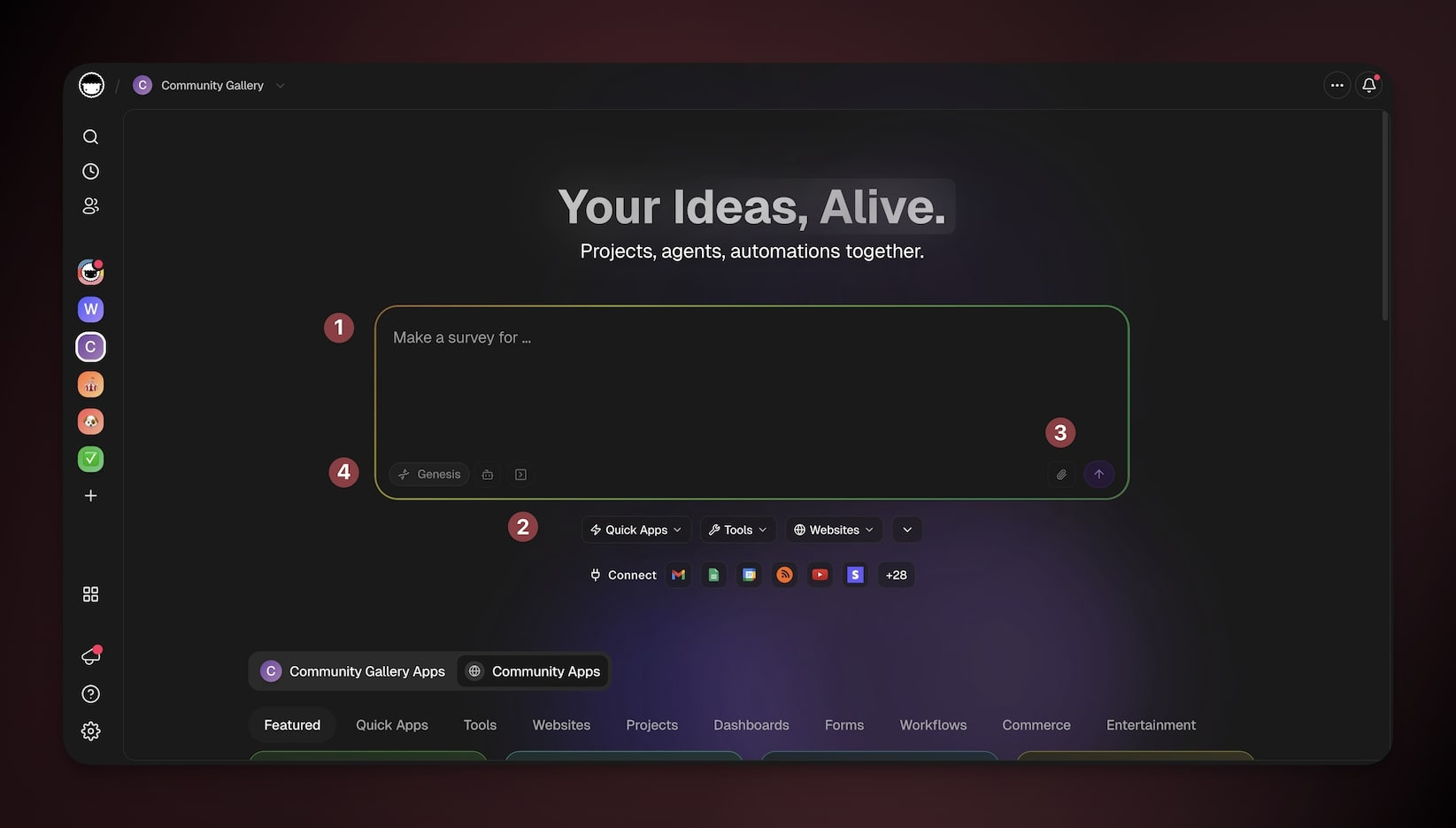
Vague prompt (do not use this pattern):
"Make a feedback app."
Good prompt (use this pattern):
Build a customer feedback portal where users can submit feedback with a title, description,
category (bug, idea, praise), and severity (low, medium, high). Store every submission in a
Feedback project. Show submitted feedback in a public board grouped by category. When a
high-severity bug is submitted, notify our team in Slack and create a follow-up task assigned
to the on-call engineer. Do not add sign-in or a custom domain yet.
Why this works: Naming the fields (title, description, category, severity) gives every
submission a typed column from the first save, and the boundary line keeps Taskade Genesis from
guessing at sign-in or a domain before you decide you want them.
Notice what the good prompt includes:
- Who uses it: Customers submit feedback, and our team receives it.
- What data it captures: Title, description, category, and severity.
- Where data lives: A Feedback project.
- How users see it: A public board, grouped by category.
- What happens automatically: A Slack notification and a follow-up task on high-severity bugs.
For a deeper walkthrough of prompt patterns, see A Maker's Guide to AI Prompts and Writing your first prompt.
Pro tip: The prompt does not have to be perfect. Taskade Genesis is iterative. You refine the app by chatting with it. The clearest version you can write in 60 seconds is a good start.
Optional: add context
Click the paperclip (📎) icon to attach reference material. You can attach a brand guide, a CSV of existing customers, a screenshot of an app you like, or a PDF of requirements. Taskade Genesis reads every file you upload. It uses those files as the source of truth for the build.
You can also pick a creation mode before pressing enter:
- Taskade Genesis (default): Assemble a complete, living app.
- Project: Build data and views only.
- Agents: Build an AI teammate.
- Automation: Build a single automation.
For your first app, leave it on Taskade Genesis.
Step 2: Watch It Get Built
Press Generate. Taskade Genesis runs through the assembly order in real time. You can watch each layer light up.
Assembly typically takes 60-120 seconds, depending on app complexity. During the build, the four layers populate in the left sidebar:
- Projects: your Feedback database appears with the columns you described
- Agents: a Triage Agent arrives with custom instructions
- Automations: an automation with a "new entry" trigger and Slack action
- App UI: pages for the form, the board, and the admin view
The build window also tracks the work. Its Plan list shows each step that Taskade EVE planned and marks it as the build moves on. Its Built so far list names each project, agent, automation, and file as it lands. A step that needs a fix shows as Fix needed.
Before it hands the app back, Taskade Genesis runs a Visual check. It looks at the new interface the way a person looks at it, finds layout and wiring problems, and corrects them. You get a polished first version instead of a rough draft.
When the build finishes, the Preview tab opens automatically. Your app is already live. Submit a test entry and watch the loop fire.
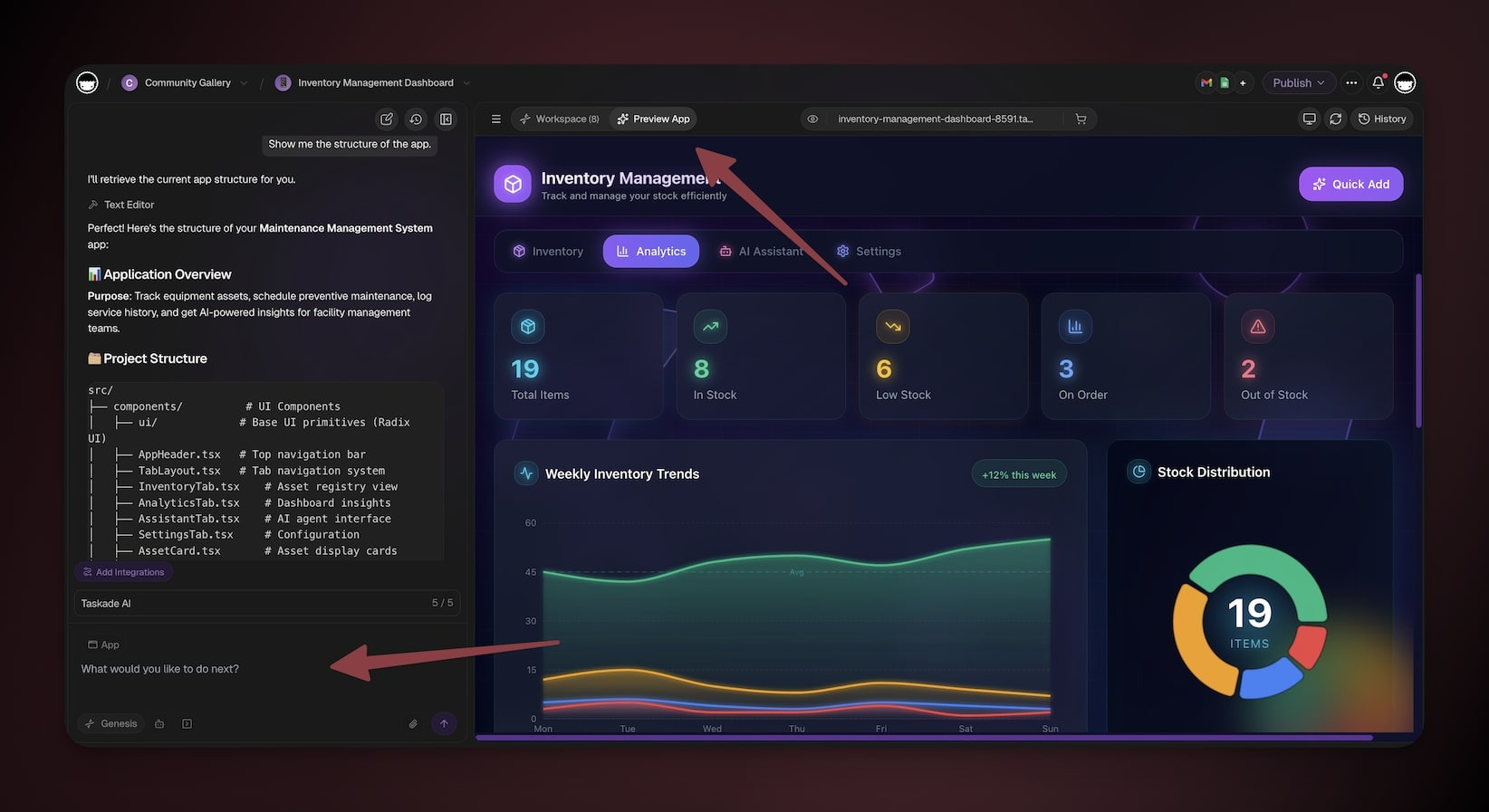
Step 3: Customize the App UI
The App UI is the surface your users will actually touch. Taskade Genesis gives you two ways to refine it: chat or click.
Refine by chat
Open the chat with Taskade EVE on the left. Describe what you want to change. One change at a time produces the best results.
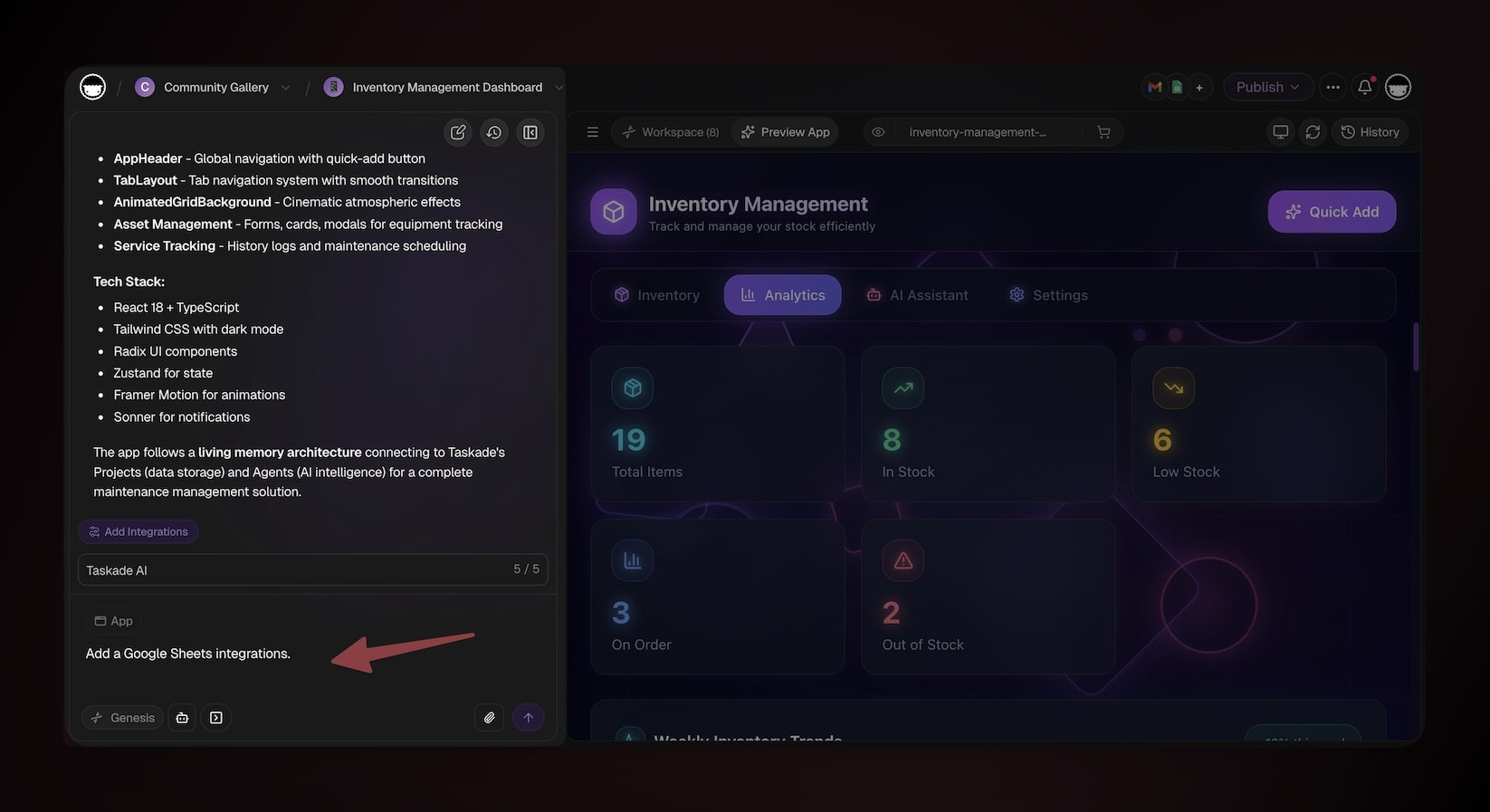
Useful prompts:
"Use our brand pink #ff2d60 as the primary color and Inter as the font.""Add a confirmation message after a user submits feedback.""Make the public board read-only for visitors but editable for signed-in team members.""Add a chart to the admin dashboard showing feedback volume by week.""Embed the Triage Agent on the admin page so the team can ask it questions."
Refine by click
Use the Element Selector to point at any element: a heading, a button, a card, or an image. Then edit its properties directly. No code, no inspector. Click the thing you want to change, then describe the change in plain English. This combination gives the fastest results.
Adjust permissions
Taskade uses role-based access, from Owner down to Viewer. Tell Taskade Genesis who sees what:
"Only Maintainers and Owners can see the admin dashboard.""Anyone with the link can submit feedback. For signed-in history, match the signed-in email to the correct feedback rows and return an empty state when no rows match."
Do you want your team or your clients to log in? Workspace single sign-on is for Taskade team members. GenesisAuth creates app-specific customer accounts. You manage those accounts in App Users. Before you show private customer data, configure identity-based filters.
Step 4: Publish Your App
Click Publish in the top-right. You have three visibility options and three distribution channels.
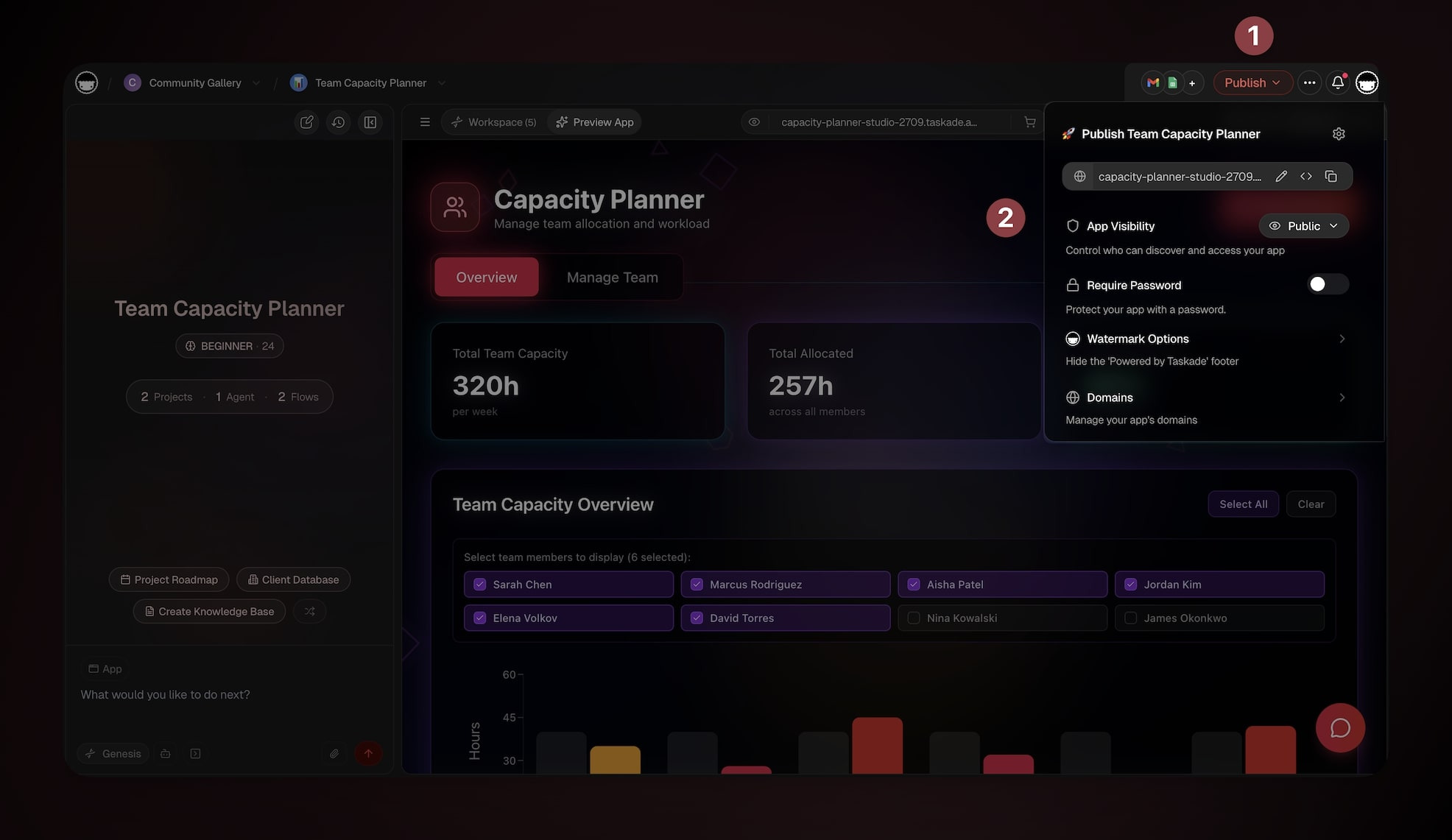
Visibility:
- Private: Only people in your workspace.
- Secret: Anyone with the link. Search engines do not index the app.
- Public: Discoverable and embeddable.
Distribution:
- Direct link: Every published app gets its own web address, such as
your-app.taskade.app. Share that address, and visitors land straight on the live app. Thetaskade.com/app/{name}-{id}link opens the listing page of the app. If you also share the app as a kit, a Clone action appears there. See Taskade Genesis App URLs. - Custom domain: Point your own domain at the app, with an automatic security certificate (SSL). See Custom domains.
- Search: Fill in the title, description, and social image of the app, so it reads well in Google and in link previews. See App SEO.
- Community Gallery: Publish to the public showcase and get featured. If you want others to clone your app, set Share as kit to Free or Paid. See Publishing to the Community Gallery.
You can also lock the app behind a password, drop it straight into your existing website with one embed snippet, or share it on social.
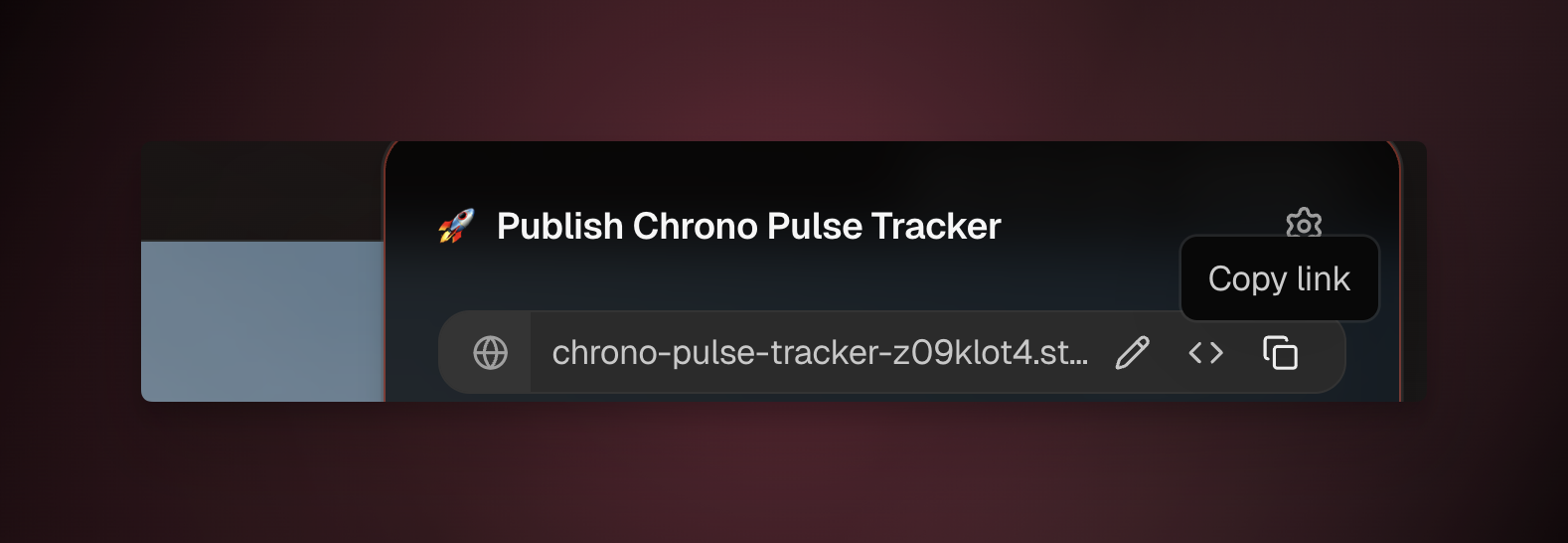
Your first app is live. 🎉
You are done when you open the app's direct link in a new tab, submit a test entry, and see
it land in your Feedback project.
What Happened
You have a working app. This section shows what Taskade Genesis assembled, layer by layer, in the customer feedback portal.
Layer 1: Projects (Memory)
Taskade Genesis created a Feedback project with four typed columns and a Board view grouped by category. This project is a real database. Every submission becomes a row. Switch between any of the project views with no rebuild: List, Board, Table, Mind Map, Docs, Gantt Chart, Calendar, Actionsheet, and Org Chart. The project is the app's long-term memory. Agents read from it, automations write to it, and the interface shows it. Learn more in Projects and databases.
Layer 2: Agents (Intelligence)
Taskade Genesis added a Triage Agent with custom instructions ("read each new feedback entry, classify severity, suggest next steps"). The agent has persistent memory of your Feedback project and can draw on a large built-in toolkit. You can choose which of the 15+ frontier models from OpenAI, Anthropic, and open-weight providers powers it. Pick the model by the cost and reasoning depth you need. Learn more in Custom agents.
Layer 3: Automations
Taskade Genesis built an automation with one trigger and two actions. The trigger is a new feedback entry where severity = high. The actions post a message to Slack and create a follow-up task for the on-call engineer. Automations can branch, loop, filter, and chain across 100+ integrations across 10 categories. The categories are Communication, Email/CRM, Payments, Development, Productivity, Content, Data/Analytics, Storage, Calendar, and E-commerce. Learn more in Automations and execution.
Layer 4: App UI (Interface)
Taskade Genesis generated three pages: a public submission form, a public read-only board, and a private admin dashboard. Taskade Genesis regenerates the interface on every build. You edit it through chat or the Element Selector. It is not a wireframe. It is the production interface your users use.
The loop:
- A user submits feedback through the app's interface.
- The entry lands in Projects (memory).
- The Triage Agent reads it (intelligence).
- The Automation posts to Slack and creates a task (execution).
- The new task lands back in Projects (memory).
That is Workspace DNA in action.
Common First-Time Questions
Do I need to know how to code?
No. If you can describe a problem in English, you can build a Taskade Genesis app. Every change, from layout tweaks to adding a new automation, happens through chat or visual editing. There is no code to write, put online, or maintain.
How long does a build take?
Most first apps go from prompt to published URL in under ten minutes. More elaborate apps (multi-page dashboards, complex automations, custom agents) typically take 30-60 minutes of iteration. There is no build step, nothing to put online yourself, and no hosting setup at any point.
Can I change it after publishing?
Yes. Open the app any time and chat with Taskade EVE. Changes go live as soon as you save them. Edits need no separate publish step. You can also roll back to an earlier version from the version history.
What does it cost?
The Free plan gives you a one-time pool of AI credits, enough to build and ship your first apps. Paid plans add a larger monthly credit allowance and more seats as your needs grow. See how credits work in model credits and the current plans on the pricing page.
Can I use my own domain?
Yes, on Business and above. Buy a managed domain inside Taskade, or connect one you already own by adding the DNS records, the domain settings at your registrar, shown in Go Live → Domains. The security certificate is issued after those records update. See custom domains.
Can other people clone my app?
Only when you separately share it as a kit. Public visibility lets people use the app, but it does not grant cloning permission. Free and paid App Kits show a Clone action and a receipt of what Taskade copies. See Publishing to the Community Gallery.
Next Steps
You built a real app. Here is what to do next:
- Build a second app from a different angle: Try an internal tool, such as a content calendar or a personal CRM (customer relationship management). You will start to feel how the four layers work together.
- Customize your Triage Agent: Give it sharper instructions and connect it to more tools. Embed it on a public page, so anyone can ask it questions.
- Add a second automation: Schedule a weekly digest of new feedback, emailed to your team.
- Publish to the Community Gallery: Get feedback from the maker community. If you want others to clone the app, set Share as kit to Free or Paid.
Frequently Asked Questions
What can I build with my first Taskade Genesis app?
You can build a real, shareable app from a single plain-English prompt: a customer feedback portal, client portal, internal dashboard, booking tool, inventory tracker, or intake form. Every app is assembled from four Workspace DNA layers: Projects (memory), Agents (intelligence), Automations (execution), and the App UI (interface). Start building.
How do I write a great first prompt?
Name the users, the data, the actions, and the outcome in one clear sentence. A specific prompt produces a specific app, and you can refine everything afterward by chatting. See A Maker's Guide to AI Prompts for proven patterns.
How many ways can I view my app data?
Your Projects layer stores structured data you can view as a List, Board, Table, Mind Map, Docs, Gantt Chart, Calendar, Actionsheet, or Org Chart. Timeline is part of the Gantt Chart view, not a separate view. Switch between them anytime without rebuilding. Gantt Chart, Actionsheet, and Org Chart need a paid plan. Learn more in Project Views.
What does it cost to build and ship an app?
The Free plan includes a one-time pool of AI credits, enough to build and ship your first apps. Paid plans add larger monthly credit allowances and more seats as you grow. See how spending works in model credits and current plans on the pricing page.
Can I publish on my own custom domain?
Yes. Point any custom domain at your app and Taskade handles the security certificate automatically. Custom Domains are available on the Business plan and up. See Custom domains.
Can I change the app after I publish it?
Yes. Open the app anytime and chat with Taskade EVE or use the Element Selector to edit any element. Changes go live as soon as they are saved, and you can roll back to an earlier version from the version history. See Edit visually with the Element Selector.
How smart are the AI agents in my app?
Each agent has persistent memory of your projects, custom instructions, and a large built-in toolkit. You can power agents with 15+ frontier models from OpenAI, Anthropic, and open-weight providers. Choose the right balance of cost and reasoning depth. Learn more in Custom agents.
Related guides
- Workspace DNA explained: The conceptual model behind every Taskade Genesis app.
- Taskade Genesis overview: What Taskade Genesis is and why it exists.
- Writing your first prompt: The anatomy of a prompt that builds great apps.
- A Maker's Guide to AI Prompts: Patterns and starter prompts.
- Custom agents: Give your app a smart teammate.
- Projects and databases: The memory layer in depth.
- Automations and execution: The execution layer in depth.
- Publishing to the Community Gallery: Share, get featured, get cloned.
- Custom domains: Ship on your own URL.
- Edit visually with the Element Selector: Click any element and tell Taskade EVE what to change.
- Taskade Genesis App URLs: Spaces vs Projects vs Automations.
- Taskade Genesis FAQ: Pricing, limits, and common questions.
- First App concept: The idea behind your first build, with a worked Ops Dashboard example.
- Watch: Build an App: The same journey as a 60-second video, for when you prefer to watch.