
To change the font size in the Taskade mobile app, change the text size in your phone's settings. On a computer, zoom the Taskade window. In a project, use headings for larger text.
TL;DR: Taskade has no font size setting of its own. On a phone, the font size changer is in your iOS or Android settings, and the Taskade app follows it. On the web and in the desktop app, press
CmdorCtrlwith+or-to zoom. To make one line larger, turn it into a heading. See Edit & Format Projects for other styles.
In this guide, you will:
- Increase the font size on your phone
- Zoom Taskade on the web and in the desktop app
- Make one line of a project larger with a heading
Before You Start
Pick the method by what you want to make larger.
| You want | Method | Where |
|---|---|---|
| All text in the phone app | Phone text size | iOS or Android settings |
| Everything on the screen of the phone | Phone display size or zoom | iOS or Android settings |
| Everything in the Taskade window | Zoom | Web browser or desktop app |
| One line in a project | Heading | Inside the project |
Every method works on every Taskade plan, Free included.
How It Works
Your device controls the size of all text. The project controls the size of one line.
Step 1: Change the Font Size on iPhone or iPad
The Taskade app uses the text size that you set for your device.
- Open the Settings app.
- Tap Display & Brightness, then Text Size.
- Drag the slider to the right for larger text, or to the left for smaller text.
- Go back to Taskade to see the new size.
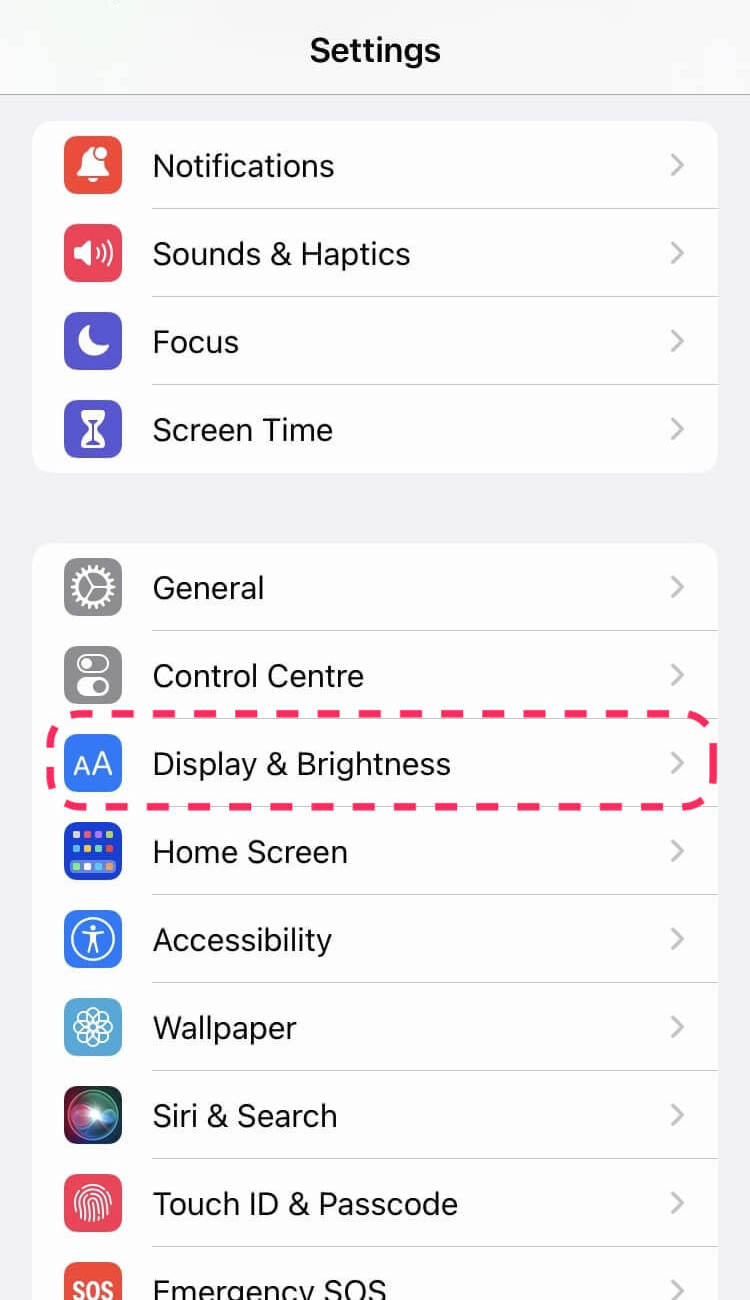
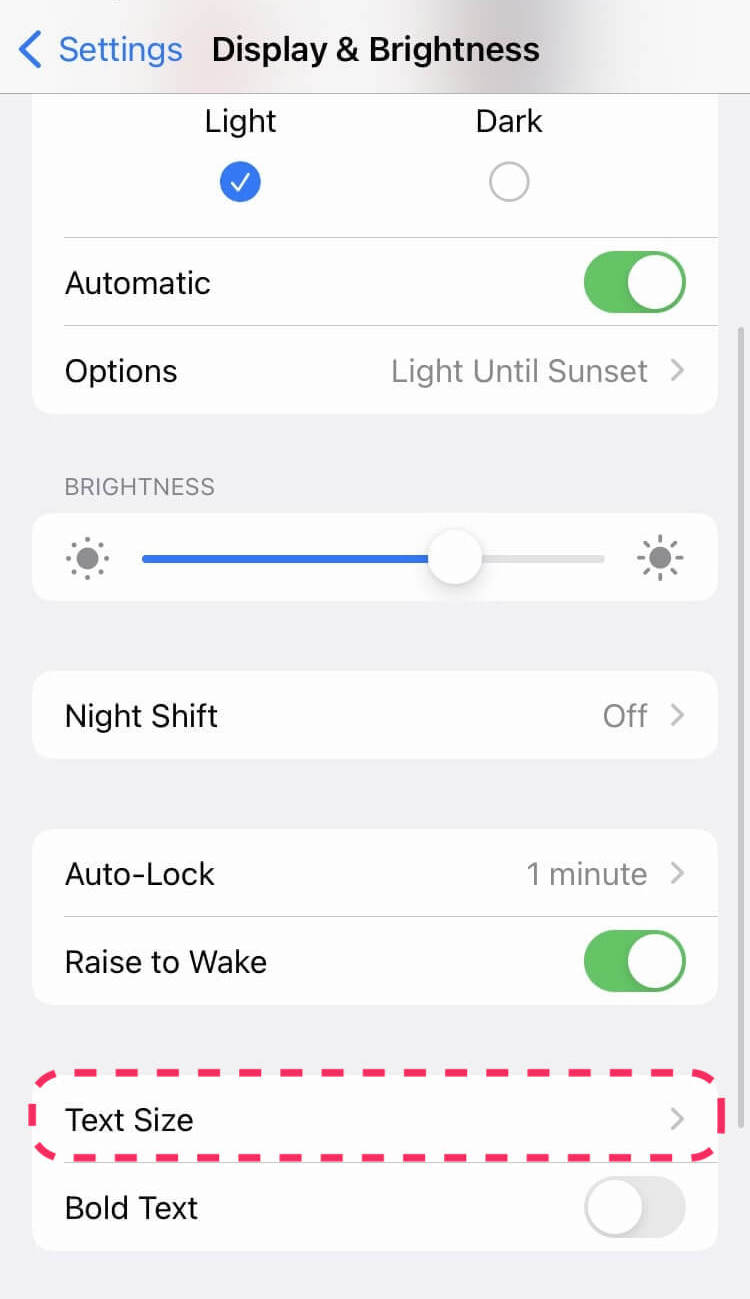
Increase the font size more on iPhone
For sizes above the normal range, use the accessibility setting.
- Open Settings, then Accessibility.
- Tap Display & Text Size, then Larger Text.
- Turn on Larger Accessibility Sizes.
- Drag the slider to the size you want.
Step 2: Change the Font Size on Android
The Taskade app uses the font size that you set for your device.
- Open the Settings app.
- Tap Accessibility, then Display size and text. On some phones, the item is Font size, or it is under Display.
- Drag the Font size slider.
- Go back to Taskade to see the new size.
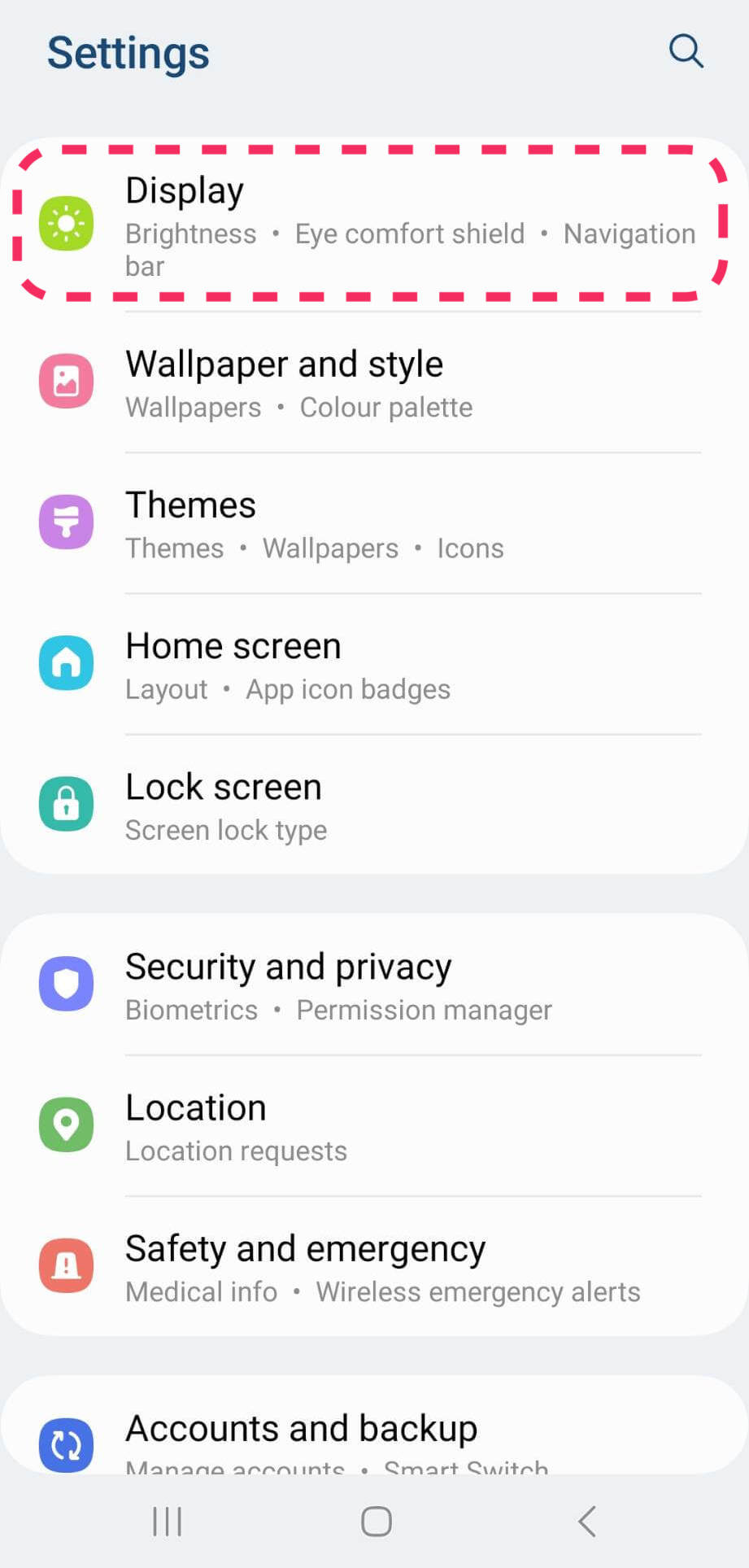
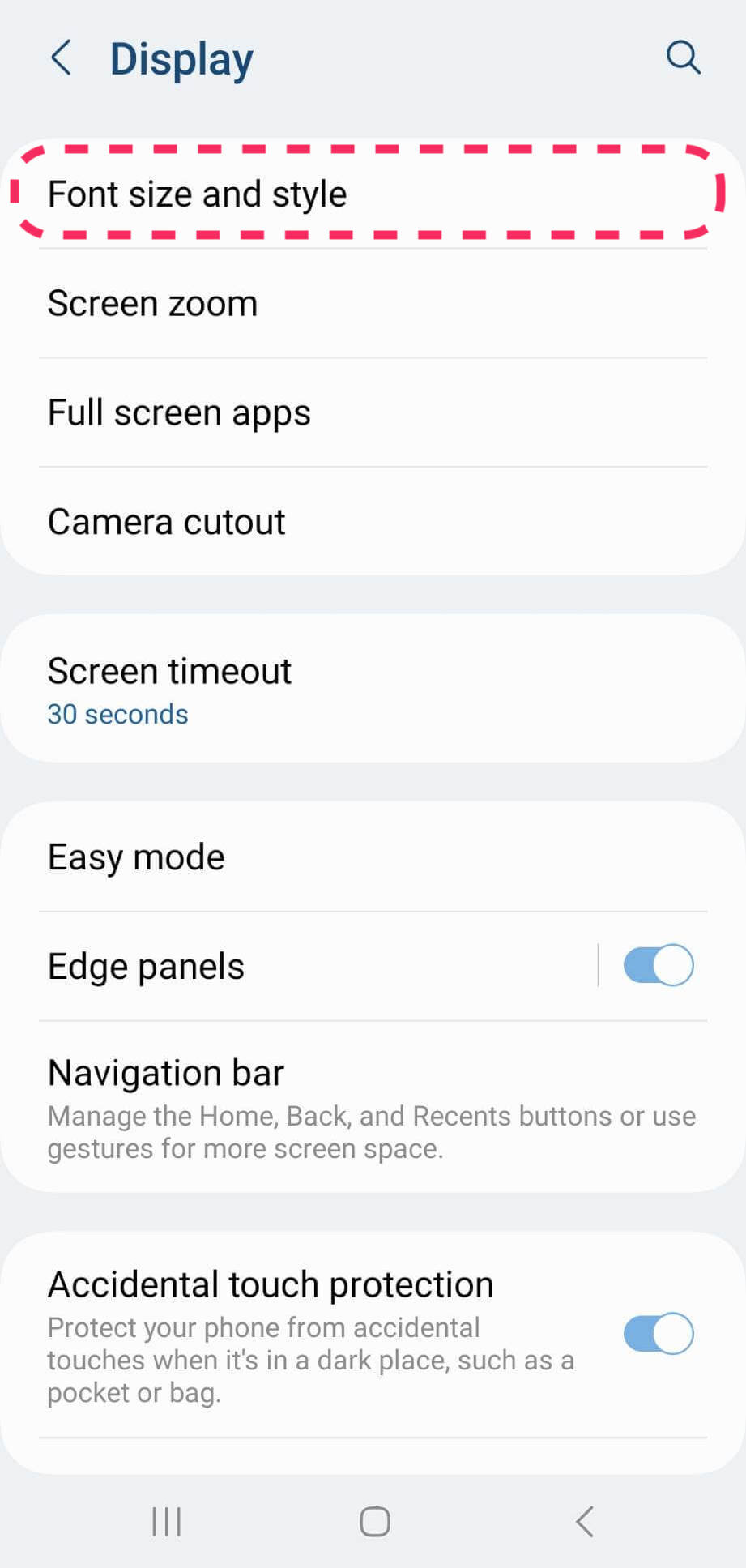
Note: Menu names differ between phone makers and Android versions. Search for "font size" in the Settings app to find the item fast.
Step 3: Make Everything Larger on Your Phone
Display size makes text, buttons, and icons larger together.
| Phone | Setting |
|---|---|
| iPhone | Settings → Display & Brightness → Display Zoom → Larger Text |
| Android | Settings → Accessibility → Display size and text → Display size |
Use display size when some Taskade text does not grow with the font size. Some labels grow less than the rest so that the screen layout still fits.
Step 4: Zoom on the Web and in the Desktop App
Zoom makes the whole Taskade window larger or smaller.
| Action | Mac | Windows and Linux |
|---|---|---|
| Zoom in | Cmd + + |
Ctrl + + |
| Zoom out | Cmd + - |
Ctrl + - |
| Back to normal size | Cmd + 0 |
Ctrl + 0 |
In the desktop app, the same actions are in the View menu: Zoom In, Zoom Out, and Actual Size. In a web browser, the zoom is part of the browser. In the Mind Map view, these keys zoom the map itself. See Zoom In/Out on All Views.
Step 5: Make One Line Larger with a Heading
A heading makes one line of a project larger than the rest of the text.
- Click in the line.
- Type
/headingand pressEnter. For a set size, type/h1,/h2, or/h3.
You can also type # at the start of a line for a Large Heading, or ## for a Small Heading. The format menus also list Heading 3 to Heading 6.
You Are Done When
The text in Taskade shows at a size that is easy for you to read.
Tips
- Use a heading for a section title, not bold text. A heading is larger for everyone who opens the project.
- On a small laptop, zoom out one step to see more of a board or a table.
- Search for "text size" in the Settings app of your phone to find the slider fast.
Troubleshooting
Find what you see, then do the fix.
| What you see | Why | Fix |
|---|---|---|
| The Taskade app text did not change | The app was open when you changed the setting | Close the app fully, then open it again. |
| Some text is larger, some is not | Some text grows less, or keeps its size, so that the layout fits | Also change the display size of your phone (Step 3). |
| The zoom keys do nothing in Taskade | The keyboard focus is in another app | Click in the Taskade window, then press the keys again. |
| The Mind Map zooms, not the page | Mind Map uses the zoom keys for the map | Use the browser or View menu zoom, or switch to another view. |
Frequently Asked Questions
Where is the font size changer for the Taskade mobile app?
It is in your phone's settings, not in Taskade. On iPhone, open Settings → Display & Brightness → Text Size. On Android, open Settings → Accessibility and find the font size item.
How do I increase the font size on my phone?
Open the phone's settings and drag the text size or font size slider to the right. For even larger text on iPhone, turn on Larger Accessibility Sizes under Accessibility → Display & Text Size → Larger Text.
Does Taskade have its own font size setting?
No. Taskade uses the text size of your phone and the zoom of your browser or desktop app. To make one line larger, turn it into a heading.
How do I make text bigger in the desktop app?
Press Cmd + + on a Mac or Ctrl + + on Windows. You can also open the View menu and click Zoom In. Press Cmd + 0 or Ctrl + 0 to go back to normal size.
Does zoom change the text for my teammates?
No. Zoom and phone text size change only what you see on your device. Headings in a project show for everyone.
Next Steps
Make projects easy to read for you and your team.
- Format the text: Use bold, highlights, and blocks in Edit & Format Projects.
- Add clickable links: Put links behind your words in Make a Link Clickable.
- Zoom a view: Zoom boards and maps in Zoom In/Out on All Views.
- Use the phone app: Learn the app in the Mobile Guide.