
TL;DR: My Tasks aggregates every task assigned to you across every workspace, folder, and project, into a single personal backlog. Filter by due date, tag, project, or custom field to focus on what matters today. Use it as your daily driver instead of jumping between projects one by one.
Here is how a task travels into your My Tasks dashboard and back to its project.
Overview
My Tasks is an account-wide dashboard that compiles your tasks across all projects, folders, and workspaces in a single screen.
You can use My Tasks for:
- Tracking tasks with and without due dates.
- Checking off completed tasks.
- Filtering tasks by owner, workspace, and folder.
- Quickly jumping to projects, folders, and workspaces.
- And more!
Note: You can use My Tasks to assign tasks to contractors, consultants, and freelancers without having to invite them into a workspace. As long as you share the project, they will be able to manage their tasks in one place.
Add to My Tasks
Follow these steps to start tracking tasks inside My Tasks:
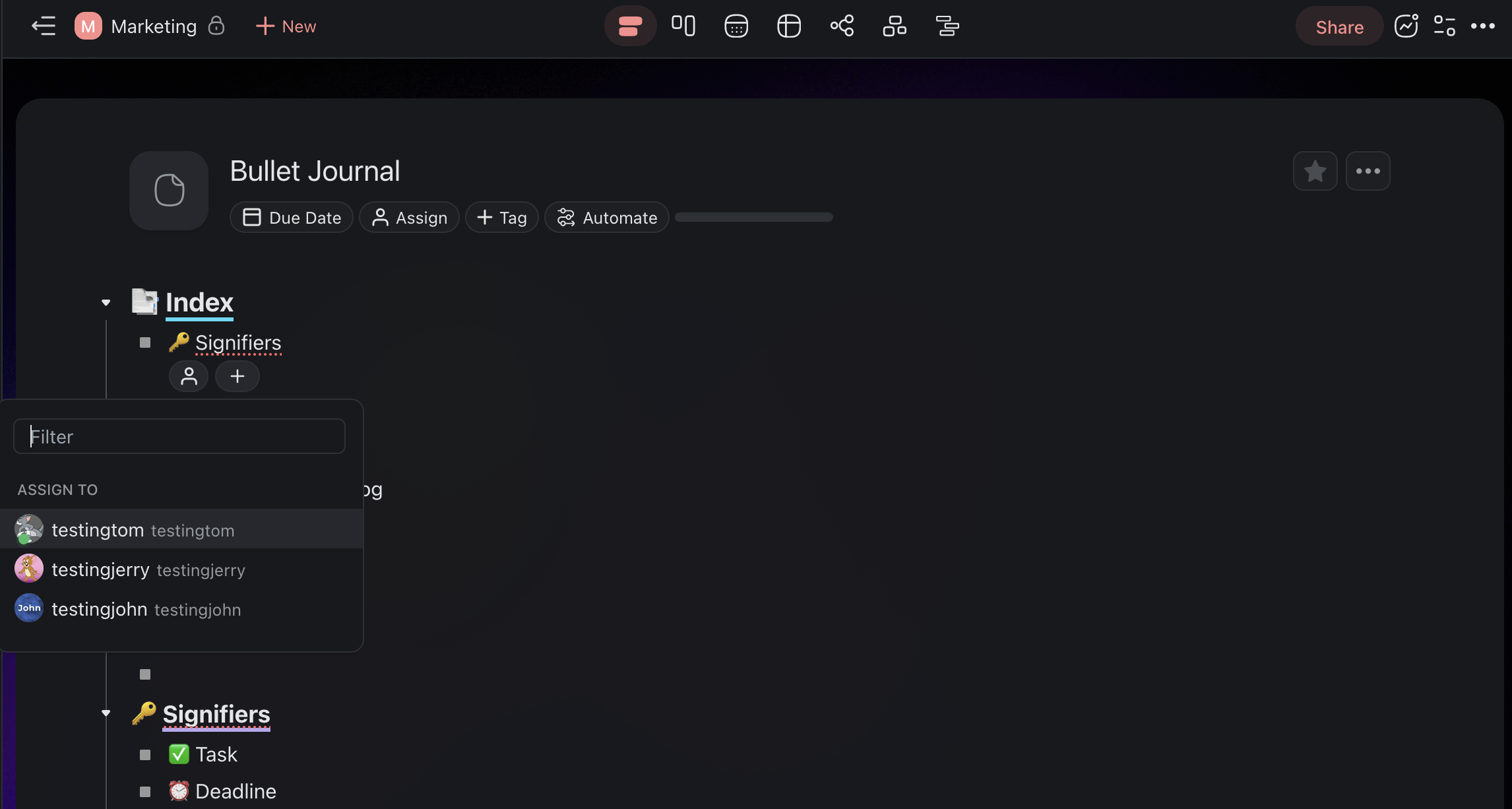
- Method#1: Click ➕ next to a task and choose the Assign add-on.
- Method #2: Use the / assign slash command.
💡 Note: My Tasks aggregates tasks that have a due date, tasks assigned to you, or both. Tasks do not need a due date to show up. If you are assigned to a title of a block, you see only the block title.
View and Filter My Tasks
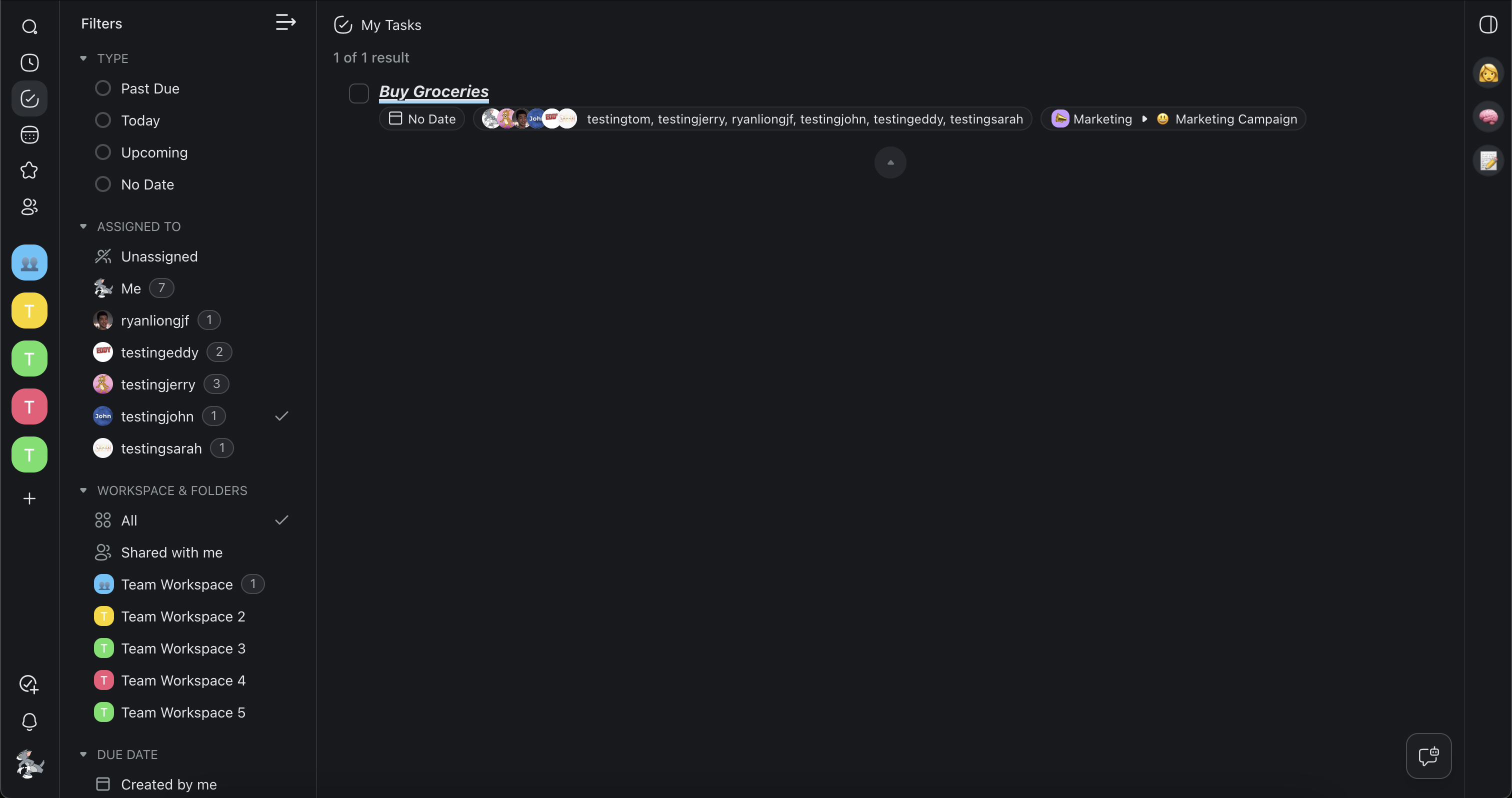
- Open Taskade and click the My Tasks button (left navigation bar).
Use the Filters on the left to filter the tasks by:
Type
Assignee
Workspace / Folder
Due Date
To navigate and manage tasks:
- Click a task in the main pane to navigate to its parent project.
- (optional) Use the checkbox next to tasks to complete them.
Task Detail Panel
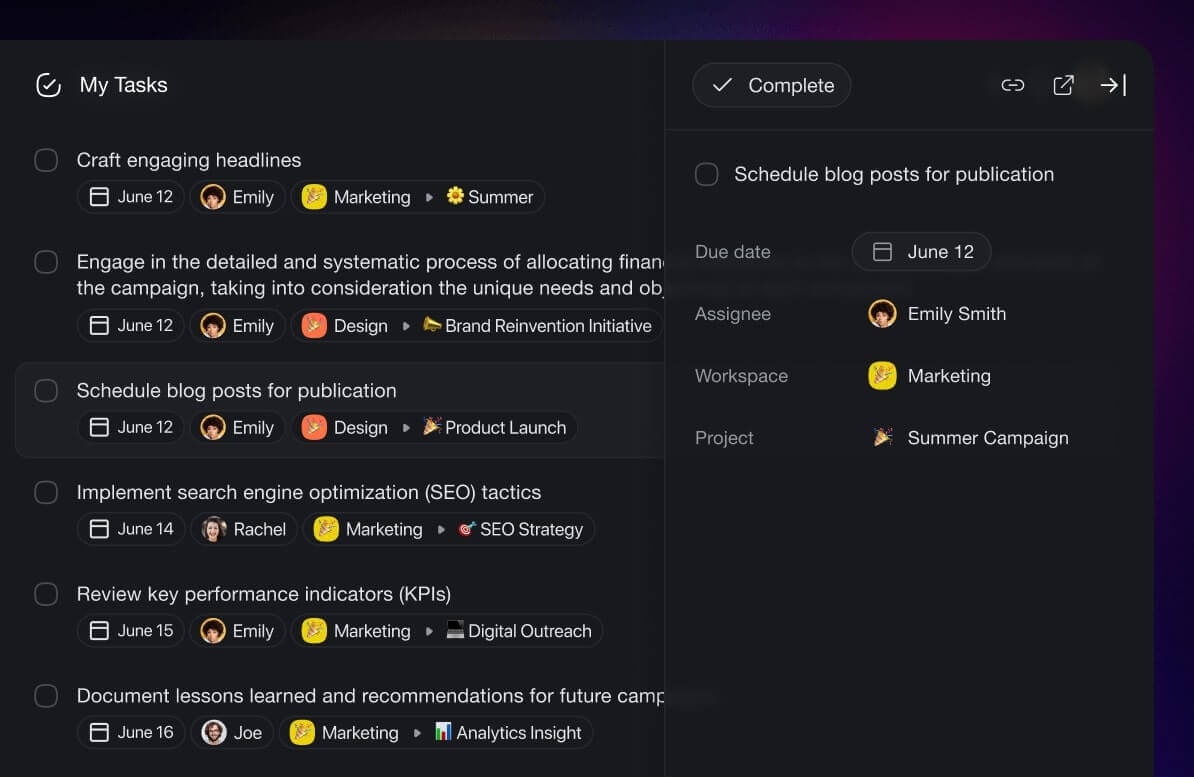
Click on any task in the My Tasks screen to open the Task Detail panel. Look up task details, or reschedule and reassign tasks with ease, all from your current screen.
Tips
- My Tasks updates in real time, so newly assigned tasks appear immediately without refreshing.
- Use the Due Date filter to focus on tasks due today, this week, or overdue items that need attention.
- Click any task to jump directly to its parent project for full context and editing.
- Pair My Tasks with Reminders so you receive notifications before deadlines.