
TL;DR: Table view turns any project into a spreadsheet with filtering, grouping, sorting, and custom fields (text, number, currency, date, dropdown, password). Each row is a task, so an edit in Table view shows up everywhere else. It is one of the project views and the default for database projects.
Overview
The Table view is one of the project views available in Taskade. It lets you manage tasks in a table organized into customizable columns.
Reach for the Table view when you need structured, comparable data with a row per record. It is the right layout to:
- Build a lightweight CRM with a row per client and columns for status, owner, and deal value.
- Track a project budget with currency and number fields you can total at a glance.
- Run an intake or booking tracker where each row moves through a Status dropdown.
- Power the backend of a Taskade Genesis app, where the Table view stores the records your app reads and writes.
Prefer a starting point? Browse our free task management templates for ready-made tables. You can also ask Taskade EVE for a comparison, and it builds the answer directly in a Table view.
Note: Table view works on mobile, so you can open, filter, and edit a table right from your phone. Visit Project Views to explore the other layouts.
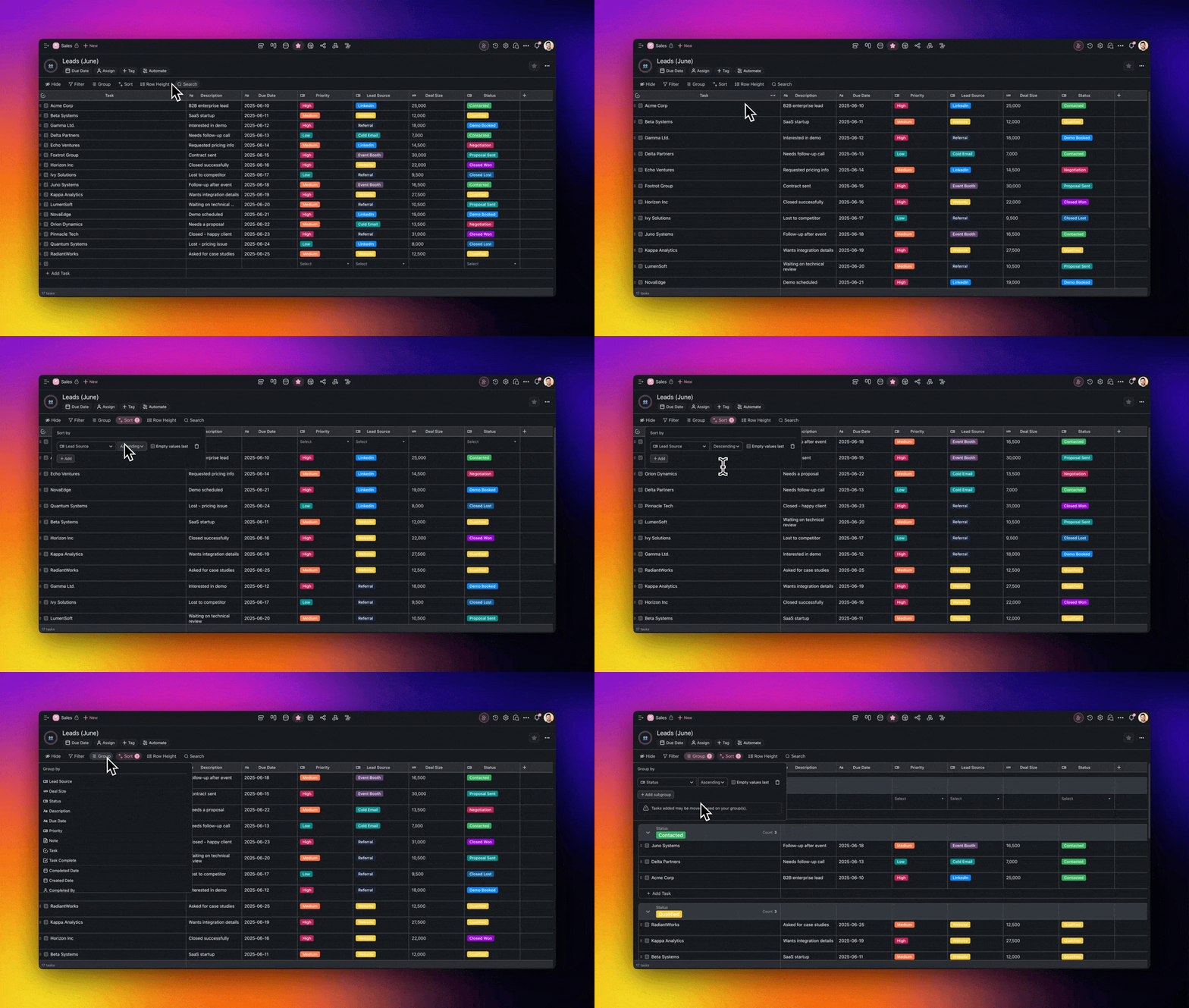
Enable the Table View
- Click the Table tab in the project toolbar.
- Click the icon again to set the view as default.

Note: Changing project views does not affect project contents.
Manage Table Columns
In the Table view, you can adjust columns to fit your project.
A Table view has a sticky Task column on the left. Custom-field columns follow it, such as a single-select Status, a Due Date add-on, and a Number Budget. A + Add field button sits at the end of the header.
┌──────────────────────────────────────────────────────────┐
│  Table view  ·  Product Launch                           │
├──────────────────────────────────────────────────────────┤
│  Task             Status      Due Date   Budget     [ + ]│
│  ───────────────  ──────────  ─────────  ────────        │
│  Draft brief      ● Done      Jun 10     $1,200          │
│  Design mockups   ◐ Doing     Jun 18     $3,500          │
│  User testing     ○ To Do     Jun 24     $  800          │
│  ›  Add task                                             │
└──────────────────────────────────────────────────────────┘
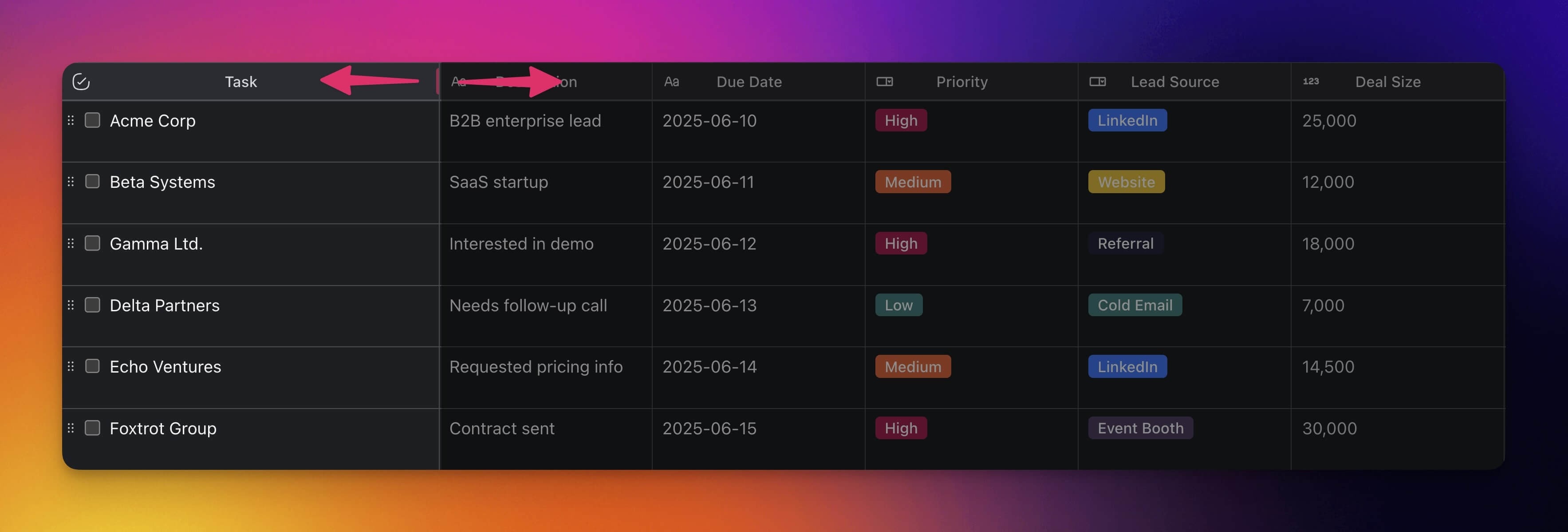
Resize Column
- Click and hold a column divider and drag it to the left or to the right.
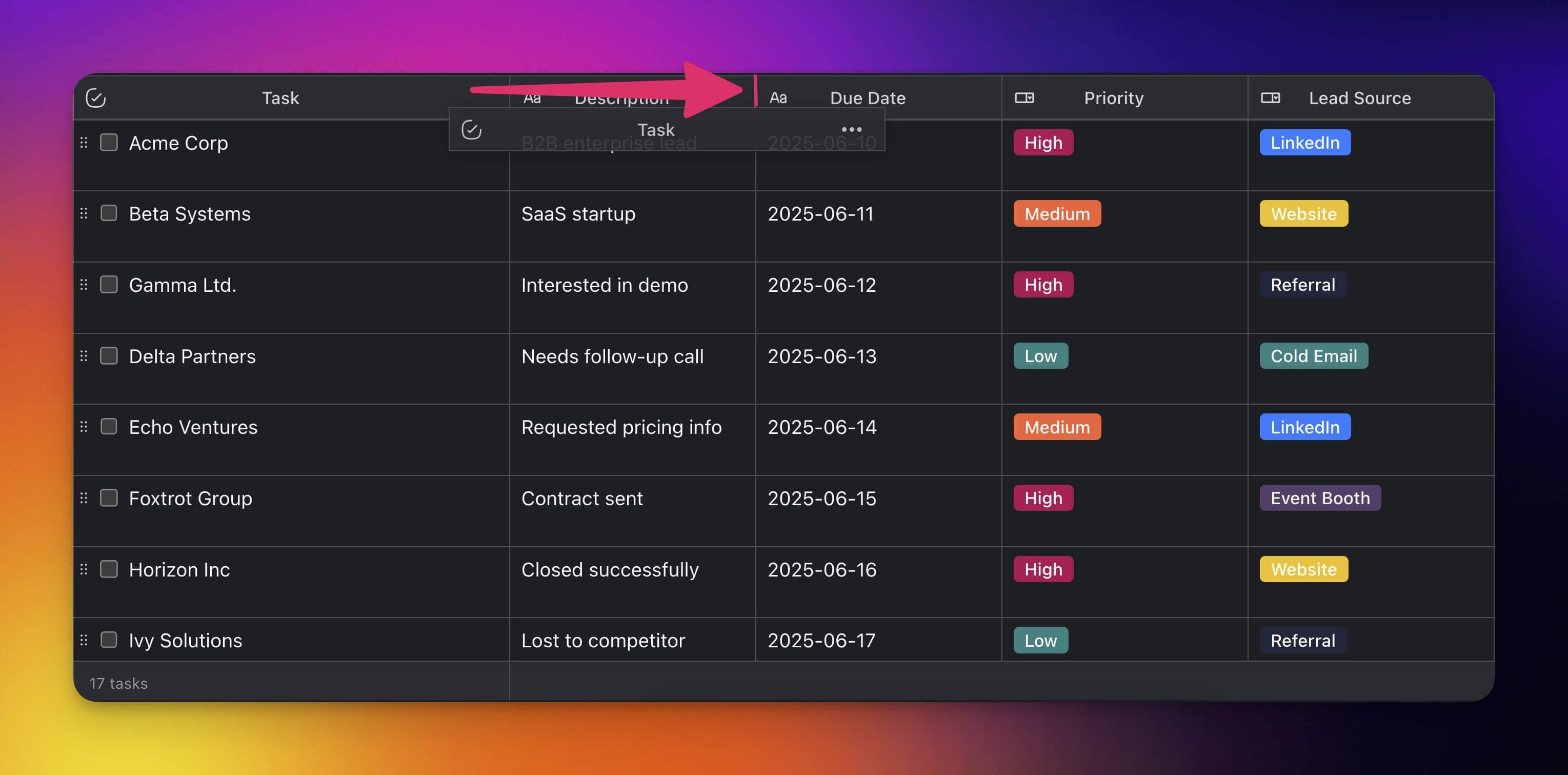
Reorder Column
- Click and hold a column header and drag it to the left or right.
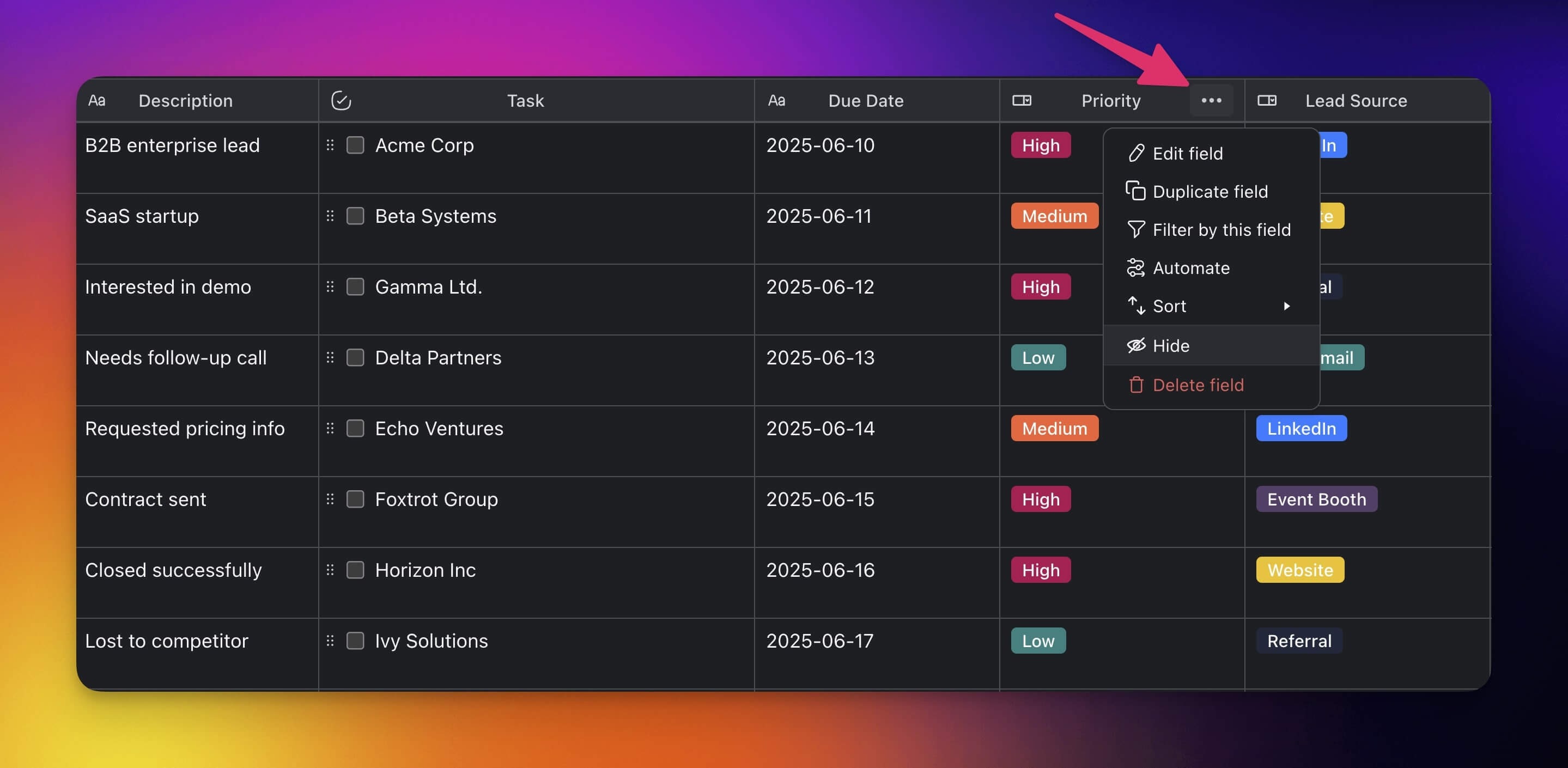
Hide/Show Columns
Hide: Click ··· next to a column header → Hide.
You can also hide columns by unchecking them under ➕ (see below).
Show : Click the ➕ button at the end of a table to add columns again.
Scroll to the right to see the ➕ button.
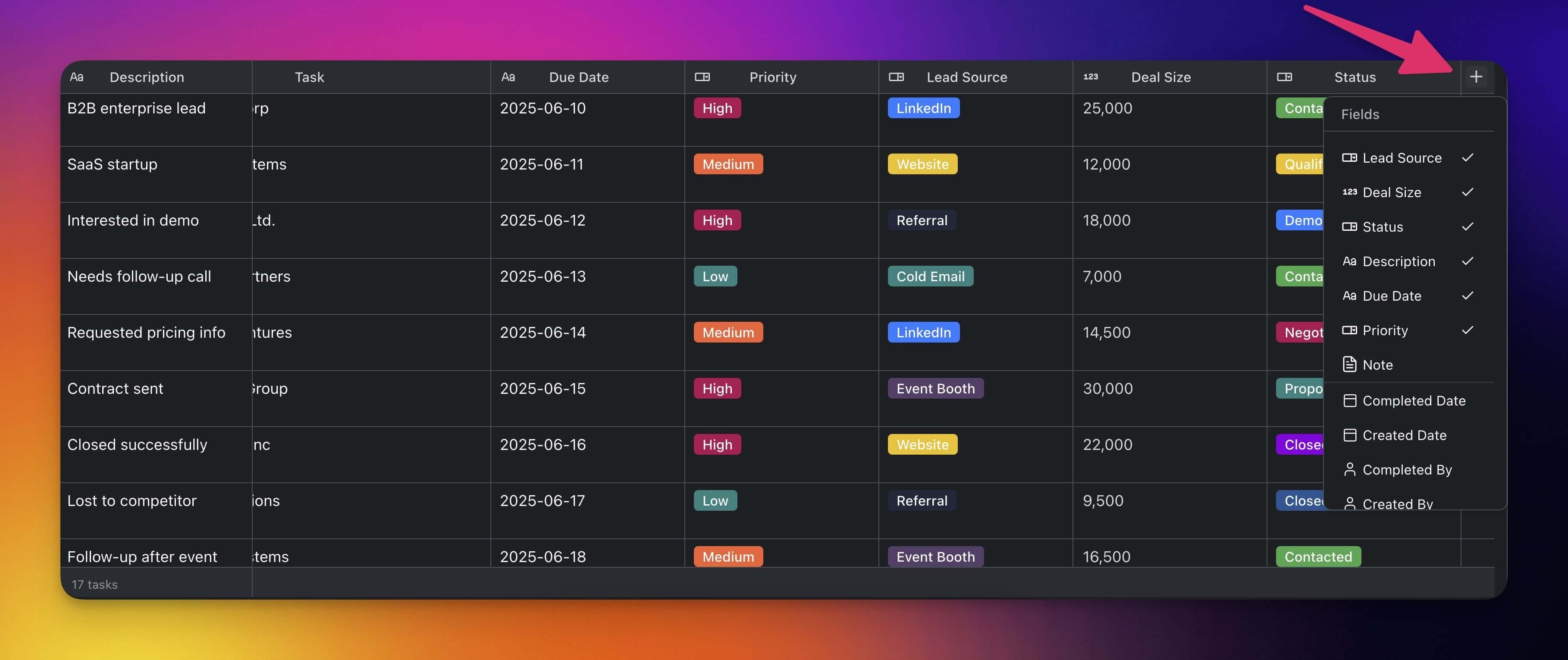
Add Custom Fields
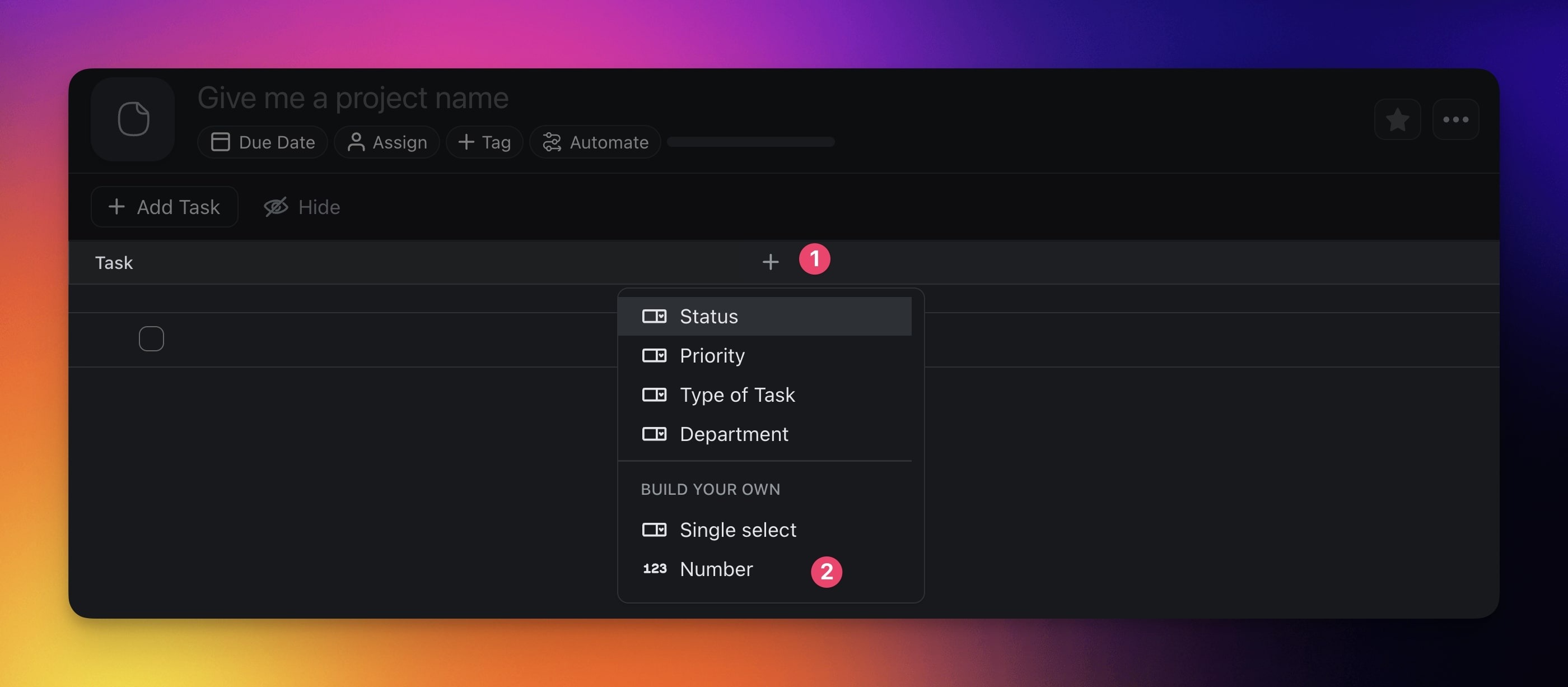
Click the ➕ button next to the last column (scroll right if needed).
Choose one of the available options (scroll down for details).
Note: The custom fields you add in the Table view are visible in the other views of the project. You can also add them at any time with Add-Ons.
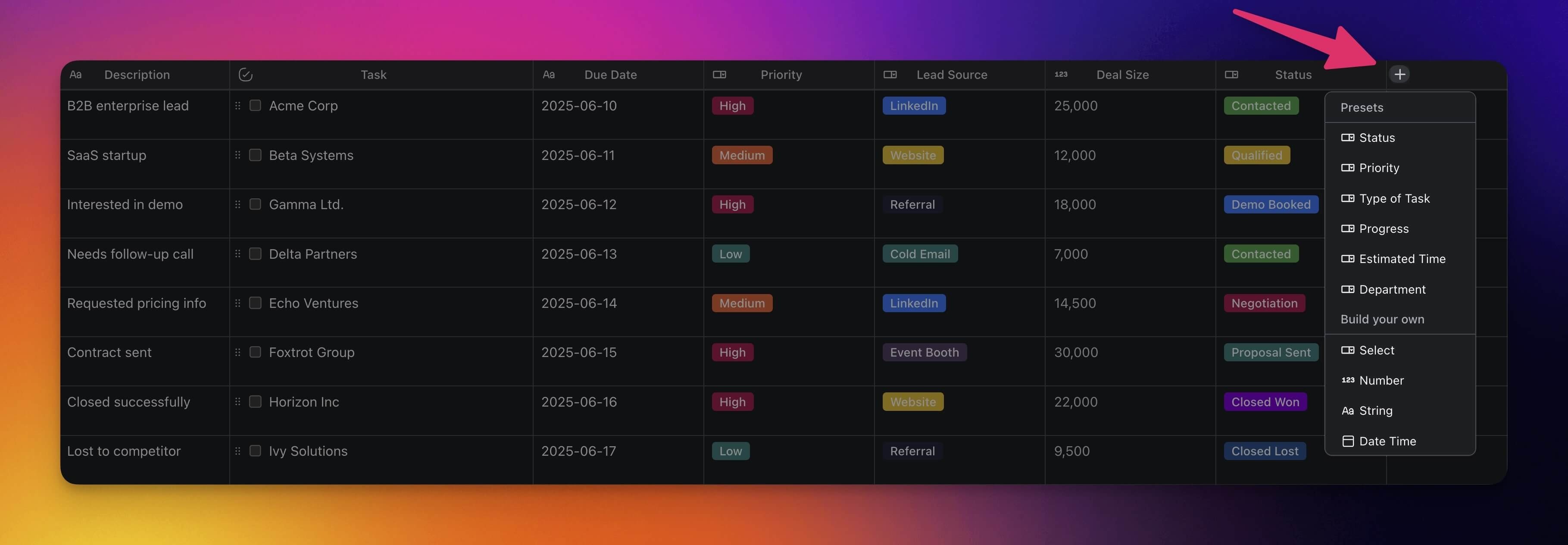
Use Presets
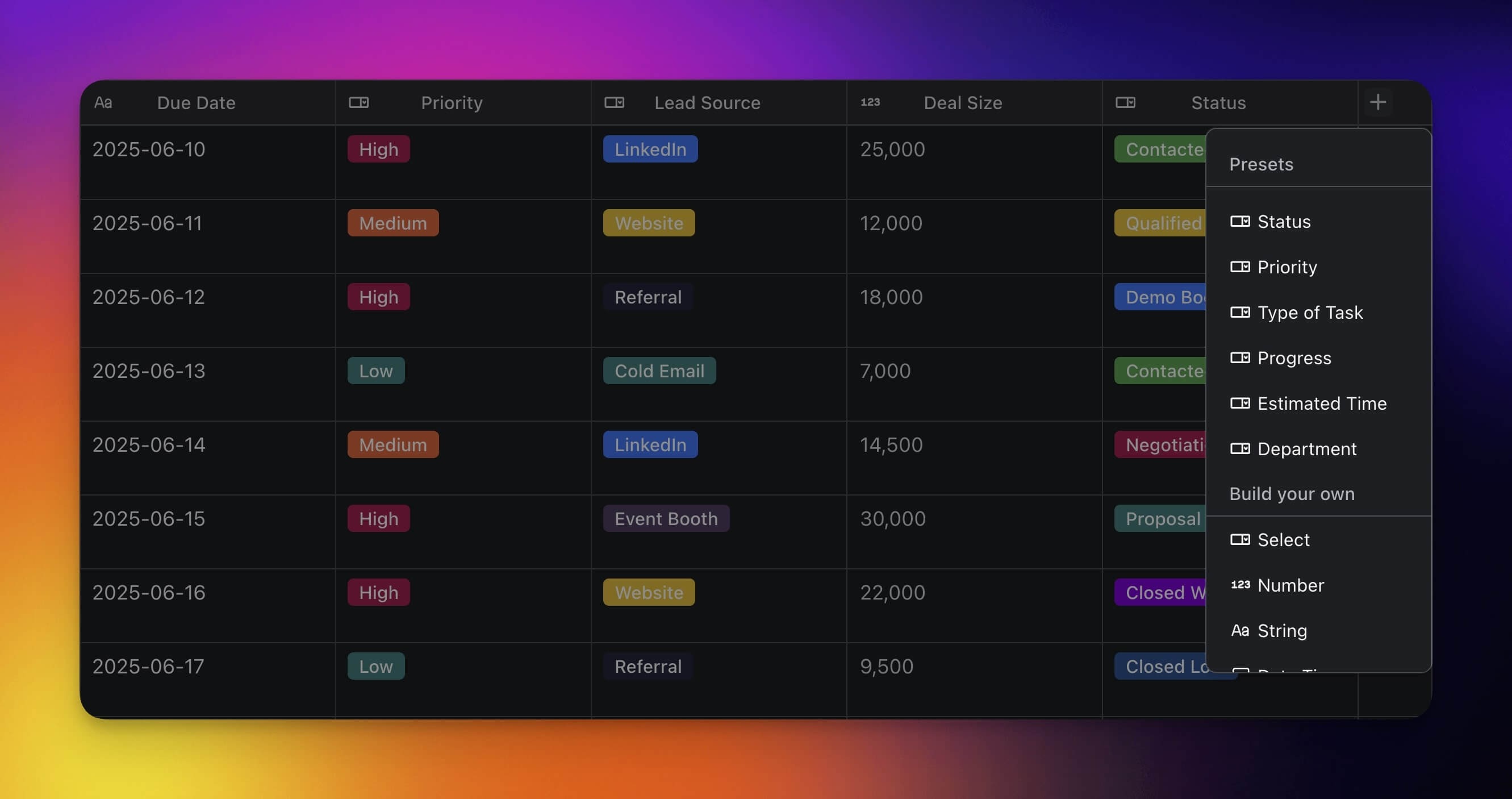
Presets give you ready-made field types that organize your work. You can customize each preset to match your project.
Note: Table presets work across views, including Lists and Boards.
| ⚙️ Preset | 🔤 Description |
|---|---|
| Status | Tracks the progress of tasks. |
| Priority | Indicates the importance or urgency. |
| Type of Task | Categorizes tasks by their nature. |
| Progress | Shows the current progress of a task. |
| Estimated Time | Indicates the estimated task duration. |
| Department | Organizes tasks by team/department. |
Edit Columns & Fields
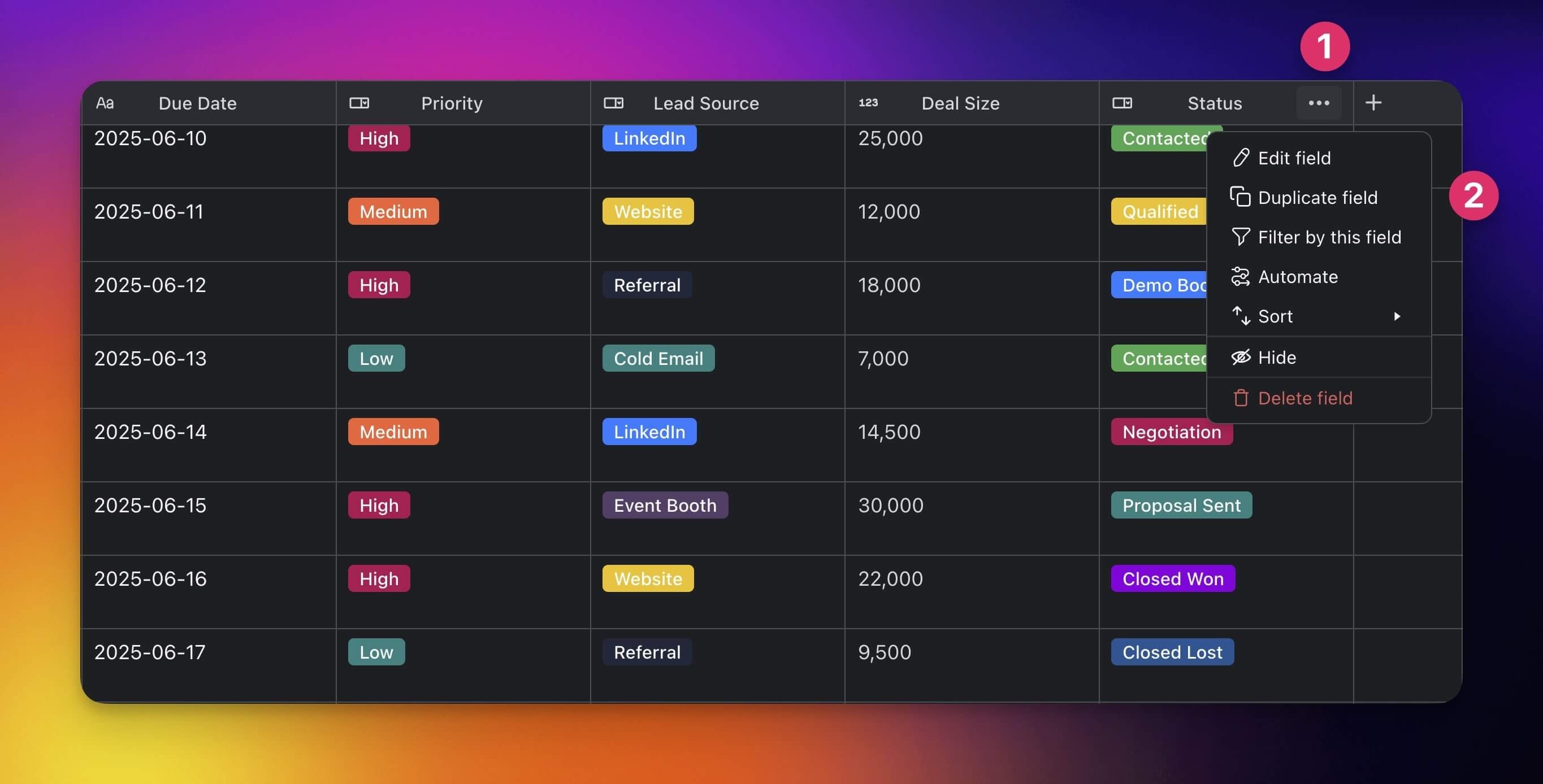
- Click the ··· three dots next to a field name.
- Choose ✏️ Edit field from the list.
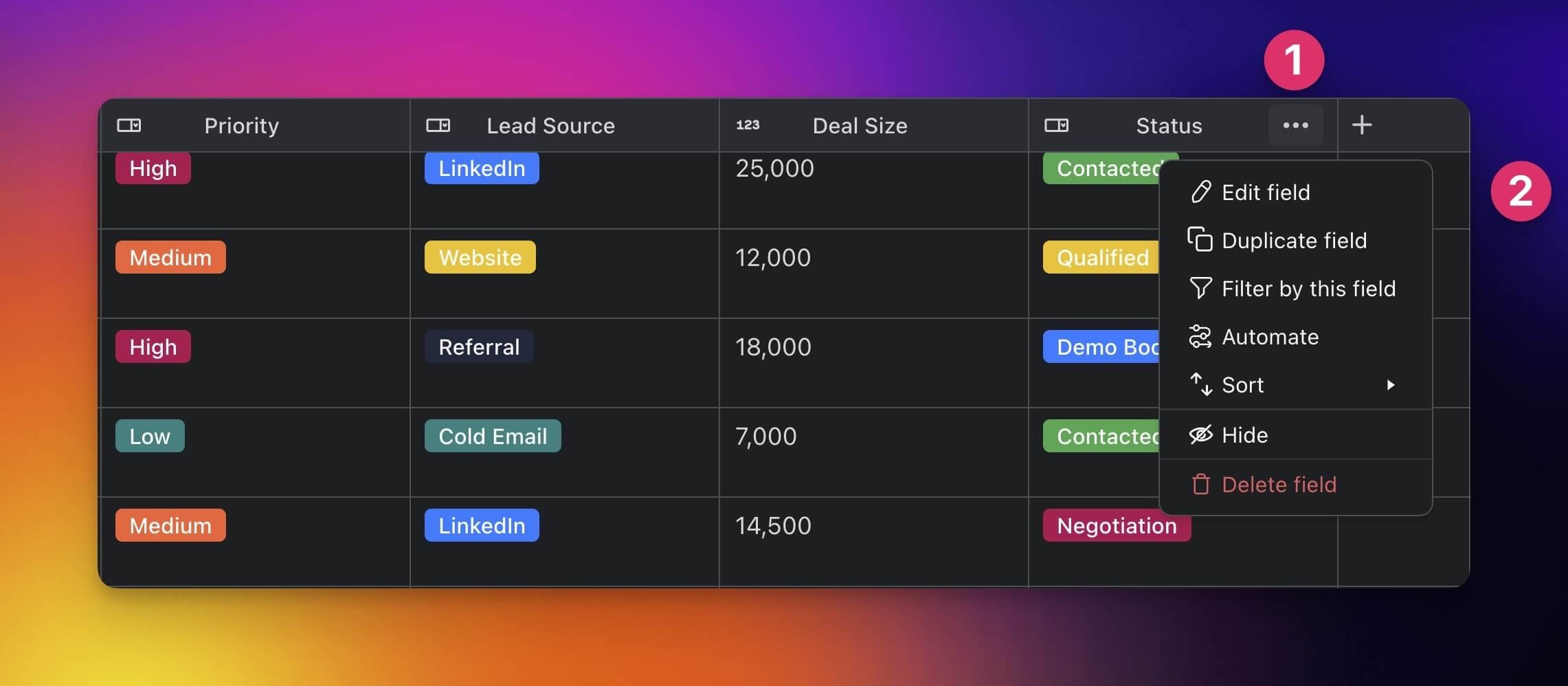
Duplicate Custom Fields
You can quickly duplicate a column with custom fields and adjust as needed.
- Click the ··· three dots next to a field name.
- Choose Duplicate field from the drop-down list.
Build Your Own Fields
Customize your Table view experience by creating fields tailored to your needs.
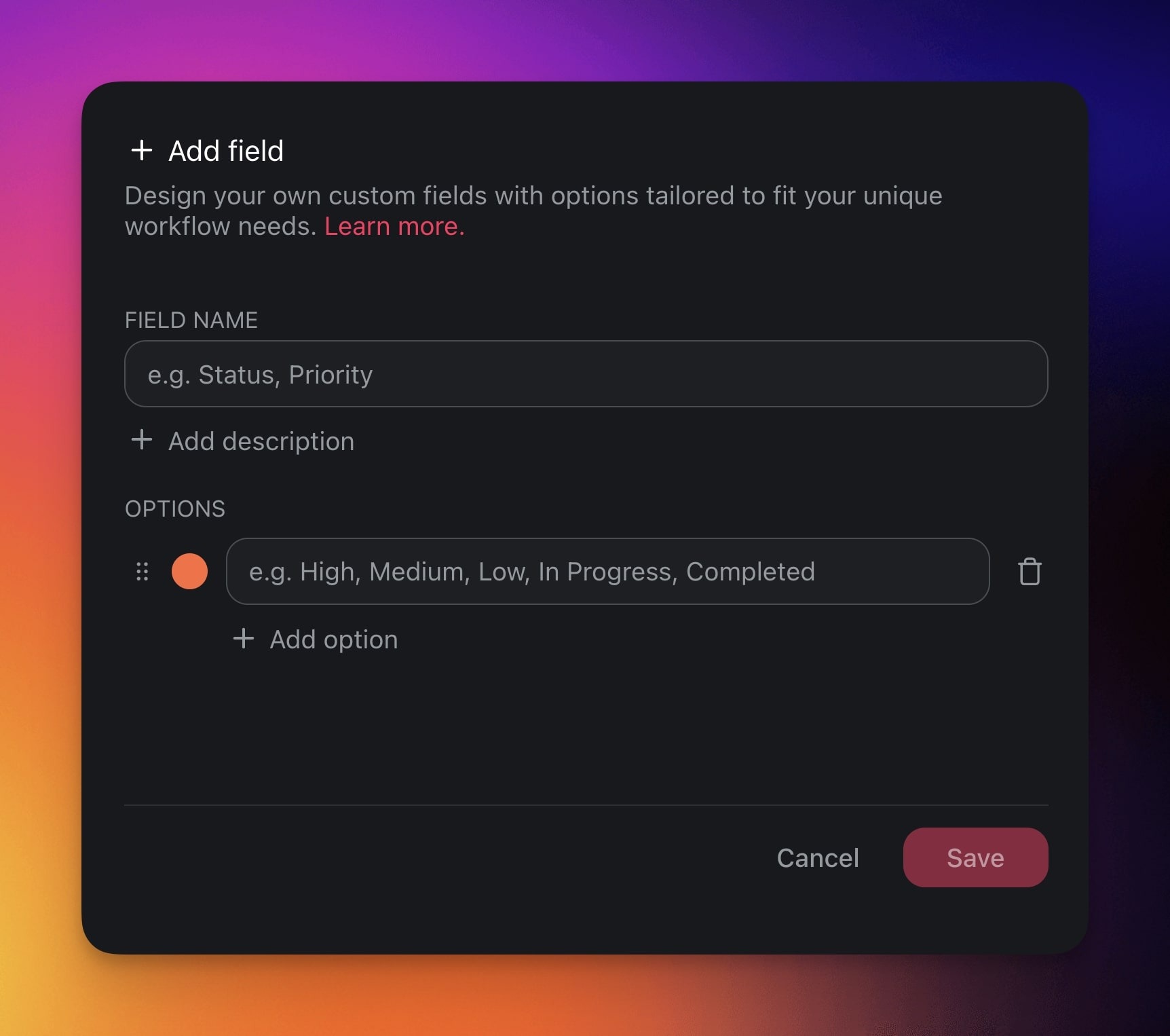
Add a Single Select Field
The Single select option creates custom fields.
- Click the ➕ button next to the last column (scroll right if needed).
- Choose Single select from the drop-down list.
Not sure where to start? Here are a few ideas:
| ⚙️ Preset | 🔤 Description |
|---|---|
| Project Phase | Mark the phase of the project. |
| Milestone | Signify project checkpoints. |
| Client | Associate tasks with specific clients. |
| Location | Specifies the location for tasks. |
| Cost | Lists the budget or actual cost. |
 |
Add a Number Field
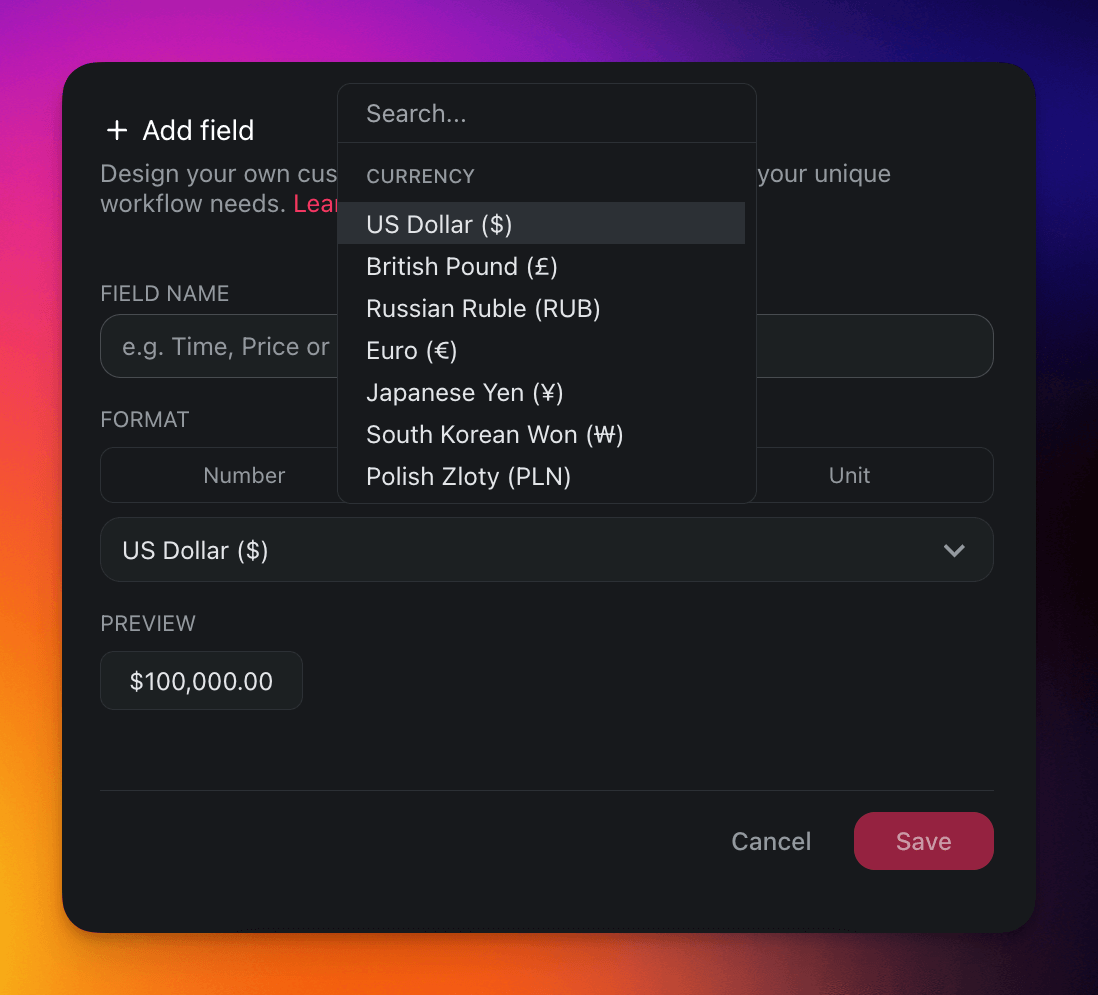
The Number option handles custom data in three formats.
- Click the ➕ button next to the last column (scroll right if needed).
- Choose Number from the drop-down list.
| 🔢 Number | 💵 Currency | ⚛️ Unit |
|---|---|---|
| Add and work with plain numbers, perfect for quantifications, numerical records, or data analysis. | Add currency values, perfect for financial tracking, budgeting, and cost-related projects. | Represent your data in percentages, perfect for tracking completion rates and performance metrics. |
 |
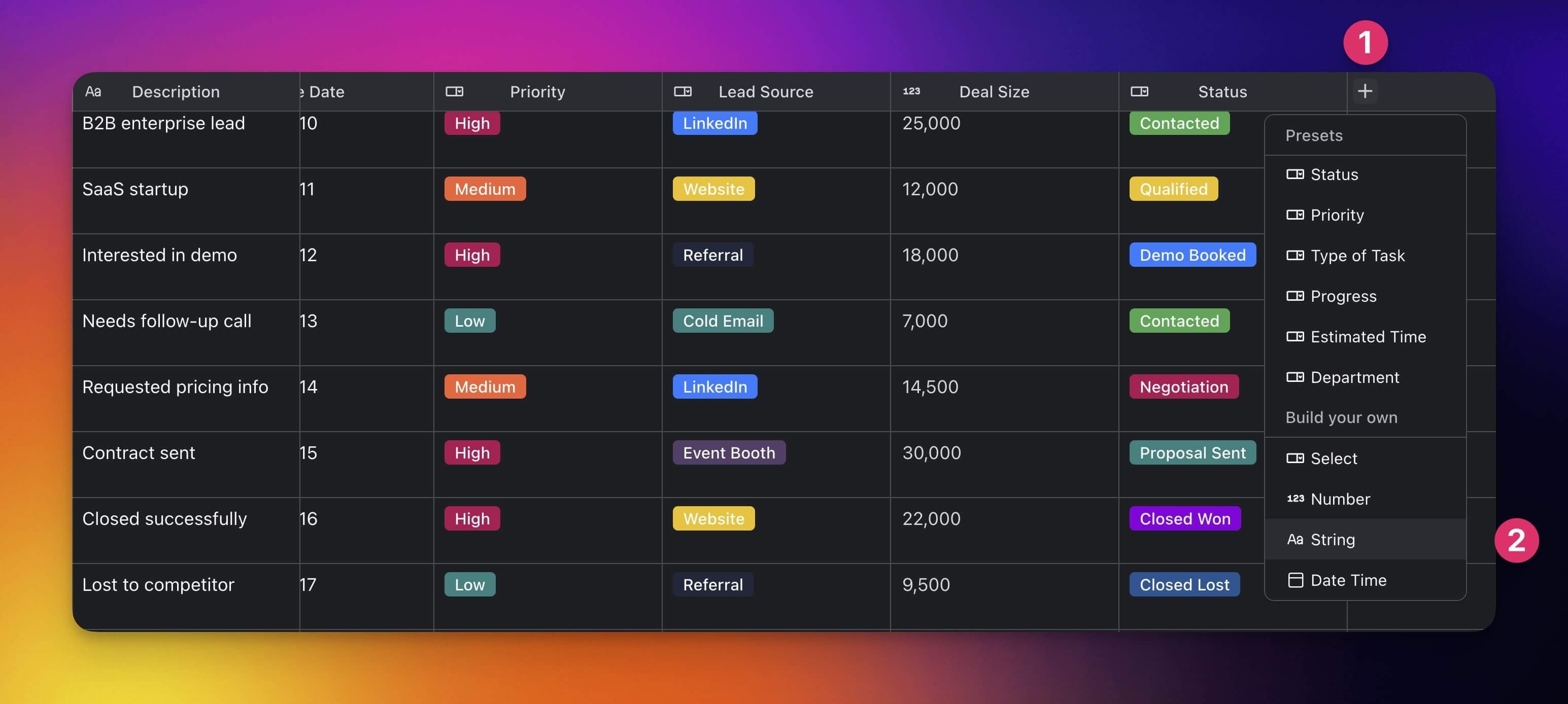
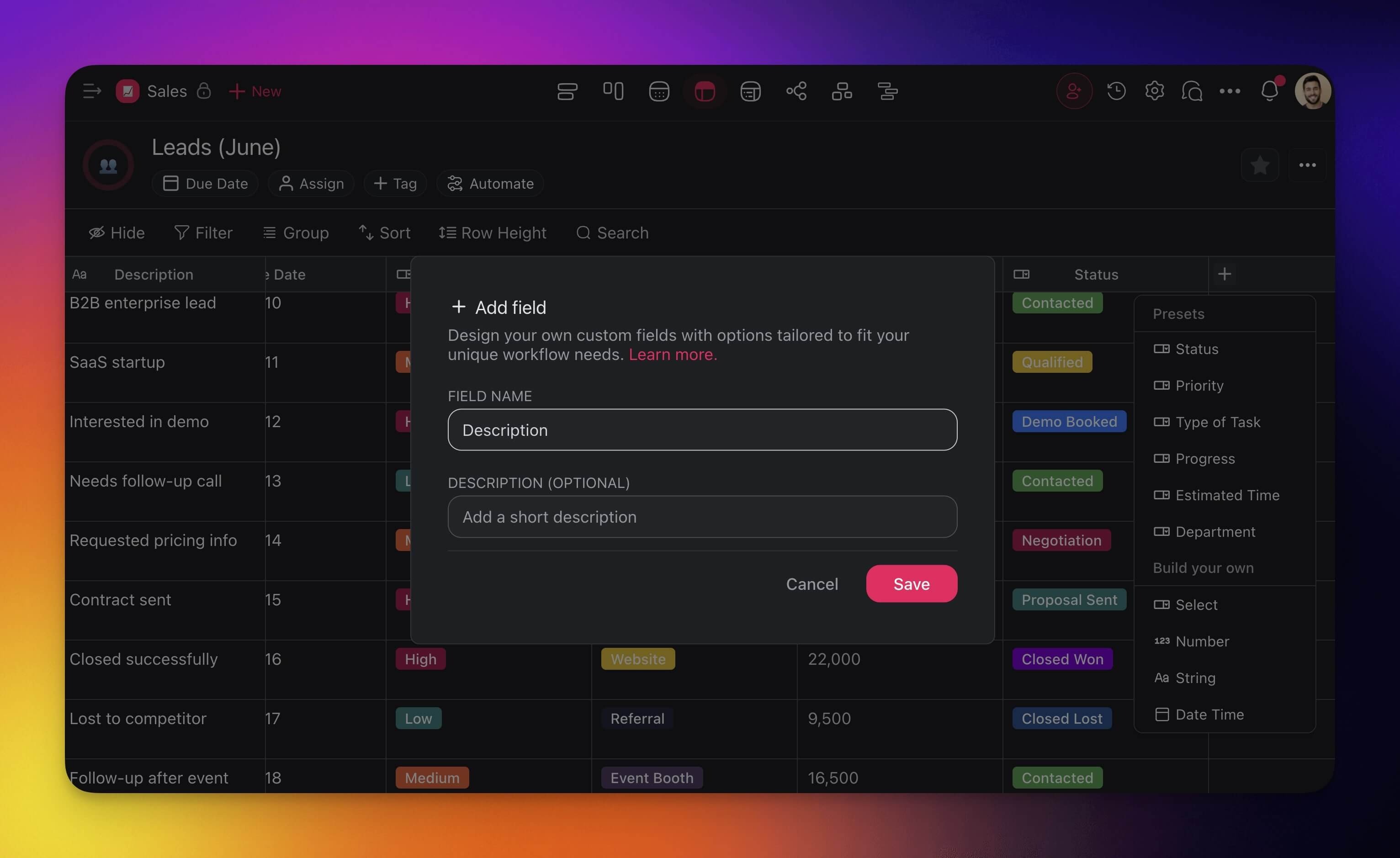
Add a String Field
The String option holds short text in each row.
- Click the ➕ button next to the last column (scroll right if needed).
- Choose String from the drop-down list.
Tip for Japanese, Chinese, and Korean input: For long passages typed with an input method editor (IME), the List view gives the smoothest typing and conversion. Type and confirm your text there, then switch back to the Table view from the project toolbar. Your text lands in the same cells, because every view reads from the same project data.
Use Table View Add-Ons
Add-ons are specialized tools that make your tables smarter. You can enable or disable the add-ons at any time based on your workflow needs.
Enable Add-Ons
- Click the ➕ button at the end of the table (scroll right if needed).
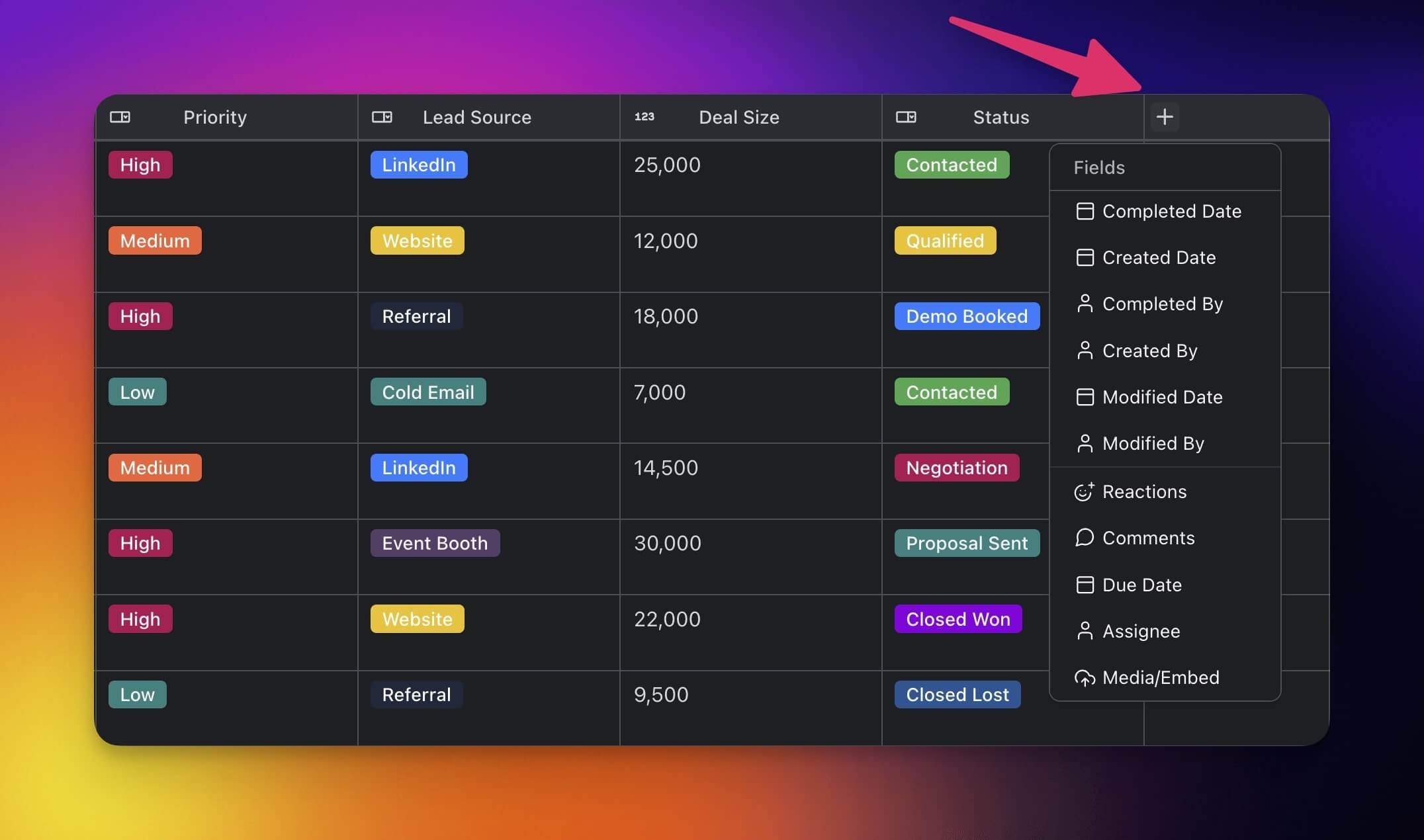
- Select an Add-On from the dropdown menu.
| Add-On | Description |
|---|---|
| Assignee | Assign tasks to specific team members. |
| Media/Embed | Attach images, videos, or media. |
| Agents | Assign tasks to custom AI Agents. |
| Timer | Track time spent on tasks. |
| Completed Date | Record the date a task was completed. |
| Created Date | Show when the task was first created. |
| Completed By | Display who completed the task. |
| Created By | Display who originally created the task. |
| Modified Date | Track the last time the task was edited. |
| Modified By | Show who last modified the task. |
| Reactions | Add emoji reactions to tasks. |
| Comments | Leave notes or start discussion. |
| Due Date | Set and track task deadlines. |
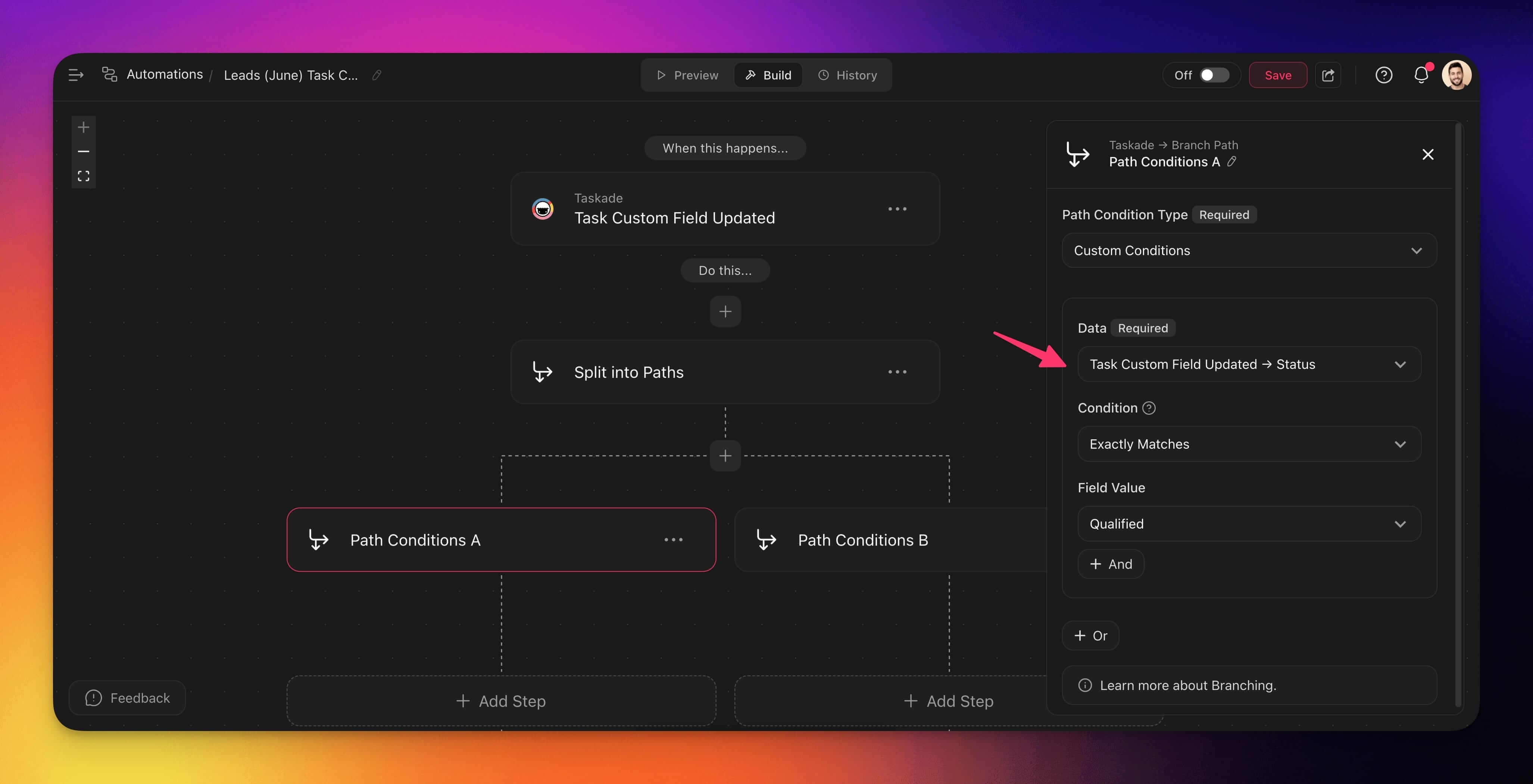
Automate Tables
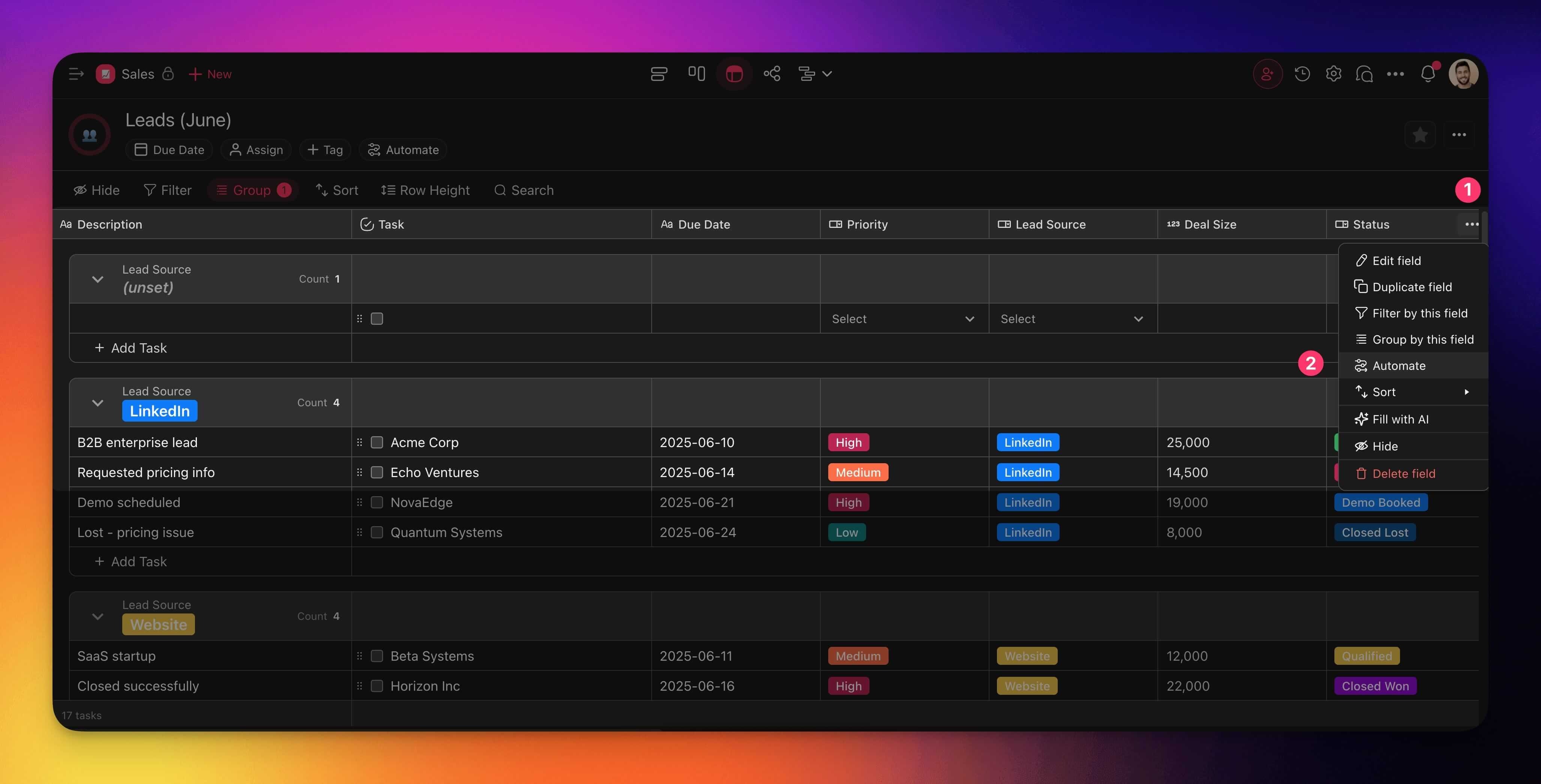
The Automate feature lets you build simple workflows that run when something changes in your table. For example, an automation can run after a task status changes.
Click the ··· (three dots) next to a column header, for example Status.
Select Automate.
In the automation creator:
Configure the trigger.
Add follow-up actions.
Check the automation steps and enable the automation.
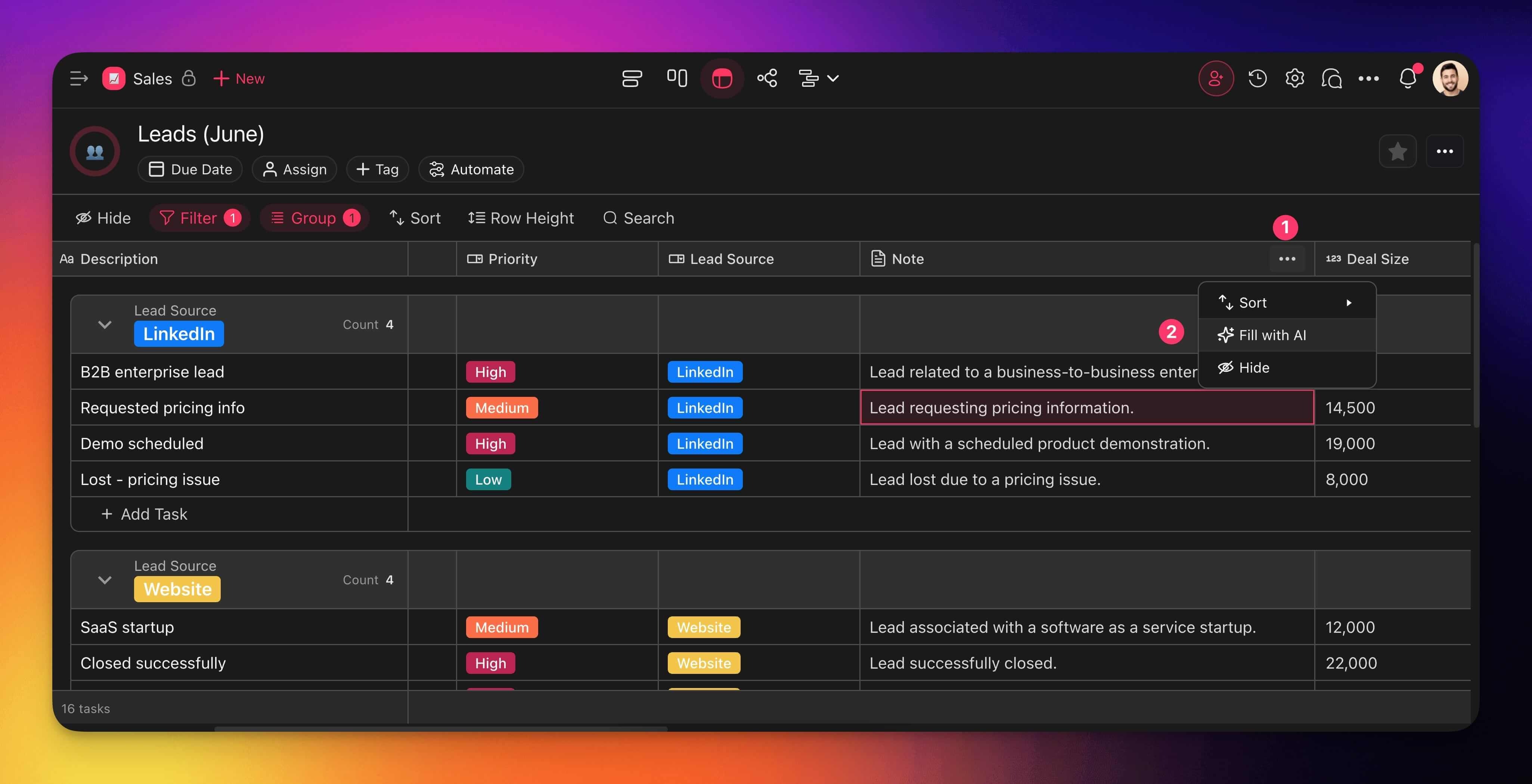
Fill with AI Button
The Fill with AI feature uses AI to complete or summarize information in table fields.
- Click ··· next to a column header, for example Note.
- Select Fill with AI.
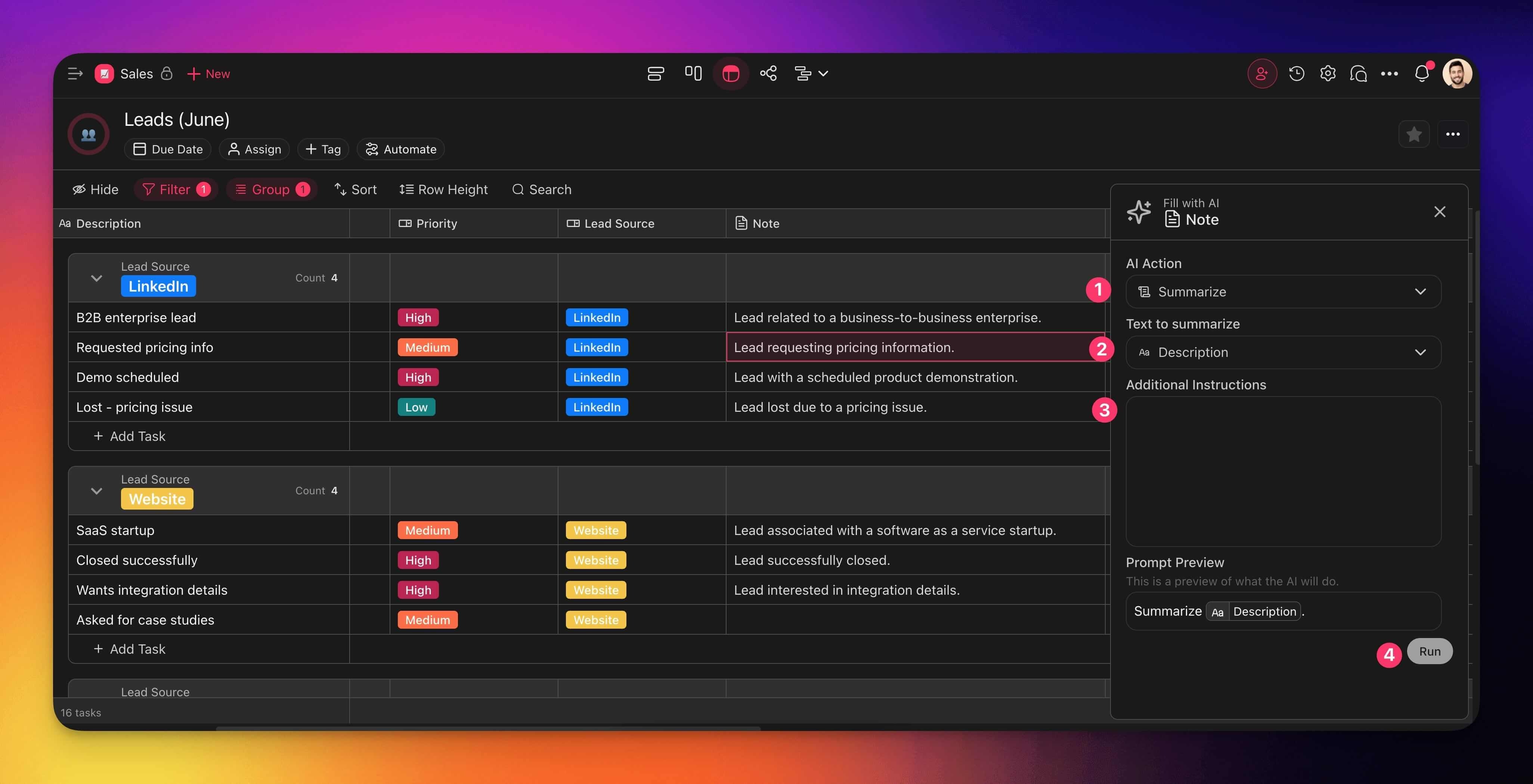
- Choose an AI action.
- Pick the field you want the AI to read from, for example Description.
- (optional) Add instructions if you want more control over the output.
- Click Run to fill the selected column with AI-generated content.
Export to CSV
When you need your data outside Taskade, the Table view exports to CSV in one click. Use it to share data with finance, load it into a BI tool, or back up a snapshot before a big change.
- Open the project in Table view.
- Click Export CSV in the toolbar above the table.
- Save the file to your device.
The export captures every visible column in row order. It preserves newlines and commas inside cells, and it keeps your custom field types readable in Excel, Google Sheets, or Numbers.
Tip: Hide the columns you do not want in the export first. The CSV includes only the columns that are visible in the table.
Related guides
- Custom Fields. Full field type reference.
- Project Views. Switch Table to other views without losing data.
- Actionsheet View. Simpler table interface.
- Projects & Databases. How Table view powers Taskade Genesis app backends.
- Task Add-ons. Add-on field types.
- Table Fill. Bulk fill patterns.