Import from Notion, Obsidian, Todoist, Trello, Asana, ClickUp, Monday, web pages, and more. Export as PDF, Markdown, image, CSV.
What is a Taskade import?
Bring your whole business into one workspace. Import your projects, notes, and boards from Notion, Obsidian, Todoist, Trello, Asana, ClickUp, Monday, Roam, Logseq, and more. Imported content becomes part of your Workspace DNA, so projects feed AI agents and trigger automations across 100+ integrations.
TL;DR: Bring projects, notes, and boards into Taskade from Notion, Trello, Asana, and more. Export from your old app, then import a CSV, Markdown, or PDF and let AI structure it. Paste a web page or YouTube link to save its text. Imported content becomes Workspace DNA your agents and automations can act on. To leave later, export at any time.
Bring your documents, projects, and data from other tools into Taskade. This article covers all the available options so you can choose the best method for your needs.
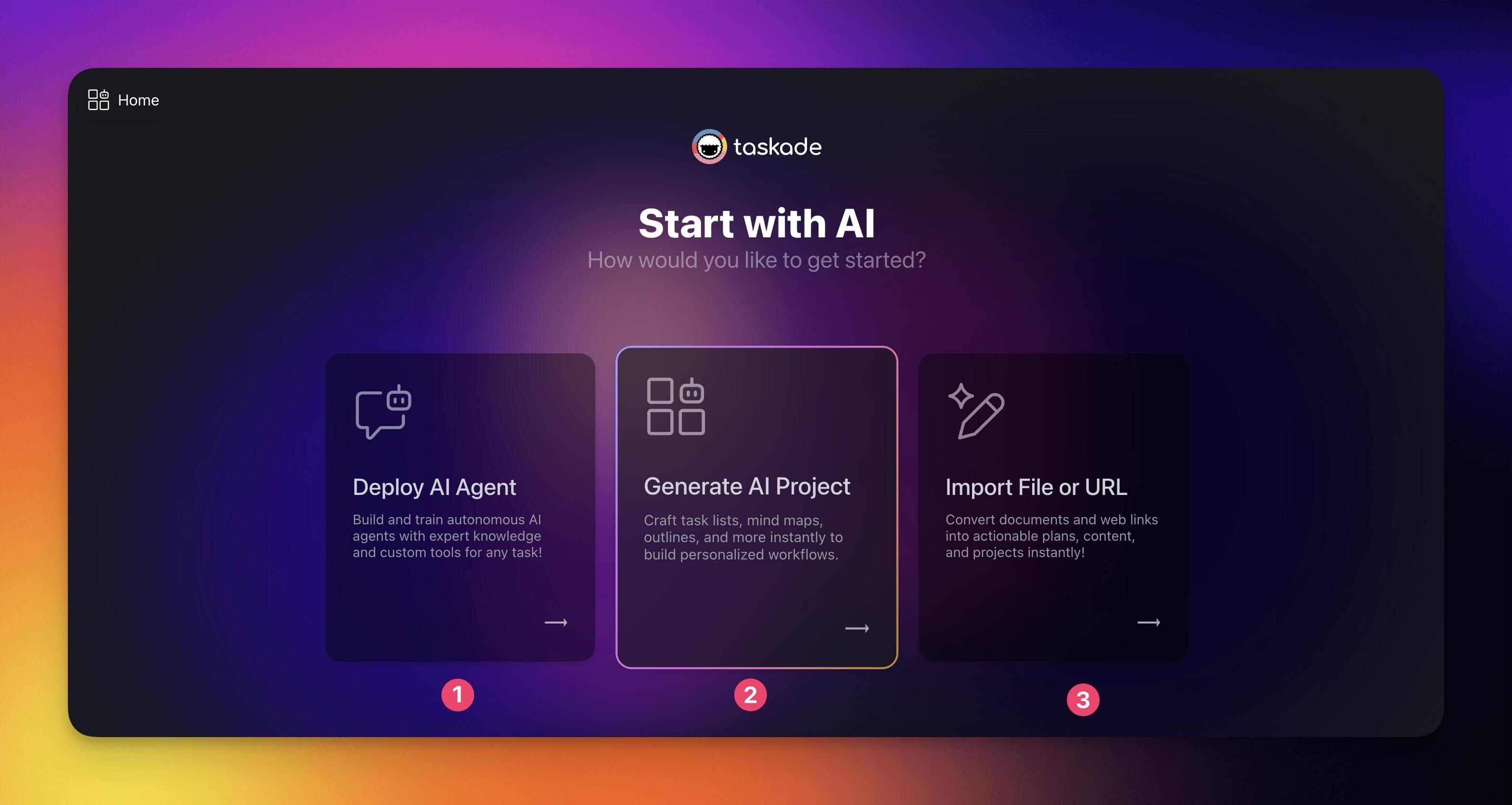
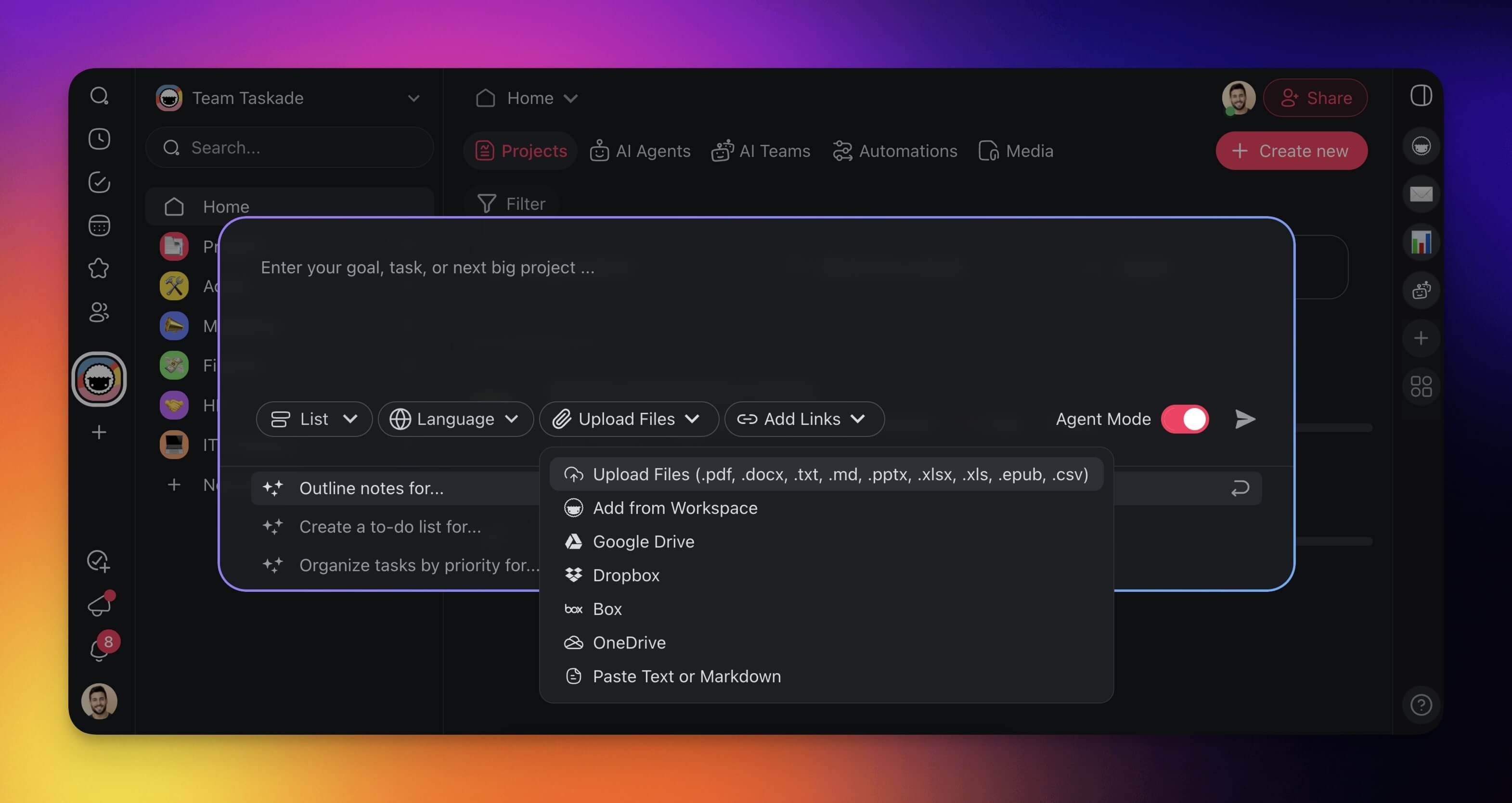
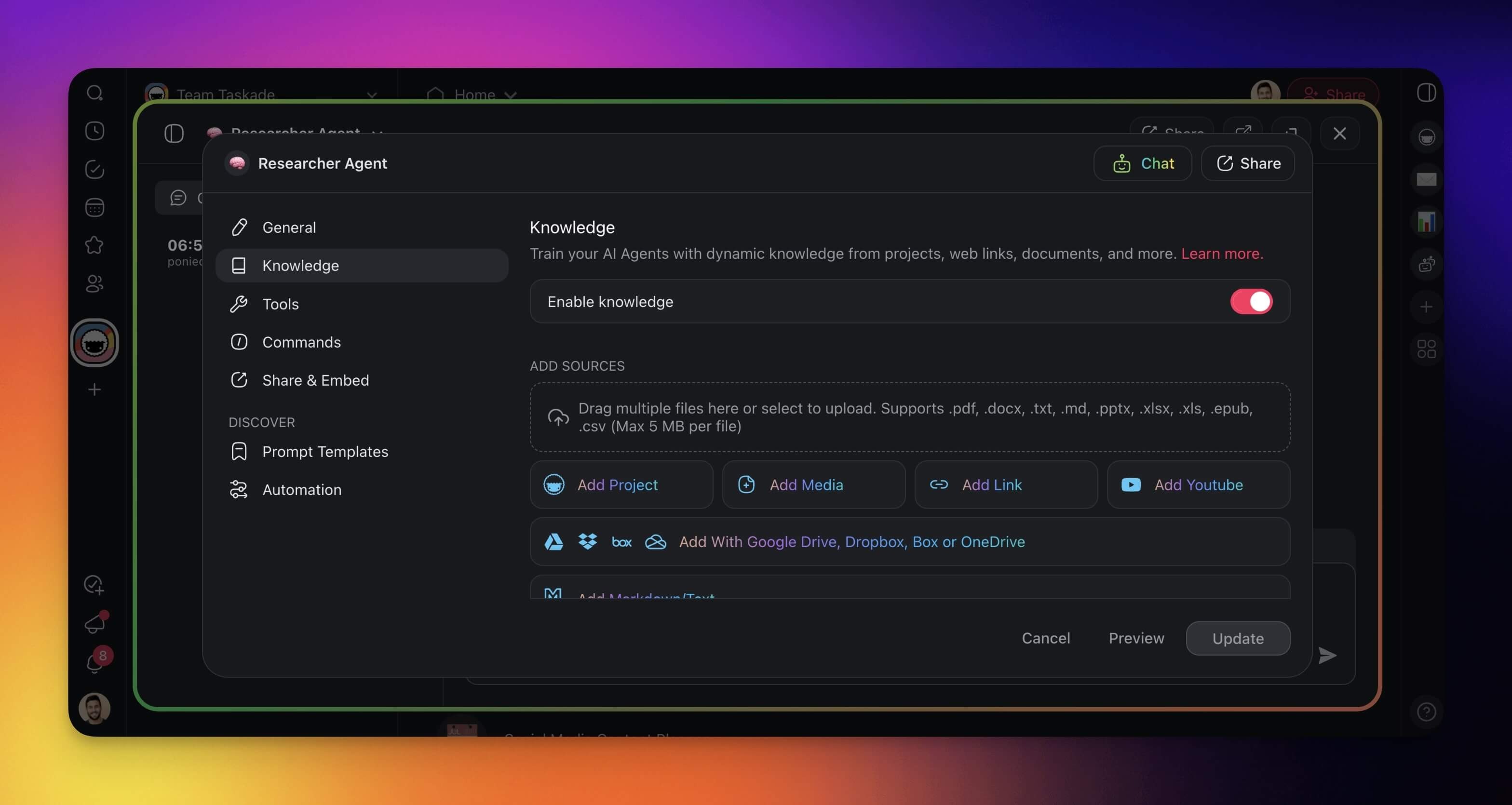
TL;DR: Move documents, web pages, YouTube videos, and files from other tools into Taskade three ways. Convert them into structured projects, seed a new AI project, or add them as agent knowledge. Start fast at /create, or use the Import tool in any workspace.
Get Started in 3 Steps
You can bring your projects into Taskade in three steps:
Choose one of the import options (scroll down for detailed instructions):
(1) Upload data as Agent Knowledge.
(2) Import data as a context for new project.
(3) Convert data into new projects.
That covers the basics. The sections that follow describe every import option.
Use the Import Tool
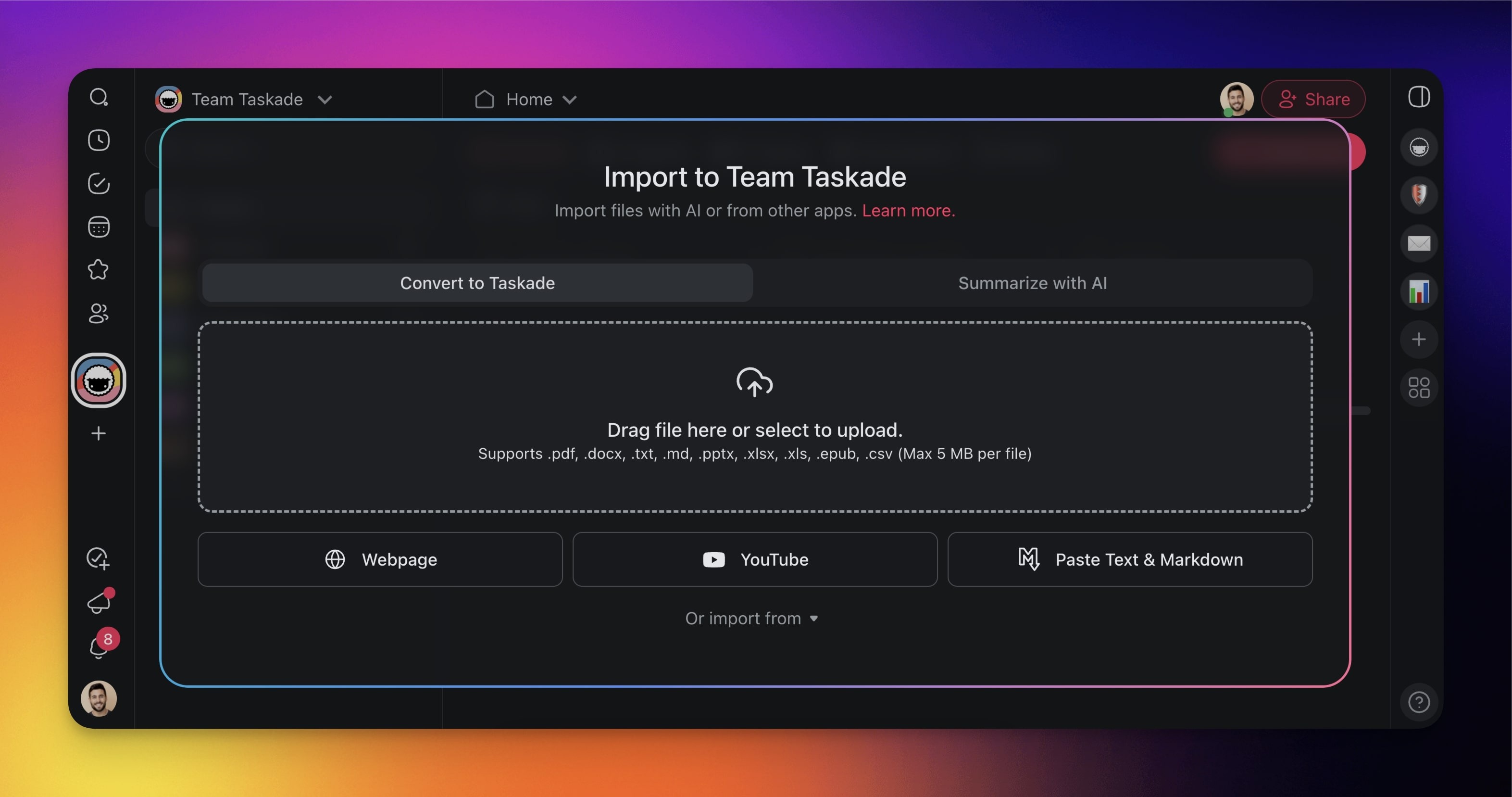
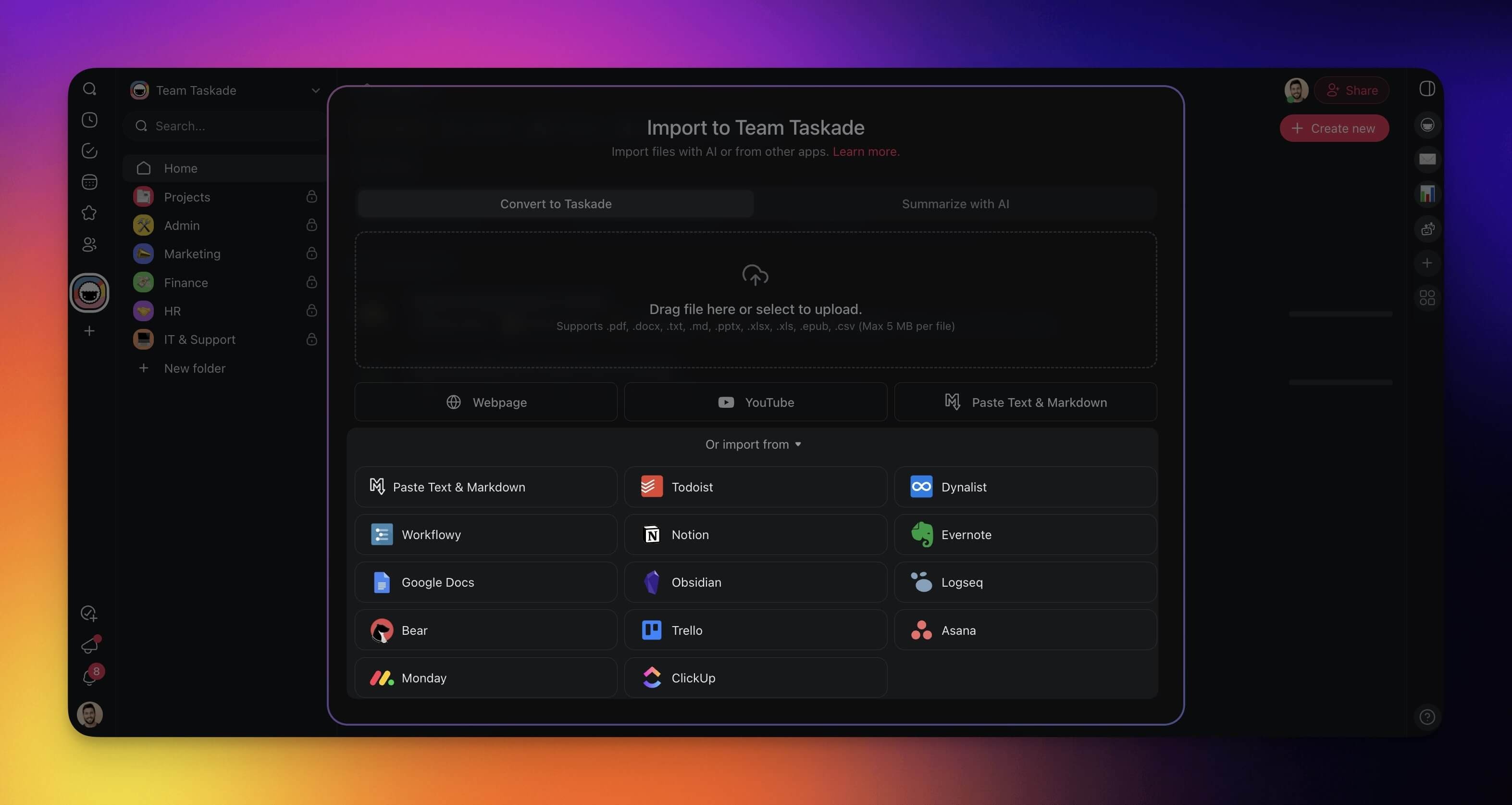
With the converter you can turn popular document formats (.pdf, .docx, .txt, .md, .pptx, .xlsx, .xls, .epub, .csv) and web resources into structured projects.
Note: Visit Import & Export to explore other import methods.
(method 1): Visit /create to start (see the previous section)
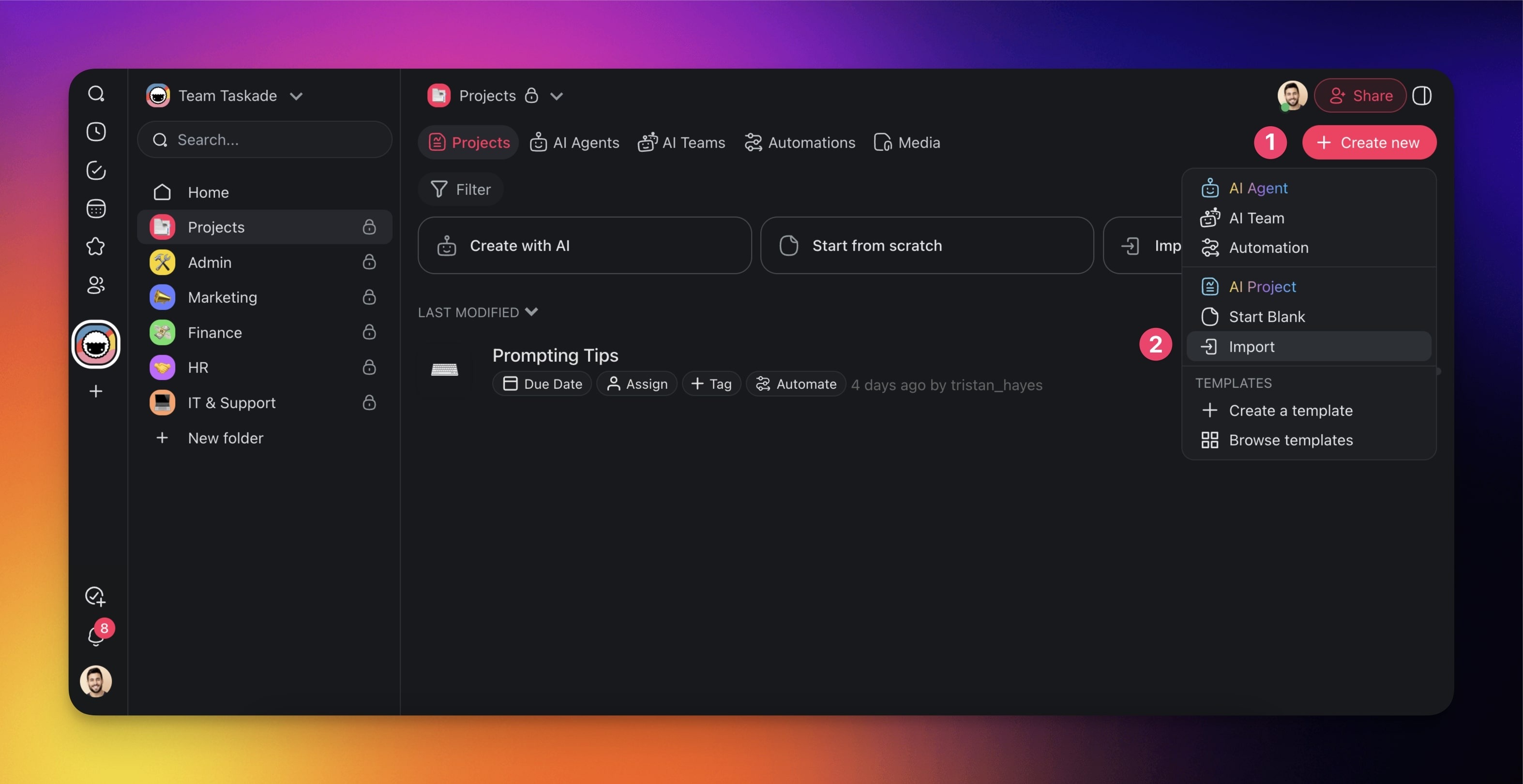
(method 2): Click ➕ Create new in your workspace / folder (top-right corner).
Choose Import from the drop-down list.
Go to the Import with AI tab (or choose Summarize with AI or Import CSV).
Choose one of the available options (scroll down for step-by-step instructions).
File Size Limits
The dropzone prints the file types it accepts and the largest file you can upload. Read that line before you drag a big document in.
CSV files: 5 MB and 5,000 data rows. The same limits apply on every plan, including Free. See Import CSV Spreadsheets.
Every other document: your workspace upload limit, shown in the dropzone. A paid plan raises it.
If a file is too large, Taskade names the limit and refuses the upload before it spends your credits. Split the document, or export a smaller section. Then upload it again.
Import Files & Docs
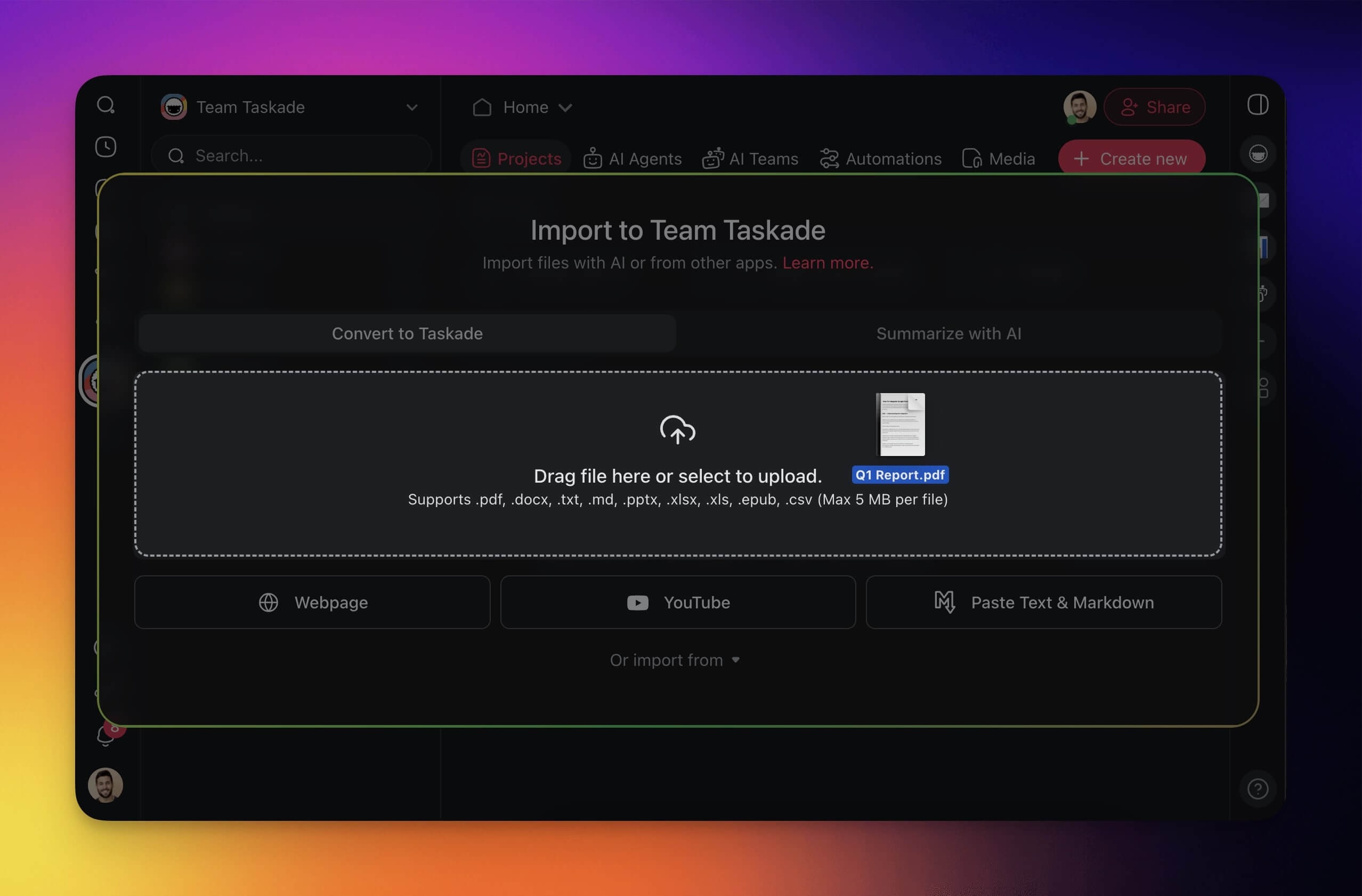
Import files and documents into Taskade. Upload your presentations, notes, and lists of tasks stored in .pdf, .docx, .txt, .md, .pptx, .xlsx, .xls, .epub, and .csv to get started. Uploading a PDF or other document is available on paid plans.
(method 1): Visit /create to start (see the first section)
(method 2): Click ➕ Create new in your workspace / folder (top-right corner).
Choose Import from the drop-down list.
Drag & drop files into the pop-up or click to upload from your device.
Import Webpages
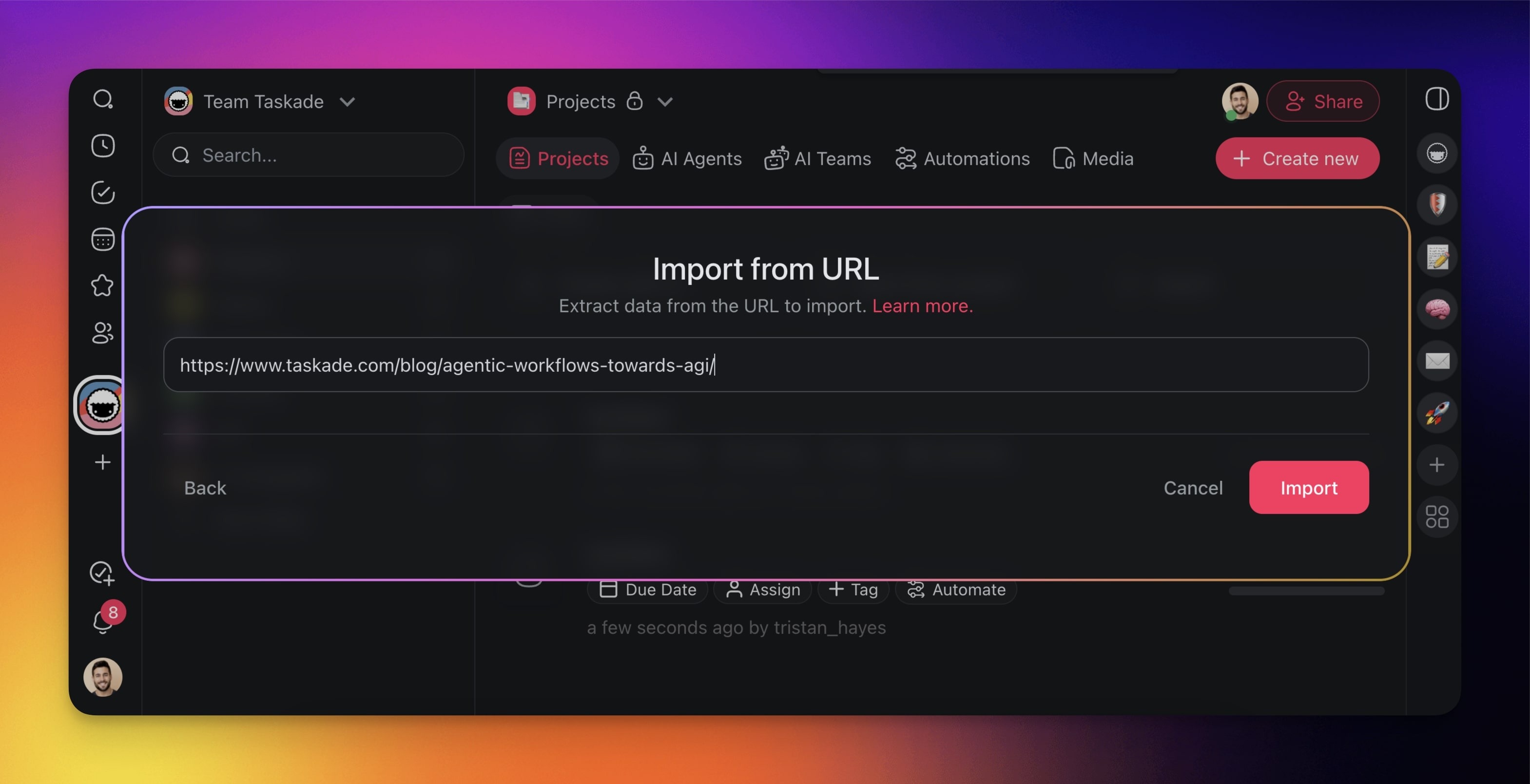
Import content from any webpage into Taskade. Capture articles, blog posts, and other web resources, then turn them into projects you can act on. To save a link in Media Files instead, see Import a Web Page or Video Link.
(method 1): Visit /create to start (see the first section)
(method 2): Click ➕ Create new in your workspace / folder (top-right corner).
Choose Import from the drop-down list.
Click Webpage and paste a URL.
Import from YouTube
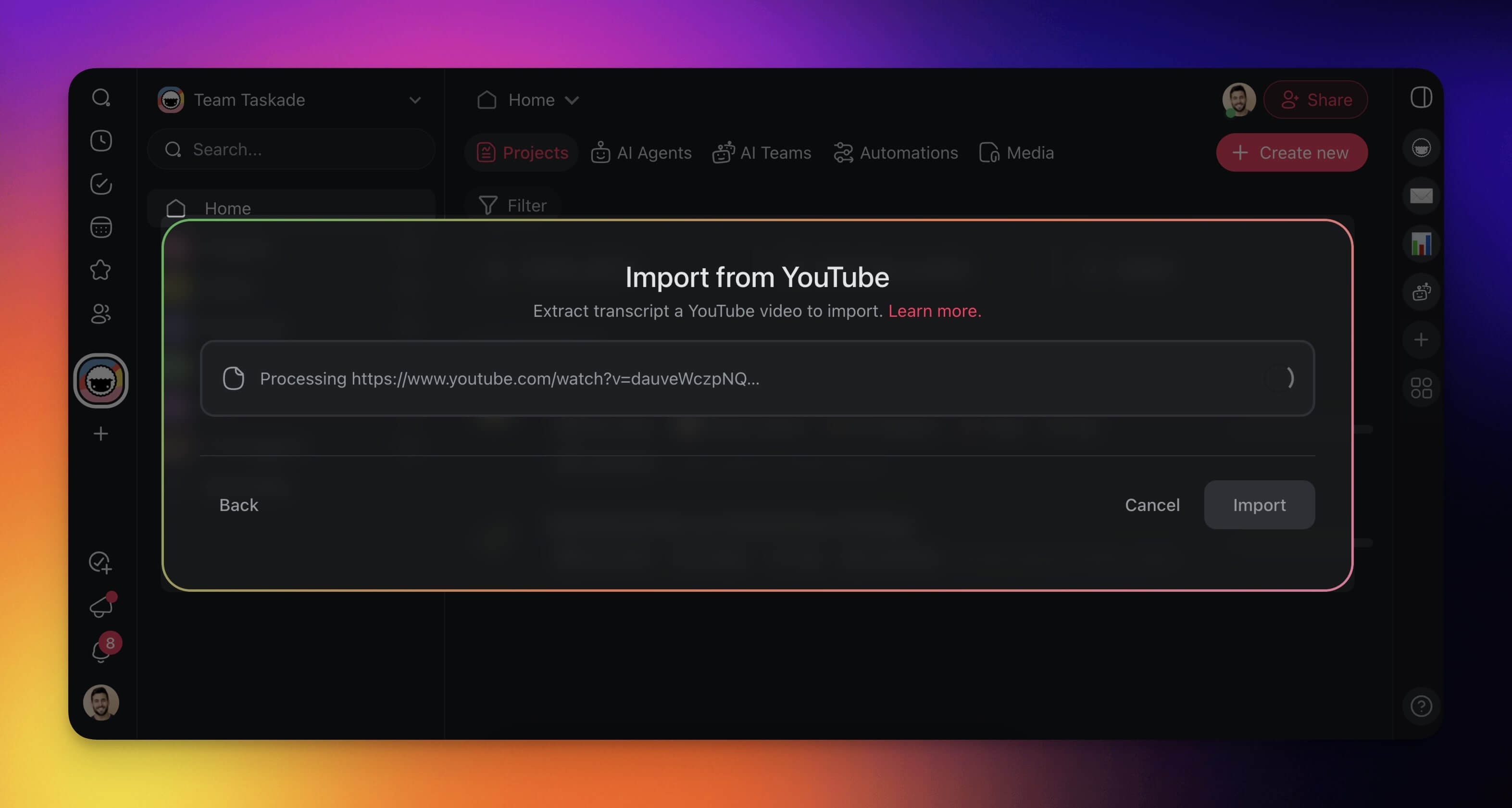
Turn YouTube videos into projects that hold the key points from tutorials and lectures. You can then work on the video content with your team.
(method 1): Visit /create to start (see the first section)
(method 2): Click ➕ Create new in your workspace / folder (top-right corner).
Choose Import from the drop-down list.
Click YouTube and paste the URL of the video you want to import.
Import Text & Markdown
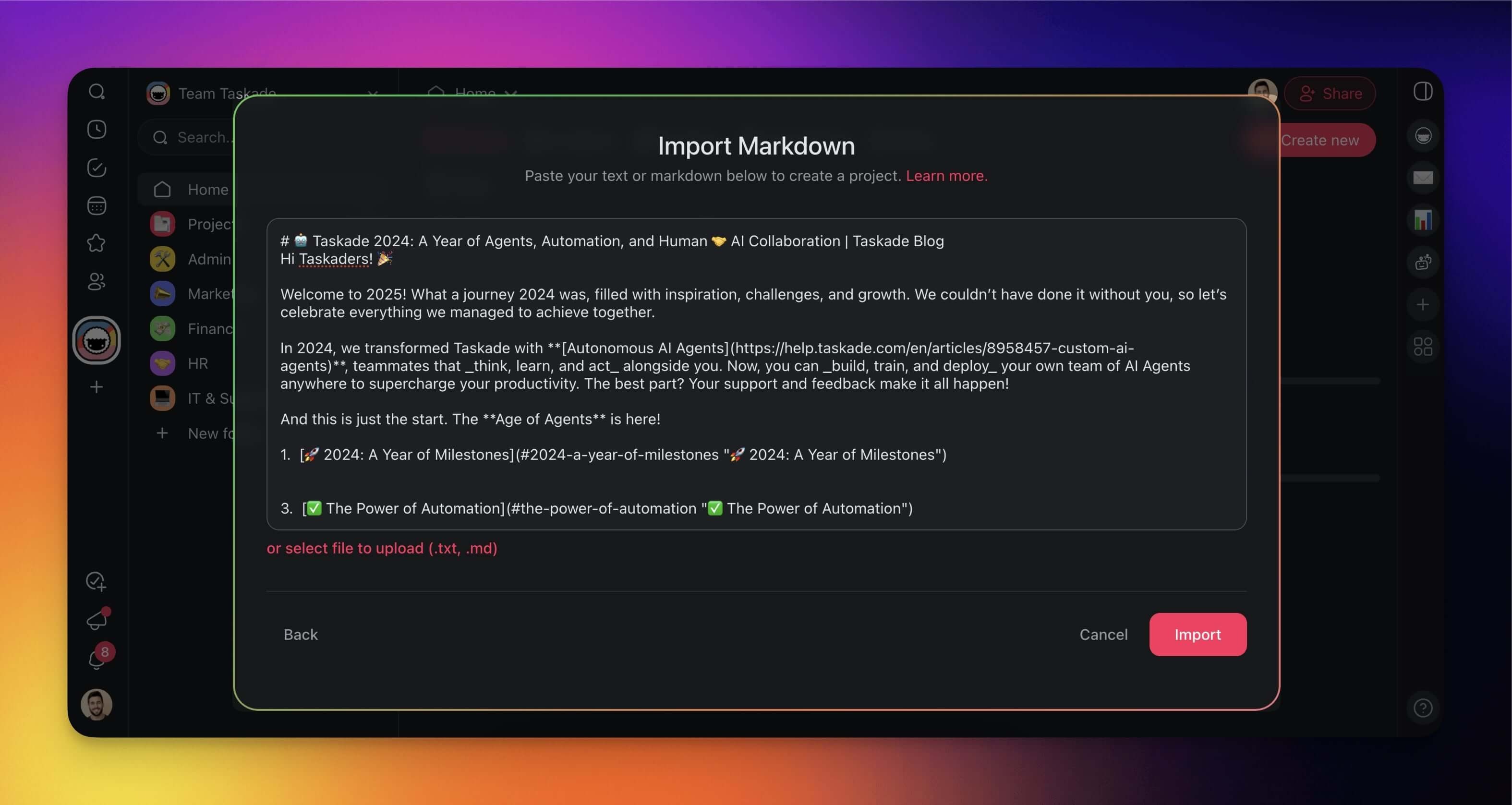
Paste text and Markdown documents into Taskade to turn them into collaborative resources. Your notes and ideas become structured projects.