TL;DR: Use a template to start any project with pre-filled tasks, custom fields, and default view. Browse the Template Gallery or create your own from any existing project. Templates capture structure but never leak data, so a client onboarding or weekly report looks the same every time you run it.
Overview
Start any recurring project in one click by launching it from a template that captures its tasks, custom fields, and default view. Build your own from any existing project, or pick one from the Template Gallery. A client onboarding, booking flow, or weekly report then looks the same every time you run it.
What Are Templates?
Templates are pre-designed, customizable layouts that provide a structured framework for organizing and capturing information in a project. They will help you save time, improve productivity, promote consistency, and enhance creativity. All templates are shared automatically with everyone in the Workspace or Folder.
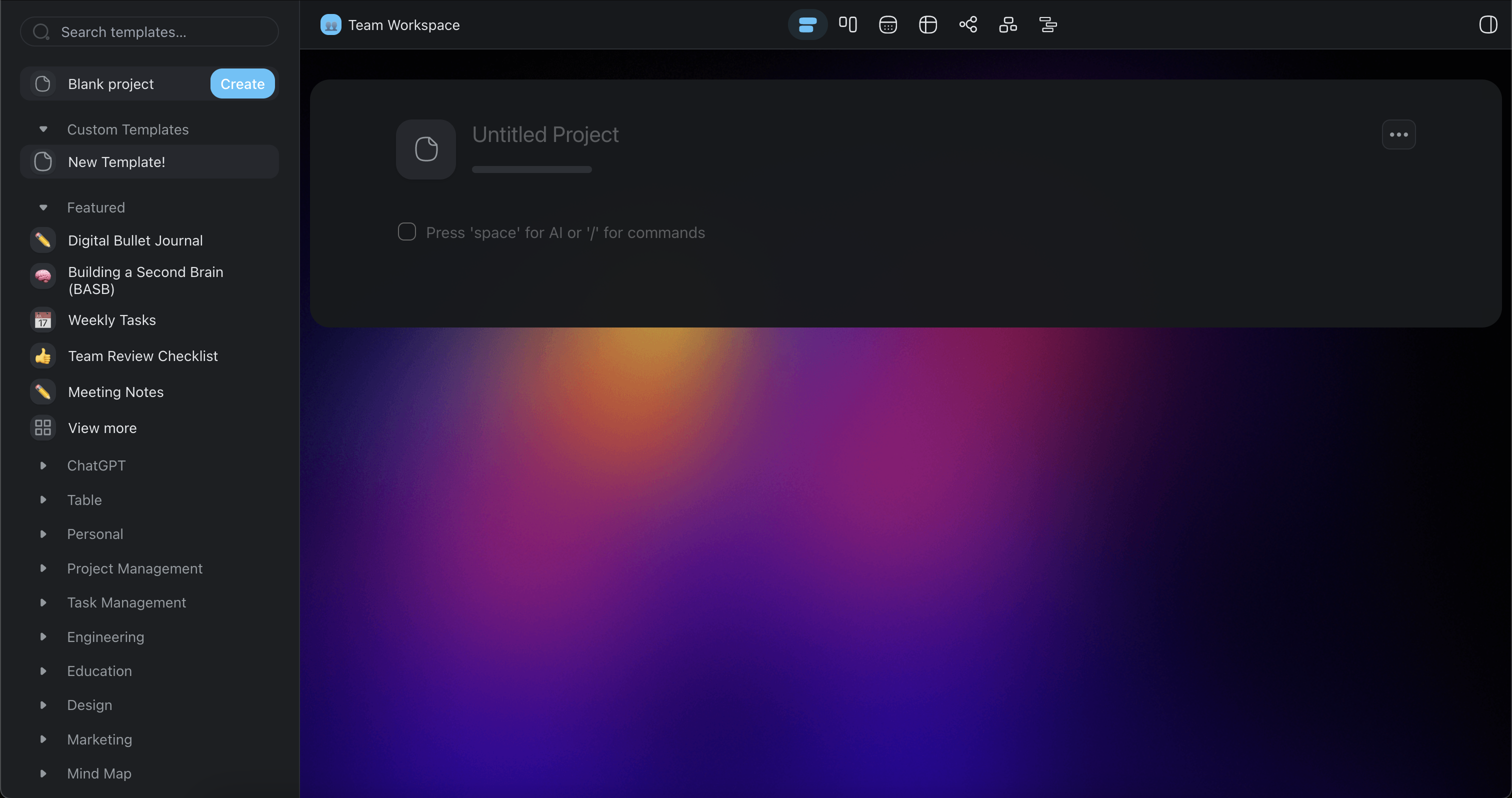
Use Default Templates
- Create a new Project inside a Workspace or a Folder
- Select one of the templates organized into categories (left navigation bar)
- If no template fits, use the search bar to find more options
- Click Create
Create a New Template
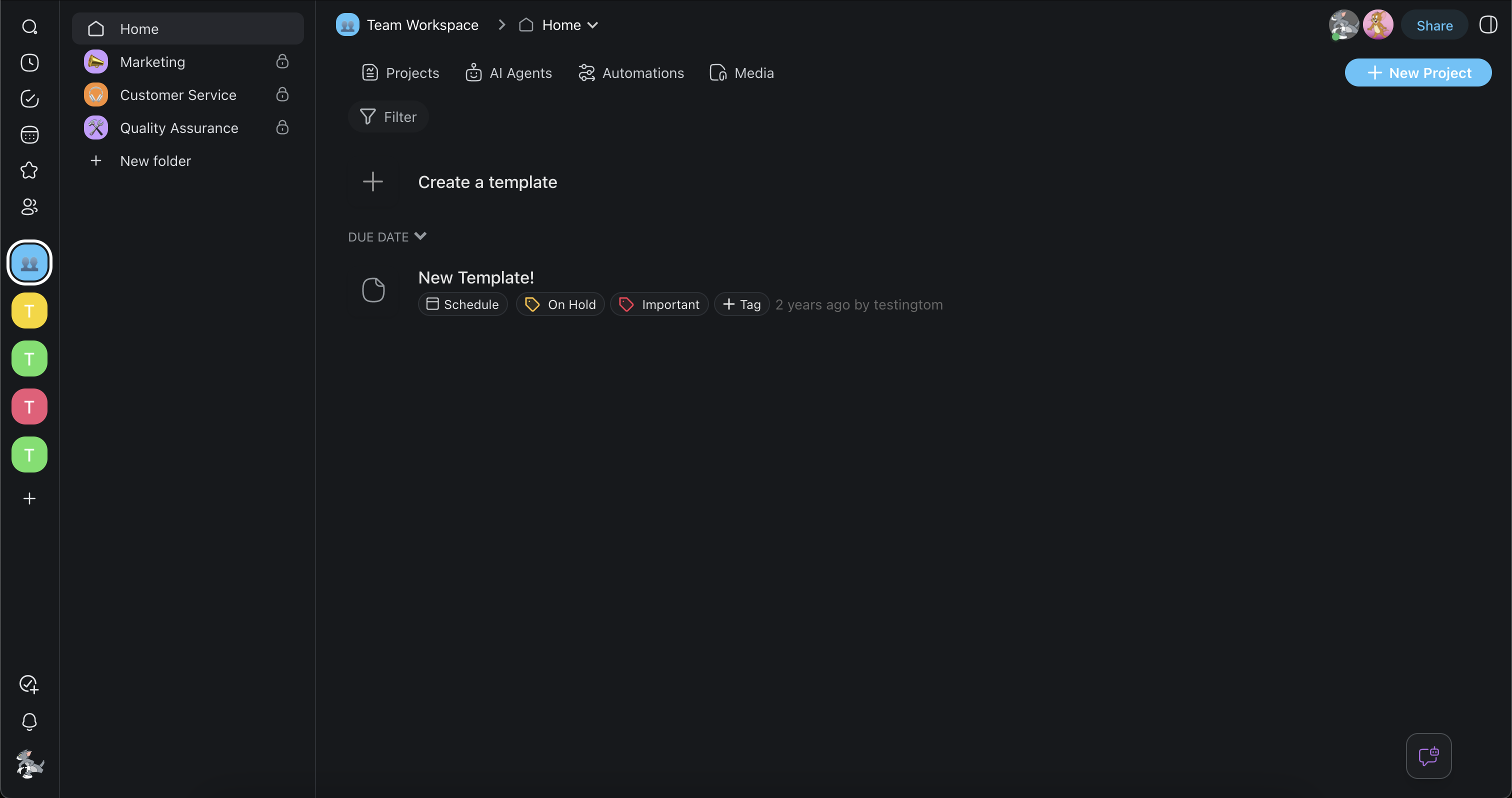
- Click ➕ Create a template to create a custom template for the selected
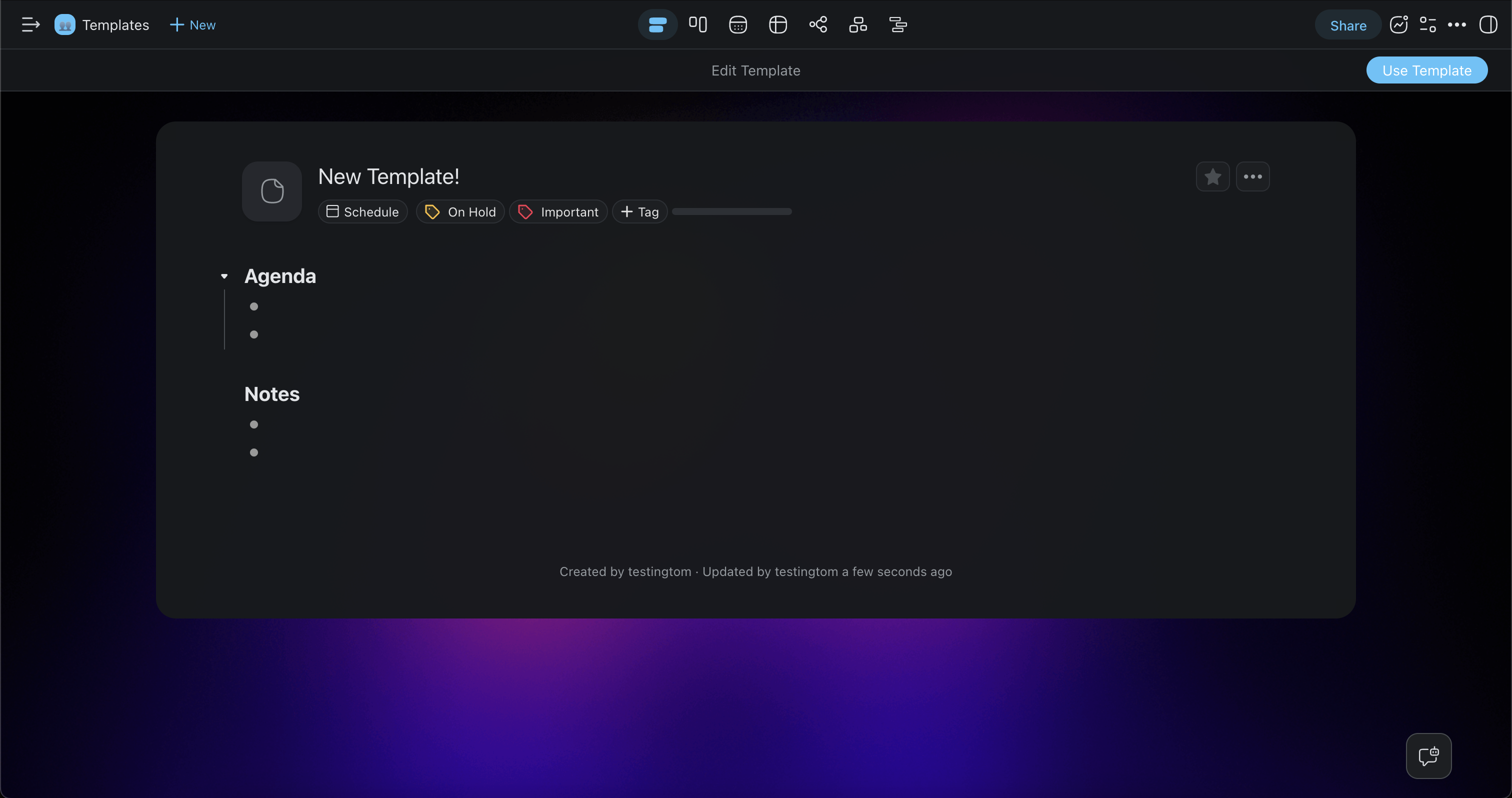
- Start typing to enter an Edit mode.
💡 Note: The Add-ons Menu is disabled in the Edit mode.
- After you finish the new template, return to your Workspace or Folder and click ➕ New project. The template appears in the Custom Templates category.
Copy a Template
You can reuse your custom templates across different workspaces and folders:
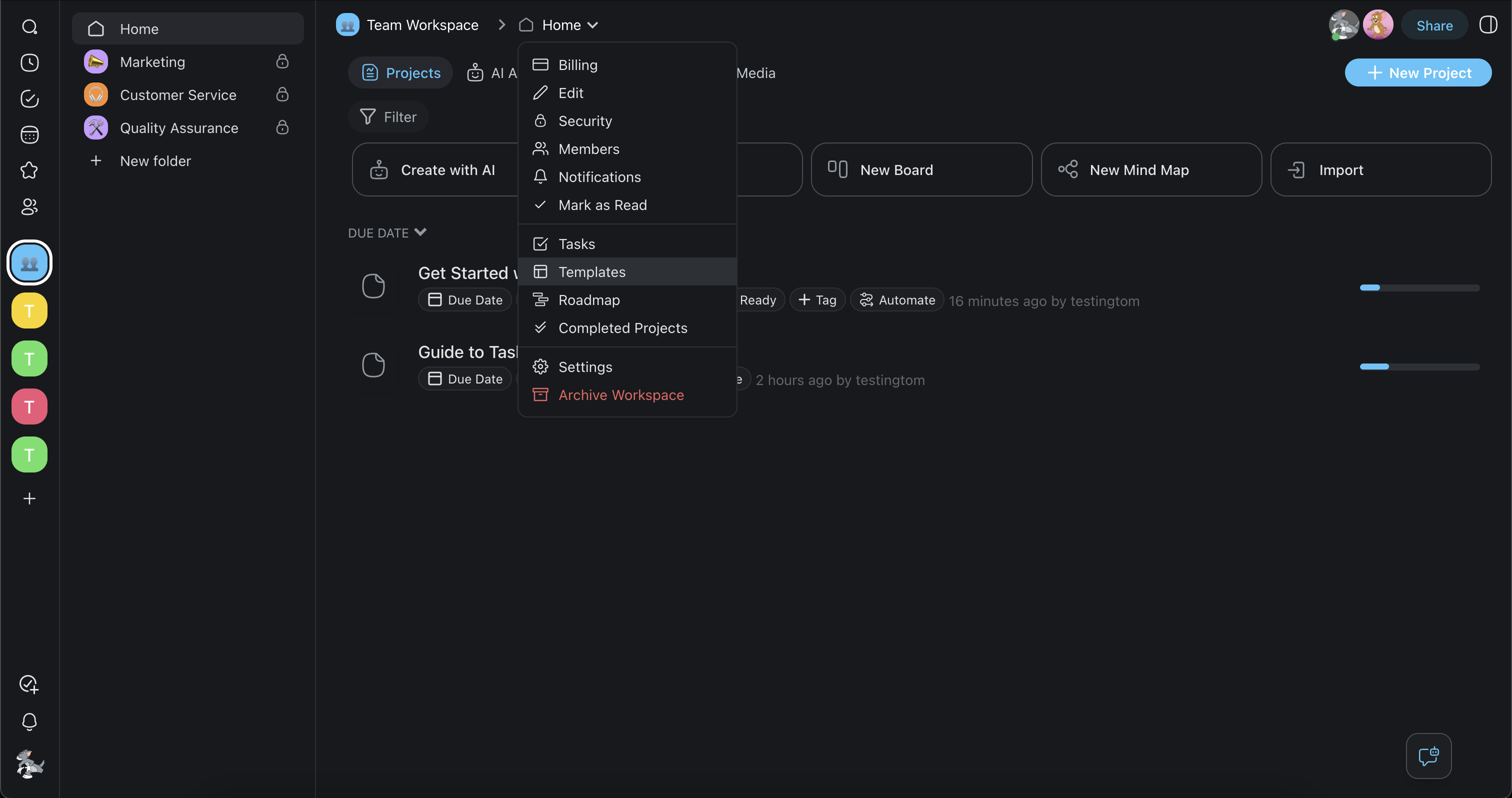
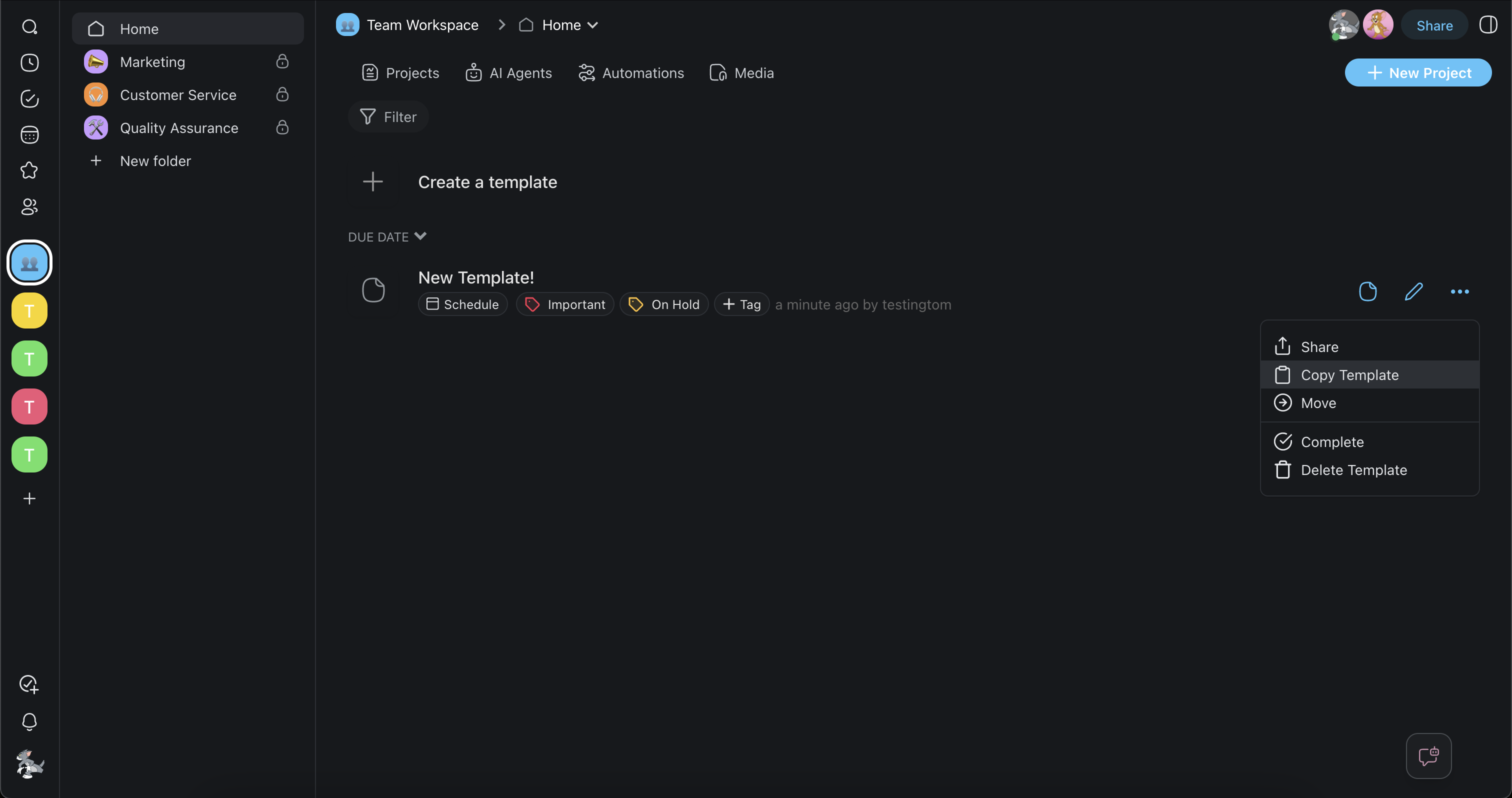
- Go to a Workspace/ Folder➡ Templates tab.
- Hover the cursor over the template you want to copy and click ···.
- Click Copy Template.
- Choose the target Workspace/ Folder.
Remove Custom Templates
Follow the steps below to delete any templates you no longer use:
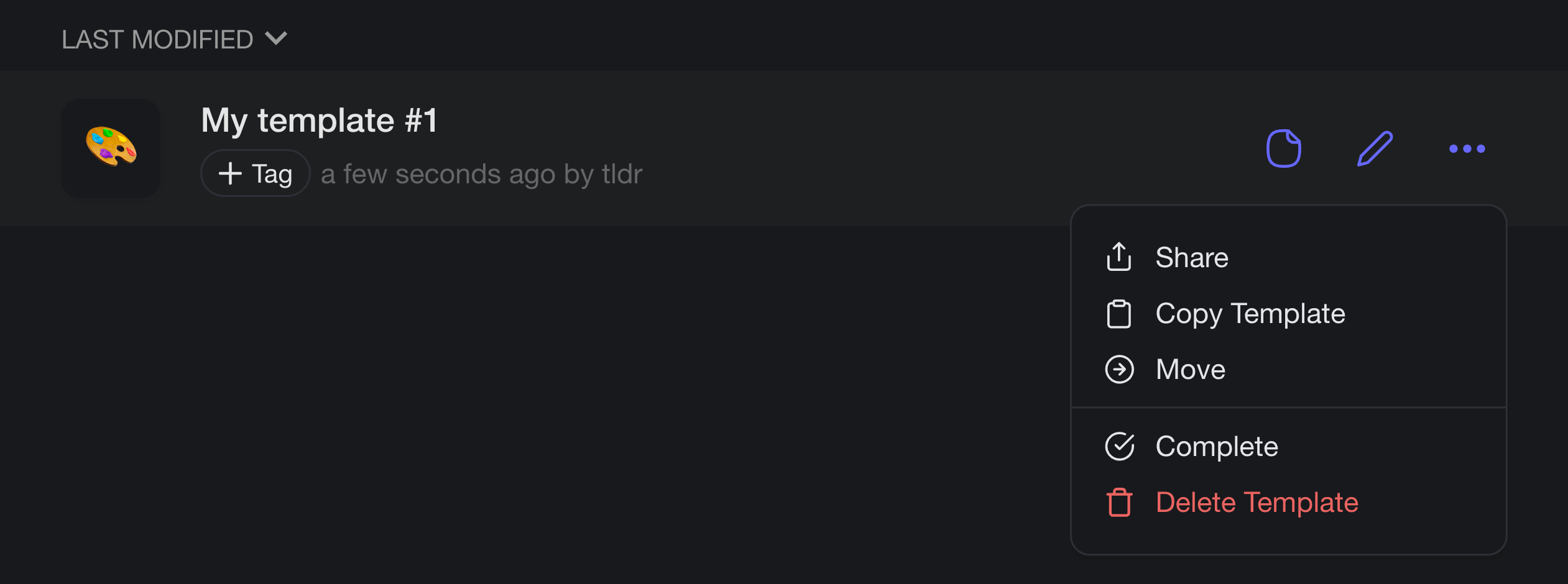
- Go to a Workspace/ Folder ➡ Templates tab.
- Move the mouse cursor of the template you want to delete and click ···
- Choose 🗑️ Delete Template from the dropdown list.
Convert Projects To Templates
Any project can become a template. Follow these steps to convert one.
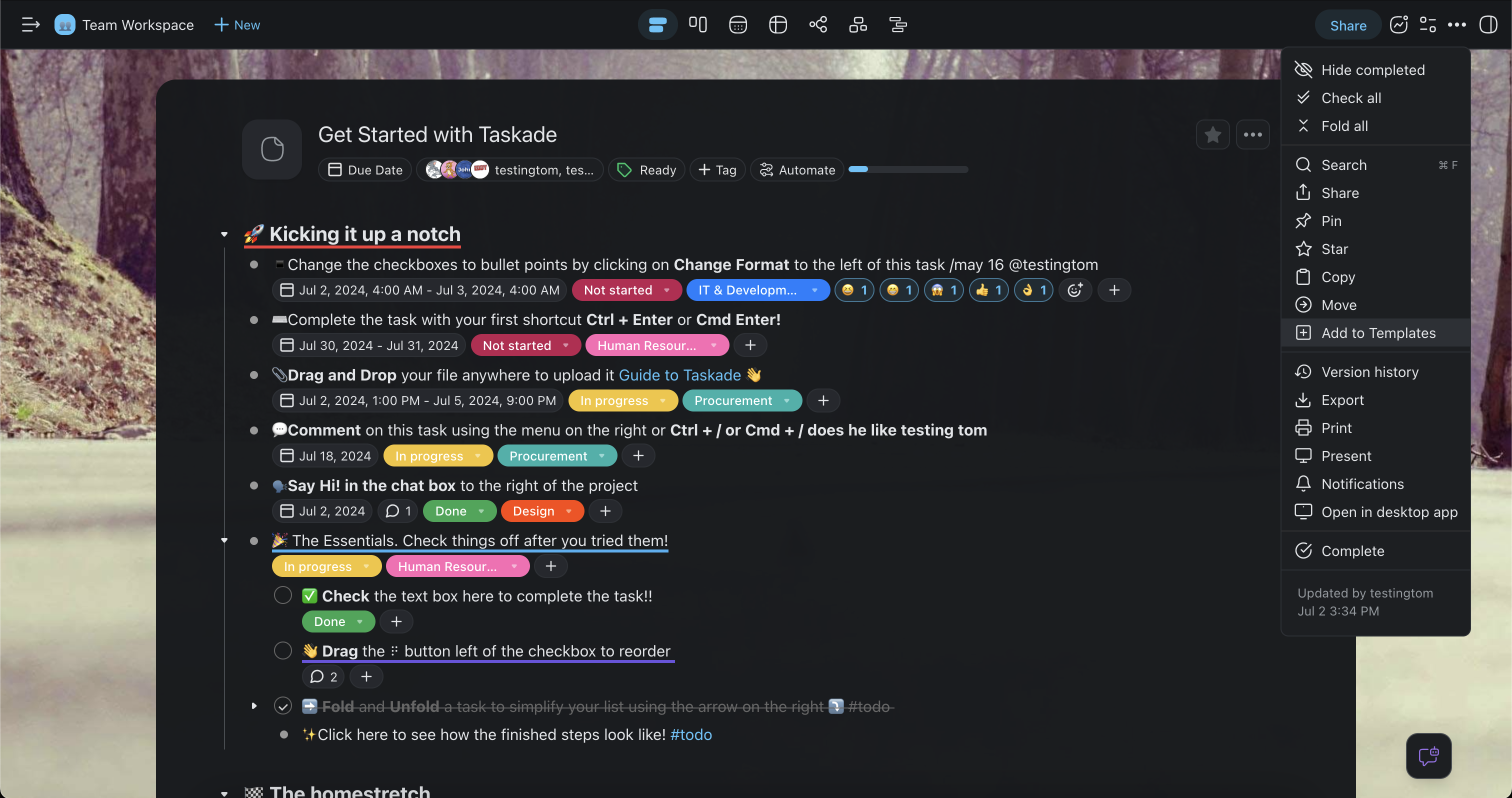
- Go to a Project you wanted converted to a Template.
- Click on the Triple Dot Menu in the top right corner of the project.
- Click on Add to Template.
- Select the Workspace/Folder you wish to add the template to.
💡 Note: Projects are not deleted when converted to Templates, a copy of the project is converted into a Template
Schedule a Template
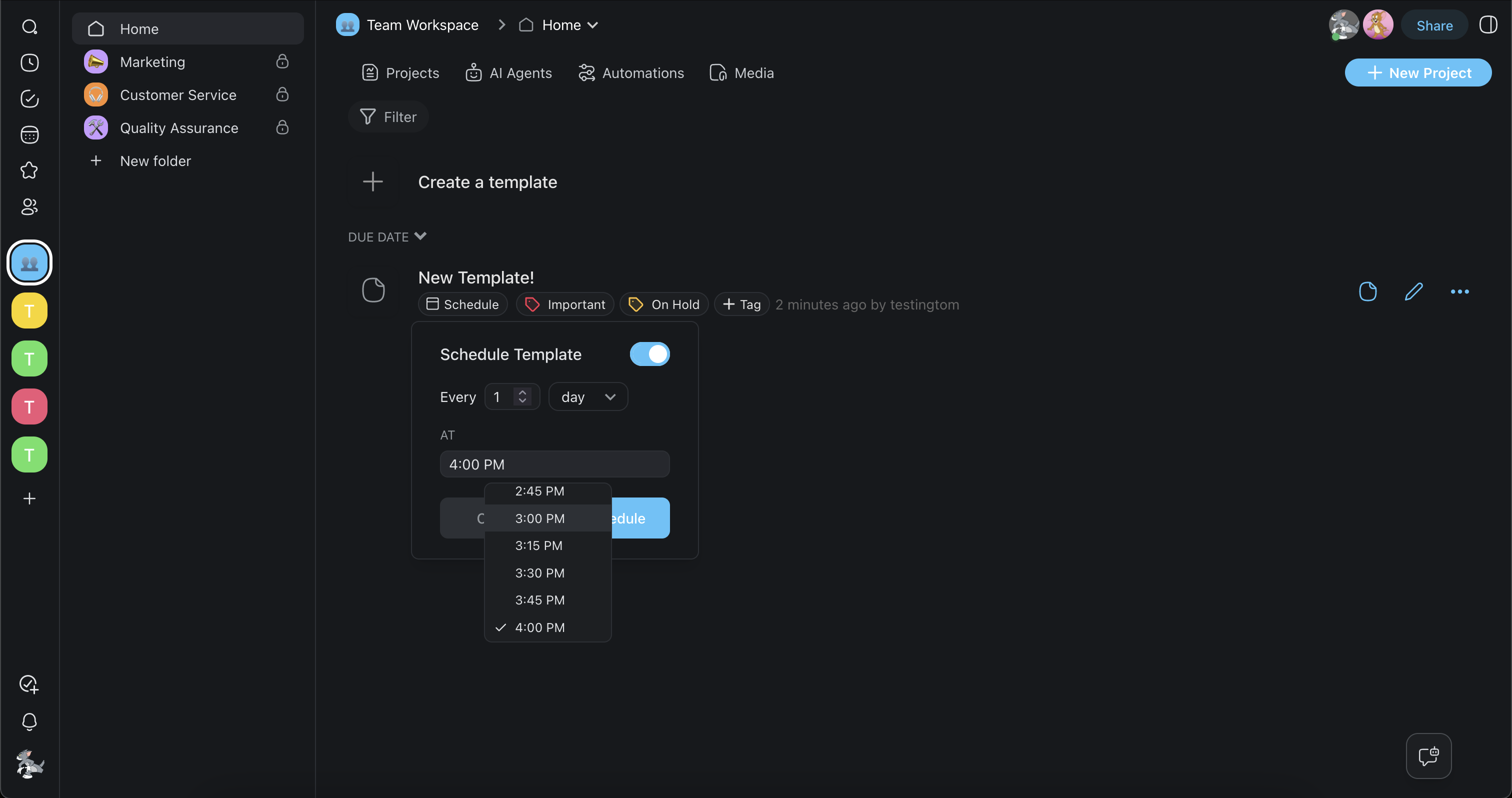
You can schedule a template to create projects automatically. Choose a one-time creation on a specific date and time, or a recurring interval. For example, Taskade creates a project from the template every day at 8:00 a.m. Here is how it works:
- Open a workspace or folder.
- Navigate to the Templates tab at the top.
- Click the 🗓️ Schedule button underneath the template you want to schedule.
- Choose the frequency and time.
- Click Schedule to confirm the changes.
Note: Visit Schedule Templates to learn more.