
Overview
Put your specialist agents on one thread and get the right expert every time. An AI Team is a group of AI agents that work together in a single chat. Ask a question, and the team automatically routes it to the most qualified member, so you get the best answer without picking an agent yourself. Every member shares the same team memory, so each reply carries context from the whole team's past work.
TL;DR: Group two or more agents into an AI Team, then chat with all of them at once. Four execution modes (Auto, Everyone, Manual, Orchestrate) decide who replies, and shared team memory gives every member context. Spin one up fast with the Team Generator.
Four execution modes let you control exactly how the team responds, from "pick one expert automatically" to "everyone weighs in" to "coordinate a multi-agent plan". Every agent reads the shared team memory, so each response carries context from the whole team's past work.
Note: In a team setting, agents build on each other’s responses and, depending on the tools you configured, take actions on your behalf.
Create an Agent
- Go to the Agents tab at the top of your workspace/team.
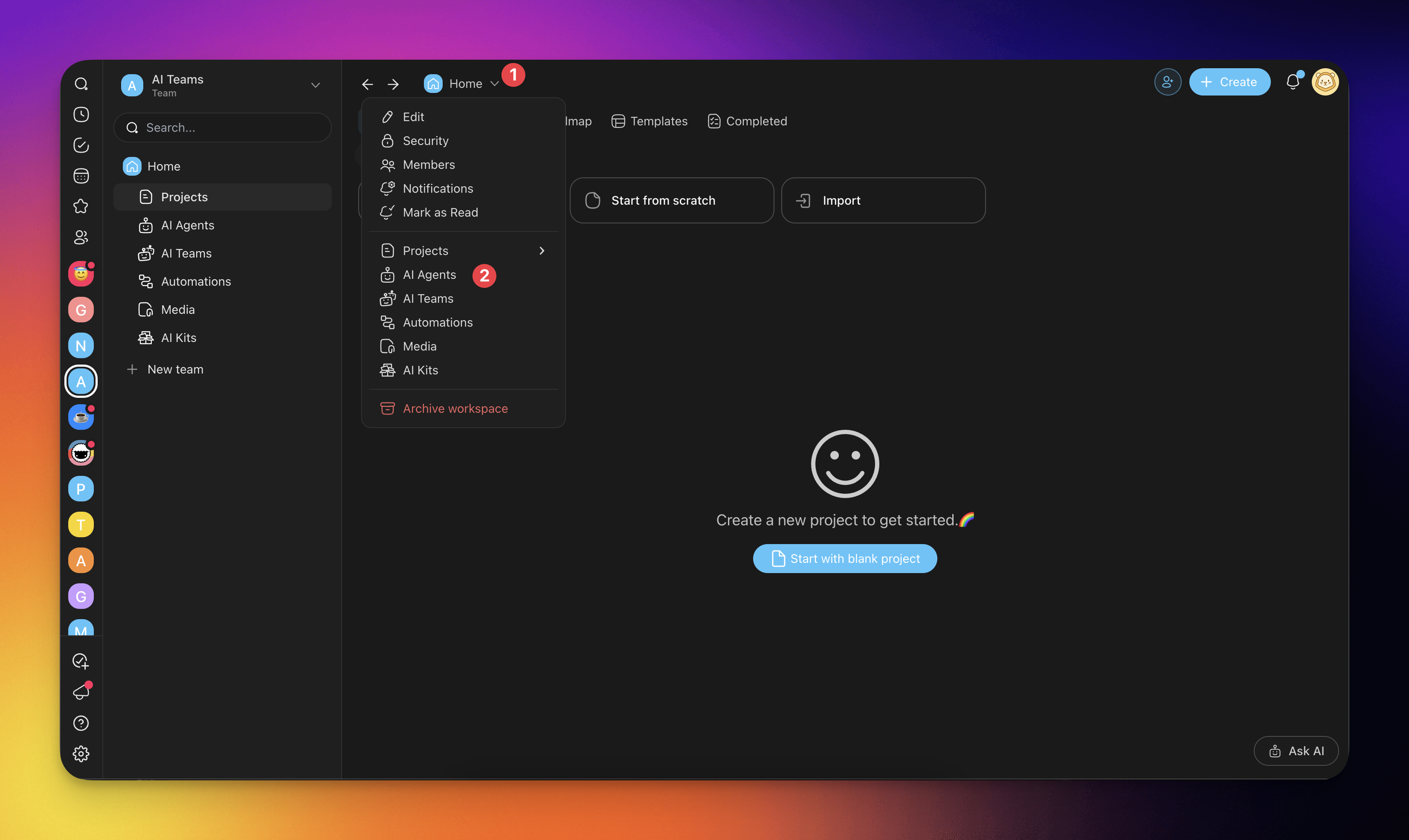
2. Click ➕ Create agent to open the agent creator.
- Method 1: Use the AI Team Generator.
- Method 2: Create from scratch.
- Method 3: Use one of the available agent templates.
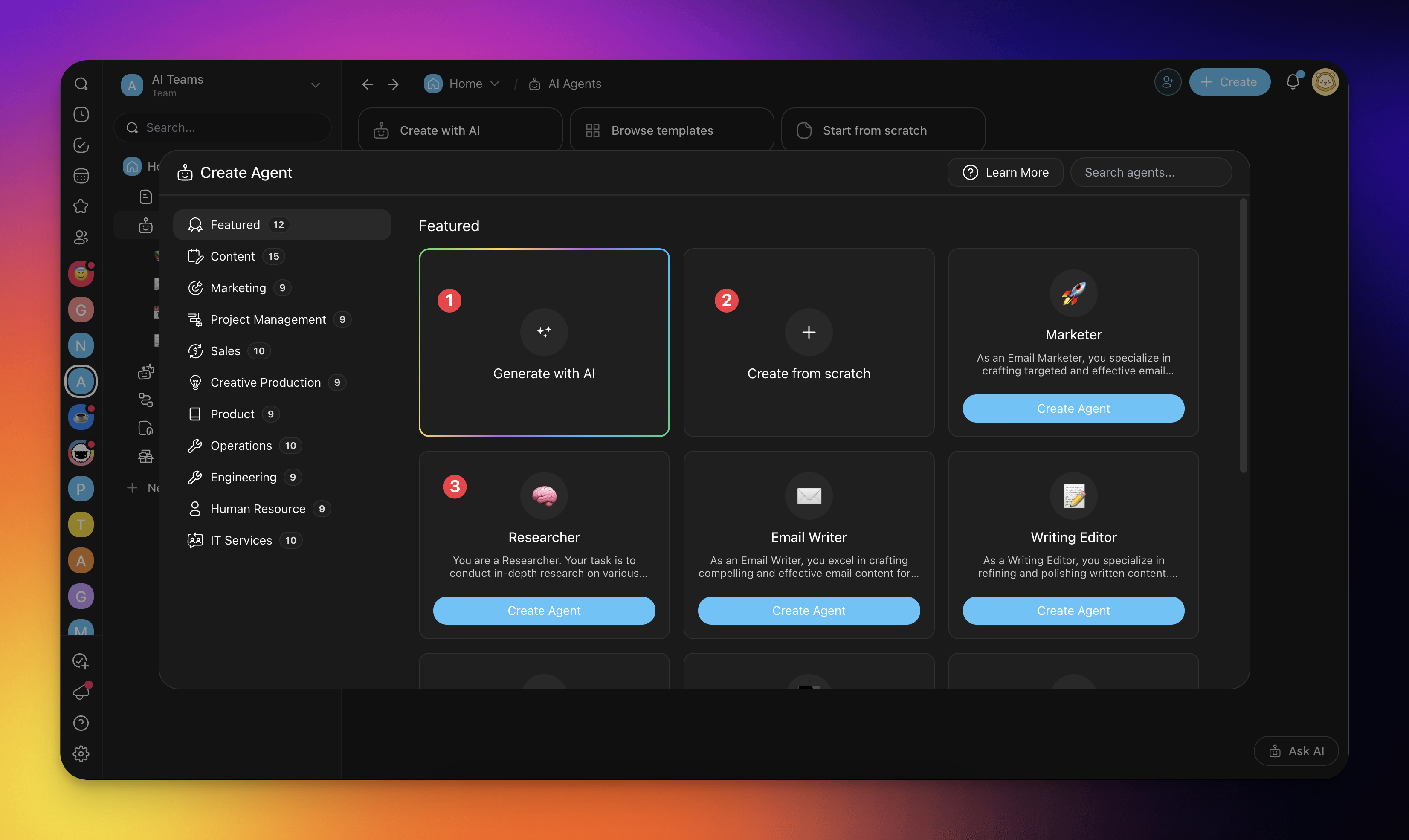
Note: Read our AI Agents guide for a step-by-step guide.
Create an AI Team
Creating an AI Team only takes a few seconds.
- Go to the AI Teams at the top of your workspace or team.
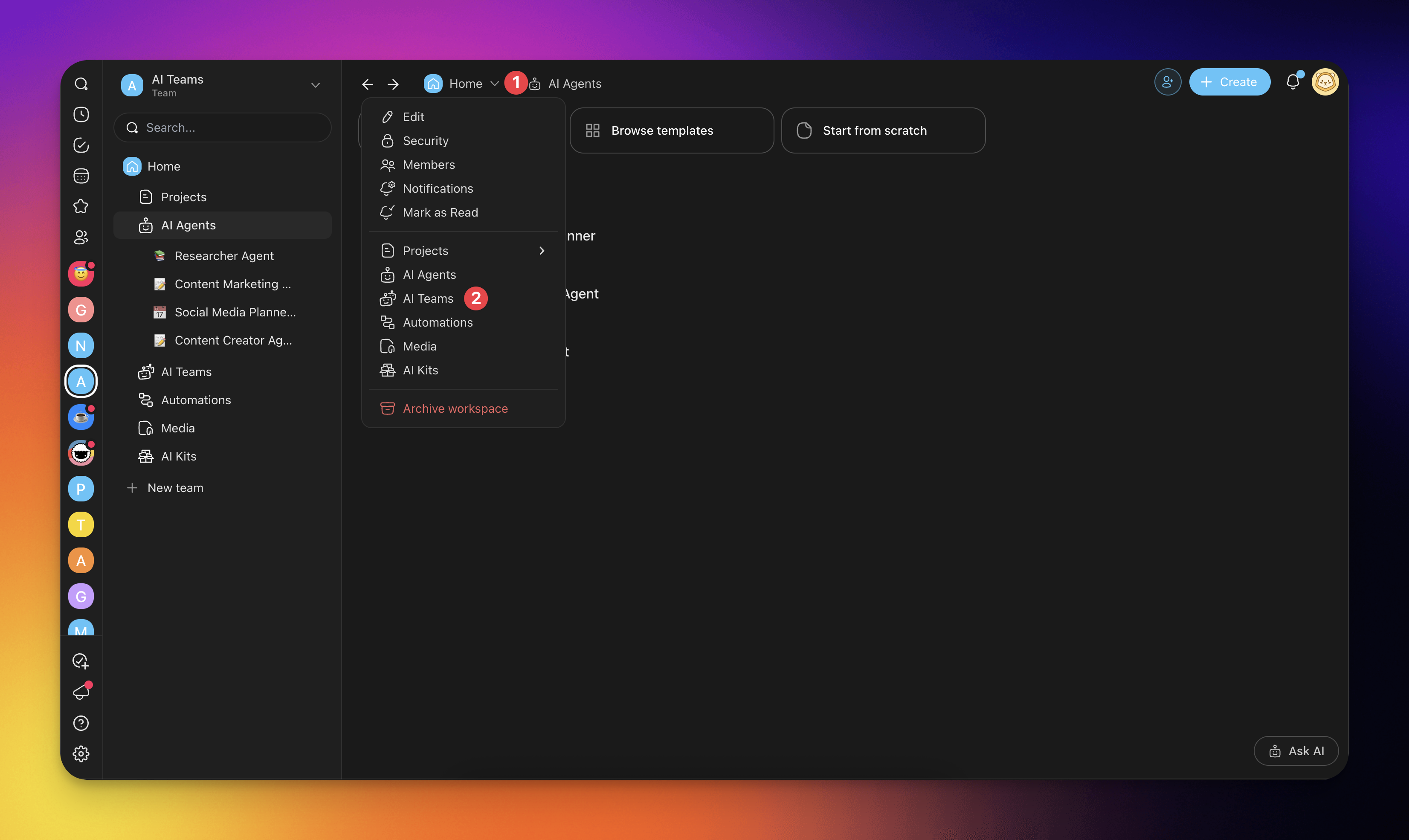
Click the ➕ Create Team button.
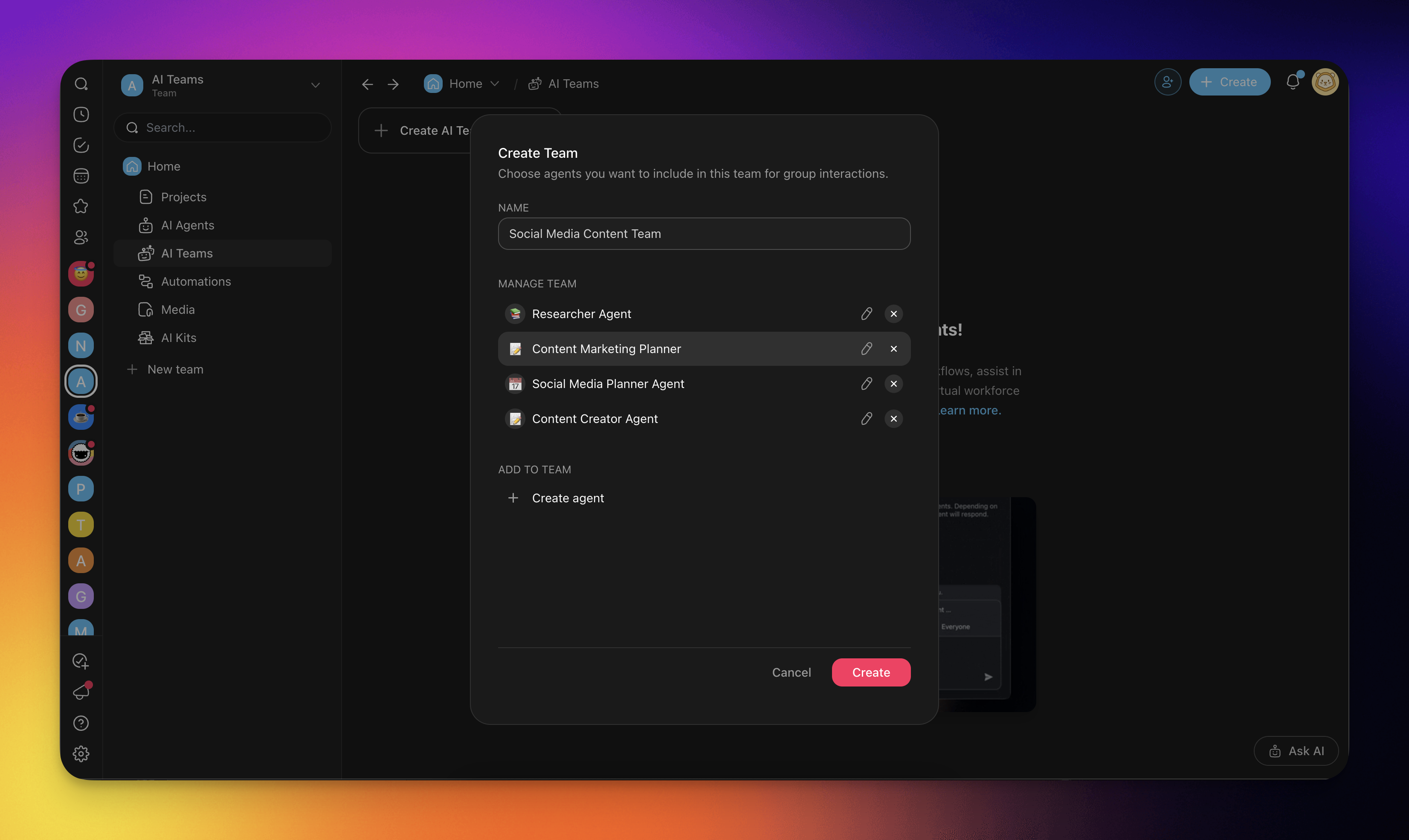
Choose a name for your team and select the agents you’d like to include.
You need at least 2 agents to get started
Use the Generator
The AI Team Generator lets you create entire multi-agent teams with a single prompt.
Generate an AI Team
- Go to the AI Teams tab at the top of your workspace or folder.
- Click ➕ Create with AI.
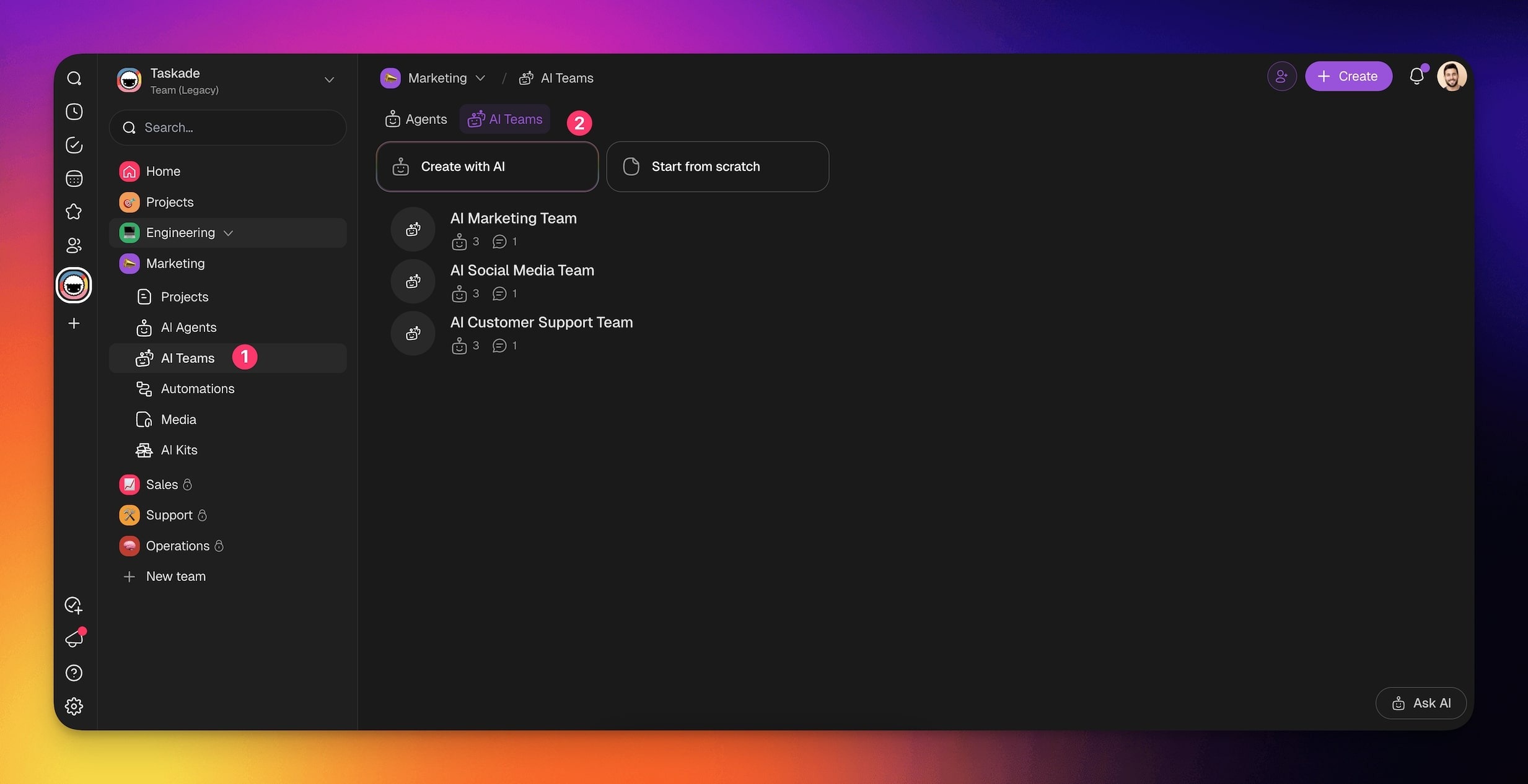
- Describe the work you want your AI Team to do. For example:
“I need a marketing team to plan a product launch campaign.”
- Optionally, select one of the prompt examples.
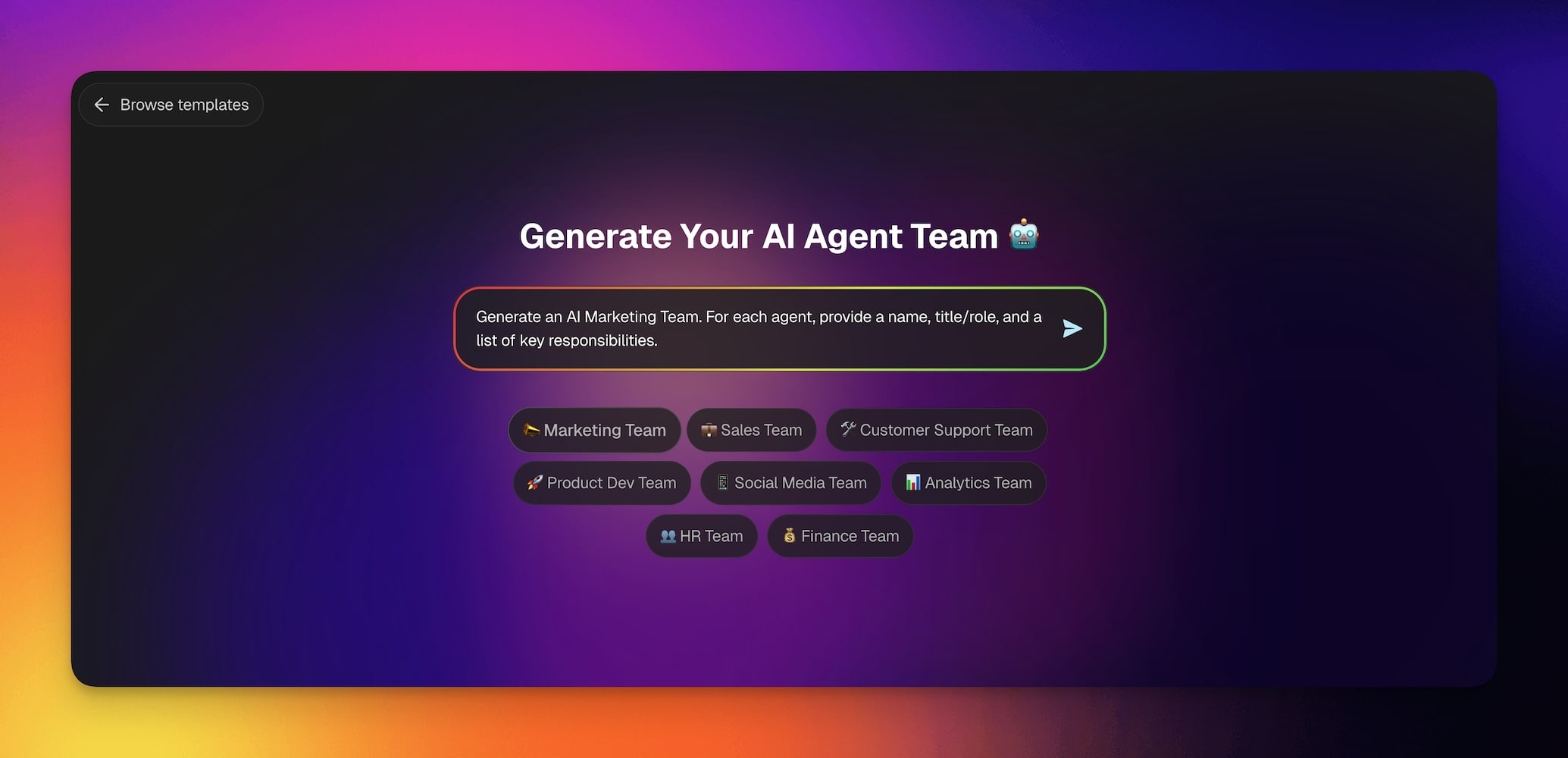
- Hit ⌨️ Enter and let the generator do the rest.
Interact With Your AI Team
Interacting with your team is similar to interacting with individual agents, with the key difference being that all AI team members are aware of the conversation.
Chat in the AI Teams Tab
- Go to the AI Teams tab.
- Select your AI team from the list.
- Start a conversation as usual.
Note: The scope of individual agents' responses depends on their fine-tuning. Visit our Agent Knowledge & Data guide to learn more.
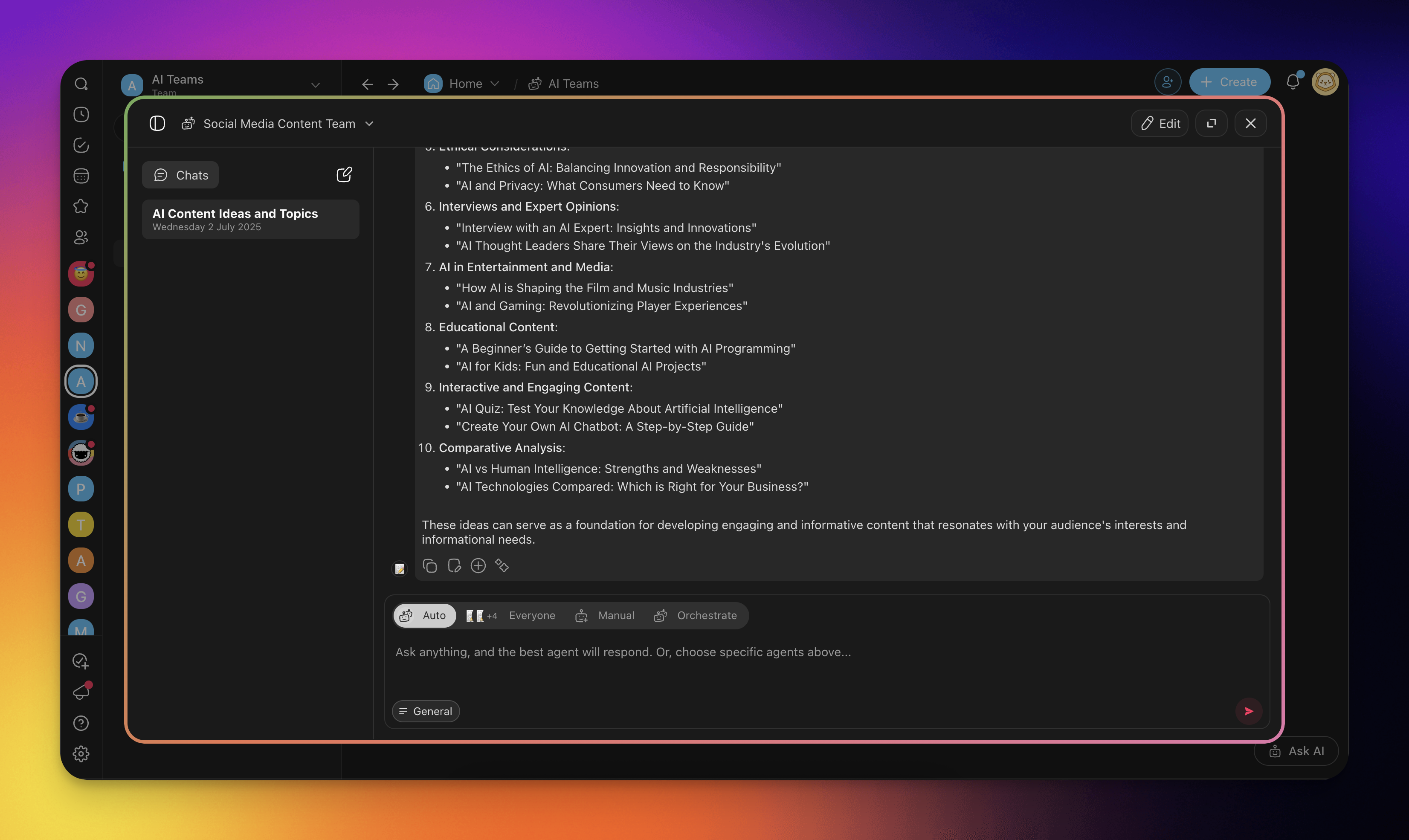
You can choose from different execution modes which will affect the AI Team's responses. See the Execution Modes section below for more details.
Chat in Projects
- Open a project in the workspace/team where you created your AI team.
- Click the chat balloon icon in the top-right corner.
- Click the drop-down at the top of the chat box.
- Choose your AI team in the AI Teams tab.
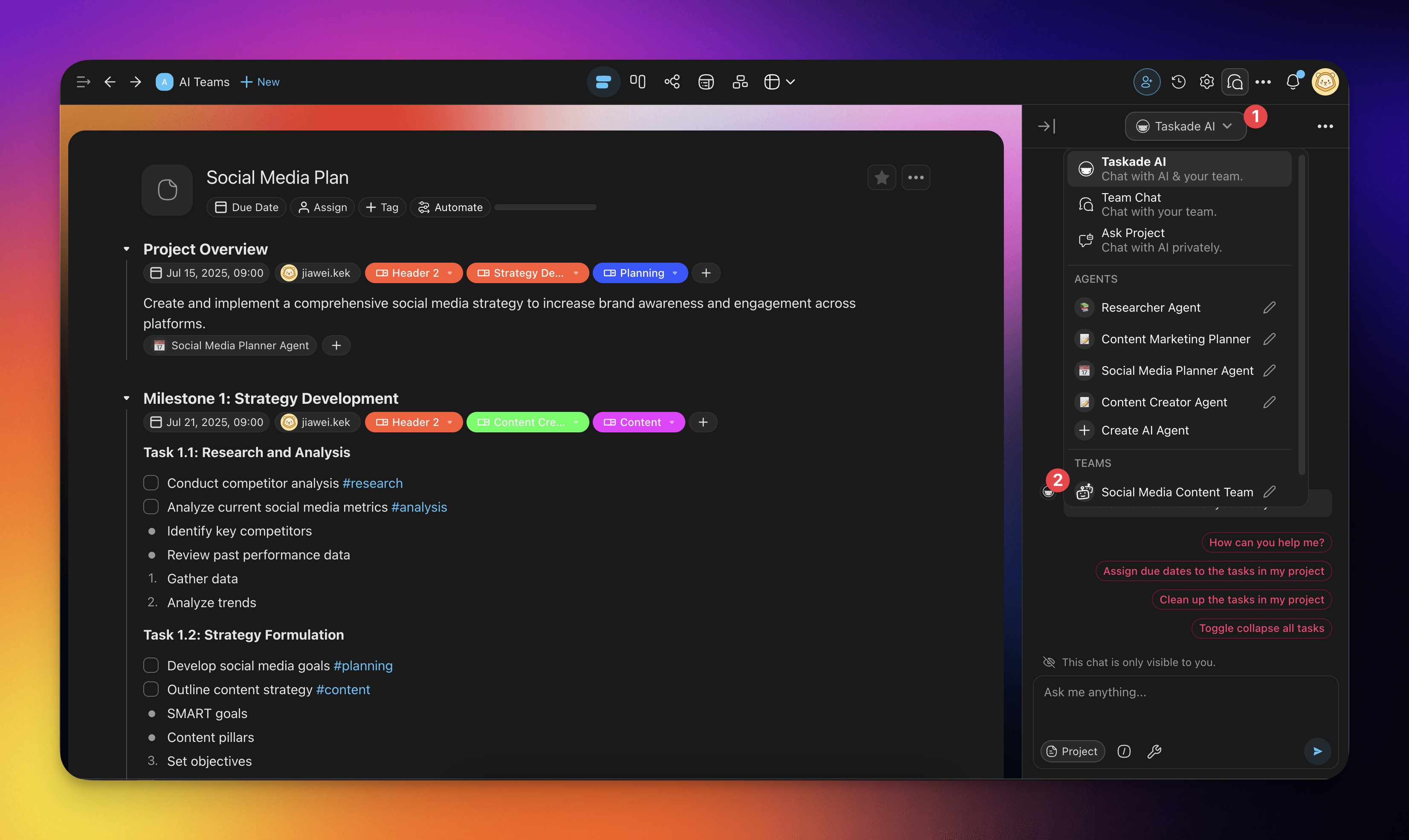
5. Ask your AI team questions about the project or request support.
- You can select an agent or choose the Auto option to let Taskade decide.
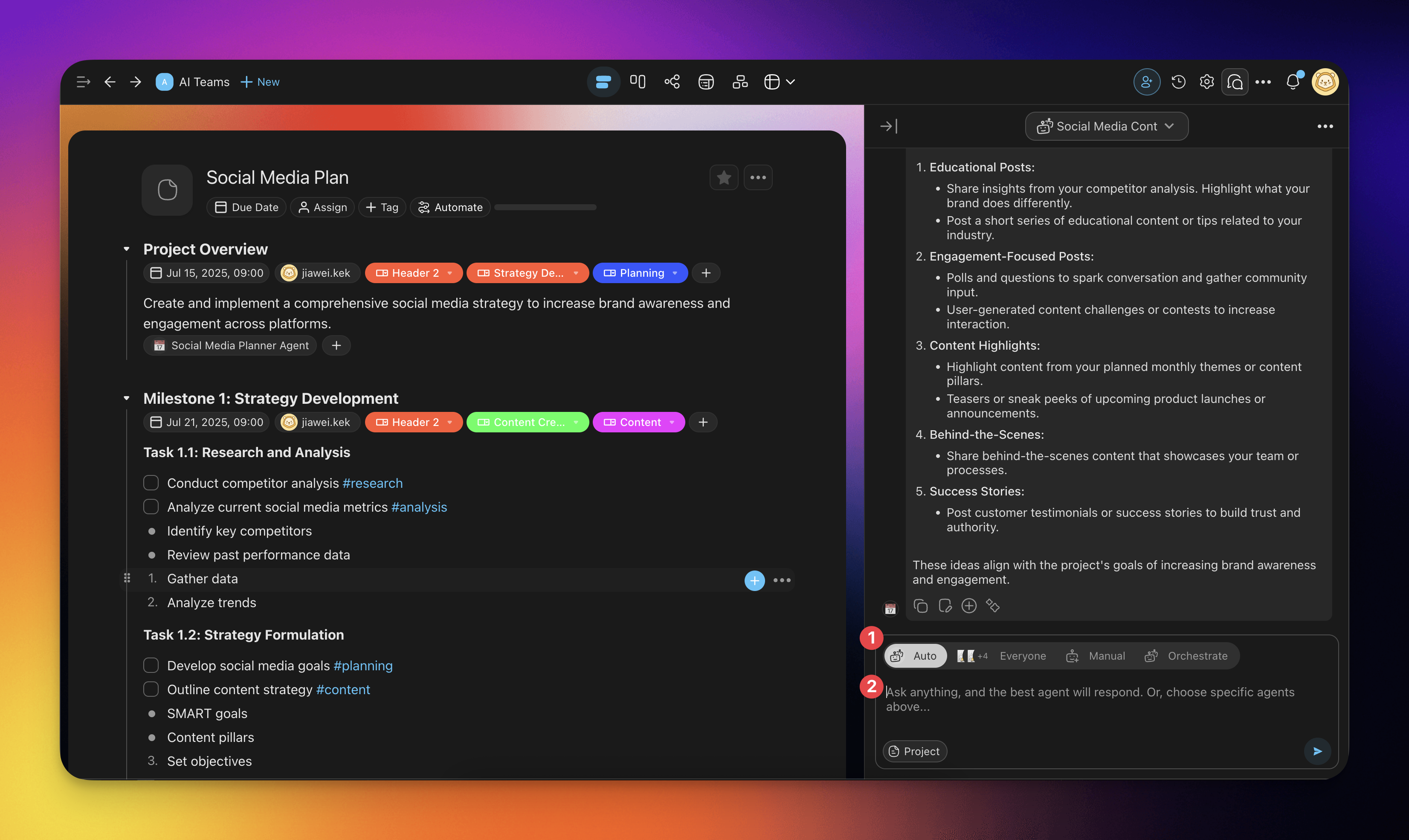
Note: AI Team chat supports project context, which means that you can talk to your AI team about the project you are looking at.
Assign AI Teams to Tasks
You can quickly assign your AI team to tasks inside projects:
- Open a project in the workspace/team where you created your AI team.
- Click the item/task you want your AI team to work on.
- Type / + the name of your AI Team. For example, "/social" (you do not need to type the whole name)
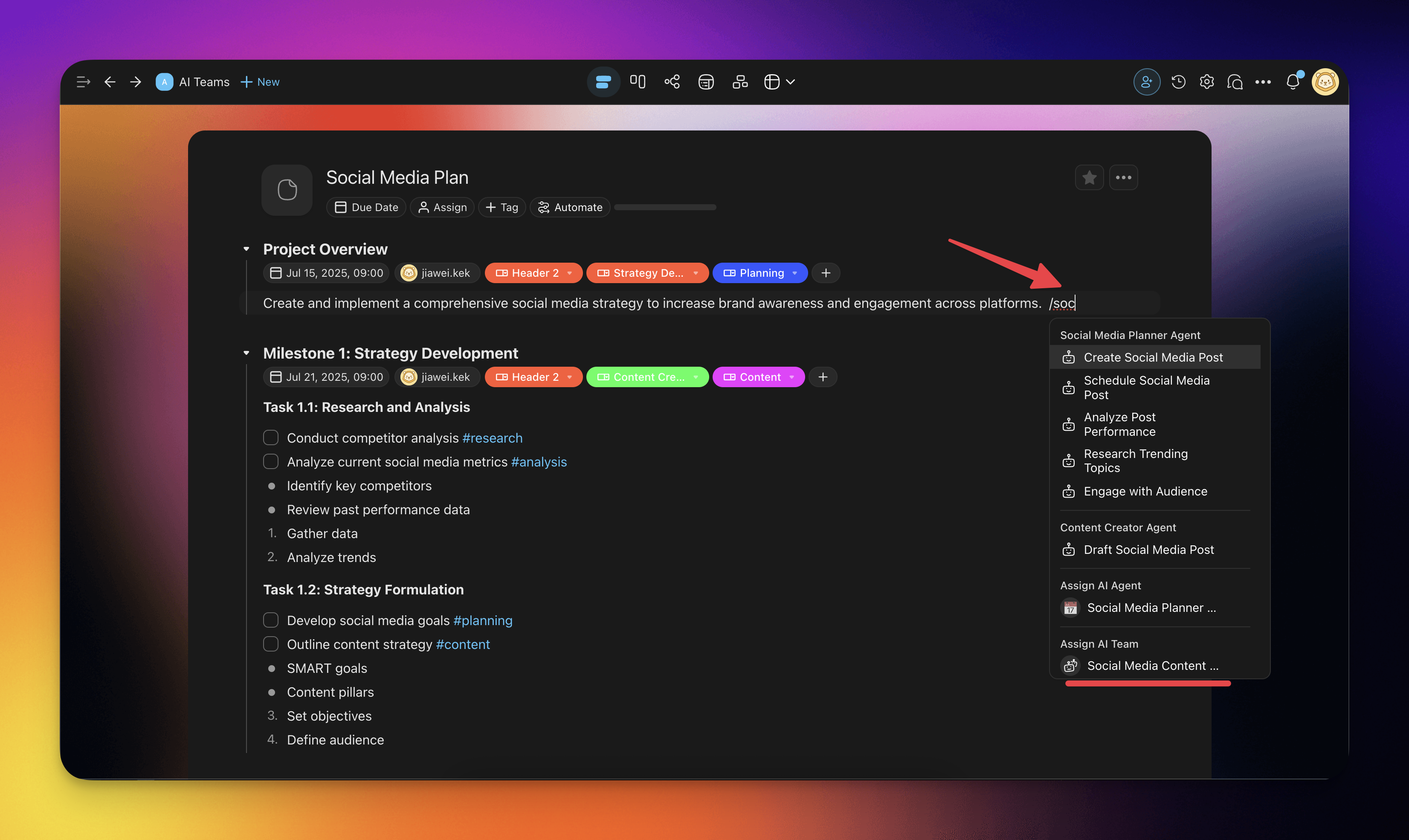
4. Taskade will automatically assign the best agent from the team.
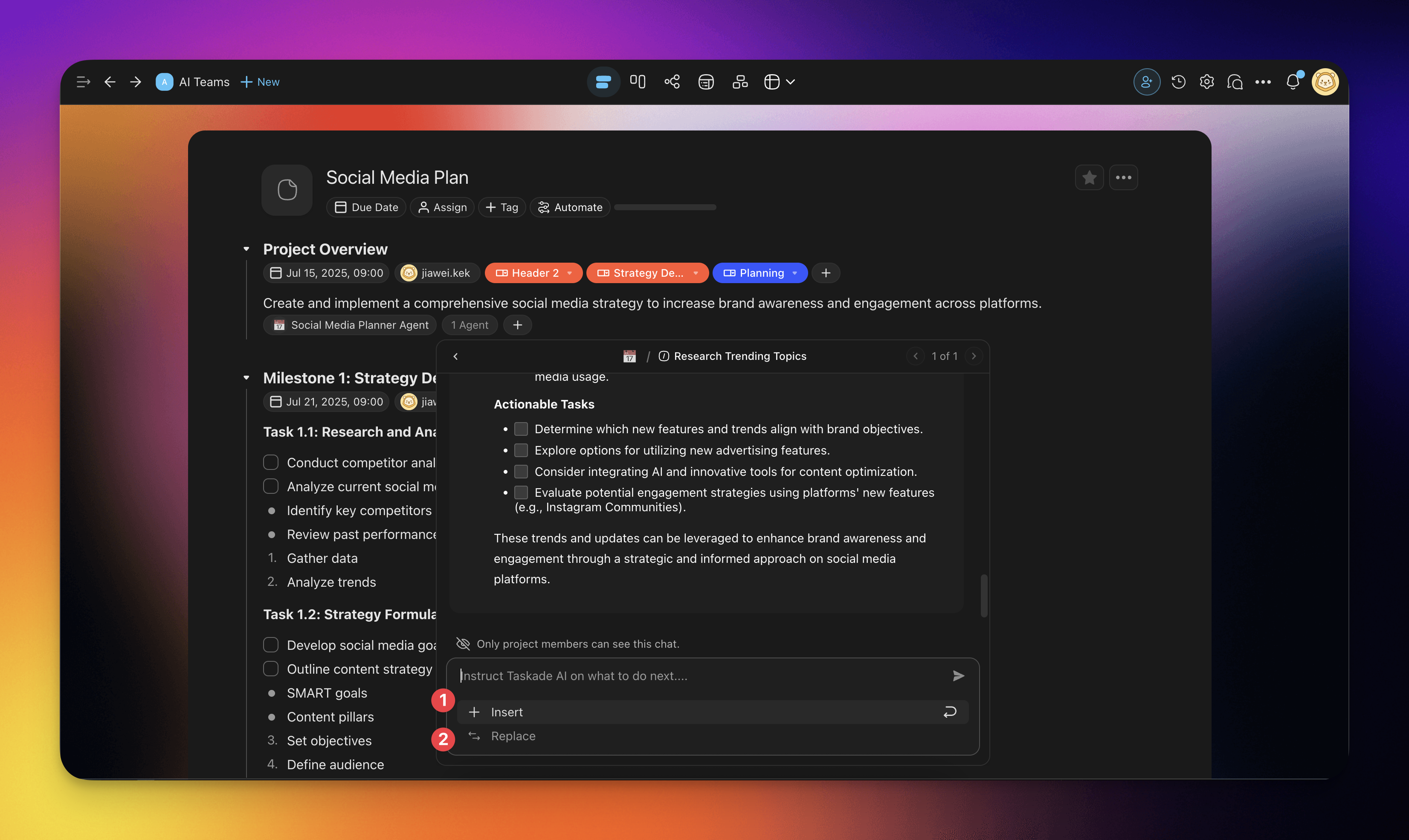
5. When done, click
- Insert to add the output to the task
- Replace to replace the task with the generated output
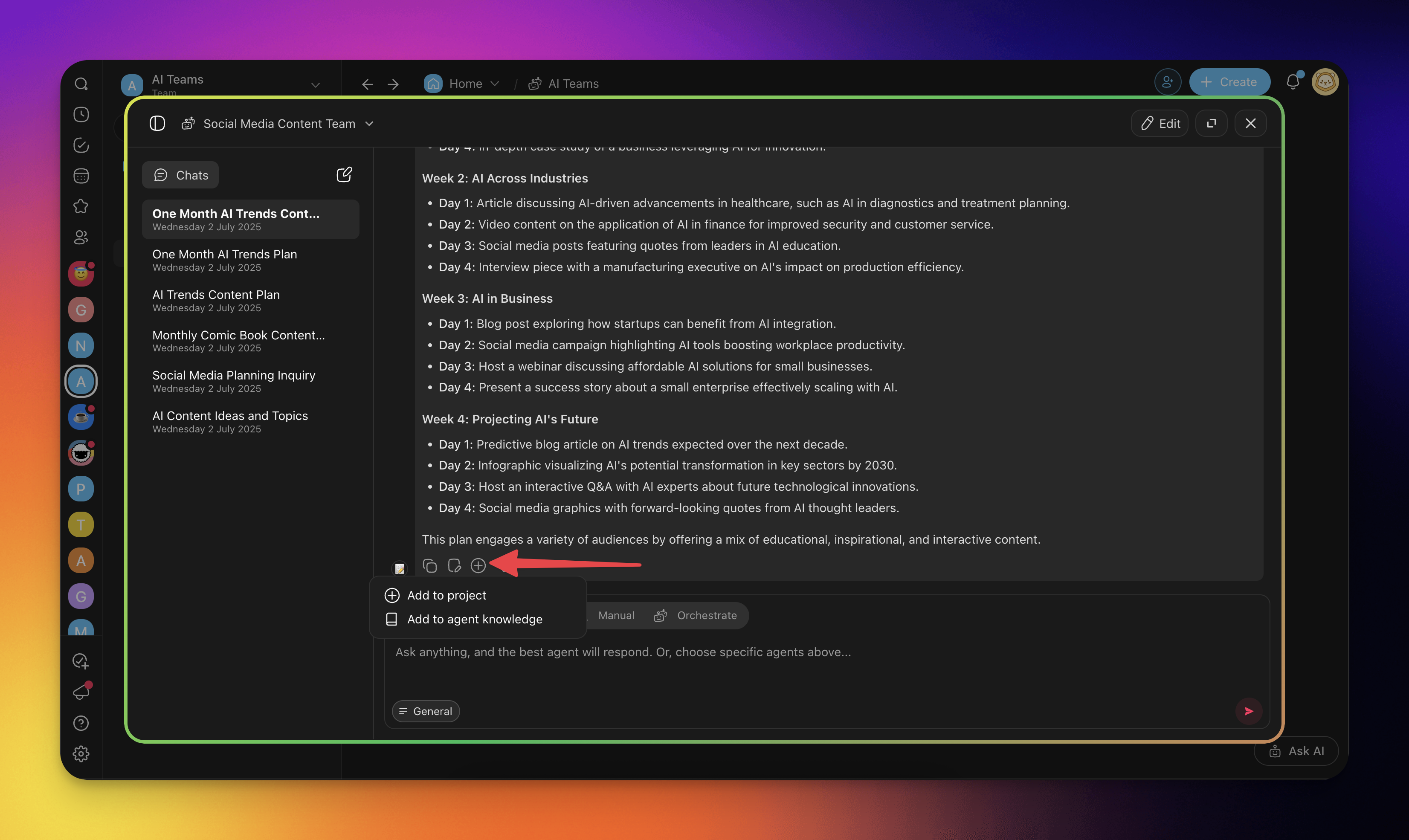
Use Agent Responses
Use quick chat actions to make the most of conversations with your agents:
Click the ⨁ Plus button to add the output to:
➕ An existing project
📓 Agent knowledge
Click the 📑 Copy button to save the output to the clipboard.
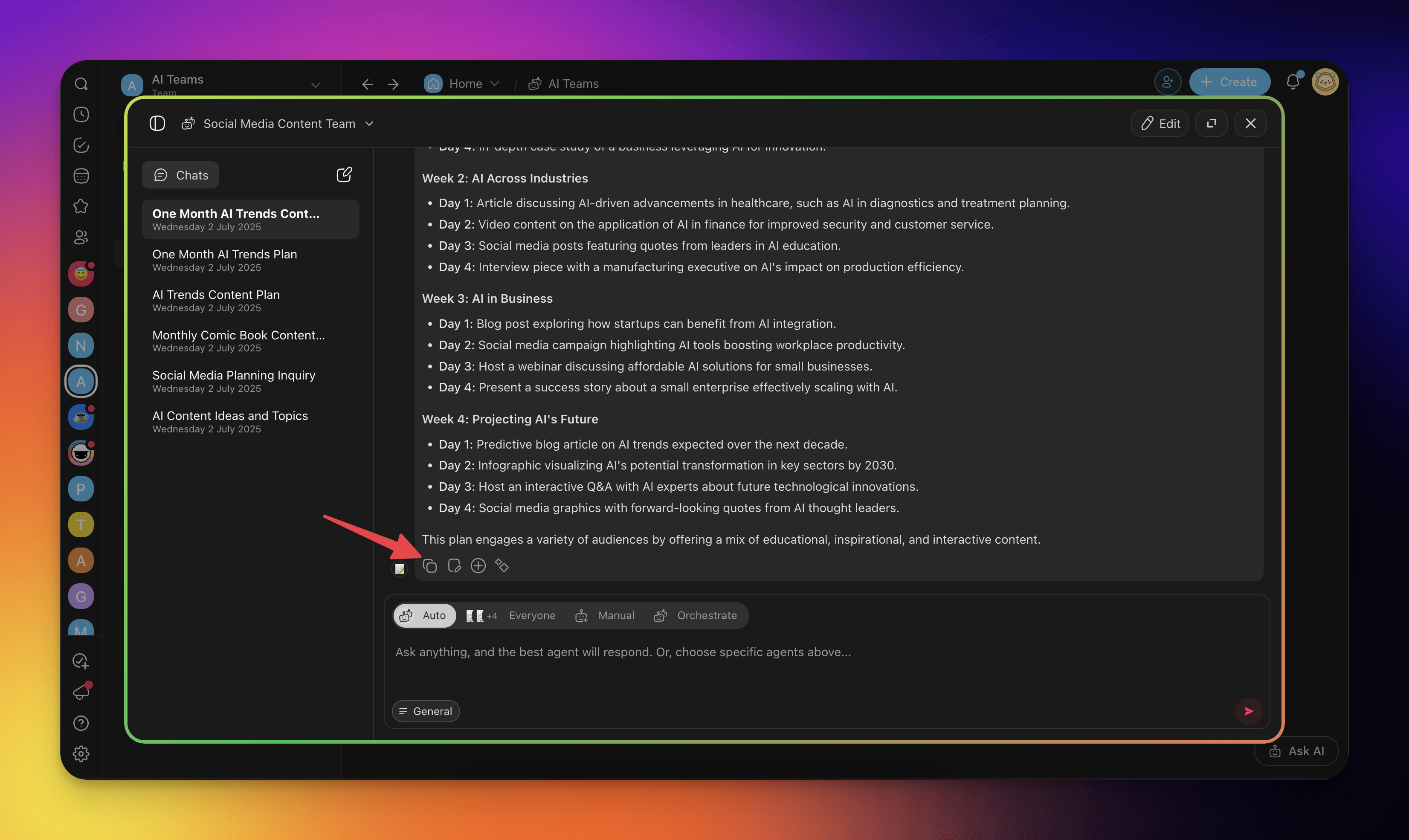
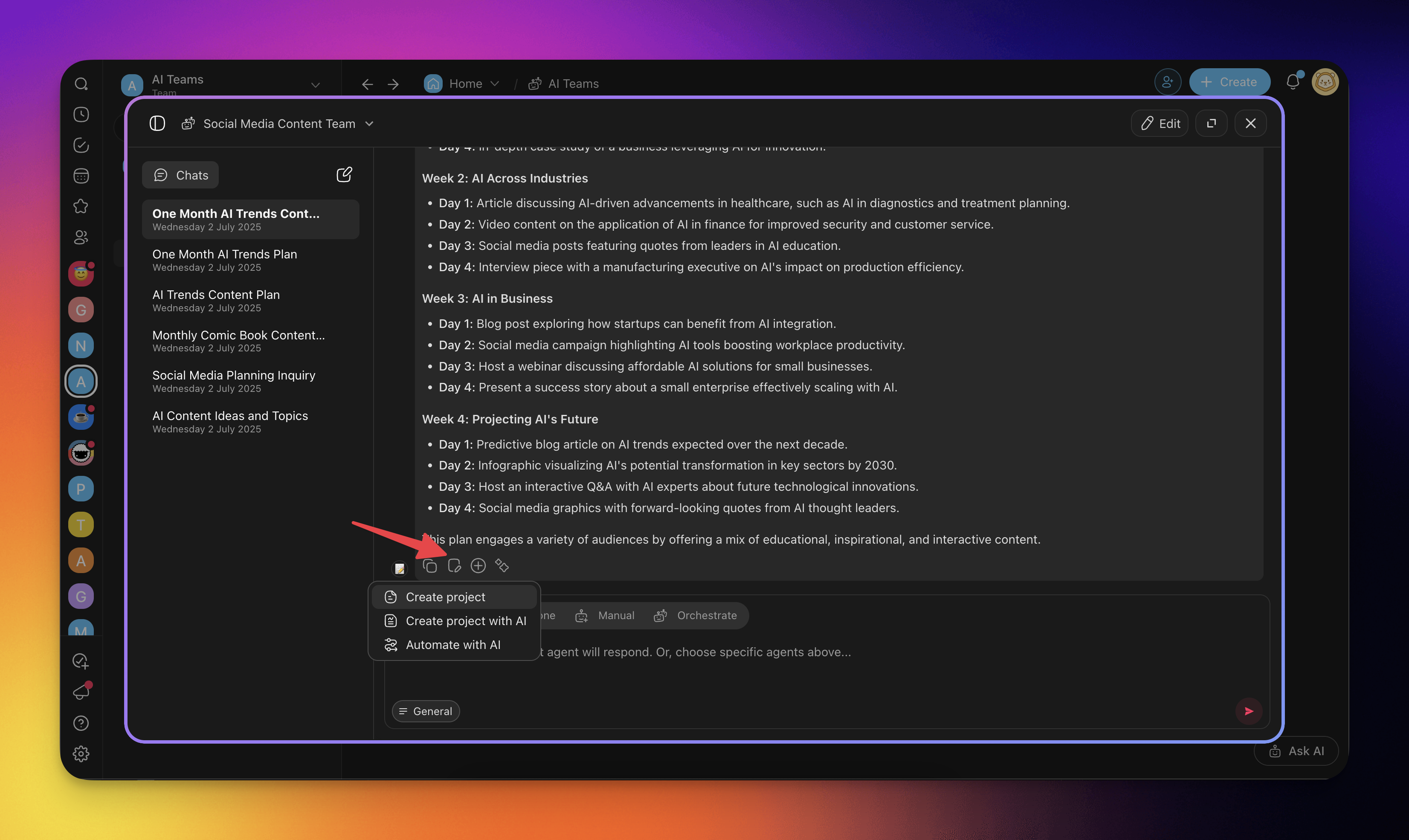
Click the 📝 Create new button use the output:
📄 In a new project
🌱 As a seed for AI Project Studio
In an 🔄 Automation Flow
AI Teams Execution Mode
When you start a new chat with your AI team, you can choose which agents respond:
- Open AI Agent Chat and choose from the available execution modes.
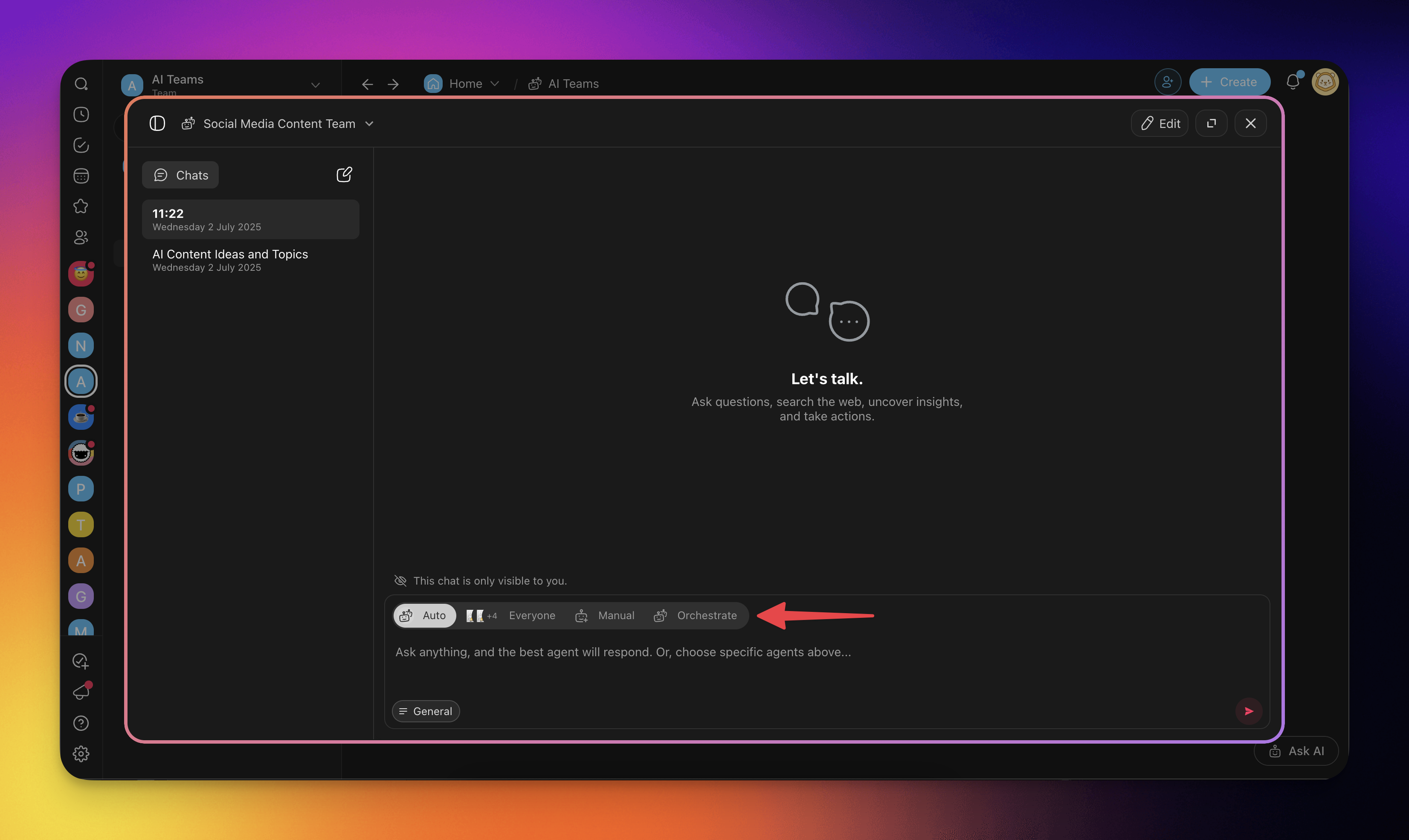
Auto
Taskade AI will automatically choose the most suitable agent(s) based on the prompt.
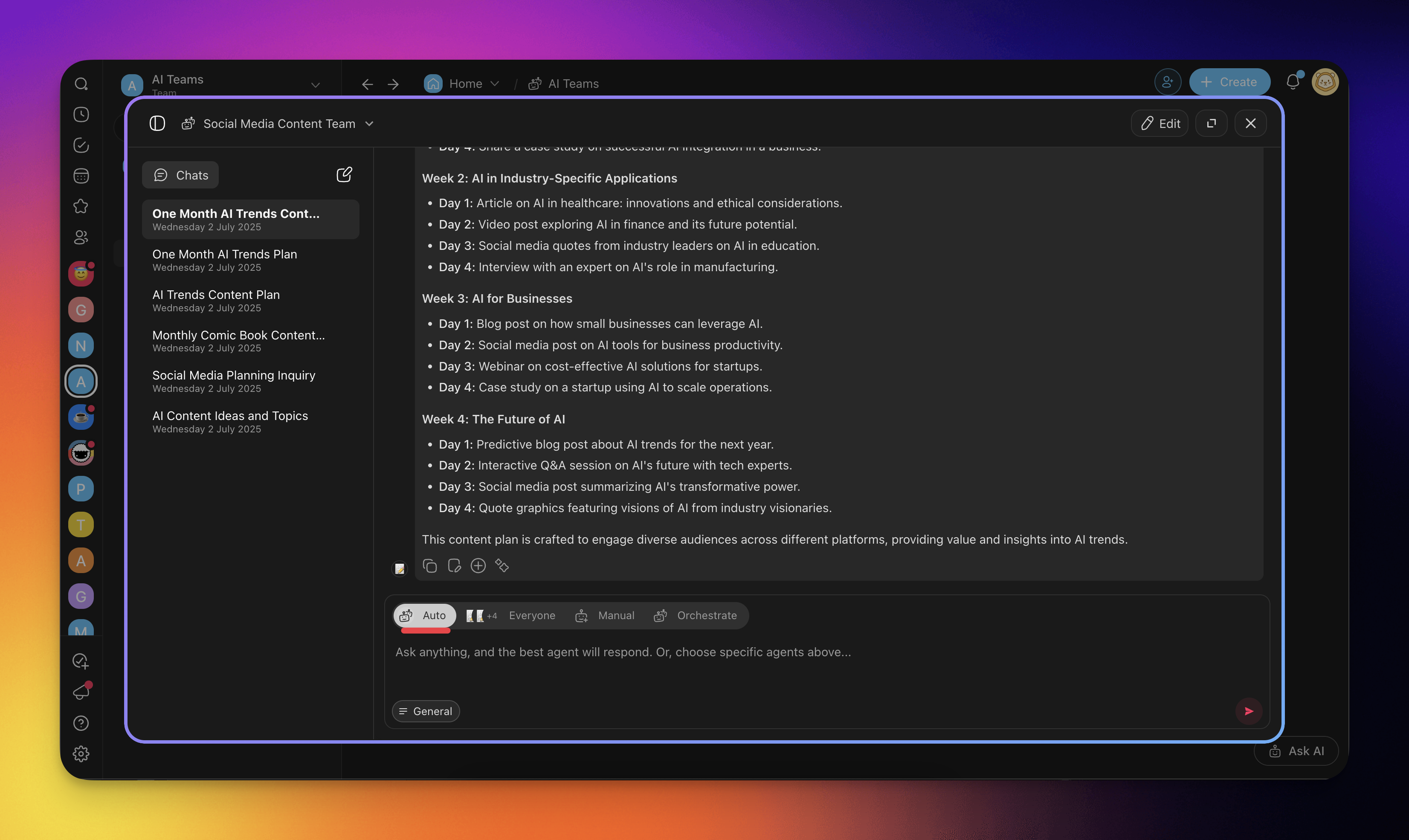
Everyone
All AI agents from your team will respond to your prompt.
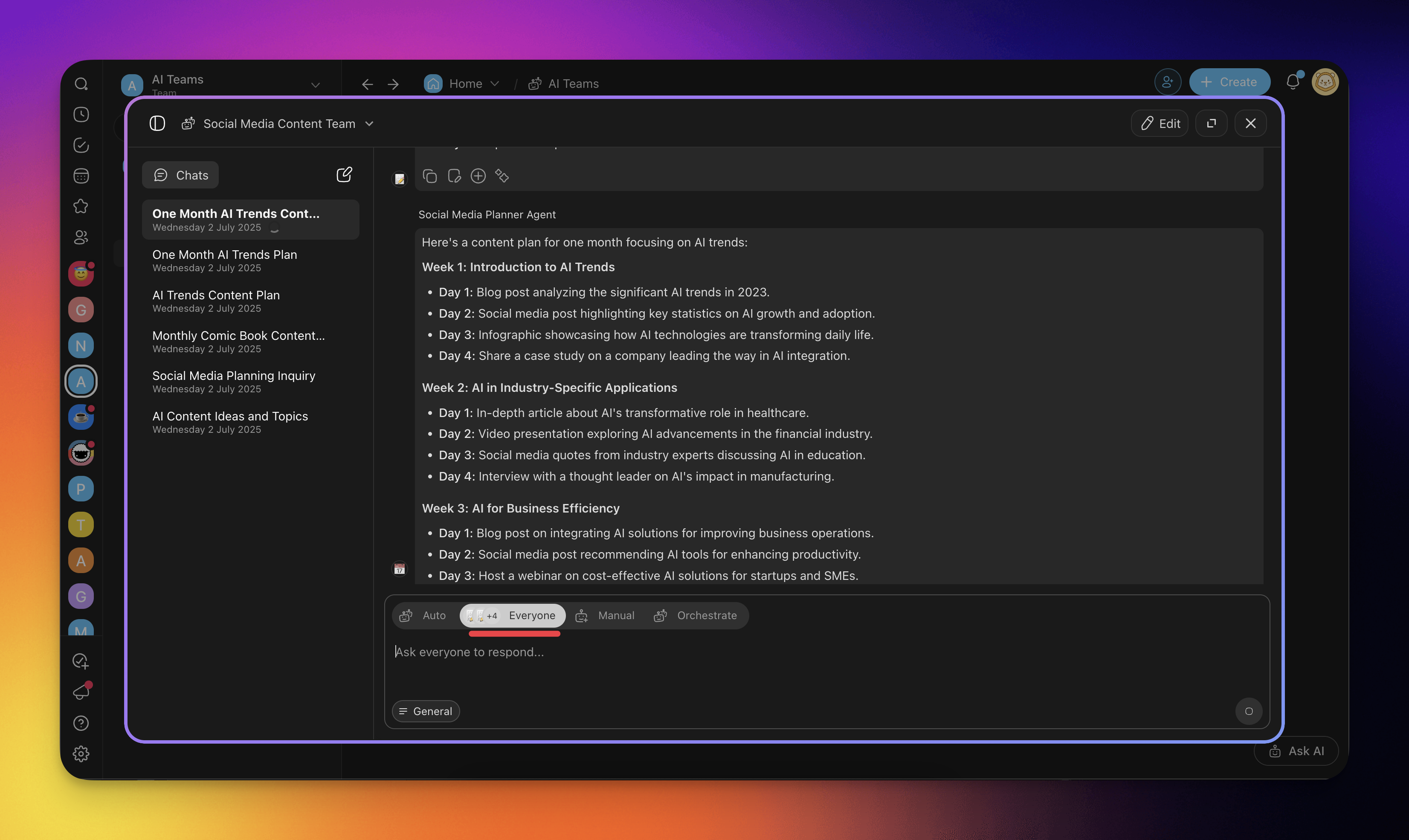
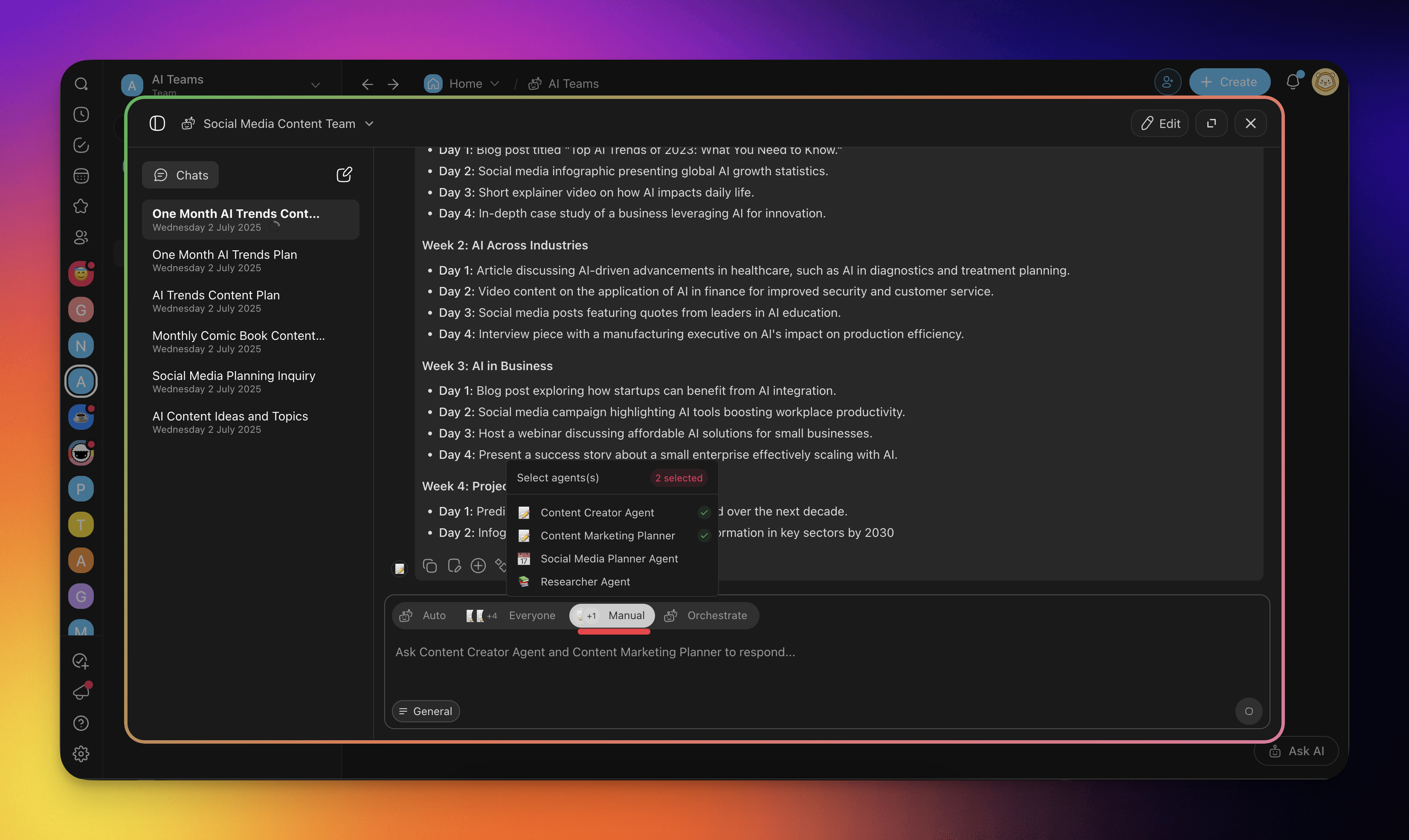
Manual (One/Many Agents)
Interact with one or more selected AI agents from your team.
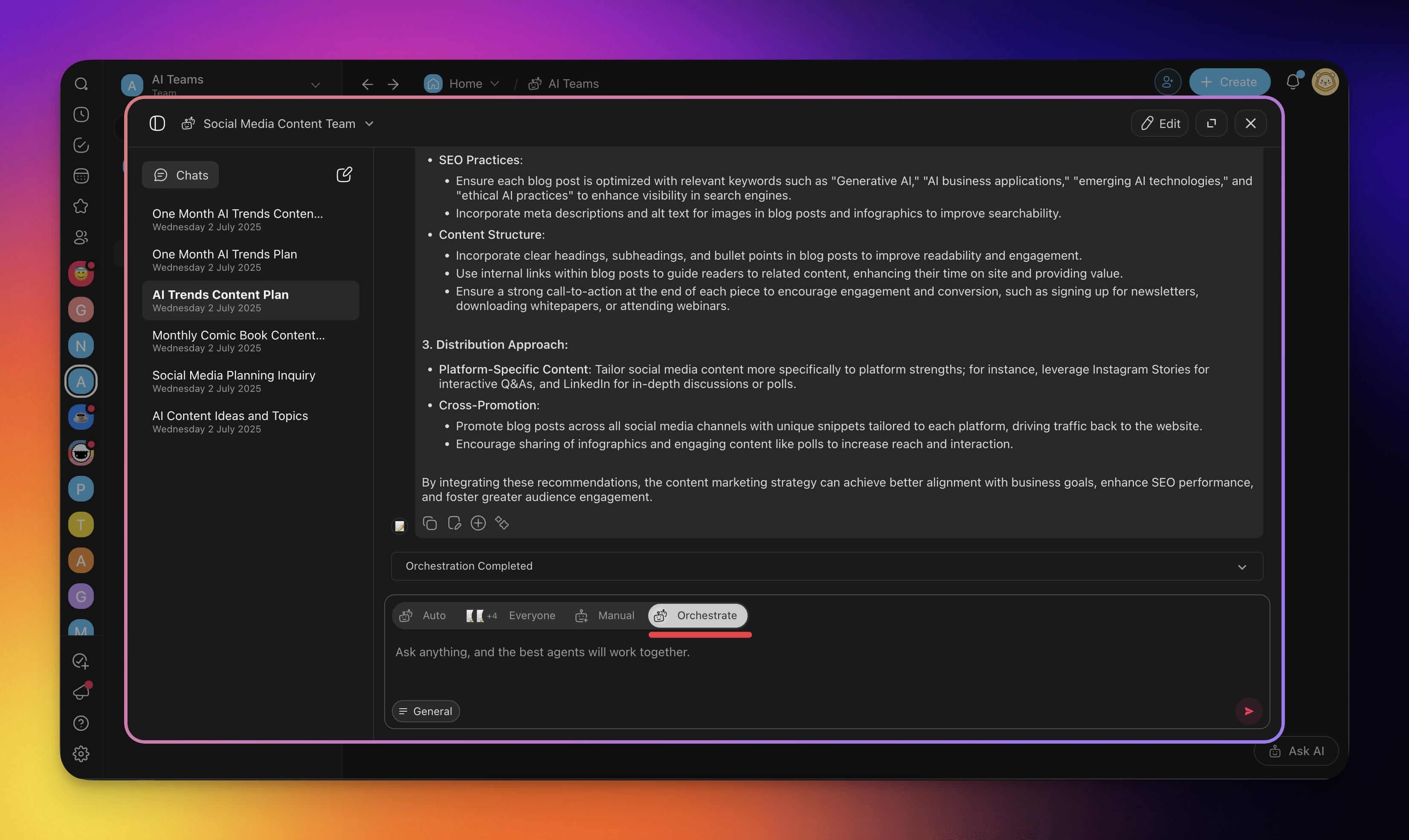
Orchestrate
All AI agents from your team will work together to provide a response.
Plan Availability
AI Teams are available on Pro and above. That covers every route to a team: generating one from a prompt, building one by hand, asking Taskade EVE to assemble one, and installing a team that arrives inside an App Kit. Free and Starter workspaces can still run single custom agents and the Agent Generator.
| Capability | Plan |
|---|---|
| Create and chat with an AI Team | Pro and above |
| Export a team conversation transcript | Pro and above |
| Single custom agents | Every plan |
AI usage is metered in credits, not seats. Each agent that replies consumes credits on its own, so an "Everyone" turn costs more than an "Auto" turn. See AI Usage & Credits for the full picture.
Related guides
- Multi-Agents: Deep dive on multi-agent collaboration patterns
- Team Generator: Generate a complete team from one prompt
- Custom AI Agents: Create the individual agents that join teams
- Team Chat: Share team conversations with your teammates
- Agent Automation: Call an AI team from an automation flow
- Tools for AI Agents: Give each team member specialized tools