
TL;DR: List view is the default. It shows a hierarchical outline with unlimited nesting, and it suits notes, writing, and detailed plans. Fold a branch to hide its children, or drag a task to reparent it. It is one of the project views, and it shares the same data model as every other view.
Overview
The List view lets you work from top to bottom, like a regular to-do list. It is the most universal view in Taskade. Every project starts in List view, and it supports unlimited nesting for complex outlines. Use this view for:
- Managing tasks
- Creating outlines
- Drafting documents
- Creating reusable checklists
- (optional) Browse our free task management templates for more ideas.
Note: Visit Project Views to learn about other workflows in Taskade.
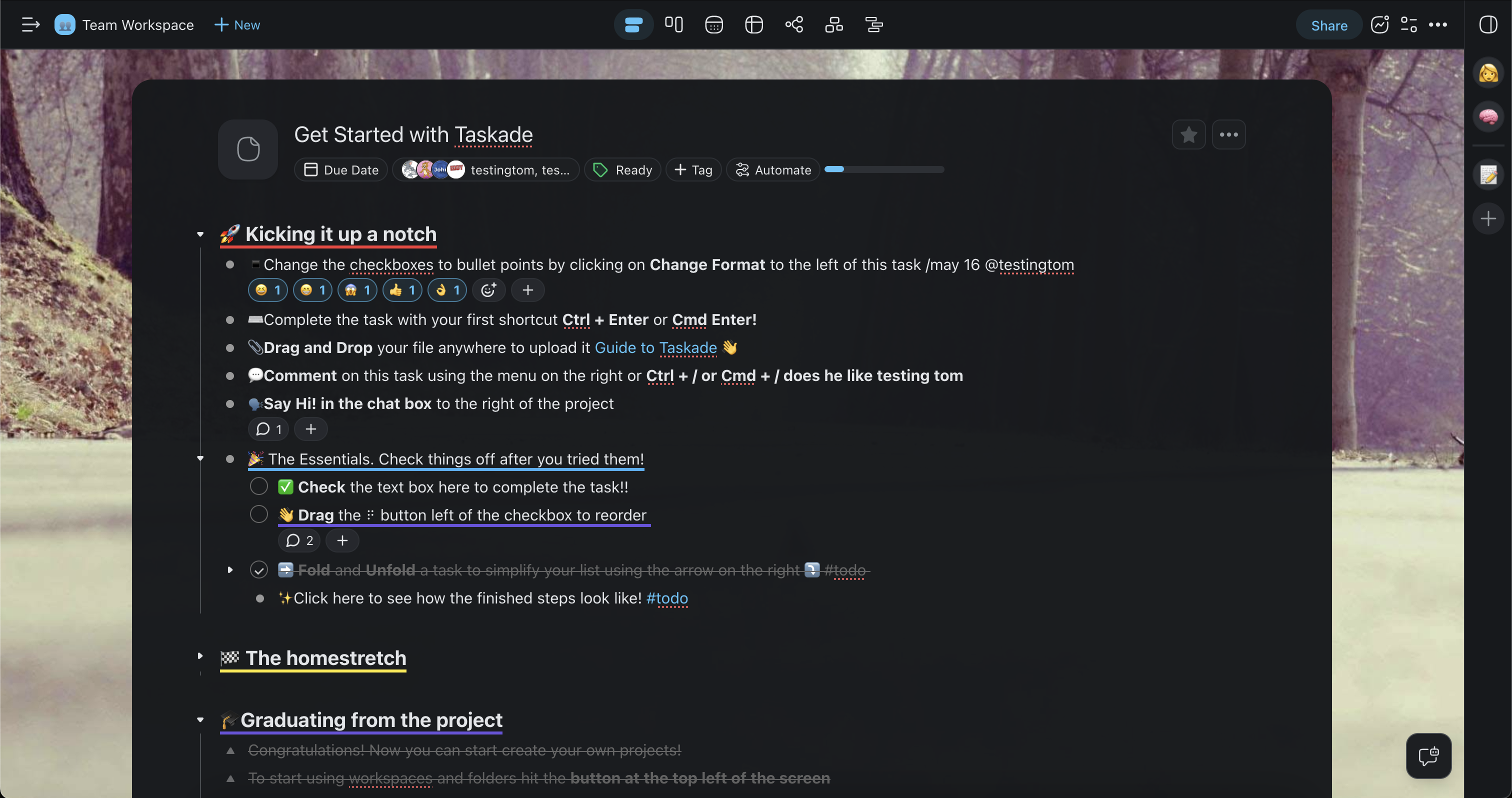
Here is how a List / Outline looks once you nest a few tasks and add an assignee and due date inline:
┌─────────────────────────────────────────────────┐
│  List View  ·  Product Launch                   │
├─────────────────────────────────────────────────┤
│  ✓  Plan the launch                             │
│  ○  Write the announcement                      │
│        ○  Draft the blog post      Maya · Apr 18│
│        ○  Review with the team                  │
│  ○  Schedule social posts                       │
│        ·  Pick the hero image                   │
│        ·  Queue the thread                      │
└─────────────────────────────────────────────────┘
Enable the List / Outline View
- Click the List tab in the project toolbar.
- Double-click the tab to set the view as default.

💡 Note: Changing project views does not affect project contents.
Create an Outline
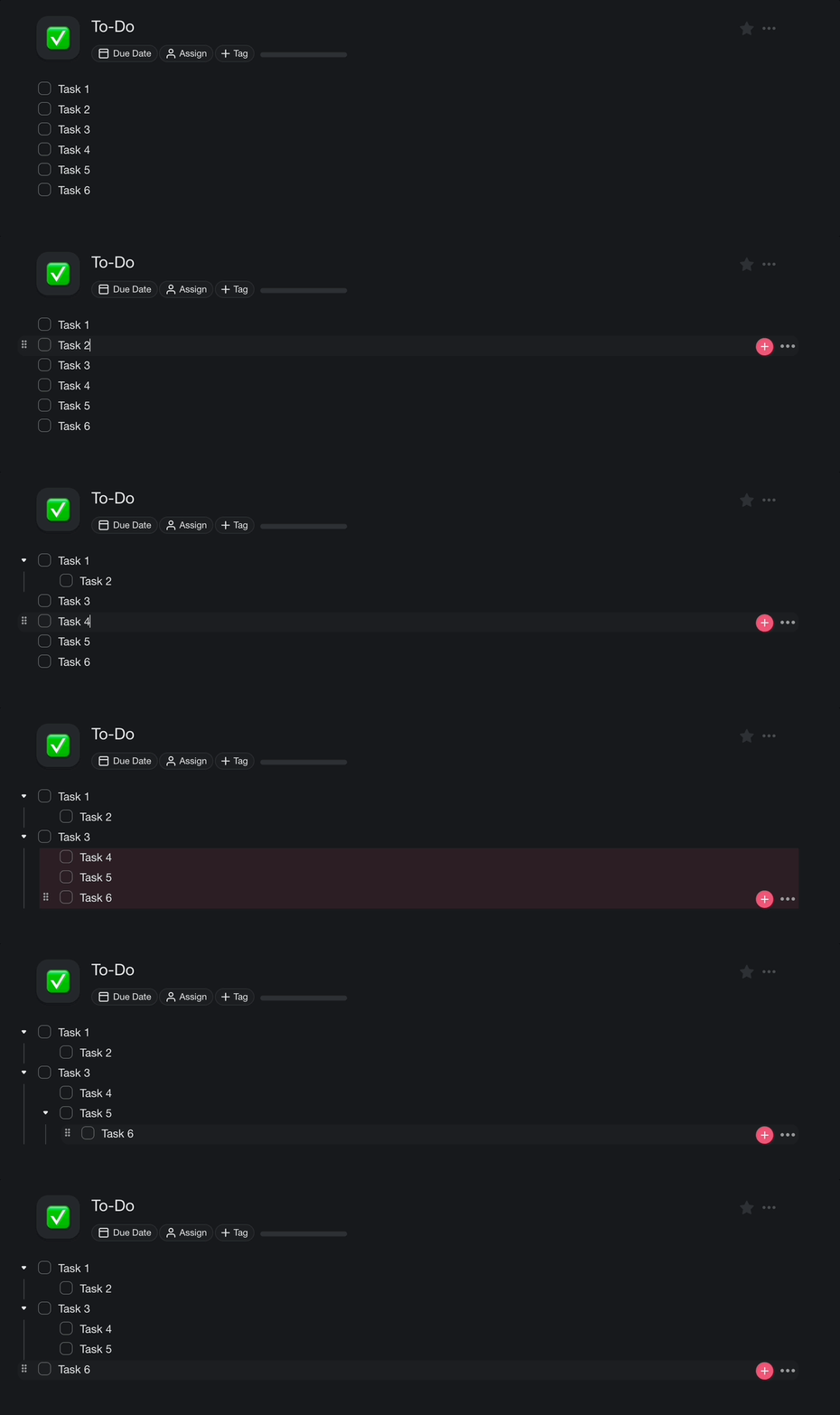
Outlining is the process of creating hierarchies to contain whatever you are thinking or working on. An outline breaks complex processes into smaller, more manageable bits.
Here’s how it works:
- Add a few tasks or notes to your project.
- Select any of the tasks and press ⌨️ Tab to indent it.
- (optional) Indent more sub-tasks to create infinite hierarchy levels.
- Press ⌨️ Shift + Tab to outdent a task.
Export the List to CSV
Export your List view to a spreadsheet whenever you need to hand data to finance, share a snapshot, or open it in Excel or Google Sheets. CSV export now works from List, Table, Board, Calendar, Mind Map, and Org Chart views.
- Click the three dots ··· at the top right of your project.
- Select Export, then choose CSV.
- Open the file in any spreadsheet app.
Every task, assignee, due date, and custom field comes across as its own column. For the full column-by-column walkthrough, see Table View.
Tips
- Use keyboard shortcuts like ⌨️ Ctrl/⌘ + Shift + ⬆/⬇ to reorder tasks without the mouse.
- Add due dates, assignees, and comments directly inline for a complete task management experience.
- Switch to Board view or Mind Map view at any time. Your outline structure is preserved across all views.
- Use the Drag Icon Menu to quickly change formatting, sort sub-tasks, or move items to another project.