

Overview
Media Files is your workspace (and Taskade Genesis app) asset library. Upload and organize files, preview and share them, use in your apps, and start instant Q&A with Taskade AI to extract insights from PDFs, images, and documents.
TL;DR: Upload files once and reuse them everywhere. Media Files stores images, PDFs, documents, spreadsheets, audio, and video, then turns each file into readable knowledge for your agents, automations, and Taskade Genesis apps. Ask Taskade AI to summarize or extract fields, or attach a file as agent knowledge for cited answers.
Media as Agent Knowledge
Every file you upload to Media Files is not only stored. It becomes readable Memory that every agent, automation, and Taskade Genesis app can query:
| Supported file type | What agents can do with it |
|---|---|
| Images (PNG, JPG, GIF, SVG) | Describe contents, extract text (OCR), answer visual questions, reuse in app UI |
| PDFs | Full-text extraction + semantic search + cited answers |
| Documents (DOCX, PPTX, EPUB) | Parse structure, summarize, extract fields |
| Spreadsheets (CSV, XLSX) | Analyze rows, generate insights, convert to project |
| Audio / video | Transcribe, extract highlights, answer timestamped questions |
| Text / Markdown | Ingest as knowledge, chunk for retrieval |
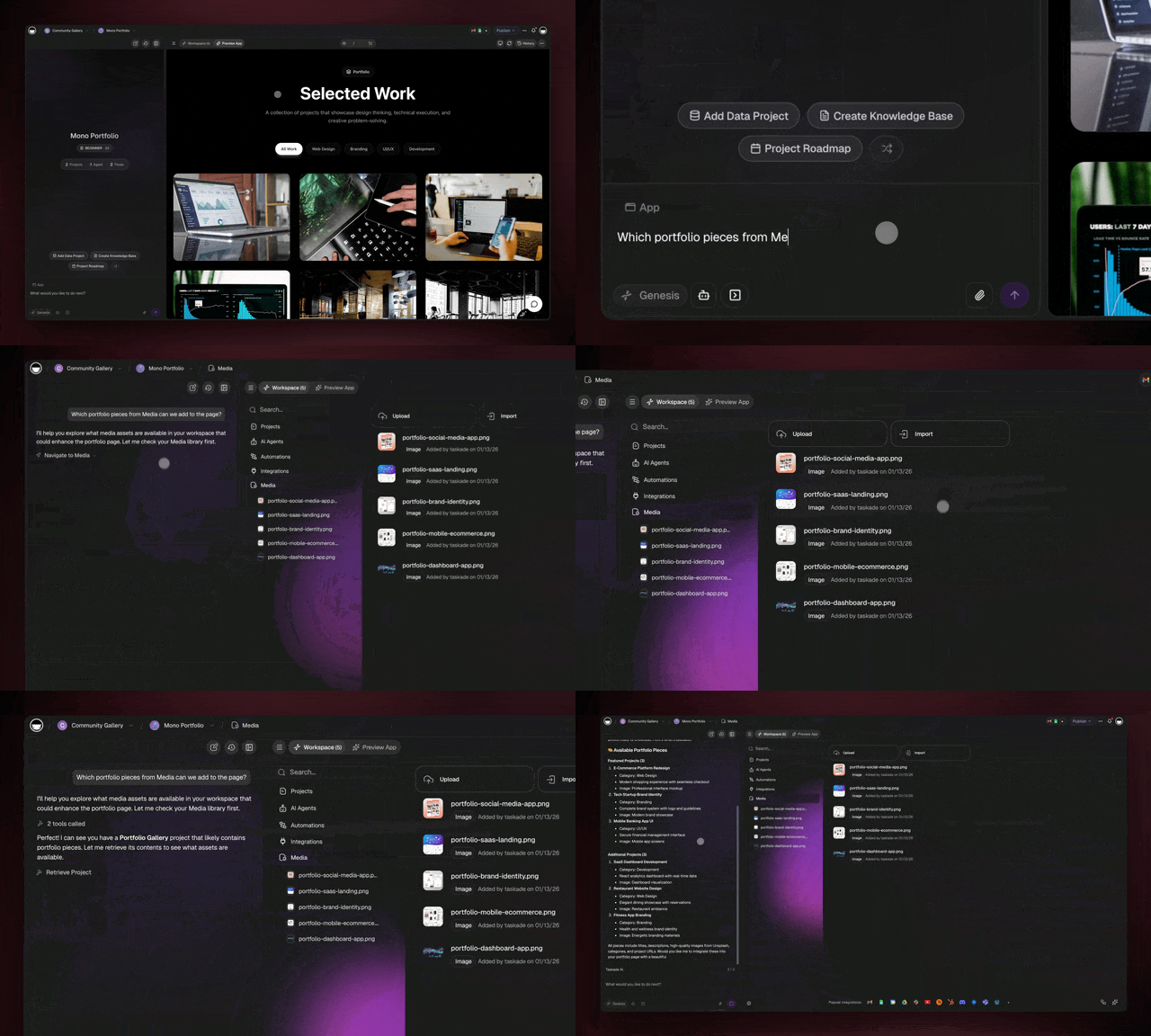
What’s New in Media Files
The redesigned Media experience helps you move faster when building:
- Cleaner browsing + improved search to find the right asset quickly.
- Ask AI from Media to summarize, extract, and answer questions about files.
- Use media as app assets and reuse them across your app UI and workflows.
- Click Automate on a file to start an automation that works on it.
Open Media Files
- Open your workspace/Taskade Genesis app.
- Navigate to Preview → Workspace tab.
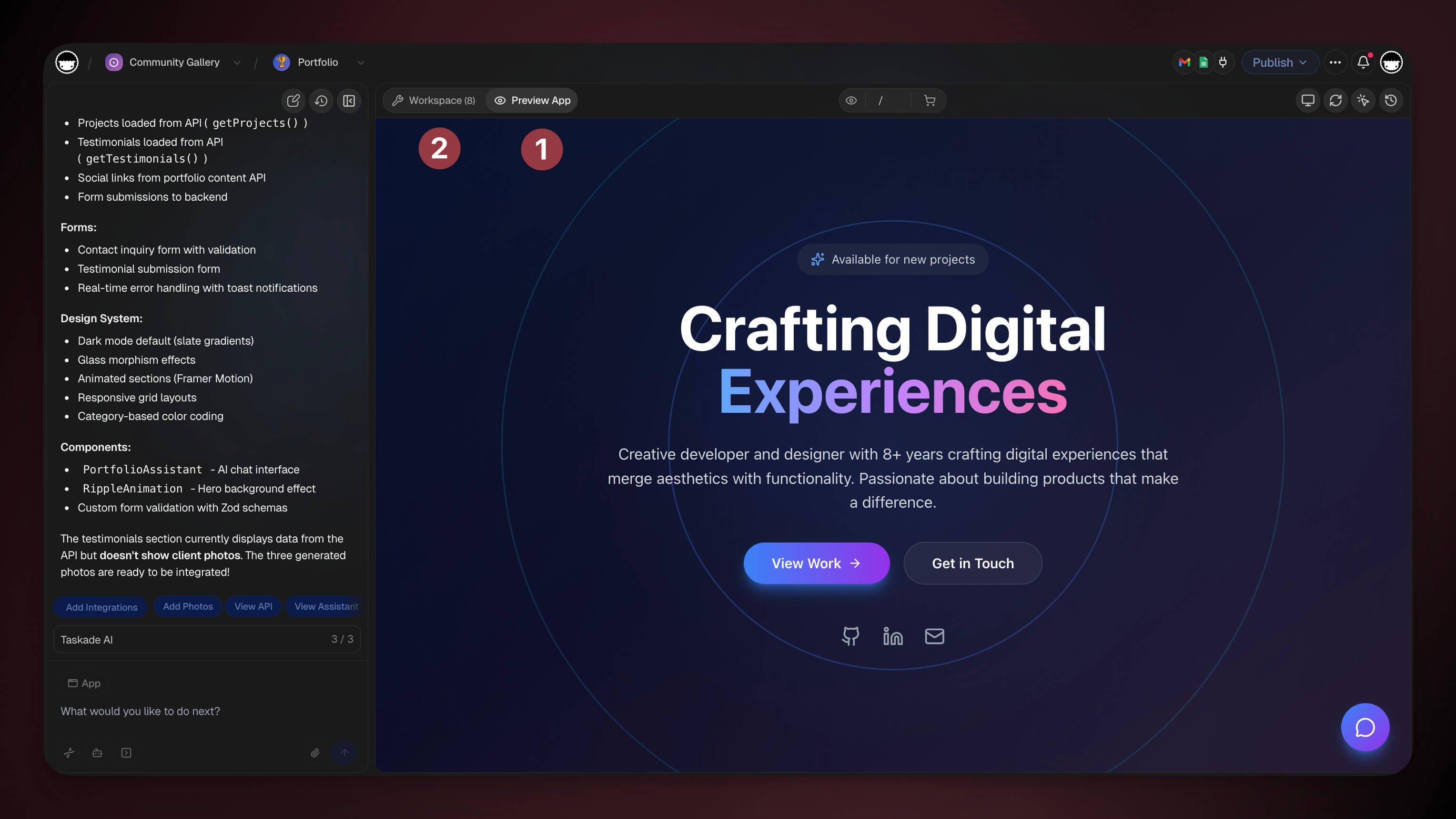
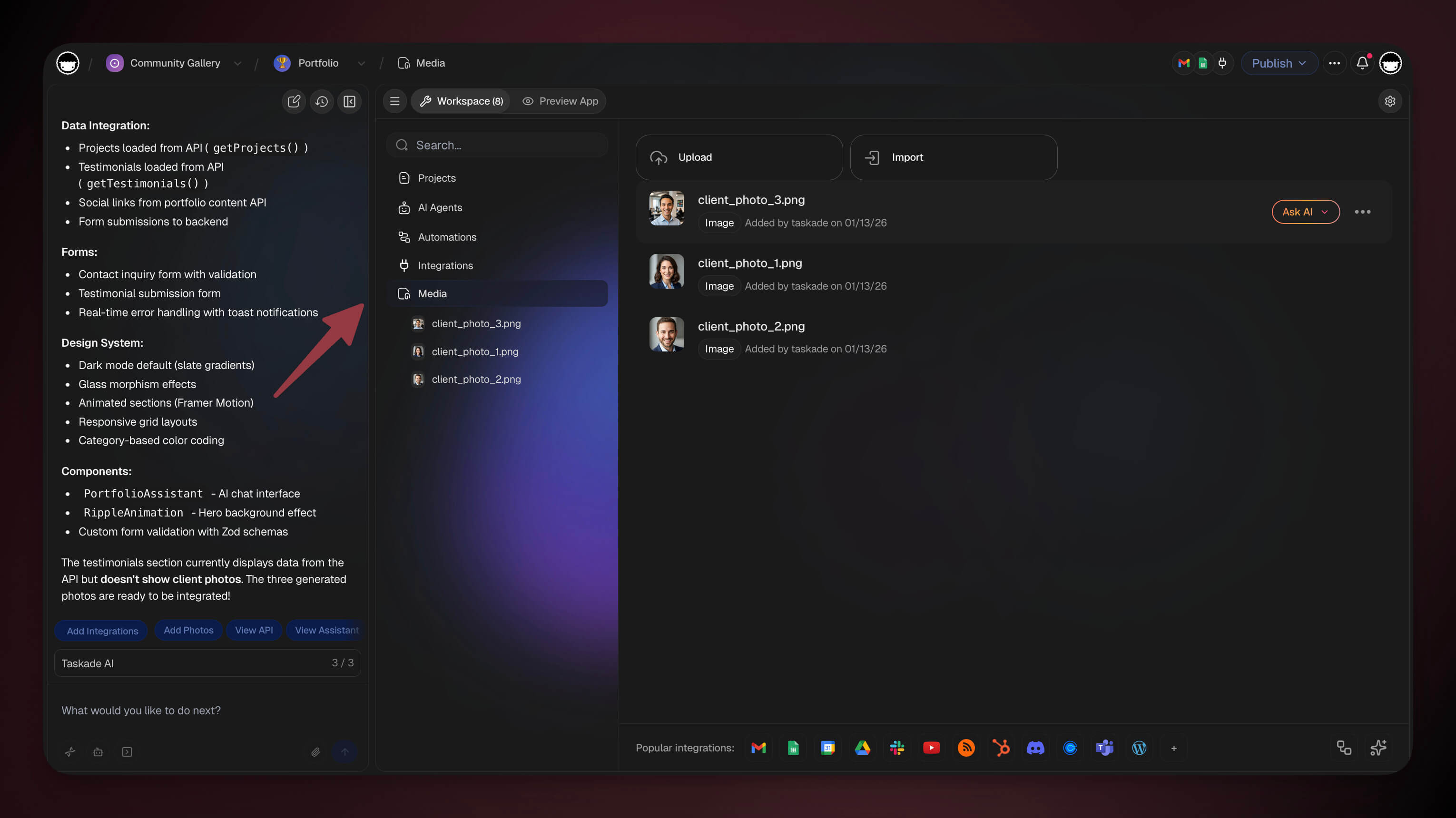
- Select Media from the left sidebar.
Upload to Media
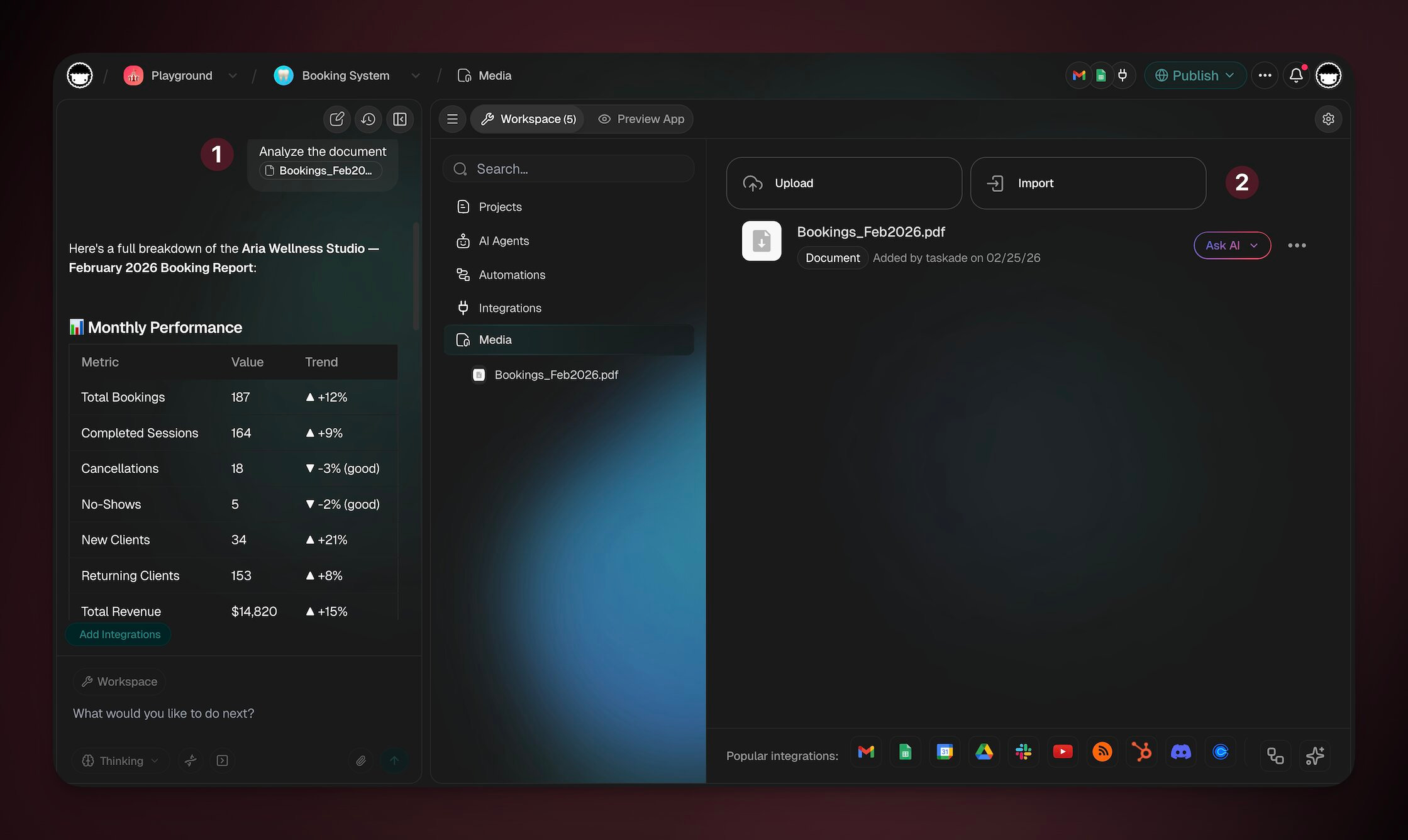
Go to the Media tab.
(method 1) Click Upload to add files from your device.
(method 2) Click Import to add files from cloud storage.
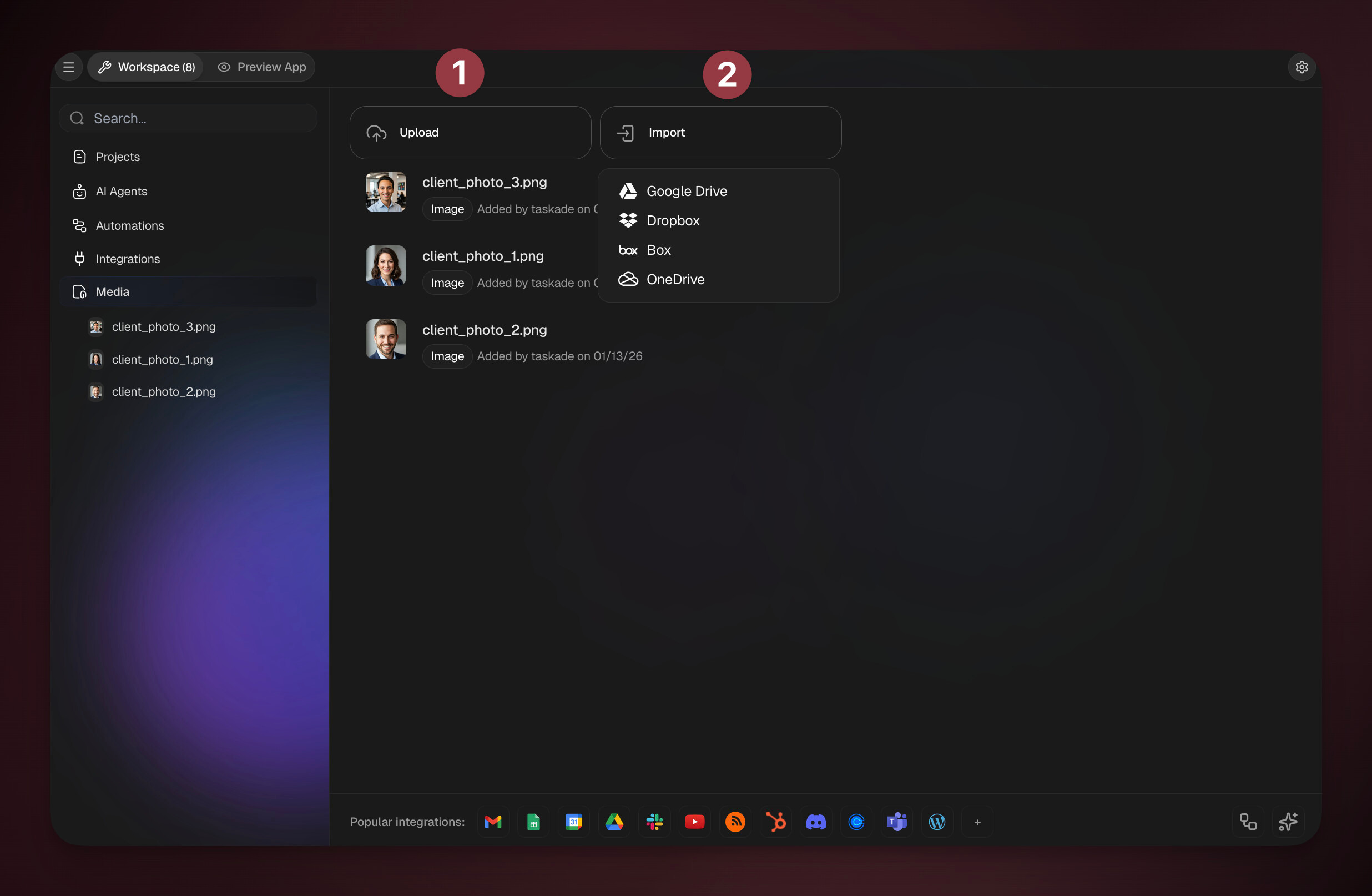
Note: Media also aggregates files you upload into projects and Taskade Genesis apps. Visit Upload Files / Attachments to learn more.
Upload Files in the Chat
You can also upload files directly into the Taskade EVE chat. Uploaded files are automatically saved to your workspace Media Files and can be reused later.
💡 Note: Supported formats: images, PDFs, .txt, .md, and more.
File Sizes and Larger Uploads
Most files attach in seconds. A few tips keep big files moving:
- Working with a large image or document? When you attach a file as agent knowledge or through an import flow, keep each file to about 5 MB. For one-off questions, upload the file to the Media tab or drop it straight into chat instead, which allows much larger files.
- Hit a size limit in the desktop or mobile app? Open the same project in your browser at www.taskade.com and upload there. The web app picks up size improvements first, so a file that stalls in an installed app often goes through right away on the web.
- Want a quick fix on any device? Shrink the image before uploading. Exporting a screenshot as JPG, or running a photo through a free image compressor, usually drops it well under the limit while keeping it readable for Taskade AI.
Note: Uploaded files are saved to your workspace Media Files, so you upload once and reuse the file across agents, automations, and Taskade Genesis apps.
Chat With Your Documents
- Open your workspace / Taskade Genesis app.
- Navigate to Media.
- Hover over a file → click 🤖 Ask AI.
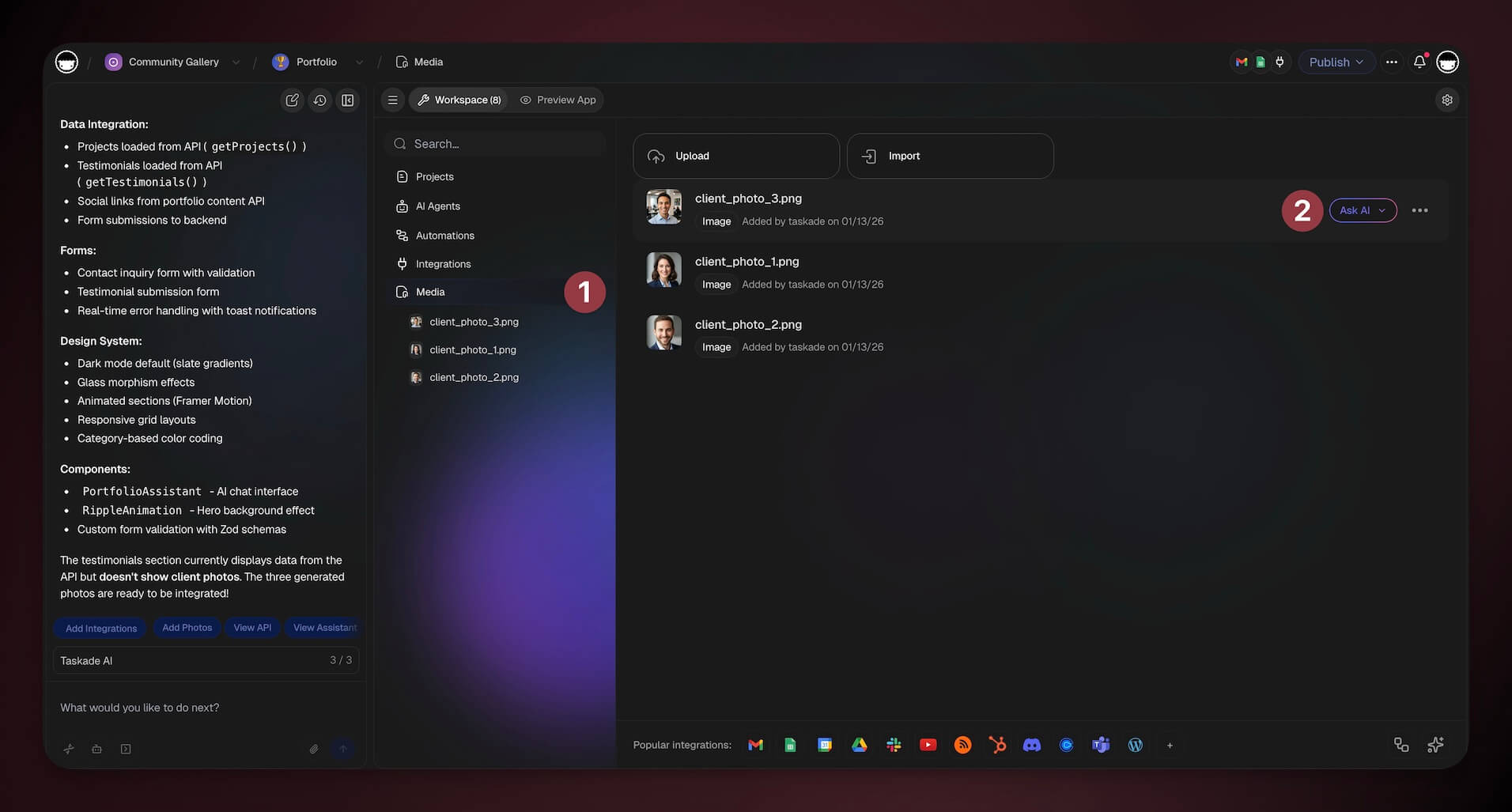
- Choose one of the suggested prompts from the drop- down.
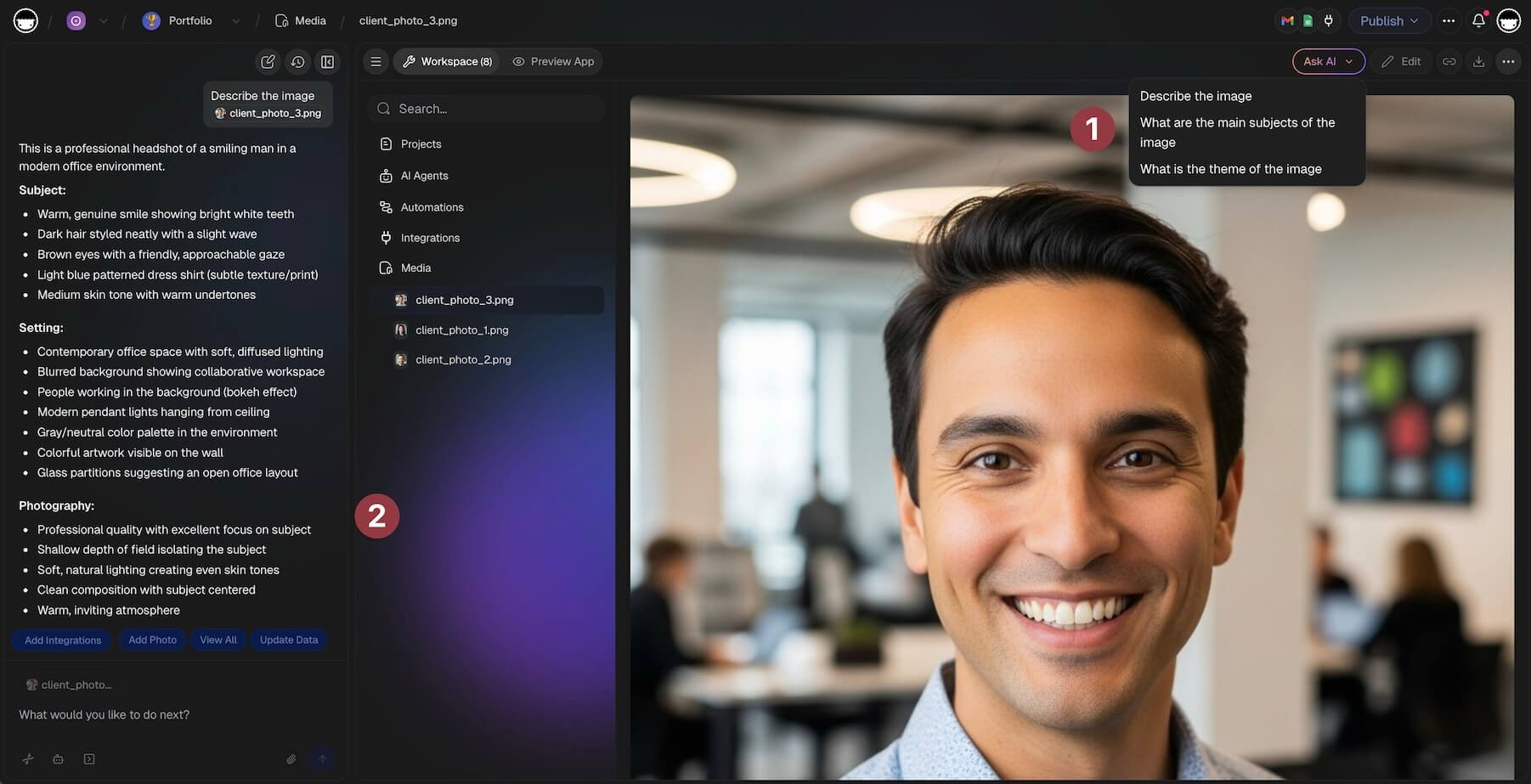
You can also ask questions directly in the chat. For example:
“Summarize this PDF in 5 bullets for our app onboarding.”
“Extract key fields (name, email, plan) from this document.”
“What does this screenshot show, and what’s the next step?”
Automate a File
Start an automation from any file in Media.
- Navigate to Media.
- Find the file, then click Automate on it.
- Pick a trigger or a step. The For Media group lists the media steps first.
- Review the new automation that opens. If you picked a video or audio step for a matching file, the file link is already filled in.
The Automate button appears on a computer, for members who can create automations. See Automate Media Files for the media triggers, file search, and the video and audio steps.
Download / Delete Media
To manage existing Media files:
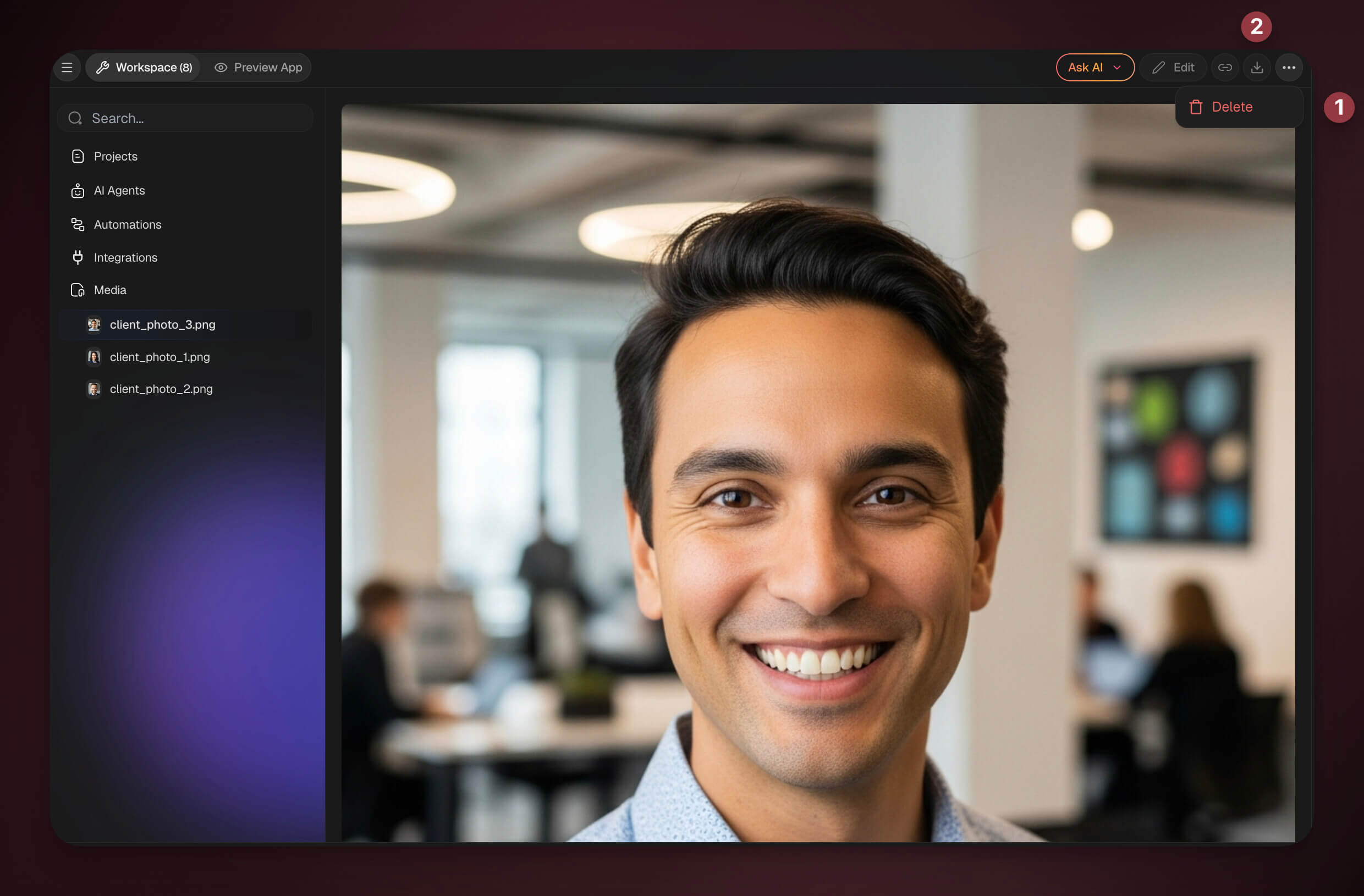
Navigate to Media.
Left-click any file to open its preview.
Click Download to save it to your device.
Click Delete to remove media.
Related guides
- Media Chat. Multi-turn conversations over uploaded files.
- Media Commands. Agent tools that read/transform media.
- Agent Knowledge & Memory. Attach media as permanent agent knowledge.
- Adding Taskade Genesis Context. Upload files when building an app.
- Image Generation. Generate images that auto-save to Media.
- Tools for AI Agents. PDF, OCR, file-read tools.
- Automate Media Files. Start automations from files and work on video and audio.