
TL;DR: Automations are the Execution layer of Workspace DNA: the third pillar alongside Memory and Intelligence. They listen for events like a new email or webhook, then run multi-step flows with branching, looping, and filtering, calling 15+ frontier models and 100+ integrations to write results back into projects. Available on every plan from Free through Enterprise.
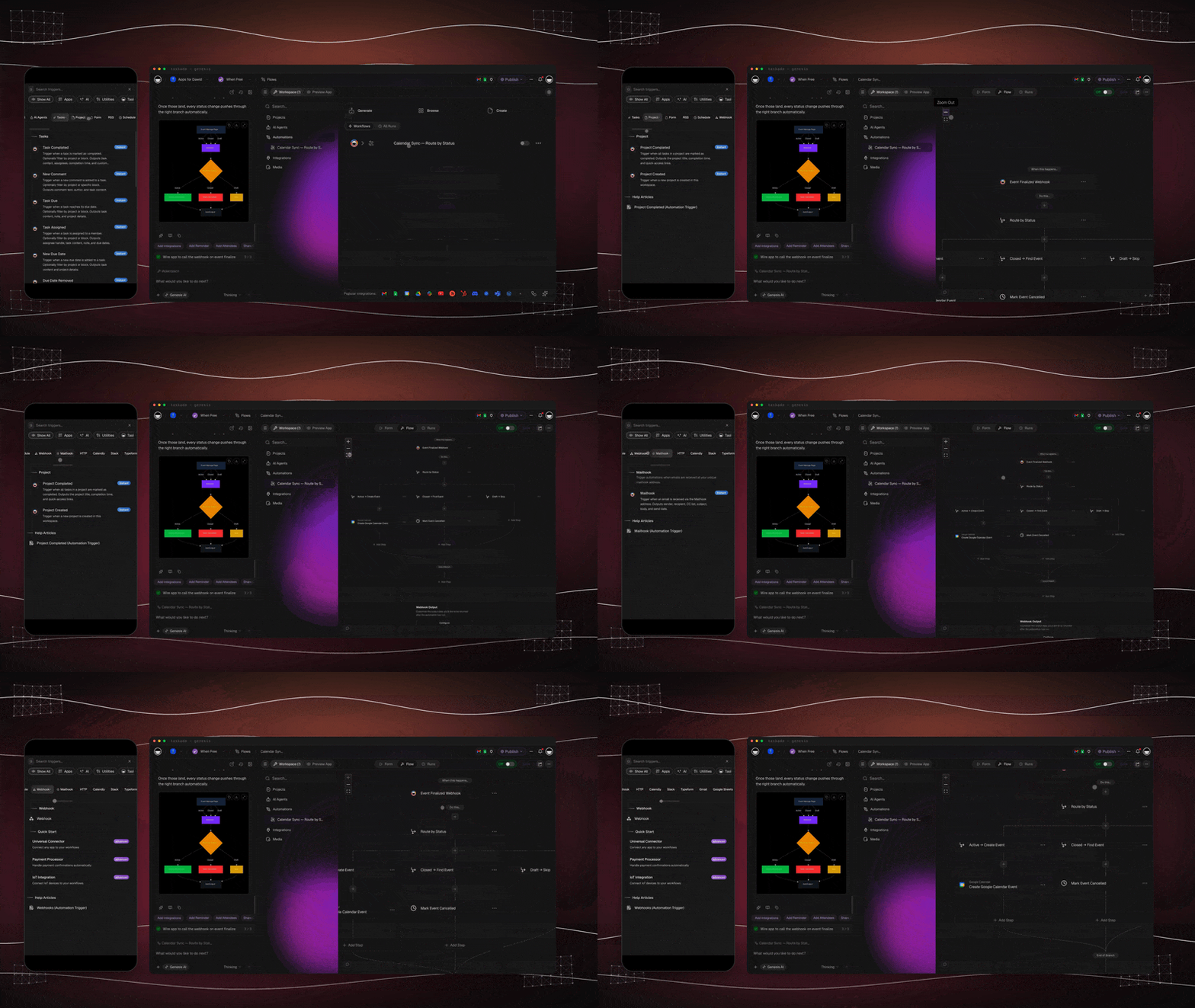
Watch Taskade automations run a real workflow:
What Is a Taskade Automation?
A Taskade Automation is a no-code workflow that does a job for you while you are away. It listens for an event, makes a decision, and takes action across your workspace and 100+ connected apps. Then it writes the result back into your projects. Picture a solo realtor. A new lead fills out the website form. Before the lead closes the tab, the automation emails them back, creates their record in the CRM, and adds a follow-up task. Triggers pull events in. Actions push work out. AI agents make the judgment calls in between. It runs server-side, 24/7, on a reliable durable engine. Build your first one free →
The bidirectional model in one line: Triggers pull events into Taskade (new email, new task, webhook, schedule). Actions push work out to your apps and back into your projects (send Slack, create deal, update field). Same workspace, both directions, no glue code.
One IT program manager built a production field-service dashboard on Taskade Genesis. He put it this way: "What I did in weeks would've taken 40 people 18 months." Automations made that possible, because they live inside the same workspace as his data and his agents. An automation can read a project, ask an agent, and write the answer back in one pass.
What are Taskade Automations?
Taskade Automations are reliable, multi-step workflows. They listen for an event, make decisions, and take action across your workspace and 100+ external services, without you lifting a finger. Every automation follows the same model. A trigger kicks off the flow. Control-flow steps (branch, loop, filter, delay) shape the logic. Actions do the work. Results go back into your Projects, so your workspace keeps learning.
Unlike standalone tools like Zapier or Make, Taskade Automations live inside the same workspace as your data and your AI agents. That means an AI agent can be a step in a flow. A flow can update the project that triggered it. A published Taskade Genesis app can use its automations as the live execution layer for end users.
Execution in Workspace DNA
Workspace DNA is three pillars: Memory stores what your workspace knows, Intelligence decides what to do, and Execution does it. Automations are the Execution pillar. They take signals from Memory, ask Intelligence for judgment, and write results back into Memory in a continuous loop. A published Taskade Genesis app is the surface that puts that loop in front of your users.
Read it as a loop, not a pipeline. Every automation run feeds new facts back into Memory, which gives your agents better context next time, which leads to smarter execution. That self-reinforcing loop is what makes a Taskade workspace feel alive instead of static.
Anatomy of an Automation
Every automation, from a one-step notifier to a 30-step revenue-ops pipeline, is built from the same primitives. A trigger kicks it off. Control-flow steps shape the logic. Actions do the work. Outputs land in your projects, in an external system, or in front of a user.
That is the entire mental model. Once you have built one automation, you have built them all. The only thing that changes is which trigger fires, which actions you chain, and where the data lands.
The full catalog: five built-in step groups (Taskade, AI, Media, Schedule, Utilities), 100+ connected apps, and four control-flow primitives (branch, loop, filter, delay). New triggers and actions land regularly, so browse the current list at /integrations.
Build an Automation: The Full Path
Here is the whole path: pick how you want to start, set the trigger, and chain the steps. Test the automation in Preview before it goes live. An automation is the Execution layer. Its real power comes from an agent that makes a decision inside it and writes the result back to a project.
There are four ways to create one. They all land in the same flow editor.
| Method | Best for | How to start |
|---|---|---|
| Generate with AI | Describing the workflow in plain English | Click Create with AI, describe the flow, pick a mode, then Create |
| Ask Taskade EVE | Hands-off setup from a sentence | Tell Taskade EVE "When a form is submitted, email the lead and add a task" |
| Start from scratch | Full control over every step | Add a Trigger, then Add Step for each action and condition, then Save |
| From a template | A proven flow you can customize | Browse templates, pick a tile, then adjust the trigger and actions |
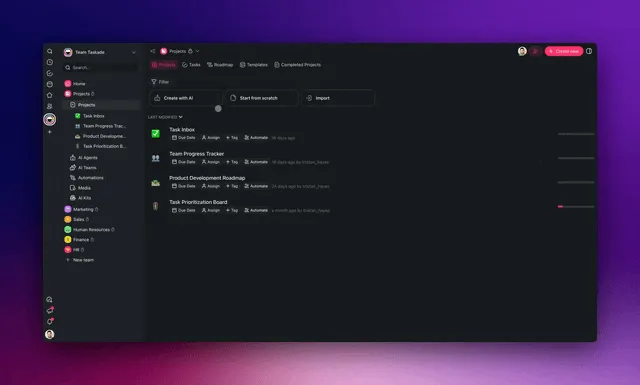
When you generate with AI, you pick a mode that shapes the result:
| Mode | What it builds |
|---|---|
| Auto | Taskade picks the best structure for your description |
| Agent Tool | A flow an agent can call as a tool inside chat |
| Workflow | A standard trigger-to-action automation |
| Form | A form that starts the flow when submitted |
You can also start straight from a project. Open any project, click Automate at the top, then pick a trigger and action. The project is added to the flow automatically, so the automation already knows where to read and write.
Start Where You Already Are
Opening the Automations tab first is no longer necessary. Kick off a new automation right from the place you are already working, and Taskade carries that context into the flow.
- From an agent: open any AI agent and start an automation from it. One agent's work then hands the next move straight to a flow.
- From an agent team: turn an agent team loose and let it pass work from one agent to the next on its own.
- From your media: start from a file or upload and turn it into action, like routing a new document into a project.
- From a project, template, or the Create menu: new launch points across your workspace, so you build where you stand.
Open the Create dropdown and you also get a running start. Instead of a blank canvas, pick a ready-made automation from the starter showcase and shape it to fit your work. A good idea becomes a working flow in minutes. You can also browse the Community Gallery by category, clone a proven flow, and make it yours.
Pass Data Between Steps
Steps share data through variables. Type @ in most fields to reference the output of an earlier step, such as the trigger's email body or an agent's reply. That is how a later step uses what an earlier step produced. Force an agent's reply into a fixed shape with Ask Agent With Structured Output so downstream steps can read it reliably.
Preview, Build, and History
Every flow has three working tabs. Build is where you assemble triggers and steps. Preview shows forms and shared views the way other people see them. History logs every run with the data that flowed through each step, plus one-click retry.
Triggers
Triggers are the "if this" half of an automation. They monitor your workspace and external services, and the moment a condition is met they kick off the flow. Taskade triggers span workspace events, schedules, inbound email, webhooks, forms, AI agent chats, and dozens of connected apps.
Full catalog: Automation Triggers
| Category | Common triggers |
|---|---|
| Workspace | Task Added, Task Completed, Task Assigned, Task Due, New Comment, Custom Field Updated, Project Completed |
| AI | Agent Trigger (in-chat), Agent Public Chat Ended |
| Time | Schedule (hourly / daily / weekly / monthly), Delay Until |
| Inbound | Webhook, Mailhook (unique email address), Form Trigger |
| Communication | Slack New Message, Slack Mention, Discord New Message |
| Email & Calendar | Gmail New Email, Google Calendar New/Updated Event, Calendly Event Scheduled |
| Files & Data | Google Sheets New Row, Google Drive New File, Google Forms New Response |
| CRM & Marketing | HubSpot New Deal, HubSpot Deal Stage Reached, Typeform New Submission |
| Web & Dev | RSS New Item, YouTube New Video, GitHub New PR/Issue/Push, Webflow Form Submission |
Actions
Actions are the "then do that" half. A trigger fires, and your control-flow steps decide what happens next. Actions then do the work: inside Taskade, with AI, on the open web, or in any of 100+ connected services.
Full catalog: Automation Actions
| Category | Common actions |
|---|---|
| Workspace | Create Project, Add Task, Assign Task, Move Task, Update Custom Fields, Create Project From Template, Find Task(s) |
| AI | Ask Agent, Run Agent Command, Ask Agent With Structured Output, Add Knowledge to Agent |
| Web | Scrape Webpage, Search Web, Transcribe YouTube Video, Convert File to Text, Send HTTP Request |
| Communication | Slack Send Channel Message, Slack Send DM, Discord Send Message, Microsoft Teams Send Message, Twilio Send SMS, WhatsApp Send Message |
| Gmail Send Email, Gmail Find Emails, Gmail Create Draft | |
| Docs & Files | Google Docs Create / Append, Google Drive Create File / Folder, Google Sheets Insert / Update / Find Row(s) |
| Calendar | Google Calendar Create Event, Google Calendar Delete Event |
| CRM & Marketing | HubSpot Create Contact / Deal, Mailchimp Add Contact, WordPress Create Post |
| Social | LinkedIn Share Update, X/Twitter Create Post / Reply, Facebook Create Page Post |
| Dev | GitHub Create Issue / Comment, Lock/Unlock Issue, Get Issue Info |
Branching, looping, filtering
Real work is not a straight line. A new lead can need different handling based on company size. A list of 50 transcripts needs the same step run 50 times. A noisy webhook needs a filter down to the events that matter.
Picture a race director the week before the event. New sign-ups need different handling for each kit choice. Every one of 200 volunteers needs the same confirmation step. Only the "needs a waiver" entries trigger a reminder email. Branch, loop, and filter do exactly those three jobs, as first-class control-flow steps.
- Branch routes the run down different paths based on if/else conditions on any variable. Give it a Fallback path. Without one, a run in which no path matches ends as a failure.
- Loop runs a sub-flow once for each item in an array, perfect for pairing with Find Task(s) or Find Row(s).
- Filter stops the run unless data matches your conditions. The stop is clean, not an error: the Runs tab lists it as Filtered, not Failed. Cheap checks happen first, and expensive AI or integration steps fire only on matching data.
- Delay pauses the flow for a duration or until a specific date. Use it for follow-ups, waits before an approval, and time-of-day sends.
Agents as steps in flows
This is the bridge between Intelligence and Execution. You can add any custom AI agent to an automation as a step. The agent brings everything it has: persistent memory, custom commands, and a large built-in toolkit. It also brings a choice of 15+ frontier models from OpenAI, Anthropic, and open-weight providers.
Three action types let agents drive flows:
- Ask Agent: query the agent and use its reply as a variable in later steps. Great for classification, summarization, and yes/no decisions.
- Run Agent Command: execute one of the agent's named slash commands with structured inputs. Great for repeatable specialist tasks.
- Ask Agent With Structured Output: force the agent's reply into a JSON shape that you define. Later steps like Branch, Update Custom Fields, and integrations can then read it reliably.
Here is the trigger → agent → action loop that defines an agentic automation. The agent is the decision-maker in the middle, and its judgment routes the flow.
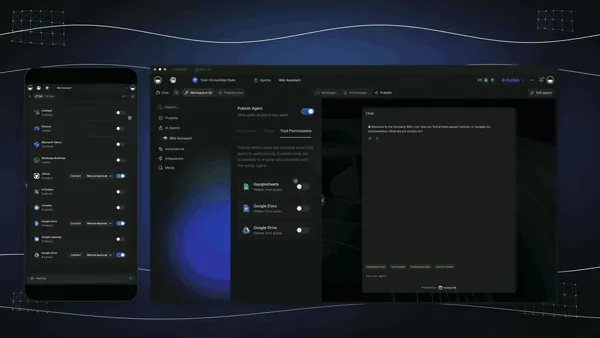
Deep dive: Agent Actions in Automations and Taskade EVE Assistant for the workspace-wide assistant that can build automations for you.
Writing results back to Projects
This is what closes the Workspace DNA loop. An automation that only sends a Slack message is a one-shot. An automation that also writes its result back into the project that triggered it does more. Every run becomes new memory that your workspace can use next time.
Use these workspace actions inside any flow to feed the loop:
- Add Task: append the result as a new task in a target project.
- Update Custom Fields: write status, score, owner, summary, or any structured field back onto the originating task.
- Create Project From Template: spin up a fresh project (for example, onboarding, incident response) populated with the trigger's data.
- Add Knowledge to Agent: feed the run's output into an agent's persistent memory so future decisions get smarter.
The result: every successful automation run is also a learning event. Your projects get richer, your agents get more context, and the next run starts from a smarter baseline.
100+ Connected Apps
Taskade Automations connect to 100+ services across 10 categories, all secured with single sign-in and managed from a single Connections panel. You authenticate once per service, and any automation in your workspace can use it. Every integration is bidirectional: a trigger pulls events in from a tool, and an action pushes work back out to it.
Here is the whole bidirectional model at a glance. The same connection works in both directions. A single flow can read from Gmail and write to Slack and HubSpot, with no glue code in between.
        PULL  (triggers)                              PUSH  (actions)
   ┌─────────────────────────┐                  ┌─────────────────────────┐
   │  Gmail  new email       │                  │  Slack  send message    │
   │  Slack  new message     │                  │  Gmail  send / draft     │
   │  Sheets new row         │ ──►  TASKADE  ──► │  Sheets insert / update  │
   │  HubSpot new deal       │      Workspace   │  HubSpot create contact  │
   │  Form / webhook submit  │      (Memory +   │  Calendar create event   │
   │  Schedule / RSS / GitHub│       Agents +   │  Project add / update    │
   └─────────────────────────┘    Automations)  └─────────────────────────┘
            events in                                   work + memory out
Full searchable catalog of every connector: /integrations.
| Category | Examples |
|---|---|
| Communication | Slack, Discord, Microsoft Teams, Twilio, WhatsApp |
| Email & CRM | Gmail, HubSpot, Mailchimp, Calendly |
| Productivity | Google Docs, Google Sheets, Google Drive, Google Calendar, Google Forms |
| Content & Social | WordPress, LinkedIn, X/Twitter, Facebook, YouTube |
| Forms & Surveys | Typeform, Webflow, Google Forms |
| Development | GitHub, Webhooks, Send HTTP Request |
| Data & Analytics | Google Sheets, RSS feeds, Web Scrape, Web Search |
| Storage | Google Drive |
| Calendar | Google Calendar, Calendly |
| AI & Web | 15+ frontier models (OpenAI, Anthropic, plus open-weight), web scraping, file-to-text, YouTube transcription |
Real workflow example
Here is a flow you can build in under five minutes. A support email lands in Gmail. An AI agent reads it and classifies the severity. The flow branches on the result. Either way, the outcome goes back into a Taskade project, so the team has a single source of truth.
Notice how step 7 closes the loop: the automation writes back into the same project that the agent will read from on the next run. That is the Workspace DNA loop in action.
Try a live automated app first
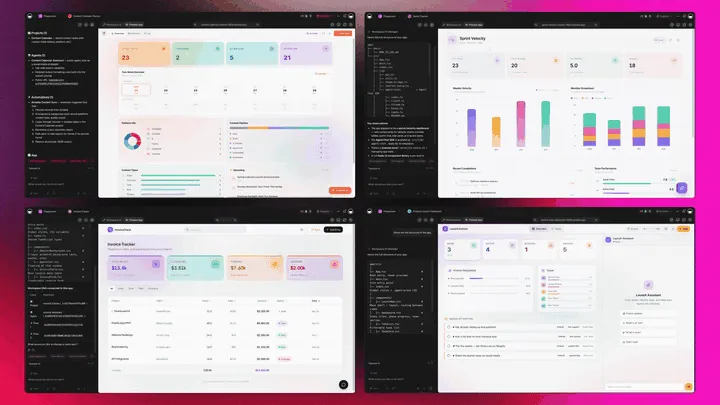
The fastest way to understand the Execution pillar is to open a finished app. Look at its automations, then clone the app and make it yours. These are live Taskade Genesis apps. Click the screenshot to open the share page. Then click "Use this app" to copy the projects, agents, and automations into your workspace in about a minute.
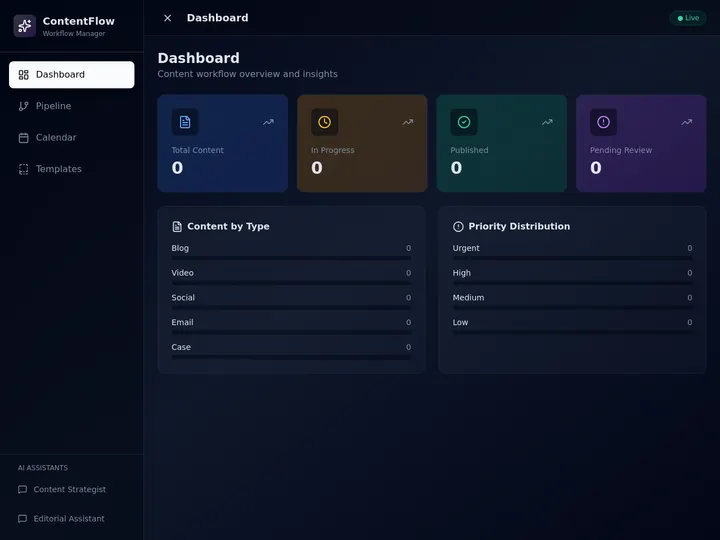
▲ ■ ● This is live. Click the screenshot to open the share page. Then click "Use this app" to clone the Content Workflow Hub into your own workspace. The app holds content projects, a content agent, and the automations that move a draft from idea to published.

▲ ■ ● This is live. Click the screenshot to clone the Support Workflow Manager. A support agent reads each incoming ticket and classifies its severity. An automation then routes the ticket and writes the result back into the queue project. This is the flow from the sequence diagram earlier on this page, already built.
Browse more in the Community Gallery, or describe your own at taskade.com/create.
Verify Your First Automation
Build a real one in about five minutes, then use this table to read the result and know exactly what to fix. The goal: a flow that listens, decides, acts, and writes back, the full Execution loop in one pass.
| # | Do this | You should see | If not |
|---|---|---|---|
| 1 | Open a project, click Automate, pick a trigger | The project is attached to the flow automatically | Re-open from inside the project, not the Automations tab |
| 2 | Add an Ask Agent With Structured Output step | A JSON shape you define for the agent's reply | Pick an agent first, then define the output fields |
| 3 | Add a Branch on one of those fields | Two paths: a "yes" branch and an "else" branch | Confirm the field name matches the agent's output key |
| 4 | Add an action on each branch (Slack, Add Task) | Each path ends in a real action | Use @ to pull the agent's reply into the action |
| 5 | Add Update Custom Fields to write back | The originating task gets a new status or summary | Point it at the trigger's task, not a new one |
| 6 | Click Preview, send a test event | A run appears in History with per-step data | Open the failed step; fix the credential or field |
| 7 | Flip the flow on | The Runs tab logs live runs server-side | Check the connection is authorized in Connections |
Run it on three real examples from the job it was built for. If all three land the right action and write back cleanly, it is ready to scale. If not, the rows above tell you which dial to turn.
How Taskade Compares in 2026
The 2026 shift in workflow automation is the move from rule-only "if this, then that" tools to agentic, durable workflows that reason, adapt, and recover. Taskade was built for that shift from the start. The automation, the data, and the AI agents all live in one workspace. A flow can read memory, ask an agent, and write results back without leaving the platform.
| Capability | Standalone connectors (Zapier, Make) | Taskade Automations |
|---|---|---|
| Where data lives | Separate from the automation tool | Same workspace as the flow |
| AI as a decision step | Bolt-on AI actions | Native agents with a large built-in toolkit + persistent memory |
| Writes back to your projects | No project layer to write to | Yes, closes the Workspace DNA loop |
| Durable, retried execution | Varies by plan | Reliable engine, auto-retry, full run history |
| Becomes a shippable app | No | Yes, automations are the live backend of a Taskade Genesis app |
| Models available | Usually one provider | 15+ frontier models from OpenAI, Anthropic, and open-weight providers |
| Bidirectional integrations | One-way per zap | 100+ connectors, triggers pull in and actions push out |
The point is not that connectors are bad. They are great at moving data between two apps. The point is that Taskade closes the loop. Every run can make your projects richer and your agents smarter, so the next run starts from a better baseline. That compounding is what a standalone connector cannot do, because it has no memory layer of its own.
All Runs tab
The workspace-wide Runs tab in the sidebar lists every automation run across every flow in one place. Use it for a global view across every automation, not one automation at a time.
- Failed-run badge in the sidebar tab so failures never hide
- Filter by status to focus on errors, retries, or completed runs
- Drill into any run for the full payload, action chain, and final result
- Cross-flow patterns become obvious when you see every run side by side
A failed-run health badge also shows on each automation in the listing. The same data is one click away from the per-flow History tab below.
Reliability & error handling
Automations run on a reliable workflow engine designed for production use. A few things you can count on:
- Retries on transient failures: network blips, API rate limits, and 5xx responses are retried automatically with backoff.
- Run history: every flow has a History tab showing each run, the data that flowed through each step, and any errors. Click ↻ to retry a failed run.
- Per-step inspection: hover any step in the History view to see its exact input and output variables.
- Manual retries: fix the underlying issue (bad credential, missing field) and retry without re-triggering the flow.
- Concurrency-safe: multiple runs of the same flow can execute in parallel without stepping on each other.
- Connection management: re-auth a single integration in one place. Every automation that uses it picks up the new token.
See: Preview, Build, and History above for the History view walkthrough.
Pricing & AI credits
Automations are included on every Taskade plan. What changes between plans is run frequency, total run volume, and the AI credits available for steps that call agents or AI models. See full pricing for current numbers.
| Plan | Best for |
|---|---|
| Free | Trying automations and personal flows, with a one-time AI credit grant |
| Pro | Small teams (10 users included), heavy AI usage, agent-driven flows |
| Business | Growing teams, higher run volume, advanced integrations |
| Max | Power users and agencies running high-volume agent workloads |
| Enterprise | Audit logs, dedicated support, custom limits, org-wide rollout |
AI-powered actions (Ask Agent, Generate with AI, Ask Agent With Structured Output, and more) consume credits from your workspace pool. Non-AI steps, like workspace actions, integrations, and control flow, do not.
Common Questions
Do I need to know how to code?
No. Every automation is built visually by adding triggers and steps from a dropdown. If you can describe the workflow in plain English, you can also let Taskade EVE or the AI Workflow Generator build it for you.
Can an AI agent steer a flow?
Yes. With Agent-Powered Automations, an AI agent sits at the top of an automation. The agent reads the trigger data and decides which downstream steps to run. It is the difference between hard-coded "if/else" and an automation that reasons about each input.
What happens if a run fails?
The run is marked as failed in the History tab with the exact step and error message. Fix the issue, then click ↻ to retry. You can also add a Slack or email notification step on the failure path, so you hear about failures immediately.
Can automations edit projects?
Yes. Use Add Task, Update Custom Fields, or Add Knowledge to Agent to feed results back into Memory. This is what closes the Workspace DNA loop and makes your workspace learn from every run.
Can I share an automation?
Yes. From the Automations tab, click ··· → Share on any flow to generate a public link or embed code. You can password-protect shared flows from the same panel.
Do automations run 24/7?
Yes. Automations execute server-side on the reliable workflow engine. Your browser can stay closed.
Can apps run on automations?
Yes. When you build a Taskade Genesis app, the automations attached to the app become its live execution layer. They handle form submissions, payments, notifications, and any custom logic the app needs.
Where do I see what a run did?
Open the flow and click the History tab. Each run is logged with full input/output data per step, success/failure status, and a one-click retry.
How do I find task/project IDs?
Open the task or project, click ···, then choose Copy Link. The ID is the text right after node- in the link. Paste it into any automation field that asks which task or project to read from or write to.
What does bidirectional mean?
It means each connected app works both ways. A trigger pulls events in from the app: a new Gmail message, a new HubSpot deal, a new Google Sheets row. An action pushes work back out to the same app: send an email, create a contact, insert a row. Because the connection is shared, one automation can read from one app and write to another in a single pass. No glue code is necessary.
Are these production-ready?
Yes. Automations run server-side on a reliable durable engine designed for production use. Transient failures (network blips, API rate limits, 5xx errors) retry automatically with backoff. Every run is logged in History with per-step input and output, and you can retry a failed run with one click after fixing the cause. This is the same engine that powers production apps like the field-service dashboard described above.
How is Taskade unlike Zapier?
The 2026 difference is that Taskade puts the automation, your data, and your AI agents in one workspace. Standalone connectors move data between two apps but have no memory layer to write back to. Taskade Automations write results into your projects, feed agent memory, and can even become the live backend of a published Taskade Genesis app. They also reach 15+ frontier models and 100+ bidirectional integrations natively.
Can automations run a live app?
Yes. When you build a Taskade Genesis app, its automations become the live execution layer that end users rely on. They handle form submissions, notifications, payments, and any custom logic. You can publish the app on a custom domain, protect it, and list it in the Community Gallery. That is how an operator runs a business as a living, cloneable app instead of a static document.
Execution in the Full Platform
Automations are one of three pillars. When you wire them to the other two and ship the result, they do their best work.
Here is the whole platform, in plain terms:
- AI Apps: describe an app in a sentence and Taskade Genesis builds a running app, not a mockup. Publish it, put it on a custom domain, or clone someone else's in a minute.
- AI Agents v2: your agents bring a large built-in toolkit, persistent memory, multi-agent teamwork, public embedding, and 15+ frontier models. Taskade EVE is the meta-agent that ties Memory, Intelligence, and Execution together and can build your automations from a sentence.
- Automation: the Execution pillar on this page. Durable workflows branch and loop, agents drive them, and they reach 100+ bidirectional integrations.
- Multiple project views: List, Board, Table, and Mind Map sit inline. The More Views menu adds Docs (Beta), Gantt Chart, Calendar, Actionsheet, and Org Chart. Gantt Chart, Actionsheet, and Org Chart need a paid plan. Timeline lives inside Gantt Chart.
- Community + App Kits: clone live apps, or buy an App Kit once and clone it as many times as you need.
The vision is simple: software you describe instead of build. Every operator runs their business as living, cloneable apps. That is what let one operator replace an estimated "40 people, 18 months" with a few weeks on Taskade Genesis. Automations are the pillar that makes those apps do something. ▲ ■ ●
Start free: describe your first automation → · or explore the Automation feature page.
Frequently Asked Questions
Which plan includes Taskade Automations?
Automations are included on every plan, from Free through Enterprise, with plans differing on run volume and AI credits. See full pricing for current numbers. Build your first one free.
How do AI credits work in an automation?
AI-powered steps like Ask Agent, Generate with AI, and Ask Agent With Structured Output draw from your workspace AI credit pool. Workspace actions, integrations, and control-flow steps do not. Higher plans include more credits for agent-driven flows.
What can an AI agent do inside an automation?
Any custom agent can be a step in an automation. The agent brings its persistent memory, custom slash commands, and a large built-in toolkit. It also brings a choice of 15+ frontier models from OpenAI, Anthropic, and open-weight providers. The agent reads context, decides, and routes the rest of the automation. See Custom AI Agents.
How many integrations can my automations connect to?
Taskade Automations reach 100+ bidirectional integrations across 10 categories. Triggers pull events in, like a new email or a new deal. Actions push work back out, like a message or a new record. Browse the full catalog at /integrations.
Can automations become the backend of a real app?
Yes. When you build a Taskade Genesis app, its automations become the live execution layer that handles form submissions, notifications, payments, and custom logic. You can publish the app, put it on a custom domain, and list it in the Community Gallery.
Are Taskade Automations reliable enough for production?
Yes. Automations run server-side on a reliable durable engine, so your browser can stay closed. Transient failures retry automatically with backoff. Every run is logged in History with per-step data. You can retry a failed run with one click after you fix the cause.
Related guides
- Automation Triggers. Full trigger catalog (the "pull" half).
- Automation Actions. Full action catalog (the "push" half).
- Branch Action · Loop Action · Filter Data · Delay Action. Control-flow primitives.
- Agent Action. Use AI agents as workflow steps.
- AI Workflow Generator. Text-to-automation.
- Build an AI Agent: The Complete Playbook. The Intelligence pillar that drives your flows.
- Custom AI Agents. Build the agents that drive automations.
- Taskade EVE Assistant. The workspace-wide assistant that can build automations for you.
- Workspace DNA. How Memory, Intelligence, and Execution fit together, and how apps surface the loop.
- Taskade Genesis. When automations become the execution layer of a published app.
- Integrations catalog. Every connector, trigger, and action in one browsable index.
- Developer Docs. Run the same operations as code. Most native actions here (create a project, add a task, assign, move, update custom fields) also exist as API endpoints. Start no-code, then drop to the API only where you need it.
Deep reading
- Best AI Workflow Automation Tools (2026). How Taskade compares across the 2026 automation landscape.
- Durable Execution for AI Workflows. Why retries, timeouts, and idempotency matter more than model choice.
- The Execution Layer Thesis. Why AI without execution is a demo.
- Stop Worshipping Prompts. Start Building Workflows. The core Taskade thesis on automation-first AI.
- The 2026 Productivity Playbook. The hub for workflow-first operators.
- Watch: Build an Automation. The shortest path from idea to a running flow.