
TL;DR: Team Folders (now called Apps in Taskade Genesis) group projects under scoped permissions, a client folder, a department folder, a product folder. Workspace members do not get folder access automatically. Invite them per folder. Each folder holds its own projects and templates. See Hierarchy Structure.
Important: Taskade replaced Folders/Teams with Apps. Apps organize work in a similar way, but Apps are purpose-built for building and collaborating on real applications in Taskade Genesis. Read our guide to Taskade Hierarchy Structure or visit Create Your First App to start building.
How a Team nests inside a Workspace and scopes access per folder:
Overview
A Team in Taskade works like a folder on your computer. It is a collection of Projects and Templates nested inside a Workspace. Create Teams to organize your personal projects, team members, departments, or clients.
💡 Note: Teams are private by default, so they suit work with different groups of people in one Workspace.
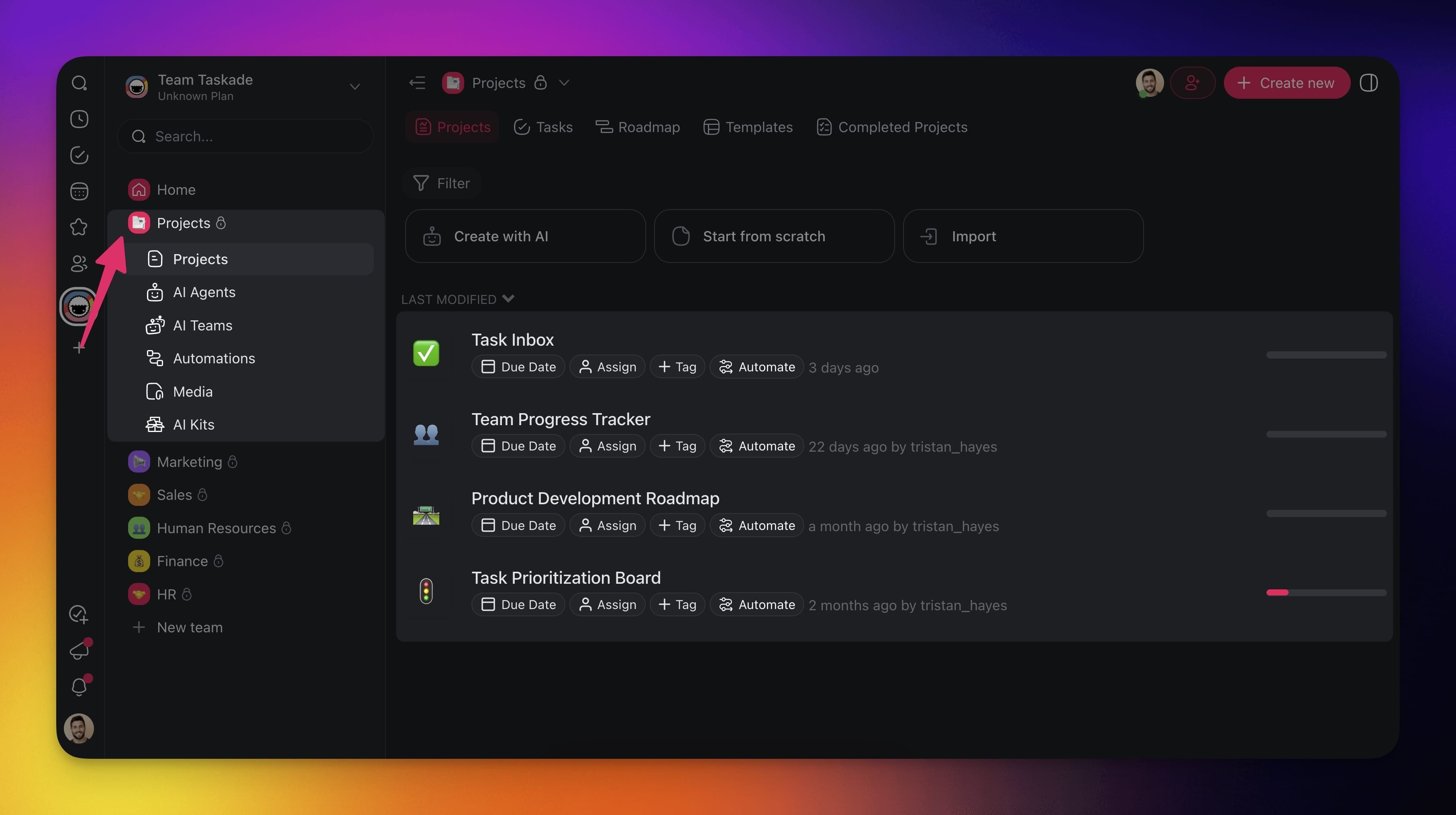
Create a New Team
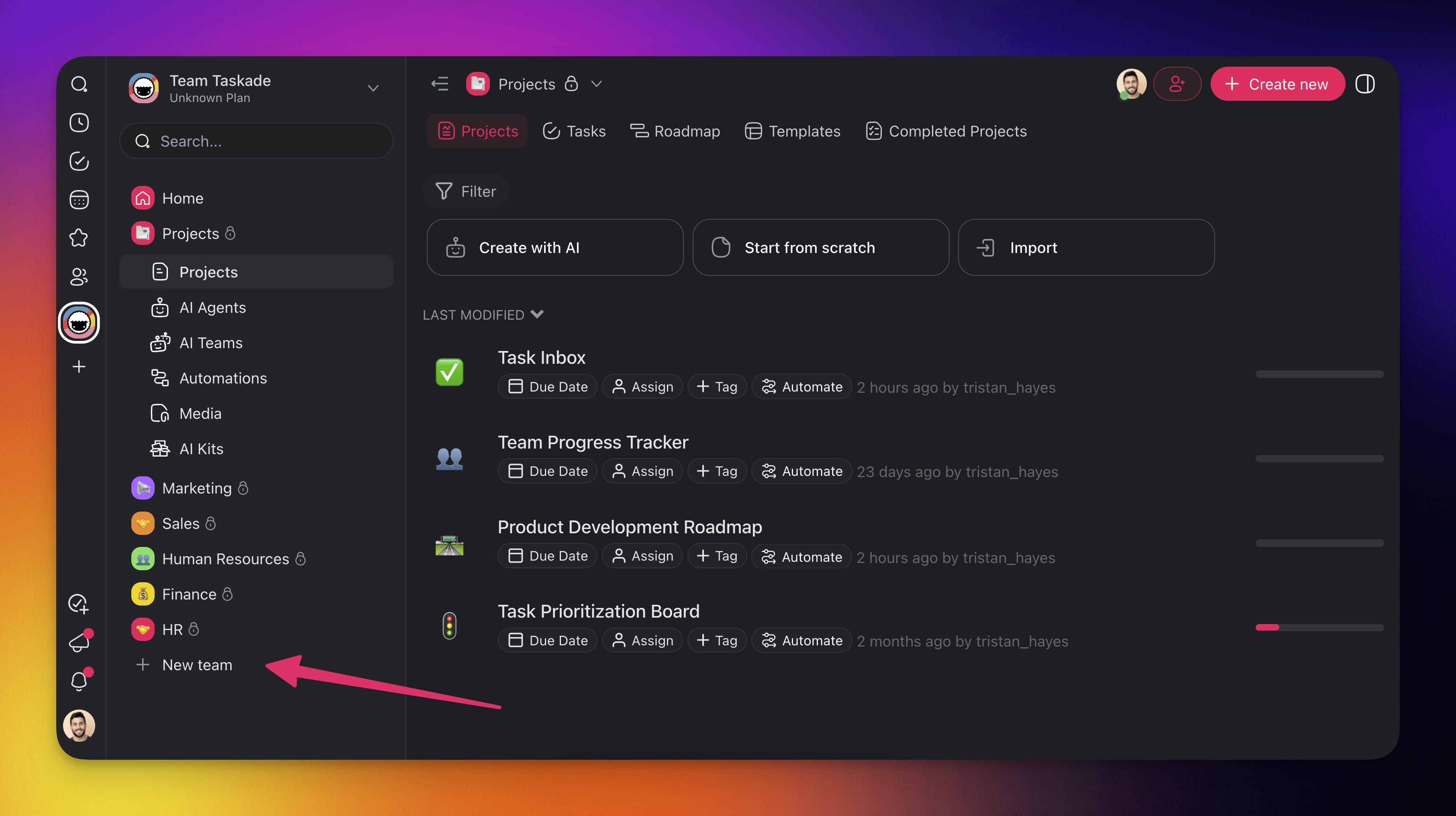
- Open a Workspace and click ➕ New Team in the menu on the left.
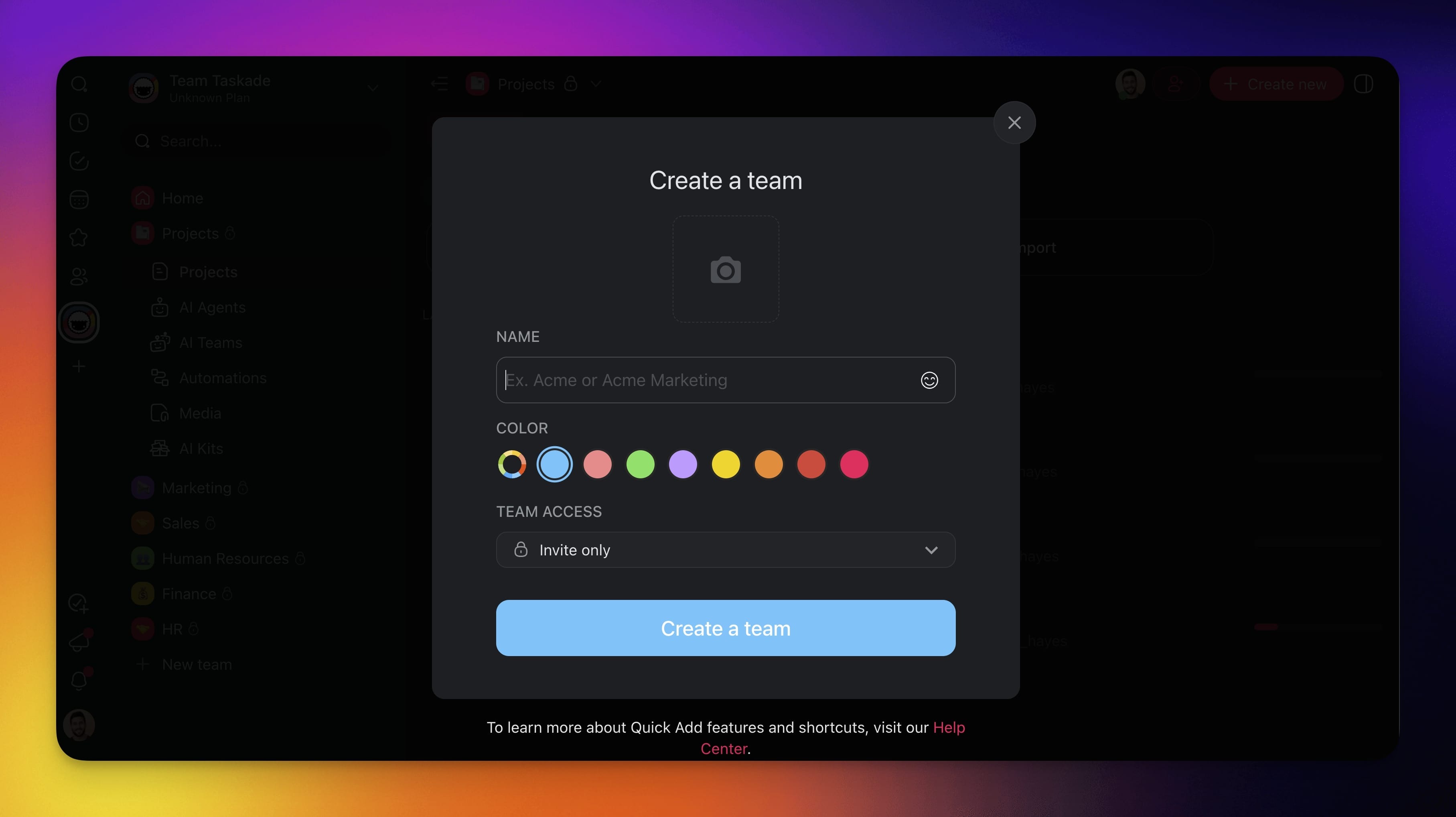
- Enter your Team's name, choose a logo*, and set the Team permissions.
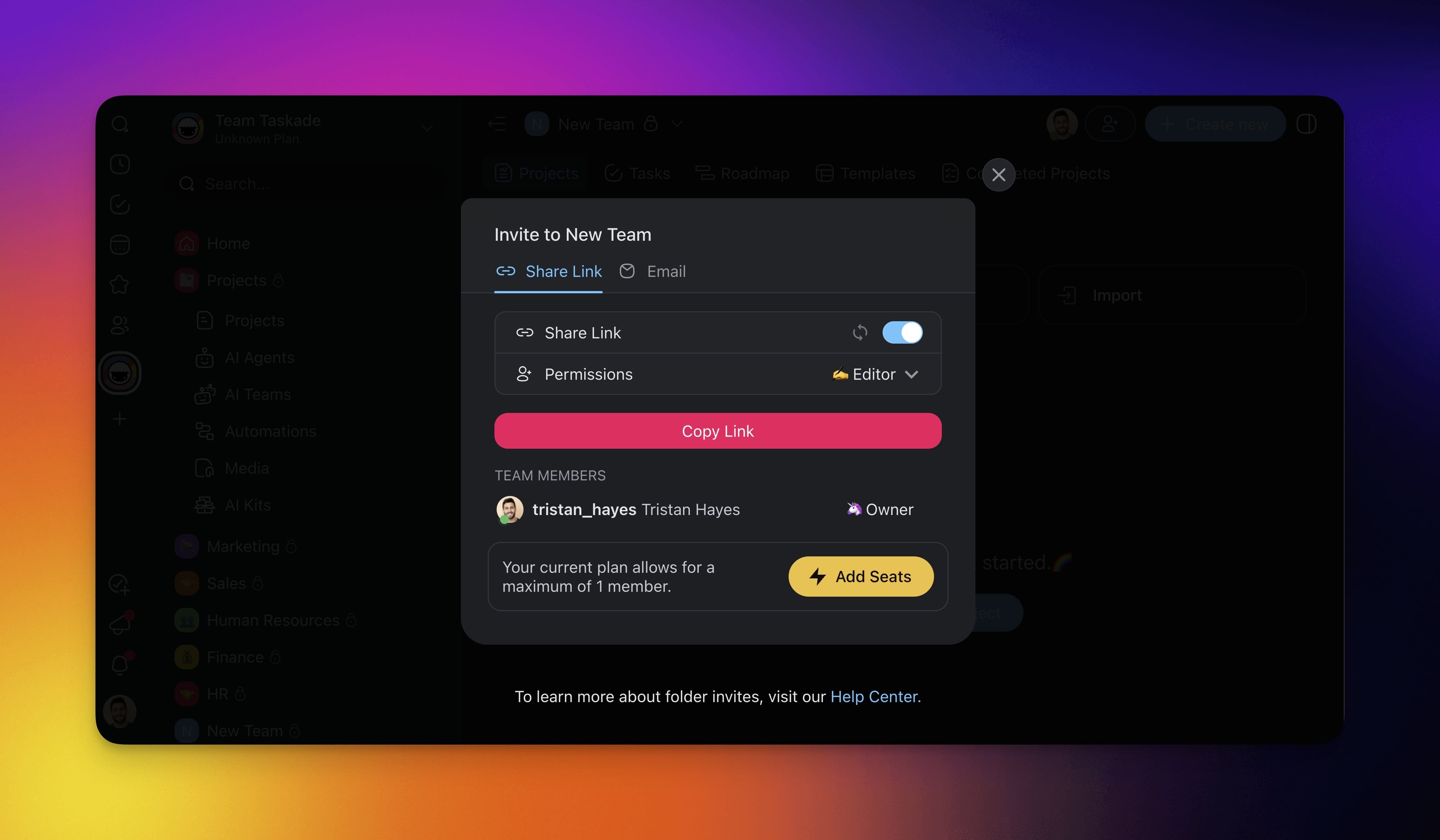
- Taskade prompts you to invite new members to the team.
Note: An upgraded workspace is required to set a team logo.
Share a Team
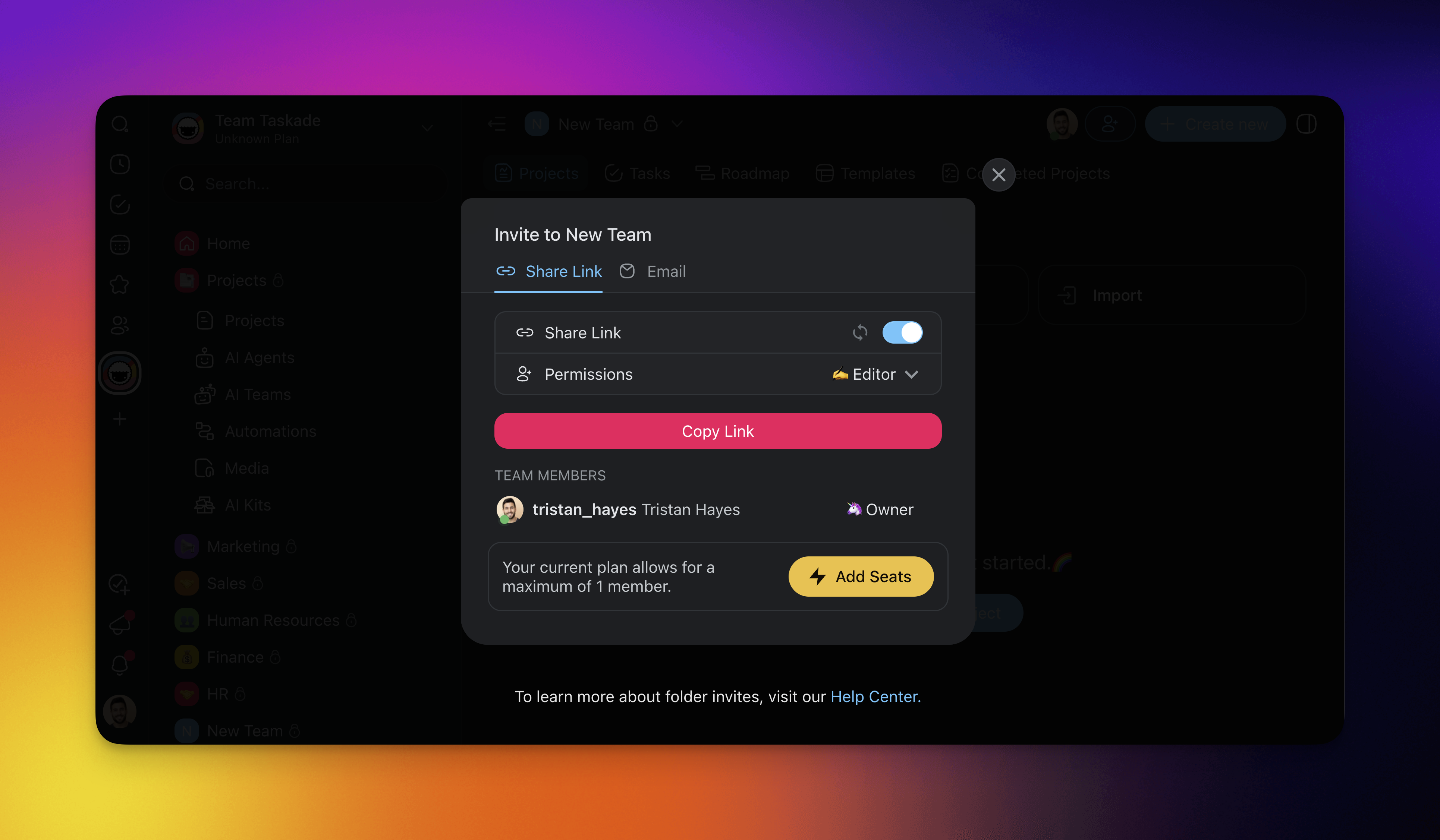
You can invite users to a team by email or with an invite link.
- Open your team and click the Share button in the top right-hand corner.
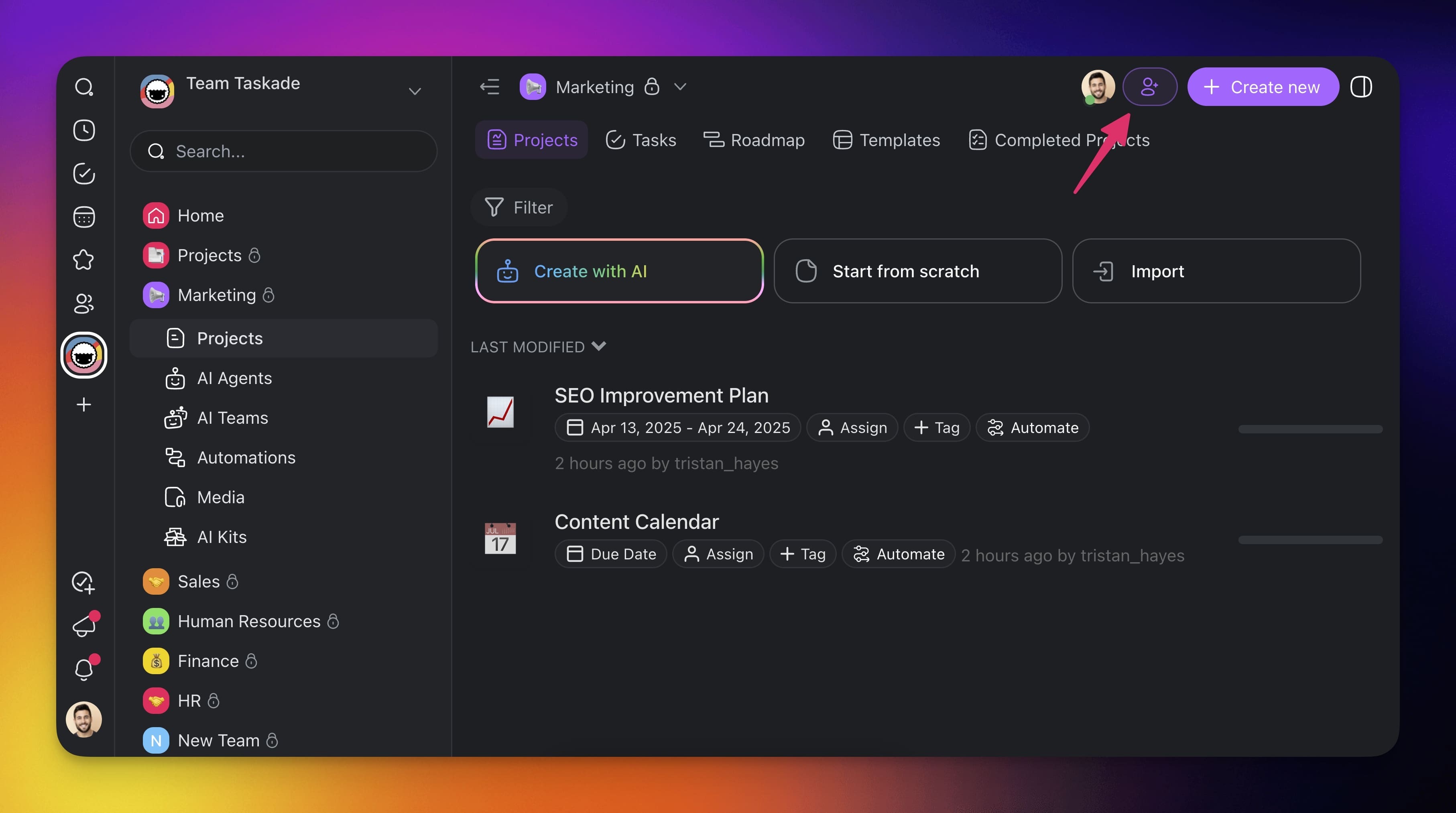
Copy the invite link and share it via email, text, or any other way.
Alternatively, enter their email address
You can also specify the level of access for users who join with the link.
📚 Learn More
- Taskade Genesis FAQ: Common questions about Taskade Genesis apps, pricing, and features
💡 Did You Know?
Taskade has built-in AI Agents and Automations that can work alongside your projects. Try building with AI →
Tips
- Use folders to separate projects by department, client, or initiative within a single workspace.
- Folders are private by default, so sharing a workspace does not automatically grant access to all folders inside it.
- Set app-level permissions to control who can view, edit, or manage projects within the folder.
- You can nest folders to create deeper organizational hierarchies as your workspace grows.