
TL;DR: Taskade supports browser-based video calls inside any project, no Zoom or Meet account required. Grant camera and microphone permission in your browser first. Click the camera icon to start a call, pair with project chat, and record sessions. See Zoom Views for the layout options.
Where you grant camera access depends on how you run Taskade.
Overview
Taskade supports built-in video and audio calls so your team can collaborate face-to-face without leaving the app. Before starting a video call, you need to grant Taskade permission to access your camera and microphone. The steps below cover each supported platform and browser.
MacOS
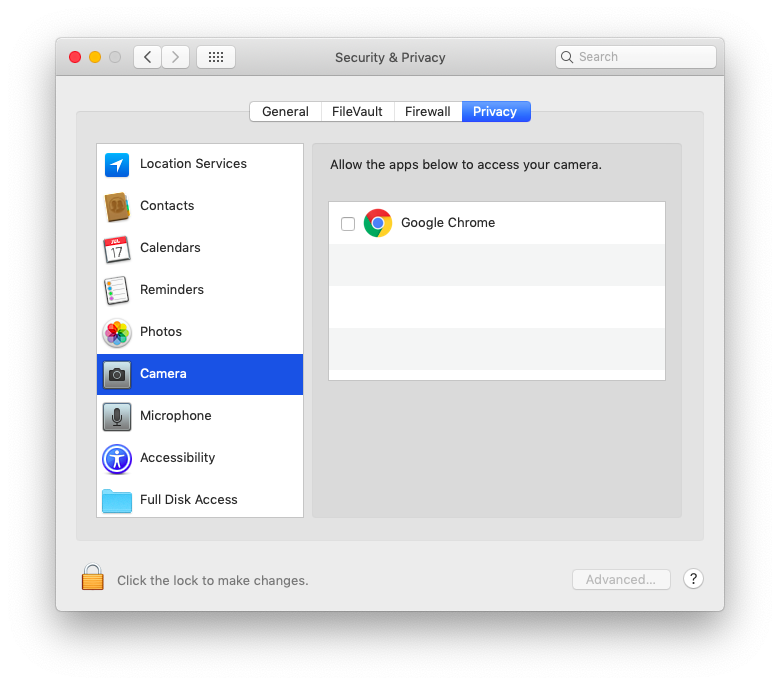
- Click the Apple menu and choose System Preferences (or System Settings on newer versions).
- Navigate to Security & Privacy (or Privacy & Security).
- Open the Camera tab on the left.
- Tick the box next to Taskade in the window on the right.
Windows
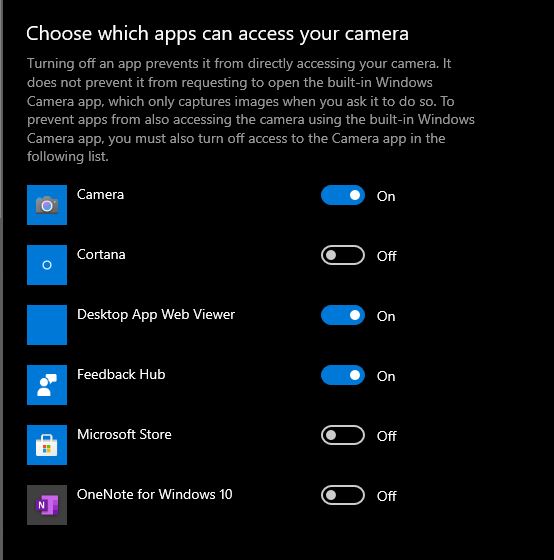
- Go to Start ➡ Settings ➡ Privacy ➡ Camera.
- Choose your preferred setting under Allow apps to access your camera.
- Use the slider to set Taskade camera permission to On.
Chrome Web Browser
- Open the Chrome browser.
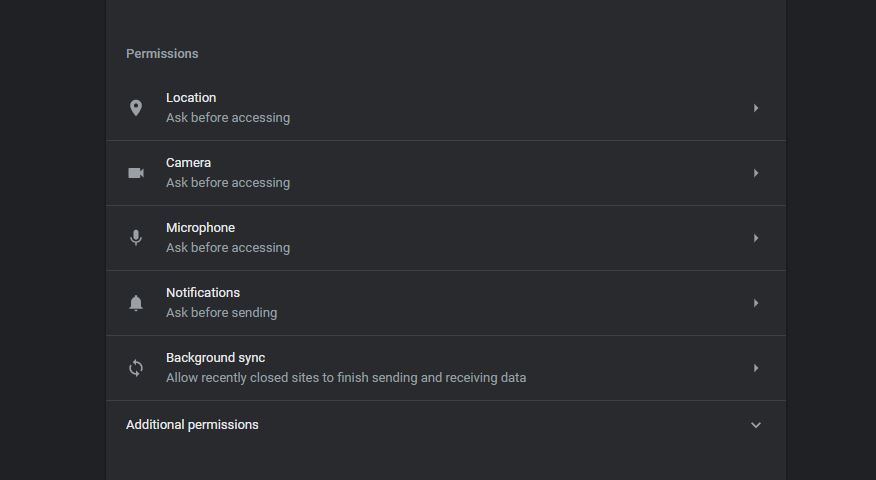
- Click the three-dot menu and select Settings from the drop-down list.
- Go to the Privacy and security tab and click Site settings.
- Click the Camera or the Microphone icon.
- Review your blocked and allowed sites.
- Select Taskade and change the camera/microphone permission to Allow.
- Chrome will automatically save your settings.
Firefox Web Browser
- Click the hamburger button

and select Options. - Click Privacy & Security from the left menu.
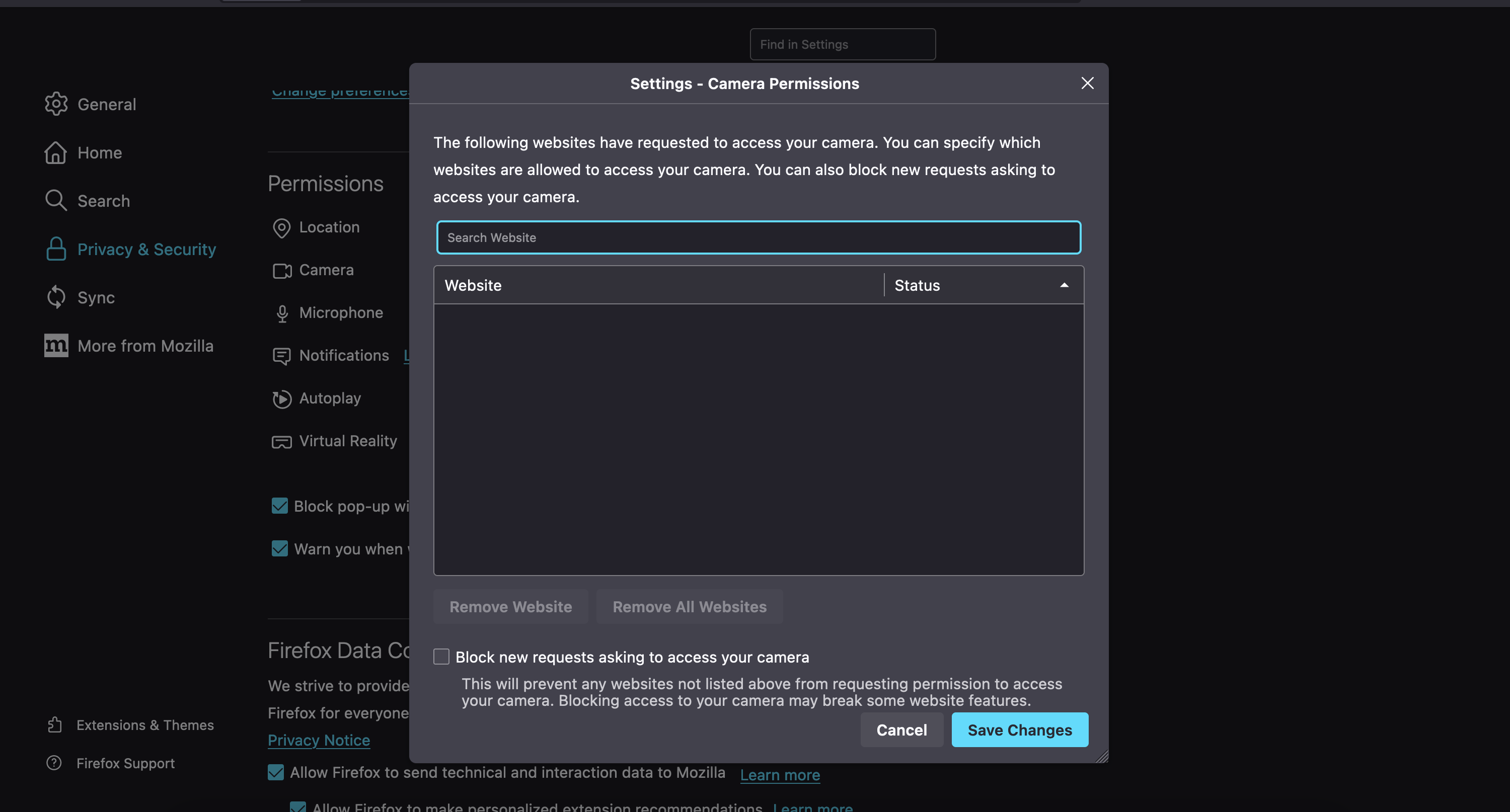
- Scroll down to the Permissions section.
- Click the Settings… button to show Camera options.
- Use the Allow/Block selector to give Taskade access to your camera.
- Click Save Changes to confirm your choice.
Fix Camera Problems
If the camera does not turn on after you grant access, match the symptom to the fix below.
| Symptom | Likely cause | Fix |
|---|---|---|
| Black video, no error | Another app holds the camera | Quit Zoom, Teams, or your system camera app, then rejoin |
| "Permission denied" prompt | Access still blocked | Set Taskade to Allow in system or browser settings, then reload |
| No camera listed at all | Change not applied yet | Restart the browser or Desktop app so the new permission takes effect |
| Wrong camera in use | External webcam not selected | Pick the right camera in your device or browser video settings |
Tips
- If your camera is not detected, try restarting the browser or Desktop app after granting permissions.
- Make sure that no other application, for example Zoom or Teams, is using the camera at the same time.
- You can test your camera before joining a call by opening your system camera app.
- Visit Real-Time Collaboration to learn about other ways to work with your team in Taskade.
Related guides
💡 Did You Know?
Taskade has built-in AI Agents and Automations that can work alongside your projects. Try building with AI →