
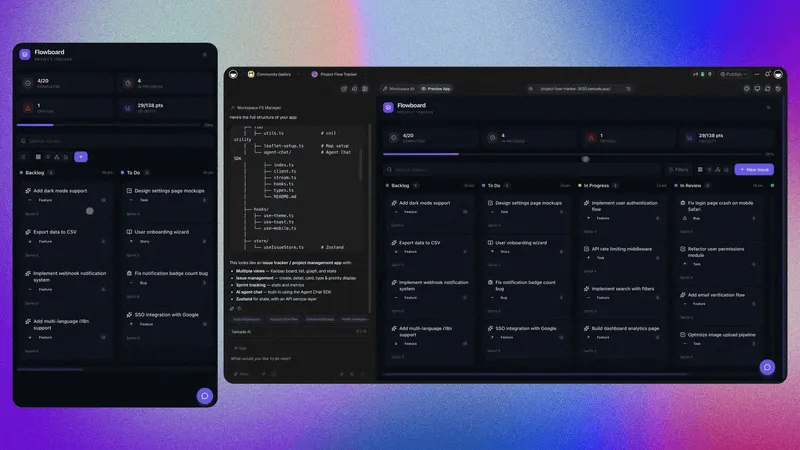
TL;DR: Projects and databases are the Memory layer of Workspace DNA. They store every task, record, file, and field your team works with. They feed that context to your AI agents (Intelligence) and automations (Execution). In a Taskade Genesis app, your projects become the live database backend. One source of truth, multiple views, real-time sync.
Overview
Run a real business on data you own. Every Taskade project doubles as a live database, the Memory layer that your AI agents read and your automations write to. When Taskade Genesis builds you an app, these same projects become its backend, so a booking tool, CRM, or client portal stays in sync with the records behind it.
What Are Projects & Databases?
A project in Taskade is a structured document that doubles as a database. Every task, row, or block is a record. Every column is a custom field. You can view every project as a list, board, table, mind map, doc, Gantt chart, calendar, actionsheet, or org chart. Each view shows the same data with no duplication. When Taskade Genesis builds an app for you, these same projects become the app's database backend. The backend syncs in real time with the live UI.
In short: a project is both a workspace document and a database row store and an app backend, all at once.
Memory in Workspace DNA
Workspace DNA has four layers: Memory (Projects), Intelligence (Agents), Execution (Automations), and Interface (the App UI). Memory is the foundation. Without it, agents have nothing to reason over and automations have nothing to act on.
This is the self-reinforcing loop: Memory feeds Intelligence, Intelligence triggers Execution, Execution writes back to Memory. Every cycle makes your workspace smarter.
Hierarchy: Workspace to Block
Projects live inside a clear hierarchy. Knowing where something belongs makes permissions, search, and agent context predictable.
A block is the atomic unit of memory. Each block can hold custom fields, attachments, sub-blocks, comments, assignees, and AI-generated metadata.
The Project Views
Every project supports multiple views. The data is identical. Only the lens changes. Switch instantly without migration or duplication.
| View | Best For | When to Use |
|---|---|---|
| List | Notes, outlines, hierarchical tasks | Daily work, meeting notes, nested checklists |
| Board | Kanban workflows | Pipelines, sprint boards, status tracking |
| Table | Structured records (database mode) | CRMs, inventories, lead lists, app backends |
| Mind Map | Brainstorming and visual thinking | Strategy sessions, knowledge maps |
| Docs (Beta) | Long-form writing over tasks | Specs, briefs, proposals |
| Gantt Chart | Timelines with dependencies (paid) | Roadmaps, launch plans, multi-phase work |
| Calendar | Date-driven work | Editorial calendars, bookings, events |
| Actionsheet | Simple spreadsheet lists (paid) | Quick trackers, basic CRMs |
| Org Chart | Reporting structures (paid) | Team org, taxonomies, decision trees |
List, Board, Table, and Mind Map are toolbar tabs. The rest live under More Views.
See the full walkthrough in Project Views.
Custom Fields & Databases
Custom fields turn a project into a real database. Add fields like text, number, date, select, multi-select, person, formula, URL, email, phone, attachment, or relation. Each field becomes a queryable column in Table view, a board grouping, a calendar date, or a Gantt dependency, depending on the view you pick.
- Text / number / date: the building blocks
- Select & multi-select: controlled vocabularies for status, tags, categories
- Person: assignment, ownership, routing
- Relation: link records across projects (Customers ↔ Orders ↔ Invoices)
- Formula: computed values (totals, status flags, scores)
- Attachment: files, images, PDFs indexed by search
Learn more in Custom Fields.
Multi-Layer Search
Search makes Memory useful. Taskade runs three search layers in parallel:
- Full-text search: exact keyword and phrase matches across titles, blocks, and fields
- Semantic search: meaning-based search that finds related ideas even when wording differs
- File content OCR: extracts text from PDFs, images, and attachments so file contents are searchable too
Agents use the same search index. Ask an agent "what did we promise the Acme account last quarter?" and it pulls from full-text, semantic, and OCR results at the same time.
Permissions: Role-Based Access
Taskade gives every person a role that runs from Owner down to Viewer. Workspace control belongs to Owner and Maintainer.
| Role | Manage Roles | Edit Projects | Check Off Tasks | Comment | View | Typical Use |
|---|---|---|---|---|---|---|
| Owner | Yes | Yes | Yes | Yes | Yes | Workspace creator, billing |
| Maintainer | Yes | Yes | Yes | Yes | Yes | Co-leads, ops managers |
| Editor | No | Yes | Yes | Yes | Yes | Core team members |
| Checker | No | No | Yes | Yes | Yes | Contractors, guests, reviewers |
| Viewer | No | No | No | Yes | Yes | Read-only audiences |
Permissions cascade from workspace → folder → project, and you can override them at any level.
How Agents Read From Projects
Your AI agents, powered by 15+ frontier models from OpenAI, Anthropic, and open-weight providers, treat projects as their long-term memory. When an agent runs, it can:
- Query a specific project as a knowledge source
- Filter records by custom field values, for example "all leads with score > 80"
- Pull attachments and OCR'd file content into its context
- Cite the exact block it referenced when answering you
- Chain multiple projects together for cross-domain reasoning
Set this up in Custom AI Agents by adding a project as a knowledge source. The agent will re-query the project on every run, so its answers stay fresh as Memory updates.
How Automations Write Back
Automations close the loop. When a form is submitted, a webhook fires, a schedule ticks, or an integration delivers an event, automations can write back to Memory:
- Create a new row in a Leads project when a form submits
- Update a deal's status field when a Stripe payment clears
- Append a booking note to a Customer record after a Calendly event
- Log every agent decision into an Audit project for review
Because automations write to the same projects your agents read from, the next agent run sees the latest state automatically. See Automations for triggers, actions, and branching logic.
Build a Database-Backed App
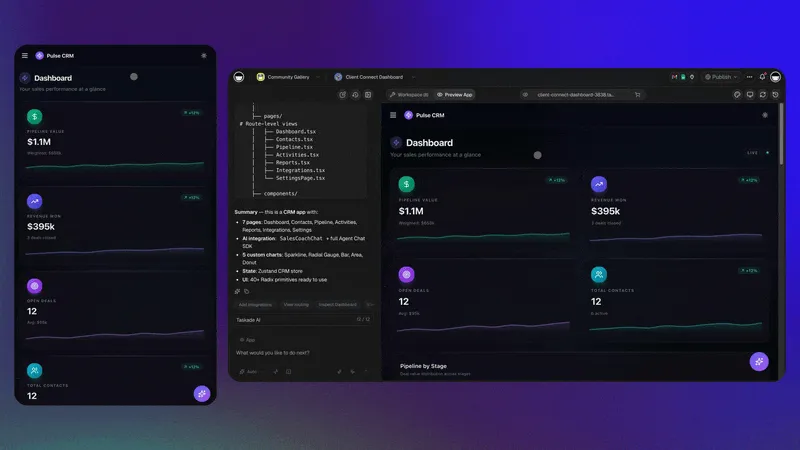
Here is the whole flow: create the projects that hold your data, load the records, then let Taskade Genesis wire them to a live app. The dots that matter: the project is the database. The app is the interface on top of it.
| # | Step | What you do |
|---|---|---|
| 1 | Create the data | In your app dashboard, click New Project, then start blank, from a template, or ask Taskade Genesis |
| 2 | Shape the fields | Switch to Table view and add custom fields for the data you track |
| 3 | Load existing data | Use Projects → Import to bring in a CSV, Excel, or Google Sheet |
| 4 | Connect it | Ask Taskade Genesis to connect the database to the app UI |
| 5 | Automate it | Add automations that read and write the records |
Example Prompts
Describe the outcome and the databases you need, and Taskade Genesis builds them together:
- "Build a yoga studio booking app with separate databases for customers, classes, and instructors."
- "Create an agency client portal with databases for clients, projects, and invoices."
- "Make an inventory app with databases for products, suppliers, and orders."
Automation Recipes
Once the data exists, these flows keep it alive. Each is a trigger on the left and an action on the right:
| When this happens | The automation does this |
|---|---|
| Appointment marked Confirmed | Send a reminder email and add a calendar event |
| Lead score goes above 80 | Assign a rep and create a follow-up task |
| Stock drops below the minimum | Draft a purchase order and alert the team |
| Invoice marked Paid | Update the client record and log revenue |
| New form submission | Create a record and notify the owner |
Best Practices
- Keep each database focused. One purpose per project, with clear field names. A "Leads" project tracks leads, not leads and tasks and notes at once.
- Plan for growth. Add the fields you will need soon, and order them logically so Table view stays readable.
- Control access. Use roles to separate who edits the underlying data from who only views the app on top of it.
Collaboration & Version History
Every project supports real-time multi-user editing. Cursors, selections, and field updates sync live across desktop, web, and mobile. Version history tracks every change, so you can:
- See who edited what and when
- Restore a previous version of a project or block
- Compare versions side by side
- Recover deleted content within the retention window
Comments, mentions, and reactions live alongside the data. Context never leaves the record it belongs to.
Common Questions
Is a project the same as a database?
Yes. Every project is a database. Switch to Table view to see it as rows and columns, or use any of the other 8 views for the same underlying data.
Do I have to choose between a document and a database?
No. A project is both. Outline a doc in List view. When you want structured fields, flip to Table view.
Can agents update my projects?
Yes, when you give them write access through custom tools or automations. Read-only is the default.
What happens to my projects when Taskade Genesis builds an app?
They become the live backend. Edits in the app UI sync to the project. Edits in the project sync to the app UI. One source of truth.
How big can a project get?
Projects scale to thousands of records. For very large datasets, split by folder or relate multiple projects together.
Which plan do I need?
Projects and databases are available on every plan, including Free. Paid plans unlock more storage, longer version history, and higher limits. See pricing for the full breakdown.
Related guides
- Workspace DNA: How Memory, Intelligence, Execution, and Interface form the loop
- Project Views: Switch across all views without losing data
- Table View: The default database interface
- Custom Fields: Schema design for your databases
- Custom AI Agents: Train agents on your projects
- Automations: Write back to Memory automatically
- Import CSV: Load existing data into a project
- Taskade Genesis Apps: Turn projects into live app backends