
TL;DR: Turn any task into a recurring task with daily, weekly, monthly, or custom cadences. When you complete a recurring task, Taskade automatically creates the next instance with a fresh due date. Great for weekly reviews, monthly reports, and standing meetings.
Here is the recurring task cycle, from setting a frequency to the next instance appearing.
Overview
Recurring tasks allow you to set tasks to repeat at specific intervals. When a task is set to recur, a new instance will appear only after the current one is marked as complete. You can choose from preset intervals or set a custom schedule.
Set Recurring Tasks
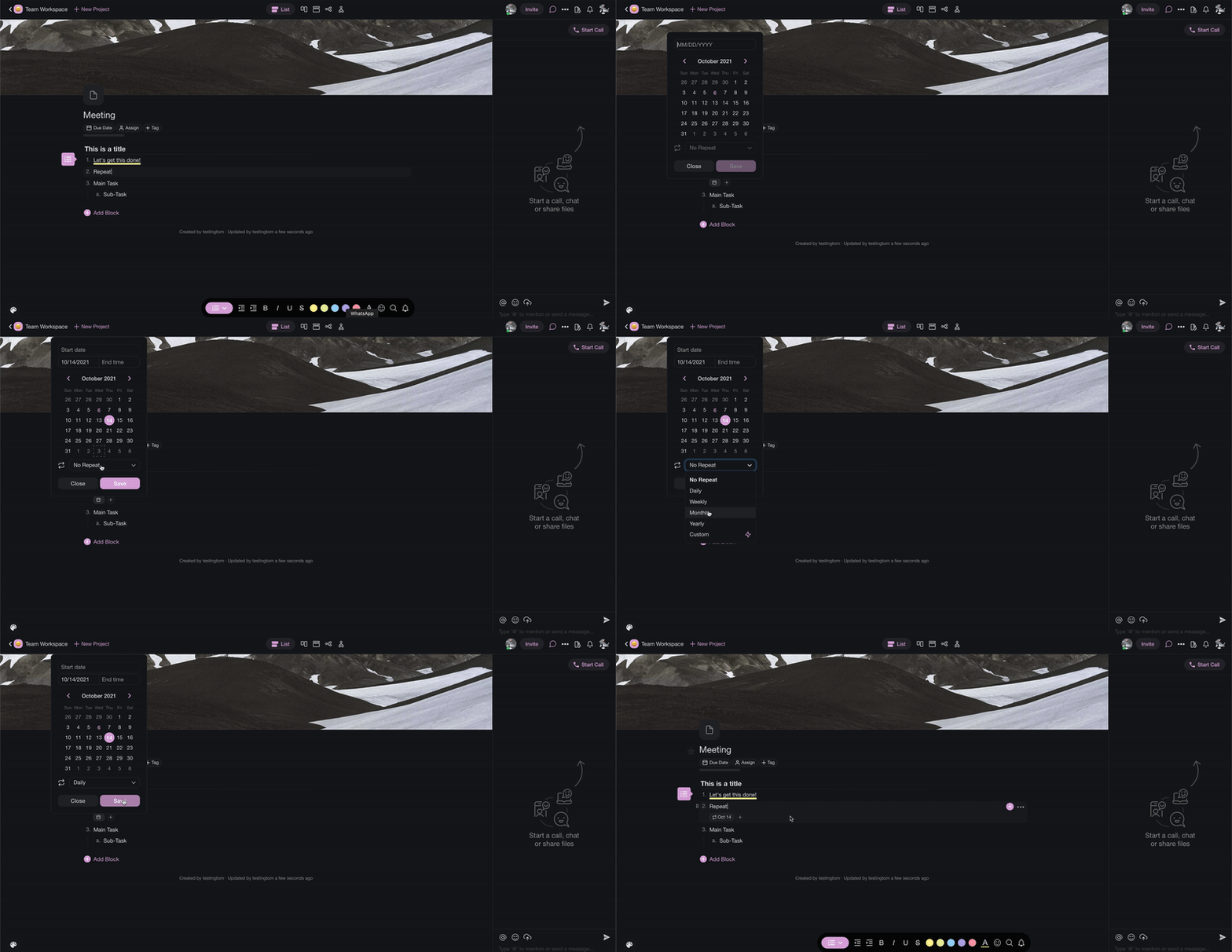
- Create a project and add the task you want to repeat.
- Click the ➕ button next to a task and select 🗓️ Due Date.
- Set the time, and frequency (Daily, Weekly, Monthly, Yearly).
- If you do not choose a time for the task, you will receive a reminder at midnight.
Note: The next repetition of a recurring task will only appear in the project when the current task has been completed.
Recurring Tasks Intervals
| ⏱️ Frequency | 🔤 Description |
|---|---|
| 🟢 Daily | Every day after the day you set the recurring task |
| 🟡 Weekly | Every week starting from the day you set the recurring task |
| 🔴 Monthly | Every month starting from the day you set the recurring task |
| 🔵 Yearly | Every year starting from the day you set the recurring task |
| 🟠 Custom | Set custom repeat intervals to Day, Week, Month, or Year |
Custom Intervals
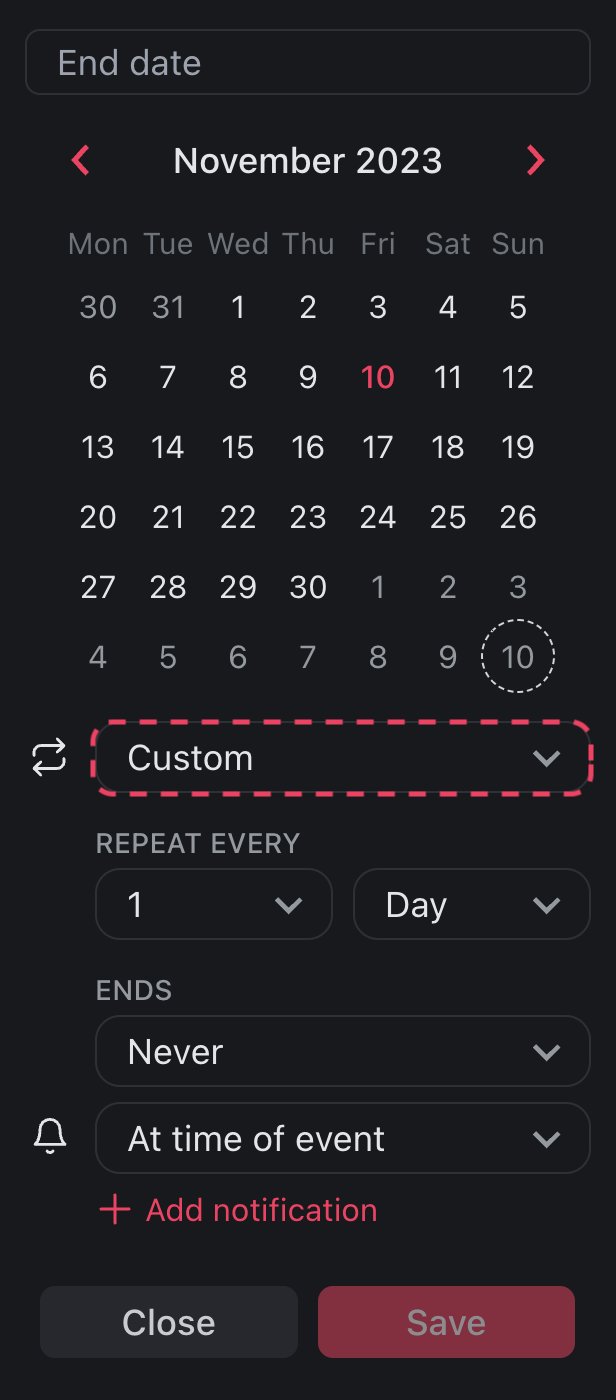
You can further modify recurring tasks and set custom intervals:
- Repeat every ___ day/week/month/year.
- On the ___ day, or on a weekday such as Monday, Tuesday, or Wednesday.
Note: To see the options for specific days, select Custom. Then select Week in the Repeat Every drop-down.
Number of Repeats
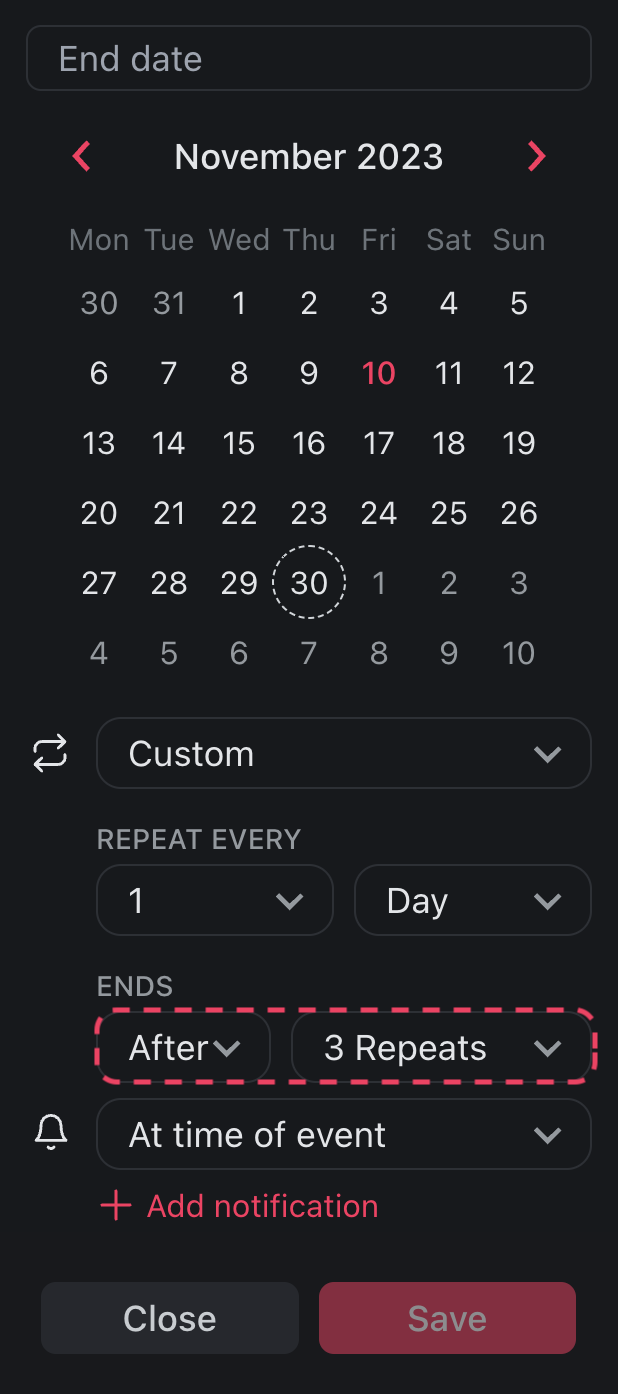
You can also set the number of times a task will repeat:
- Choose the Custom recurring setting.
- Choose After from the drop-down list under the ENDS field.
- Choose the number of repeats.
Frequently Asked Questions
How does a recurring task work in Taskade?
Set a due date and frequency on any task, and Taskade repeats it on that schedule. The next instance appears only after you complete the current one, so you always have one active copy. See Due Dates for setting the date.
What recurrence intervals can I choose from?
Pick Daily, Weekly, Monthly, or Yearly presets, or choose Custom to repeat every set number of days, weeks, months, or years. Custom also lets you target specific weekdays like Monday or Tuesday.
Can I limit how many times a task repeats?
Yes. Choose the Custom recurring setting, select After under the ENDS field, then enter the number of repeats. The task stops creating new instances once it hits that count.
Will I get a reminder for recurring tasks?
Yes. If you do not set a specific time, Taskade sends a reminder at midnight on the due date. You can also set a custom time and add Reminders so nothing slips through.
Where can I see all my recurring tasks at a glance?
Open the Calendar View to see due dates across your project. Taskade offers multiple project views in total, including List, Board, Table, and Gantt Chart, so you can plan recurring work the way you prefer.
Is recurring tasks available on the free plan?
Yes. Recurring tasks are part of core project management and work on every plan, starting with Free. Paid plans add more workspace, members, and AI capacity for larger teams. See pricing for the full breakdown.