
TL;DR: Reorder any task without touching the mouse:
Cmd/Ctrl + Shift + ↑/↓moves a task up or down,TabandShift+Tabindent and outdent. Works in List, Board, and any vertically-ordered view. Select the task first, then fire the shortcut to move it one row or level. See Keyboard Shortcuts for the full reference.
Each shortcut maps to one move on the selected task.
Overview
Tired of reordering tasks with your mouse? No worries! You can use a ⌨️ Ctrl / ⌘ + Shift + ⬆ / ⬇ shortcut to reorder tasks without taking your hands off of the keyboard. This shortcut works across all project views that support vertical ordering, including List and Board views.
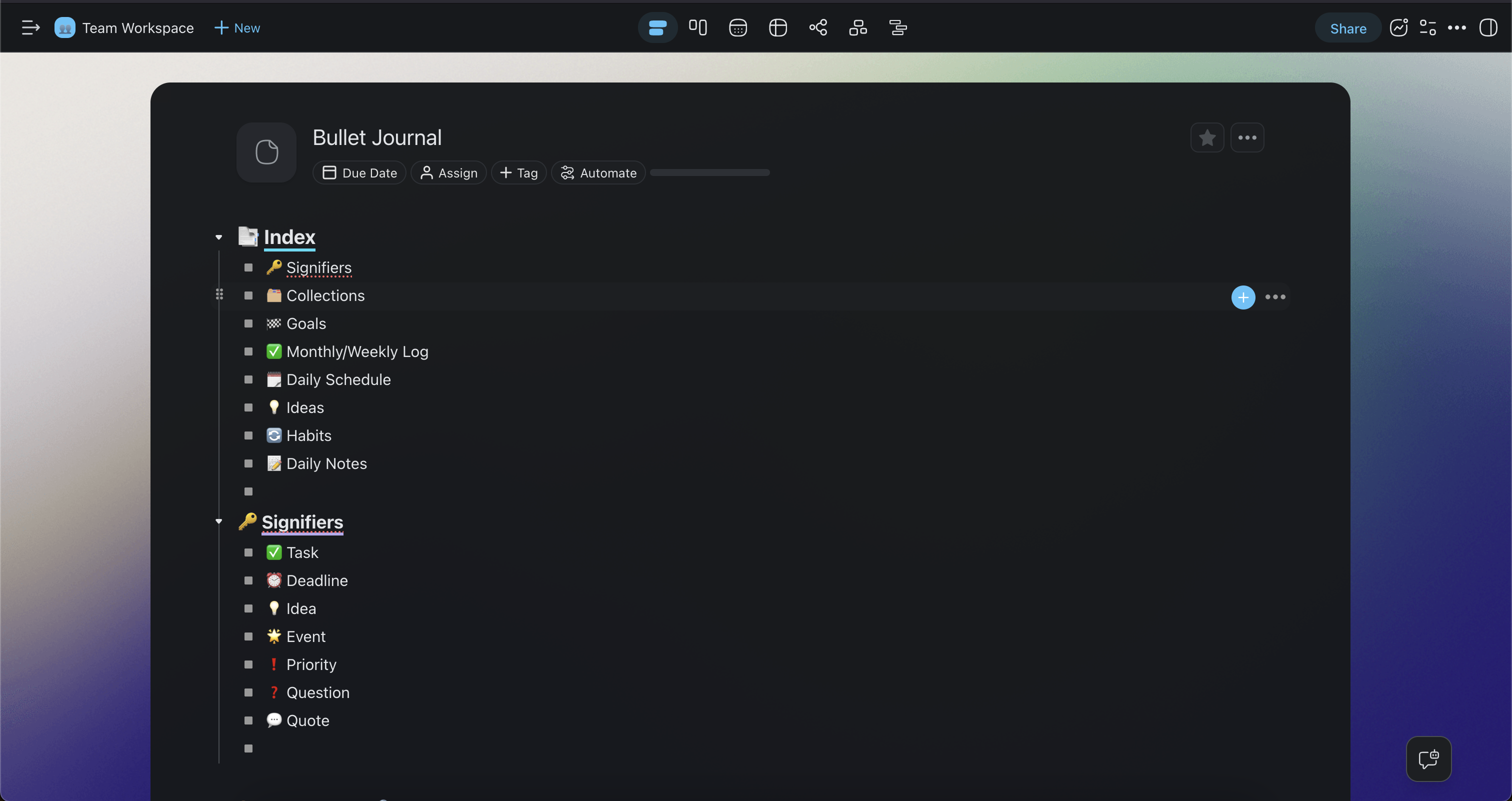
How to Reorder Tasks
- Open a project and click on the task you want to move.
- Press ⌨️ Ctrl + Shift + ⬆ (Windows/Linux) or ⌨️ ⌘ + Shift + ⬆ (Mac) to move the task up.
- Press ⌨️ Ctrl + Shift + ⬇ (Windows/Linux) or ⌨️ ⌘ + Shift + ⬇ (Mac) to move the task down.
- The task swaps position with the task directly above or below it each time you press the shortcut.
💡 Note: You can also reorder tasks by dragging the ⋮⋮ handle on the left side of each task. Visit Drag Icon Menu for more details.
When to Reorder by Keyboard
- Prioritizing tasks quickly: Move high-priority items to the top of your list without reaching for the mouse.
- Sorting during meetings: Rearrange action items in real time while screen-sharing with your team.
- Accessibility: Navigate and organize projects entirely from the keyboard for a faster, more ergonomic workflow.
- Board columns: In the Board view, the same shortcut reorders columns from left to right.
Tips
- Combine keyboard reordering with ⌨️ Tab and Shift + Tab to indent or outdent tasks and build nested hierarchies.
- Visit Keyboard Shortcuts for a full list of shortcuts available in Taskade.
- Use Slash Commands to sort tasks automatically by due date, assignee, or alphabetical order.
Mini FAQ
Does this work in every view? Yes in any view with vertical ordering: List, Board (reorders cards within a column), Table, Gantt. Mind Map and Org Chart use a different spatial layout.
Can I select multiple tasks first? Yes. Hold Shift and click to range-select, then use the same Cmd/Ctrl + Shift + ↑/↓ shortcut to move the entire selection as a block.
What about moving between sections? Use the ⋮⋮ drag handle for cross-section moves, or Copy & Move for moving across projects.