
TL;DR: Board view turns any project into a drag-and-drop kanban with custom columns, perfect for sales pipelines, content calendars, and sprint boards. It shares the same underlying data as List, Table, Calendar, and every other project view, so a task moved on the board updates everywhere at once.
Overview
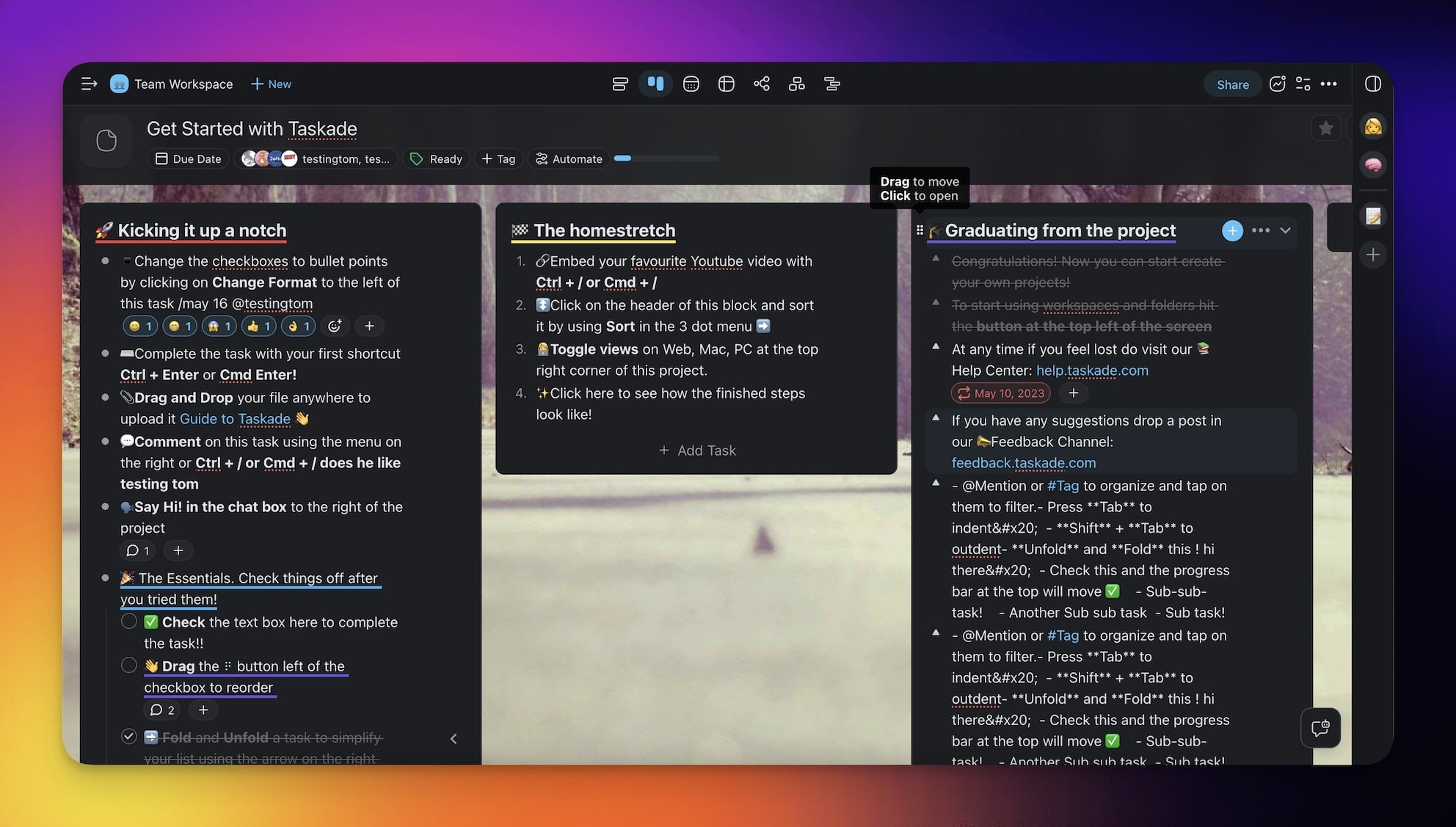
The Board View is one of the project views available in Taskade. It lets you manage tasks on Kanban-inspired boards. Each top-level task becomes a column, and sub-tasks become cards in that column. Here are a few use cases to start with:
- Planning and tracking a marketing campaign
- Managing software development sprints
- Tracking progress on a team project
- Managing a publishing calendar
Note: Visit Project Views to learn more about other workflows in Taskade.
Enable the Board View
- Click the Board tab in the project toolbar.
- Double-click the tab to set the view as default.

💡 Note: A change of view does not affect project contents.
Reorder Board Columns
To reorder board columns, click and hold the drag icon ⋮⋮ to the left of a top-level task and drag the mouse cursor across the board. You can also select the top-level task and press ⌨️ Ctrl / ⌘ + Shift + ⬆ / ⬇ to move the column left or right.
Tips
- Create columns like To Do, In Progress, and Done for a classic Kanban workflow, then drag cards between columns as work progresses.
- Add due dates and assignees to cards so your team can see deadlines and ownership at a glance.
- Use the Drag Icon Menu to sort cards within a column by due date, assignee, or alphabetical order.
- Switch to List view for detailed editing and back to Board view for visual tracking. No data is lost when changing views.
- Combine the Board view with Hide Completed to keep finished cards out of sight.
Export the Board to CSV
Board view exports to CSV, together with List, Table, Calendar, Mind Map, and Org Chart. Each card becomes a row, and each column becomes a value. Open the file in Excel, Google Sheets, or Numbers. Use it to share a pipeline snapshot with finance or to back up the board before a big reshuffle.
The one-click walkthrough lives in the Table view guide. Switch to any view first, then export. The views share the same data, so the export holds the same tasks in all views.
Connect the Dots
Board View is one of multiple project views in Taskade, and one of the oldest, shipping in v4.1 (Sep 2021) as the platform's first Kanban surface. Every column you drag, every card you move, becomes part of the Memory layer of Workspace DNA that feeds your AI agents and powers apps built with Taskade Genesis.
The project views at a glance
| View | Best for | Where to find it |
|---|---|---|
| List / Outline | Notes, hierarchy, fast capture | Toolbar tab |
| Board / Kanban | Sprints, status flows | Toolbar tab |
| Table | Structured data + AI fill | Toolbar tab |
| Mind Map | Brainstorming | Toolbar tab |
| Docs (Beta) | Long-form writing | More Views |
| Gantt Chart | Project timelines | More Views, paid plan |
| Calendar | Date-based planning | More Views |
| Actionsheet | Simple spreadsheet lists | More Views, paid plan |
| Org Chart | Team / hierarchy | More Views, paid plan |