# Projects & Databases: The Memory Pillar
> Projects and databases are the Memory of Workspace DNA. They store the records, fields, and files that your AI agents read, your automations update, and your Taskade Genesis apps show.
- Source: https://www.taskade.com/learn/projects/databases
- Section: Projects
- Updated: 2026-11-09
- Index of all pages: https://www.taskade.com/learn/llms.txt

Every Taskade project is also a database. Projects are the **Memory** of Workspace DNA: your agents read them, your automations update them, and your apps show them.
> **TL;DR:** Projects and databases are the **Memory** part of [Workspace DNA](https://www.taskade.com/learn/genesis/workspace-dna). Each line is a record, and fields such as Status and Due Date add structure. AI agents read projects, automations write results back, and Taskade Genesis apps use projects as their live data. Projects are unlimited on every plan.
## What Are Projects & Databases?
**A Taskade project is a document and a database at the same time.** Each line or row is a record. Each field is a column. Each view shows the same records in a new layout, with no copy.
| Term | What it means |
| --- | --- |
| **Project** | One document of records, for example **Leads** or **Bookings** |
| **Record** | One line or row in a project, with its own fields, comments, and files |
| **Field** | A column such as **Status**, **Priority**, **Assign**, or **Due Date** |
| **View** | A layout of the same records: list, board, table, calendar, and more |
When Taskade Genesis builds an app, it creates projects as the app's data. The app screens and the project stay in sync.
## Memory in Workspace DNA
Memory is the part of Workspace DNA that the other two parts depend on.
```mermaid
graph TD
M[Projects
Memory] --> I[AI agents
Intelligence]
I --> E[Automations
Execution]
E --> N[New records
back in Memory]
M --> U[Taskade Genesis app
Interface]
style M fill:#2a1225,color:#ff8fa3,stroke:#ff2d60,stroke-width:2px
style I fill:#11111b,color:#cdd6f4,stroke:#00d4aa
style E fill:#0d1a0e,color:#86efac,stroke:#22c55e,stroke-width:1.5px
style N fill:#2a1225,color:#ff8fa3,stroke:#ff2d60,stroke-width:2px
style U fill:#1a0d24,color:#ce93d8,stroke:#6a1b9a,stroke-width:1.5px
```
Agents read your projects. Automations act, then write the result back as new records. The app reads and writes the same projects. See [What Is Taskade?](https://www.taskade.com/learn/account/what-is-taskade) for the full product map.
## Hierarchy: Workspace to Block
Taskade nests your data in four levels. Each level sets who can see what.
| Level | Holds | Example |
| --- | --- | --- |
| Workspace | Folders, projects, agents, and automations | "Acme Studio" |
| Folder | A group of projects for one team or area | "Sales" |
| Project | Records of one kind | "Leads" |
| Record (block) | One item with fields, comments, and files | "Jane Doe, Stage: Qualified" |
The Free plan includes 1 workspace. Paid plans include unlimited workspaces. See [Hierarchy Structure](https://www.taskade.com/learn/projects/hierarchy-structure).
## The Project Views
Every project has **multiple project views**. The records stay the same. Only the layout changes.
| View | Best for | Plan |
| --- | --- | --- |
| **List** | Notes, outlines, nested checklists | Every plan |
| **Board** | Pipelines and status stages | Every plan |
| **Table** | Records and fields, like a spreadsheet | Every plan |
| **Mind Map** | Branching ideas | Every plan |
| **Docs** | Long-form writing | Every plan |
| **Calendar** | Dates, bookings, and events | Every plan |
| **Gantt Chart** | Timelines and phases | Paid plans |
| **Actionsheet** | Quick sheet-style trackers | Paid plans |
| **Org Chart** | Reporting lines and trees | Paid plans |
**List**, **Board**, **Table**, and **Mind Map** are tabs at the top of a project. The others live under **More views**. See [Project Views](https://www.taskade.com/learn/projects/project-views).
## Custom Fields & Databases
Fields turn a list of records into a database that agents, automations, and apps can sort and filter.
In [Table view](https://www.taskade.com/learn/projects/table-view), click **+** at the end of the header to open the **Add field** menu:
| Field | Use it for |
| --- | --- |
| **Text** | Names, notes, short answers |
| **Number** | Amounts, scores, counts |
| **Date** | Any date that is not a due date |
| **Select** | A fixed list of choices, such as a lead source |
| **Relationship** | A link to a record in another project |
| **Status** and **Priority** | Stage and urgency |
| **Assign** and **Due Date** | Owner and deadline, with reminders |
| **Timer** | A countdown for a focus session on a record |
| **Password** | A hidden value in a record |
See [Custom Fields](https://www.taskade.com/learn/projects/custom-fields) for each field type.
## Search Your Memory
Search finds records by text across your workspaces, folders, and projects.
- Use [Search](https://www.taskade.com/learn/projects/search) to find a record, a project, or a folder by name or text.
- Ask Taskade EVE in your workspace, for example `Which projects have overdue tasks?`
- Ask an agent that has the project as knowledge, and it answers from those records.
## Permissions: Role-Based Access
Taskade gives each person a role, with role-based access from Owner to Viewer.
- **Set roles on the workspace, the folder, or the project.** A project share can give one person access to one project only.
- **Use Checker for people who only tick tasks off.** The Checker role needs a paid plan.
- **Keep the data and the app apart.** Give editors access to the projects, and give app users access to the app only.
See [Roles and Permissions](https://www.taskade.com/learn/projects/permissions) for what each role can do.
## How Agents Read From Projects
An agent answers from a project after you add the project as knowledge.
1. Open the agent, then open **Knowledge**.
2. Under **Trained Sources**, add **Taskade Project**.
3. Pick the project. The source syncs when the project changes.
4. Ask the agent a question that only that project can answer.
| Knowledge sources per agent | Free | Paid plans |
| --- | --- | --- |
| Projects, files, media, and links | 1 | 50 |
See [Connect Memory to Agents](https://www.taskade.com/learn/projects/connect-memory-to-agents) and [Custom AI Agents](https://www.taskade.com/learn/agents/custom-agents).
## How Automations Write Back
Automations close the loop: they start from a project event and write the result back to a project.
- **Start from Taskade events** such as **When a task is assigned**, **When a task is moved**, or **When a field changes**.
- **Start from outside** with a form, a schedule, an email, or one of **100+ integrations**.
- **Write the result** as a new task, a changed field, or a comment in a project.
Because agents read the same projects, their next answer uses the new records. See [Automations](https://www.taskade.com/learn/automation/automations-execution).
## Build a Database-Backed App
Create the projects first, then let Taskade Genesis put an app on top of them.
### Step 1: Create the Project
A project holds one kind of record.
1. In your workspace, click **New Project**.
2. Name the project after the records it holds, for example **Leads**.
### Step 2: Add the Fields
Fields give each record the same shape.
1. Switch the project to **Table** view.
2. Add a field for each thing you track, such as **Status**, **Assign**, and **Due Date**.
### Step 3: Import Existing Data
An import saves you from typing old records again.
1. In the sidebar, click **Import**.
2. Pick **CSV** and upload your file. See [Import CSV](https://www.taskade.com/learn/import/csv-import).
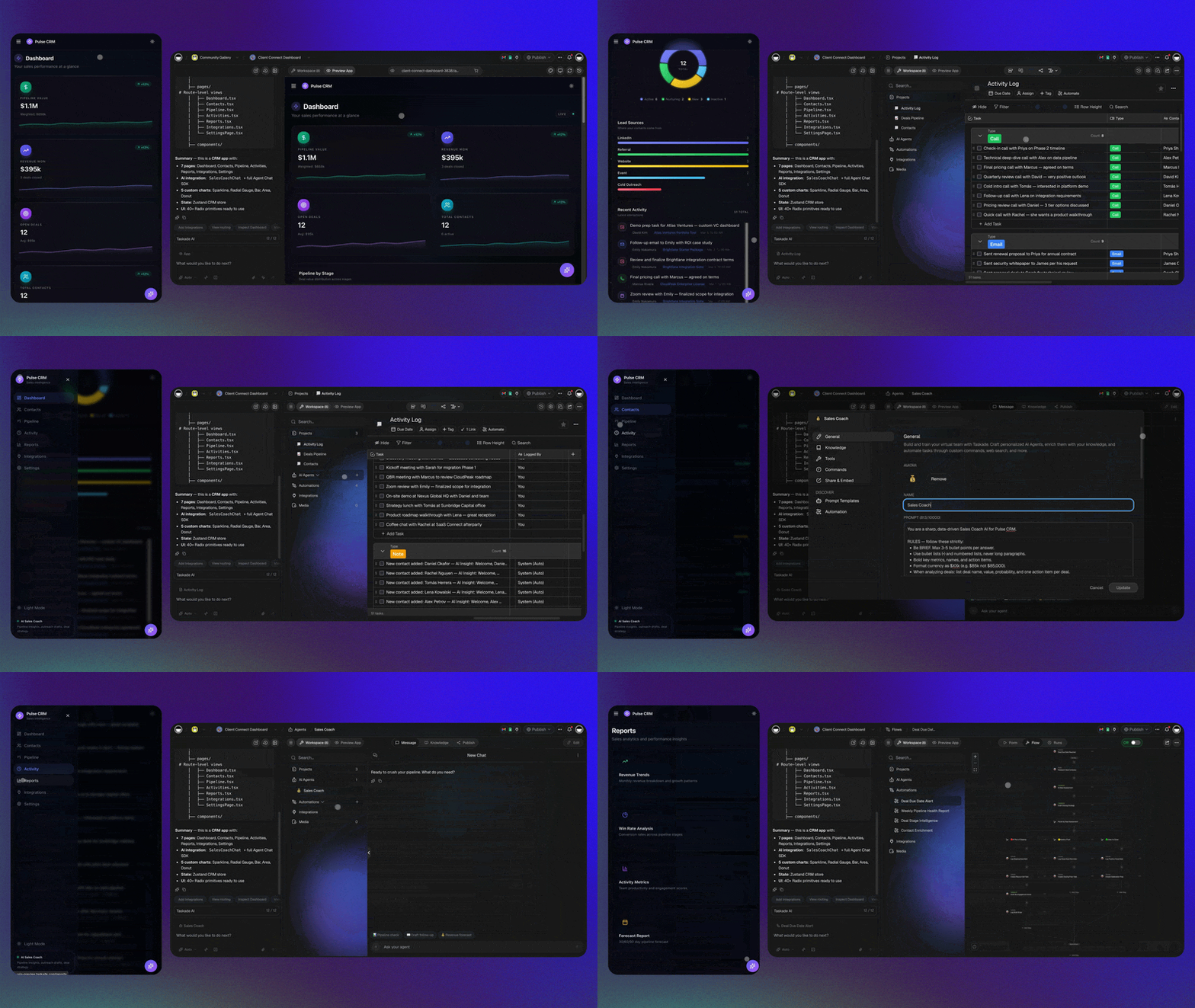
### Step 4: Ask Taskade EVE to Build the App
Taskade EVE builds the app screens on the projects that you name.
```text
Build a lead tracker app on the Leads project. Show a table of leads with
a Status filter and a form to add a new lead. Do not add sign-in or
automations yet.
```
*Why this works:* The prompt names the project, so the app uses your existing records instead of new ones.
## Example Prompts
Describe the outcome and name the data. Taskade Genesis builds the projects and the app together.
```text
Build a yoga studio booking app with separate projects for customers,
classes, and instructors. Do not add payments yet.
```
*Why this works:* Three named projects give each kind of record its own fields.
**Try a different starting point**
```text
Create an agency client portal with projects for clients, projects, and
invoices. Do not add sign-in yet.
```
## Automation Recipes
Each recipe is one trigger and one result in a project.
| When this happens | The automation does this |
| --- | --- |
| A form is submitted | Create a record and notify the owner |
| A task is assigned | Send the new owner a message |
| A field changes to **Confirmed** | Send a confirmation email |
| A due date arrives | Post a reminder to your team channel |
| Every Monday | Create a weekly review project |
## Best Practices
These habits keep a database easy to read for people, agents, and apps.
- **Keep each project focused.** One kind of record per project. A **Leads** project holds leads only.
- **Name fields clearly.** Agents and automations read the field names.
- **Plan for growth.** Add the fields that you will need soon, in a logical order.
- **Control access.** Separate the people who edit the data from the people who only use the app.
## Collaboration & Version History
Everyone edits the same project in real time, and version history keeps earlier states.
- See edits from teammates as they type, on web, desktop, and mobile.
- Comment on a record to keep the discussion with the data.
- Open **Version history** to restore an earlier state of the project.
| Version history kept | Free | Pro | Business, Max, Enterprise |
| --- | --- | --- | --- |
| Days | 7 | 365 | 1,825 |
See [Version History](https://www.taskade.com/learn/projects/version-history).
## Frequently Asked Questions
**Is a Taskade project the same as a database?**
Yes. Every project is a database of records. Switch to **Table** view to see rows and fields, or pick any other view for the same records.
**Can a project be a document and a database at once?**
Yes. A project is both. Write in **List** view, then add fields and switch to **Table** view when you want structure.
**Can AI agents update my projects?**
Yes. An agent can work on your projects with its tools, and an automation can write results into a project. Add the project as agent knowledge so the agent reads it too.
**What happens to my projects when Taskade Genesis builds an app?**
The projects become the app's live data. An entry in the app saves as a record in the project, and an edit in the project shows in the app.
**Which plan do I need for projects and databases?**
Every plan, Free included. Projects and tasks are unlimited on every plan. Paid plans add more storage, longer version history, and the Gantt Chart, Actionsheet, and Org Chart views. See [pricing](https://www.taskade.com/pricing).
**How do I bring data from a spreadsheet into Taskade?**
Click **Import** in the sidebar and pick **CSV**. Each row becomes a record. See [Import CSV](https://www.taskade.com/learn/import/csv-import).
## Next Steps
Grow the Memory in this order: views, fields, agents, automations, then an app.
1. **Learn the model**: See how Memory feeds Intelligence and Execution. See [Workspace DNA](https://www.taskade.com/learn/genesis/workspace-dna).
2. **Pick a layout**: Choose the view that fits the records. See [Project Views](https://www.taskade.com/learn/projects/project-views).
3. **Train an agent**: Add a project as knowledge. See [Custom AI Agents](https://www.taskade.com/learn/agents/custom-agents).
4. **Write back automatically**: Add a trigger and an action. See [Automations](https://www.taskade.com/learn/automation/automations-execution).
5. **Put an app on top**: Build screens on your data. See [Create Your First App](https://www.taskade.com/learn/genesis/first-app).