
Overview
Connecting Taskade with Google Calendar turns on a two-way sync between your tasks and calendar events. This keeps your project timelines and task deadlines aligned with your calendar.
TL;DR: Keep your tasks and deadlines aligned with Google Calendar using a two-way sync. Taskade creates a managed "Taskade" calendar in Google. Tasks and projects with due dates appear there as events. Events you add to that calendar show up in your Taskade Calendar view. Two-way sync requires a paid Workspace.
Two-Way Sync, Explained
Here is how the two-way sync flows in both directions through the shared Taskade calendar.
Two-way synchronization lets you see your Taskade projects and tasks in Google Calendar, and vice versa! You can use this feature to add events to a shared Google Calendar and let your clients know what you are working on in Taskade.
💡 Note: Upgrade your Workspace to use two-way sync.
Enable Two-Way Sync
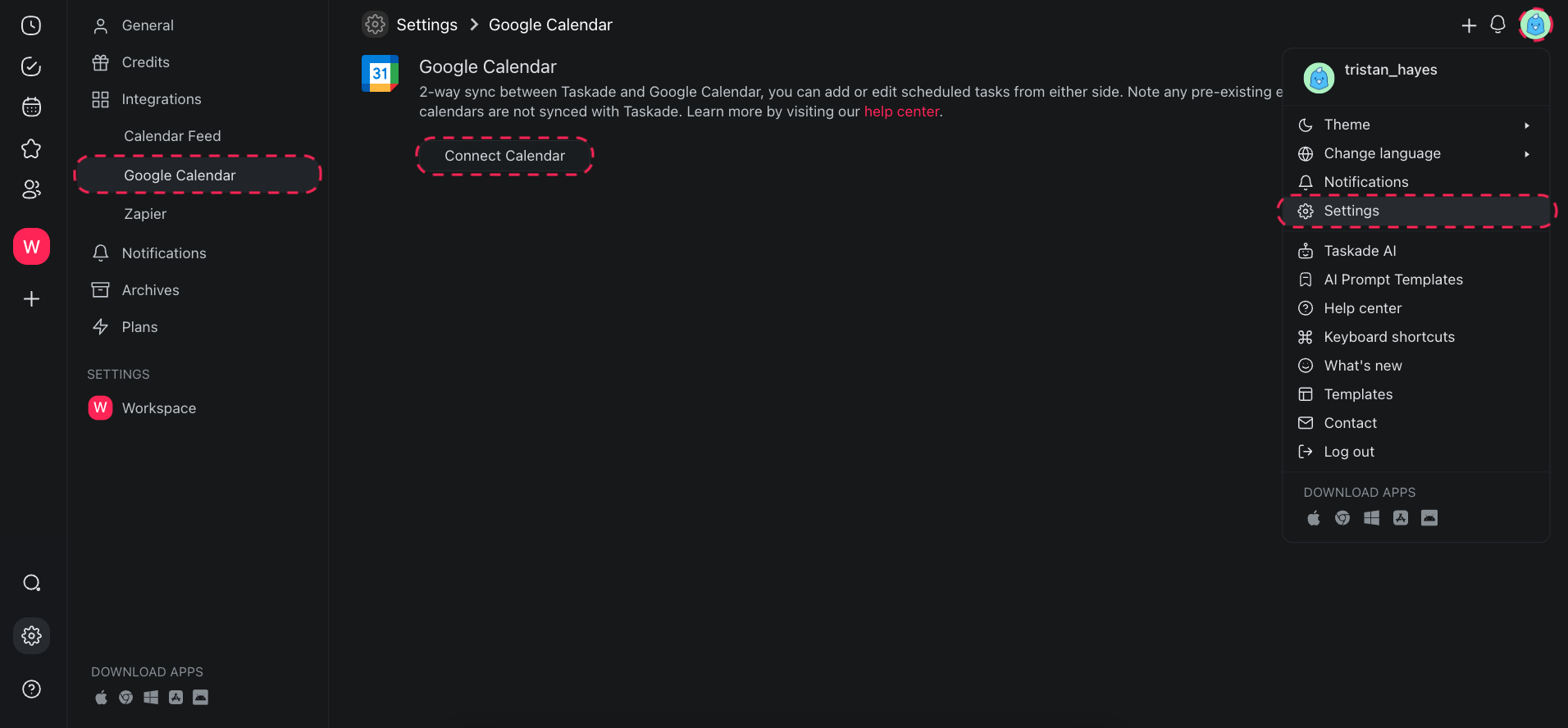
- Click your profile avatar (bottom-left) and select Settings.
- Choose Integrations from the pane on the left ➡ Google Calendar.
- Click Connect Calendar and follow the instructions.
- When Taskade asks for access to your Google Calendar, click "Allow".
💡 Note: Taskade creates a managed calendar called "Taskade" in your Google Calendar. Taskade sends its Tasks and Events to Google Calendar through this calendar. The two-way sync runs between this calendar and Taskade’s calendar. Other calendars in Google Calendar do not appear in Taskade’s calendar.
Add Tasks/Projects (Taskade)
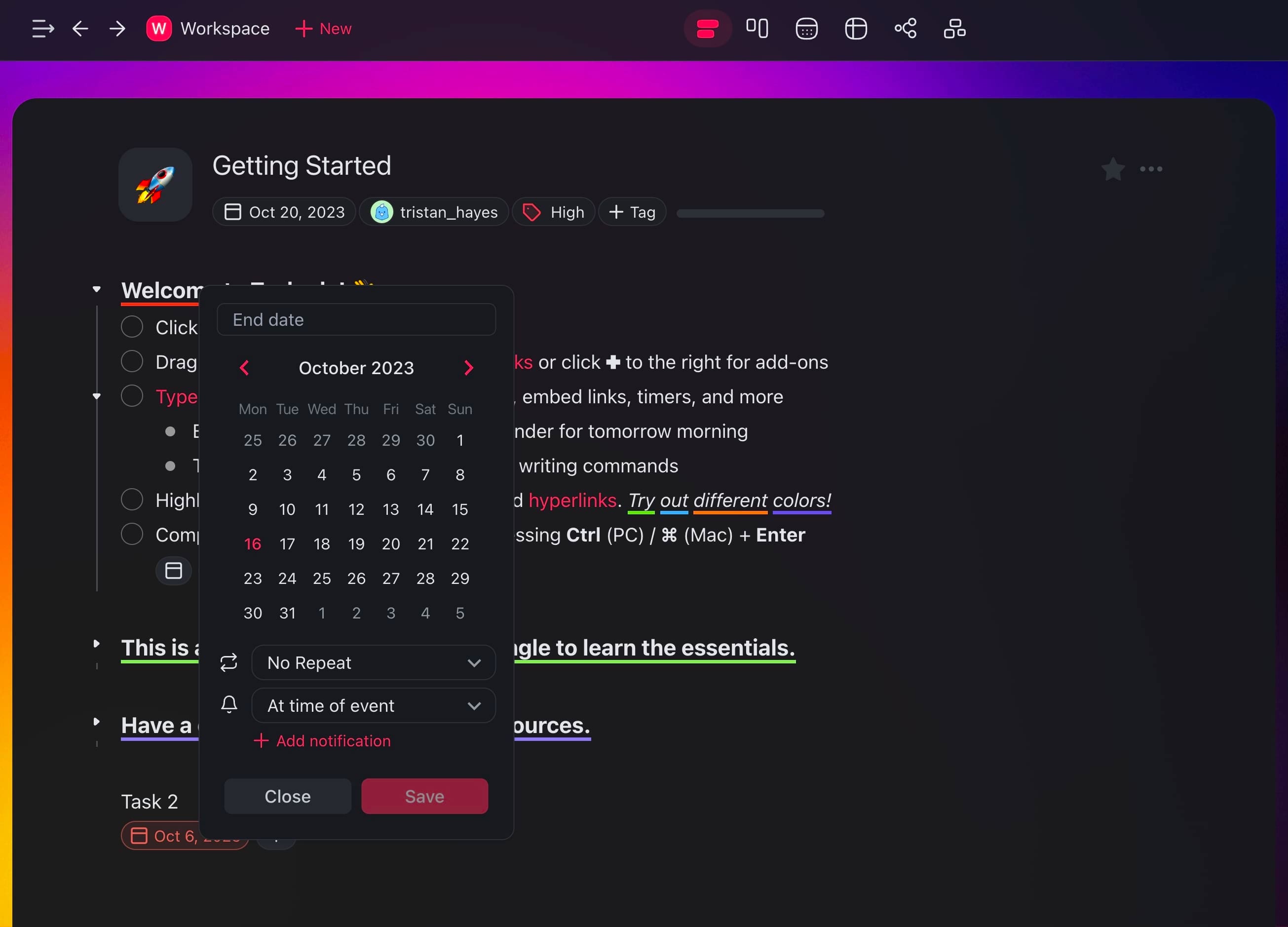
You sync both projects and tasks between Taskade and the Google Calendar. There are three ways to do that:
- (method 1): Add Tasks with Due Dates
- Open the workspace or folder you synced in the previous step.
- Open a project and add a task.
- Click the ➕ button next to the task ➡ 🗓️ Due Date to add a due date.
- The new task will be added as an event to your Google Calendar.
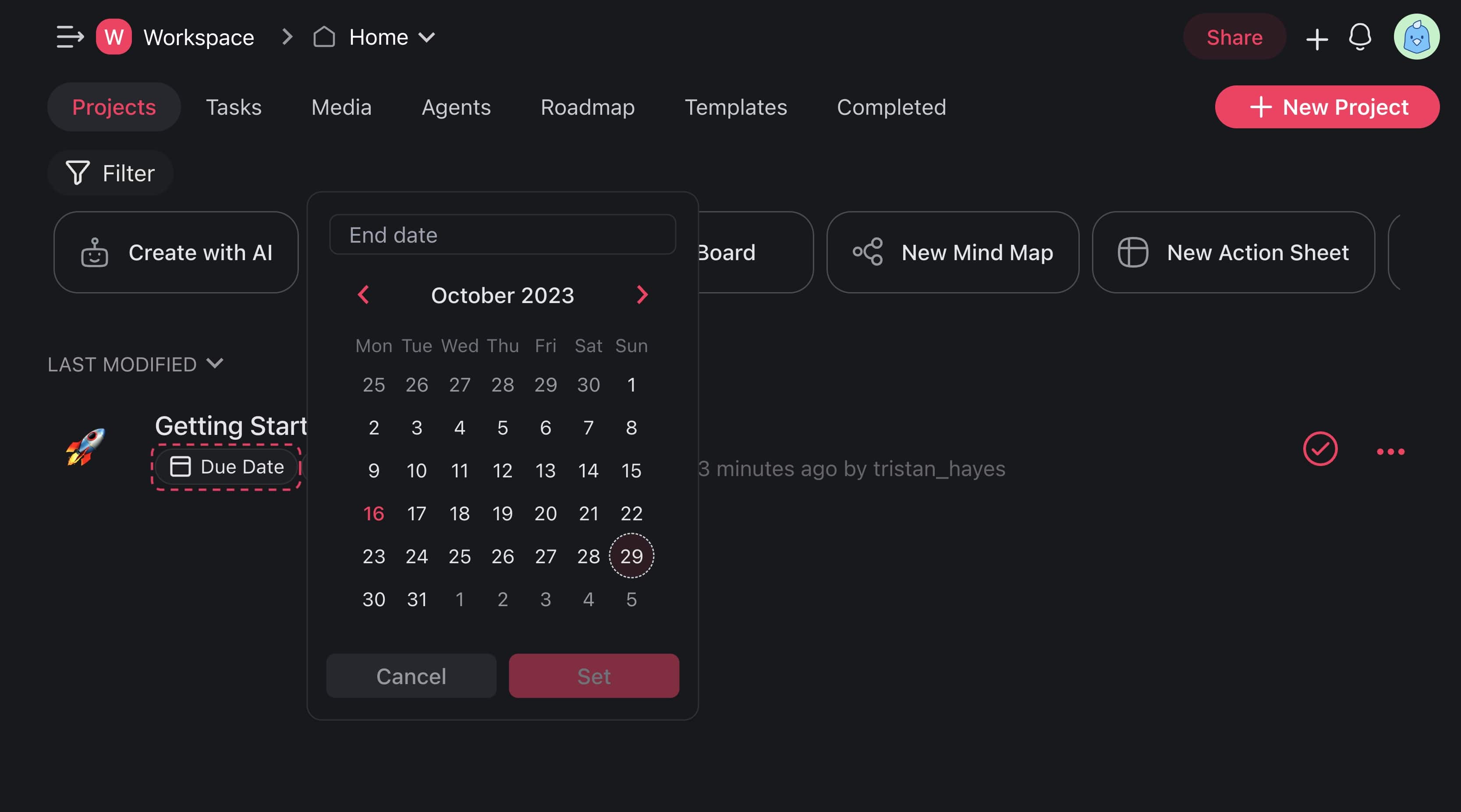
(method 2): Add Projects with Due Dates
Open the workspace or folder you synced in the previous step.
Create a project or select one from the list and add a due date.
The new project will be added as an event to your Google Calendar.
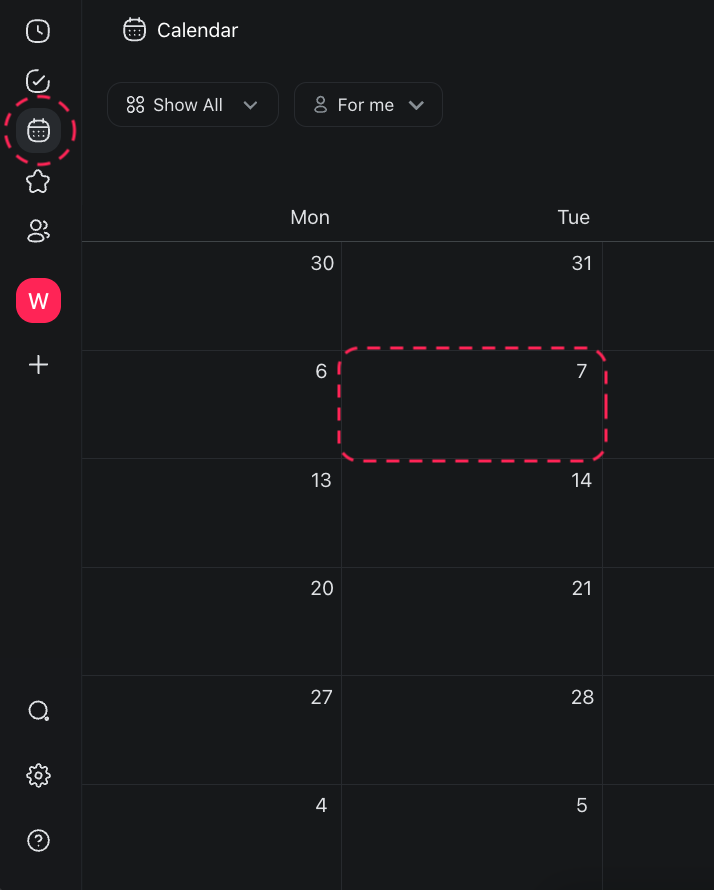
(method 3): Add Tasks Using the Calendar
Open the workspace or folder you synced in the previous step.
Click the 🗓️ calendar icon in the left navigation pane.
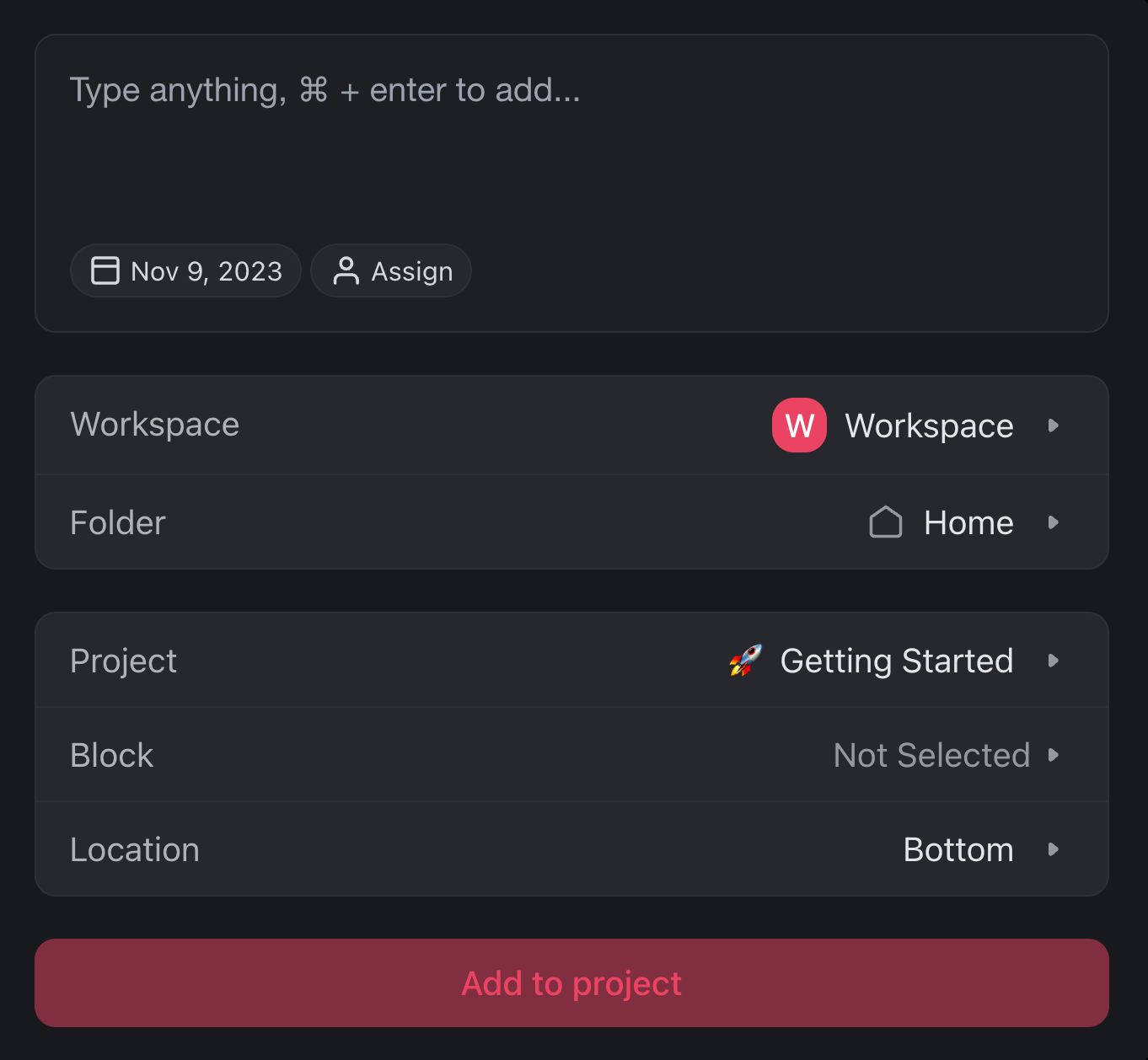
Click any date cell in the calendar to open a pop-up menu.
Customize the task and set a due date ➡ click Add to project.
The new task will be added as an event to your Google Calendar.
Sync Dates Set by the API or an AI Assistant
You do not have to be sitting in Taskade for a due date to reach your calendar. A due date can come from the Taskade API, or from an AI assistant connected to Taskade over MCP. It now appears on the managed Taskade calendar like a hand-typed due date.
Two limits are worth knowing:
- The workspace has to be on a paid plan or an active trial, the same requirement as two-way sync itself.
- A due date set by an automation action stays inside Taskade and does not push out to Google Calendar.
Add Events (Google Calendar)
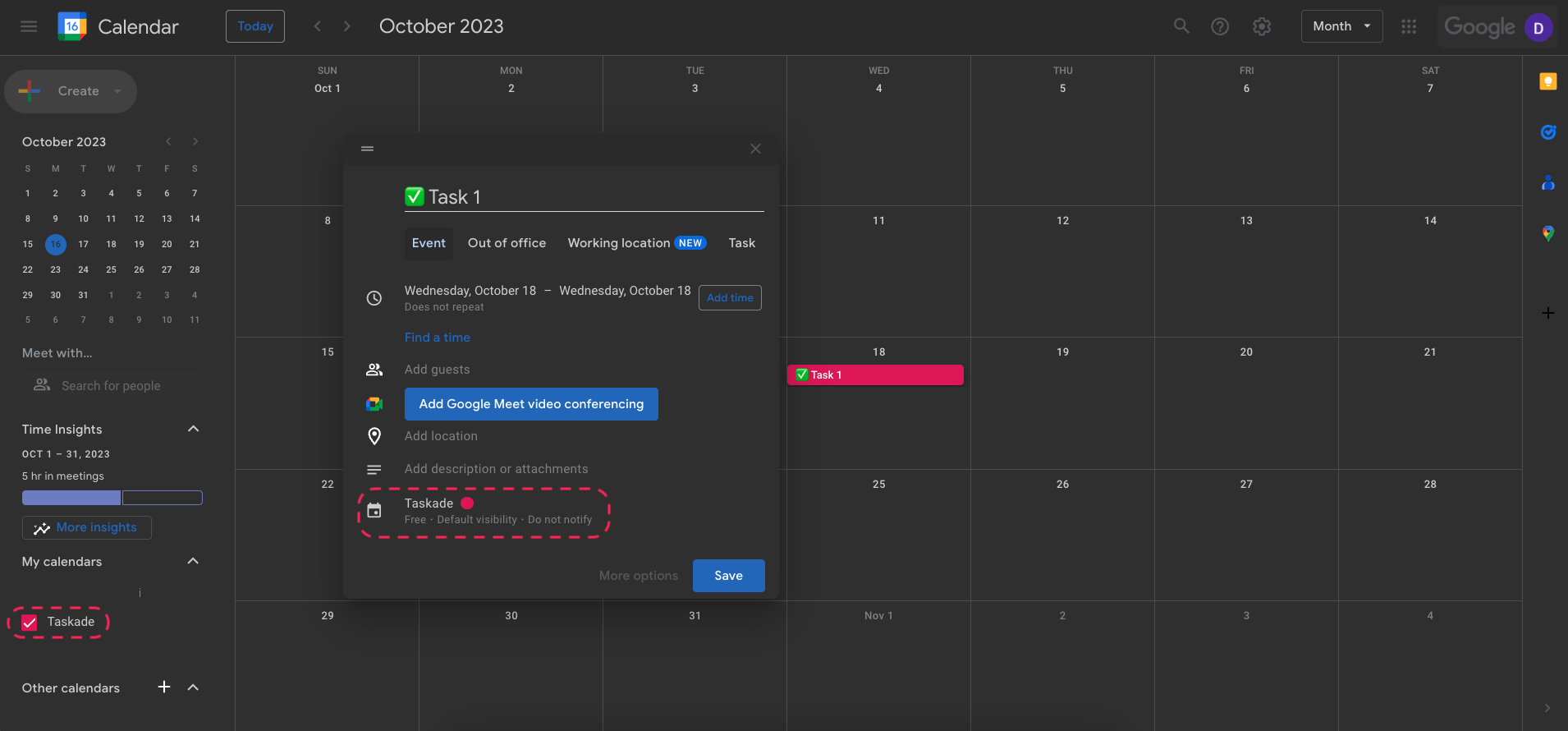
- Select a day and add event details.
- Make sure the calendar selected is Taskade and click Save.
- The event (marked with a letter "G") is now visible in the Taskade Calendar.
Check Sync Status
- Click your profile avatar (top-right) and select Settings.
- Choose Integrations from the pane on the left ➡ Google Calendar.
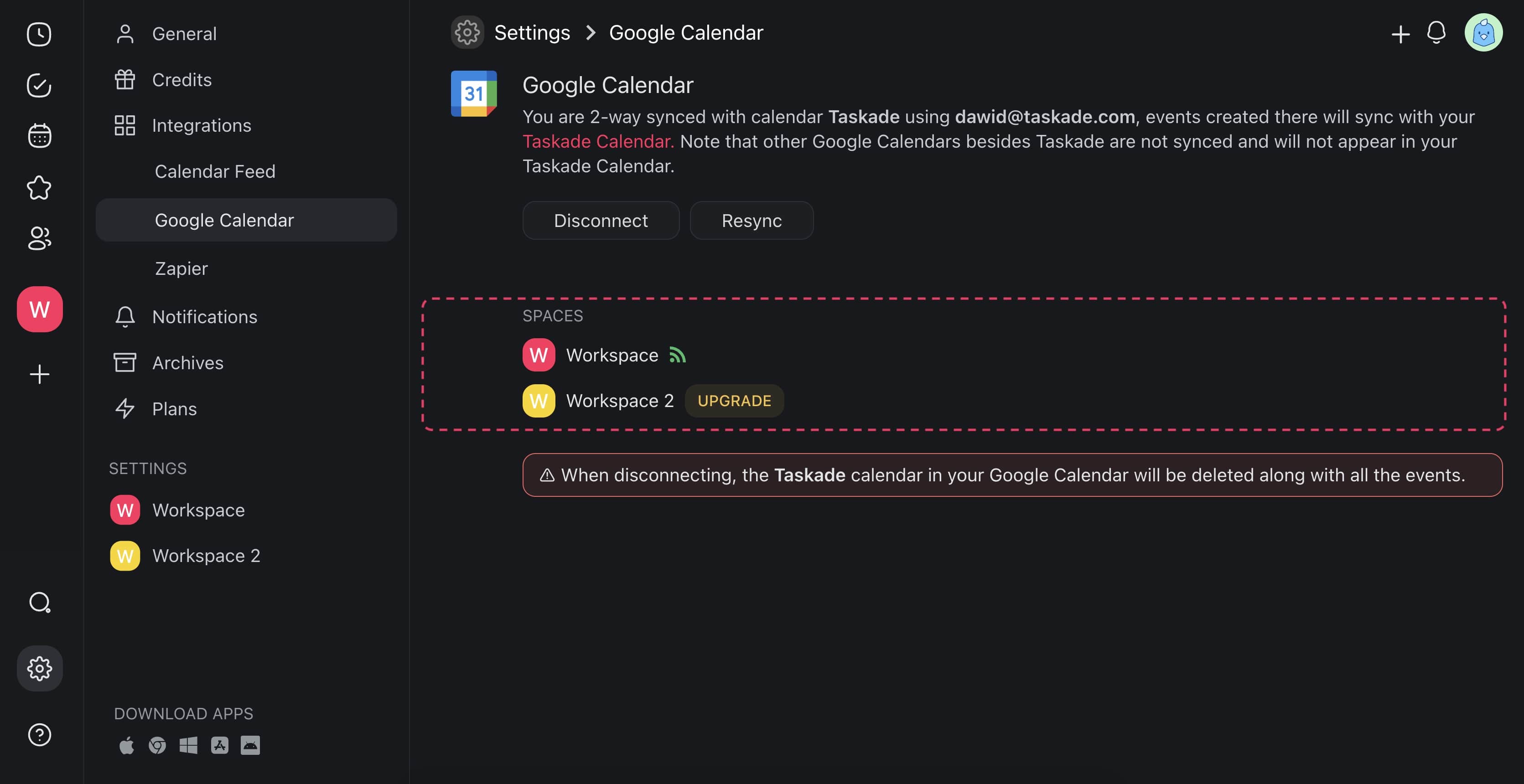
- Workspace/folders marked with marked with

have sync enabled. - Workspaces that are not synced will show an Upgrade button.
Remove Google Integration
Follow the steps below to disconnect Taskade from your Google Calendar:
- Click your profile avatar (top-right) and select Settings.
- Choose Integrations from the pane on the left ➡ Google Calendar.
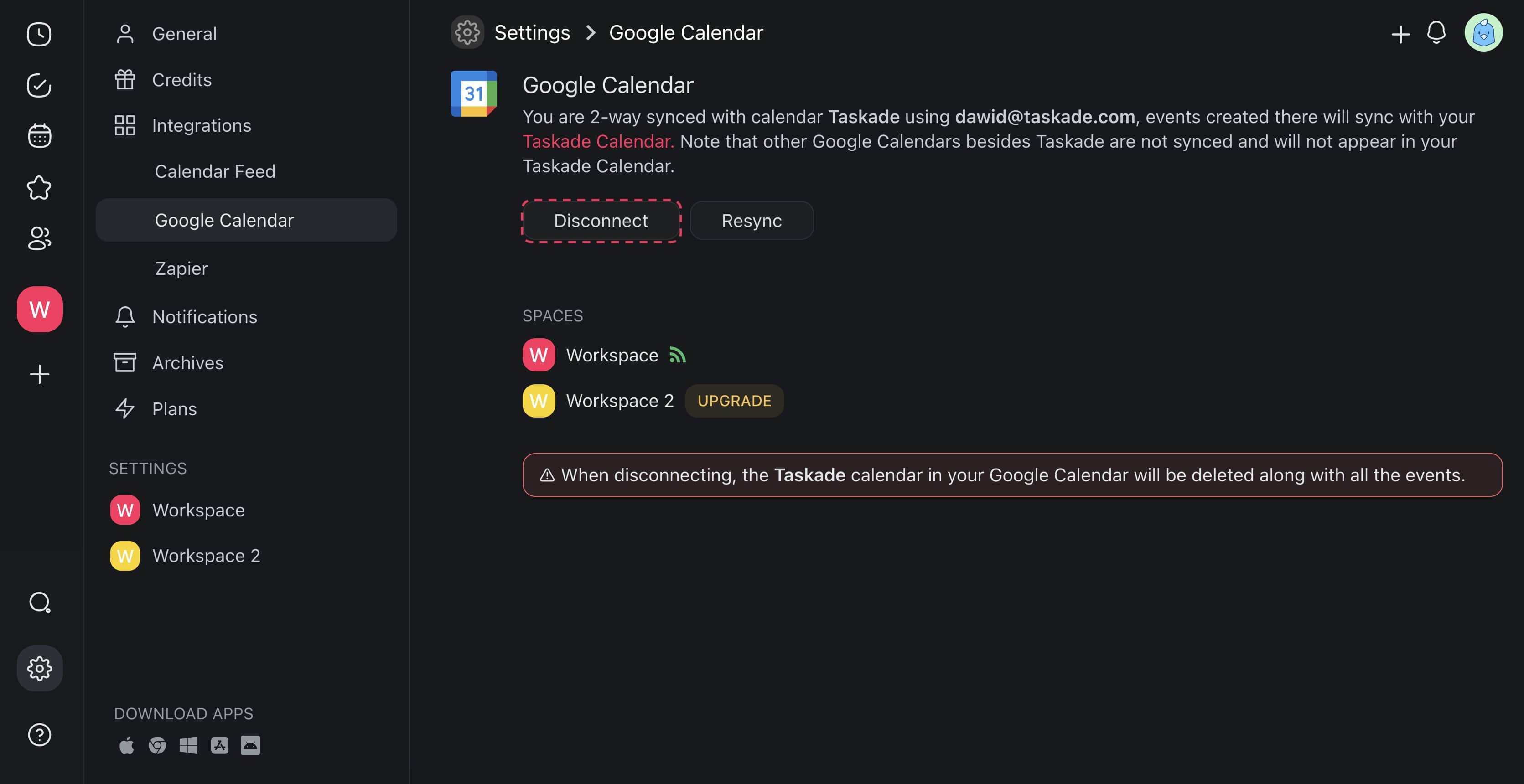
- Click Disconnect to disable the integration.
Note: Disconnecting the Google Calendar from your Taskade account will delete the Taskade calendar in your Google Calendar along with any events you created.
Resync Google Calendar
Facing problems with the two-way sync? Here is how to fix them:
- Click your profile avatar (top-right) and select Settings.
- Choose Integrations from the pane on the left ➡ Google Calendar.
- Click Resync to refresh the integration.
Related guides
- Google Calendar · Calendar Feed. One-way iCal export.
- Calendly. Automate meeting scheduling.
- Project Calendar View. Visualize tasks on a calendar.
- Automation Actions. Steps that run after an automation starts.