
Overview
Transform the way you interact with documents and projects. You can engage in productive Q&A sessions with Taskade AI and ask questions about the contents of your projects, files, and attachments. Four entry points let you pick whichever fits your flow.
TL;DR: Ask Taskade AI questions about your projects, PDFs, images, audio, and video, then save the answers straight into a project. Start from inside a project, an attachment, Media Files, or a shared team chat. Files first live in the Media Files.
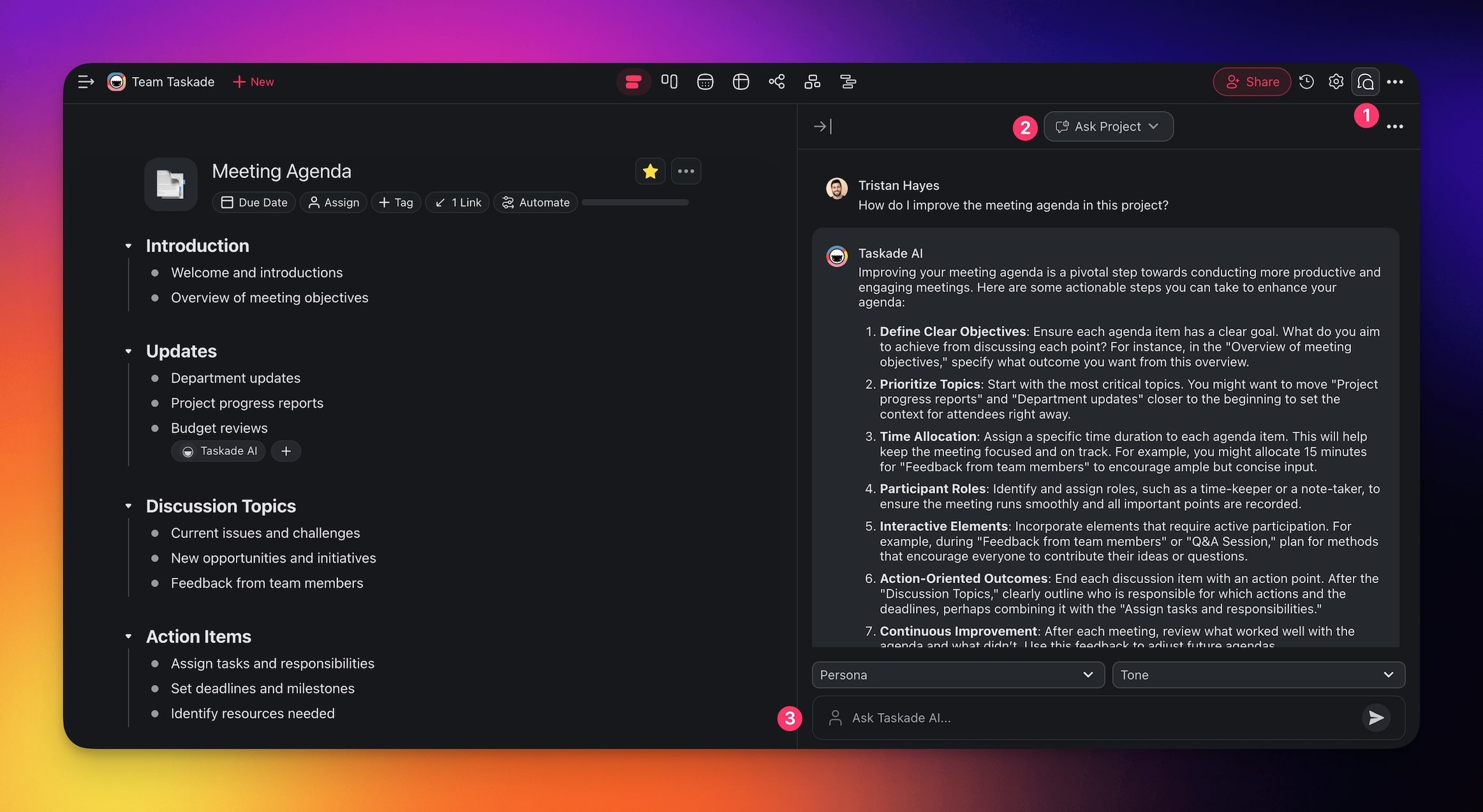
Method 1: Chat with Projects
- Navigate to any of your projects.
- Click the chat button 💬 in the top-right corner.
- Choose Ask Project from the drop-down at the top of the chat box.
- Ask questions about the project.
Note: Only you can see the contents of the chats in the Ask Project tab.
Method 2: Chat with Your Team
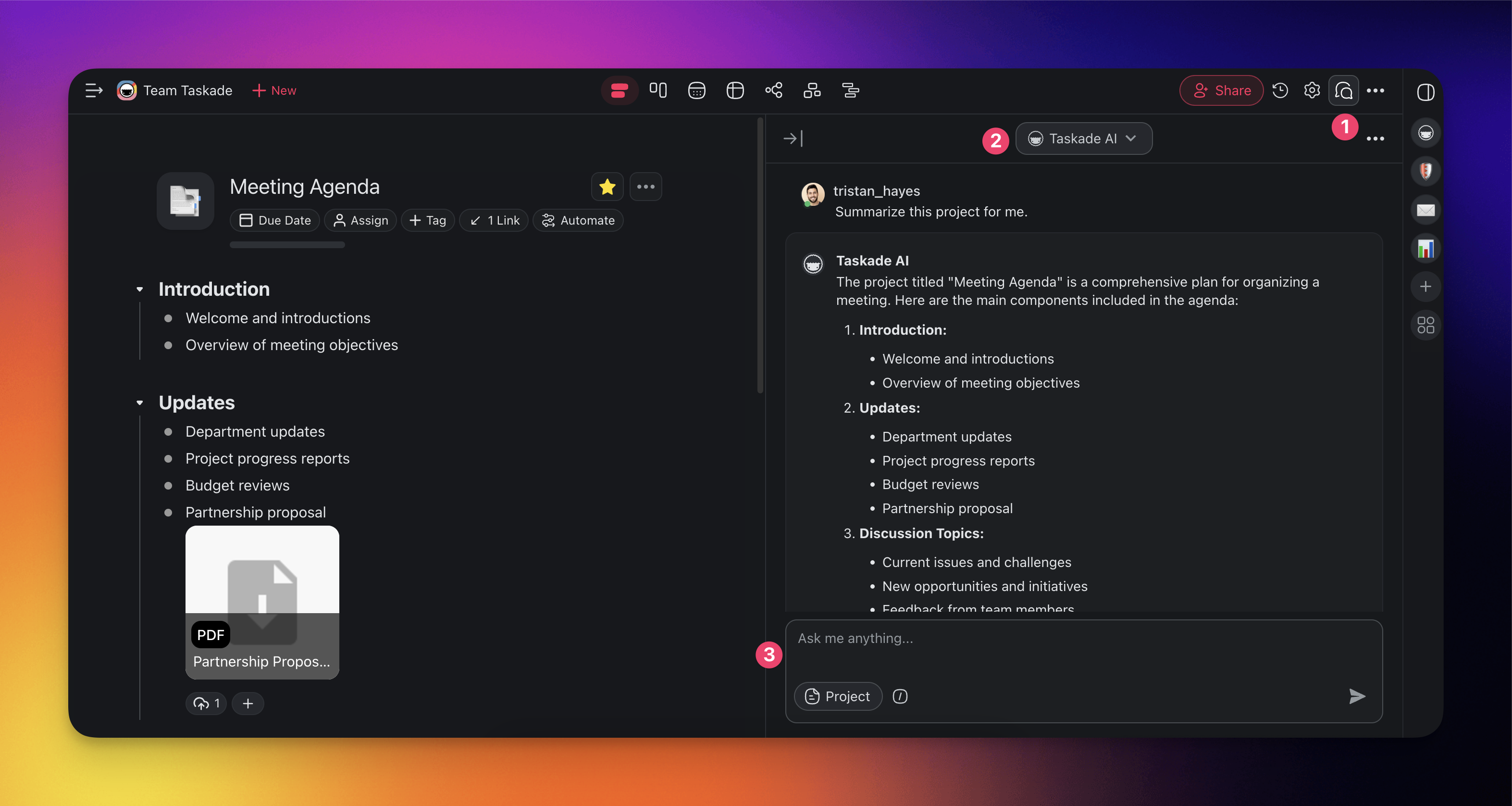
You can now chat about your documents with your team & Taskade AI at the same time.
- Click the chat button 💬 in the top-right corner.
- Choose Taskade AI from the drop-down at the top of the chat box.
- Ask questions about the project.
Note: Shared chats are visible to all members of the project.
Method 3: Chat with Files
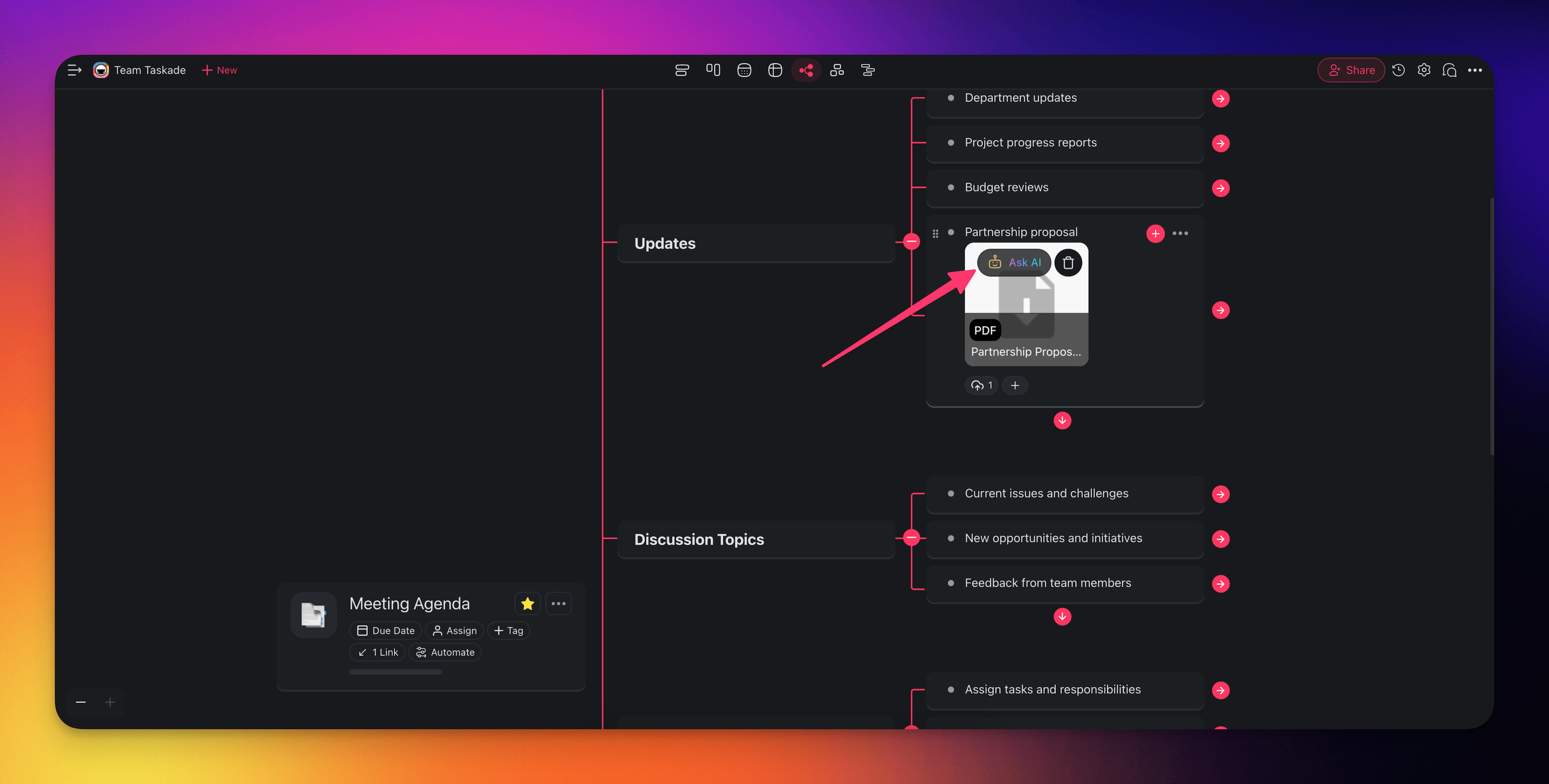
- Navigate to any of your projects.
- Select a node/task and click the ➕ Add-ons button on the right.
- Upload files and documents using one of the available methods.
- Hover the mouse cursor over the uploaded attachment and click 🤖 Ask AI.
- Type your questions in the pop-up menu to start a conversation.
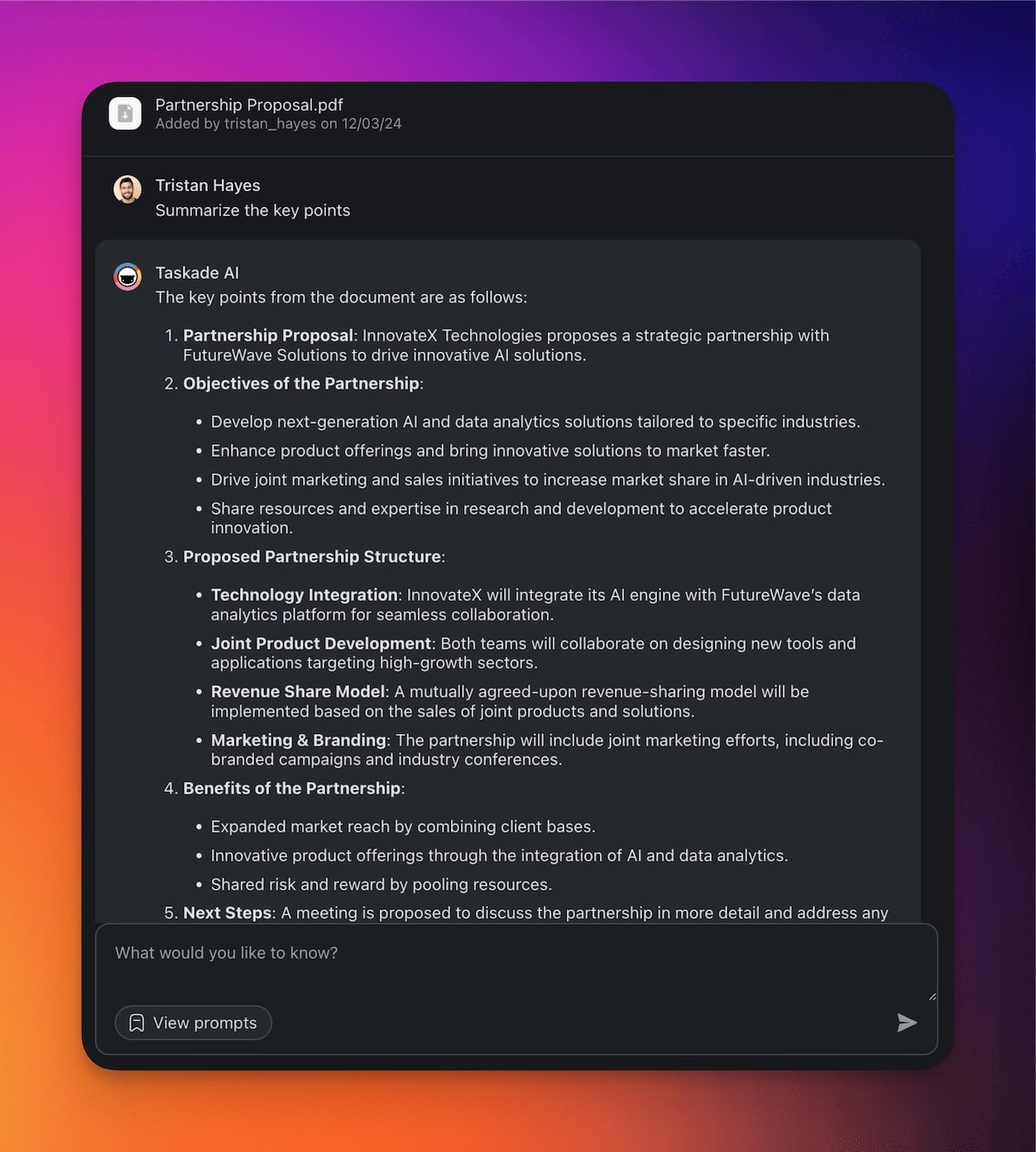
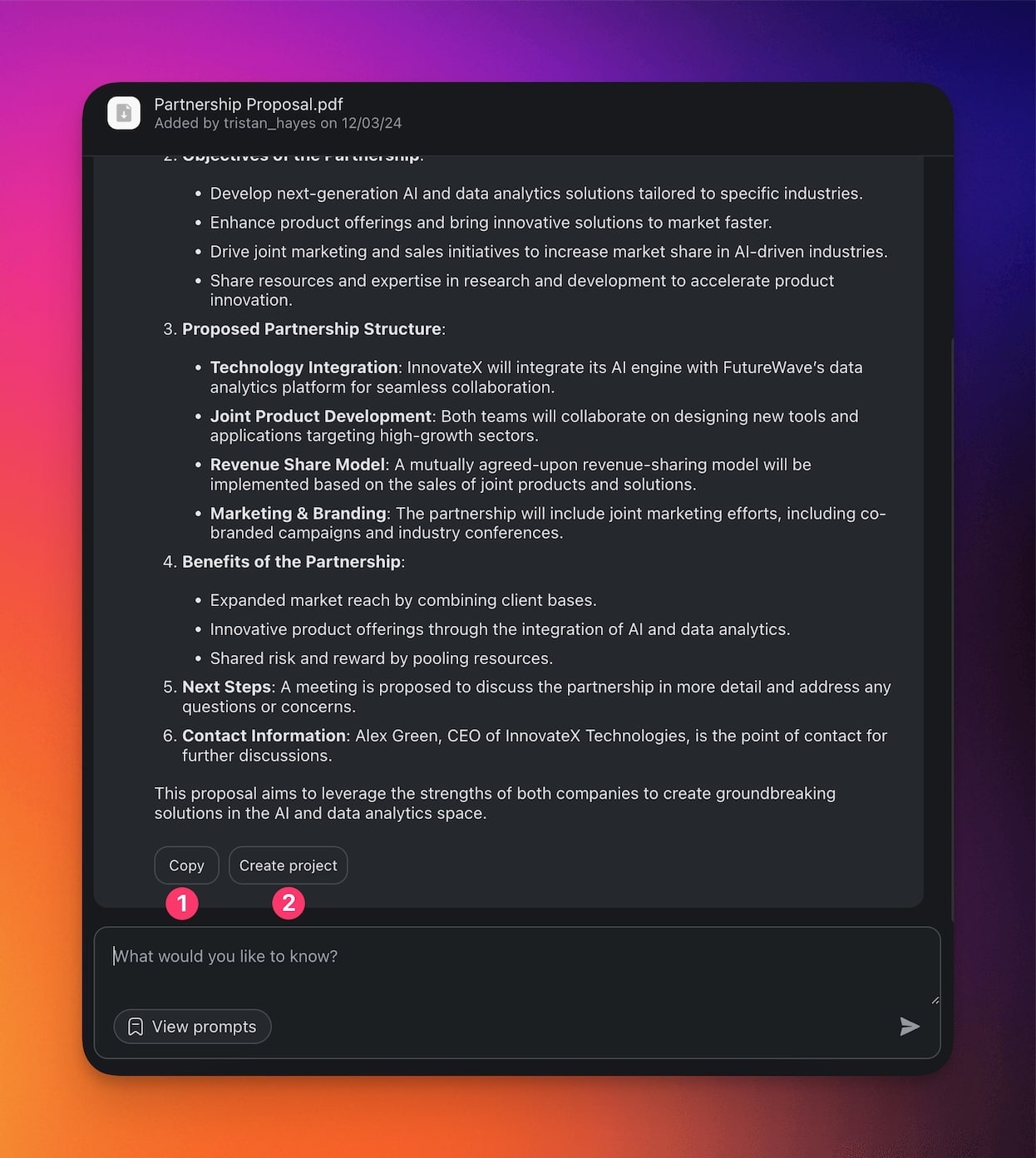
- (1) Click Copy to save the output to the clipboard.
- (2) Click Create project to turn the output into a new project.
Method 4: Chat in Media Files
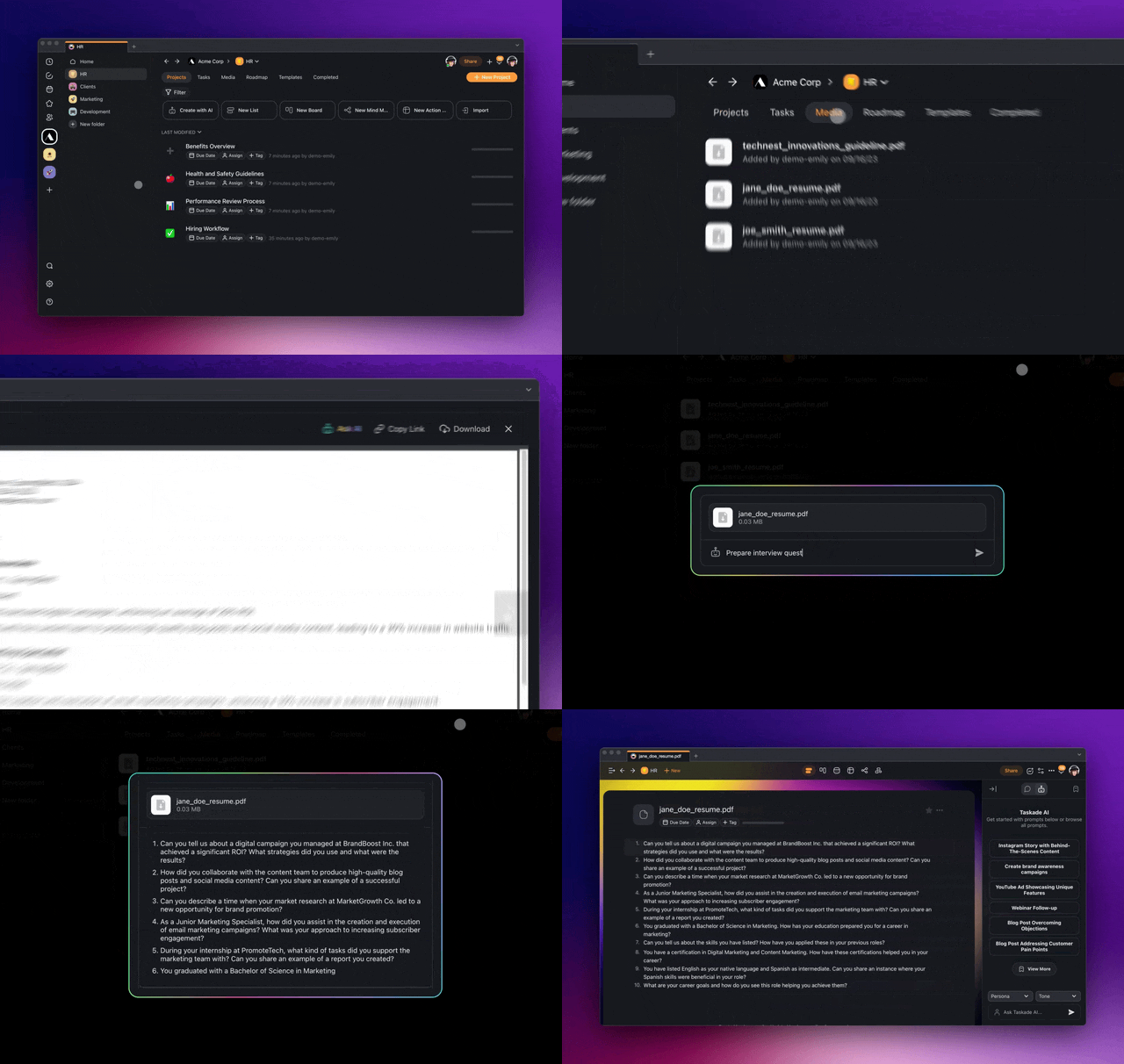
- Open your workspace/folder.
- Navigate to the Media tab at the top.
- Hover the mouse cursor over a file and click 🤖 Ask AI.
- Type your questions in the pop-up menu to start a conversation.
Note: You need to upload files and documents into a project to see them inside Media Files. Visit 📎 Upload Files / Attachments to learn more.
What You Can Attach to a Message
The chat composer accepts images, PDF, and text files. Text formats cover TXT, MD, CSV, and JSON.
| Attachment | Notes |
|---|---|
| Images (JPG, PNG, GIF, WebP) | Taskade reads the text inside them with built-in OCR |
| Read directly, no size ceiling in the composer | |
| TXT, MD, CSV, JSON | Read as text, subject to a size ceiling |
If a text file is over the ceiling, Taskade names the file and points you to the agent's Knowledge tab. Add large reference material to Agent Knowledge & Memory instead, where it stays available on every reply. If a file type is not supported, Taskade tells you which types it accepts rather than dropping the file silently.
Related guides
- Media Files. Where uploaded files live.
- Media Commands. Agent tools that operate on media.
- Agent Knowledge & Memory. Attach files as permanent agent knowledge.
- AI Chat. Chat in projects without files.
- Team Chat. Share Media Chat with teammates.