
Overview
All Taskade Workspaces and Apps are private by default. Other people reach your spaces only after you or another space member invites them.
TL;DR: Your Taskade workspaces and apps stay private by default. You decide who gets in with invite links and per-member access levels, from Invite Only for sensitive work to Full Edit for trusted teams. See User Roles and Permissions for what each level can do.
Collaborate on Apps
Add team members to your app so they can access and collaborate on its contents.
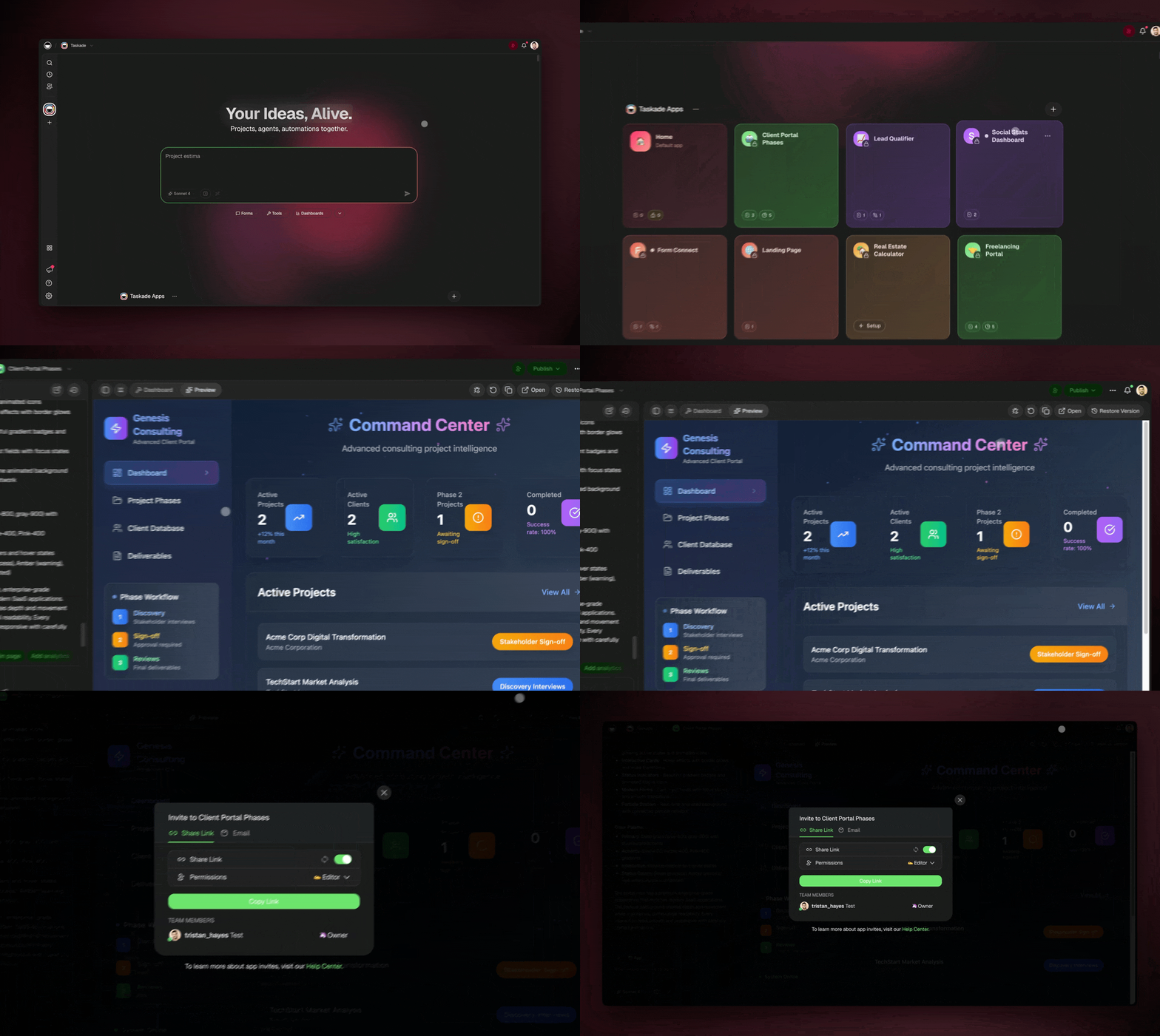
Go to your App Gallery in the main Taskade Genesis Dashboard.
Open an app → Click the Share button in the top-right corner.
Copy the invite link and share it via email, text, or any other way.
(optional) Specify the level of access for users who join with the link.
Set/Edit Permissions
Every time you create a new app in a shared workspace, you can define the level of access for other workspace members.
💡 Note: Visit User Roles & Permissions to learn more.
- Generate a new app inside a workspace.
- Click the three dots ··· in the app space → Edit.
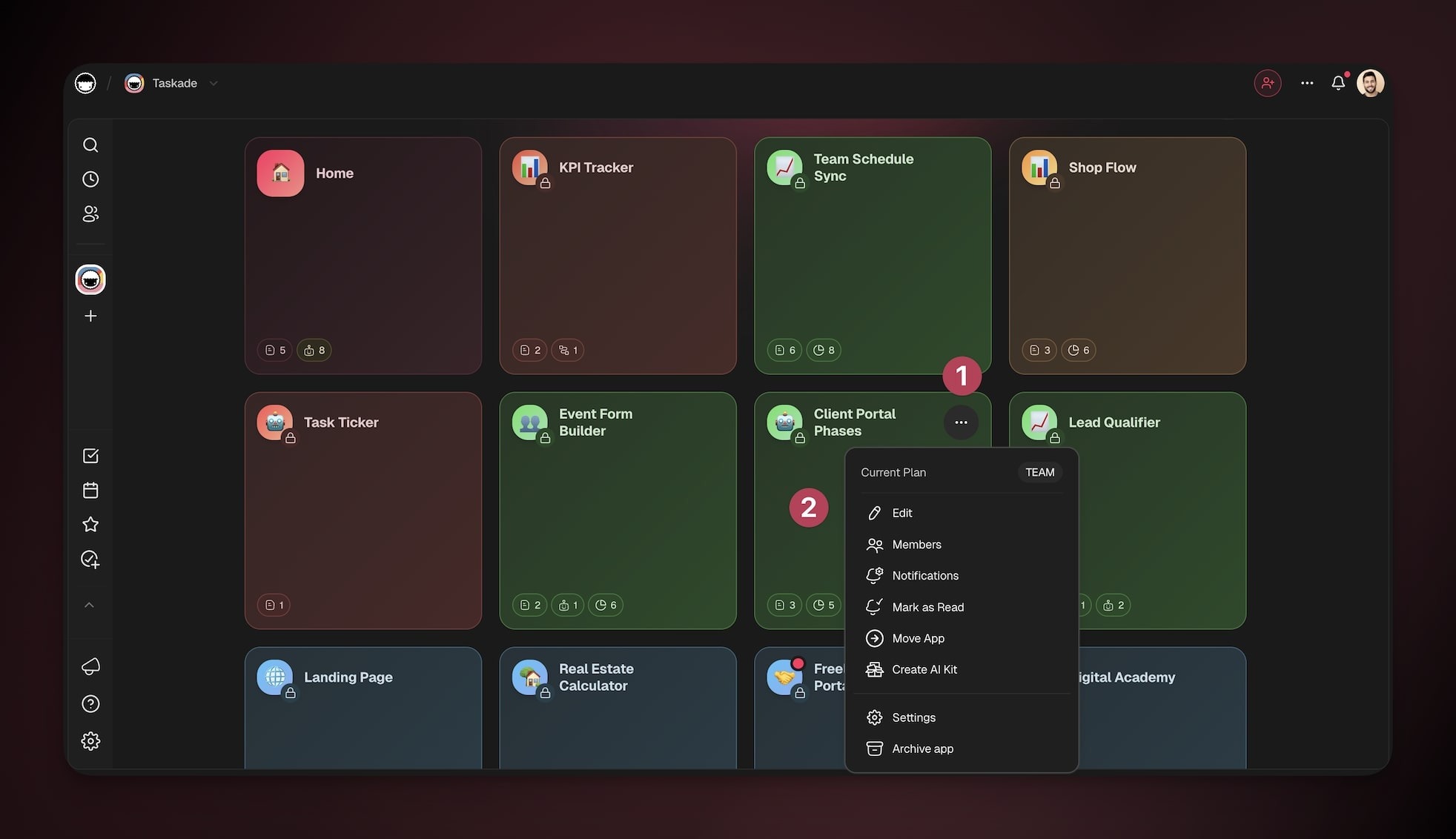
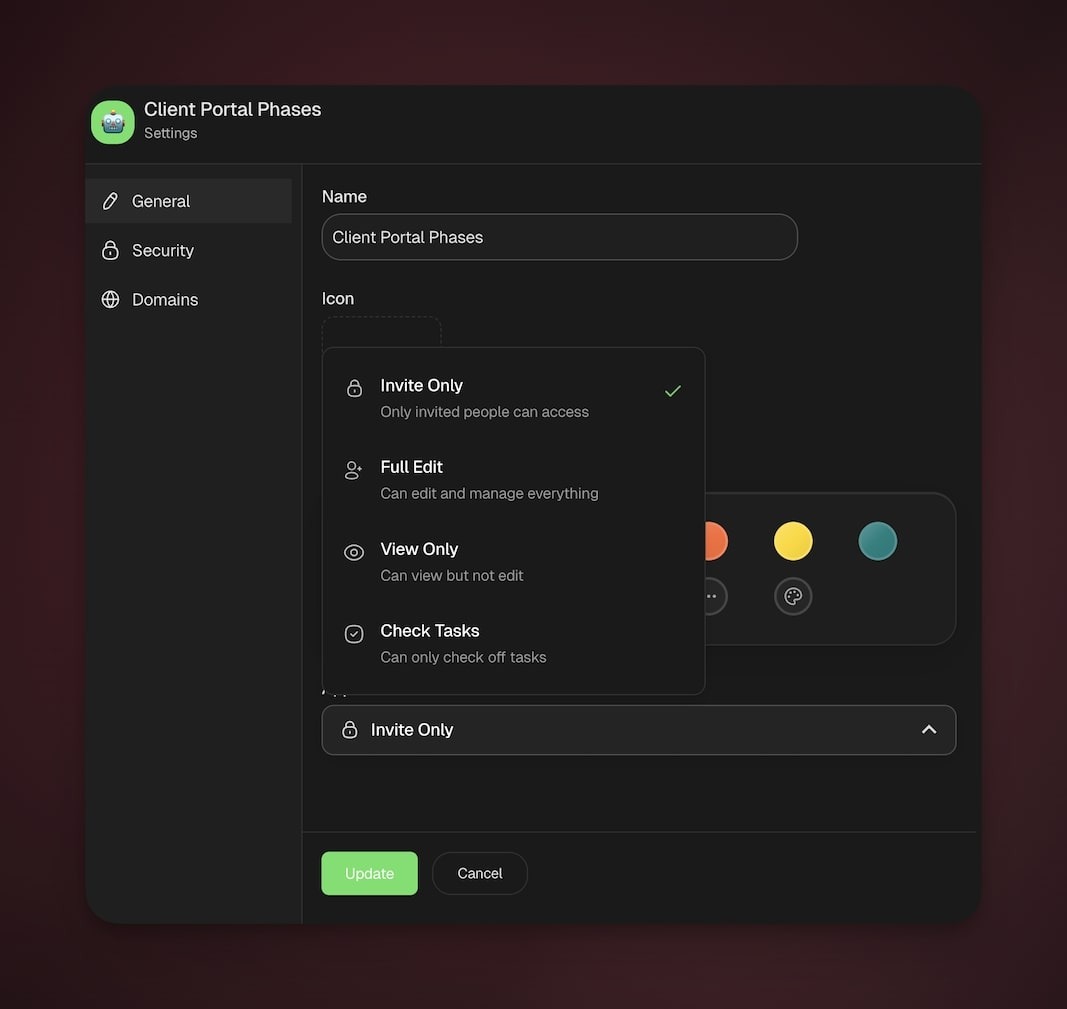
- Use the dropdown menu in the General tab to define access level:
| Access level | What workspace members can do | Typical use |
|---|---|---|
| Invite Only | None until invited | Private builds, sensitive work, early drafts |
| Full Edit | Create/edit content, configure projects, agents, and automations | Small trusted teams building together |
| View Only | View content only | Broad visibility, reviews, leadership updates |
| Check Tasks | Mark tasks complete, no edits to content/settings | Light participation, QA checks, field teams |
Tips
- Default is private. Every new workspace and app starts as private. No one outside your workspace sees your content until you share it.
- Review sharing links regularly. If you shared invite links in the past, check the access level each one still grants. You can revoke or regenerate a link at any time from the Share menu.
- Use "Invite Only" for sensitive work. When an app holds confidential data or early-stage ideas, set the access level to Invite Only. Then only the members you pick can see the content.
- Audit member roles periodically. As teams grow or change, review who holds Owner, Maintainer, or Editor access. Keep the permissions matched to the people who need them.
Related guides
- Taskade Genesis FAQ. Common questions about Taskade Genesis apps, pricing, and features.
- User Roles and Permissions. Full breakdown of what each role can do.
- Transfer Workspace Ownership. Change who controls the workspace.
- Invite Members. Add teammates and guests.