
Overview
The Agent Inbox captures every public conversation your AI agents have. It gathers shared links, website embeds, Community Gallery visitors, and direct messages into a single reviewable dashboard. It turns any agent into a 24/7 endpoint you can monitor, reply to, and automate without watching chats live.
TL;DR: Taskade's Public Agent Inbox aggregates 100% of external agent conversations into one dashboard. Pair it with Automations to auto-route threads to Slack, email, or CRM, turning every public agent into a measurable support channel. Free to start, with more AI credits on paid plans. Create your first agent →
Note: Share & Embed AI Agents to learn more.
Where the Inbox Fits
The Inbox is the Interface layer connecting external users to your Workspace DNA: Projects (Memory) feed knowledge to Agents (Intelligence), Automations (Execution) act on every captured thread, and the Inbox is the public surface that makes it all addressable. See Workspace DNA for the full architecture.
Enable Public Agent Chats
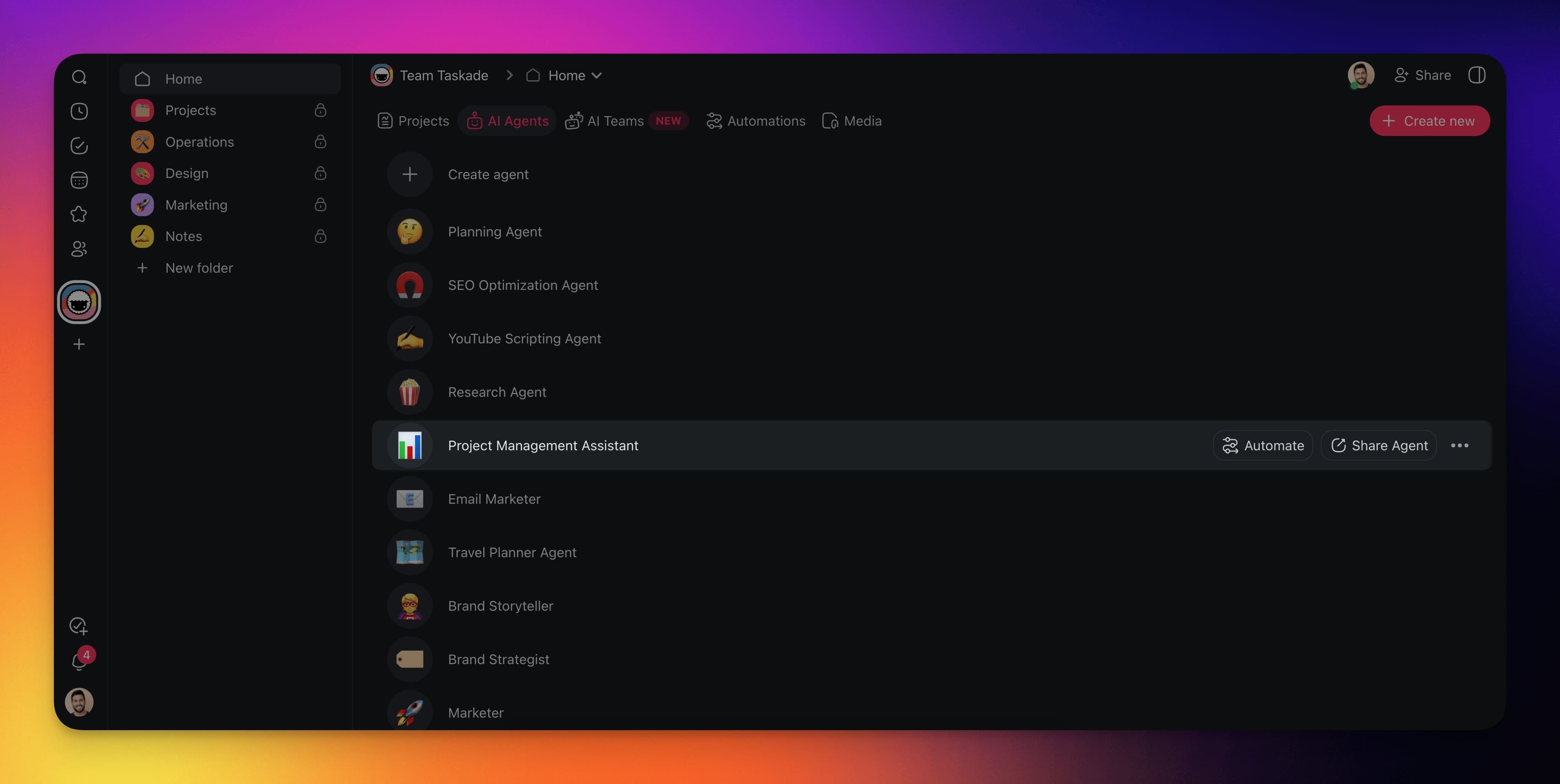
- Navigate to the 🤖 Agents tab.
- Hover the mouse cursor over an agent.
- Click the Share Agent button on the right.
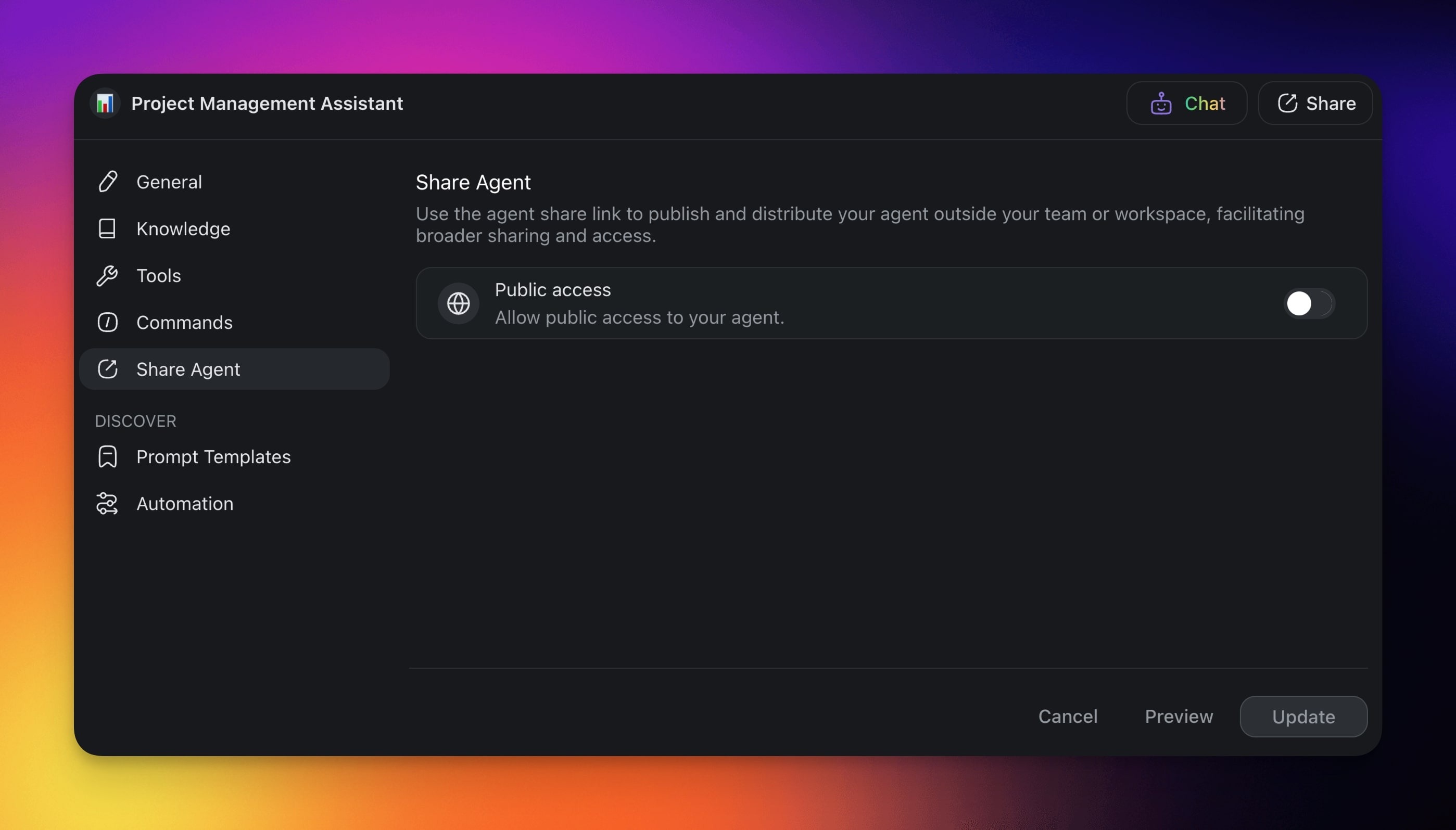
- Enable the Public access toggle.
Customize Public Agents
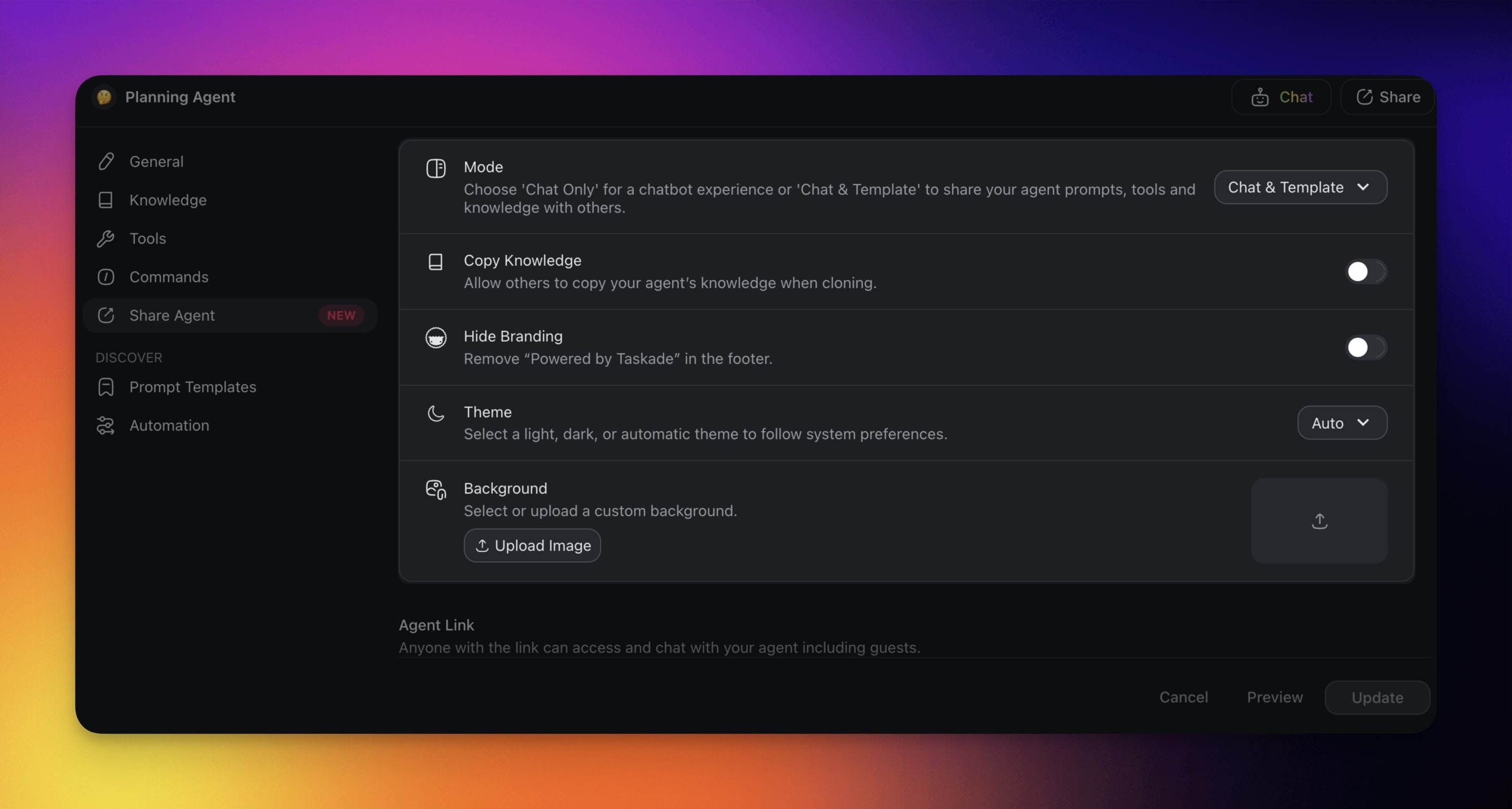
The sharing menu includes a number of settings for your public agent:
- Mode: Choose the level of interactions with the agent.
- Copy Knowledge: Decide if you want to allow others to copy agent knowledge.
- Hide Branding: Remove Taskade branding in the agent footer.
- Theme: Select light, dark, or automatic theme.
- Background: Select or upload a custom background.
Share a Public Agent Link
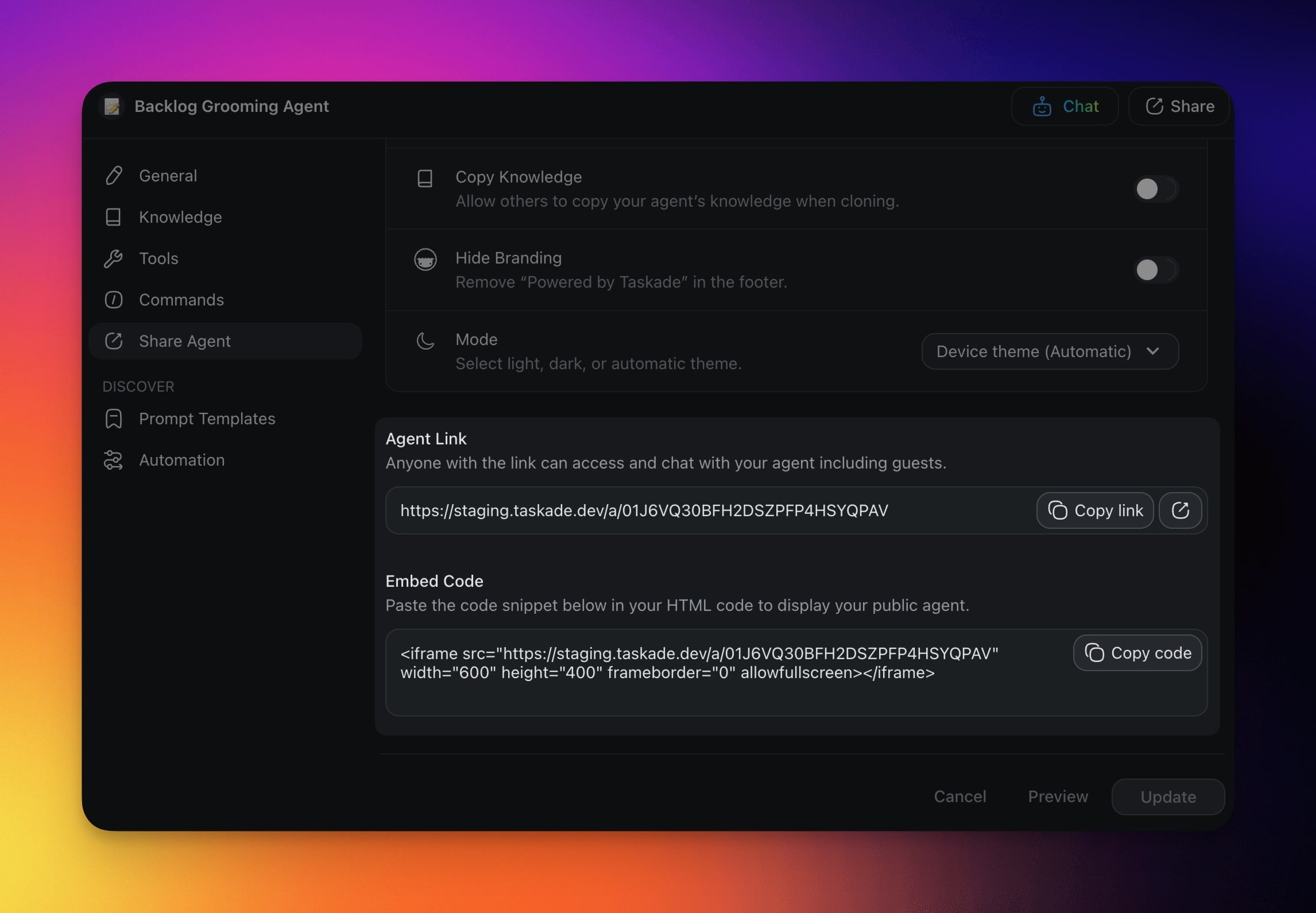
You can copy the agent link or the Add to your website code and share it anywhere:
- Click Copy link to share a direct link.
- Click Add to your website to copy the embed code for your site.
Add a Chat Widget
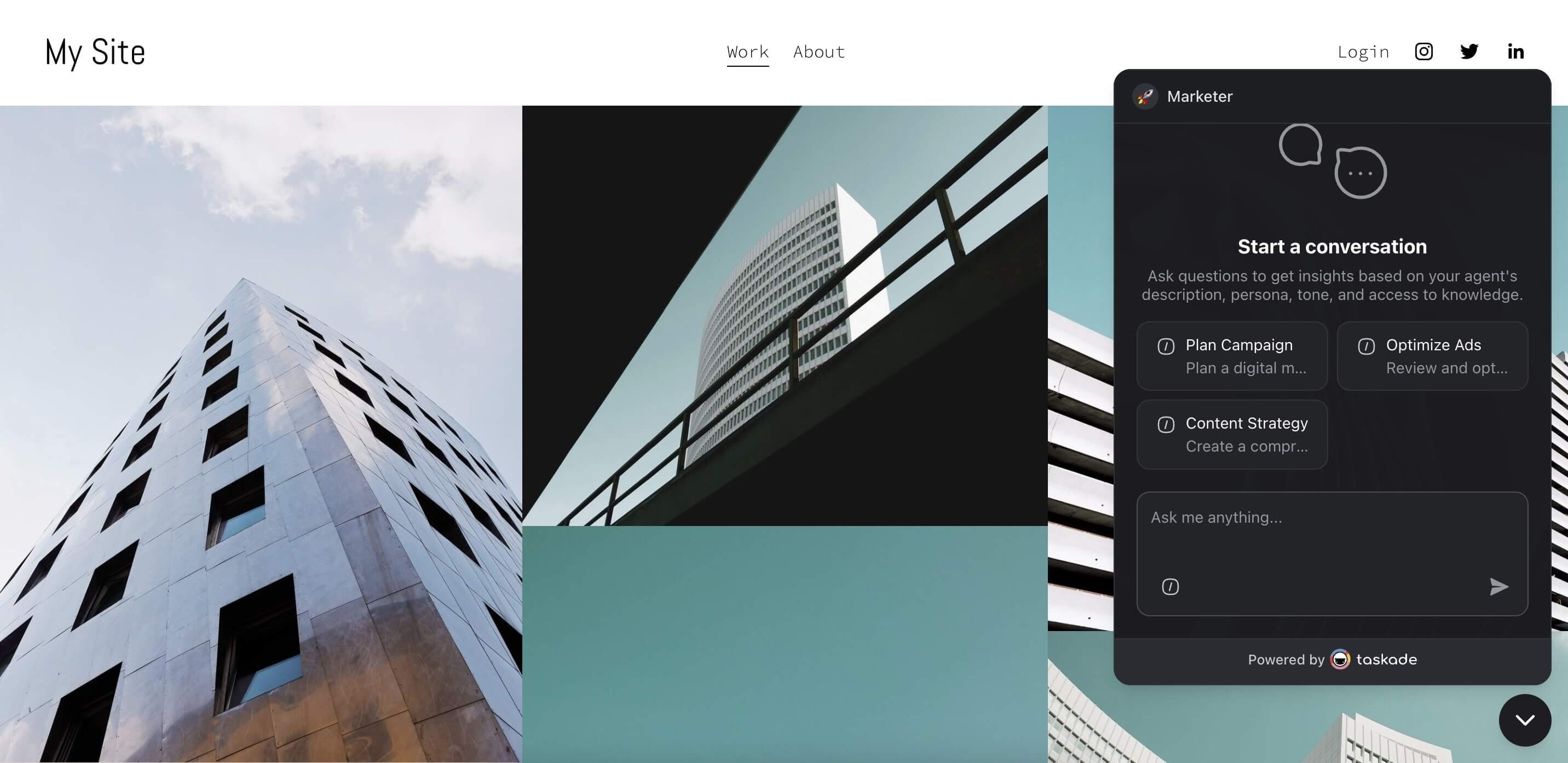
Use Add a chat widget to drop an AI agent launcher onto your site for an interactive and engaging user interface. The widget will offer continuous AI-driven support for your service or product.
- Share & Embed menu of your agent (see the first section).
- Scroll down and click Add a chat widget.
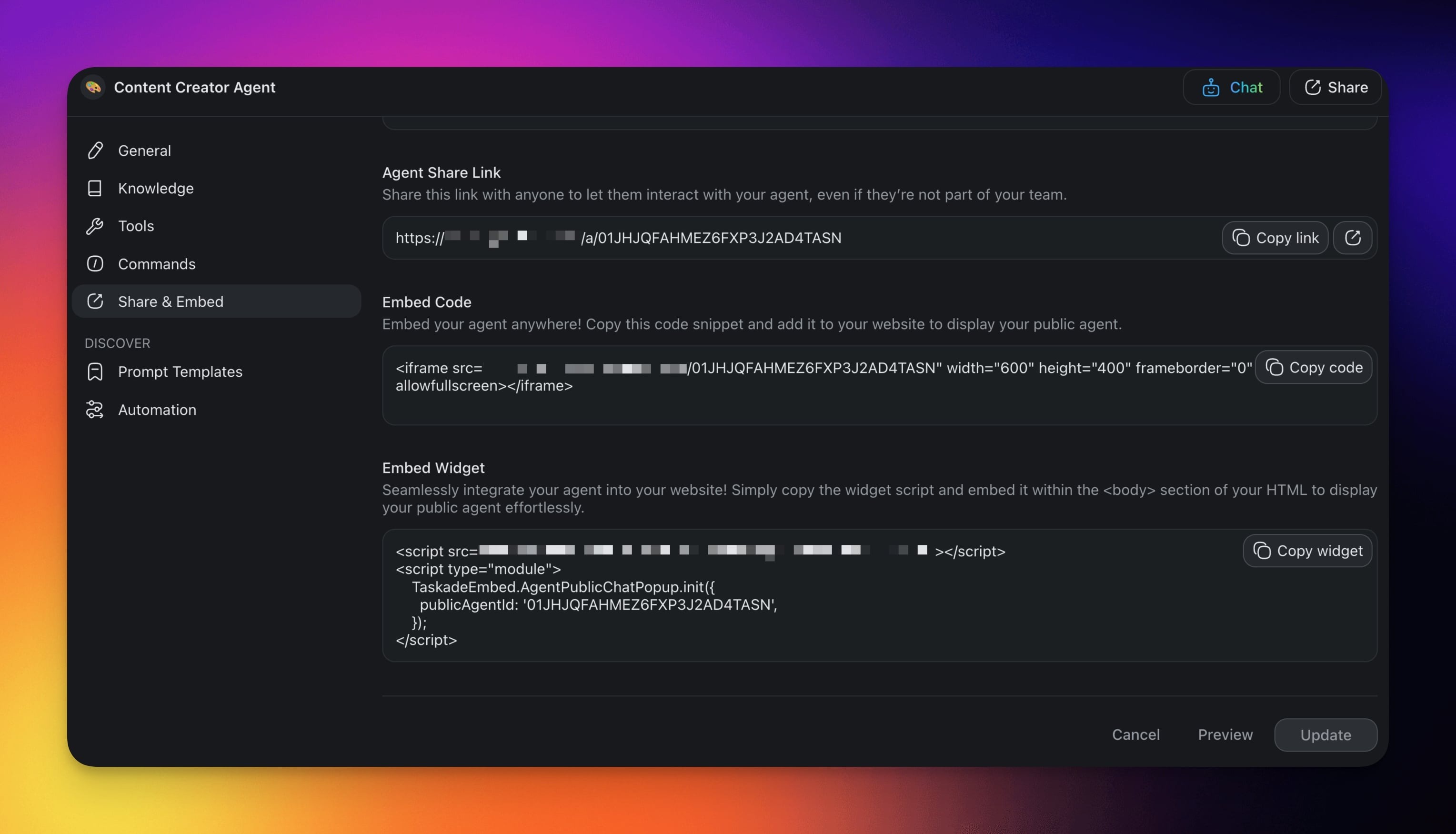
- Place the widget code inside the section of your webpage.
Set the Page Title & Description
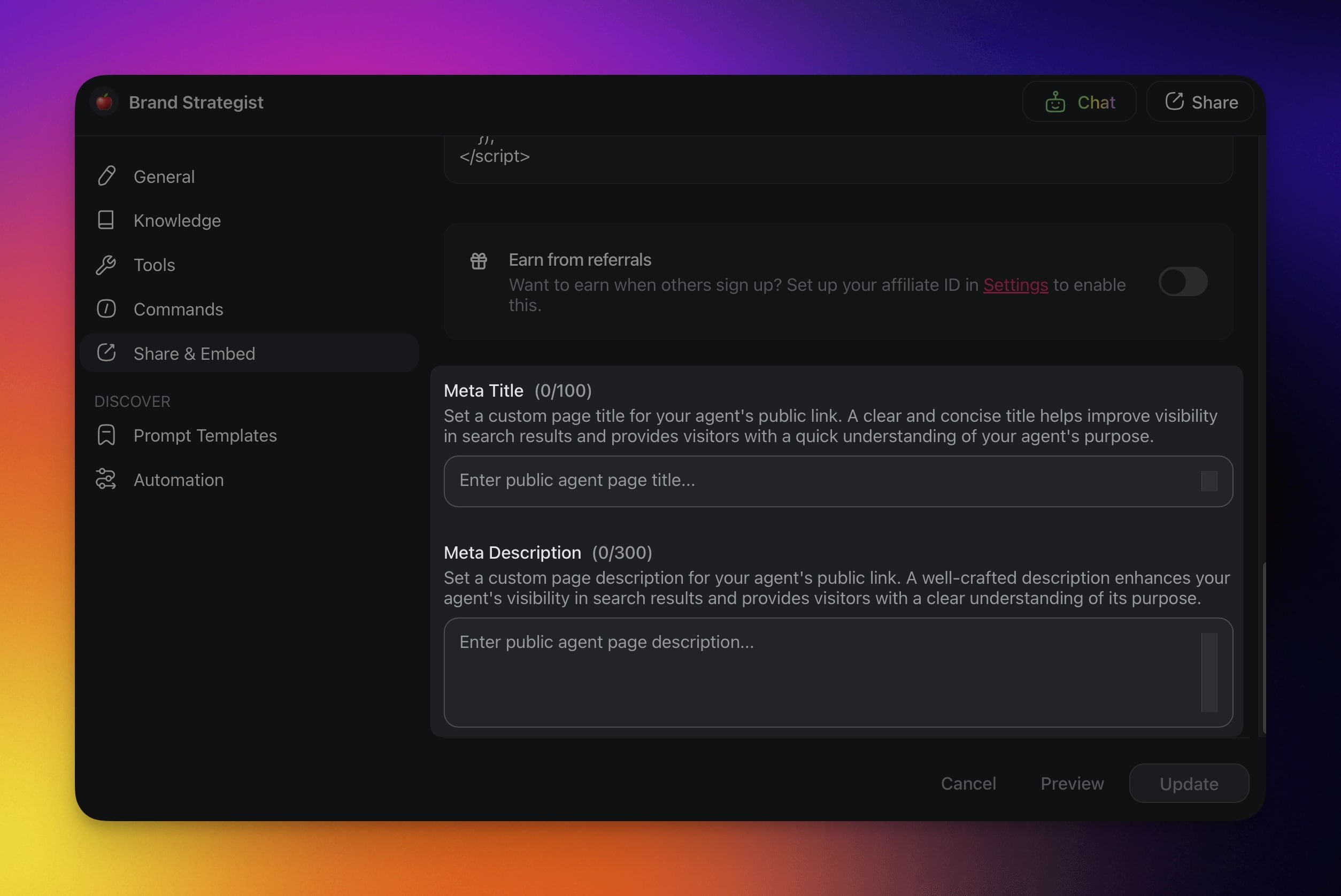
Give your public agent a clear link preview so it reads well in search results and when someone shares the URL. Two fields do the work: Page title and Short description.
Steps to customize:
Navigate to the 🤖 Agents tab.
Go to the Share & Embed tab and scroll down.
Add a Page title to the agent.
This title will appear as the clickable headline in search engines. Keep it under 100 characters. Example: "AI Support Agent for Taskade Users"
Add a Short description to the agent.
- Provide a brief, compelling summary of your agent’s capabilities. Example: "This AI-powered assistant helps Taskade users find answers."
Automate Public Chats
You can automate public agent chats with a dedicated trigger:
- Go to the Automations tab in your workspace or folder.
- Click ➕ Add automation(start from scratch or generate with Taskade AI).
- Click ➕ Add Trigger and choose the Public Agent Public Chat Ended trigger.
- Choose the agent you want to monitor in the right sidebar.
- Continue building your automation with actions.
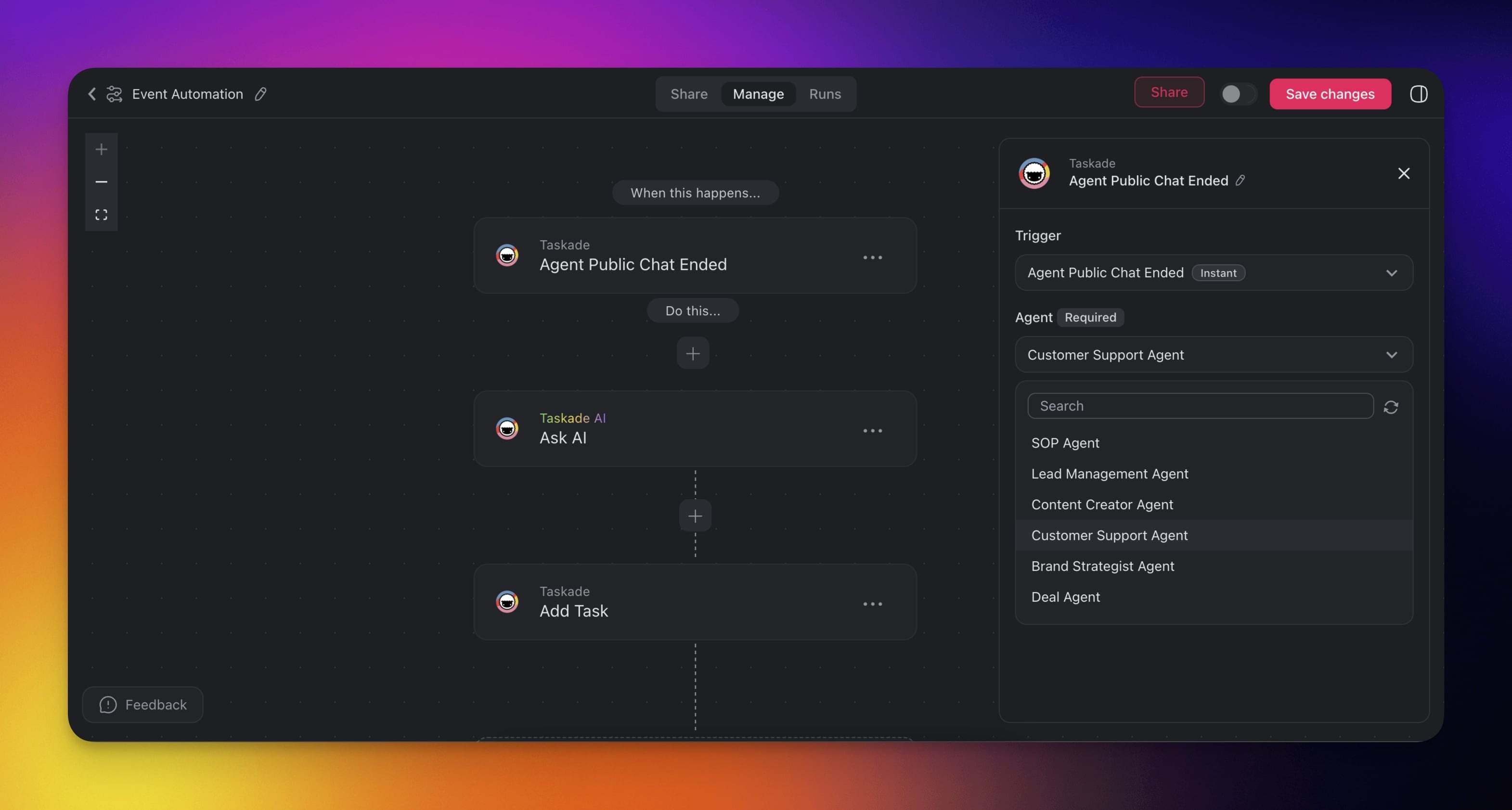
Note: When the public chat ends, the trigger will activate your automation and pass the conversation history to the next step in your workflow. Visit Agent Public Chat Ended to learn more about the trigger.
Review Public Agent Inbox
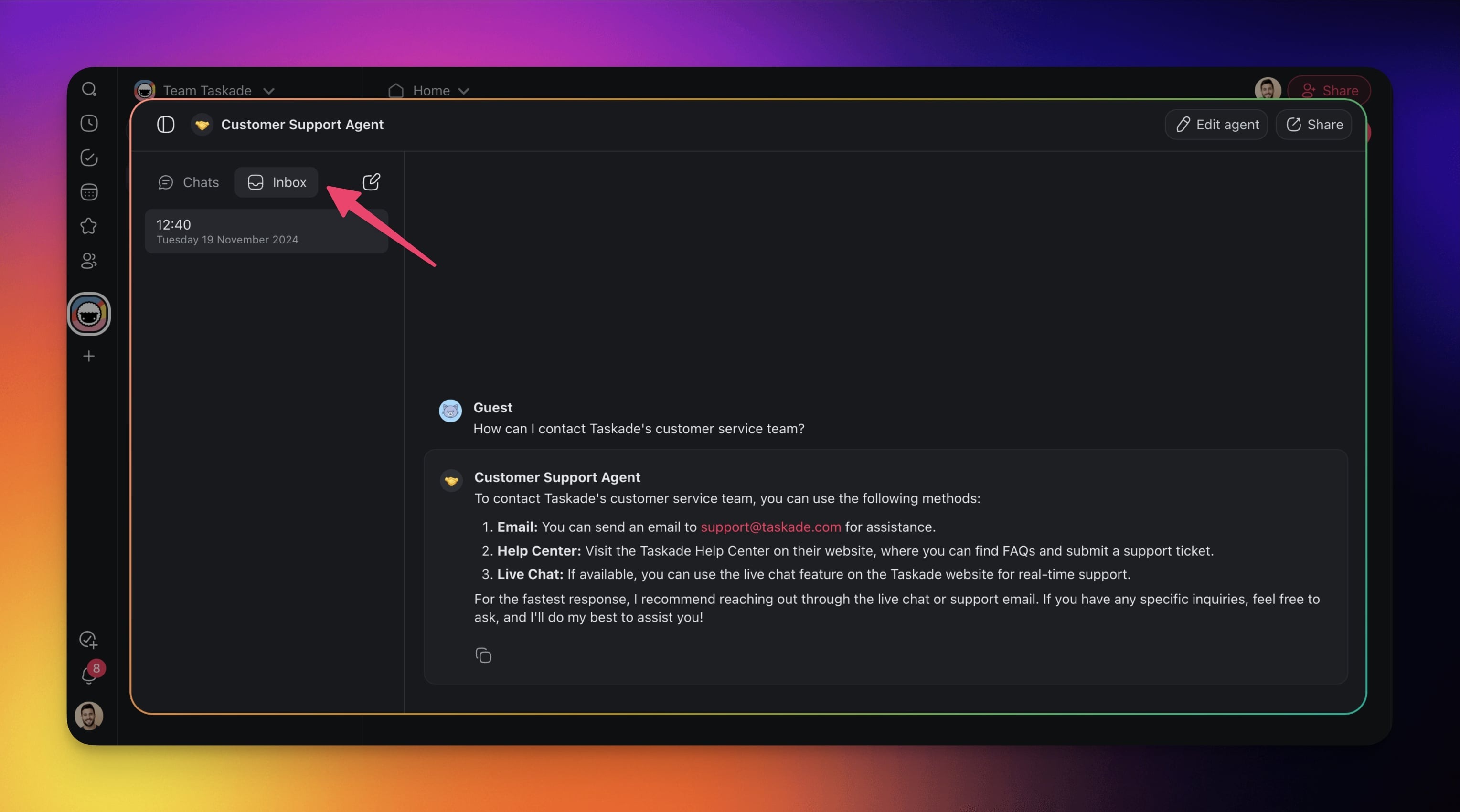
When somebody interacts with the public agent, the conversations will be aggregated inside the Visitor Inbox tab in the agent dashboard:
- Choose your agent in the Agents tab.
- Navigate to the Chat tab (top-right).
- Go to the Visitor Inbox tab in the left sidebar to see threaded conversations.
The Visitor Inbox tab in the agent's Messages sidebar sits beside My Chats: every public thread, newest first, with its source, an unread dot, and a ··· menu for Rename / Export / Delete:
┌────────────────────────────────────────────────────────────┐
│  Agents  ›  Support Bot  ›  Message                        │
├────────────────────────────────────────────────────────────┤
│  Messages                                        [ + ]     │
│   My Chats    [ Visitor Inbox ]                            │
├────────────────────────────────────────────────────────────┤
│  ● Refund request #4821          Public link   2m    ···   │
│  ● Can it read my PDF?           Embed         18m   ···   │
│  ○ Pricing for 20 seats         Public link   1h    ···    │
│  ○ New Chat                      Public link   3h    ···   │
│                                                            │
│        ···  ›  Rename   Export   Delete                    │
└────────────────────────────────────────────────────────────┘
Export Public Chats
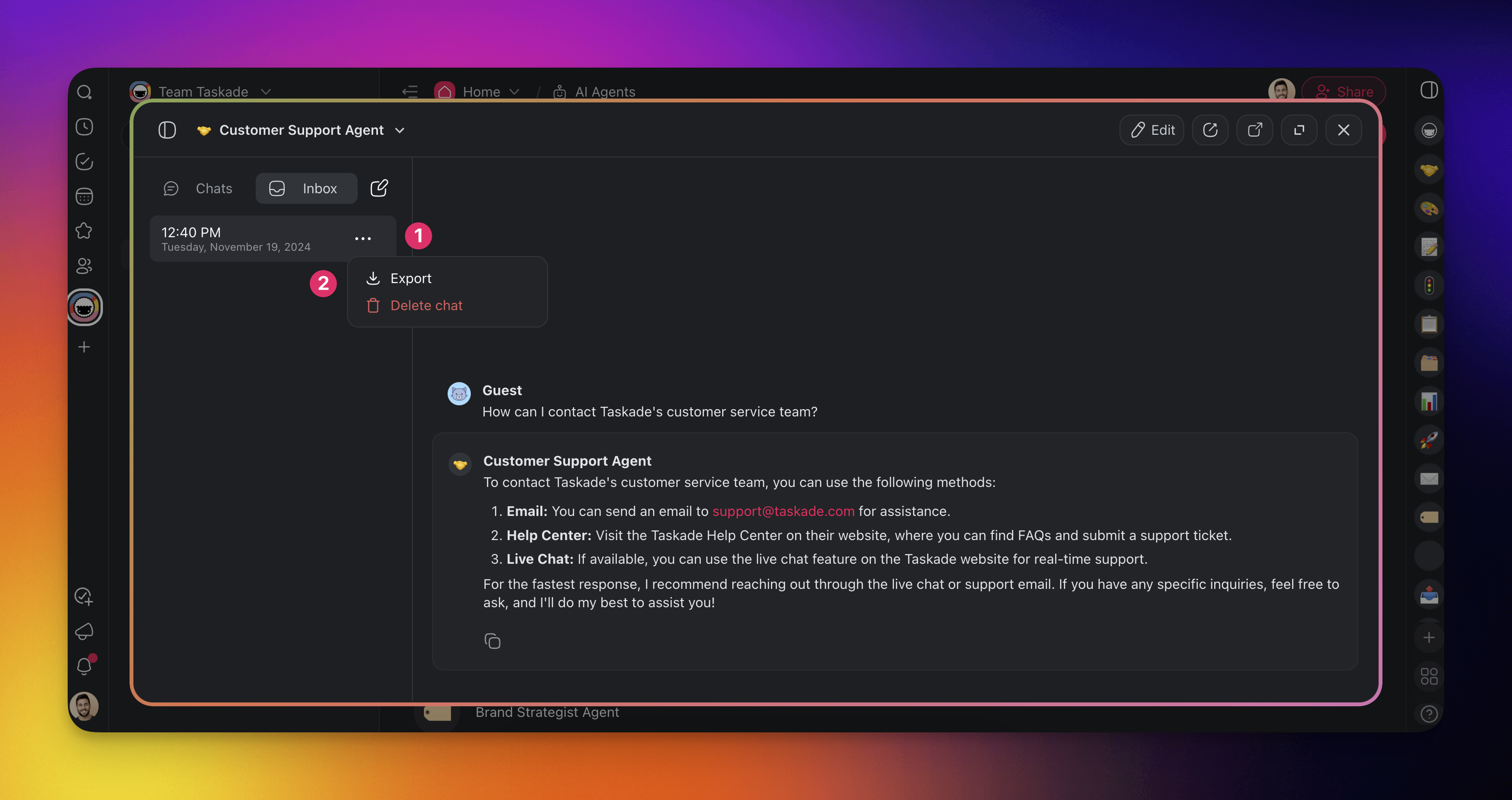
You can export, archive, and reuse public conversations with your agents. Chat export is available on Pro and above.
- Click the three dots ··· next to a conversation thread.
- Choose Export from the drop-down list.
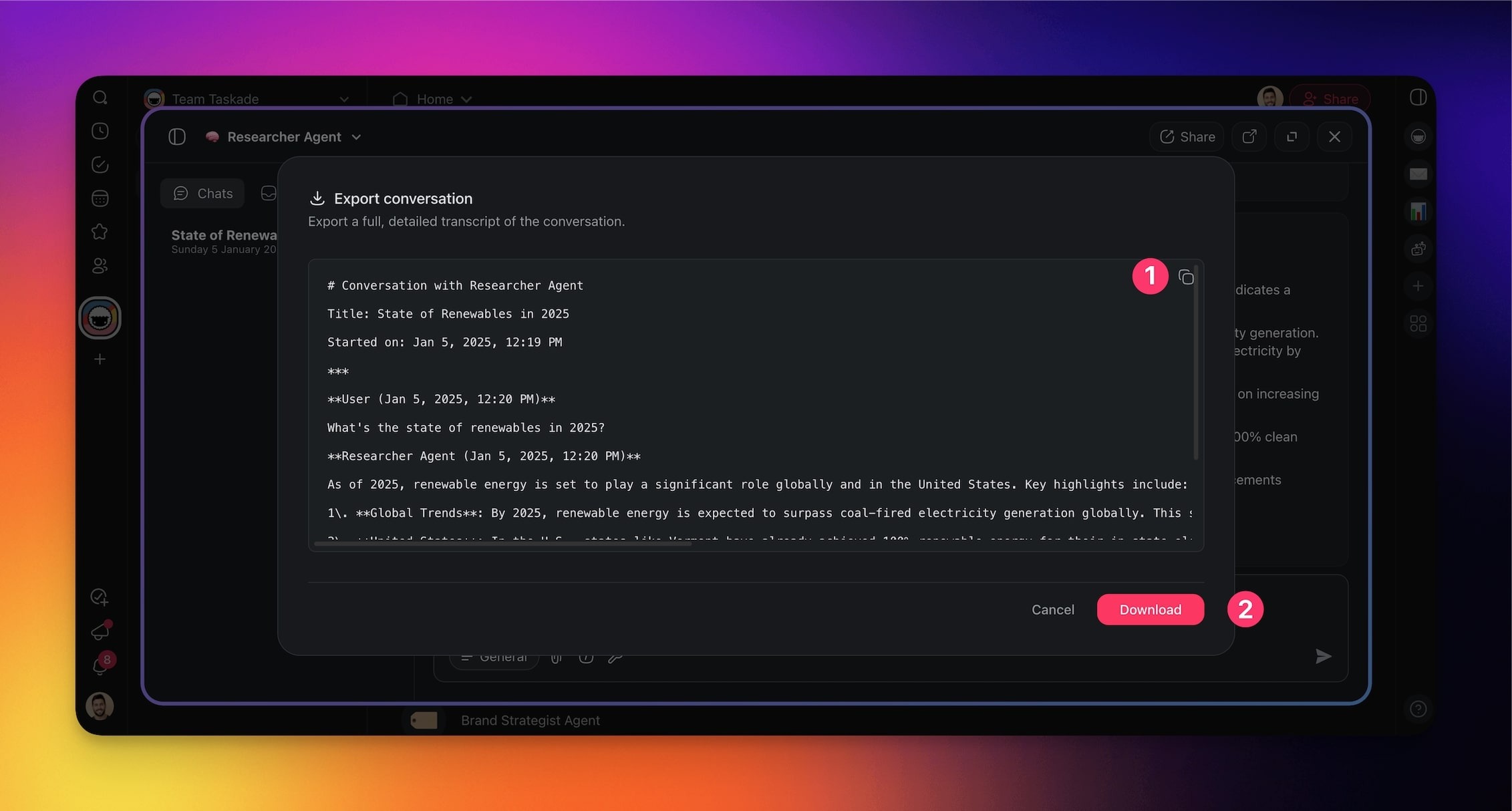
Choose one of the export methods:
- Copy the conversation to the clipboard.
- Download the conversation as a Markdown file.
Use Cases
Not sure where to start? Here are a few use cases you can explore.
Here is a table summarizing the information you provided:
| 🤹 Use Case | 🔤 Description | 🔄 Automations |
|---|---|---|
| Knowledge Sharing & FAQs | Embed agents on your website to answer FAQs, share resources, and guide visitors using up-to-date knowledge. | Log user queries, create tasks for unresolved issues. |
| Customer Support Automation | Use agents trained with support documentation to handle queries 24/7, while unresolved conversations are logged in the inbox for team review. | Trigger escalations or follow-up emails automatically. |
| Pre-Sales Engagement | Train agents with pricing, product details, and demos. Engage leads on your website or dashboard, while tracking interactions in the inbox. | Schedule sales calls or create CRM updates. |
| Event & Meeting Management | AI agents help schedule meetings, manage agendas, and summarize discussions. Interactions are logged in the inbox for easy access to key points. | Send meeting reminders, distribute notes. |
| Web Search, Scraping, and YouTube Transcription | Agents search the web, scrape competitor sites, or transcribe YouTube videos to share insights in public chats. | Save insights to Taskade projects, notify teams via inbox. |
| Team Productivity | Agents trained with workflows provide quick answers, suggest tasks, and streamline project management, logging all interactions in the inbox. | Assign tasks, update timelines, or send reminders. |
Related guides
- Publish Agents Publicly: Public URL slug, theme + suggested prompts, and knowledge-source scoping
- Embed AI Agents as Website Widgets: Drop a chat launcher onto any site
- Branded Agent Domain Links: Use ask.your-brand.com for the public agent URL
- Custom AI Agents: Build the agent before you make it public
- Tools for AI Agents: Equip agents with the built-in tools