# Taskade Templates: Create, Use, and Schedule
> Use Taskade templates to start projects in one click. Create a custom template, turn a project into one, copy it, and schedule new projects from it.
- Source: https://www.taskade.com/learn/projects/use-templates
- Section: Projects
- Updated: 2026-09-29
- Index of all pages: https://www.taskade.com/learn/llms.txt
Taskade templates are reusable starting points for new projects. Pick a ready template, or save your own so a client onboarding or weekly report starts the same way each time.
> **TL;DR:** Taskade templates come in two kinds. **Project Templates** start a new project from a ready prompt. **Custom templates** live on the **Templates** tab of a workspace or folder, and everyone there can use them. Turn any project into a template with **Add to Templates**, and schedule repeats on a paid plan. Browse more in the [Template Gallery](https://www.taskade.com/learn/projects/template-gallery).
In this guide, you will:
- Start a project from a Taskade template
- Create a custom template, or turn a project into one
- Copy, share, and delete templates
- Schedule a template to create projects on a timetable
## Before You Start
You need a workspace or a folder to hold your templates.
| Requirement | Details |
| --- | --- |
| Plan | Use and create templates: every plan, Free included. Schedule templates: any paid plan. |
| Who can do this | The **Owner**, **Admin**, or **Editor** role can create, edit, and schedule. **Owner** or **Admin** can delete. |
| Who can use them | Everyone in the workspace or folder |
| Time | About 5 minutes |
## Two Kinds of Taskade Templates
Pick the kind of template by where the starting content comes from.
| Kind | Where you find it | What it gives you |
| --- | --- | --- |
| **Project Templates** | **Create project** (+) → **Use Template** | A ready prompt. Taskade builds a new project from it with AI. |
| **Custom templates** | The **Templates** tab of a workspace or folder | A copy of your own project, with its tasks and structure |
| **Template Gallery** | **Templates** tab → **Browse** | Public templates from Taskade and the community. See [Template Gallery](https://www.taskade.com/learn/projects/template-gallery). |
```mermaid
graph TD
A[Pick or create a template] --> B[Edit its tasks and structure]
B --> C[Use Template
new project]
B --> D[Schedule Template
new project every day or week]
style A fill:#2a1225,color:#ff8fa3,stroke:#ff2d60,stroke-width:2px
style C fill:#0d1a0e,color:#86efac,stroke:#22c55e,stroke-width:1.5px
style D fill:#1a140a,color:#ffb74d,stroke:#e65100,stroke-width:1.5px
```
## Step 1: Start a Project from a Template
A ready template gives you a new project in one click.
1. In the sidebar, open a workspace or folder.
2. Next to **Projects**, click **+** (**Create project**).
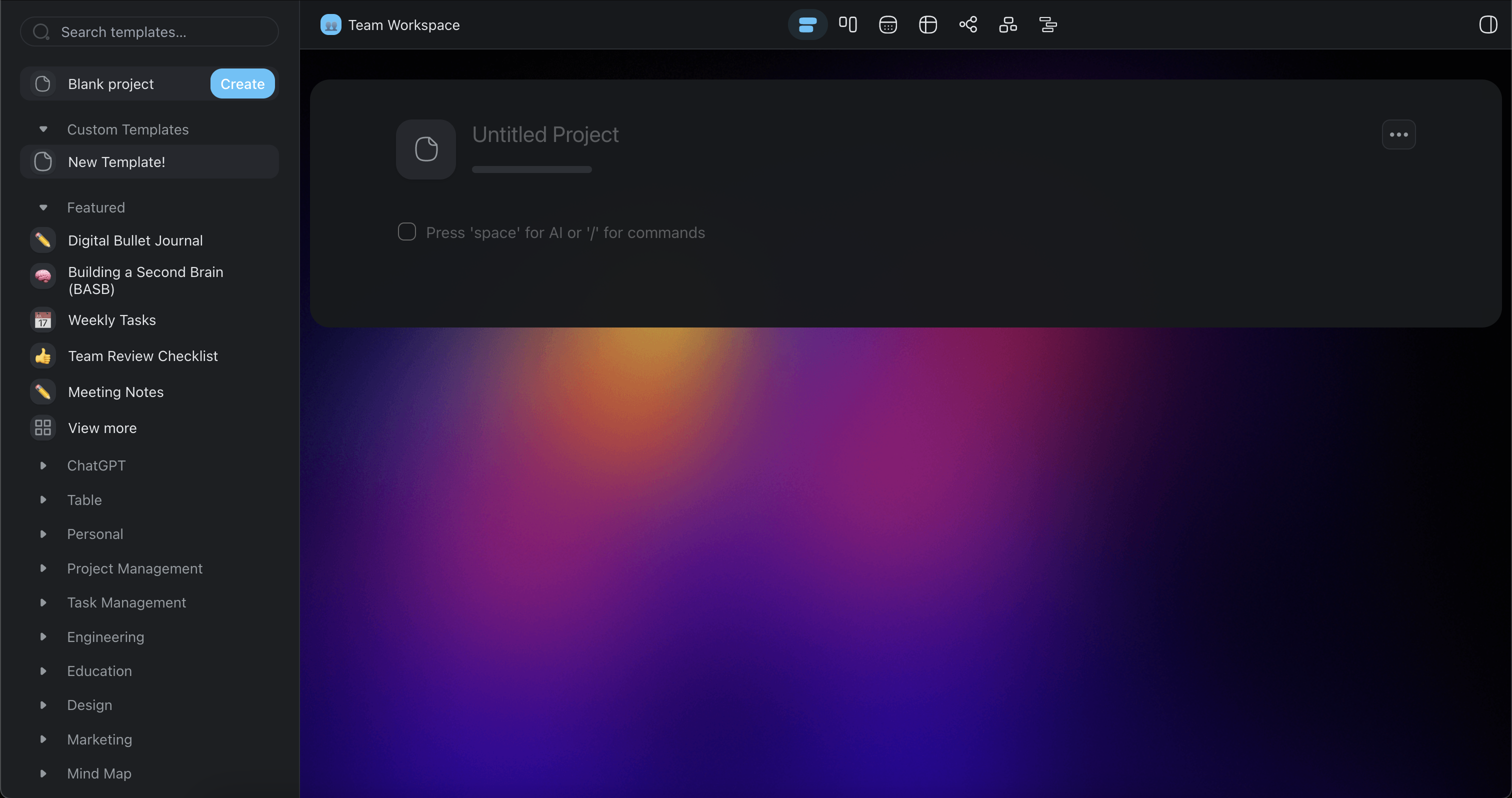
3. Click **Use Template**. The **Project Templates** dialog opens.
4. Pick a category, for example **Run Operations** or **Manage Clients**. Or type in **Search templates…**.
5. Click a template. Taskade opens AI project creation with the template prompt filled in.
6. Create the project.
To use one of your own templates, open the **Templates** tab and click **Use Template** on its card. Taskade creates the project and opens it.
## Step 2: Create a Custom Template
A custom template is a project that your team starts from again and again.
1. Open the workspace or folder.
2. Click the **Templates** tab, next to **Projects**.
3. Click **Create a template**.
4. Add the tasks, headings, and structure that each new project needs.
5. Go back to the **Templates** tab. The new template shows as a card.
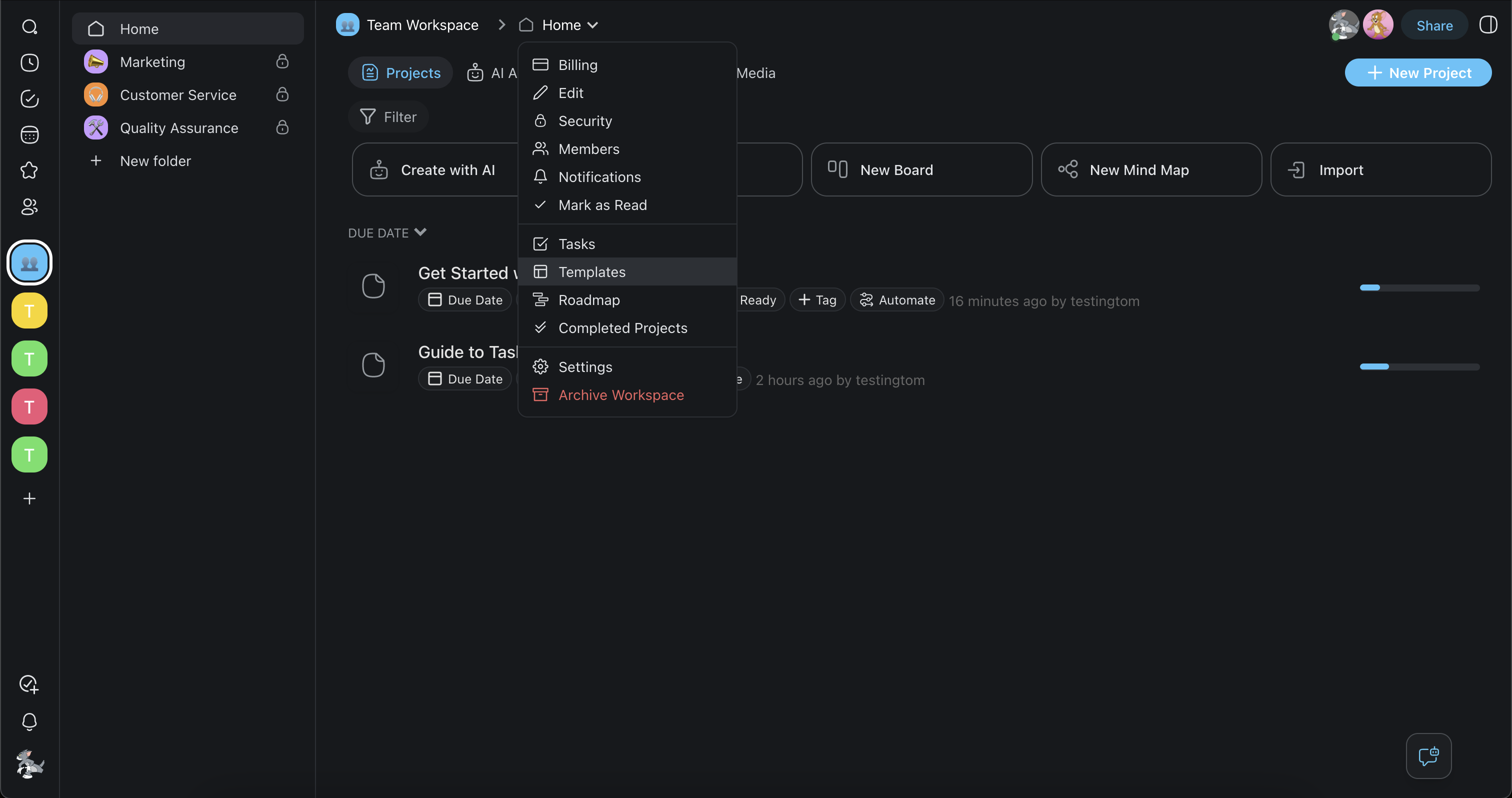
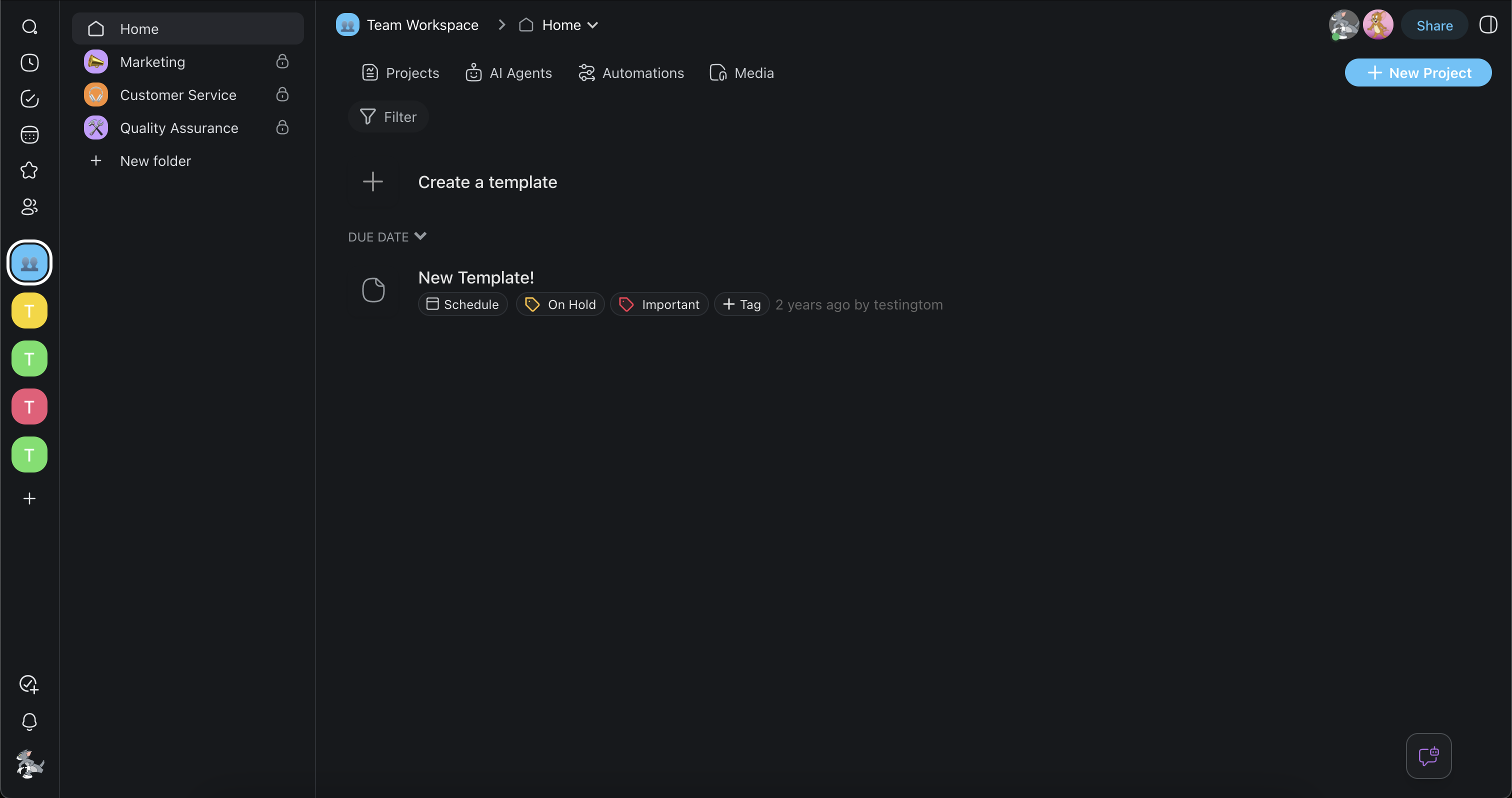
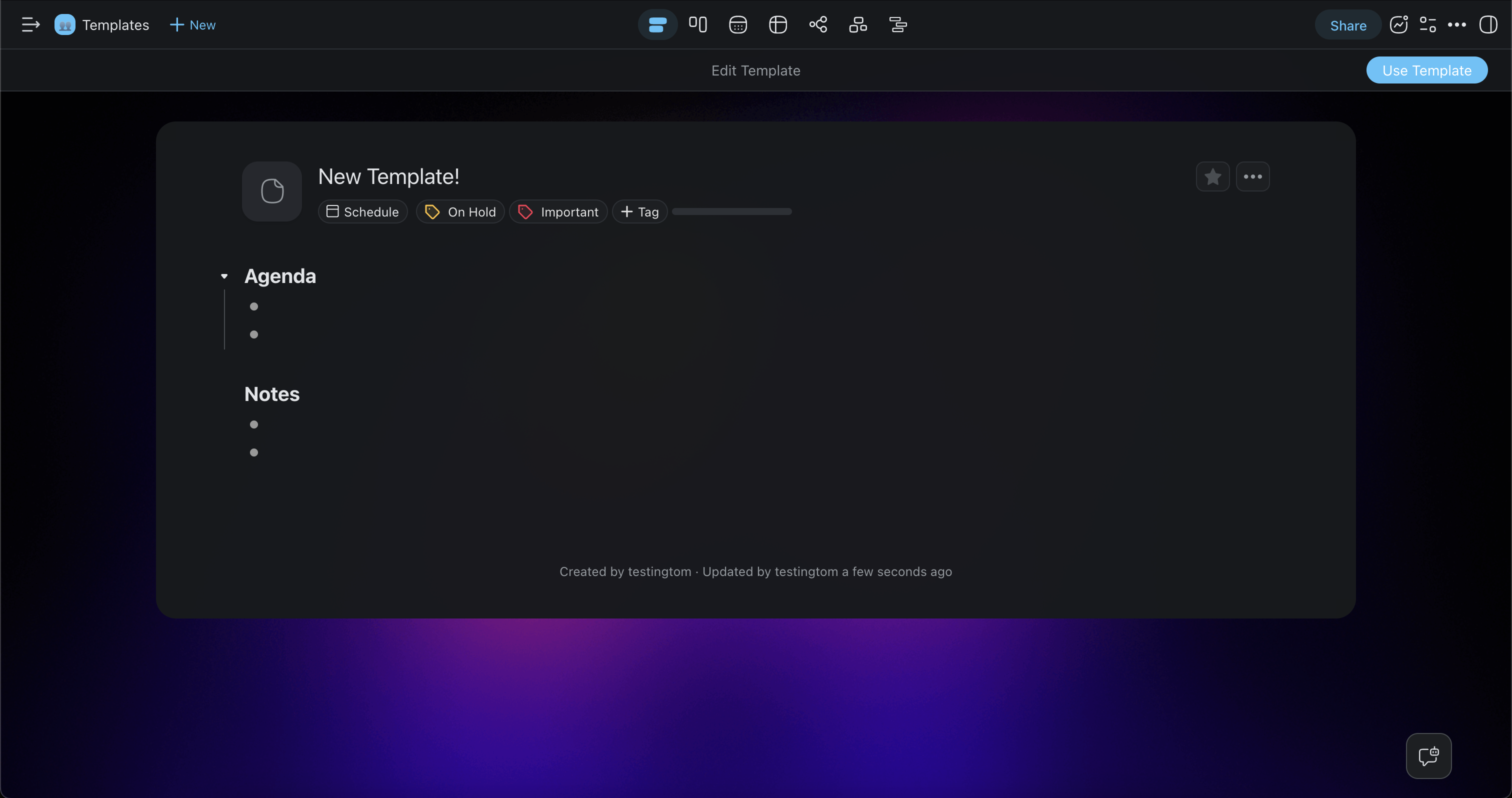
To change a template later, click **Edit Template** on its card.
## Step 3: Turn a Project into a Template
Any project can become a template. Taskade makes a copy, and the project stays as it is.
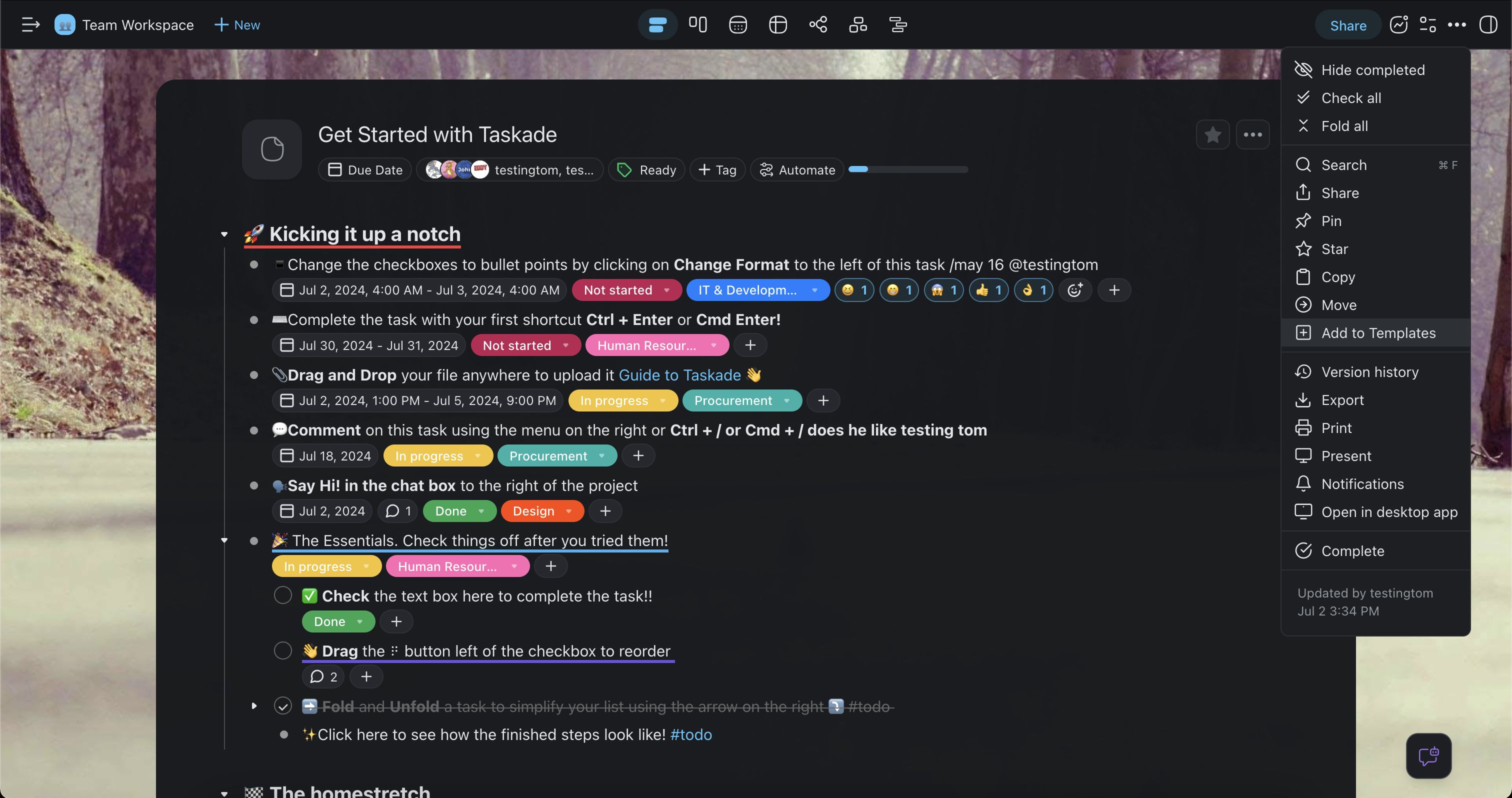
1. Open the project.
2. In the project header, click **More** (⋮).
3. Click **Add to Templates**. The **Copy Template** dialog opens.
4. Pick the workspace or folder for the template.
## Step 4: Schedule a Template
A scheduled template creates a new project on a timetable, for example every Monday at 9:00. Scheduling needs a paid plan.
1. Open the **Templates** tab.
2. On the template card, click the schedule pill. The **Schedule Template** panel opens.
3. Turn the switch on.
4. Set **Every** to a number, then pick **day** or **week**.
5. For a weekly schedule, pick the days in **On**.
6. Set the time in **At**.
7. Click **Schedule**.
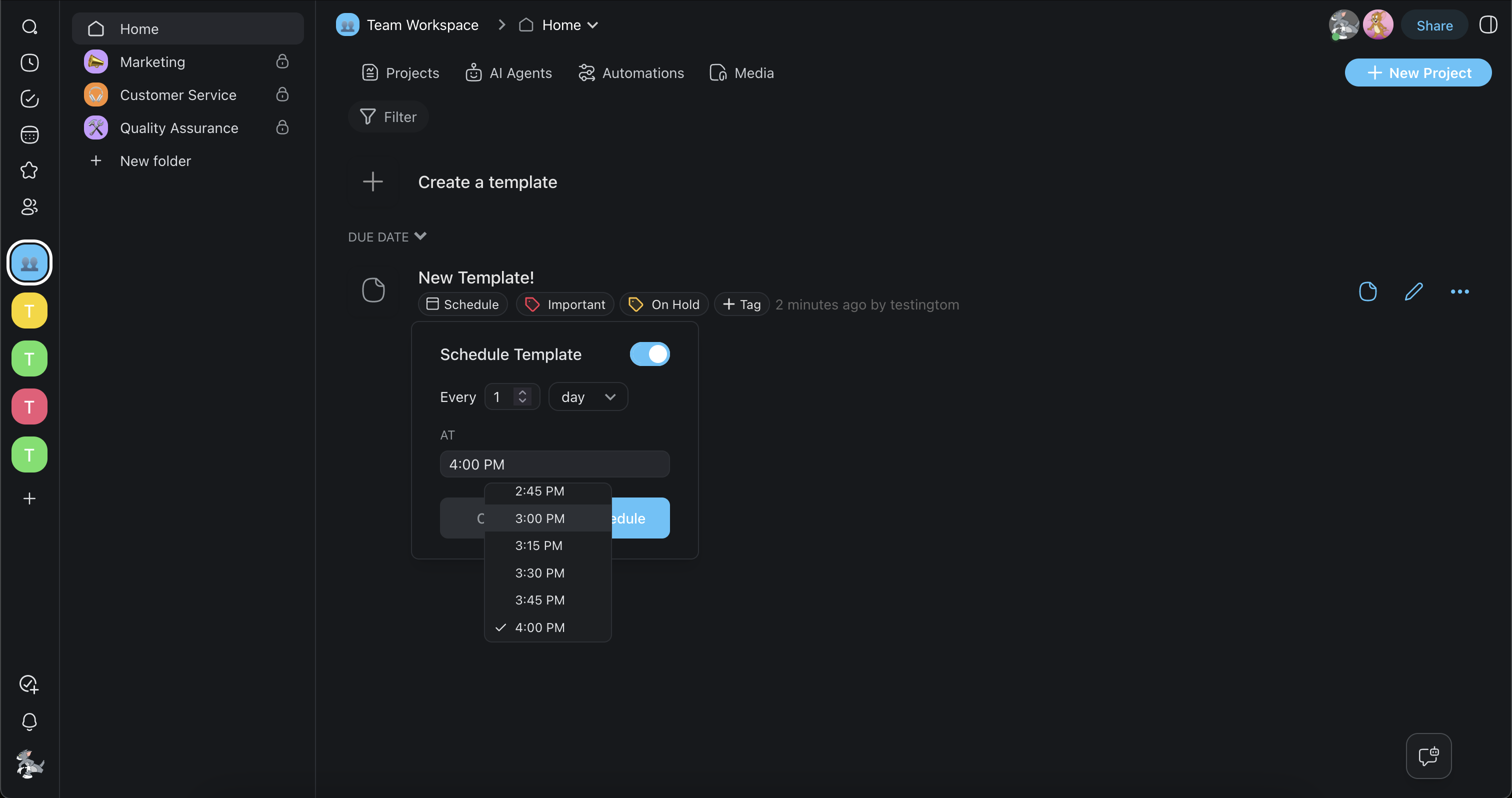
The card then shows when the next project comes. See [Schedule Templates](https://www.taskade.com/learn/projects/schedule-templates) for more.
## You Are Done When
A new project opens with the tasks and structure from your template.
## Copy, Share, or Delete a Template
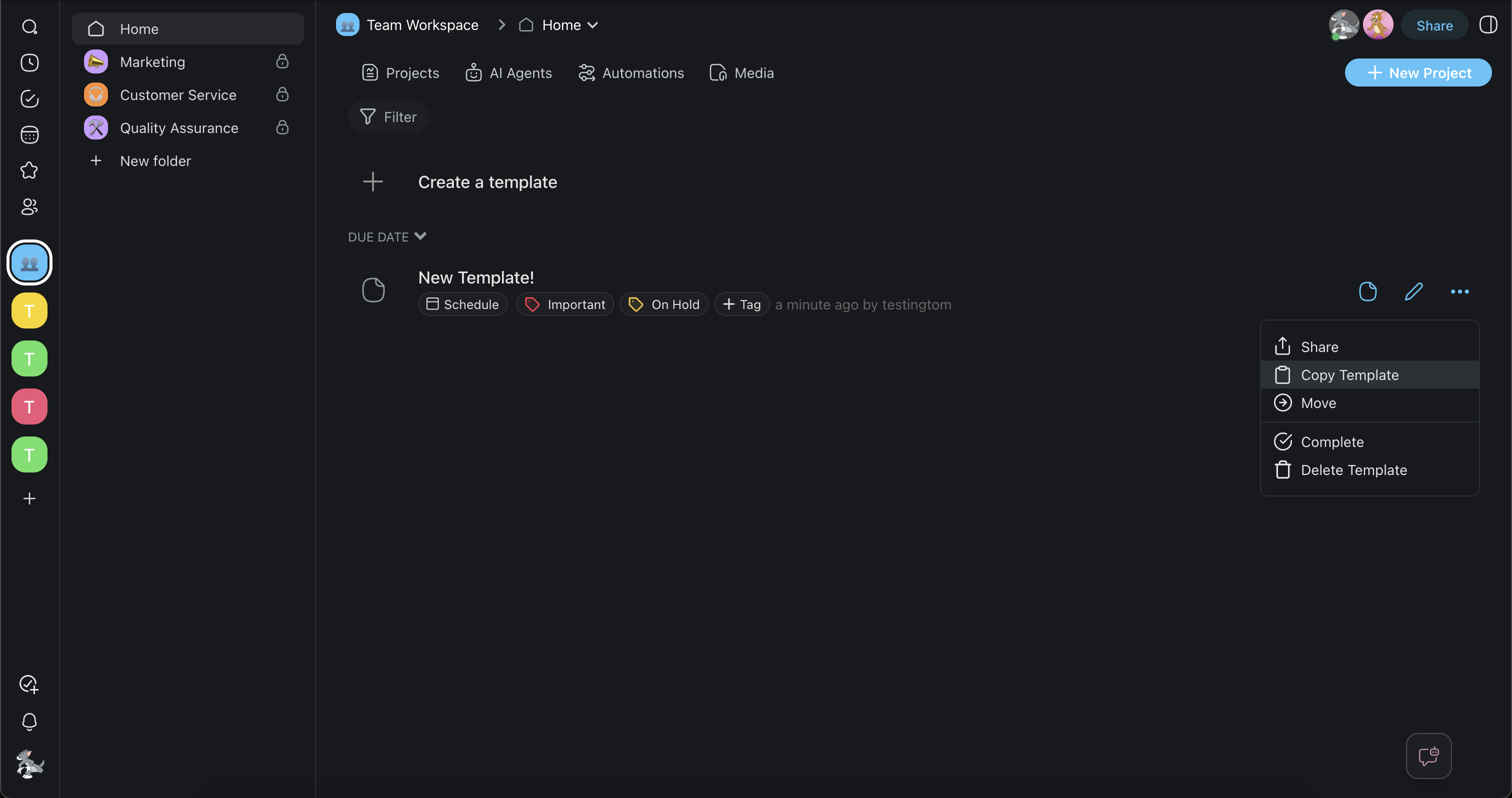
The **More** (⋮) menu on a template card holds the other actions.
| Action | Result |
| --- | --- |
| **Copy Template** | Copies the template to another workspace or folder |
| **Share** | Opens the share options for the template. See [Share a Template](https://www.taskade.com/learn/projects/share-template). |
| **Move** | Moves the template to another workspace or folder |
| **Delete Template** | Removes the template |
### Delete a custom template
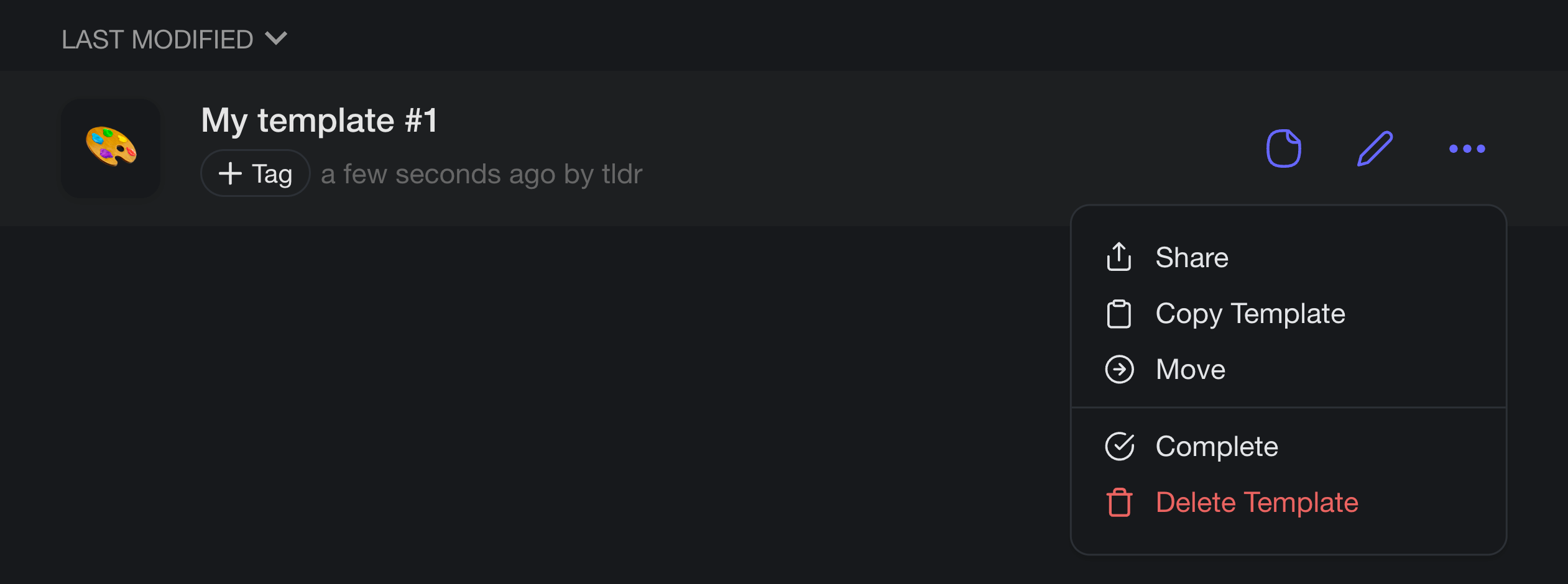
1. Open the **Templates** tab.
2. On the template card, click **More** (⋮).
3. Click **Delete Template**.
## Use Templates on Your Phone
The Taskade app for iOS and Android can create and use templates too.
1. Open a workspace or folder.
2. Tap the button that creates a new item.
3. Tap **Create a Template** to make a new one, or **Browse templates** to pick one.
To delete a template in the app, open its menu and tap **Delete Template**.
## Tips
- Keep one template for each repeat process: onboarding, a weekly report, a launch checklist.
- Name templates by the result, for example "Client Onboarding", so the team finds them fast.
- Ask Taskade EVE in your workspace to build a first draft of a project, then turn it into a template.
- For a template that others outside your workspace can clone, see [Share a Template](https://www.taskade.com/learn/projects/share-template).
## Troubleshooting
Find what you see, then do the fix.
| What you see | Why | Fix |
| --- | --- | --- |
| No **Create a template** button | Your role cannot create templates | Ask a workspace member with the **Owner**, **Admin**, or **Editor** role. |
| Scheduling shows an upgrade message | Scheduled templates need a paid plan | Upgrade the workspace plan. |
| Your template is not in **Use Template** | **Use Template** shows Project Templates only | Open the **Templates** tab to find your own templates. |
| No one-time schedule option | A schedule repeats every day or week | Use **Use Template** once when you need a single project. |
## Frequently Asked Questions
**What are Taskade templates?**
Taskade templates are reusable starting points for new projects. A template holds the tasks and structure that each new project needs. Your team can use a template to start the same kind of project each time.
**Who can see custom templates?**
Everyone in the workspace or folder can use its templates. The **Owner**, **Admin**, and **Editor** roles can create and edit them. **Owner** and **Admin** can delete them.
**Does turning a project into a template change the project?**
No. **Add to Templates** makes a copy for the template. The original project stays as it is.
**How often can a template run on a schedule?**
A schedule creates a project every set number of days or weeks, at the time that you pick. Weekly schedules can run on the days that you choose. Scheduled templates need a paid plan.
**Are Taskade templates free?**
Yes. Every plan, Free included, can use templates and create custom templates. Scheduling templates needs a paid plan.
**Where can I find more templates?**
Open the **Templates** tab and click **Browse** to open the public template gallery. See [Template Gallery](https://www.taskade.com/learn/projects/template-gallery) for the categories.
## Next Steps
Start from a template, then grow the project.
1. **Browse ready templates**: Find a starting point in the [Template Gallery](https://www.taskade.com/learn/projects/template-gallery).
2. **Automate repeats**: Set the timetable in [Schedule Templates](https://www.taskade.com/learn/projects/schedule-templates).
3. **Style the project**: Set a cover and a default view in [Customize Project](https://www.taskade.com/learn/projects/customize-project).
4. **Share with others**: Publish a template in [Share a Template](https://www.taskade.com/learn/projects/share-template).
5. **Start from scratch**: See the other ways in [Create a Project](https://www.taskade.com/learn/projects/create-project).