# Change Font Size in Taskade (Phone and Desktop)
> Make Taskade text larger or smaller. Use your phone's text size setting on iOS and Android, zoom on the web and the desktop app, and headings in a project.
- Source: https://www.taskade.com/learn/projects/font-size
- Section: Projects
- Updated: 2026-09-29
- Index of all pages: https://www.taskade.com/learn/llms.txt
To change the font size in the Taskade mobile app, change the text size in your phone's settings. On a computer, zoom the Taskade window. In a project, use headings for larger text.
> **TL;DR:** Taskade has no font size setting of its own. On a phone, the font size changer is in your iOS or Android settings, and the Taskade app follows it. On the web and in the desktop app, press `Cmd` or `Ctrl` with `+` or `-` to zoom. To make one line larger, turn it into a heading. See [Edit & Format Projects](https://www.taskade.com/learn/projects/formatting) for other styles.
In this guide, you will:
- Increase the font size on your phone
- Zoom Taskade on the web and in the desktop app
- Make one line of a project larger with a heading
## Before You Start
Pick the method by what you want to make larger.
| You want | Method | Where |
| --- | --- | --- |
| All text in the phone app | Phone text size | iOS or Android settings |
| Everything on the screen of the phone | Phone display size or zoom | iOS or Android settings |
| Everything in the Taskade window | Zoom | Web browser or desktop app |
| One line in a project | Heading | Inside the project |
Every method works on every Taskade plan, Free included.
## How It Works
Your device controls the size of all text. The project controls the size of one line.
```mermaid
graph TD
A[Text too small?] --> B{Which device?}
B --> C[Phone
change text size in settings]
B --> D[Computer
zoom the window]
A --> E[One line only
make it a heading]
style A fill:#2a1225,color:#ff8fa3,stroke:#ff2d60,stroke-width:2px
style C fill:#0d1a0e,color:#86efac,stroke:#22c55e,stroke-width:1.5px
style D fill:#0d1b2a,color:#7dd3fc,stroke:#38bdf8,stroke-width:1.5px
style E fill:#1a140a,color:#ffb74d,stroke:#e65100,stroke-width:1.5px
```
## Step 1: Change the Font Size on iPhone or iPad
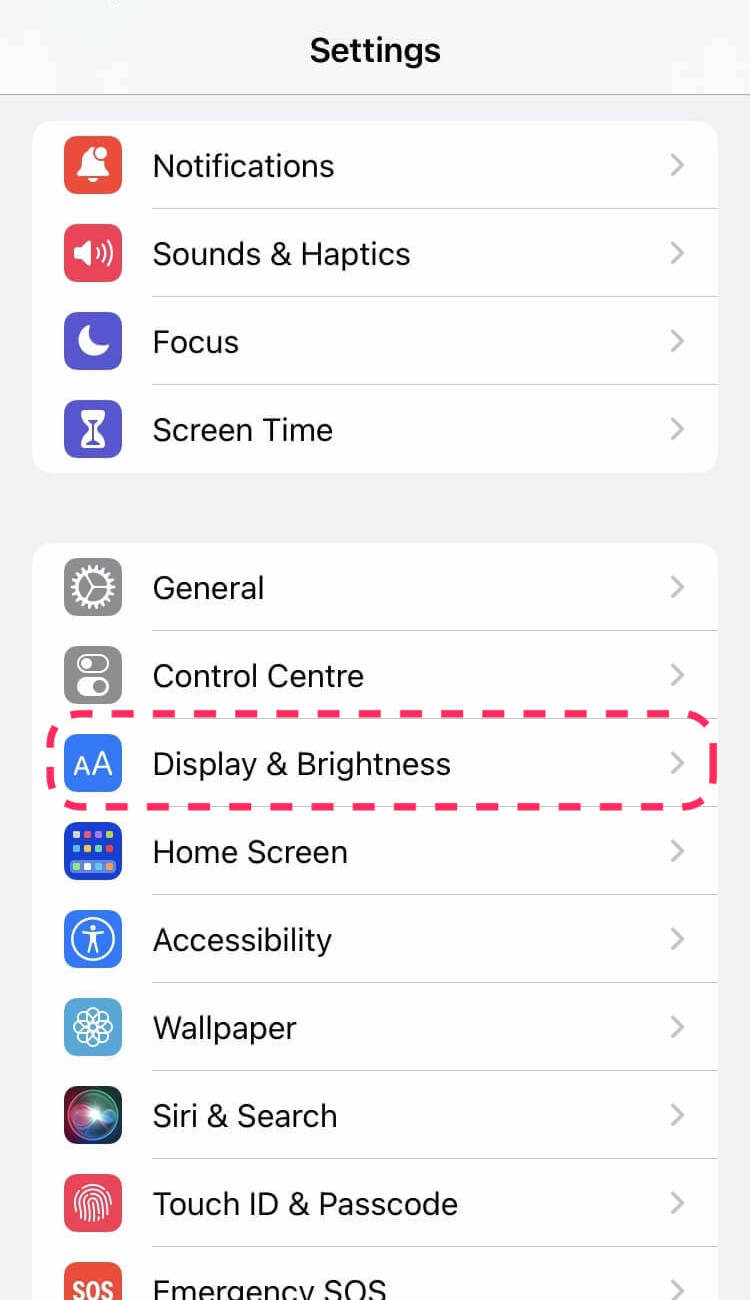
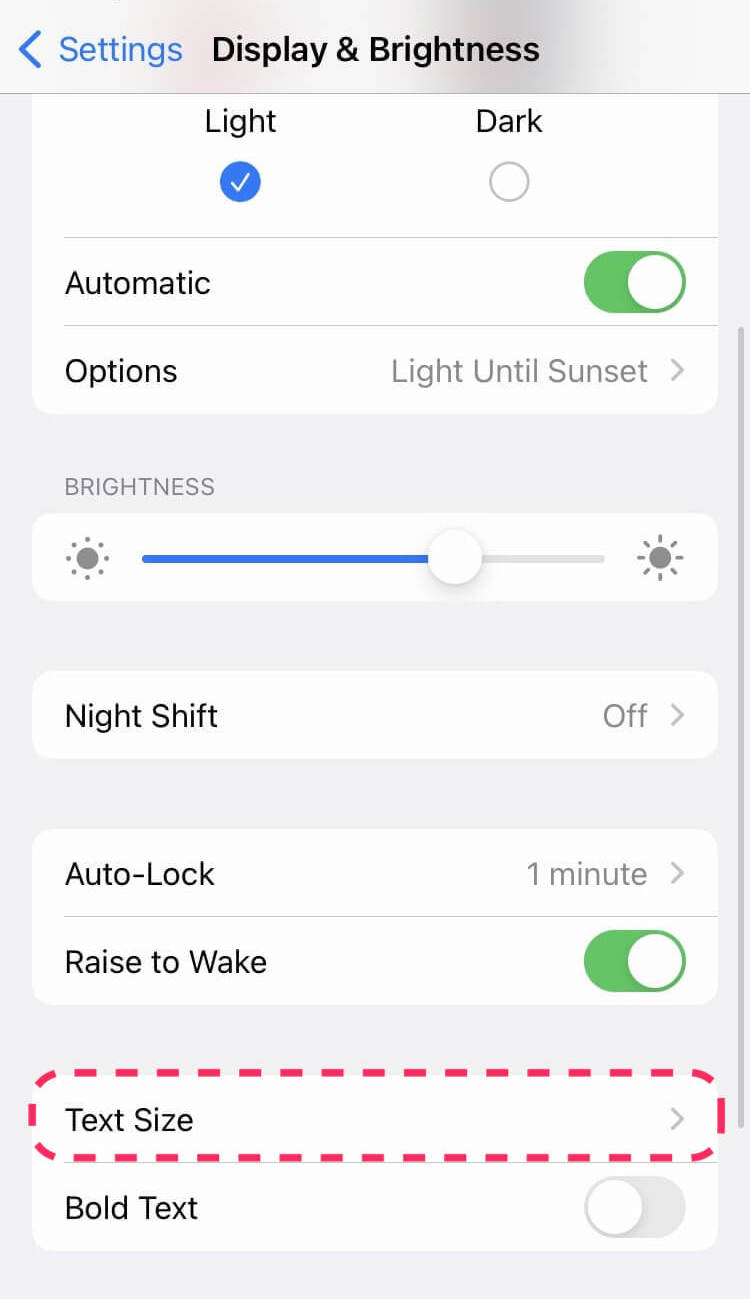
The Taskade app uses the text size that you set for your device.
1. Open the **Settings** app.
2. Tap **Display & Brightness**, then **Text Size**.
3. Drag the slider to the right for larger text, or to the left for smaller text.
4. Go back to Taskade to see the new size.
### Increase the font size more on iPhone
For sizes above the normal range, use the accessibility setting.
1. Open **Settings**, then **Accessibility**.
2. Tap **Display & Text Size**, then **Larger Text**.
3. Turn on **Larger Accessibility Sizes**.
4. Drag the slider to the size you want.
## Step 2: Change the Font Size on Android
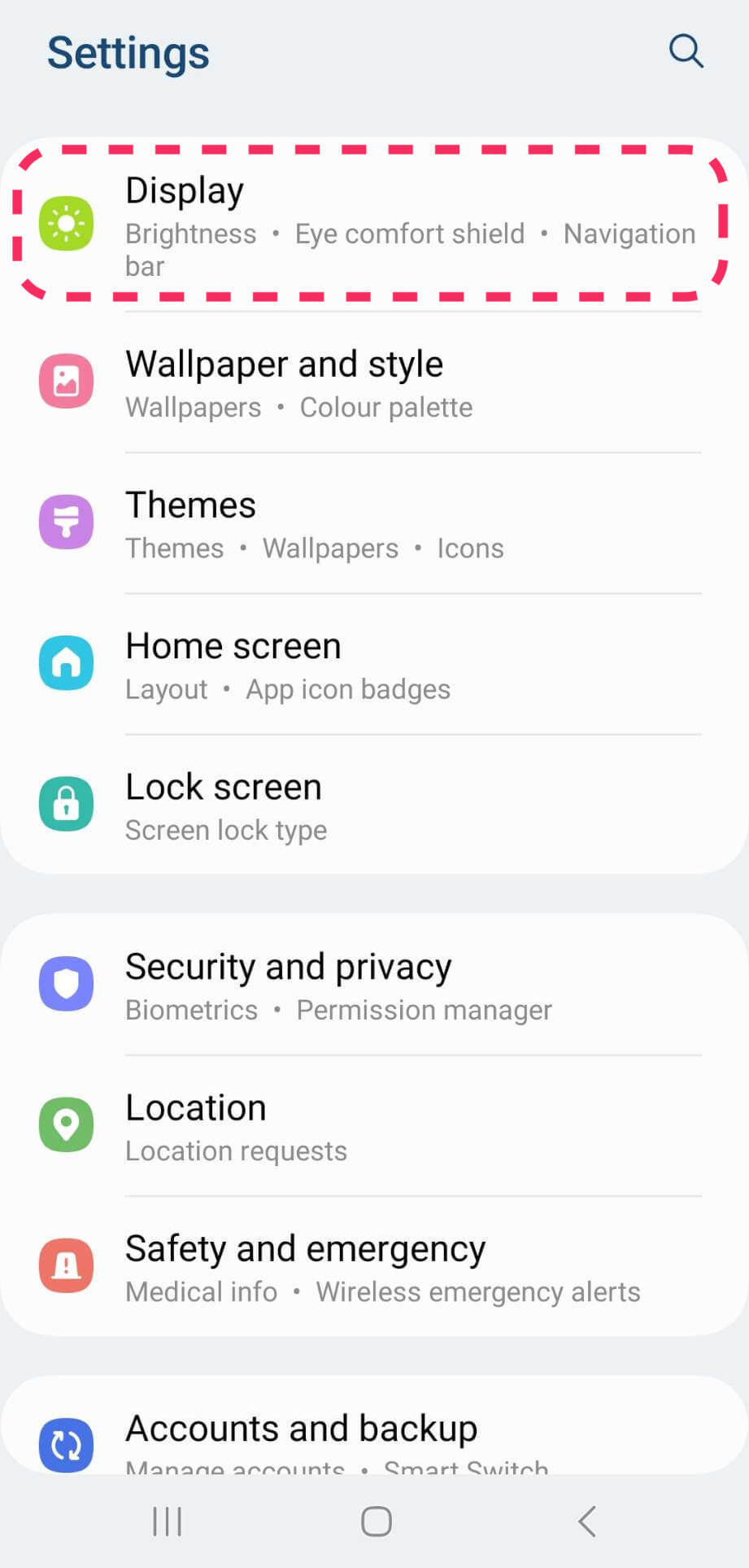
The Taskade app uses the font size that you set for your device.
1. Open the **Settings** app.
2. Tap **Accessibility**, then **Display size and text**. On some phones, the item is **Font size**, or it is under **Display**.
3. Drag the **Font size** slider.
4. Go back to Taskade to see the new size.
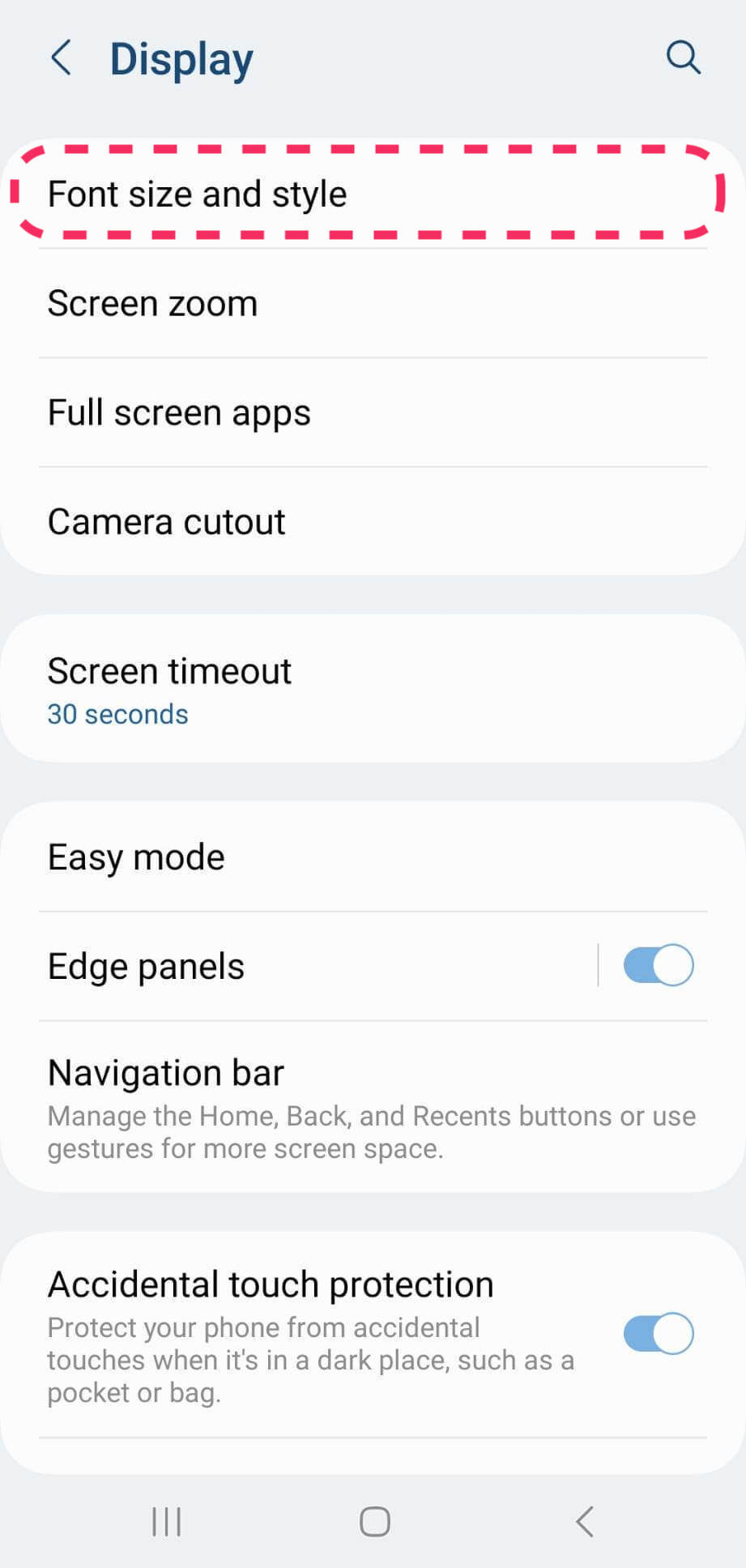
> **Note:** Menu names differ between phone makers and Android versions. Search for "font size" in the Settings app to find the item fast.
## Step 3: Make Everything Larger on Your Phone
Display size makes text, buttons, and icons larger together.
| Phone | Setting |
| --- | --- |
| iPhone | **Settings** → **Display & Brightness** → **Display Zoom** → **Larger Text** |
| Android | **Settings** → **Accessibility** → **Display size and text** → **Display size** |
Use display size when some Taskade text does not grow with the font size. Some labels grow less than the rest so that the screen layout still fits.
## Step 4: Zoom on the Web and in the Desktop App
Zoom makes the whole Taskade window larger or smaller.
| Action | Mac | Windows and Linux |
| --- | --- | --- |
| Zoom in | `Cmd` + `+` | `Ctrl` + `+` |
| Zoom out | `Cmd` + `-` | `Ctrl` + `-` |
| Back to normal size | `Cmd` + `0` | `Ctrl` + `0` |
In the desktop app, the same actions are in the **View** menu: **Zoom In**, **Zoom Out**, and **Actual Size**. In a web browser, the zoom is part of the browser. In the Mind Map view, these keys zoom the map itself. See [Zoom In/Out on All Views](https://www.taskade.com/learn/projects/zoom-views).
## Step 5: Make One Line Larger with a Heading
A heading makes one line of a project larger than the rest of the text.
1. Click in the line.
2. Type `/heading` and press `Enter`. For a set size, type `/h1`, `/h2`, or `/h3`.
You can also type `# ` at the start of a line for a **Large Heading**, or `## ` for a **Small Heading**. The format menus also list **Heading 3** to **Heading 6**.
## You Are Done When
The text in Taskade shows at a size that is easy for you to read.
## Tips
- Use a heading for a section title, not bold text. A heading is larger for everyone who opens the project.
- On a small laptop, zoom out one step to see more of a board or a table.
- Search for "text size" in the Settings app of your phone to find the slider fast.
## Troubleshooting
Find what you see, then do the fix.
| What you see | Why | Fix |
| --- | --- | --- |
| The Taskade app text did not change | The app was open when you changed the setting | Close the app fully, then open it again. |
| Some text is larger, some is not | Some text grows less, or keeps its size, so that the layout fits | Also change the display size of your phone (Step 3). |
| The zoom keys do nothing in Taskade | The keyboard focus is in another app | Click in the Taskade window, then press the keys again. |
| The Mind Map zooms, not the page | Mind Map uses the zoom keys for the map | Use the browser or **View** menu zoom, or switch to another view. |
## Frequently Asked Questions
**Where is the font size changer for the Taskade mobile app?**
It is in your phone's settings, not in Taskade. On iPhone, open **Settings** → **Display & Brightness** → **Text Size**. On Android, open **Settings** → **Accessibility** and find the font size item.
**How do I increase the font size on my phone?**
Open the phone's settings and drag the text size or font size slider to the right. For even larger text on iPhone, turn on **Larger Accessibility Sizes** under **Accessibility** → **Display & Text Size** → **Larger Text**.
**Does Taskade have its own font size setting?**
No. Taskade uses the text size of your phone and the zoom of your browser or desktop app. To make one line larger, turn it into a heading.
**How do I make text bigger in the desktop app?**
Press `Cmd` + `+` on a Mac or `Ctrl` + `+` on Windows. You can also open the **View** menu and click **Zoom In**. Press `Cmd` + `0` or `Ctrl` + `0` to go back to normal size.
**Does zoom change the text for my teammates?**
No. Zoom and phone text size change only what you see on your device. Headings in a project show for everyone.
## Next Steps
Make projects easy to read for you and your team.
1. **Format the text**: Use bold, highlights, and blocks in [Edit & Format Projects](https://www.taskade.com/learn/projects/formatting).
2. **Add clickable links**: Put links behind your words in [Make a Link Clickable](https://www.taskade.com/learn/projects/hyperlinks).
3. **Zoom a view**: Zoom boards and maps in [Zoom In/Out on All Views](https://www.taskade.com/learn/projects/zoom-views).
4. **Use the phone app**: Learn the app in the [Mobile Guide](https://www.taskade.com/learn/projects/mobile-guide).