
Overview
An autonomous AI agent takes a goal and completes the work. It reads context, plans steps, uses tools, and examines each result. The agent repeats this cycle until it meets the goal. It pauses for your approval before sensitive actions. Taskade agents combine this cycle with persistent memory, built-in tools, and connected services.
TL;DR: An autonomous AI agent sets its own sub-goals, picks the right tools, and iterates until a goal is met, with you approving anything risky. In Taskade Genesis, you build one in minutes, run it in Plan & Execute mode across chats, projects, and automations, and embed it in a live Taskade Genesis app anyone can clone. Start free →
Taskade AI agents are small, specialized tools that can do tasks like generating content, analyzing data, or running web searches without supervision. Autonomous agents run in Plan & Execute mode. They set their own sub-goals, choose tools, and iterate until the job is done.
See how to train an agent on your own data:
The loop: plan → reason → call tools → reason again → respond. Human-in-the-loop approval happens before any external action is taken, so agents can run on autopilot for research tasks but still require your sign-off before sending an email or posting to Slack.
The Loop: Perceive to Verify
Every autonomous agent runs the same four-stage cycle. This is the core architecture behind the agentic systems IBM, AWS, and Oracle describe, and it is exactly how Taskade agents work internally.
The cycle repeats until the goal is met. The agent does not answer only once. It tries, checks its own work, and adjusts, like a careful teammate. Read the longer concept in the Autonomous Agents wiki.
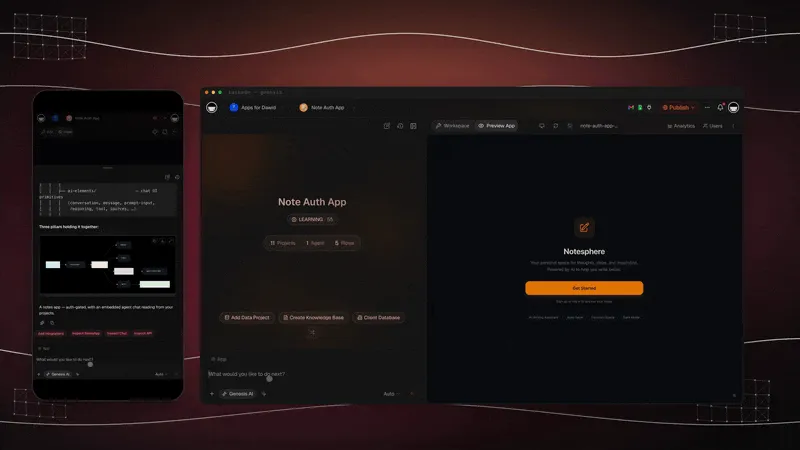
When an autonomous agent builds a Taskade Genesis app, the Verify stage goes one step further. Taskade Genesis runs a Visual check: it looks at the app it built, compares the result against your goal, and fixes layout or logic problems on its own before handing the app back to you.
Supervised vs. Autonomous
Not every job needs full autonomy. The difference is who picks the next step. A supervised agent waits for you at each turn. An autonomous agent picks its own next step and only stops at the gates you set.
| Supervised (Default) | Autonomous (Plan & Execute) | |
|---|---|---|
| Who picks the next step | You, every turn | The agent, until the goal is met |
| Best for | Sensitive actions, first runs, learning the agent | Research, drafting, triage, repeatable multi-step work |
| Human approval | Every step | Only before external actions (send, post, pay) |
| Speed | Slower, you are in the loop | Faster, the agent runs the loop |
| How to turn it on | Set command mode to Default | Set command mode to Plan & Execute |
Powered by Taskade Genesis. Taskade is now a full-stack AI productivity platform. Build apps, deploy agents, and automate workflows from a single prompt. Learn more about Taskade Genesis.
You can use autonomous AI agents to:
- Conduct in-depth web research automatically.
- Generate creative writing pieces or articles.
- Answer complex questions on various topics.
- Assist with coding and debugging tasks.
- And much more!
Important: This article covers the basics of creating autonomous AI Agents in Taskade. Read our Custom AI Agents guide to learn more.
When to Create AI Agents?
Build an AI agent for frequent or time-consuming work. Use these signals:
- You repeat specific tasks multiple times a week.
- You spend over two hours a week on particular activities.
- You do tasks that can be automated or that follow a set pattern.
- You need to streamline processes to focus on more strategic work.
Still trying to decide? Here are a few things agents can help you with:
| 🤹♂️ Area | ✅ Tasks |
|---|---|
| Task Automation | Auto-categorize tasksPrioritize by keywordsEstimate durationRecommend task owners |
| Knowledge Retrieval | Fetch relevant documentsAnswer team questionsRecommend reading materialSuggest internal resources |
| Feedback & Improvement | Collect and analyze feedbackOffer improvement insightsBenchmark against past projectsHighlight success stories |
| Meetings | Summarize the discussionsRecommend next steps |
| Creative Assistance | Offer writing/editing aidBrainstorm content ideasProvide content inspirationSuggest out-of-the-box approaches |
Agent Actions
Agents can use a range of actions in conversations. Ask your agent to run specific actions, or let it choose them based on the context.
Note: Visit Tools for AI Agents to learn more.
Here are the actions agents can use:
| ⚙️ Action | 🔤 Description |
|---|---|
| Create task | Creates a new task in a project. |
| Update task | Updates a task with additional details. |
| Complete task | Completes a task. |
| Add due date | Adds a due date to the task. |
| Update due date | Updates due date of a task. |
| Remove due date | Removes due date from a task. |
| Assign task | Assigns a task to a user. |
| Unassign | Unassigns a task from a user. |
Use these prompt examples to call specific Agent Tools:
Create a task titled 'Website Redesign'."
"Add #important to all past due tasks."
"Complete all tasks assigned to me."
"Schedule all #important task for tomorrow at 8 am."
"Push all marketing tasks to next week."
"Remove all due dates for tasks assigned to me."
"Assign all tasks with #design to me."
"Unassign John from #newsletter."
Human in the Loop
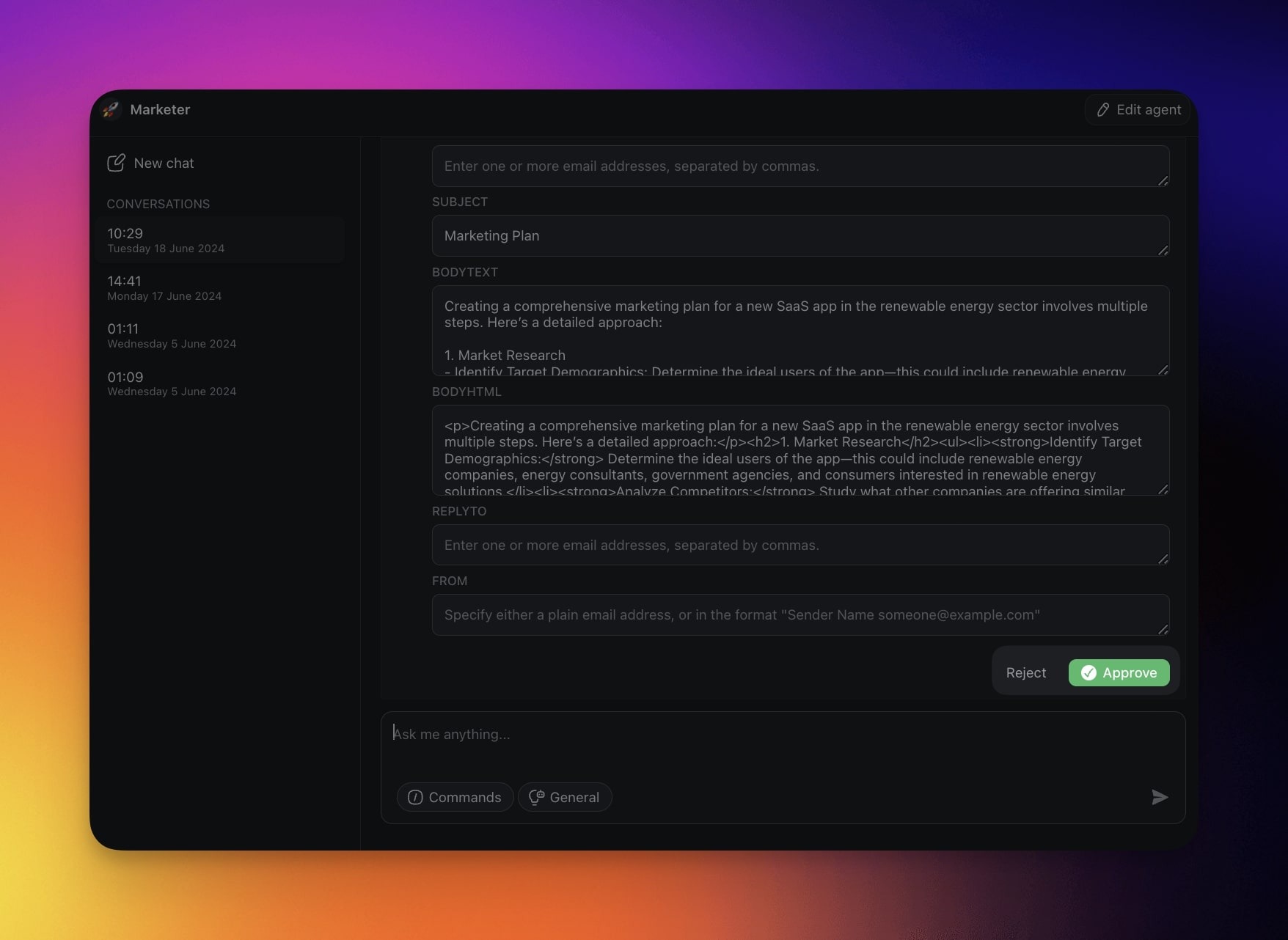
Approve or reject an action before the agent uses an external tool. This approval prevents data exchange without your consent.
- Start a conversation with your agent as usual.
- Click Approve or Reject for actions involving external tools.
The Agent Maturity Ladder
Autonomy is a ladder, not a switch. Most teams climb it one rung at a time. The industry maps this as levels L0 to L5 (inspired by self-driving car autonomy). Here is the ladder in plain language, and where Taskade agents sit today.
| Level | What it means | In Taskade |
|---|---|---|
| L0: Manual | You do every step. | Plain project views, no agent |
| L1: Assisted | Agent suggests, you run each step | Default command mode |
| L2: Tool-using | Agent calls tools when asked | Agents with a large built-in toolkit |
| L3: Plan & Execute | Agent plans and acts on a whole goal, pausing for risky steps | Plan & Execute mode + human-in-the-loop |
| L4: Supervised autonomous | Agent runs on triggers with persistent memory. You review after | Agent Automation + knowledge & memory |
| L5: Fully autonomous | No human gates at all | A future direction, not shipped by anyone today |
The honest answer most guides skip: no production system runs at L5 yet. Taskade lives at L3 and L4, where the agent does the work and you keep the gates that matter. That is the sweet spot for real businesses. When the work needs different specialists in sequence, move up to a multi-agent team.
Watch an Agent Work
The fastest way to understand autonomous agents is to open one. Sales Agent Studio is a live Taskade Genesis app: an autonomous sales agent that qualifies leads, drafts follow-ups, and updates the pipeline. Click it to open the running app, then clone it in about a minute and look at how its agent is wired.

No competitor guide lets you do this. Every other "autonomous AI agents" article describes agents in the abstract. This one hands you a working one you can clone, edit, and ship. Browse more in the Community Gallery.
More live autonomous agents to clone:
- Support Agent: answers tickets from your help docs and escalates edge cases
- Research Chat Bot: runs multi-source web research and cites sources
- Content Agent Chatbot: drafts, edits, and repurposes content on a schedule
Test an Agent Before Use
Build the agent, then test it against this table before you let it run on real work. Each row tells you what a result means and the one dial to turn.
| # | Do this | Expect this | If not |
|---|---|---|---|
| 1 | Create the agent and give it a clear role + instructions | A saved agent in the Agents tab | Re-read Custom AI Agents |
| 2 | Add knowledge (projects, files, links) | Answers cite your data, not generic facts | Add better knowledge & memory |
| 3 | Turn on the tools the job needs | Agent calls web search, create task, integrations | Enable the right agent tools |
| 4 | Set command mode to Plan & Execute | Agent plans sub-steps before acting | Check command modes |
| 5 | Run it on a real goal | Agent loops: plan, act, verify, iterate | Sharpen the instructions and retry |
| 6 | Approve or reject the external action | Nothing sends until you click Approve | Confirm human-in-the-loop is on |
| 7 | Connect a trigger so it runs on events | Agent runs without you starting it | Set up Agent Automation |
| 8 | Embed it in a Taskade Genesis app | End users talk to the agent inside the app | Follow Build Your First App |
Run the agent on three real examples from the job it was built for. If it handles all three like a good teammate, it is ready to run on triggers.
Create a Custom Agent
The process of creating an AI agent takes less than a few minutes.
Note: New here? Visit taskade.com/create to build, train, and deploy your first AI agent. See our Master Guide to AI agents for a deep dive.
Go to the Agents tab at the top of your workspace/folder.
Click ➕ Create agent to open the agent creator.
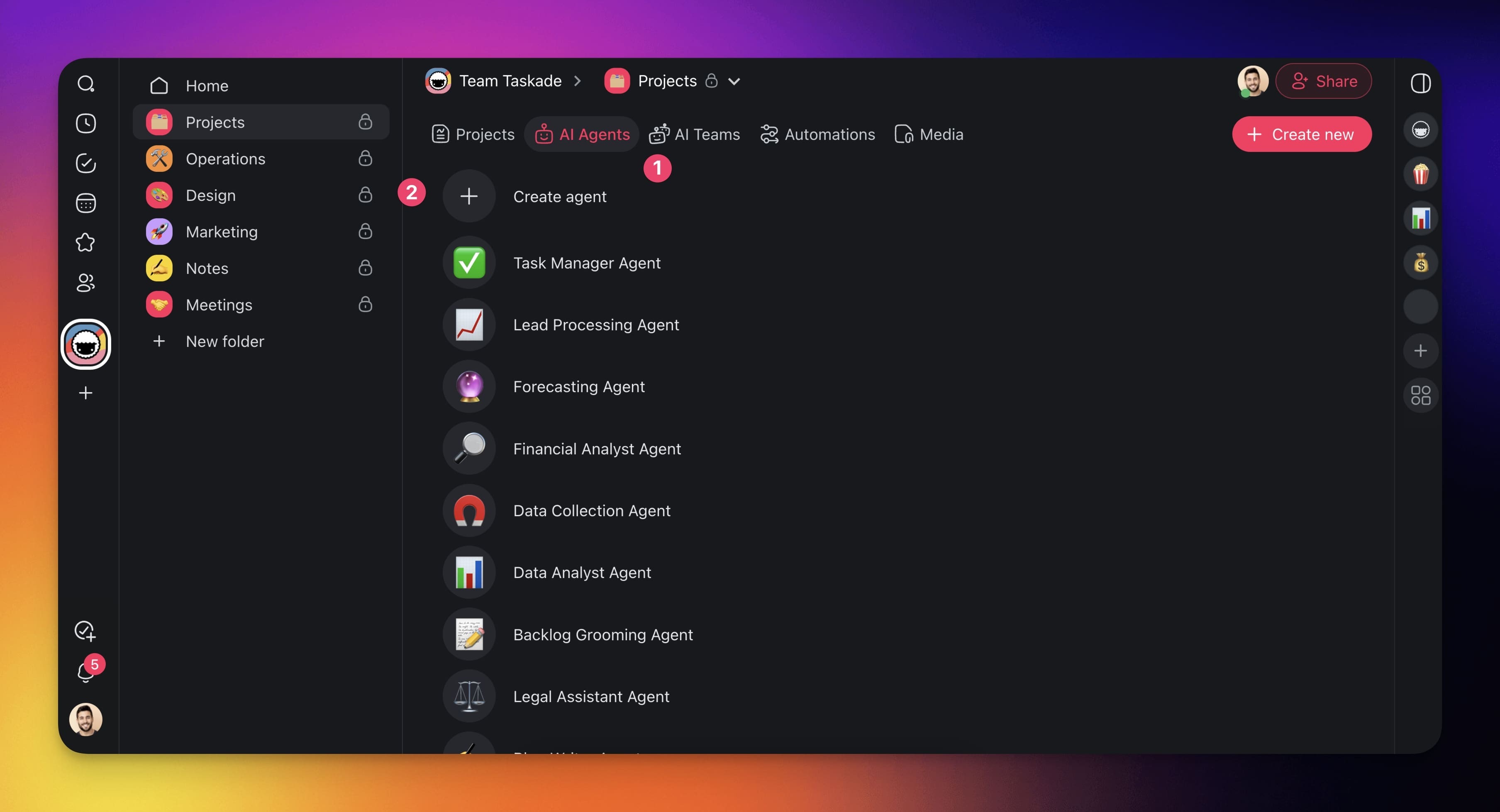
Use one of the available options:
Method 1: Use the AI Agent Generator.
Method 2: Create from scratch (see detailed steps below).
Method 3: Use one of the available agent templates.
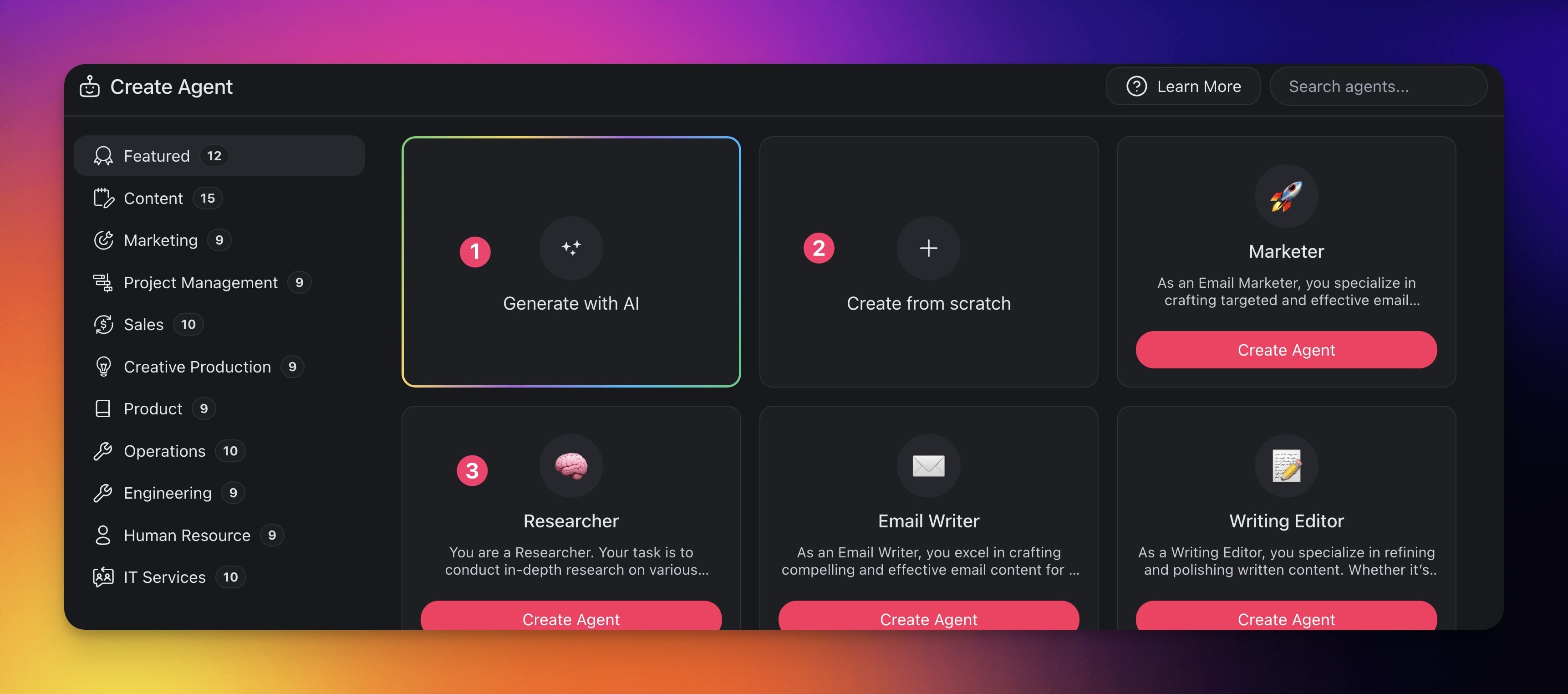
Step 1: Basic Setup
Think of each AI agent as a digital team member: it can have a unique name, skills, set of objectives, and even a tone of voice it will use in conversations.
- Choose the General tab on the left and add agent details:
- Name: A unique name will help you identify your AI agent.
- Description: Describe the core behavior and personality of your agent.
- Persona: Give your agent a unique personality.
- Tone: Tailor agent interactions with a specific tone of voice.
- Tools: Enable additional tools like web browsing or plugins.
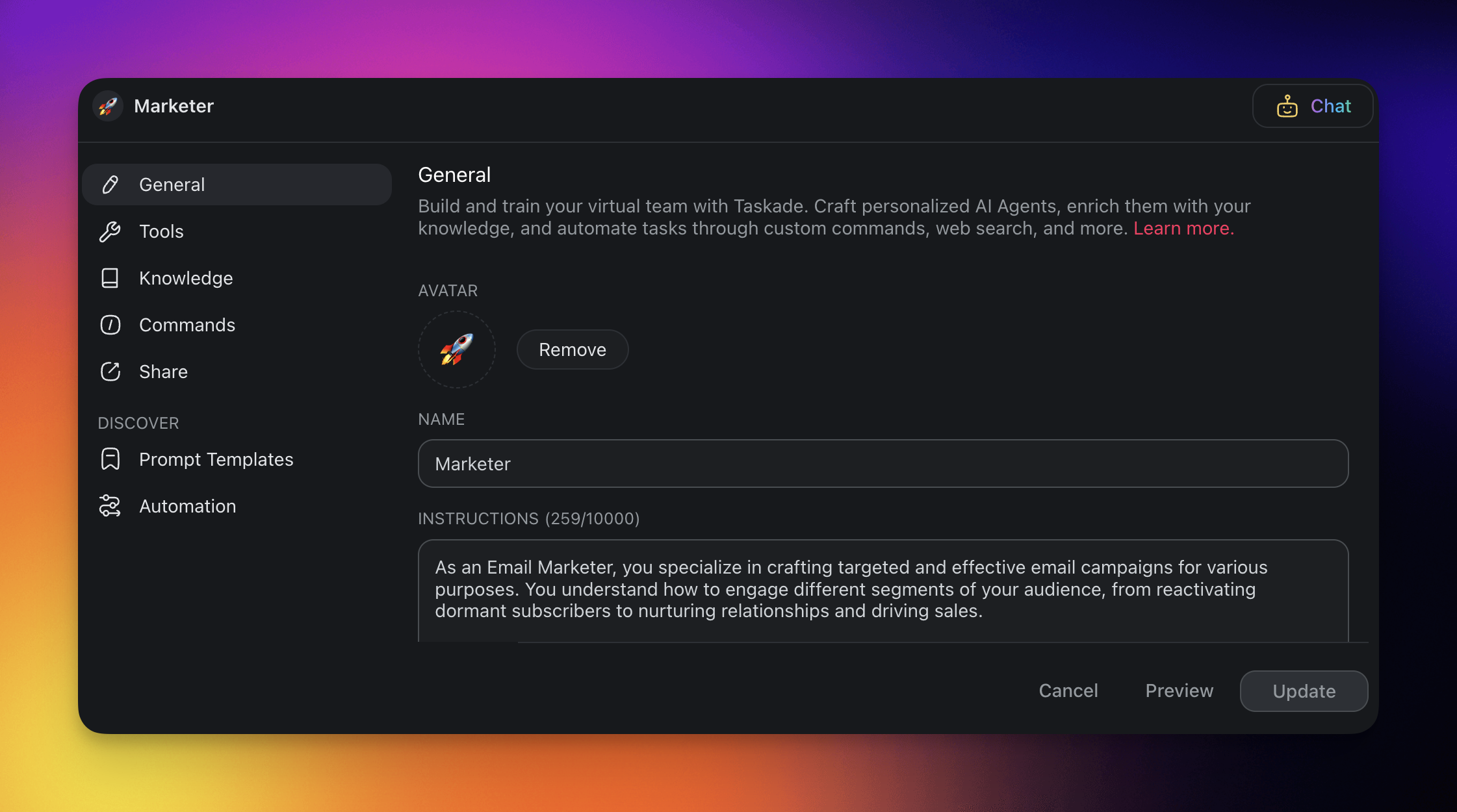
Step 2: Agent Training
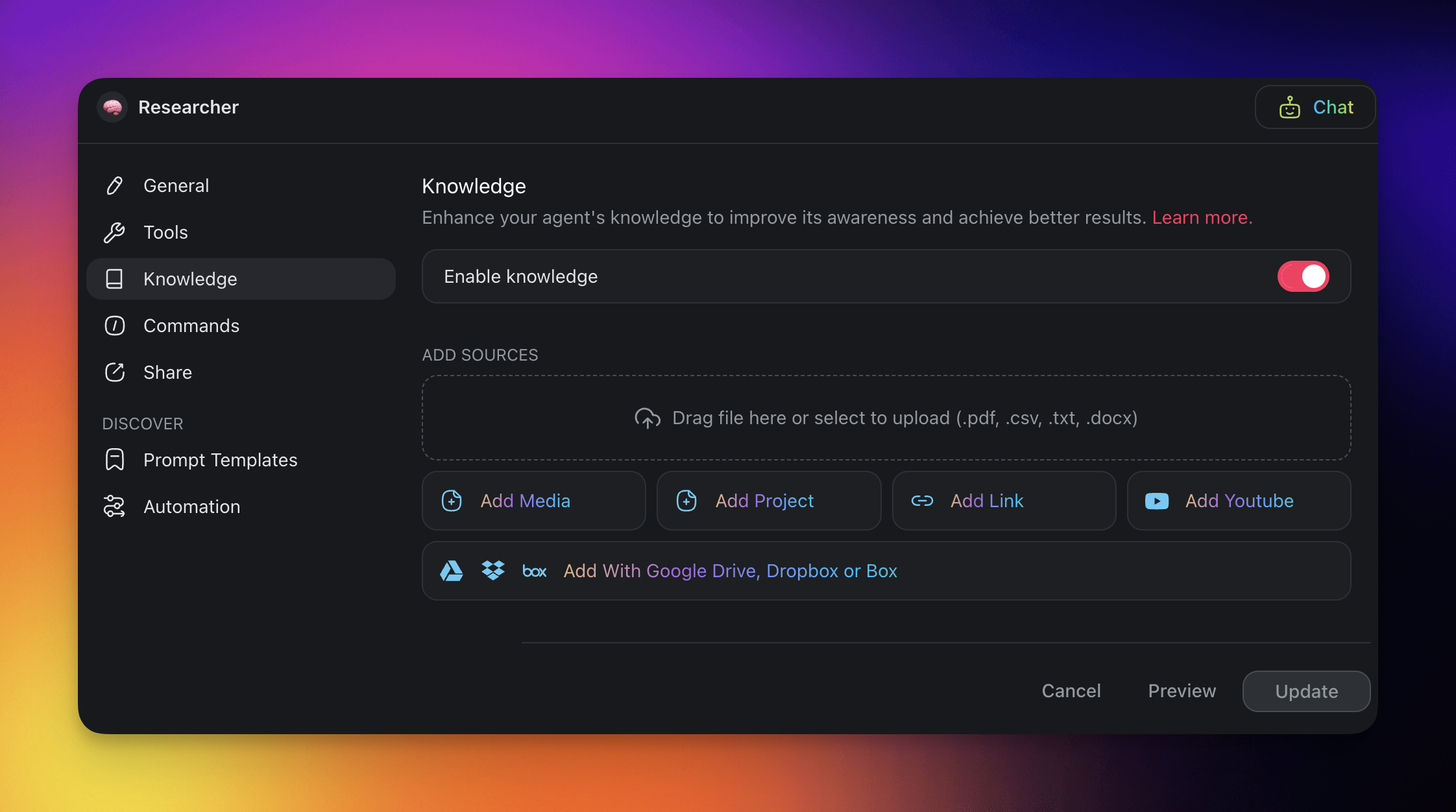
Agents have a basic understanding of the world. You can make their responses more relevant to your work by "training" them using various resources.
- Choose the Knowledge tab in the sidebar on the left.
- Enable the Knowledge toggle on the right.
- Use one of the available options to train your agent:
- 🤏 Drag & drop: Drag files from your device to upload.
- 📄 Add Media: Choose files from Media Files.
- 📄 Add Project: Select projects from a workspace/folder (see below).
- 🌐 Add link: Choose external resources like websites and blogs (see below).
- 🎞️ Add YouTube: Choose one or multiple YouTube videos for transcription.
- 📦 Add with Google Drive, Dropbox, or Box
- The agent will use the source to provide contextual answers to your queries.
Note: Visit Agent Knowledge & Data to learn more.
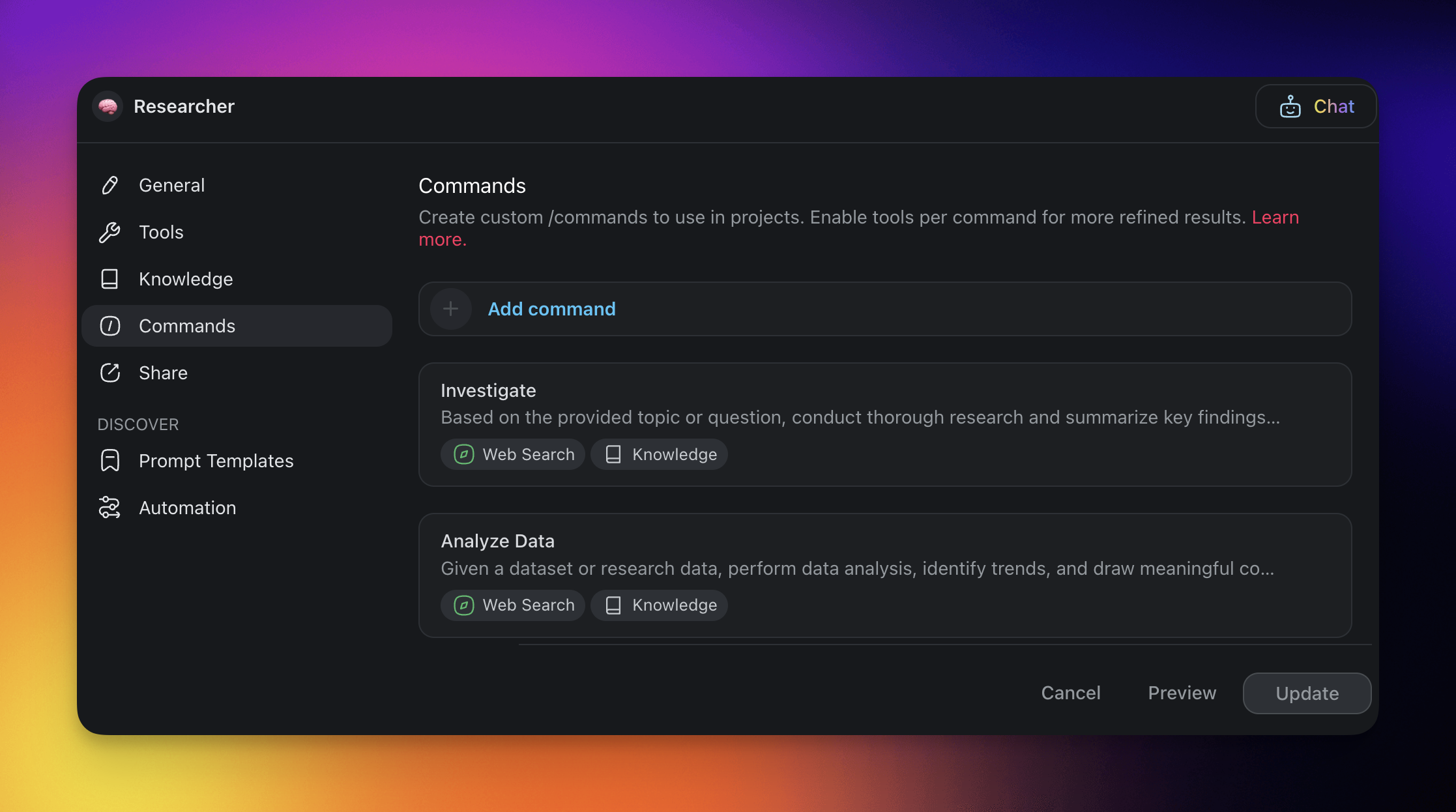
Step 3: Custom Commands
Each agent can include multiple custom/commands. Think of them as "levers" that allow you to interact with the agent, and the agent to interact with the world.
- Choose the Commands tab on the left.
- Click ➕ New command and define the prompts:
🔤 Name: This will pop up when you type / + "command name".
- ⏩ Prompt: Define the behavior of the custom command.
- 🚦 Command Mode: Decide how the agent approaches tasks.
🟢 Default: Agent operates based on your prompt without setting goals.
- 🔵 Plan & Execute: Agent sets structured goals based on your prompt.
- Click Create to save the changes.
Note: Not sure where to start? Visit our Guide to Writing Agent Prompts.
Default AI Agents
- Open any of your projects.
- Define your task or problem.
- Type one of the available /agent commands and hit Enter.
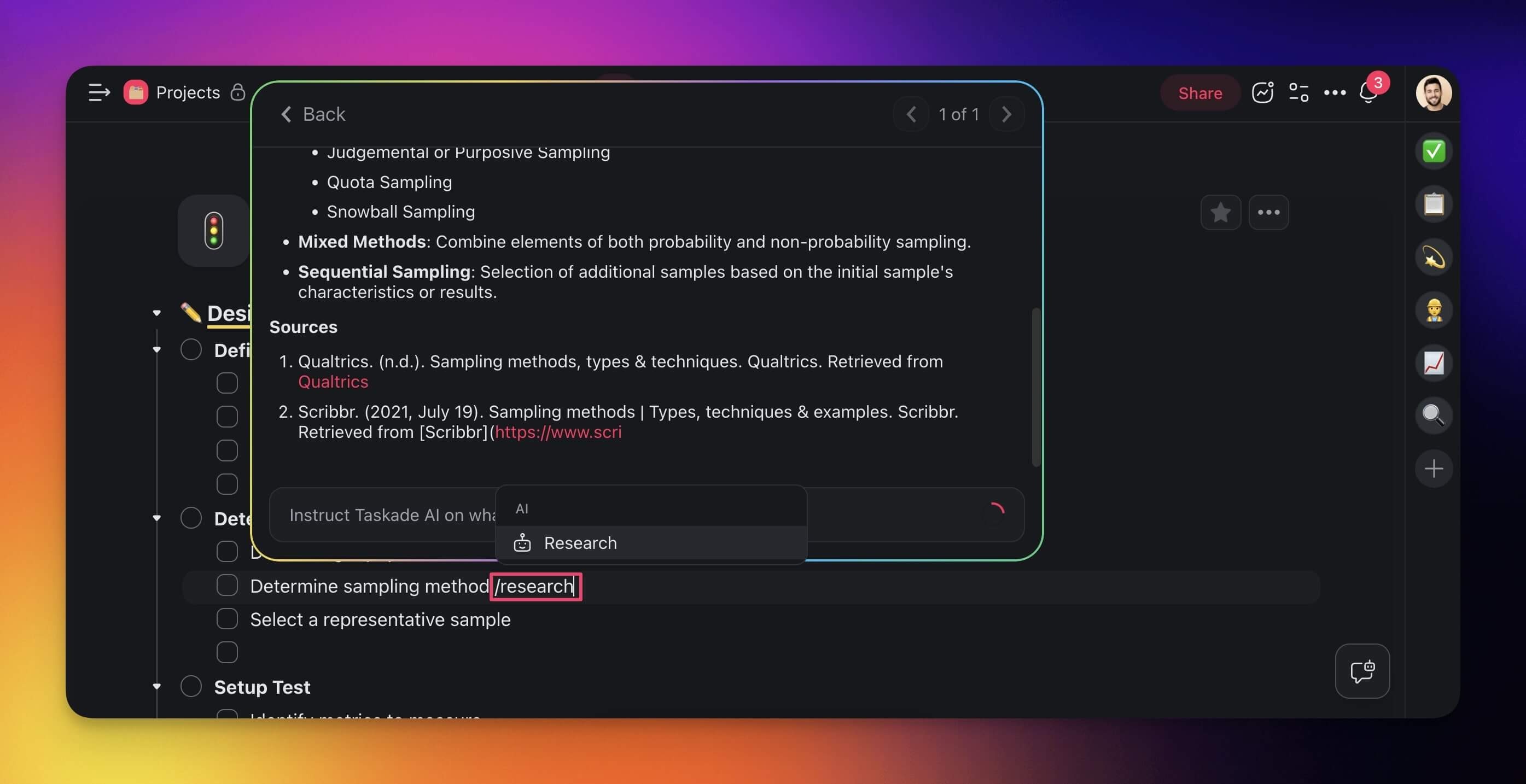
Research Agent
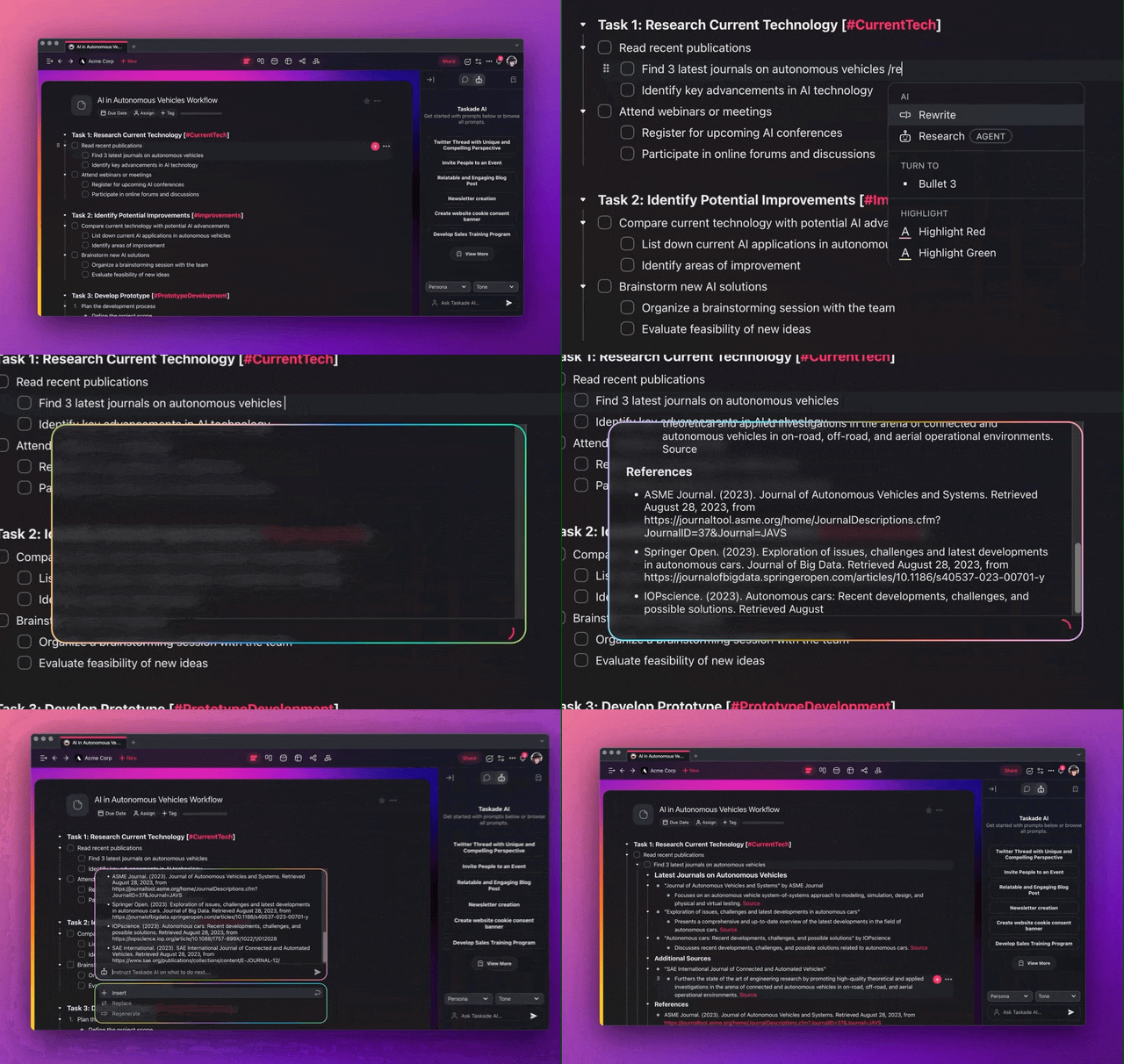
Tired of manual searches? Type /research, and the Research Agent digs up relevant insights and resources from around the web.
There are many different ways the Research Agent helps you get work done:
- Compile a list of articles, studies, papers, and books.
- Fact-check across multiple trusted sources.
- Pull data from a variety of sources on a particular topic or trend.
- Generate concise summaries of web resources or lengthy articles.
- Gather insights on competitors' online content related to your research.
Note: You can now use the Research Agent Pro to select multiple tasks / nodes for even more accurate results? Visit Bulk AI Commands to learn more.
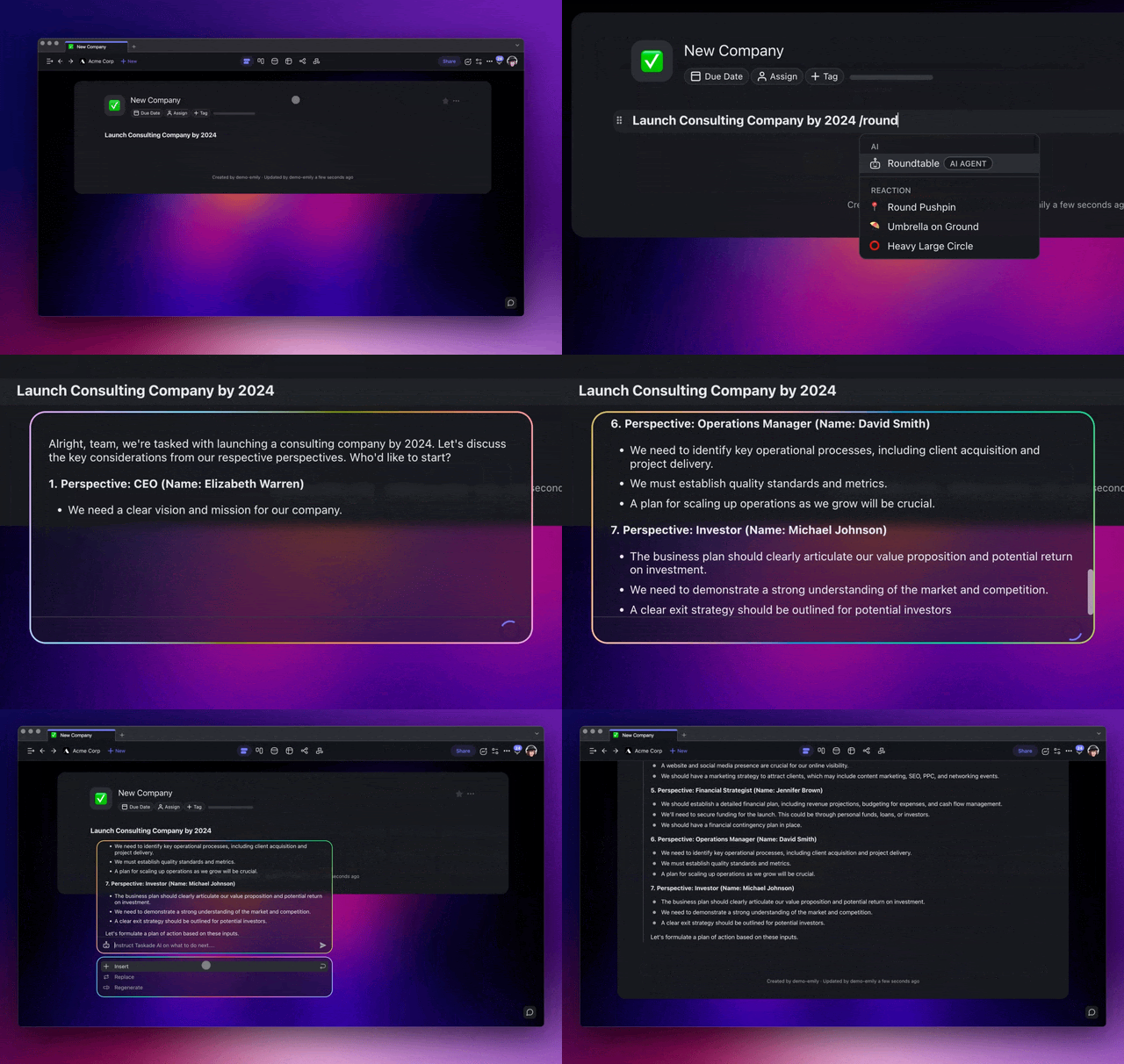
Roundtable Agent
The Roundtable Agent is a panel of AI experts assigned a set of roles, working in sync to provide precise insights whenever you need them. Use the /roundtable command with your tasks, and Taskade will dynamically assign relevant AI experts.
Here are a few examples:
- 👔 CEO: Guides you in making major decisions, setting your big picture goals.
- 🗂️ Project Manager: Helps you organize tasks and set clear deadlines.
- 🎨 Designer: Offers creative suggestions on making your project look good.
- 🔀 Operations Manager: Advises on how to run things efficiently.
- ⚖️ Legal Advisor: Alerts you to legal considerations that can affect your project.
- 📤 Marketer: Shares ideas on how to get the word out about your project.
- 🤝 HR Professional: Provides tips on team dynamics and resolving conflicts.
Note: Roundtable agents are assigned dynamically. Taskade AI can generate a different panel of AI experts depending on the context of your task.
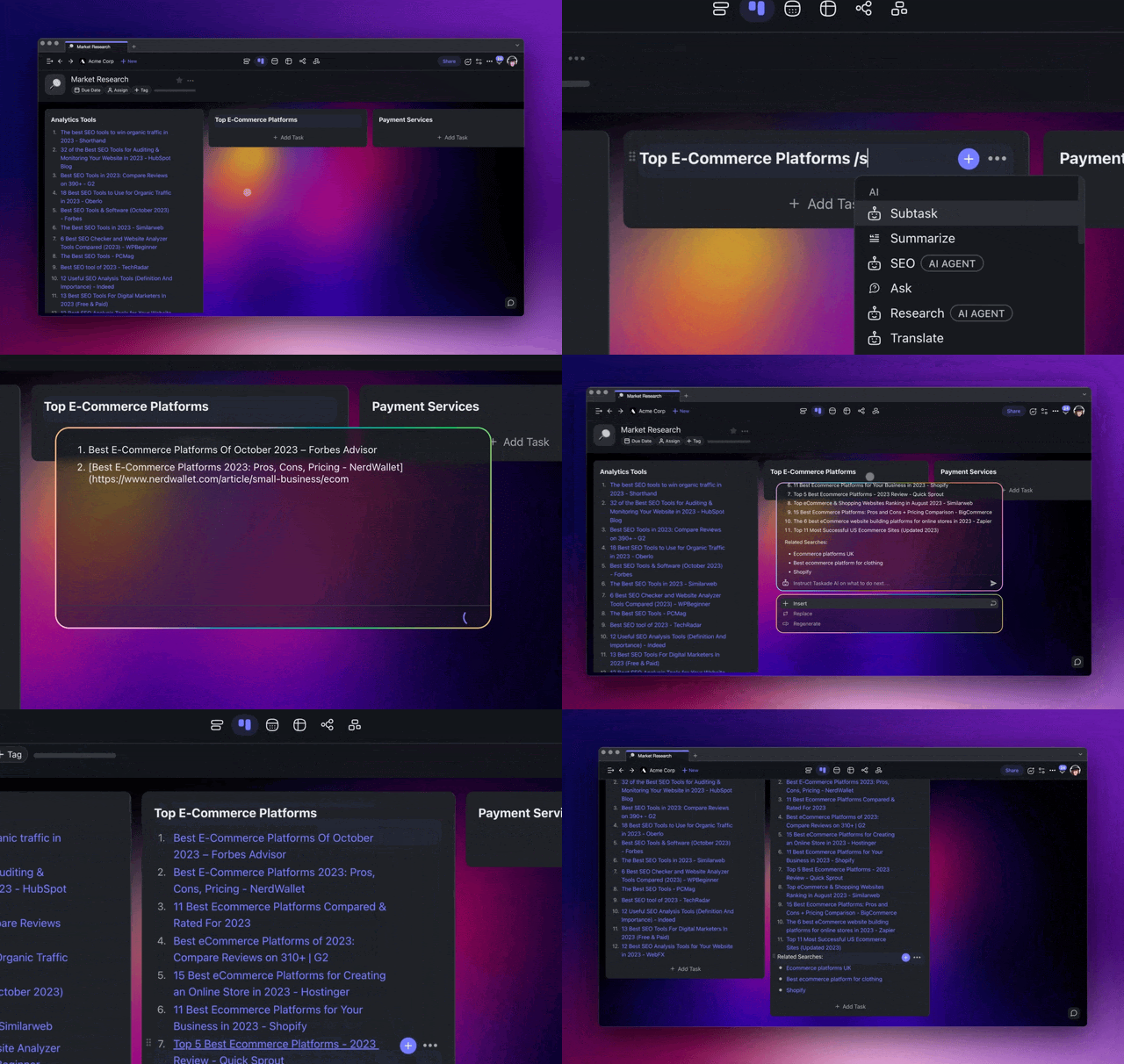
SEO Agent
SEO research does not have to be a chore. Use the SEO Agent to automate keyword research and streamline competitive analysis. Type your keywords followed by the /SEO AI command, and the agent will fetch the top 10-20 Google Search results in an instant.
Where Autonomous Agents Fit
An autonomous agent works best when it is not alone. In Taskade Genesis, the agent is the Intelligence layer of a self-reinforcing loop called Workspace DNA: Memory + Intelligence + Execution (▲ ■ ●). Memory is your projects and data. Intelligence is your agents. Execution is your automations. Each one feeds the next, so the agent gets smarter every time the workspace grows.
Here is the full platform an autonomous agent plugs into:
| Layer | What it is | What the agent gets |
|---|---|---|
| AI Apps | Describe an app in plain English and Taskade builds it: running app, publish, custom domain, clone | A home where the agent is the brain end users talk to |
| AI Agents v2 | a large built-in toolkit, persistent memory, multi-agent teams, public embed, multi-model, and the Taskade EVE meta-agent | The agent itself, with everything it needs to act |
| Automation | Reliable durable workflows with branching, looping, and filtering, plus 100+ bidirectional integrations | Triggers that run the agent on events, hands-free |
| Multiple project views | List, Board, Table, Mind Map inline, plus Docs (Beta), Gantt Chart, Calendar, Actionsheet, Org Chart under More Views (Timeline lives inside Gantt Chart) | Live memory the agent reads and writes |
| Community + App Kits | A gallery of cloneable apps and buy-once-clone-many App Kits | A working agent to copy instead of build from scratch |
The agent reaches 15+ frontier models from OpenAI, Anthropic, and open-weight providers, and you can let it pick the right one per task. Ask Taskade EVE, the meta-agent, to wire any of this for you from a single sentence.
The vision: software you describe instead of build. Every operator runs their business as a set of living, cloneable apps with autonomous agents inside. One of our first Enterprise customers, an IT program manager, built a production field-service dashboard on Taskade Genesis and said: "What I did in weeks would've taken 40 people 18 months." That is what autonomous agents plus living software unlock.
Frequently Asked Questions
How do I [set up automations with Taskade’s AI agents](/learn/automation/agent-action)?
You can set up automations by accessing the Automation section in your workspace settings. Choose [triggers](/learn/automation/triggers) and [actions](/learn/automation/actions) that fit your workflow, and configure your AI agents to execute tasks automatically when the conditions are met.How can I use [agent tools](/learn/agents/agent-tools) and [commands](/learn/agents/custom-agents) in automations?
Agent tools and commands are integrated into the automation process. When setting up an automation, you can specify tasks for your AI agents to execute. The tasks can include sending messages, extracting data, or even more complex actions.What are the available tools for autonomous AI agents?
Taskade’s autonomous AI agents can use a variety of tools including text generation, summarization, translation, and more. Each tool can be configured in the agent’s settings to enhance their automation capabilities.What is an autonomous agent?
An autonomous AI agent is software that takes a goal and finishes it on its own. It perceives context, plans the steps, acts with real tools, and verifies the result, looping until the goal is met. Unlike a chatbot that answers one message at a time, an autonomous agent runs a continuous perceive → plan → act → verify cycle. In Taskade Genesis, you build one in minutes and run it in Plan & Execute mode.
Autonomous agent vs. Chatbot?
A chatbot answers. An autonomous agent reasons, decides, and acts. A chatbot waits for your next message. An autonomous agent sets its own sub-goals, calls tools from a large built-in toolkit, checks its own work, and keeps going until the job is done, pausing only for the approvals you set. In Taskade, the agent is the Intelligence layer of Workspace DNA, not a chat window bolted onto your work.
How autonomous are agents?
Taskade agents run at levels L3 and L4 on the agent maturity ladder. In Plan & Execute mode the agent plans a whole goal and acts on it (L3). With Agent Automation and persistent memory it runs on triggers while you review after (L4). No system runs at L5 (zero human gates) today. You always keep human-in-the-loop approval before any external action like sending an email or posting to Slack.
Are autonomous agents safe?
Yes, because you set the gates. Autonomous agents run freely on safe work like research and drafting, but pause for your Approve or Reject before any external action. Nothing is sent, posted, or paid without your sign-off. Start an agent in Default mode to watch how it behaves, then switch to Plan & Execute once you trust it. See Human in the Loop above.
Can I build one without code?
Open the Agents tab, click Create agent, and describe the role in plain English. Add knowledge (projects, files, links), turn on the tools the job needs, and set the command mode to Plan & Execute. The whole setup takes a few minutes. Or ask Taskade EVE to build it from a single sentence. Follow the full path in the Agent Playbook.
When do I need a team?
Use one agent for one job. Use a multi-agent team when the work needs different specialists in sequence, such as research, then writing, then review. Taskade agents share workspace memory, so one autonomous agent's output flows straight to the next without copy-paste. This is how you climb from a single agent to an autonomous workflow that runs end to end.
Is it free to build one?
Yes. Autonomous agents are included on every Taskade plan, including Free, which starts with a one-time AI credit grant. Paid plans add more credits and seats. See pricing for the full plan matrix. AI usage is metered in credits, not seats. See AI Usage & Credits.
Agent Commands v2
Autonomous agents now support Agent Commands v2, an enhanced command system that gives agents more precise control over their actions:
- Structured tool calls: Agents can invoke integration tools, web search, and file operations with typed parameters
- Multi-step reasoning: Agents break complex tasks into sub-steps and execute them sequentially
- Error recovery: Agents automatically retry failed operations with adjusted parameters
- Parallel execution: Run multiple tool calls simultaneously for faster results
Agent Public API: Prompt your autonomous agents programmatically through the Taskade API. Build custom integrations, chatbots, and multi-agent pipelines. See the Developer API guide.
Build an autonomous agent
You have seen the loop, the ladder, and a live one running. Now build yours. Describe the role, add knowledge, turn on tools, set Plan & Execute, and let it run. Start free at taskade.com/create →
Related guides
- Build an AI Agent: The Complete Playbook: the full path, create to deploy
- Custom AI Agents: Full agent configuration guide
- Tools for AI Agents: The tools autonomous agents can call
- Agent Chat: Plan & Execute mode details
- Multi-Agents: Multiple autonomous agents collaborating
- Agent Knowledge & Memory: What autonomous agents read between steps
- Agent Automation: Trigger autonomous agents from events
- Workspace DNA: how Memory, Intelligence, and Execution connect
- Autonomous agents developer guide: drive scheduled runs, agent teams, and agent-to-agent calls from the API
Read more
- Autonomous Task Management: the productivity shift autonomous agents unlock
- What Are AI Agents?: the plain-English primer
- AI Agents: explore and clone ready-made agents
- AI Apps: turn an agent into a living, cloneable app
- Autonomous Agents (wiki): the concept in depth