
Overview
The Gmail integration lets you enhance your communication and workflow automation by linking your email activities with tasks and projects.
TL;DR: The Gmail integration works both ways inside your automations. The New Email trigger pulls a fresh message into Taskade the moment it arrives. Then Send Email, Create Draft Email, and Find Email(s) push replies, drafts, and lookups back out to Gmail. One saved connection turns your inbox into a live automation surface.
You can use Taskade's Gmail integration in several ways.
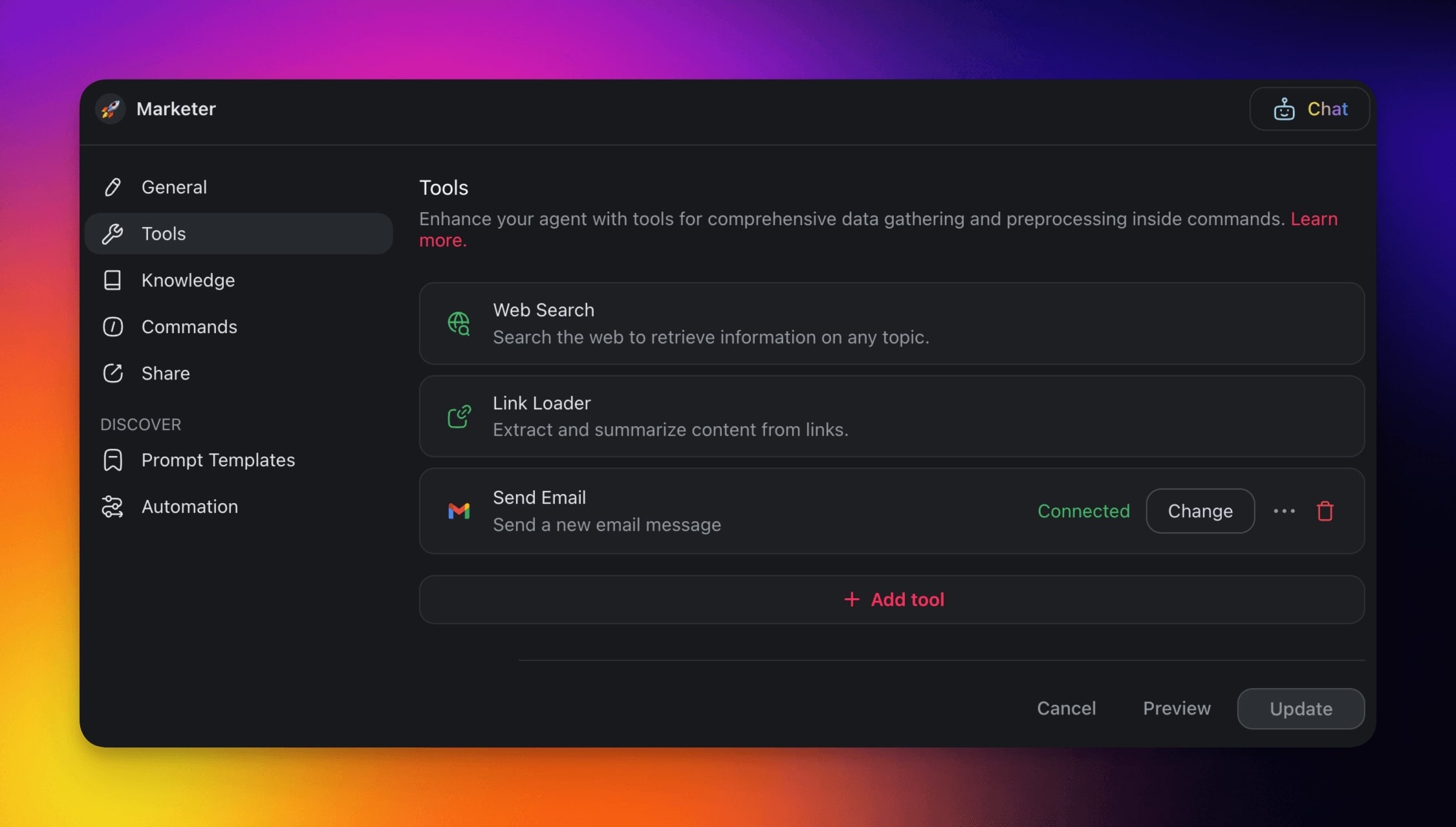
Add Gmail to Agent Tools
Connecting your Custom AI Agents with Gmail gives them the ability to send emails and links your email communication with your tasks and projects.
💡 Note: Visit our guide to AI Agent Tools to learn more.
Gmail Automation
When a trigger occurs, such as a project update or a task deadline, Taskade sends emails through Gmail automatically. New emails can also trigger actions.
Note: Visit our Automation Guide to learn more.
Triggers & Actions
Here are the triggers & actions you can use in your workflows:
| New Email | Kicks off actions when a new email arrives in Gmail. |
|---|---|
| New Email with Label | Kicks off actions when a new email arrives with a specific label. |
| Send Email | Sends an email through Gmail to a specified recipient. |
| Reply to Email | Send a reply within an existing email thread. |
| Create Draft Email | Create a new draft email message. |
| Get Email | Get the full details of an email by its message ID. |
| Find Email(s) | Find one or more emails in your Gmail account. |
💡 First run behavior: When you toggle the New Email trigger on for the first time, Taskade seeds Gmail's history cursor at that exact moment. The very next email that arrives fires the automation. A second message or a manual test to "prime" the trigger is no longer necessary. Existing emails from before you enabled the trigger are skipped on purpose to prevent a flood.
Automation Settings
Connector options give you full control over the Gmail automation:
| Field | Description |
|---|---|
| (required) Account | Connect your Taskade account to your personal or business Gmail account. |
| (required) To | Enter the recipients' email addresses separated by commas. |
| (required) Subject | Type the subject line for the email that will be sent out. |
| (required) Body (Plain Text) | Type the message in the provided space or use pre-defined elements/click ➕ for more options. |
| (required) Emails to Return | Return the first matching email or the first 100 matching emails. |
| Identify Emails | Define the fields that identify the email(s) in Gmail. |
| CC | Add the email addresses of other recipients you want to copy on the email. These recipients will be visible to everyone who receives the email. |
| BCC | If you prefer to send an HTML-formatted email, use this field to input your HTML code with styles, links, and structured layouts. |
| (required) Body (HTML) | If you want to compose an HTML email, type your HTML code here. You can include command results by typing '@'. |
| Reply To | Specify an alternate email address for replies. Taskade routes responses to this address instead of the sending address. |
| From | Choose the sending email address from your connected Gmail accounts. This is especially useful if you manage multiple email addresses. |
| Message ID to Reply To | Reply to a specific message (you can pull the unique email identifier from the New Email trigger. |
| (optional) Identify Emails | Define the fields that identify the email(s) by Subject, From, Send Date, Labels, and/or Stars. |
Process Email Attachments
The Gmail action lets you capture attachments from incoming emails. You can pass the attachments directly to other steps in your automation flows.
In this example, Taskade loops through attachments and adds them to Media Files.
Use the New Email trigger.
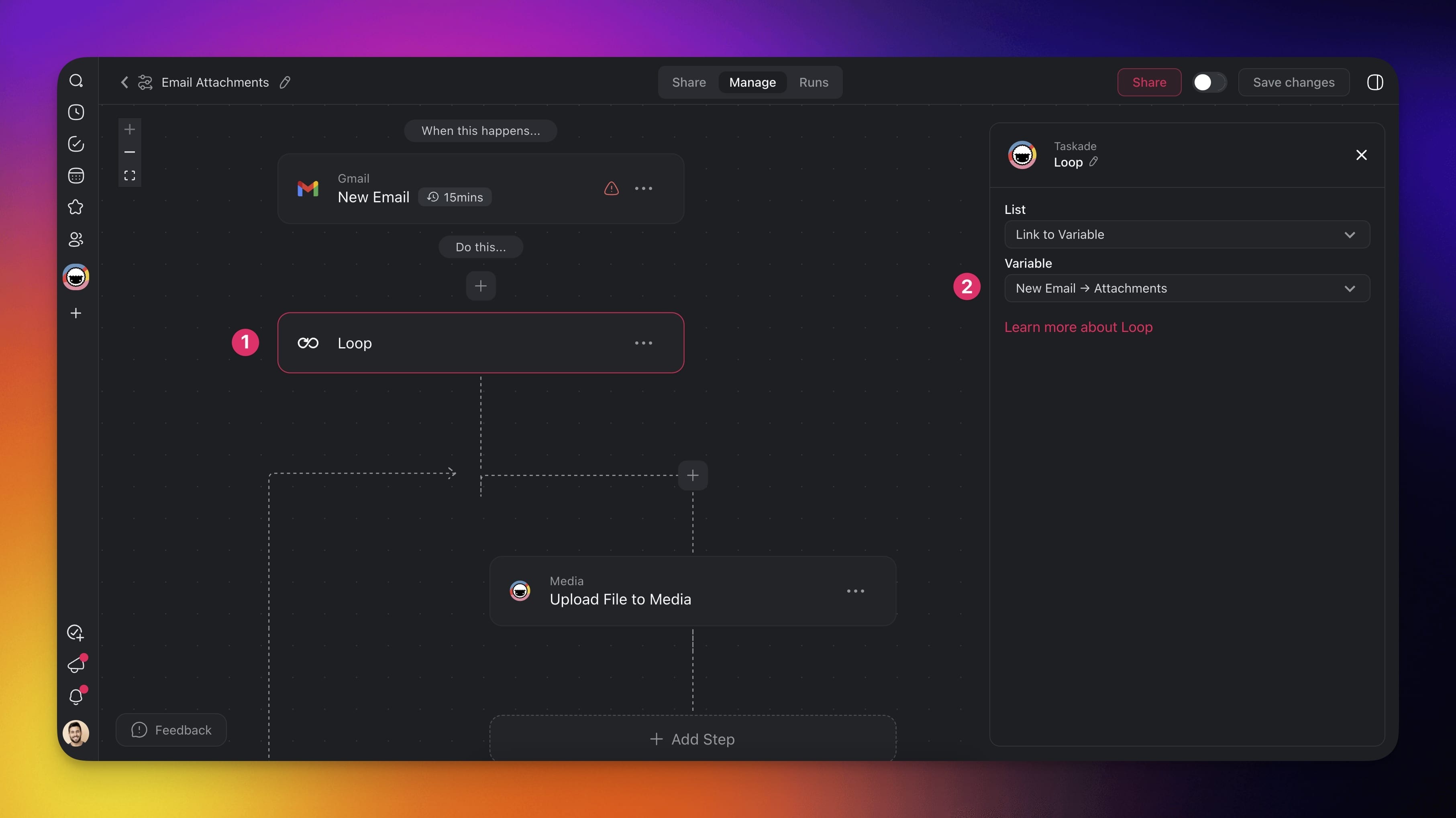
Add and configure the Loop action:
Choose Link to Variable under List.
Choose New Email→ Attachments under Variable.
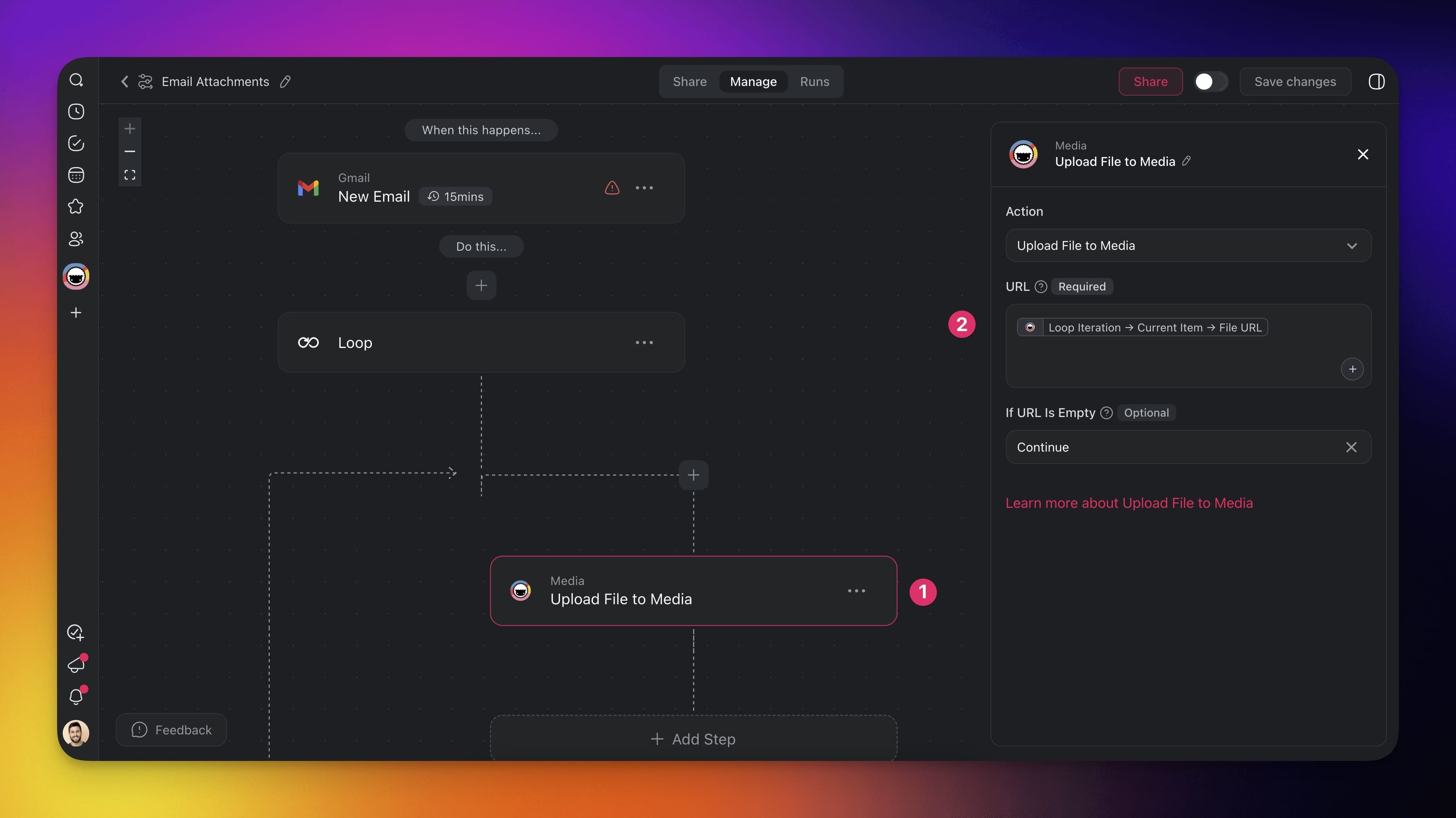
Add and configure the Upload File to Media action:
Set
Loop Iteration → Current Item → File URLunder URL.
- (optional) Add more steps to the automation.
Find and Filter Emails
With the Find Email(s) action you can locate specific emails in your inbox.
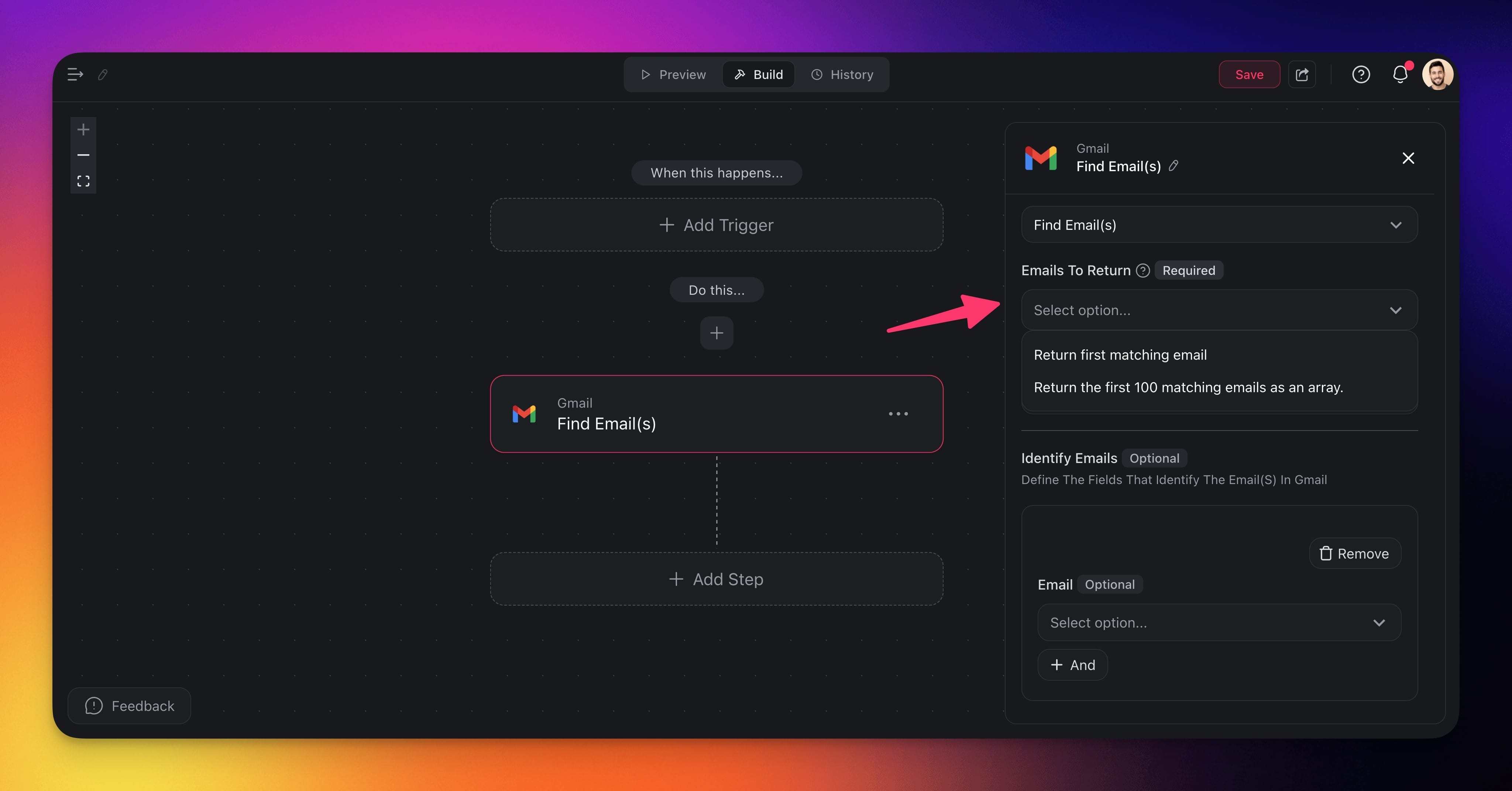
Add the Gmail Find Email(s) action.
(required) Configure Emails to Return in the sidebar on the right:
Return first matching email: Retrieves only the first matching emails.
Return the first 100 matching emails as an array: Retrieves up to 100 emails.
(optional) Set Behavior When No Emails Are Found:
Continue: The automation will move to the next step.
Fail: The automation will stop and return an error.
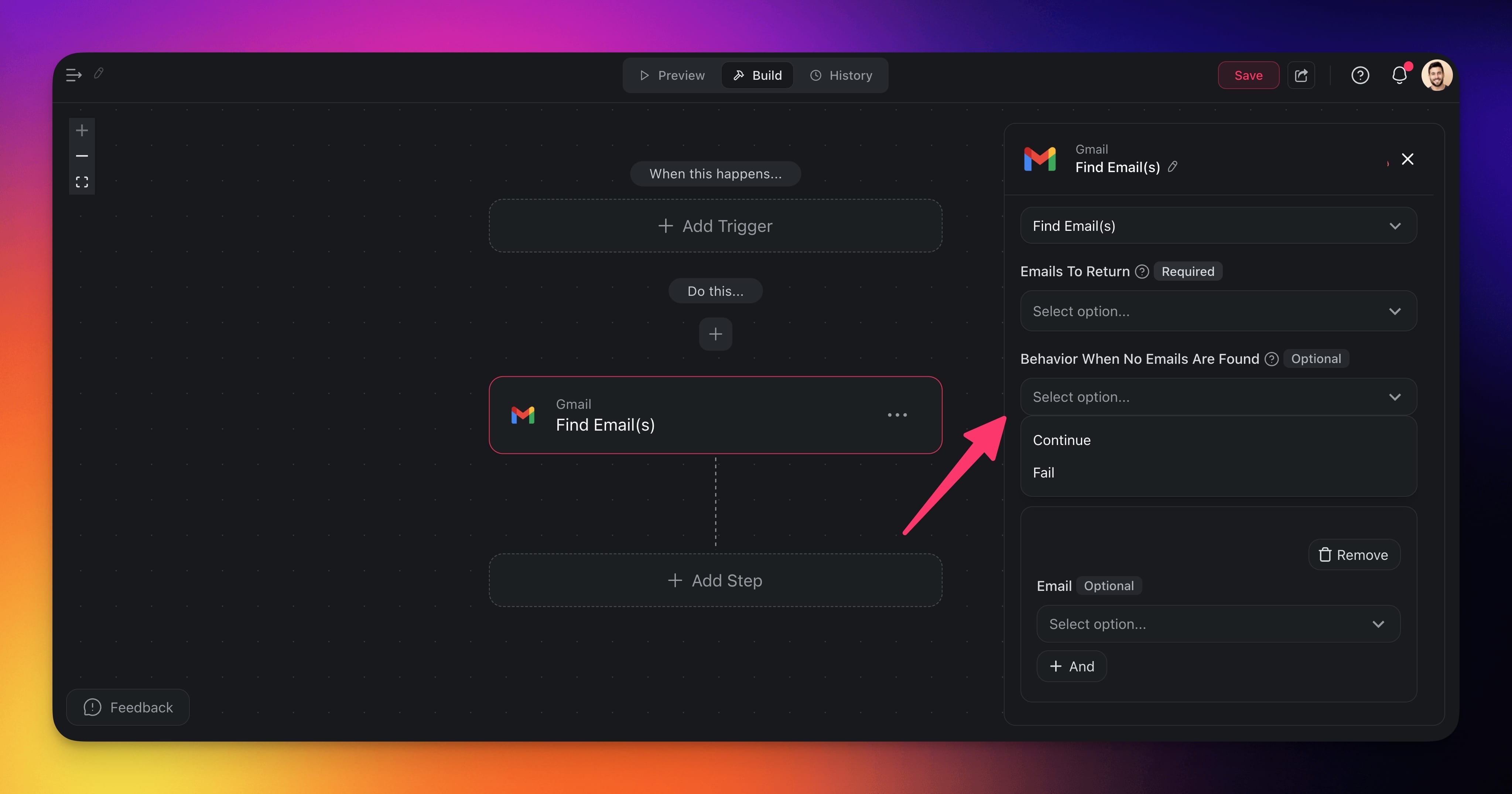
(recommended) To refine your search, add filters under Identify Emails:
Subject
From
Send Date
Labels
Stars
Use the + And button to add multiple filters for more precise matching.
Once all fields are filled in, click Save at the top right to save the changes.
Use Cases
Here are a few ways to use the Gmail connector:
| ✨ Use Case | 💭 Scenario | ⏩ Flow Example |
|---|---|---|
| Send auto-reply for new inquiries | A sales team wants to immediately respond to inbound leads with a welcome message. | 1. Trigger: New Email in Gmail2. Filter: Subject or sender domain indicates a potential lead3. Send email: Send a pre-written welcome or info pack to the new lead |
| Create draft responses for support | A support desk needs pre-filled draft replies for common queries to speed up response times. | 1. Trigger: New Email2. Filter: Check for keywords like “refund” or “technical issue”3. Branch: Categorize the email / adjust the response3. Create Draft Email: Populate a draft with a template or partial response for quick review |
| Forward VIP emails | The automation forwards important emails from key stakeholders to a manager or group for immediate attention. | 1. Trigger: New Email2. Filter: If sender matches a VIP address or subject includes “urgent”3. Add Task: Add a new task to a tracker project |
| 4. Send Channel Message: Notify the team about the new email in a Slack channel | ||
| Auto-reply after business hours | An out-of-office reply is sent whenever an email arrives late at night or on weekends. | 1. Trigger: New Email2. Send email: A predefined out-of-office message is automatically sent to the sender |
| 3. Add Task: Create a follow-up task in a tracker project |
Available Capabilities
| Type | Capability | Description |
|---|---|---|
| ⚡ Trigger | New Email | Fires when a new email arrives in your inbox |
| ⚡ Trigger | New Email with Label | Fires when a new email arrives with a specific label |
| ⚡ Trigger | New Email Attachment | Fires once per attachment when an email with attachments arrives |
| 🔧 Action | Send Email | Send a new email message |
| 🔧 Action | Reply to Email | Send a reply within an existing email thread |
| 🔧 Action | Forward Email | Forward the message text of an existing email to new recipients |
| 🔧 Action | Create Draft Email | Create a new draft email message |
| 🔧 Action | Send Draft | Send an existing draft email to its recipients |
| 🔧 Action | Get Email | Get the full details of an email by its message ID |
| 🔧 Action | Find Email(s) | Find one or more emails in your Gmail account |
Example: Inbound Lead Triage
Related guides
- HubSpot · Apollo · Mailchimp · Salesforce. Other CRM/email integrations
- Mailhook Trigger. Generic email trigger
- Custom AI Agents. Build agents that draft Gmail replies
- AI Categorize. Auto-classify inbound email