
Overview
The Taskade Edge Extension replaces your New Tab page. Your projects and ideas stay one tab away. Set Taskade to open in a new browser tab. Use the ✂️ Web Clipper to capture content from the web.
TL;DR: Install the Taskade Edge extension. Every new tab opens your last project, dashboard, calendar, or a new project. The Web Clipper clips web pages straight into a project. Customize new-tab behavior in Options, pin the extension to your toolbar, and add a keyboard shortcut for one-click access.
💡 Note: All browser extensions support Markdown syntax. Visit ✔️ Markdown Support to learn about all the other ways you can use Markdown in Taskade.
Add the Extension
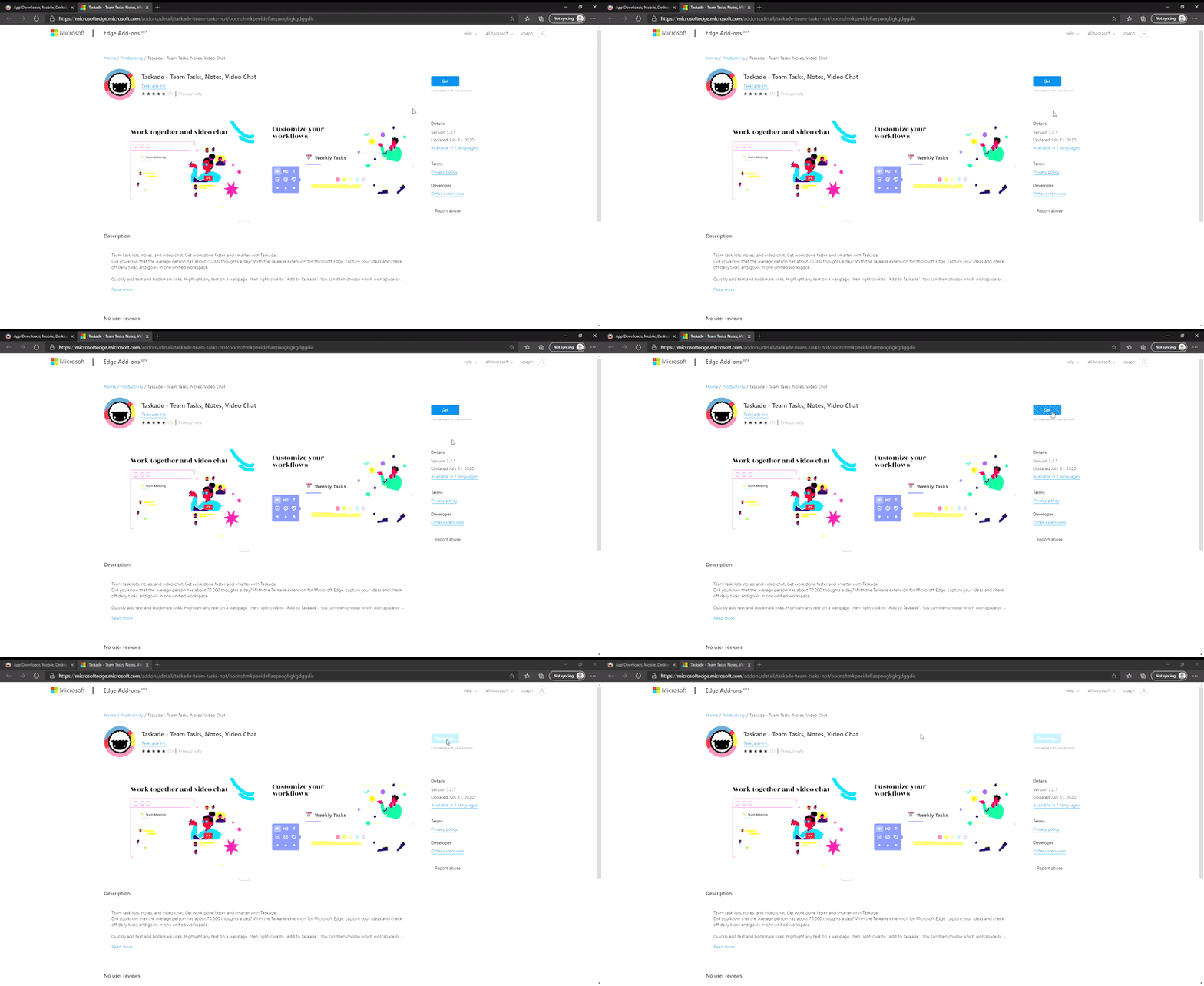
- Go to the Edge Add-ons and click Get.
- Review the installation in the pop-up prompt and click Add extension.
- The next prompt shows that the extension is installed.
- Set Edge to open Taskade in a new tab.
- And that is it! 🥳
Note: If other extensions change tab behavior, reinstall the Taskade extension in a different order to restore compatibility.
Customize Extension Options
Right-click the Taskade logo in the Edge toolbar.
Click Options to manage the extension.
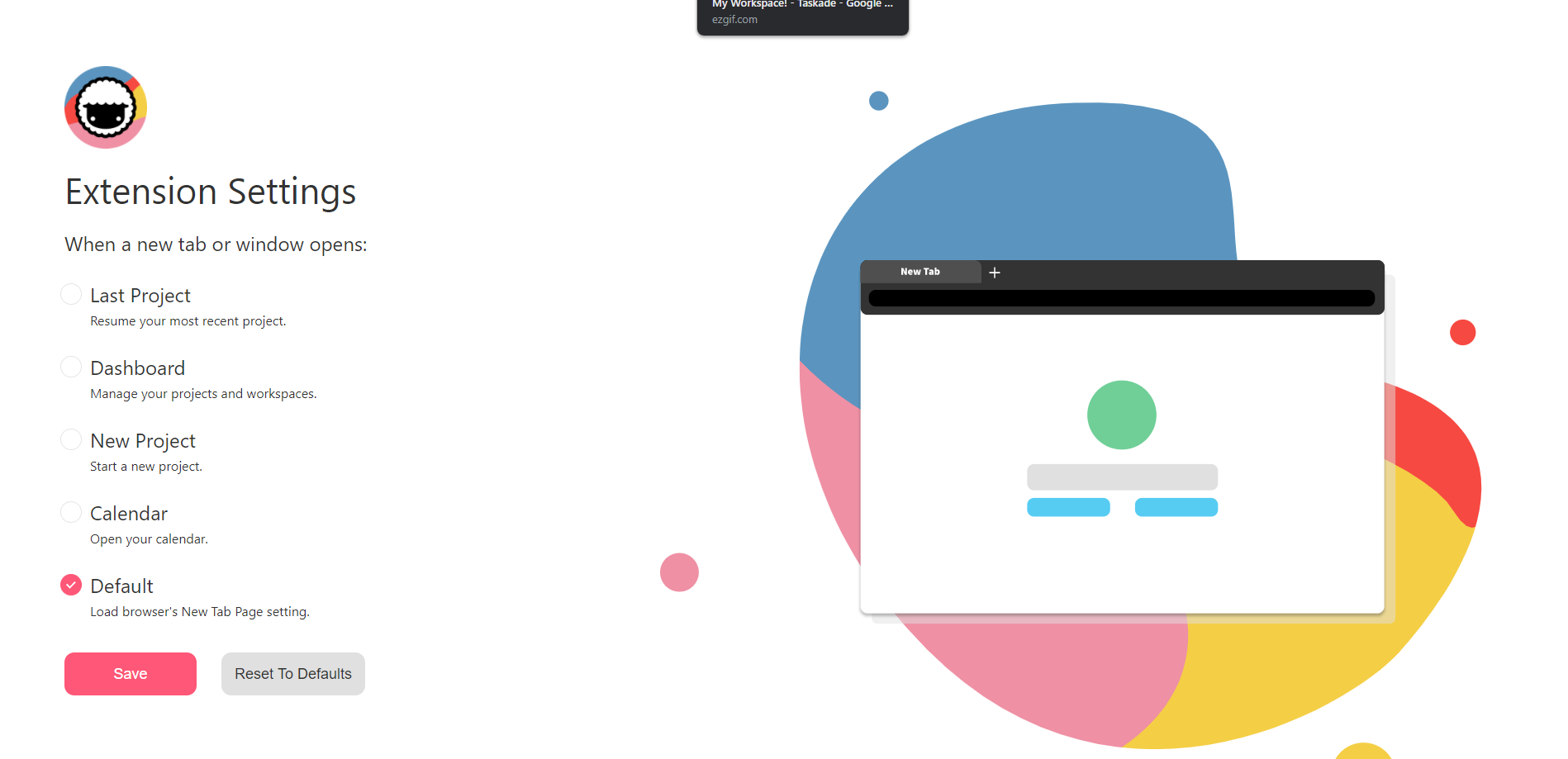
Choose what Taskade opens in a new tab.
- 👈 Last Project (resume your most recent Project)
- 🎛 Dashboard (manage your Projects and Workspaces)
- 🌱 New Project (Start a new Project)
- 🗓 Calendar (Open the Taskade Calendar)
- ⭐️ Default (open a default new tab in your browser)
- Click Save to confirm your choice.
Here is the new-tab picker you will see in Options 👇
┌────────────────────────────────────────────┐
│  Taskade New Tab Options        [ Save ]   │
├────────────────────────────────────────────┤
│  Open every new tab to:                    │
│                                            │
│    (•) Last project                        │
│    ( ) Dashboard                           │
│    ( ) New project                         │
│    ( ) Calendar                            │
│    ( ) Browser default                     │
└────────────────────────────────────────────┘
Your browser now opens Taskade on every new tab.
Tips
- Pin the extension: Click the puzzle-piece icon in Edge's toolbar. Then click the eye icon next to Taskade. The extension stays visible in your toolbar.
- Use the Web Clipper: Right-click any highlighted text or page and select Add to Taskade to clip content directly into a project. Learn more in the Web Clipper guide.
- Extension conflicts: If another extension overrides your new-tab page, disable that extension. You can also reinstall Taskade last, so that Taskade takes priority.
- Keyboard shortcut: Edge lets you assign custom shortcuts to extensions via
edge://extensions→ Keyboard shortcuts.
💡 Tip: Use the browser extension alongside Taskade Genesis to capture ideas and build AI-powered workflows from anywhere.
Related guides
- Chrome Extension · Firefox Extension · Brave Extension. Other browsers
- Extension Settings. Configure any Taskade extension
- Web Clipper. Clip web pages to projects