
Overview
The LinkedIn integration lets Taskade post to LinkedIn for you. Connect once, then your automations and AI agents publish updates to your personal profile or company page on their own, triggered by the work already happening in your workspace.
TL;DR: LinkedIn is one of 100+ Taskade integrations. Connect it once, and two actions push content out to LinkedIn. Create Share Update posts to your profile. Create Company Update posts to a company page. A workspace trigger like a task completing fires the automation, so personal and business posts publish without you opening LinkedIn. LinkedIn steps are available on paid plans.
Inside a LinkedIn Automation
A LinkedIn post starts with something that already happens in your workspace. A trigger pulls that event in, the automation runs, and a LinkedIn action pushes the post out. You build the path once, then it runs on its own.
Connect & Configure LinkedIn
Before you use LinkedIn in Taskade, configure the integration:
Add LinkedIn as an action or as an agent tool (see the next two sections). LinkedIn belongs to the premium integration set, so its actions and agent tools are available on paid plans.
Click Connect to connect your LinkedIn account to Taskade.
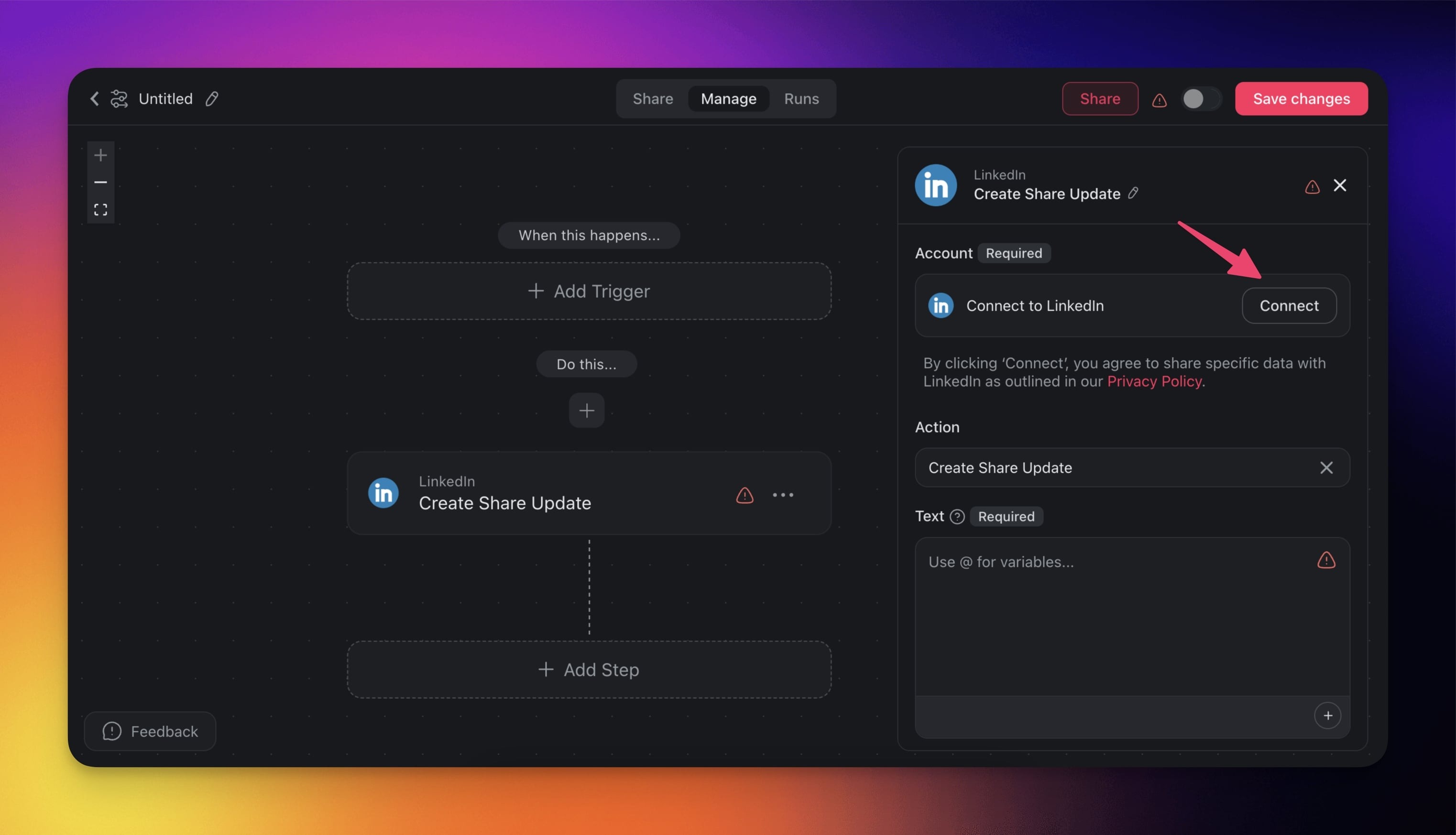
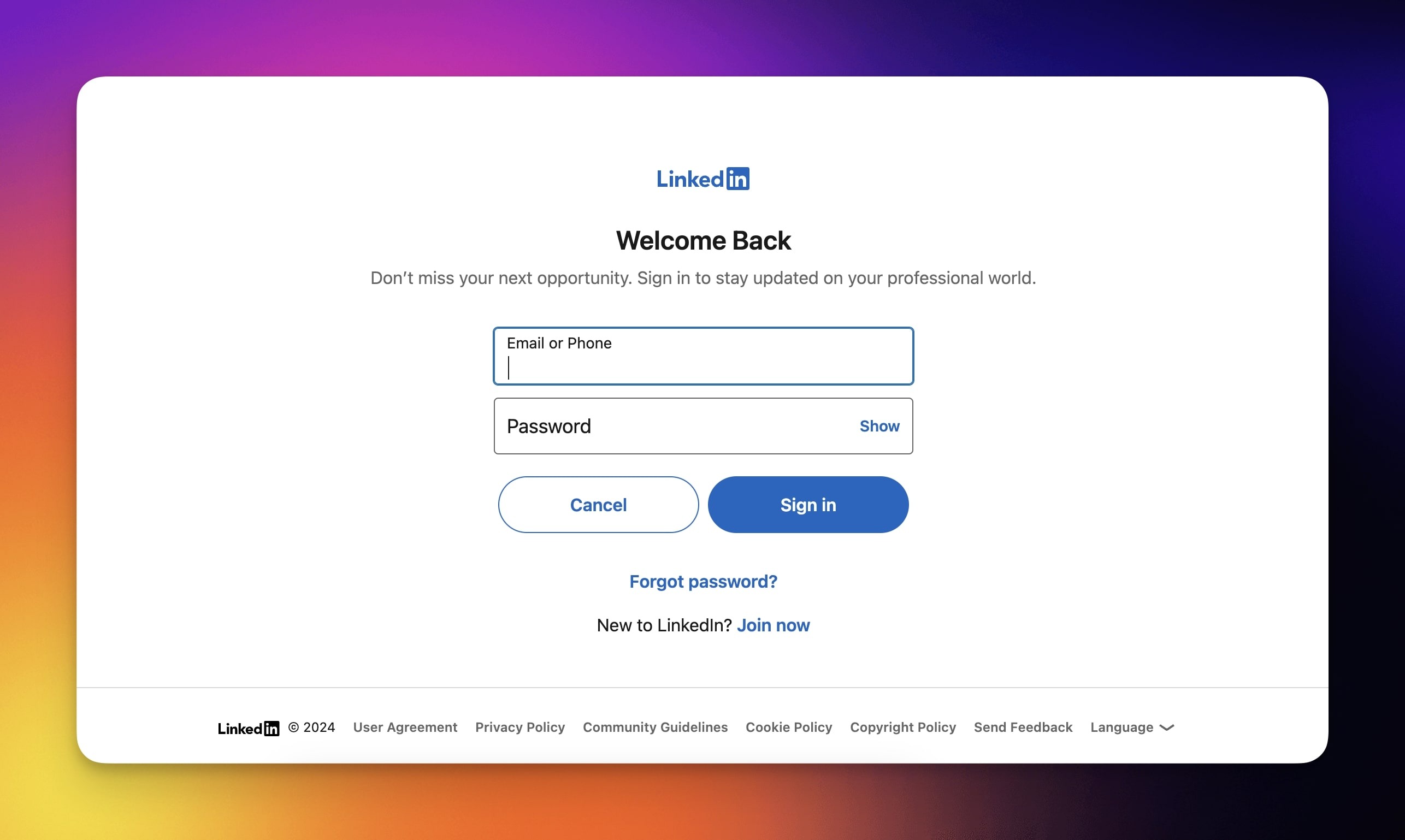
Log into your LinkedIn account or create a new one.
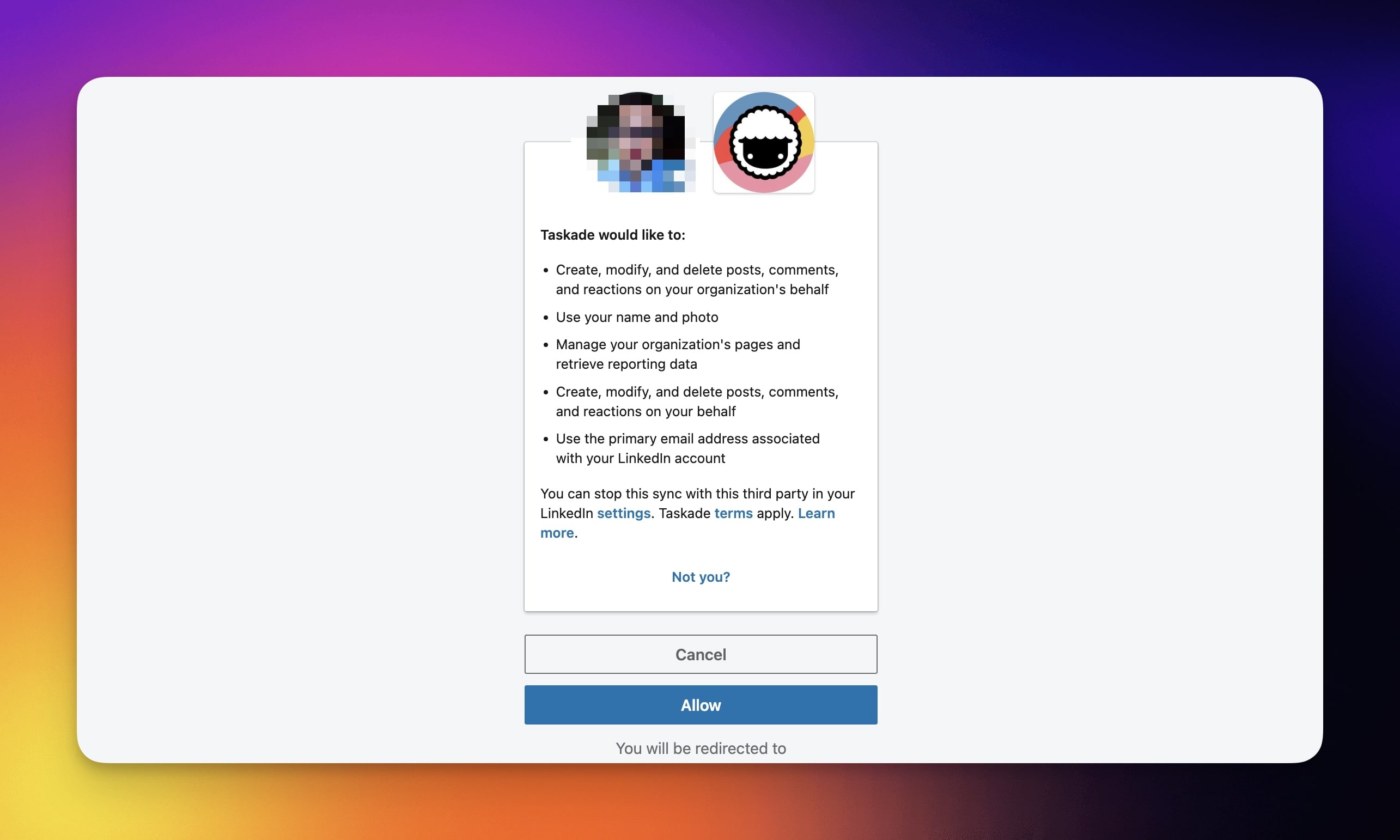
Once logged in, click Allow to authorize the LinkedIn integration.
Add LinkedIn to Agent Tools
Give an AI agent LinkedIn as a tool and it can post for you in plain conversation. Ask it to "share this update on my profile" or "post the launch to the company page," and the agent uses the LinkedIn action to publish. It is one of the built-in tools an agent can carry alongside web search, file analysis, and the other connectors.
💡 Note: Visit our guide to AI Agent Tools to learn more.
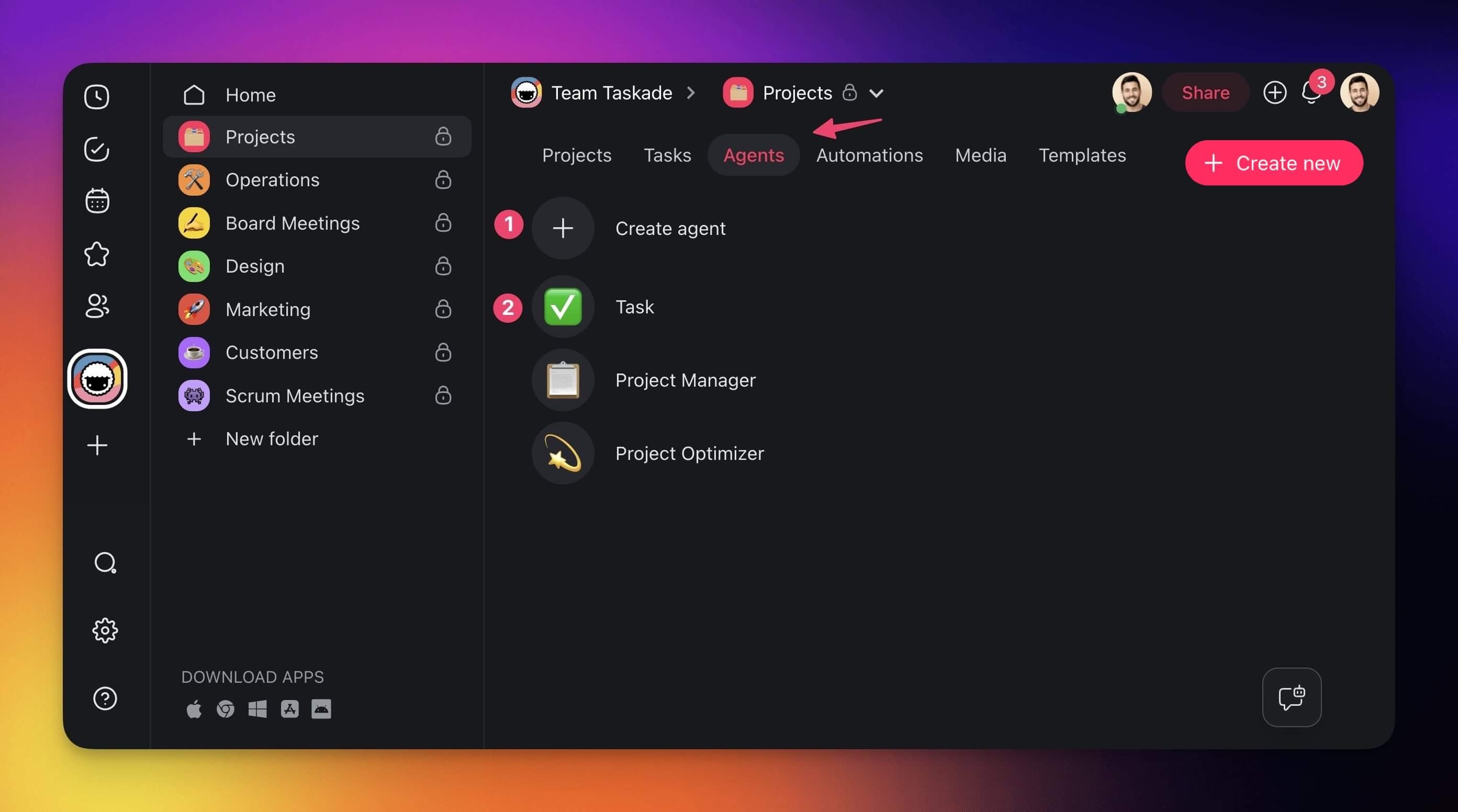
- Go to the Agents tab at the top of your workspace/folder.
- (1) Select an existing agent or (2) create a new one.
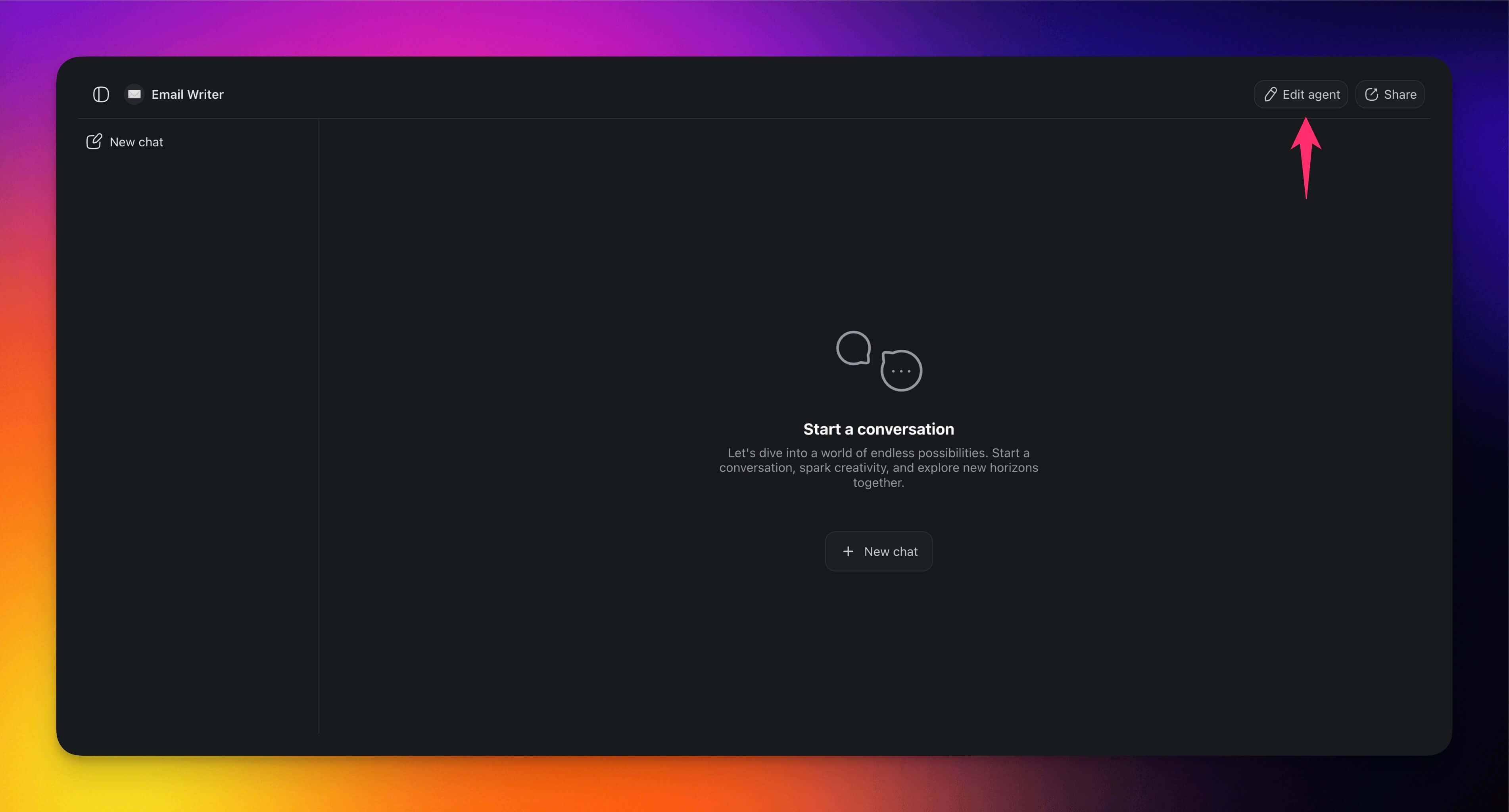
- Click ✏️ Edit agent in the top-right corner.
- Go to the 🔧 Tools tab on the left.
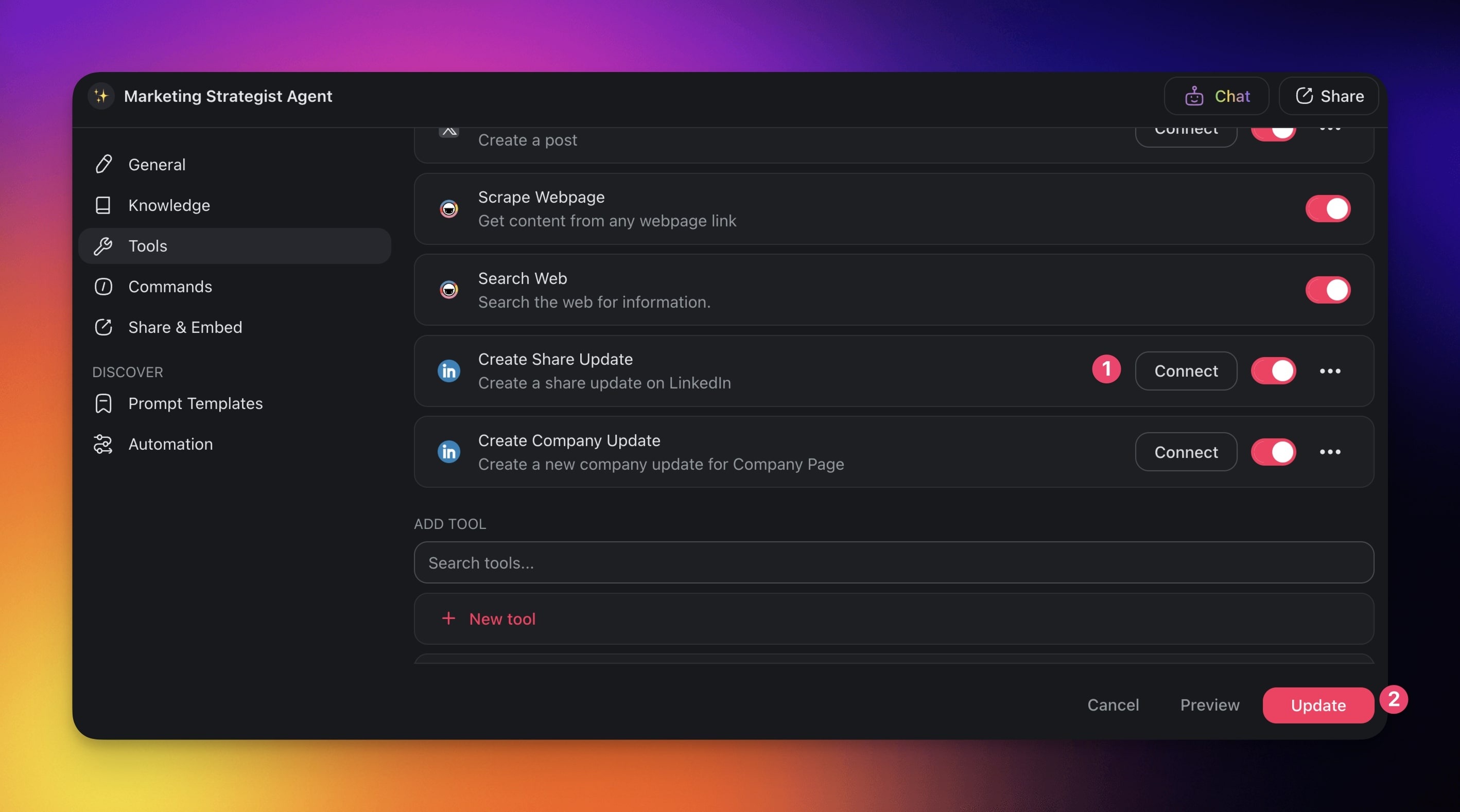
- Click ➕ Add tool and choose a LinkedIn tool from the list.
- Click Connect to configure the integration (see the first section of this guide).
- Click Update to save the changes.
Build LinkedIn Automations
Set Taskade to publish a LinkedIn post the moment something happens in your workspace. A task moving to Done, a deadline arriving, or a status changing can each fire an automation that posts to your profile or company page. You build the path once and it runs on its own, every time the trigger fires.
Note: Visit our Automation Guide to learn more.
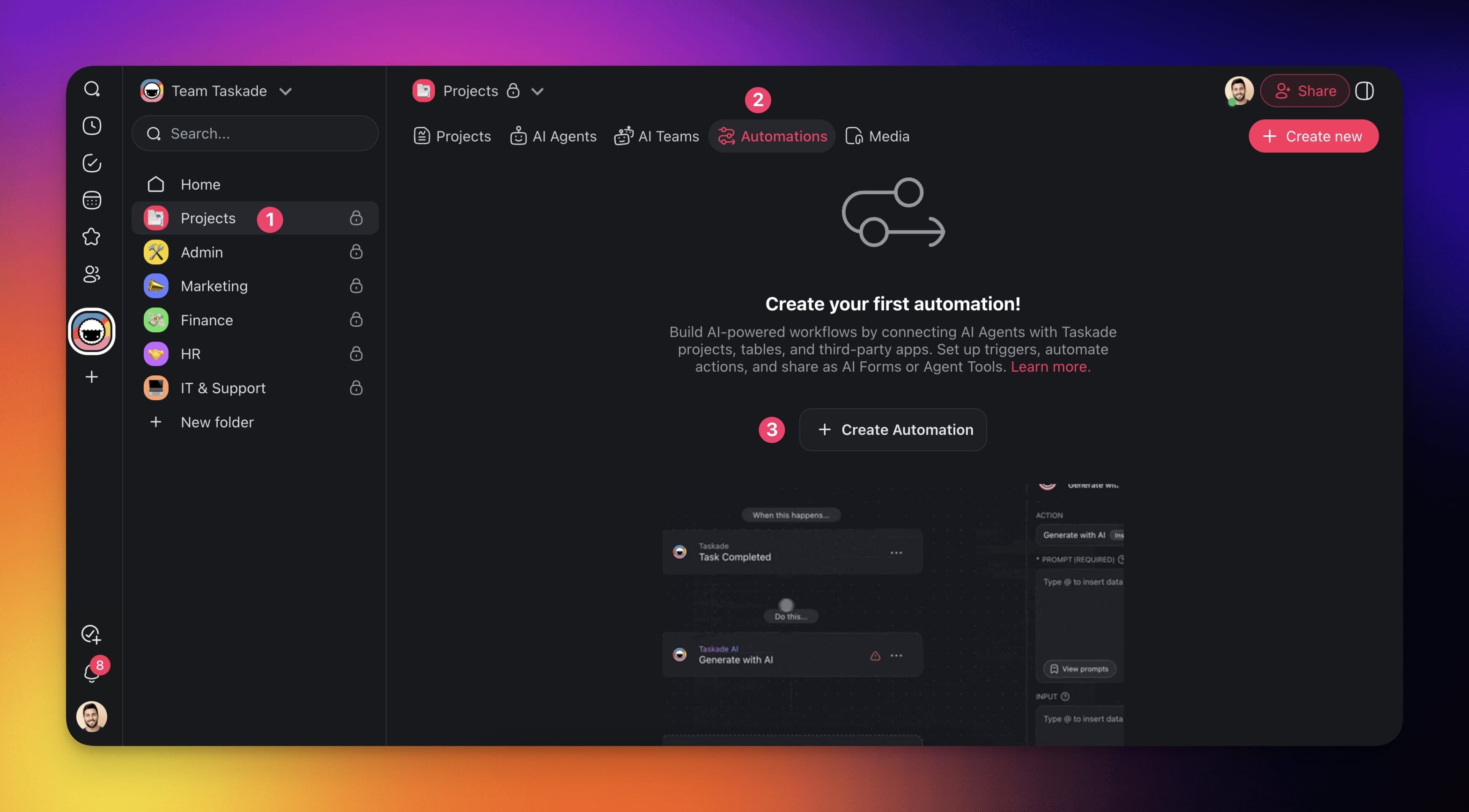
Go to the Automations tab in your workspace or folder.
Click ➕ Create automation.
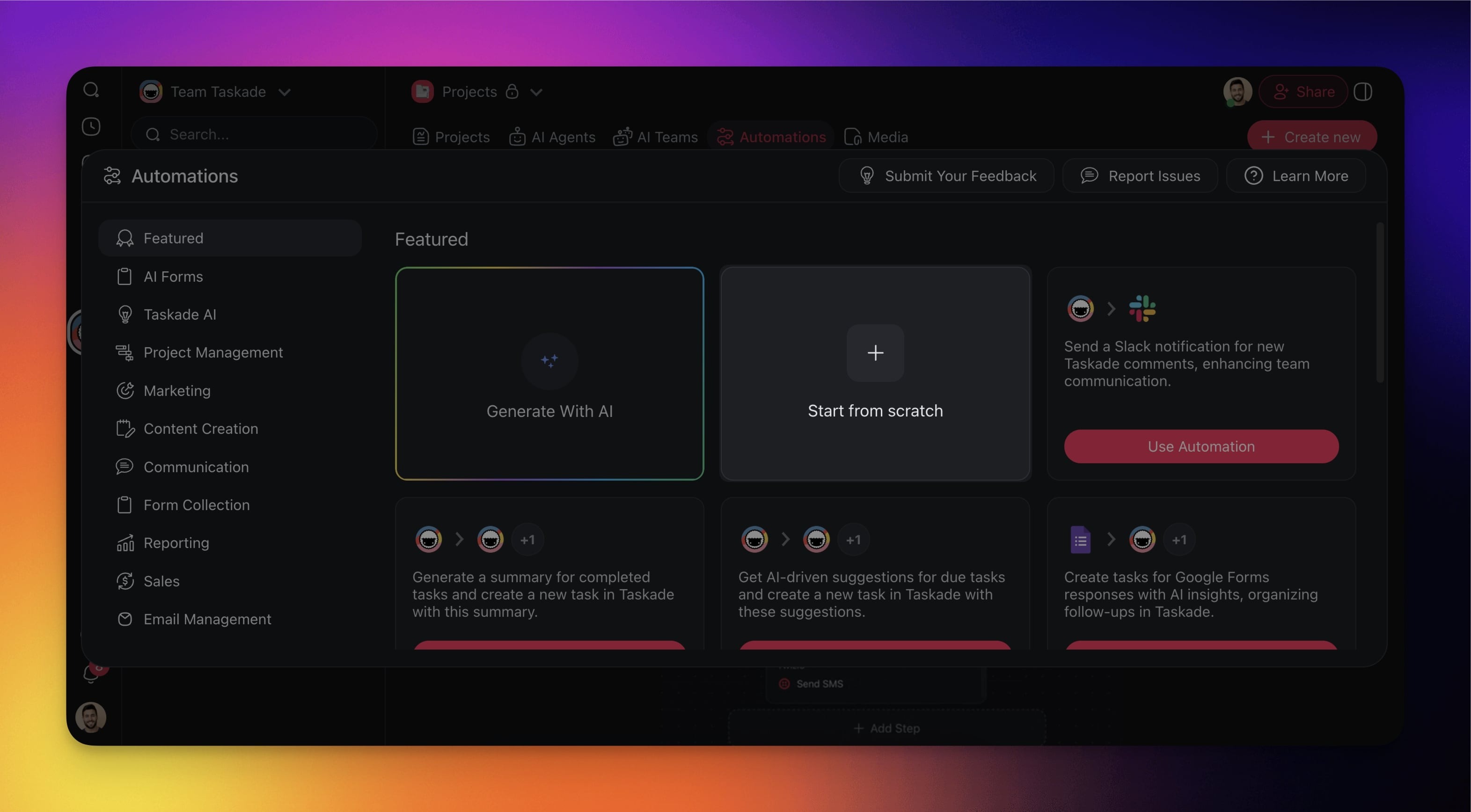
- Select the Start from scratch tile.
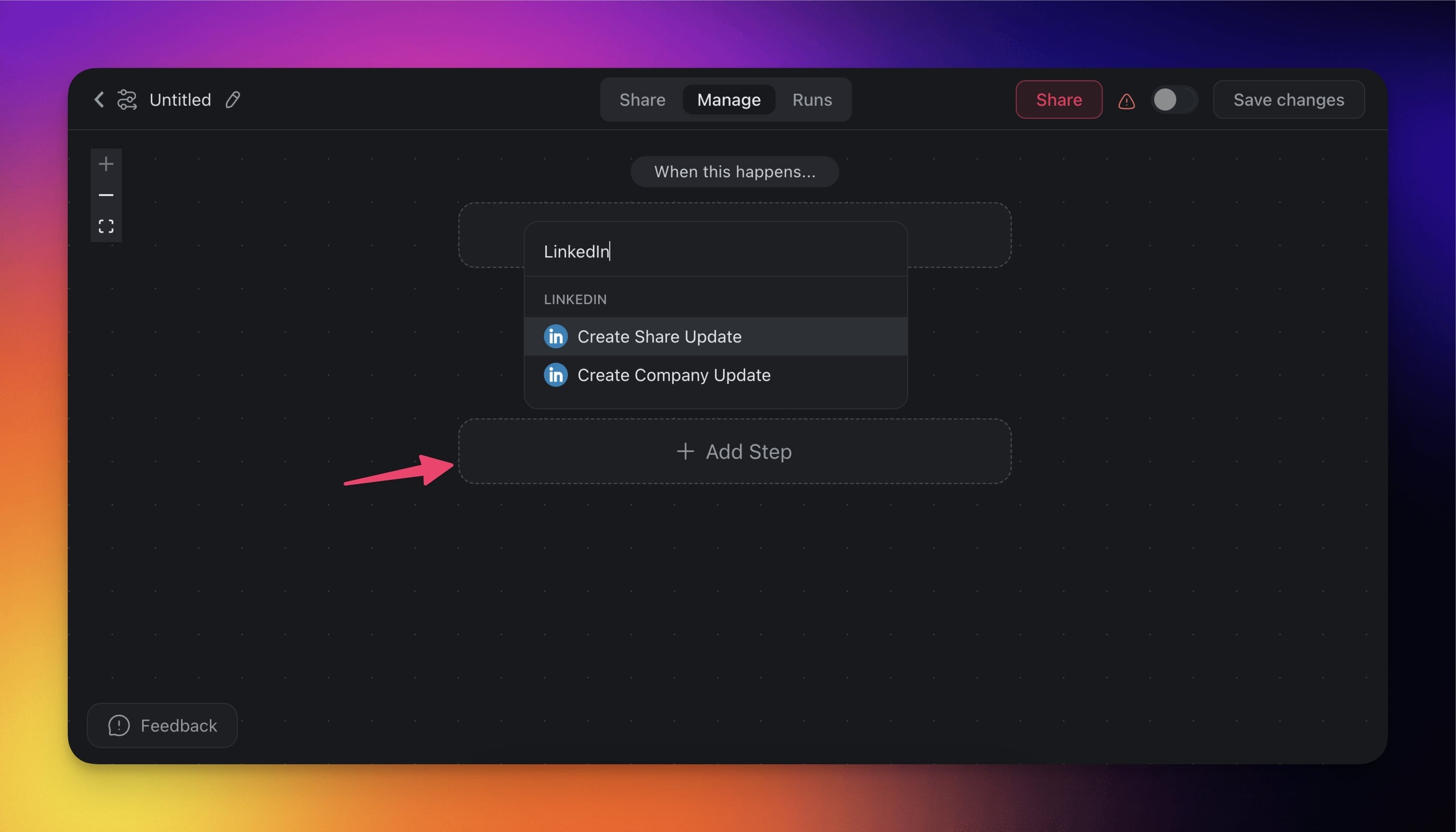
Click ➕ Add Action and choose one of the LinkedIn actions from the list.
You can type "LinkedIn" in the search bar to filter the actions.
Click Connect to configure the action (see the first section of this guide).
Specify the conditions on the right (if applicable).
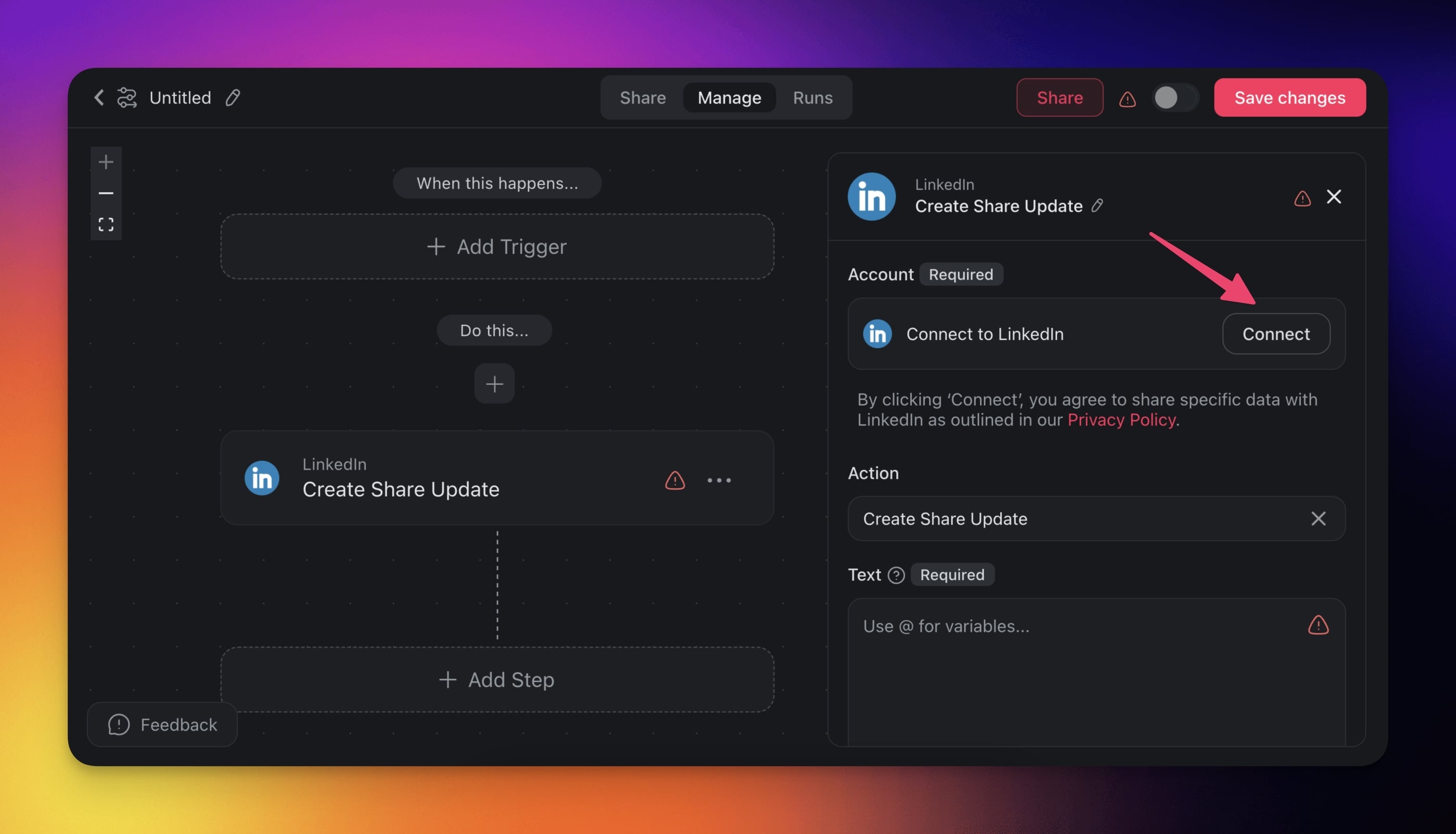
- (optional) Add more steps to the automation.
- Click Save changes in the top-right corner.
- Toggle the automation on in the top-right corner.
LinkedIn Actions
LinkedIn provides two actions that push content out to the platform. Pair any of them with a workspace trigger (a task completing, a deadline, a status change) to publish on autopilot. There are no LinkedIn-side triggers, so the event that starts the post always comes from inside Taskade.
| Action | What it does |
|---|---|
| Create Share Update | Publishes a post on your personal LinkedIn profile. |
| Create Company Update | Publishes a post on your business or company LinkedIn page. |
LinkedIn Automation Settings
Each LinkedIn action has a few fields that shape the post. Text and visibility are required. The rest add a link preview with a title and description. Fill them once in the action step and every run uses the same format.
| Field | Description |
|---|---|
| (required) Text | The text of your LinkedIn post. |
| (required) Visibility | The visibility of your post (Public or Connections Only) |
| (optional) Content URL | The URL of the LinkedIn post. |
| (optional) Content Title | The title of your post. |
| (optional) Content Description | A description snippet for your content. |
Note: The content URL provided must include "https://" for it to be valid
LinkedIn Automation Use Cases
Most LinkedIn automations follow one shape: a workspace event triggers a post, and the right action fires. Here are common pairings teams set up once and leave running.
| Use case | What triggers it | What posts |
|---|---|---|
| Share industry insights | A research task moves to Done | An article or report goes to your profile to build thought leadership |
| Showcase project completions | A project hits its final milestone | A win update goes to your profile or company page |
| Promote company culture | A culture project is marked ready | A team-building highlight goes to the company page |
| Announce job openings | A hiring task is created | A job post reaches a wider audience automatically |
| Celebrate team achievements | An award is logged | A recognition post goes out to boost morale |
Read end to end, a single automation looks like this:
  Workspace                Automation               LinkedIn
 ┌──────────────┐        ┌──────────────┐        ┌──────────────┐
 │ Task: Done   │  ───▶  │ Filter +     │  ───▶  │ Create       │
 │ "Launch v2"  │        │ format text  │        │ Company      │
 │              │        │              │        │ Update       │
 └──────────────┘        └──────────────┘        └──────────────┘
      trigger              runs on its own            action
Run LinkedIn from one place
You are already tracking content somewhere, a spreadsheet of post ideas, a Slack thread, or a running note. Taskade Genesis can turn that into a content ops dashboard from one prompt. Describe what you run, and you get a live app where every post idea is a card moving from Draft to Scheduled to Published.
The dashboard runs on your Workspace DNA. It remembers your posts, and an AI agent drafts on-brand copy with 15+ frontier models. The moment a card reaches Published, a LinkedIn automation fires the post to your profile or company page. Your team logs in to see what shipped and what is queued. The publishing runs on its own.
Build your content dashboard with Taskade Genesis →
Related guides
- Other social integrations: X / Twitter, Facebook, Instagram, Reddit
- How automations work: Automations Overview, Triggers, Actions
- AI Agent Tools: give an agent LinkedIn and other connectors
- Brand Voice: keep LinkedIn content on-brand
- Marketing Agents: specialized content agents
- Apollo: prospect enrichment from LinkedIn
- Browse all 100+ integrations and community apps