
Overview
The Slack integration connects Taskade to your team channels with 4 triggers and 15 actions. Post messages, create channels, react to events, search messages, and pin messages. AI agents can also run Slack workflows on autopilot. Use it inside Automations to broadcast project updates, or attach it to a Custom Agent so your AI teammates can chat with the team directly.
TL;DR: Slack works both ways inside Taskade automations. A trigger pulls Slack events in, like New Message or New Reaction, so your workspace reacts the moment your team posts. An action pushes data back out, like Send Channel Message or Create Channel, so updates land in Slack on their own. One connection covers both directions.
Connect & Configure Slack
Before you use Slack in Taskade, configure the integration:
Add Slack as an action/trigger or as an agent tool (see the next two sections).
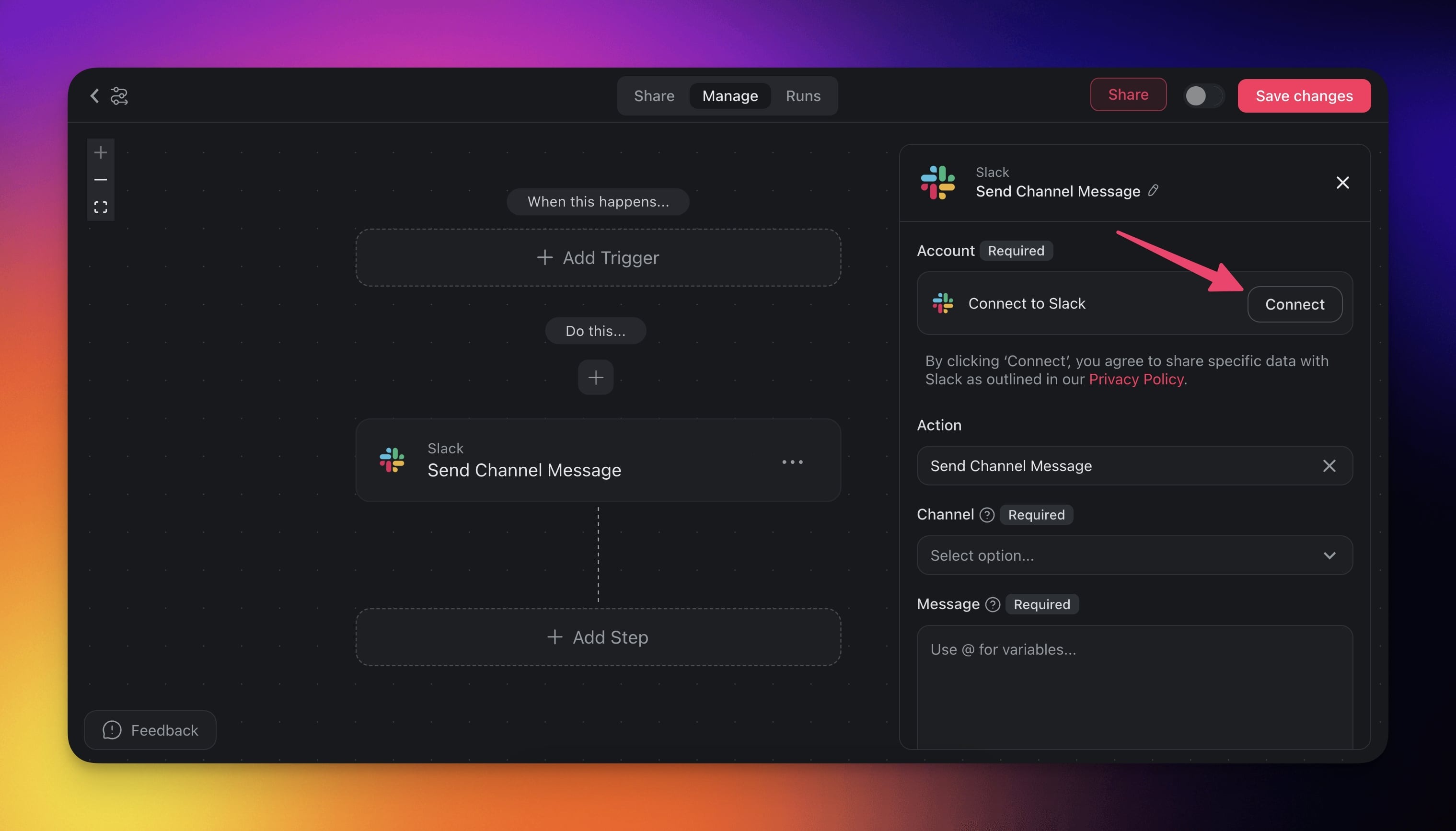
Click Connect to connect your Slack account to Taskade.
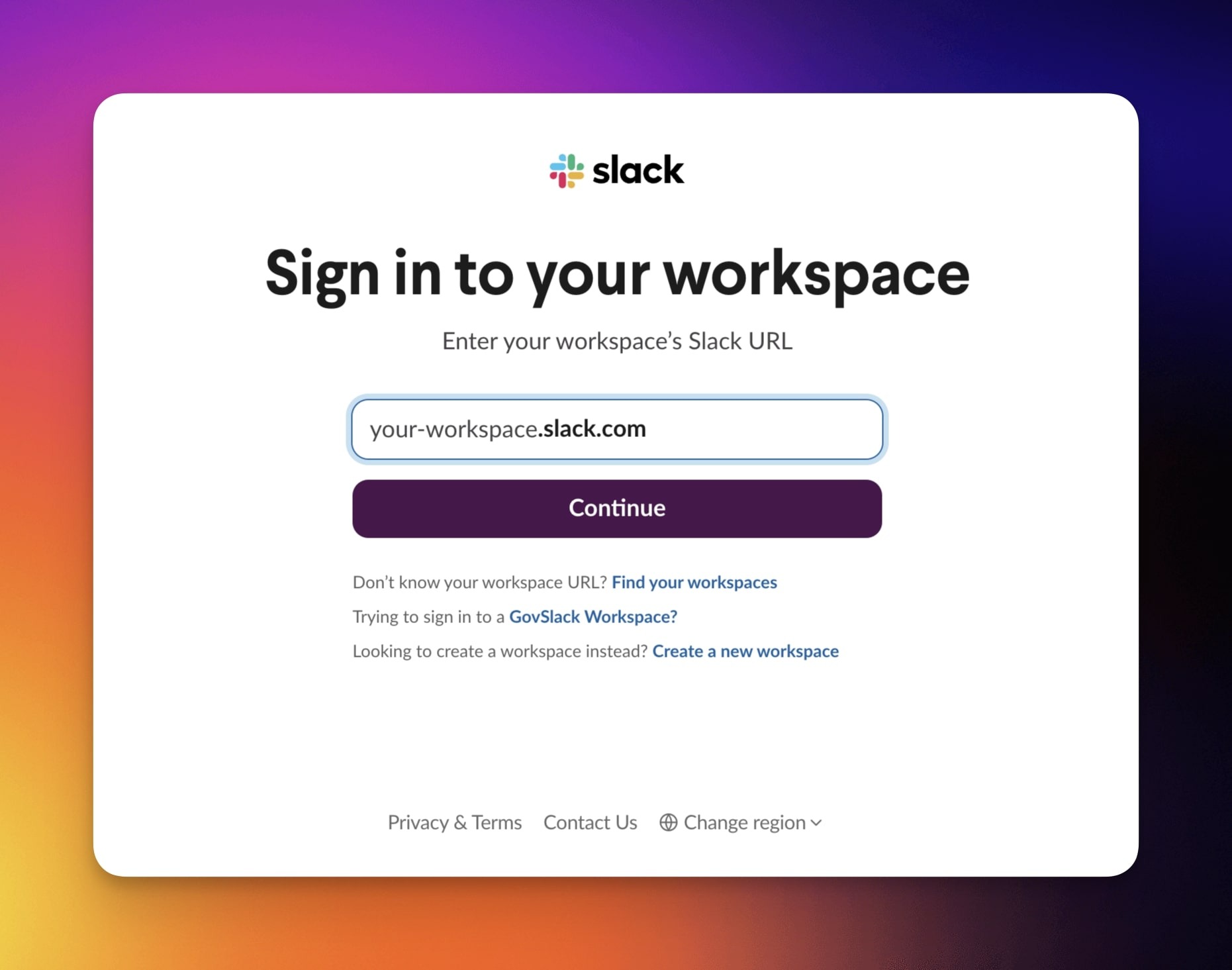
- Choose an existing Slack workspace or create a new one.
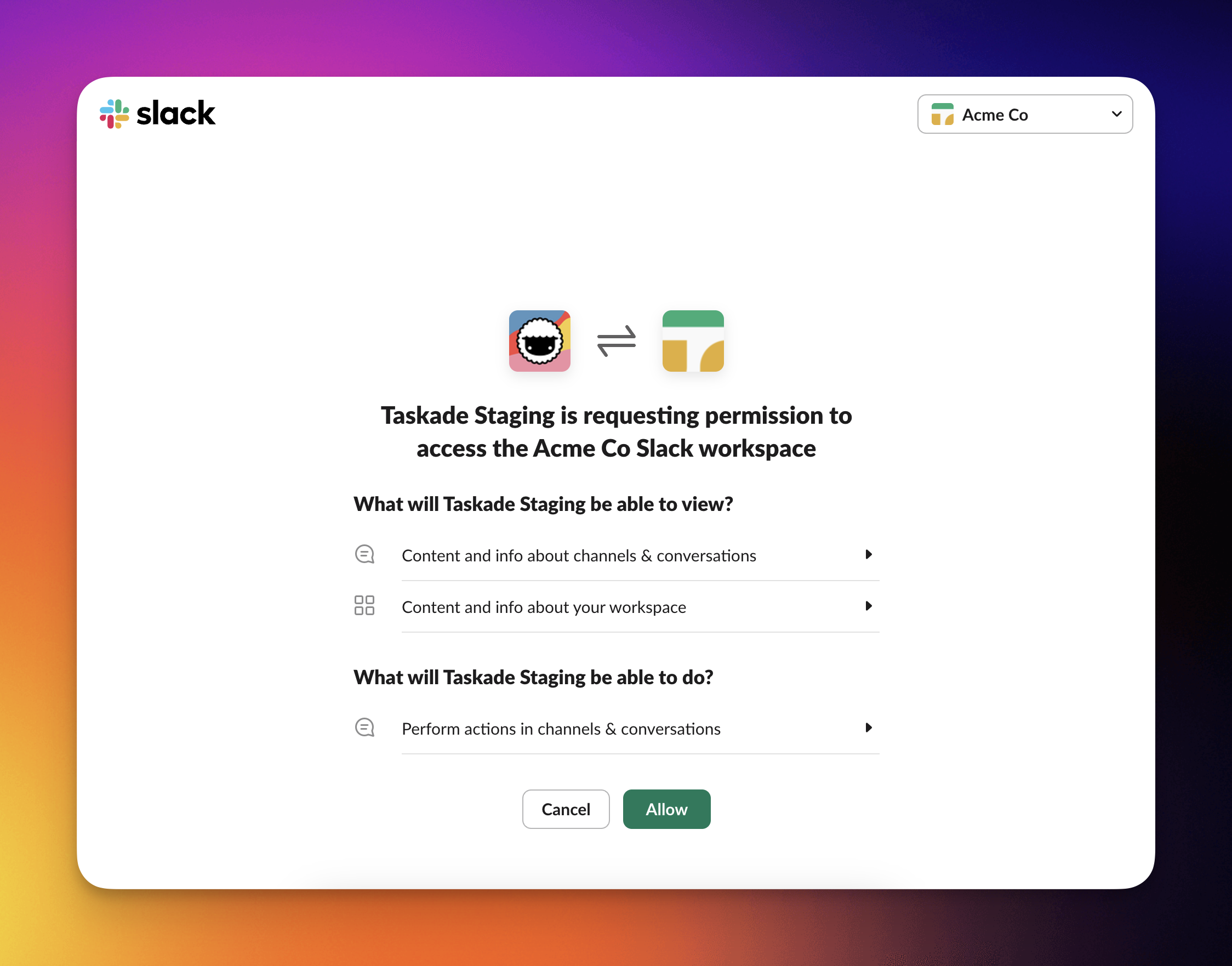
- Click Allow to connect your workspace to Taskade.
Disconnect Slack
To disconnect the Slack integration from your Taskade account:
From Automations:
Choose a Slack action/trigger in your automation.
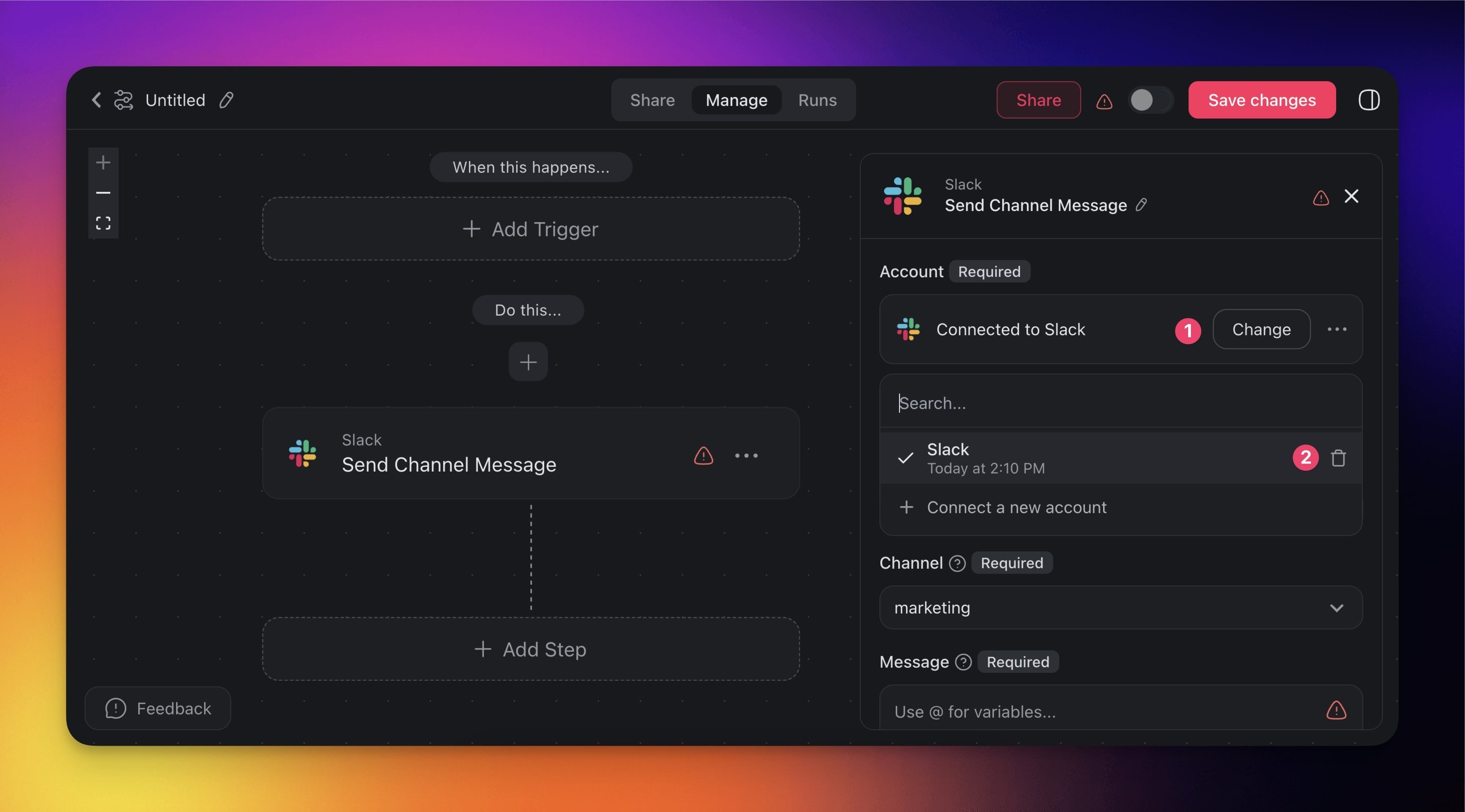
Click Change in the configuration sidebar on the right.
Click the trash button 🗑️ next to the active account.
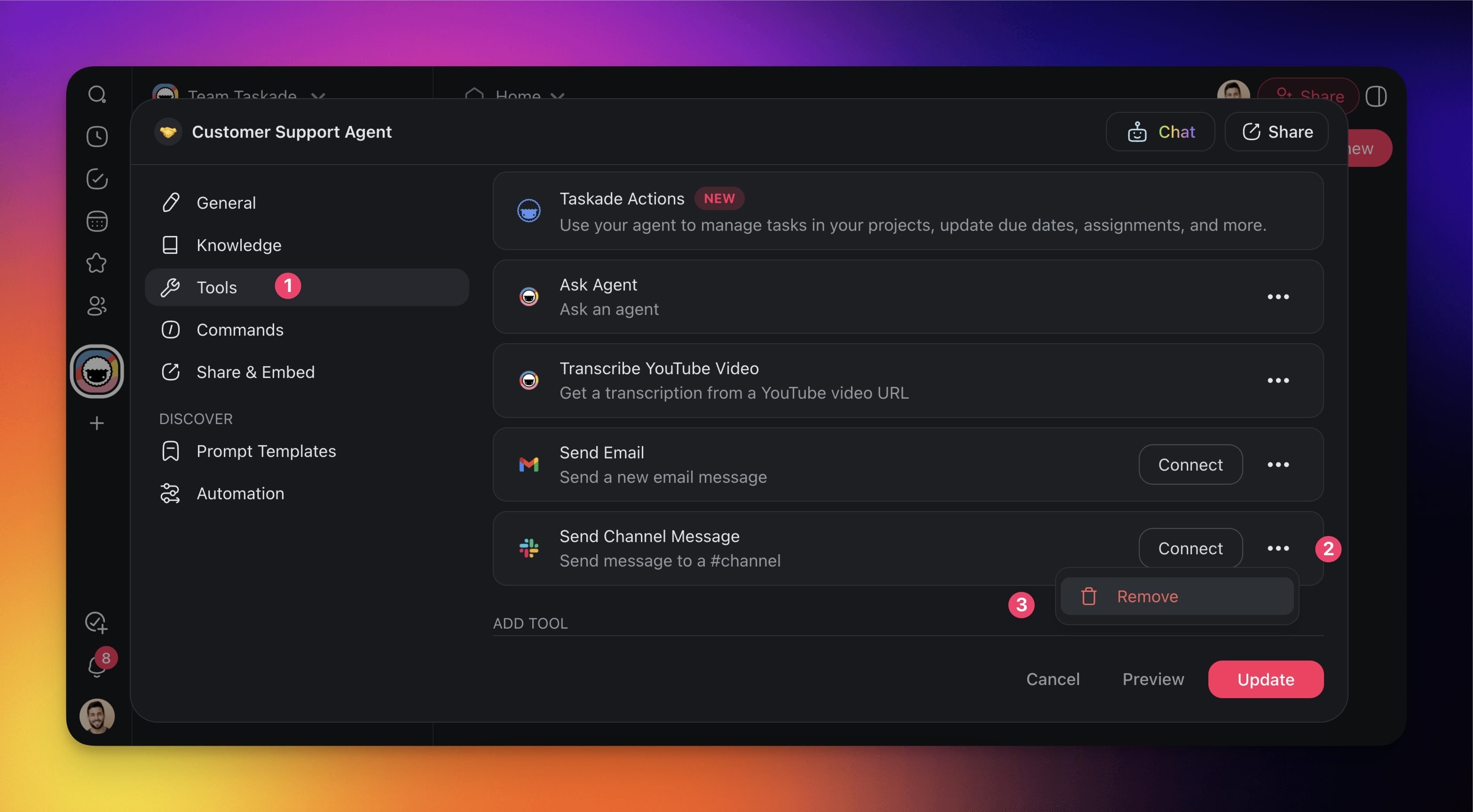
From Agent Tools:
Go to the Agents tab at the top of your workspace/folder.
Select an existing agent with an active Slack tool.
Go to the 🔧 Tools tab on the left.
Click the three dots ··· next to the Slack tool.
Click Remove to disconnect the tool.
Keep Slack Connected
A Slack step can start to return an "Invalid token" error, or a later Split into Paths step can stop matching. Both signs mean your Slack connection is stale and needs a quick refresh. This can happen when a Slack workspace admin removes the app, the workspace is reinstalled, or your Slack security settings rotate access. Reconnecting takes a few seconds and your automation picks right back up.
- Open the Automations tab and edit the automation that uses Slack.
- Select the Slack trigger or action, then click Change in the configuration sidebar.
- Reconnect your Slack account and approve access in the Slack window.
- Run the automation again. Once the connection reads active, the downstream steps resolve normally.
💡 Tip: Reconnecting one Slack account restores every automation and agent tool that shares it, so you do this only once.
Add Slack to Agent Tools
Connect your Custom AI Agents with Slack. They can then manage team communication in Slack channels, or send individual messages from project context.
💡 Note: Visit our guide to AI Agent Tools to learn more.
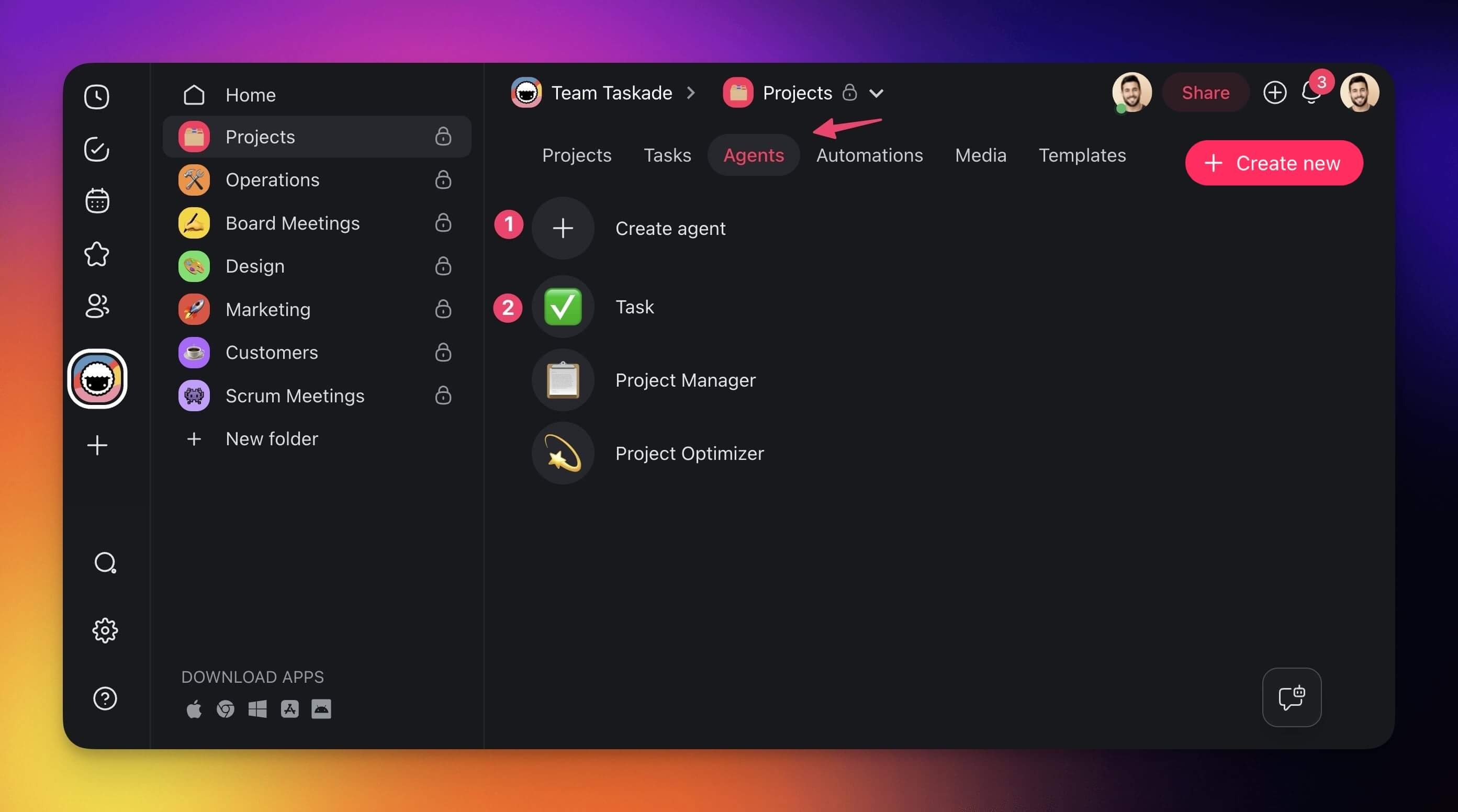
- Go to the Agents tab at the top of your workspace/folder.
- (1) Select an existing agent or (2) create a new one.
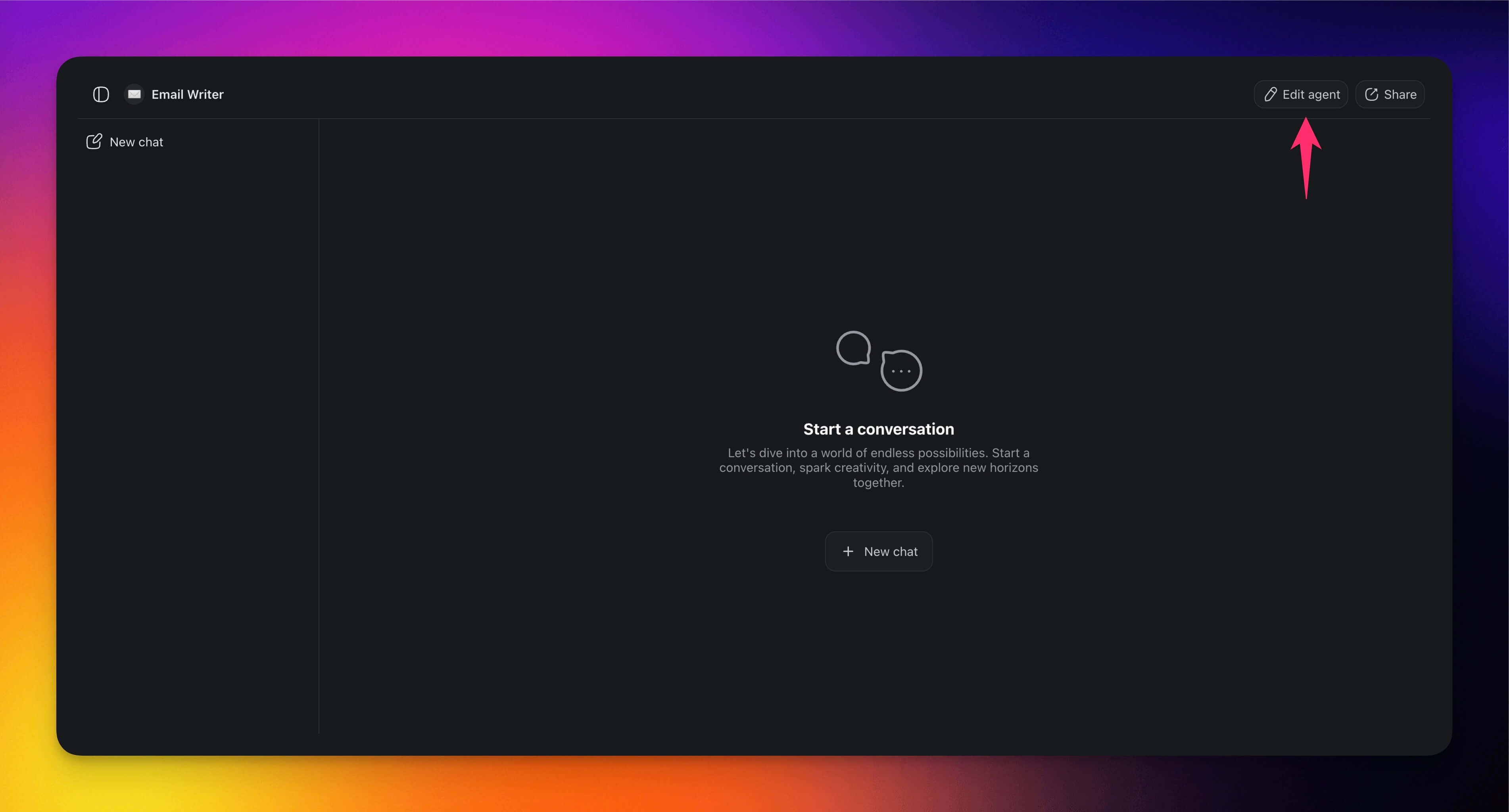
- Click ✏️ Edit agent in the top-right corner.
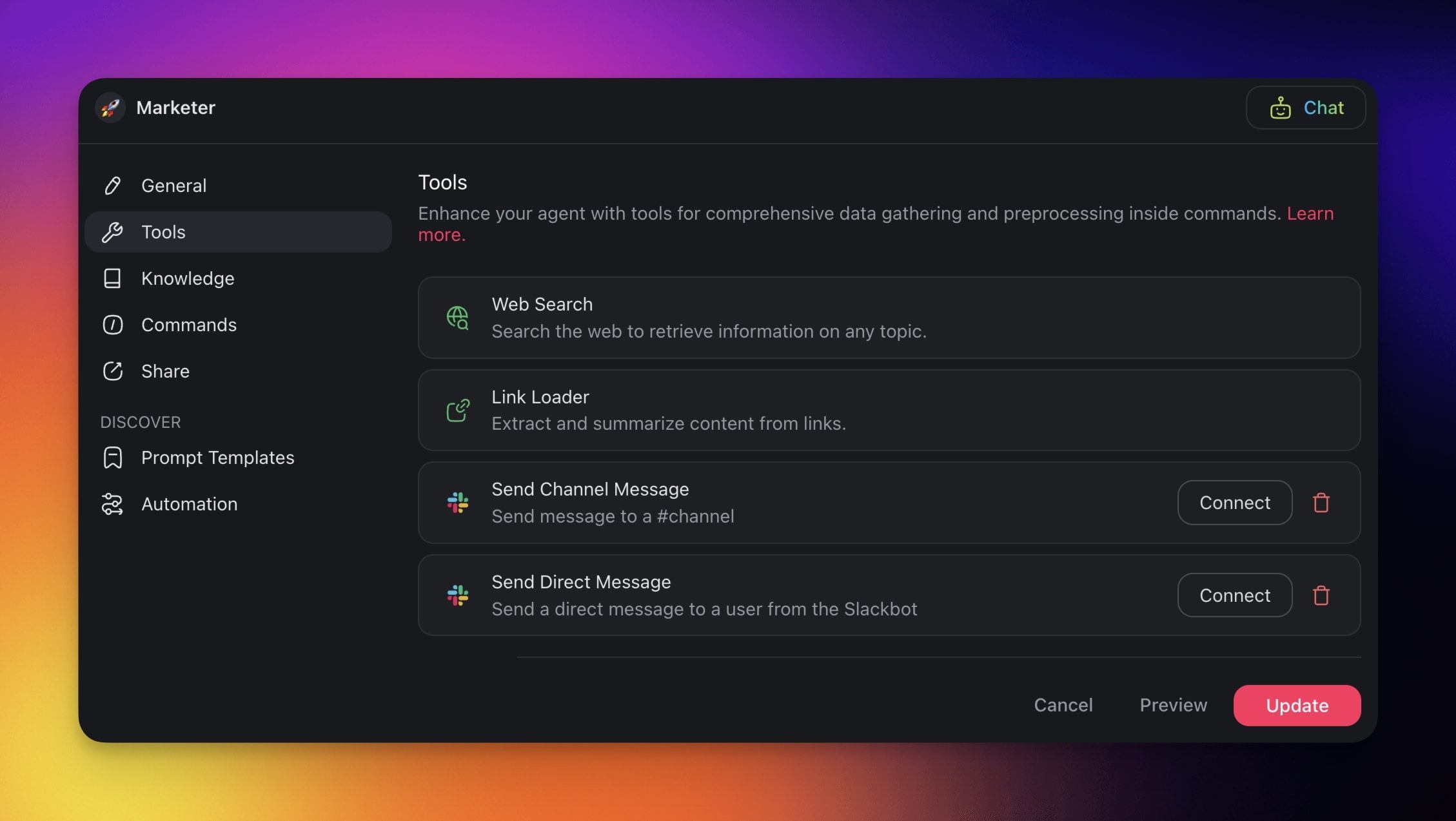
- Go to the 🔧 Tools tab on the left.
- Click ➕ Add tool and choose a Slack tool from the list.
- Click Connect to configure the integration (see the first section of this guide).
- Click Update to save the changes.
Build Slack Automations
Harnesses the power of instant messaging. Set up Taskade to send messages, updates, or task notifications to designated Slack channels based on specific triggers.
💡 Note: Visit our Automation Guide to learn how to build your first automation.
Add Slack as a Trigger
Go to the Automations tab in your workspace or folder.
Click ➕ Create automation.
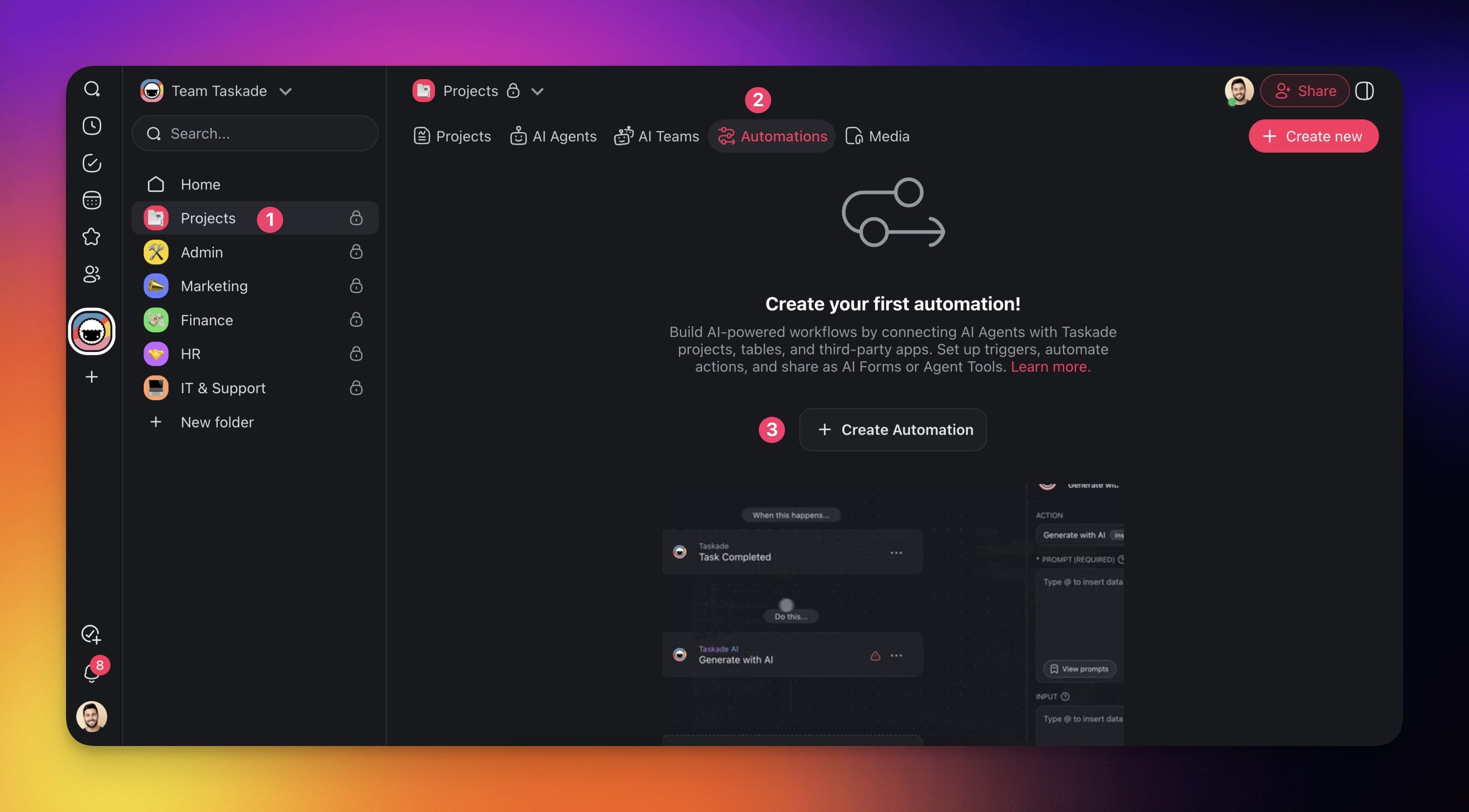
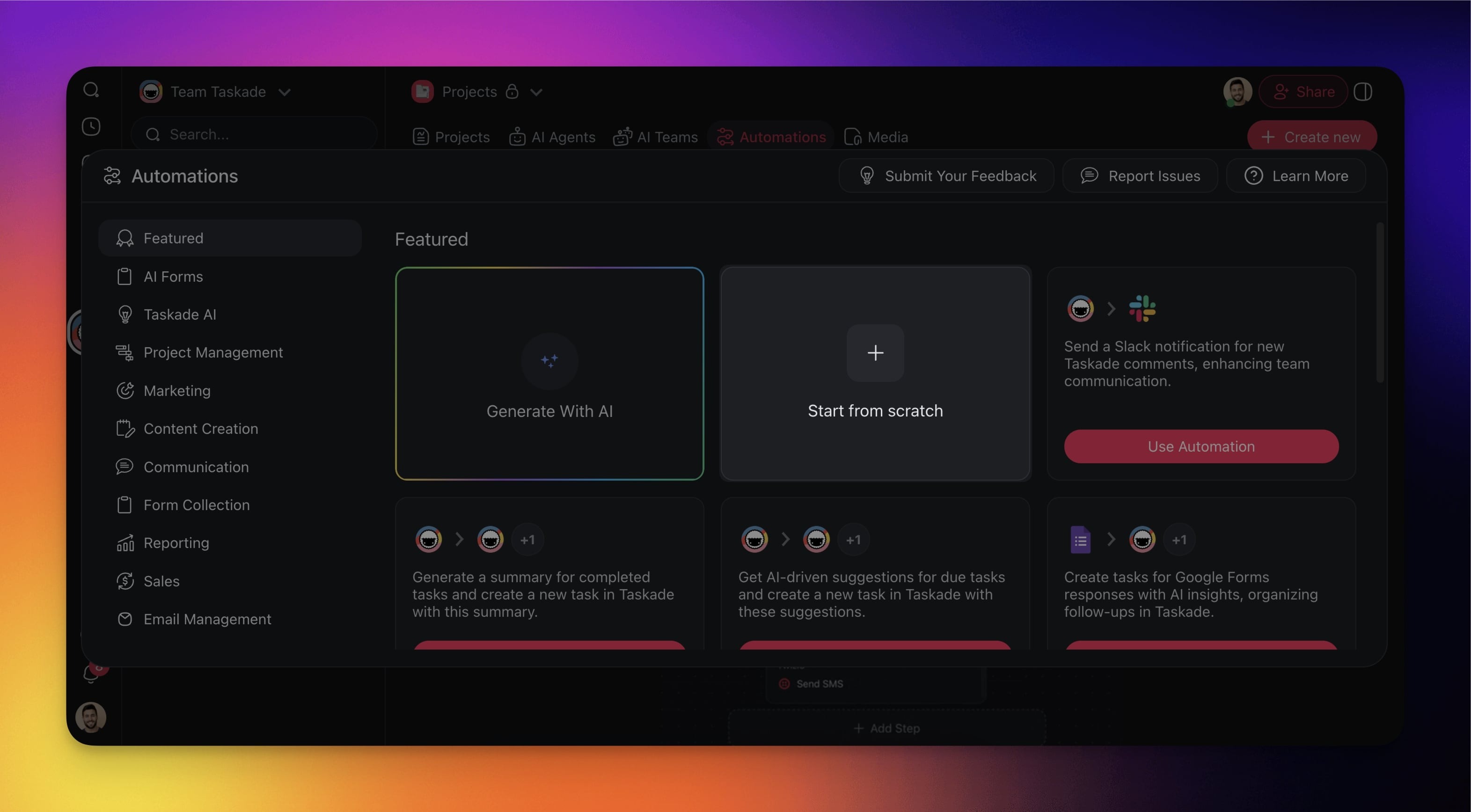
- Select the Start from scratch tile.
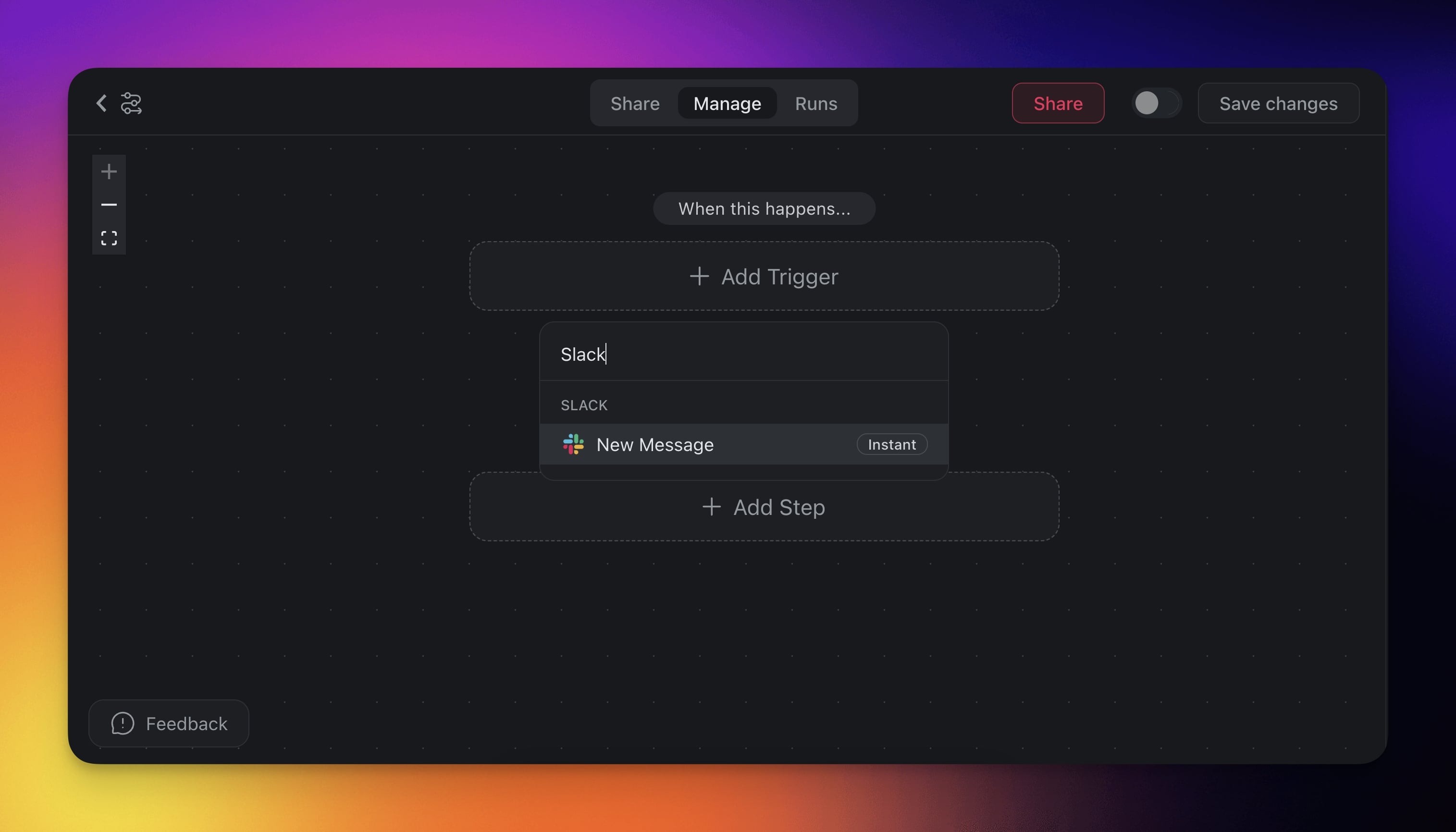
Click ➕ Add Trigger and choose the Slack trigger from the list.
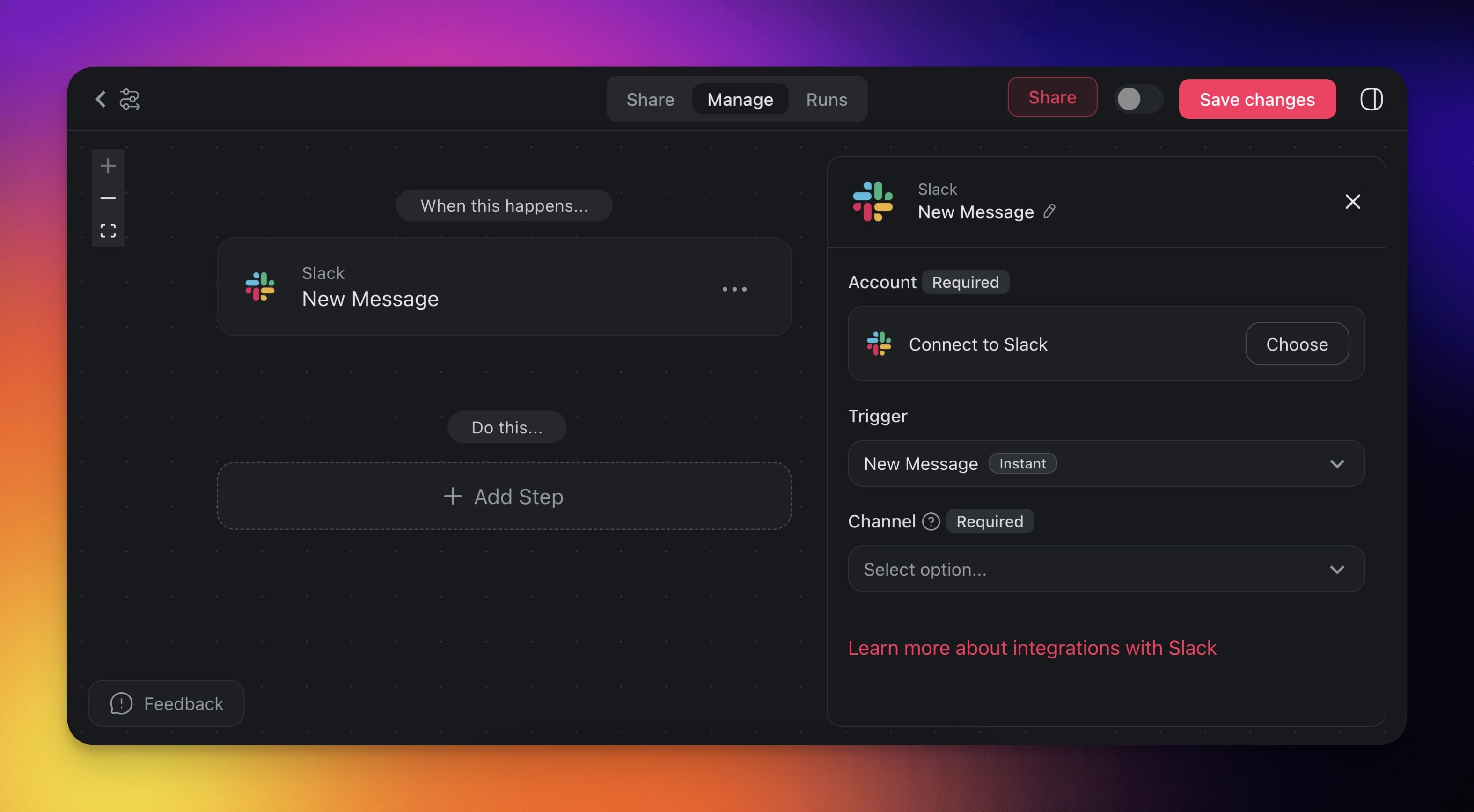
Click Connect to configure the trigger (see the first section of this guide).
Specify the conditions for the trigger (if applicable).
- (optional) Add more steps to the automation.
- Click Save changes in the top-right corner.
- Toggle the automation on in the top-right corner.
Add Slack as an Action
Go to the Automations tab in your workspace or folder.
Click ➕ Create automation.
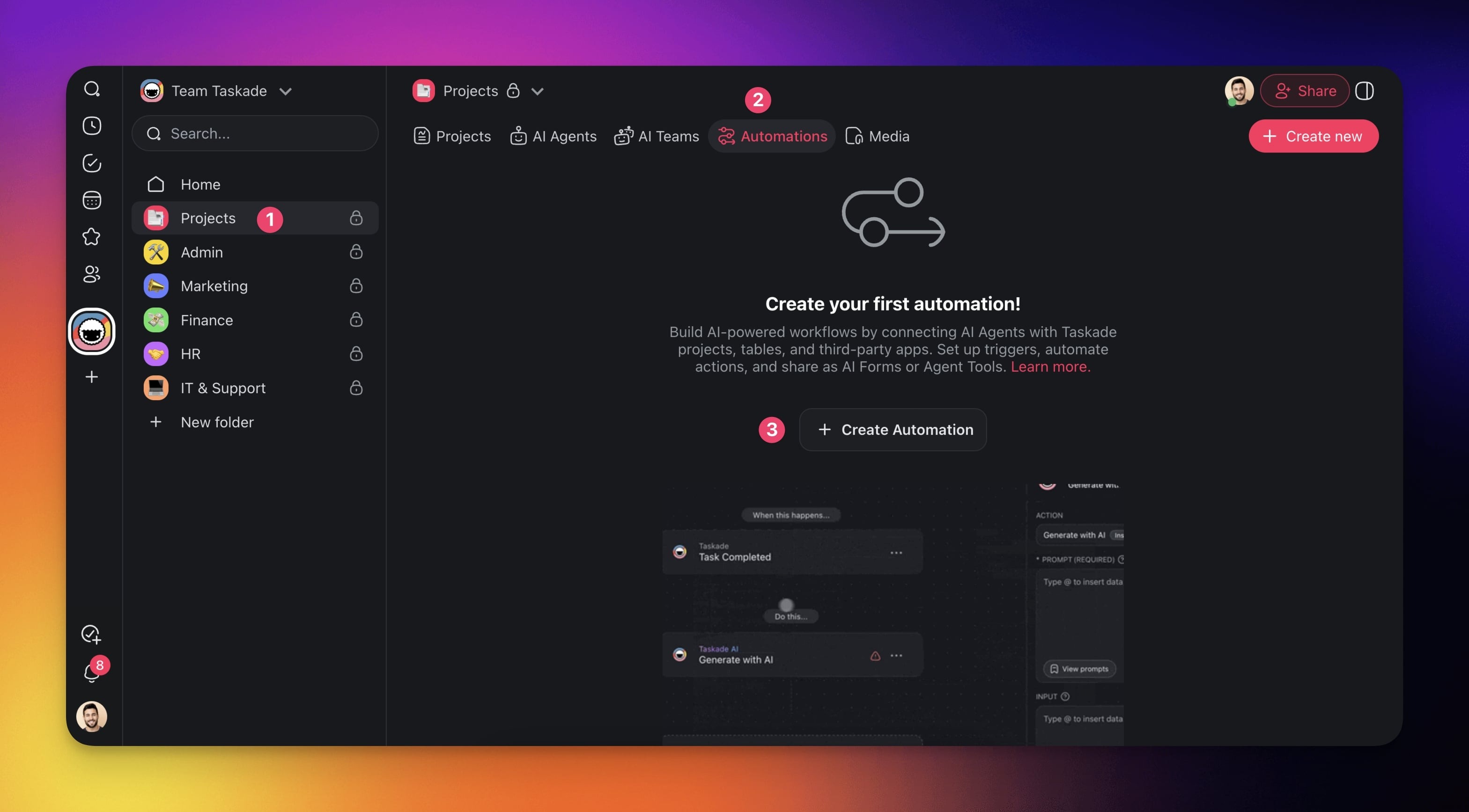
Select the Add from scratch tile.
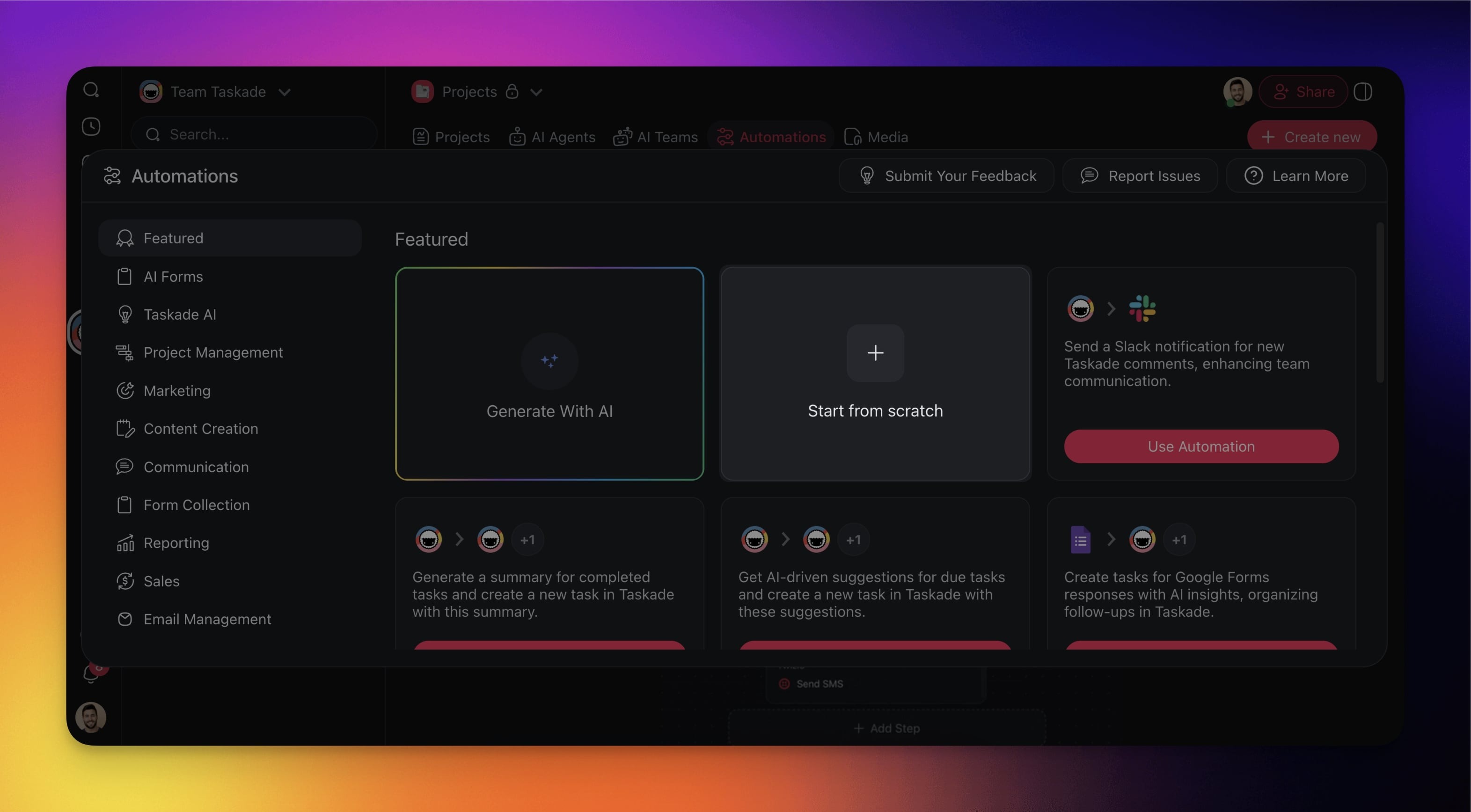
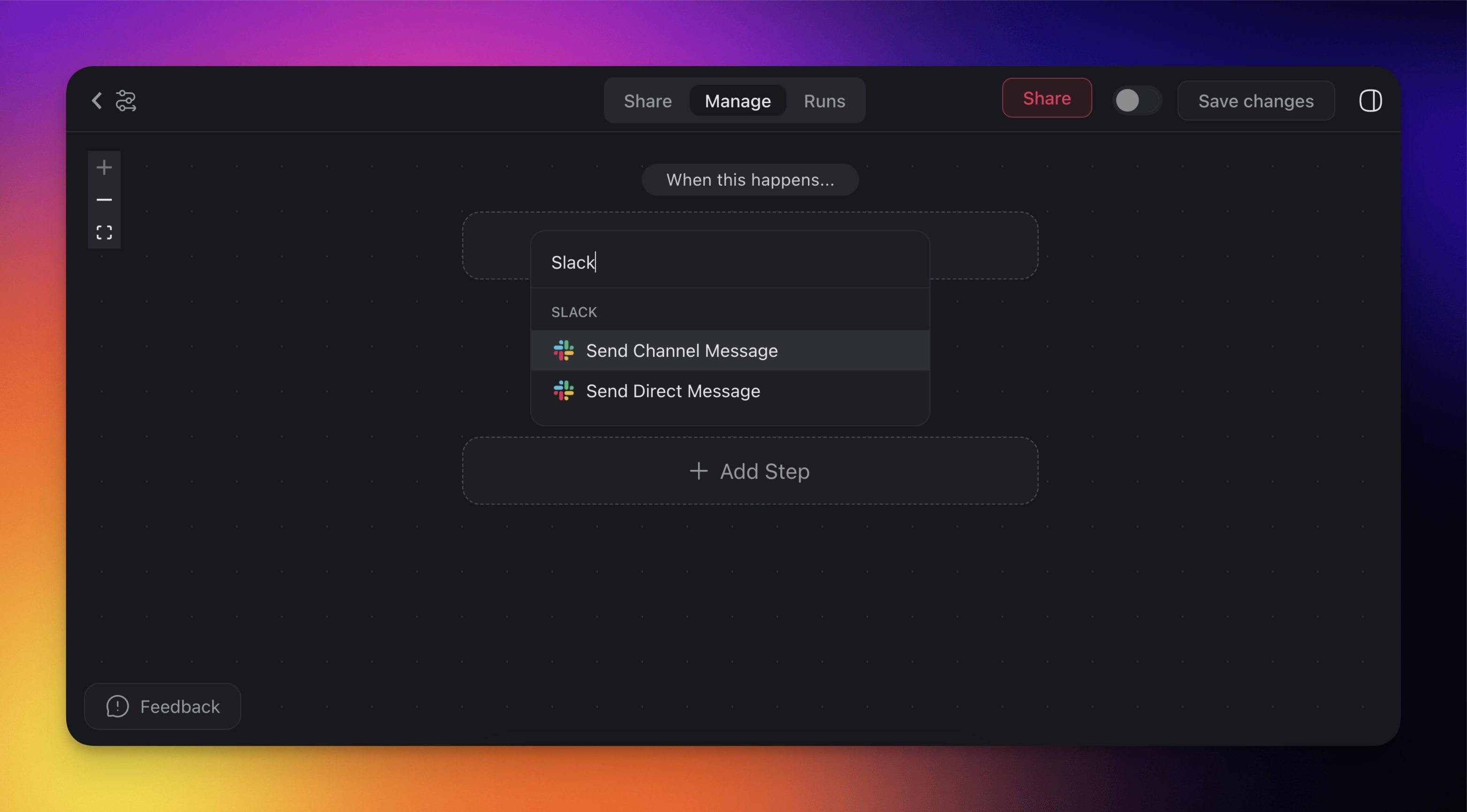
Click ➕ Add Step and choose one of the Slack action from the list.
Click Connect to configure the trigger (see the first section of this guide).
Specify the conditions for the trigger (if applicable).
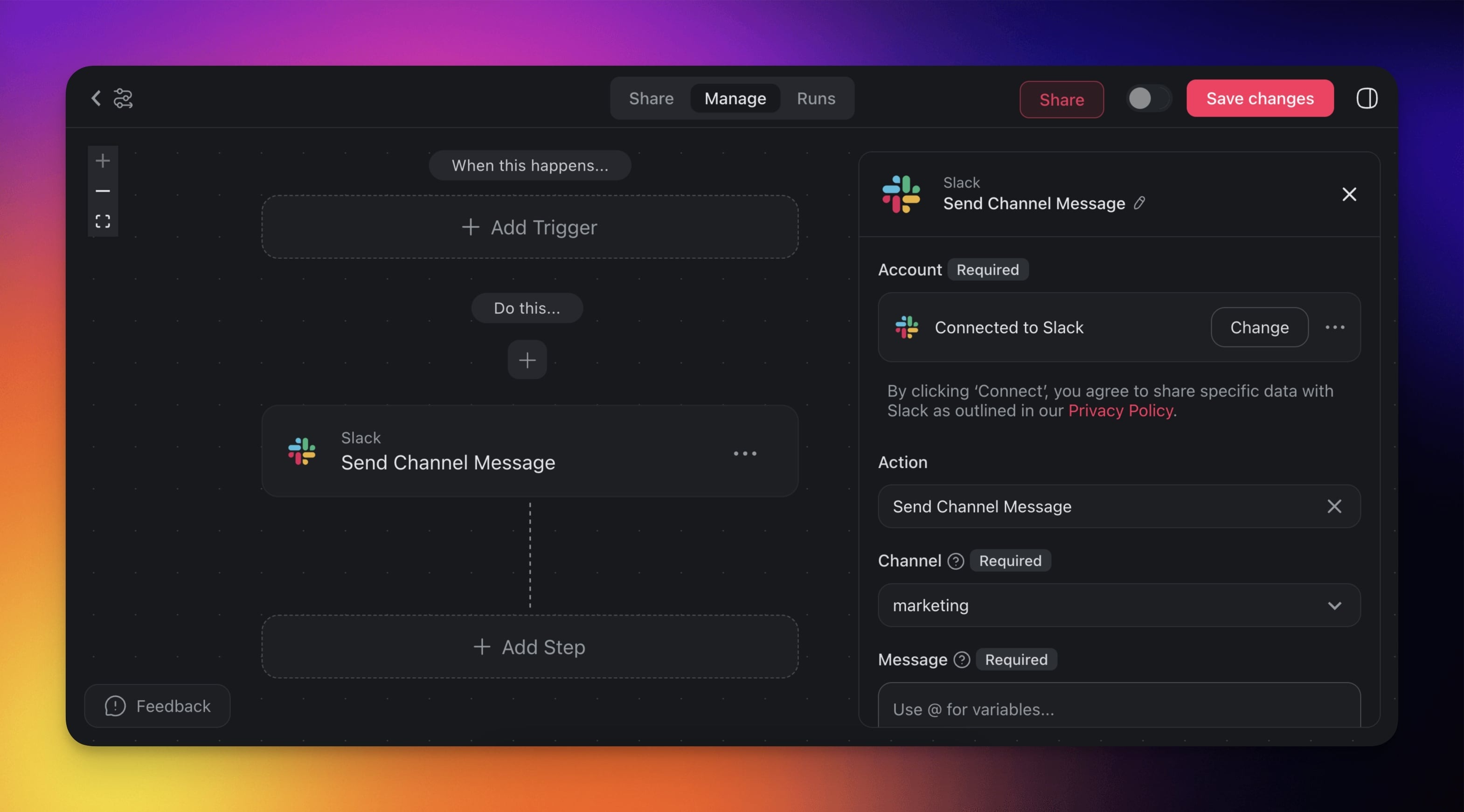
(optional) Add more steps to the automation.
Click Save changes in the top-right corner.
Toggle the automation on in the top-right corner.
Triggers & Actions
Triggers
| Trigger | Description |
|---|---|
| New Message | Triggers when a new message is submitted. |
| New Channel | Triggers when a new channel is created. |
| New Mention | Triggers when the Taskade Bot name is mentioned. |
| New Reaction | Triggers when a new reaction is added to a message. |
Actions
| Action | Description |
|---|---|
| Send Channel Message | Send a message to a channel. |
| Send Direct Message | Send a direct message to a user. |
| Create Channel | Create a new channel. |
| Find User by Email | Look up a user by their email address. |
| Find User by Handle | Look up a user by their Slack handle. |
| Add Reaction to Message | Add an emoji reaction to a specific message. |
| Pin Message to Channel | Pin a message to the top of a channel. |
| Fetch Channel Messages | Retrieve recent message history from a channel. |
| Search Messages | Search for messages across your workspace. |
| Update Slack Message Text Content | Edit the text of an existing message. |
| Set User's Current Slack Status | Update a user's custom status text and emoji. |
| Update Profile | Update a user's profile fields. |
| Upload File | Upload a file to a channel. |
| Set Channel Topic | Set the topic of a channel. |
| Markdown to Slack Format | Convert Markdown text to Slack's formatting syntax. |
Automation Settings
Connector options give you full control over the Slack automation.
Trigger: New Message
| (required) Account | Connect your Taskade account to your Slack account. |
|---|---|
| (required) Channel | Select the Slack channel to monitor for new messages. |
Trigger: New Reaction
The New Reaction trigger fires when any emoji reaction is added to a message in your workspace. Build escalation flows ("⚠️ → page on-call"), lightweight polls (count +1 reactions), or human-in-the-loop approval steps.
| Field | Description |
|---|---|
| (required) Account | Connect your Taskade account to your Slack account. |
| (optional) Channel | Limit the trigger to a single channel. Leave empty to fire on reactions in any channel the Taskade bot can see. |
| (optional) Emoji | Filter on a specific emoji name (e.g. +1, eyes, siren). Leave empty to fire on any reaction. |
Trigger Outputs, variables every downstream step can reference:
| Variable | What it holds |
|---|---|
emoji |
The reaction emoji name (without colons) |
user |
Slack user ID of the person who reacted |
channelId |
Channel where the reacted-to message lives |
messageTimestamp |
Timestamp of the original message (use to fetch full text via Get Channel History) |
💡 Tip: Slack does not include the original message text in the reaction event. Pair the trigger with Get Channel History (filtered by
messageTimestamp) when you need the message body for downstream steps.
| 🪄 Reaction-driven pattern | ⏩ Action Flow |
|---|---|
🚨 Page on-call when team adds siren to a thread |
✅ Trigger: New Reaction (emoji = siren)➡️ Action: Send Channel Message to #oncall with thread link |
📌 File-it-for-later when reacted with bookmark |
✅ Trigger: New Reaction (emoji = bookmark)➡️ Action: Get Channel History (single message) ➡️ Action: Ask Agent to summarize ➡️ Action: Add Task to "Reading List" |
| ✅ One-click human approval | ✅ Trigger: New Reaction (emoji = white_check_mark)➡️ Action: Branch on channelId == #approvals➡️ Action: Update Custom Field Approved By |
Action: Send Channel Message
| (required) Channel | Select the Slack channel where the message will be sent. |
|---|---|
| (required) Message | Type the message you want to send to the channel. You can insert data dynamically by clicking the plus button ➕ or typing "@". |
💡 Note: If you want to send messages to multiple slack channels with the same names, you can use channel IDs to differentiate between them.
Action: Send a Direct Message
| (required) User | Select the user who will receive the direct message. |
|---|---|
| (required) Message | Type the message you want to send to the user. You can insert data dynamically by clicking the plus button ➕ or typing "@". |
Use Cases
Not sure how to use the Slack connector? Here are a few ideas:
| Use case | Scenario | Action flow |
|---|---|---|
| Automated daily standups | Get a daily reminder in Slack to share your team updates. | The system triggers daily at a specific time, sends a message to the designated Slack channel reminding the team to share their standup updates. |
| Task assignment notifications | Get an instant Slack DM whenever you're assigned a new task. | The system triggers when a task is assigned to a user, and automatically sends a direct message to that user in Slack notifying them of the new task. |
| Project status updates | Automatically post project updates in Slack when milestones are achieved. | The system triggers when key milestones are met in the project, automatically sending a project status update message to a Slack channel. |
| Critical task alerts | Receive Slack alerts when important tasks are nearing their deadline. | The system triggers based on task due date approaching, sending an alert to a specified Slack channel or user to notify them of the critical task deadline. |
| Feedback requests | Get a Slack message requesting feedback when a task is completed. | The system triggers when a task is marked as complete, sending a Slack message to the user requesting feedback on the task completion. |
| Meeting summaries | Post meeting summaries and task notes automatically in Slack. | The system triggers after a meeting concludes, and posts the meeting summary and associated task notes in a designated Slack channel for the team to review. |
Available Capabilities
| Type | Capability | Description |
|---|---|---|
| ⚡ Trigger | New Message | Fires when a new message is posted in a channel |
| ⚡ Trigger | New Reaction | Fires when a reaction is added to a message |
| ⚡ Trigger | New Mention | Fires when the Taskade Bot is mentioned |
| ⚡ Trigger | New Channel | Fires when a new channel is created |
| 🔧 Action | Send Channel Message | Send a message to a channel |
| 🔧 Action | Send Direct Message | Send a direct message to a user |
| 🔧 Action | Create Channel | Create a new channel |
| 🔧 Action | Find User by Email | Look up a user by their email address |
| 🔧 Action | Find User by Handle | Look up a user by their Slack handle |
| 🔧 Action | Add Reaction to Message | Add an emoji reaction to a specific message |
| 🔧 Action | Pin Message to Channel | Pin a message to the top of a channel |
| 🔧 Action | Fetch Channel Messages | Retrieve recent message history from a channel |
| 🔧 Action | Search Messages | Search for messages across your workspace |
| 🔧 Action | Update Slack Message Text Content | Edit the text of an existing message |
| 🔧 Action | Set User's Current Slack Status | Update a user's custom status text and emoji |
| 🔧 Action | Update Profile | Update a user's profile fields |
| 🔧 Action | Upload File | Upload a file to a channel |
| 🔧 Action | Set Channel Topic | Set the topic of a channel |
| 🔧 Action | Markdown to Slack Format | Convert Markdown text to Slack's formatting syntax |
Example Workflow: Standup Bot
Frequently Asked Questions
What can the Slack integration do inside Taskade?
The Slack connector ships 4 triggers and 15 actions. Post channel messages, send direct messages, create channels, add reactions, pin messages, and pull channel history. Use it in automations or attach it to a Custom AI Agent to chat with your team automatically.
How does the Slack connection work both ways?
One connection covers both directions. A trigger pulls Slack events in, like New Message or New Reaction, so your workspace reacts the moment your team posts. An action pushes data back out, like Send Channel Message, so updates land in Slack on their own.
Can my AI agents post to Slack on their own?
Yes. Add a Slack tool to a Custom AI Agent and your AI teammates can manage channels, send messages, and run Slack workflows from project context. Taskade agents come with a large built-in toolkit, persistent memory, and custom slash commands.
How do I send a Slack message when someone reacts with an emoji?
Use the New Reaction trigger and filter on a specific emoji name, like siren or bookmark. Pair it with Get Channel History to fetch the original message text, since Slack does not include the message body in the reaction event. See Automation Actions for the full action catalog.
Which Taskade plan includes Slack and other integrations?
Slack belongs to the premium integration set, so its triggers, actions, and agent tools are available on paid plans. Paid plans also give teams more automation runs, AI capacity, and collaboration seats. See the pricing page for current plans and details.
Can I send the same automation to more than one Slack channel?
Yes. The Send Channel Message action lets you pick any channel. If two channels share the same name, use their channel IDs to target the right one. To insert dynamic data into the message, click the plus button or type the at sign.
Related guides
- Discord · Microsoft Teams · Telegram Bot · WhatsApp. Other team-chat integrations.
- Automation Actions. Full action catalog.
- Tools for AI Agents. Use Slack as an agent tool.
- Custom AI Agents. Build agents that post to Slack.
- Webhooks. Send events from Slack to Taskade via webhook.