
Tag Tickets, Emails, and Feedback
The Categorize with AI action reads any piece of text in an automation and returns a clean label: severity, sentiment, lead grade, topic, urgency. Pick a preset, point at a variable, and the result feeds straight into a Branch step or a custom field. No prompt writing, no model picking.
TL;DR: Drop the Categorize with AI action into any Taskade automation to tag tickets, emails, or form replies in one click. Choose a preset like Sentiment, Urgency, or Lead Grade, then point it at the trigger text. Route the label downstream with a Branch step, or save it to a custom field. Free plan included.
Note: Read our Automation Guide to learn more.
Categorize with AI is the cleanest way to inject classification into an automation without writing a prompt. Pick a preset (sentiment, lead score, intent, urgency) and the 15+ frontier models behind Taskade AI handle the rest. Common pairings:
| Use Case | Trigger → Categorize → Action |
|---|---|
| Lead scoring | New form → Categorize (lead grade) → Branch to CRM stage |
| Support triage | New email → Categorize (urgency) → Slack #urgent or backlog |
| Content moderation | New comment → Categorize (sentiment) → Branch to flag/approve |
| Survey routing | Form trigger → Categorize (topic) → Loop notify each owner |
How to Get Started
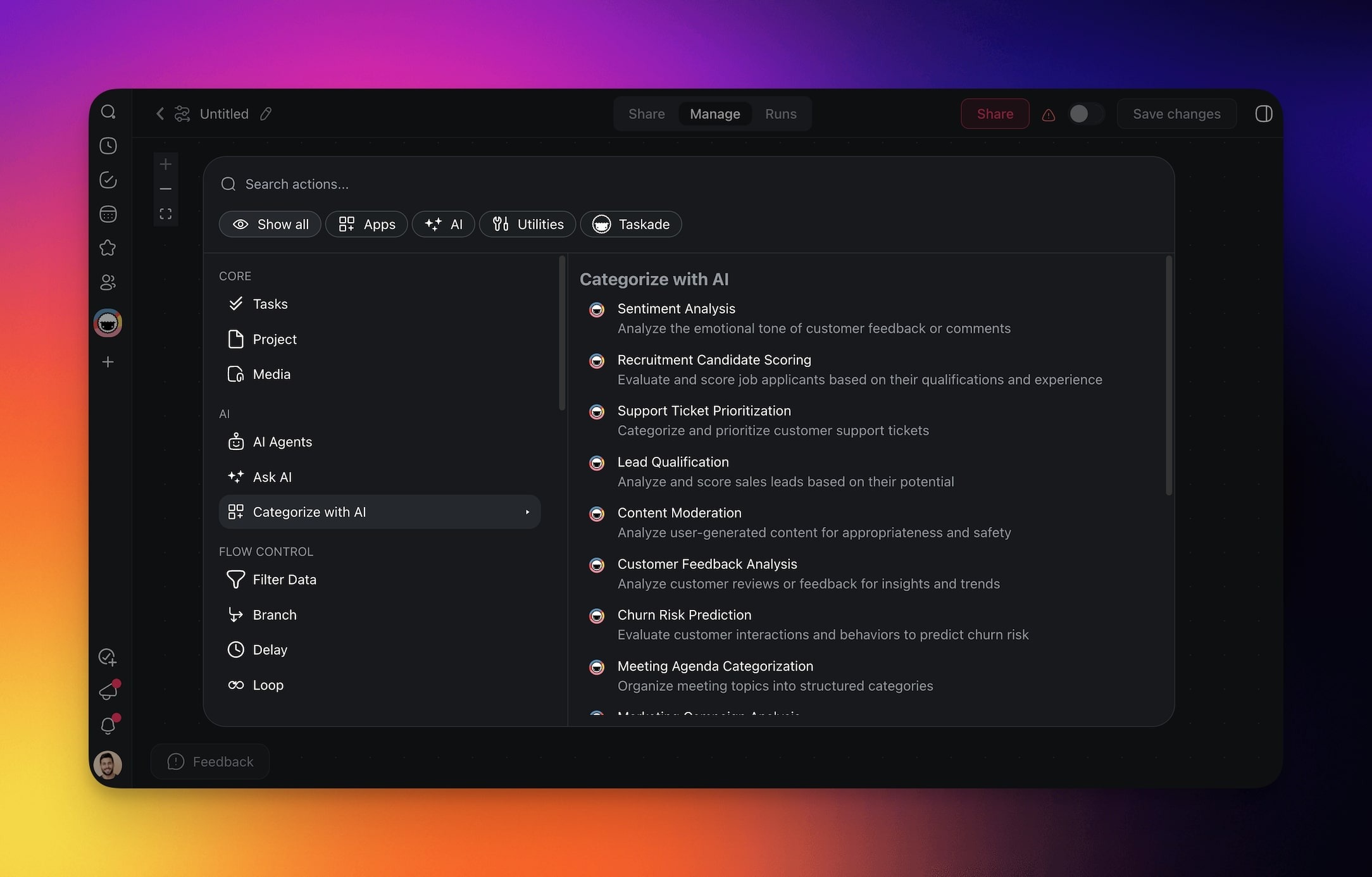
Add the Action
- Click ➕ Add Step and choose Categorize with AI action.
- Select a preset from the list.
Configure the Action
- Configure the action in the sidebar on the right.
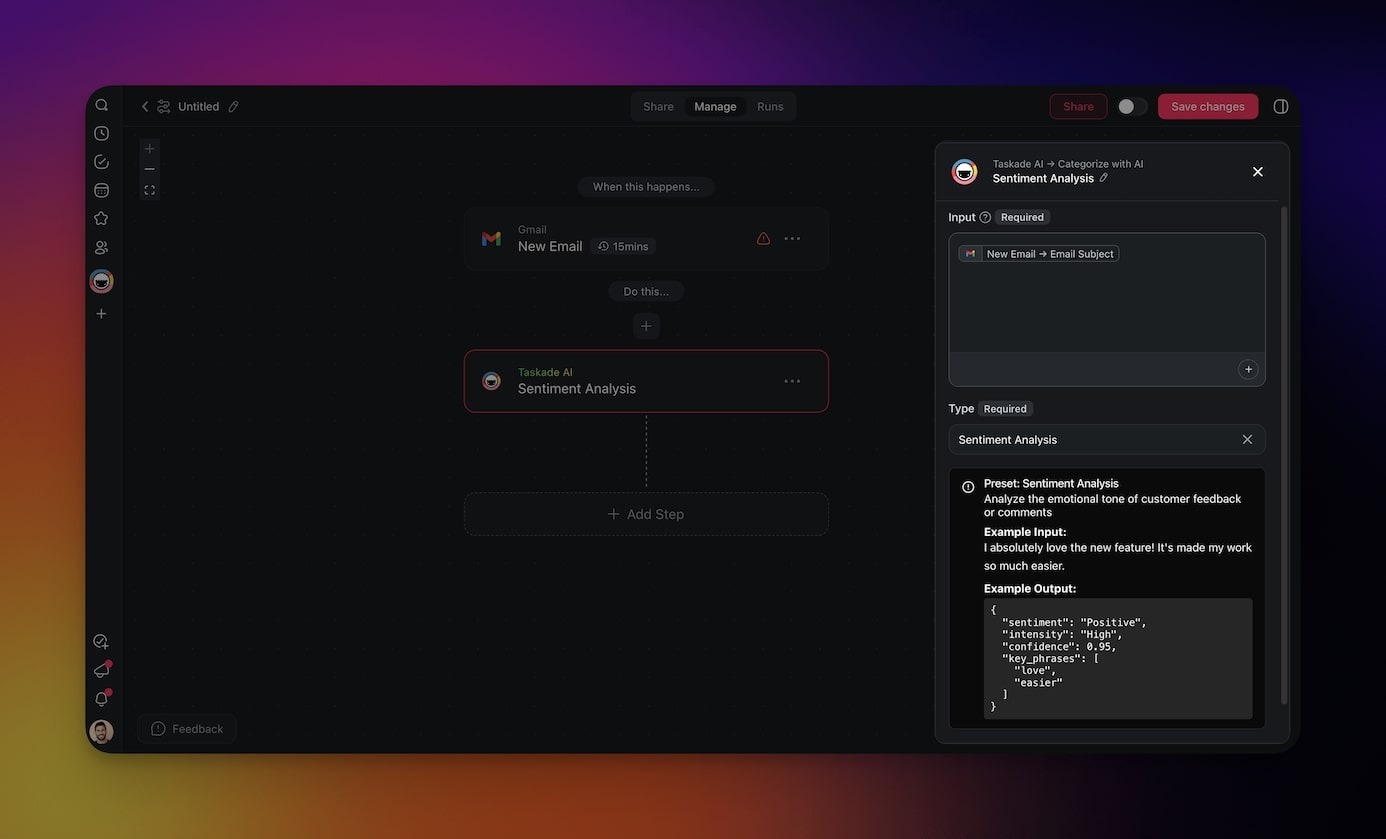
- Add a trigger that will set off the automation.
- Add more steps (optional) and enable the automation.
Use Cases
Here are a few ideas how you can use this action in your automations:
| 🪄 Use case | 🔤 Description |
|---|---|
| Sentiment analysis | Analyze customer feedback to determine if the sentiment expressed is positive, neutral, or negative. |
| Recruitment candidate scoring | Evaluate job applicants based on their professional experience. |
| Support ticket prioritization | Categorize and prioritize customer support tickets to ensure timely and effective responses. |
| Lead qualification | Analyze and rank potential leads to identify the most promising opportunities for sales conversion. |
| Content moderation | Detect and filter inappropriate or sensitive content, maintaining a safe and compliant environment. |
| Customer feedback analysis | Extract actionable insights from customer reviews and surveys to understand customer needs. |
| Churn risk prediction | Identify customers who are likely to stop using a service to retain them and reduce churn rates. |
Use case: auto-tag tickets
Most support inboxes drown in unsorted messages. A three-step automation fixes that without anyone touching a tag manually.
- Trigger: pick Gmail New Email on a
support@label, or the AI Forms trigger for a public intake form. - Categorize with AI: choose the Urgency preset and point the input at the email body. The action returns one of Low, Medium, High, Critical.
- Route the label: chain a Branch step on the urgency value. Send Critical tickets to an on-call Slack channel. Drop the rest into a Support Queue Project, with the label written to a custom field.
For richer routing, stack two Categorize steps. The first returns urgency, the second returns topic (billing, bug, feature request). Branch on both so each ticket lands in the right queue with the right priority. Every run is logged in the automation History tab, so a misrouted ticket is one click away from a retry.
Tips
- Use the output in branching logic. The category label returned by this action can drive conditional steps. For example, route "Negative" sentiment tickets to a senior support agent and "Positive" ones to your testimonials project.
- Combine with triggers. Pair Categorize with AI with the Agent Public Chat Ended trigger to automatically score every public agent conversation as it wraps up.
- Write results to custom fields. Follow up with the Update Custom Fields action to store the AI-assigned category directly on the task for easy filtering and reporting.
Related guides
- Branch Action. Route on the category label
- Loop Action. Classify each item in a list
- Custom Fields Action. Write classification back to project
- AI Action. Free-form AI for custom classification
- Structured Output. Typed output for branching