
Overview
The Loop action allows your automation to repeat a set of steps for each item in a list. This makes it possible to build dynamic automations that respond to your data. It supports filters, conditional branches, and nested loops when you need them.
TL;DR: The Loop action runs as a step inside an automation. It repeats a set of actions once for every item in a list. One trigger fans out into many personalized actions. Pair it with Find Rows or Find Tasks to turn a single event into hundreds of downstream steps.
Note: Be sure to explore other automation actions & triggers.
The Loop Pattern
One trigger fans out into N personalized actions, one per row, task, or item. Combine with Find Rows, Array Transform, or an Ask Agent step that returns a structured array, and you can turn a single event into hundreds of downstream actions.
How to Use Loops
Prepare the Data Array
To use a loop, you need an array of data. You can create arrays with these actions:
Find Rows with Google Sheets
Find Task(s) with Taskade
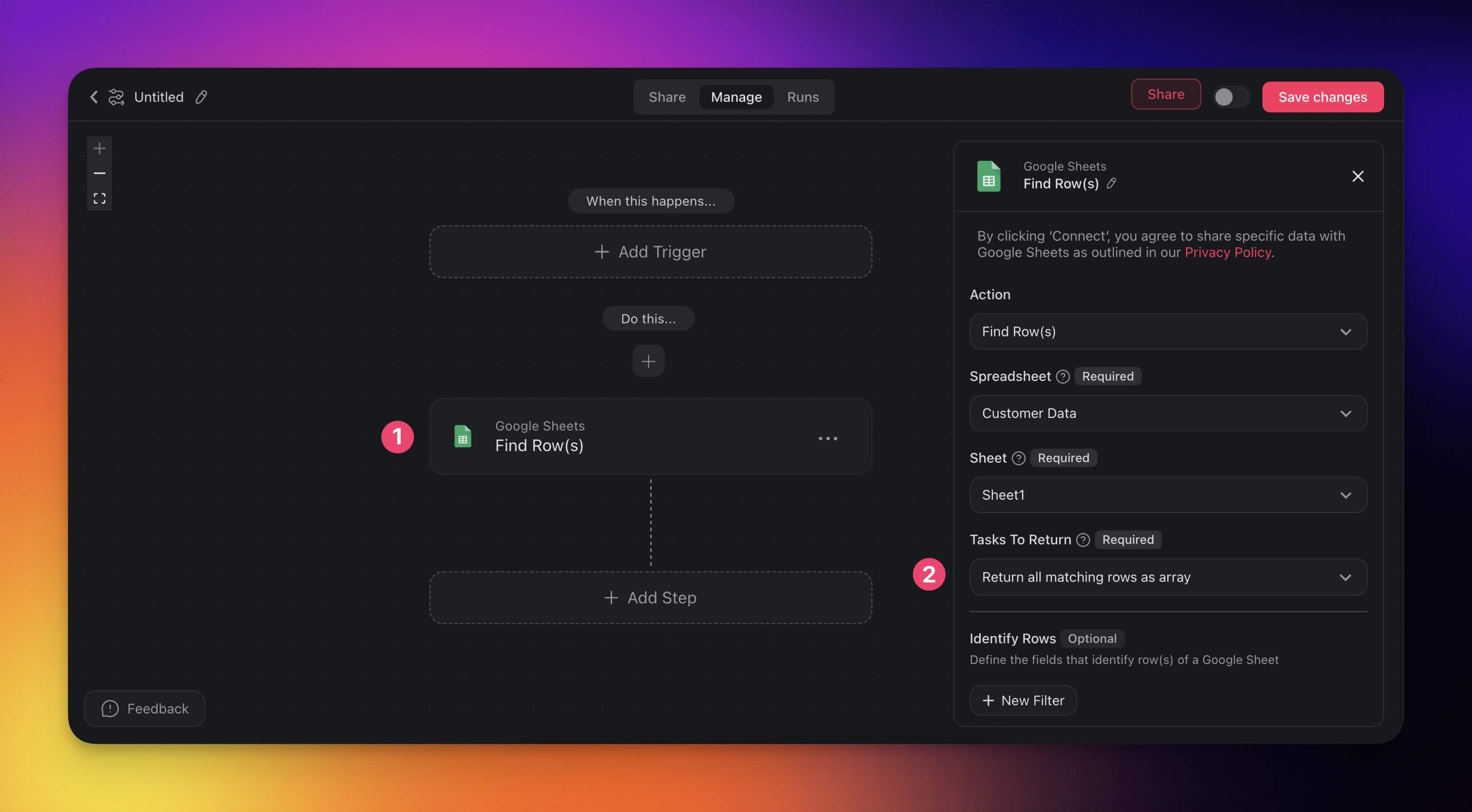
For Google Sheets:
Configure the Find Rows action.
Specify filters under Identify Rows (for example, rows containing
@to find emails).If Identify Rows has no filter, select Return all matching rows as array to return every row in the sheet.
Under Tasks to Return, choose Return all matching rows as array.
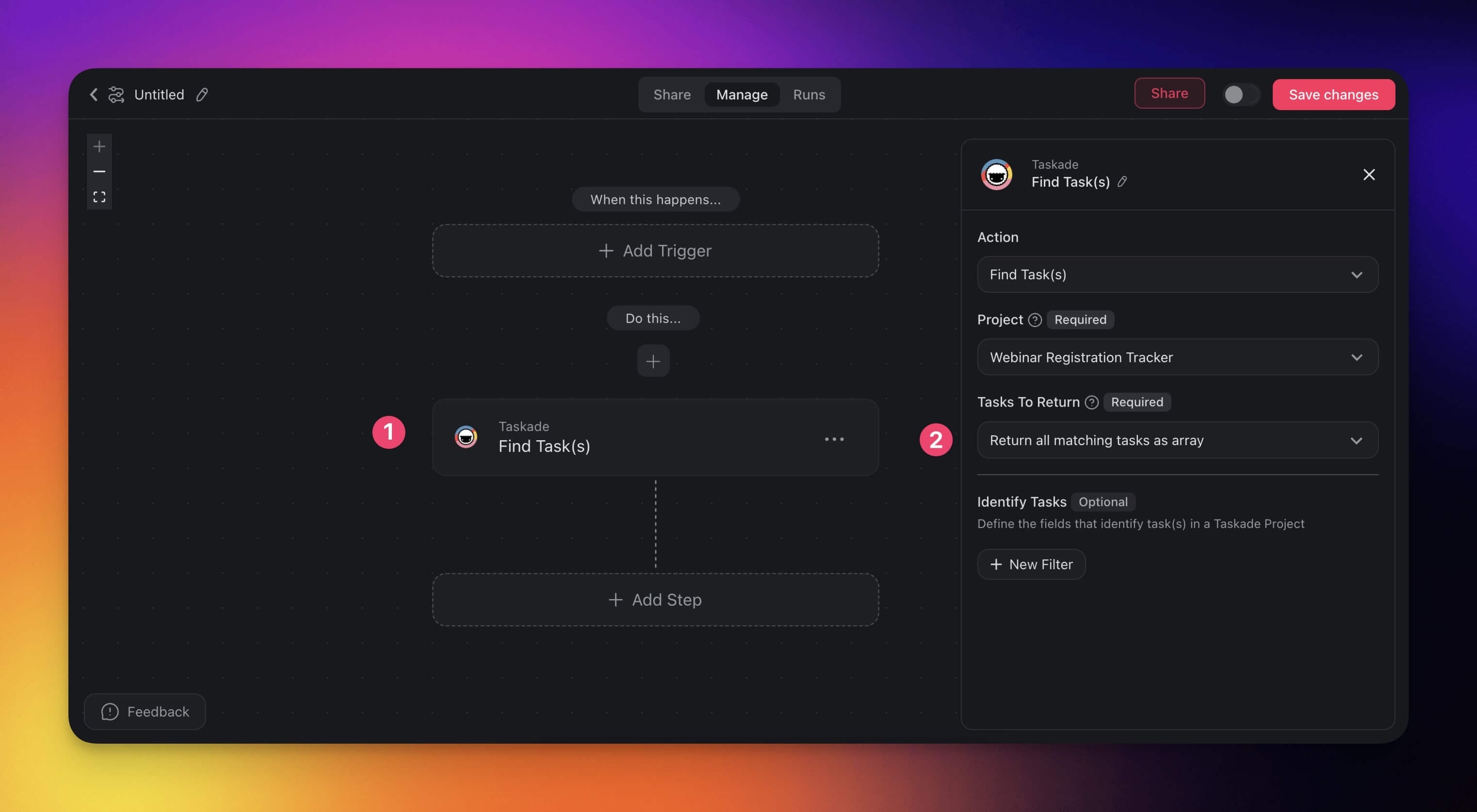
For Taskade:
Use the Find Tasks action to select a project.
Specify filters under Identify Tasks (for example, tasks containing
@to find emails).If Identify Tasks has no filter, select Return all matching tasks as array to return every task in the project.
Under Tasks to Return, choose Return all matching tasks as array.
When setup is completed, go to the next section.
Add a Loop Action
- Add the Loop action from the Control category.
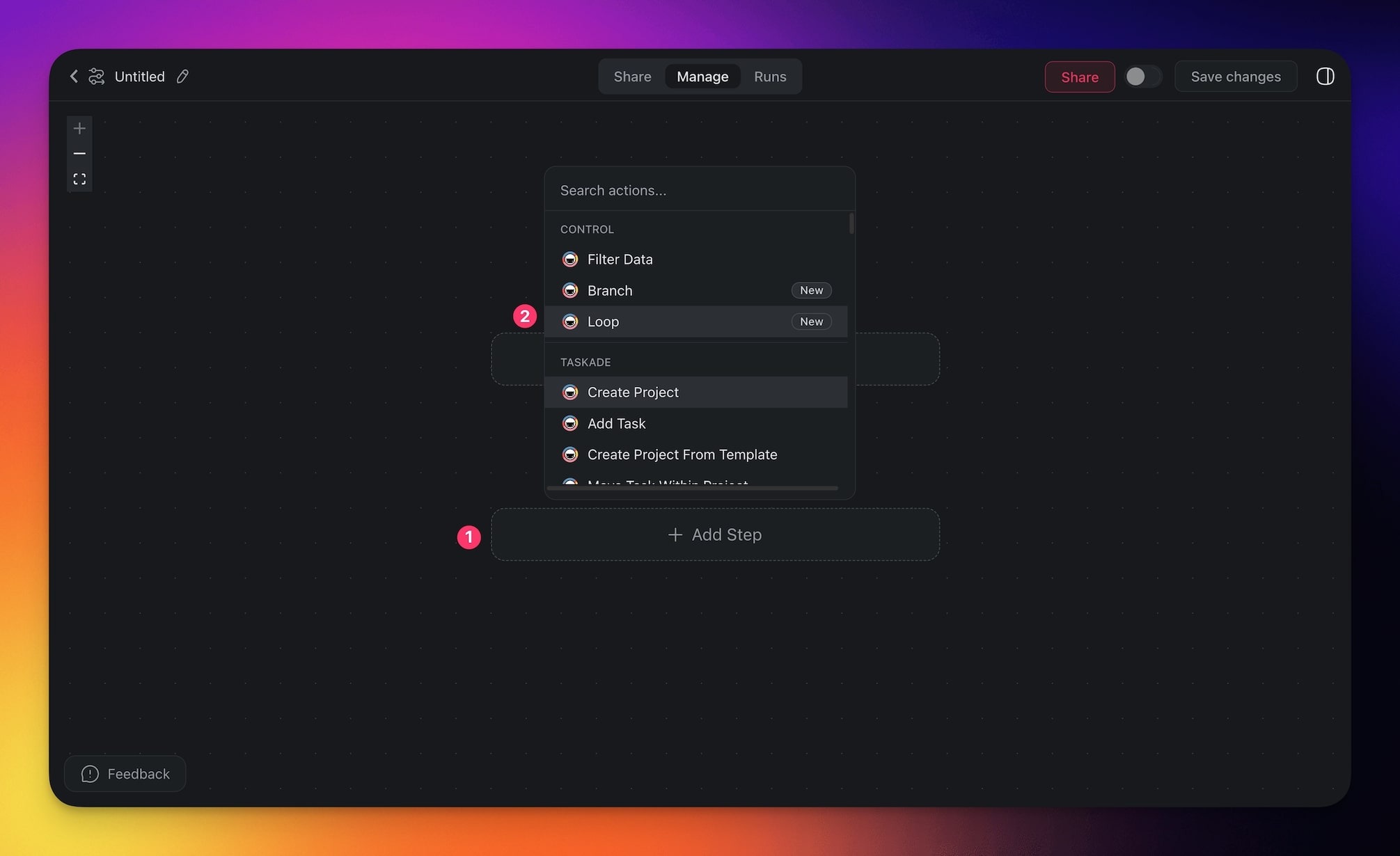
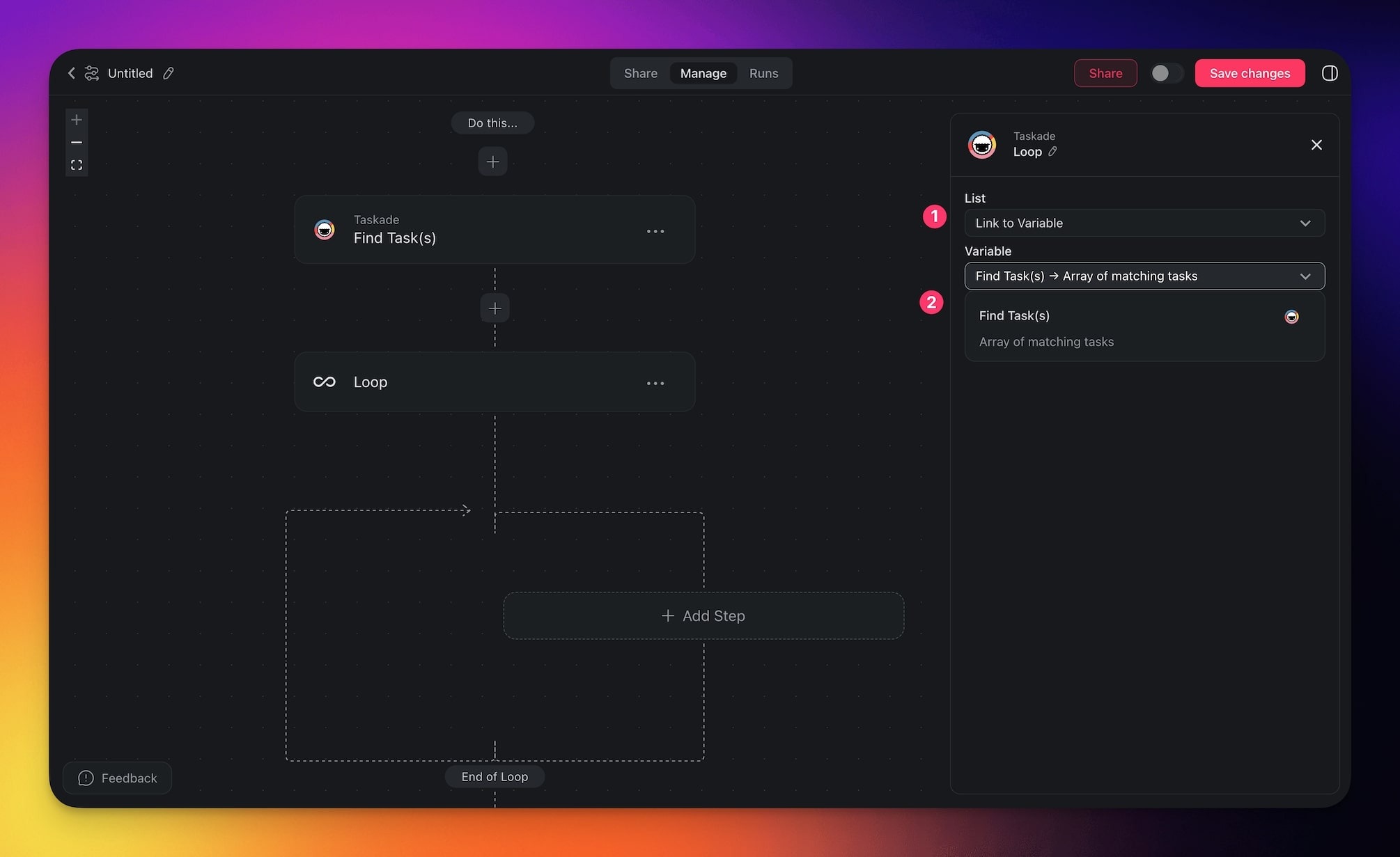
Configure the action in the sidebar on the right.
Under Variable, choose between:
Manual List: Create a custom list of items.
Link to Variable: Use the output of Find Rows or Find Tasks.
For this example, select Link to Variable to use the data from the previous action.
Customize Your Loop
Inside the loop, set the actions to run on each item. For example:
- Add conditions to filter data further.
- Insert data from each iteration using the
@symbol to access specific fields.
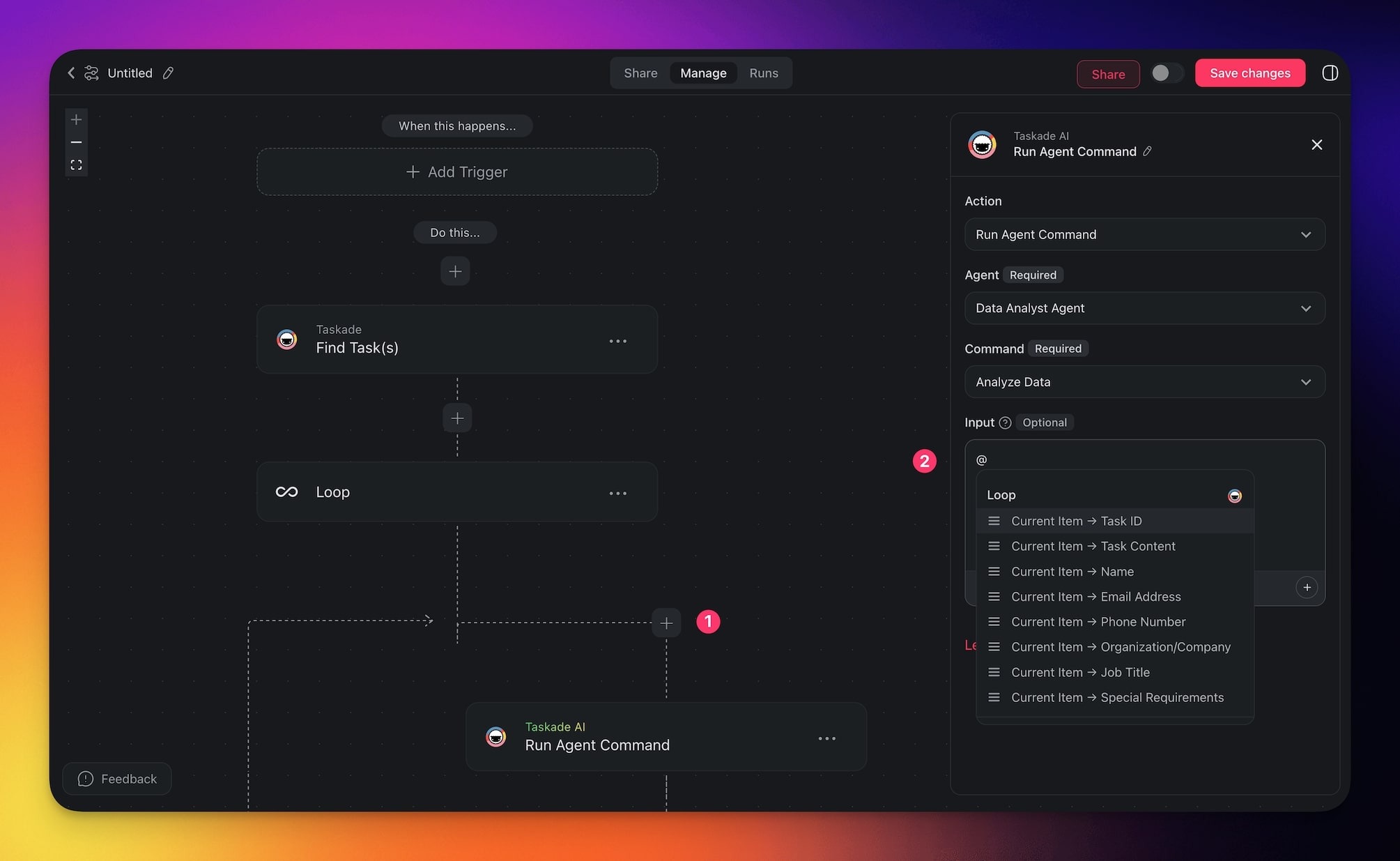
Save the changes and run the automation to test things out.
Add a trigger to the automation.
Loop Settings
Connector options give you full control over the Loop action:
| 🏷️ Field | 🔤 Description |
|---|---|
| List | Choose this option to create a custom list of items by hand. Loop then processes each item in order. |
| Variable | Choose this setting to connect the loop to a variable from an earlier step, such as Find Rows or Find Tasks. The loop then iterates over that data automatically. |
How a Loop Starts and Ends
A loop is a bounded for-each. It runs once for every item that already exists in the list, then
stops. It does not repeat until a goal is reached, and it has no exit condition of its own.
| What happens | Result |
|---|---|
| The list is empty | The loop runs zero times, and the automation continues after it. |
| Link to Variable points at something that is not a list | The loop fails with The referenced variable in a loop must be an array. Add an Array Transform or a Find action that returns an array. |
| A Filter Data step inside the loop does not match | That item stops there. The loop continues with the next item. |
| A step inside the loop fails | The loop stops at that item and the run is recorded as Failed. Earlier items keep the work they already did. |
Use a Filter Data step inside the loop to skip items. Keep expensive steps, such as
Ask Agent, after the filter so they run only on the items that
matter.
Use Cases
Not sure how to use the Loop action? Here are a few ideas:
| 🪄 Use Case | 💭 Scenario | ⏩ Action Flow |
|---|---|---|
| Bulk email notifications | Send personalized emails to multiple team members. | Use Find Rows in Google Sheets to retrieve a list of team members and their email addresses. Add a Loop action to iterate through the list. For each iteration, send a customized email using the retrieved name and email address. |
| Social media management | Schedule multiple social media posts. | Use Find Rows to retrieve post content (text, images, and schedule times) from a Google Sheet. Add a Loop action to iterate through the rows. For each iteration, post the content to the specified platform (for example, Twitter, Instagram, X) and schedule it. |
| Automated task assignment | Assign tasks to team members based on a task list. | Use Find Tasks with Taskade to retrieve unassigned tasks. Add a Loop action to iterate through the task list. For each iteration, assign the task to a team member dynamically based on a predefined assignment rule. |
| Customer support ticket processing | Process a list of unresolved tickets. | Use Find Rows to retrieve unresolved ticket data (for example, ID, issue description) from a Google Sheet. Add a Loop action to iterate through the tickets. For each iteration, take actions such as sending a follow-up email, logging the ticket in a CRM, or notifying a support agent. |
| Bulk API calls for data synchronization | Sync products/records between two systems. | Use Find Rows to retrieve a list of products from a database or spreadsheet. Add a Loop action to iterate through the product list. For each product, call an API to update or create the product in the target system. |
| Dynamic content curation | Generate daily newsletters with curated content. | Use Find Tasks to retrieve saved articles or posts for the day. Add a Loop action to iterate through the articles. For each iteration, format the article content and append it to the newsletter template before sending it out. |
| Survey response processing | Analyze responses and take actions based on specific answers. | Use Find Rows to retrieve survey responses from Google Sheets. Add a Loop action to iterate through the responses. For each iteration, send a follow-up email, categorize the response, or log it into a database for analysis. |
Related guides
- Branch Action. Conditional routing inside a loop
- Filter Data. Drop items before the loop runs
- Find Tasks. Build the array Loop iterates over
- Array Transform. Reshape data between steps
- Agent Action. Call a custom agent per item
- Structured Output. Typed array from an agent