
Overview
Taskade makes it quick and easy to upload your Box files. Connect your Box account to use this feature. You only do this once.
TL;DR: Connect your Box account once, then pull Box files straight into Taskade projects, tasks, project chat, and comments. Files uploaded to a project also show up in the media manager, and cloud files can power your AI agents as knowledge sources.
📝 Note: Be sure to check our Google Drive, One Drive, and Dropbox integrations.
Box lives in the Add-ons menu. Open it, hover Upload File, then pick Box:
┌──────────────────────────────┐
│  ➕ Add-ons             /box  │
├──────────────────────────────┤
│  📎 Upload File          ▸    │
│       ┌──────────────────┐    │
│       │ 📦 Box           │    │
│       │ 🗂 Google Drive  │    │
│       │ ☁ Dropbox        │    │
│       │ 💾 OneDrive      │    │
│       └──────────────────┘    │
└──────────────────────────────┘
Upload Files to a Project or Task
- Open a Project.
- Open the Add-ons menu (click the plus icon or use /box).
- Hover over Upload File.

- Choose Box from the dropdown menu.
- Select the files you want to upload.
- Press the Select button.
- Confirm which files you want to upload and press Upload.
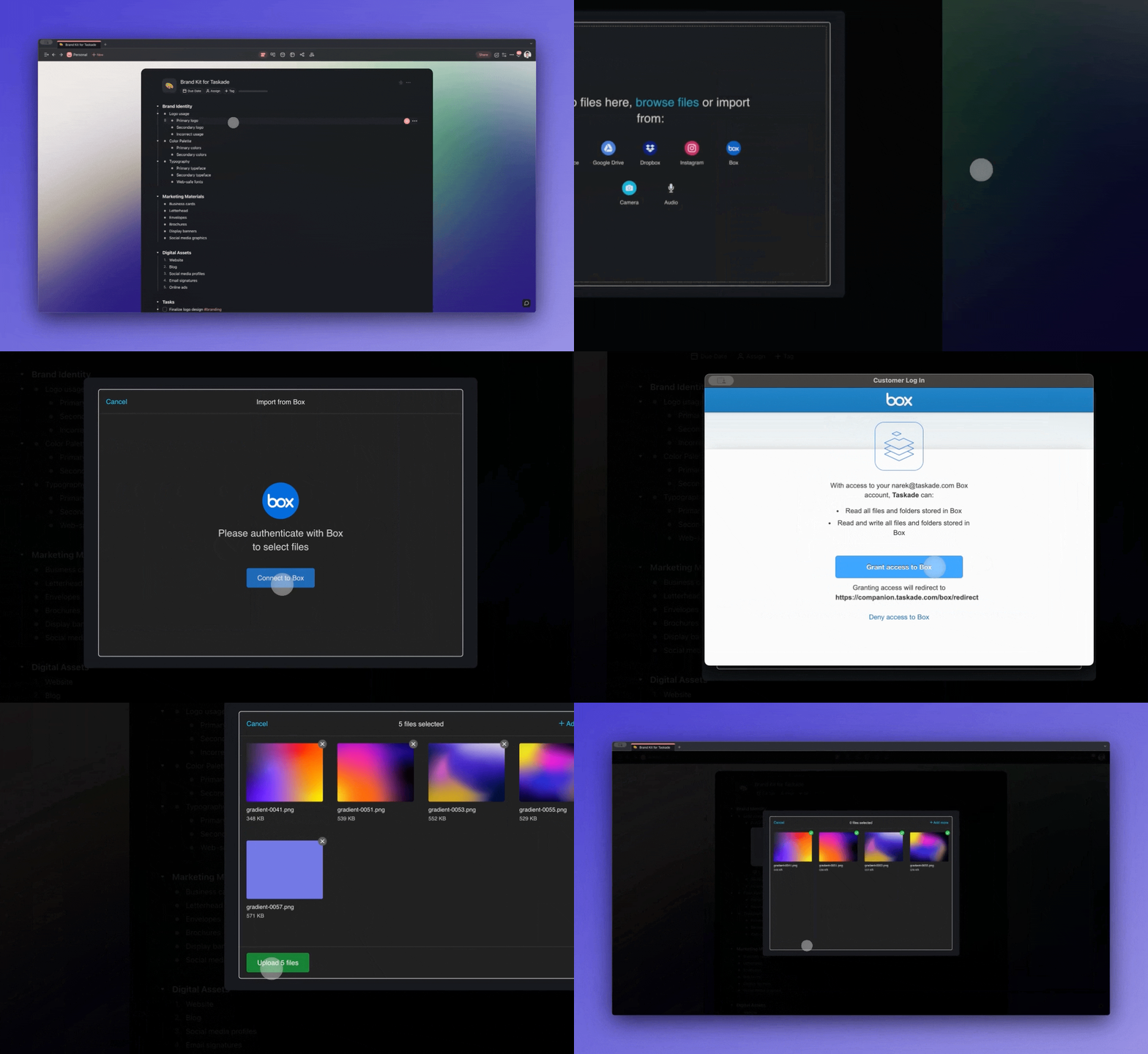
Upload Files to a Project Chat
- Open a Project.
- Click the Cloud Icon

at the bottom of the chat box. - Choose Box.
- Select the files you want to upload.
- Press the Select button.
- Confirm which files you want to upload and press Upload.
Upload Files to a Comment
- Open a Project.
- Open the Add-ons menu (click the plus icon or use /comment).
- Choose Comment.
- Click on Upload File.

- Choose Box from the popup menu.
- Select the files you want to upload.
- Press the Select button.
- Confirm which files you want to upload and press Upload.
Connect Your Box Account
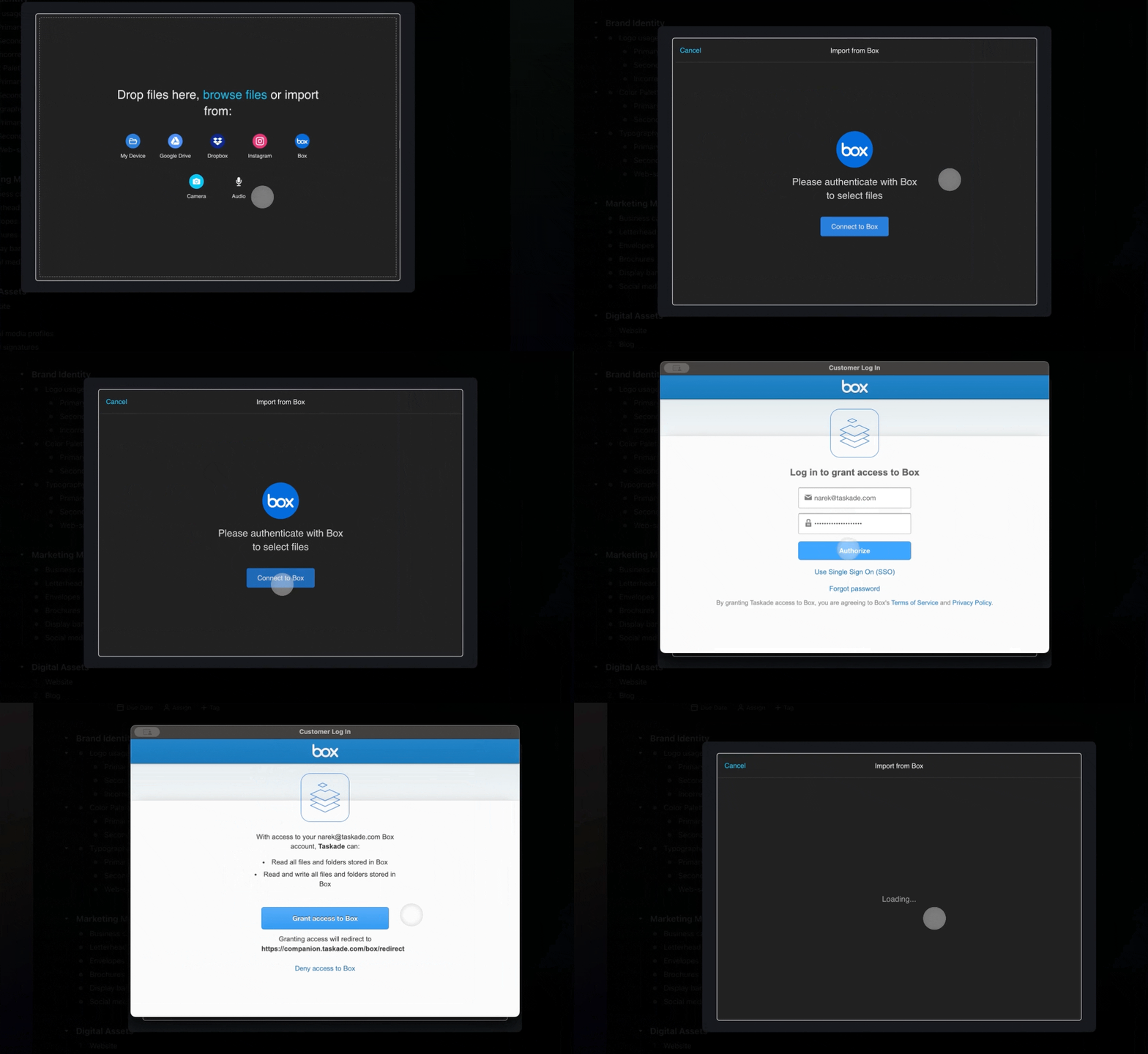
- Follow any of the file upload methods above.
- You will see a sign-in window once you select Box from the prompt window.
- Log into your Box account with your email and password.
- Grant access to your Box account.
Media Manager
Files you upload to a project will also be available in the media manager. If you upload a file as a comment or to a project chat, those files will not appear in the media manager.
💡 Note: Visit our Media Files guide to learn more.
Learn more about automation workflows in Automations: The Execution Pillar.
Use this integration as an AI agent tool. See Tools for AI Agents.
💡 Tip: Files from cloud integrations can be used as knowledge sources for your AI agents.
Related guides
- Google Drive · Dropbox · OneDrive. Other cloud storage integrations.
- Drive Upload. Upload files into Taskade projects.
- Tools for AI Agents. Let agents read and write files in Box.
- Automation Actions. Full action catalog.