
Overview
Add every new lead to a Mailchimp audience the moment a task closes or a form comes in. Connect Mailchimp once, and your Taskade automations and AI agents keep your email lists growing without any copy-paste.
TL;DR: Mailchimp connects to Taskade automations with an action that pushes data out, so audience updates happen on their own. Use the Add contact action to add a new contact to a Mailchimp audience, with fields for email, status, and name. One connection keeps your email lists in sync with your workspace.
Note: Mailchimp is a premium integration. An automation that uses it needs a paid plan.
Mailchimp Automation, Explained
Configure Taskade to trigger actions within projects based on new contacts in Mailchimp. For example, when a new subscriber is added or a contact list is updated in Mailchimp, Taskade can automatically create tasks or notify team members.
Note: Visit our Automation Guide to learn more.
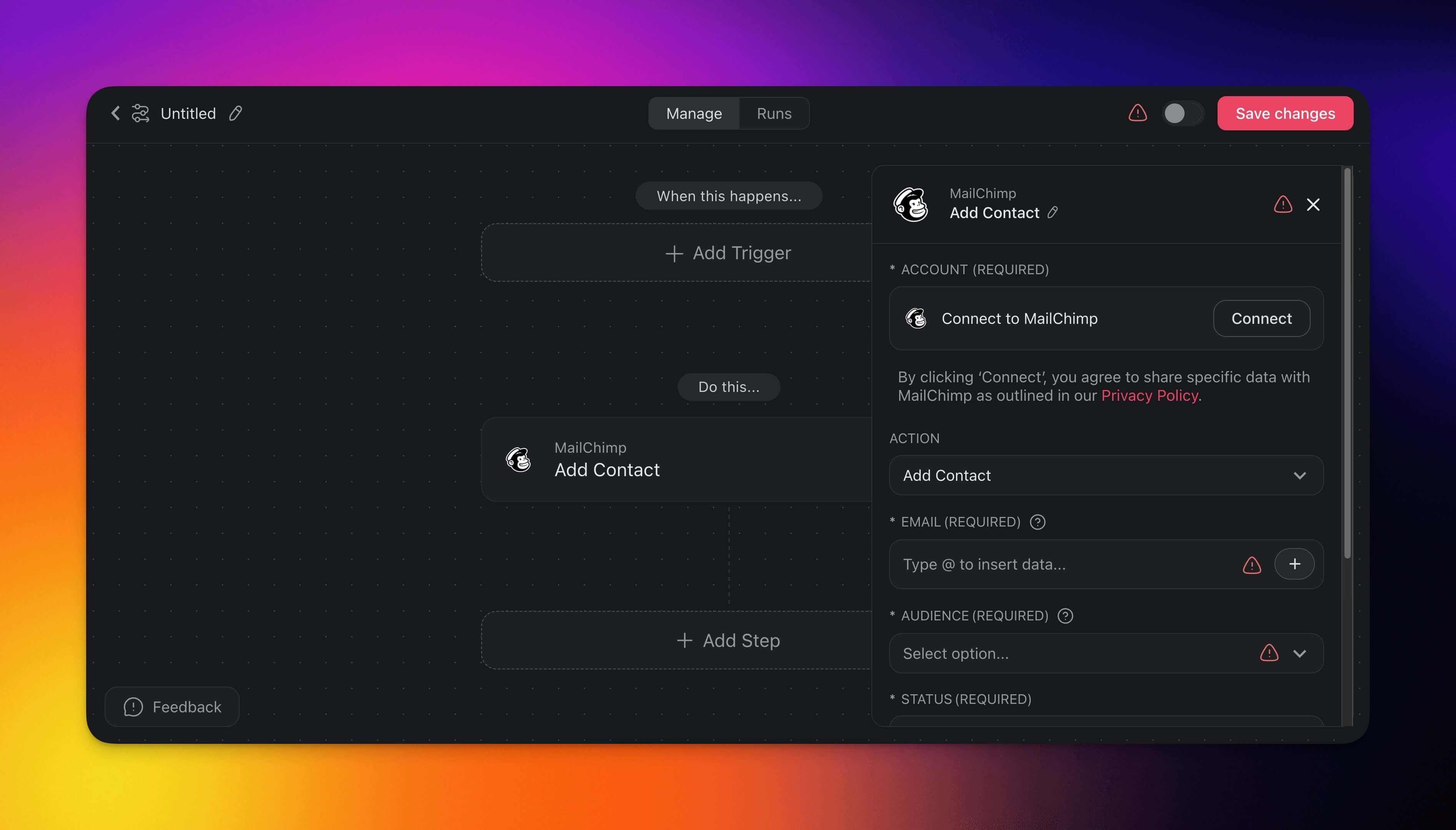
Mailchimp Triggers & Actions
Here are the triggers & actions you can use in your workflows:
| Add contact | Creates a new contact in Mailchimp. |
|---|
Mailchimp Automation Settings
Connector options give you full control over the Mailchimp automation:
| Field | Description |
|---|---|
| (required) Account | Connect your Taskade account to your Mailchimp account to get started. |
| (required) Email | Enter the email address of the contact you want to add. This is a required field. |
| (required) Audience | Select which Mailchimp audience (list) you want to add the contact to. This is a required field. |
| (required) Status | Choose the subscription status for the new contact (e.g., subscribed, unsubscribed). This is a required field. |
| First Name | Optionally, type the first name of the contact you are adding. This field is not mandatory unless you decide to fill it. |
| Last Name | Optionally, type the last name of the contact you are adding. This field is not mandatory unless you decide to fill it. |
Mailchimp Use Cases
Here are a few ways to use the Mailchimp connector:
| Use Case | Description |
|---|---|
| Add new Google Form submitters as Mailchimp contacts and notify team | When a new response is submitted in Google Forms, add the respondent as a contact in Mailchimp and notify the team via Slack. |
| Add a Gmail sender as a Mailchimp subscriber and create follow-up tasks | Automatically add senders from important emails in Gmail to Mailchimp and create follow-up tasks in Taskade. |
| Add SurveyMonkey respondents to Mailchimp list and notify via Twilio | Add new respondents from SurveyMonkey surveys to a Mailchimp list and notify the team via Twilio SMS. |
| Add new Webflow form submitters to Mailchimp and update Google Sheets | When a form is submitted on a Webflow site, add the submitter to a Mailchimp list and update Google Sheets with the contact information. |
| Add Typeform respondents to Mailchimp and create tasks in Taskade | Automatically add new Typeform respondents to a Mailchimp list and create corresponding tasks in Taskade. |
| Add new HubSpot contacts to Mailchimp and notify sales team via Slack | Sync new contacts from HubSpot to Mailchimp and notify the sales team via Slack. |
Use this integration as an AI agent tool. See Tools for AI Agents.
Available Capabilities
| Type | Capability | Description |
|---|---|---|
| 🔧 Action | Add Member to List | Performs the add member to list operation |
Related guides
- Gmail · HubSpot · Salesforce · Apollo. Other email and CRM tools.
- Brand Voice. On-brand email content.
- Marketing Agents. AI email campaign agents.