
Overview
Upload File to Media lets you instantly add any URL to your Media Files. It is a convenient way to organize and share web resources from within automations. Pair with Scrape Webpage, Image Generation, or Transcribe YouTube to build self-curating research libraries.
TL;DR: Upload File to Media is an automation action that saves any URL to your project's Media Files. It runs as a step inside an automation, so a trigger pulls an event in and this action writes the resource back to your workspace. See the Automation Guide.
Note: Read our Automation Guide to learn more.
How to Get Started
Add Action
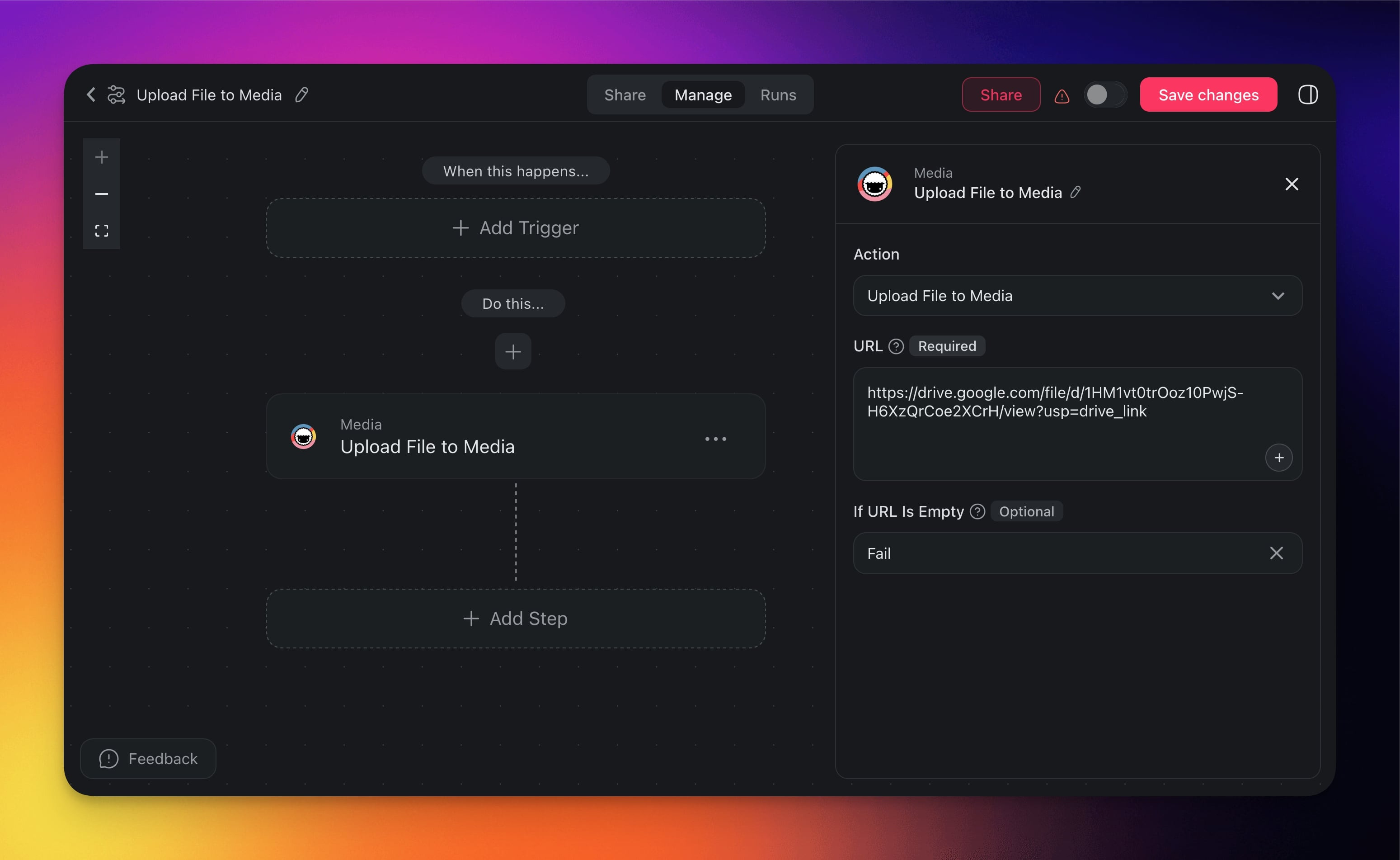
- Click ➕ Add Step and choose the Upload File to Media action.
- Add a trigger that will set off the automation.
- Specify the URL for the source media.
- Add more steps (optional) and enable the automation.
Configure Action
Connector options give you full control over the action. To edit action settings:
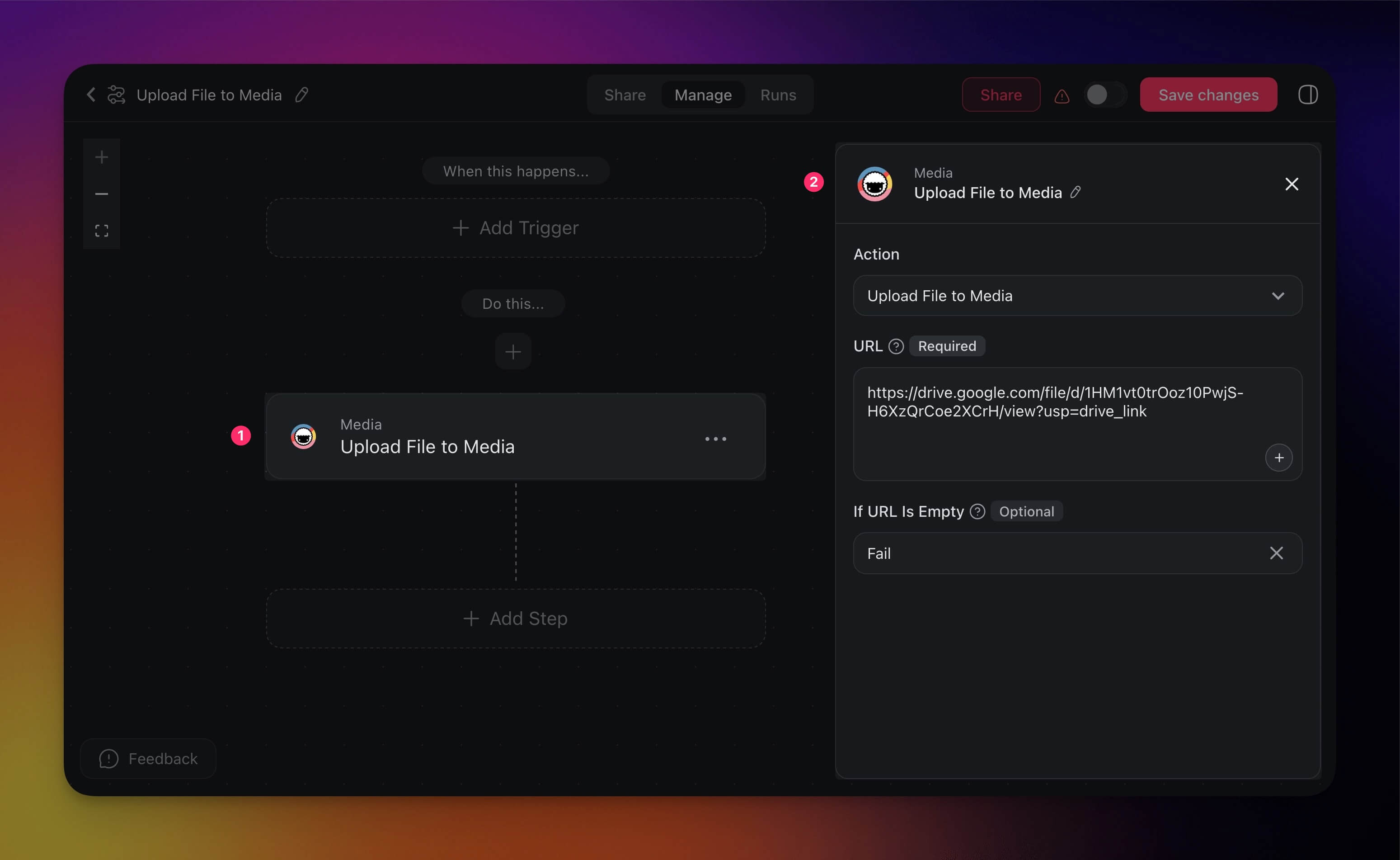
- Click the action block in the automation flow.
- Edit action settings in the right sidebar.
| 🏷️ Field | 🔤 Description |
|---|---|
| (required) URL | The URL of the web resource. |
| (optional) If URL is Empty | Decide what to do if the provided URL is empty (defaults to "Continue"). |
Find Files Already in Media
Use Find Files in Media when the file is already in Media Files. The step lists files by folder, file type, and name, and returns a File link for each one.
- Click ➕ Add Step and choose Find Files in Media.
- In Folder, type a folder such as
/inbox. Leave it empty to search the whole library. - In File Types, pick Image, Video, Audio, or Document. Leave it empty to return every type.
- In Name Contains, type part of a file name. Leave it empty to match every name.
- In Maximum Files, set how many files to return. The default is 20, and the highest value is 100.
To handle each file, run the next steps inside a Loop. See Automate Media Files for the media triggers and the video and audio steps.
Use Cases
Not sure how to use the Add URL to Media action? Here are a few ideas:
| 🪄 Use Case | ⏩ Action Flow |
|---|---|
| Event planning | ✅ Trigger: New Row in Google Sheets (event list) ➡️ Action: Find Row(s) with event URL ➡️ Action: Upload File to Media (with registration or schedule link) |
| Curated learning | ✅ Trigger: Task Added (in "Learning Resources" project with course link) ➡️ Action: Upload File to Media |
| Job application management | ✅ Trigger: Form Trigger (new candidate submission with portfolio or LinkedIn URL) ➡️ Action: Upload File to Media |
| Customer feedback collection | ✅ Trigger: New Submission in Typeform or Google Form (customer review URL) ➡️ Action: Upload File to Media |
| Product development ideation | ✅ Trigger: Task Added (in "Competitor Research" project with article or feature URL) ➡️ Action: Upload File to Media |
| Travel and logistics planning | ✅ Trigger: New Row in Google Sheets (trip tracker with booking URLs) ➡️ Action: Find Row(s) ➡️ Action: Upload File to Media |
Related guides
- Media Files. Where files live in Taskade
- Automate Media Files. Media triggers, file search, and video and audio steps
- Scrape Webpage. Common upstream action
- File Convert. Extract text from uploaded files
- Agent Knowledge Action. Permanent agent knowledge