
Overview
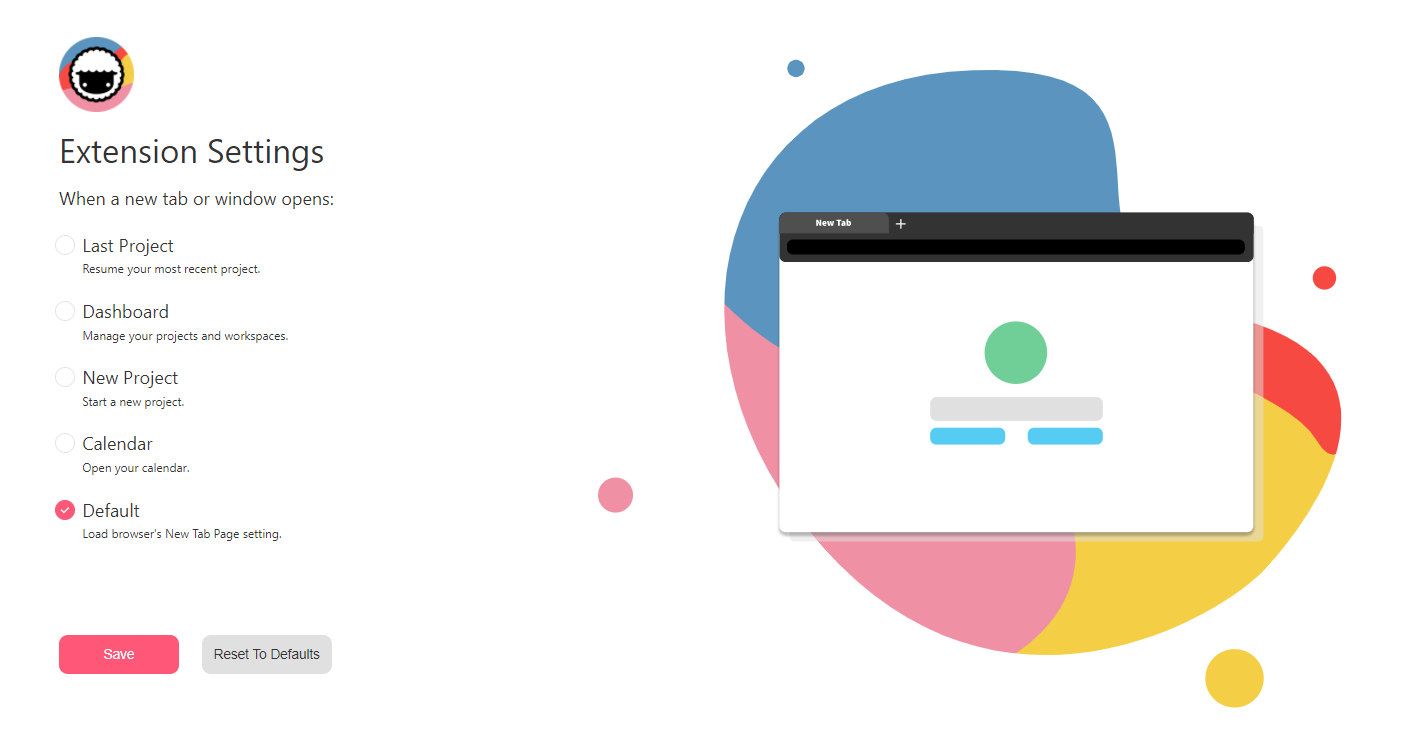
The Extension Settings Options menu controls what your browser shows on a new tab. You need our browser extension to see this menu. Here are the available options:
TL;DR: The Taskade browser extension lets you control what opens on every new tab in Chrome, Firefox, or Edge. Pick Last Project, Dashboard, New Project, Calendar, or your browser's Default page from the Extension Settings Options menu. Settings sync across devices, and the Web Clipper stays available from the right-click menu.
What each new-tab option shows
| Option | What opens on every new tab |
|---|---|
| 👈 Last Project | The most recent project you worked on. |
| 🎛 Dashboard | A dashboard with your workspaces, folders, and projects. |
| 🌱 New Project | A completely new, blank project. |
| 🗓 Calendar | Taskade in the Calendar view. |
| 🌟 Default | Your browser's built-in new-tab page. |
Google Chrome
To access the Browser Extension Settings in Google Chrome:
- Right-click the Taskade logo in the Chrome toolbar.
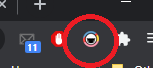
- Click Options to manage the extension.
- Choose what Taskade opens in a new tab.
Mozilla Firefox
To access the Browser Extension Settings for Mozilla Firefox:
- Right-click the Taskade logo in the Firefox toolbar.
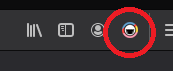
- Click Options to manage the extension.
- Choose what Taskade opens in a new tab.
Microsoft Edge
To access the Browser Extension Settings in Microsoft Edge:
- Right-click the Taskade logo in the Edge toolbar.
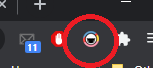
- Click Options to manage the extension.
- Choose what Taskade opens in a new tab.
Choosing the Right Option
Not sure which new-tab setting is right for you? Here is a quick guide:
- Last Project: Best for a return to the project you had open. Ideal for focused, single-project work.
- Dashboard: Best for managers or users who juggle multiple workspaces, folders, and projects throughout the day.
- New Project: Best for brainstorming sessions where you want a fresh canvas every time you open a tab.
- Calendar: Best for a day that runs on scheduled tasks and deadlines.
- Default: Keep your browser's built-in new-tab page and access Taskade by clicking the toolbar icon instead.
Tips
- Settings sync across devices: Your extension settings belong to your browser profile. If you sign in to Chrome or Edge on another computer, your Taskade extension settings follow you.
- Combine with Web Clipper: The Web Clipper stays available from the right-click menu, whichever new-tab option you choose.
- Try different modes: Switch between options to find the setup that best matches your work style. Changes take effect on the next new tab.
💡 Tip: Use the browser extension alongside Taskade Genesis to capture ideas and build AI-powered workflows from anywhere.