
Overview
Reach every customer on the app they already check every day. The WhatsApp Business integration sends order updates, onboarding messages, and announcements straight from your Taskade automations, so the right message goes out the moment something happens in your workspace. You stay in control. WhatsApp does the delivery.
TL;DR: WhatsApp Business pushes messages out from your Taskade automations. It offers 3 actions, Send Message, Send Template Message, and Send Media, so customer updates, onboarding messages, and announcements go out on their own. Pair it with any of Taskade's 100+ integrations as the trigger.
Note: Only Meta Business Accounts with an existing Business portfolio can use this integration.
Inside a WhatsApp Automation
WhatsApp Business is an outbound connector. A trigger from any source, a new form entry, an updated spreadsheet row, a fresh file, fires your automation. Taskade can shape the message with an AI step. Then a WhatsApp action delivers it to the customer. The event comes in from another app. WhatsApp carries the reply out.
You are already doing a version of this by hand. Someone fills a form, you copy their number into WhatsApp, you type the same welcome message you typed last week. This integration is that exact routine, running on its own.
Connect & Configure WhatsApp
Before you use WhatsApp in Taskade, configure the integration:
- Add WhatsApp Business as an action (see the next section).
- Click Connect to connect your WhatsApp Business account to Taskade.
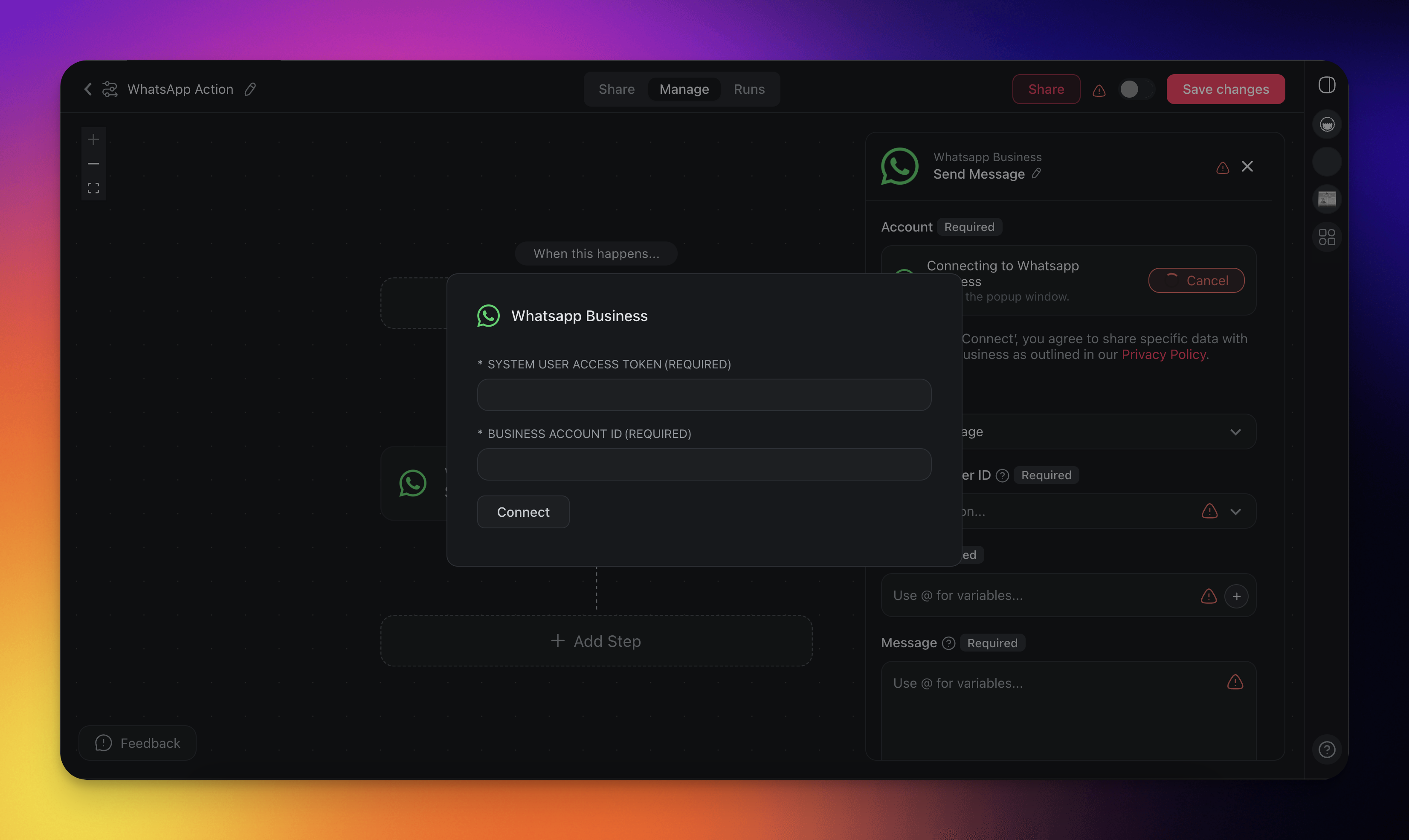
Get the Access Token and ID
- Visit https://developers.facebook.com/apps/ on your Meta Business Account.
- Click on Create an App.
- Select Other.
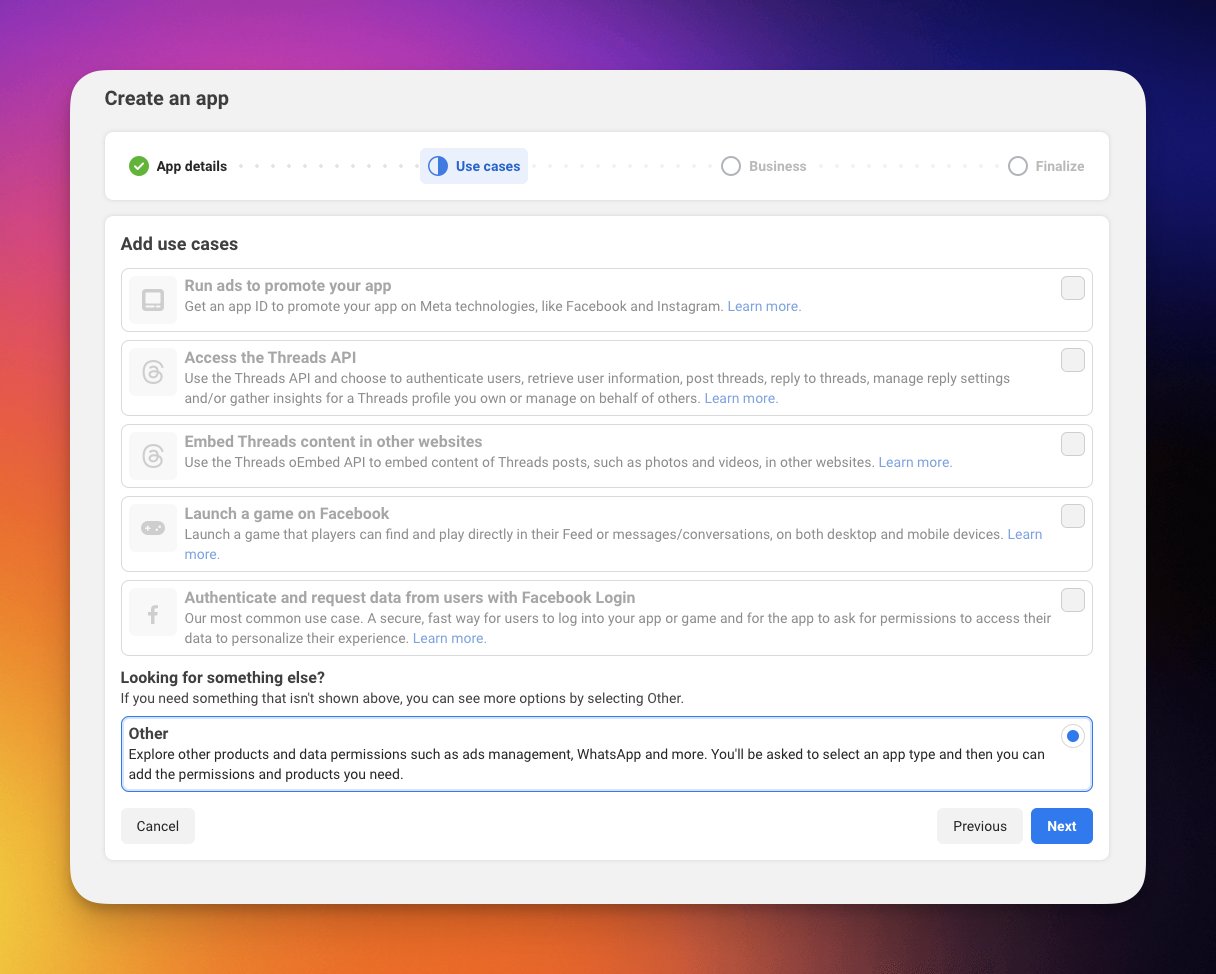
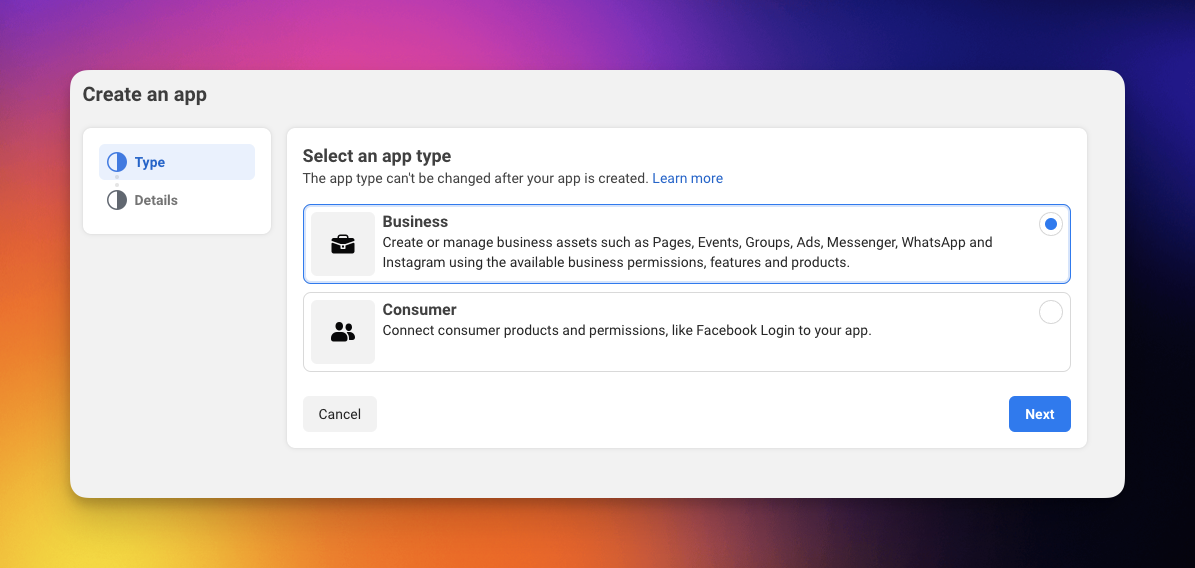
4. Select the Business App Type.
5. In the created app, click Set Up Whatsapp.
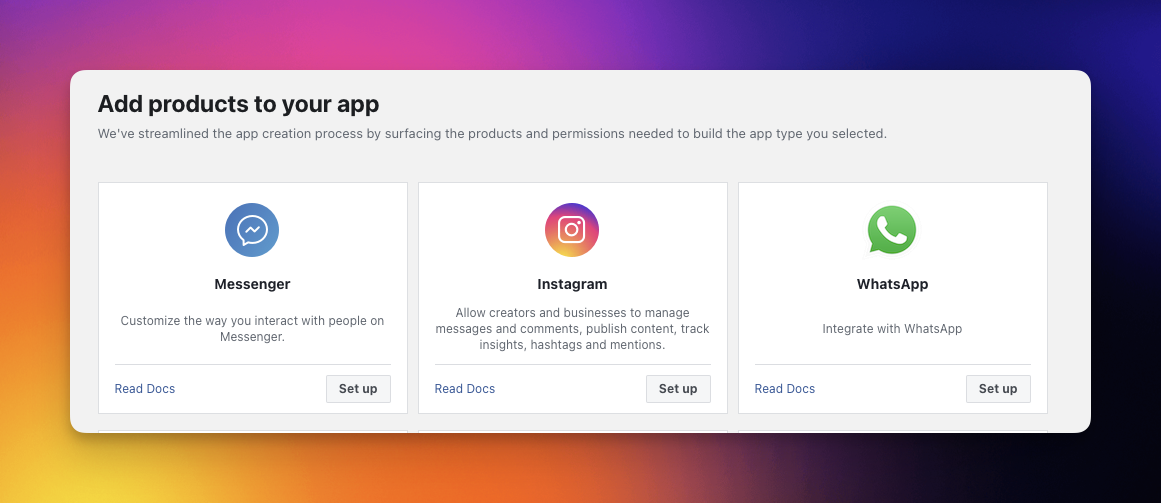
6. Follow the set up instructions and Link the Business Portfolio.
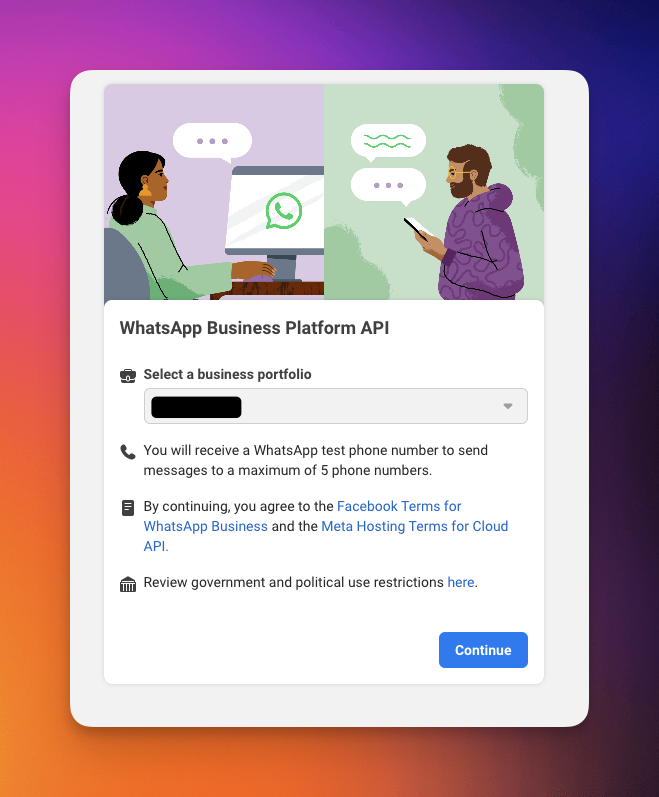
7. Click Start using API.
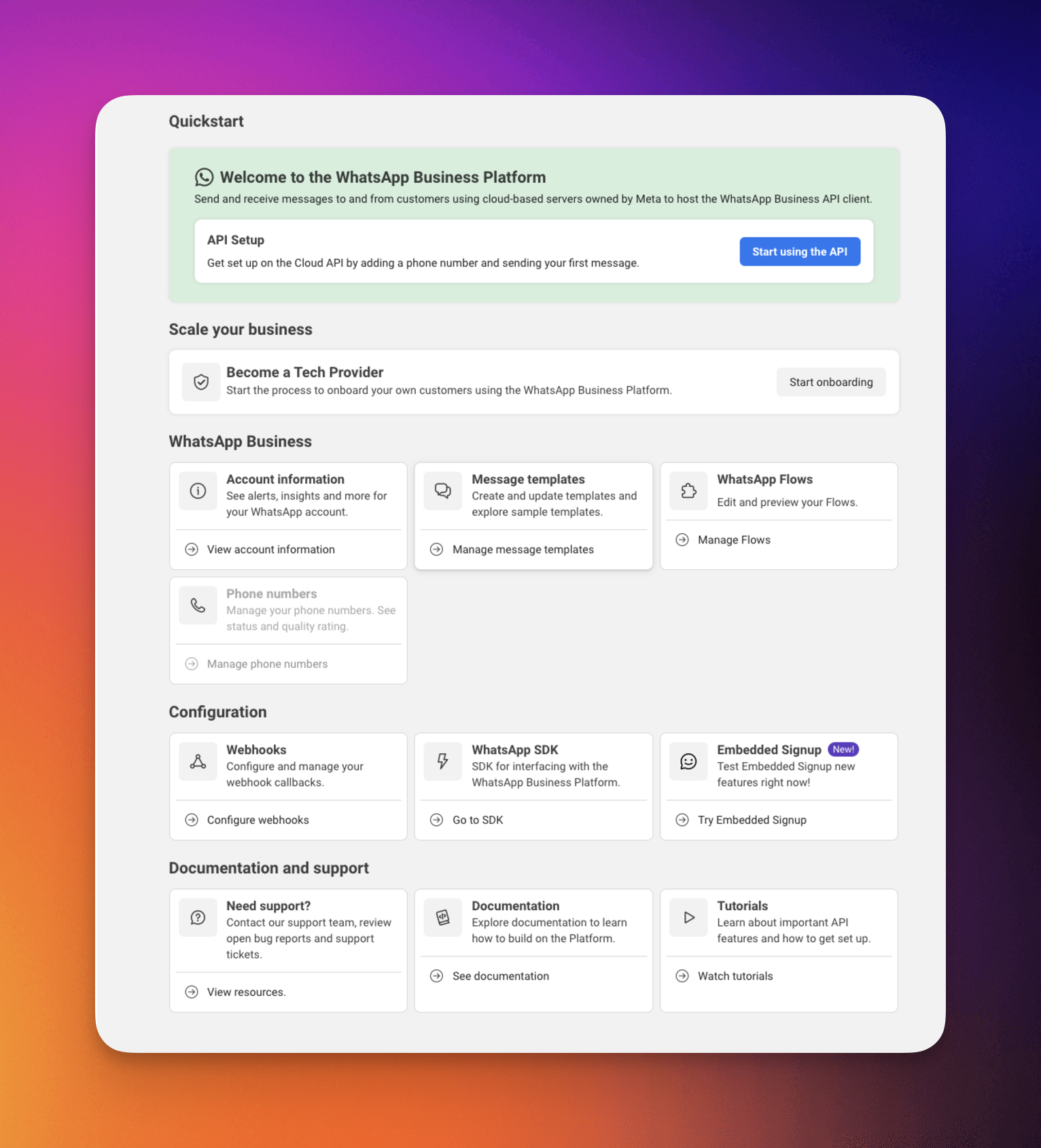
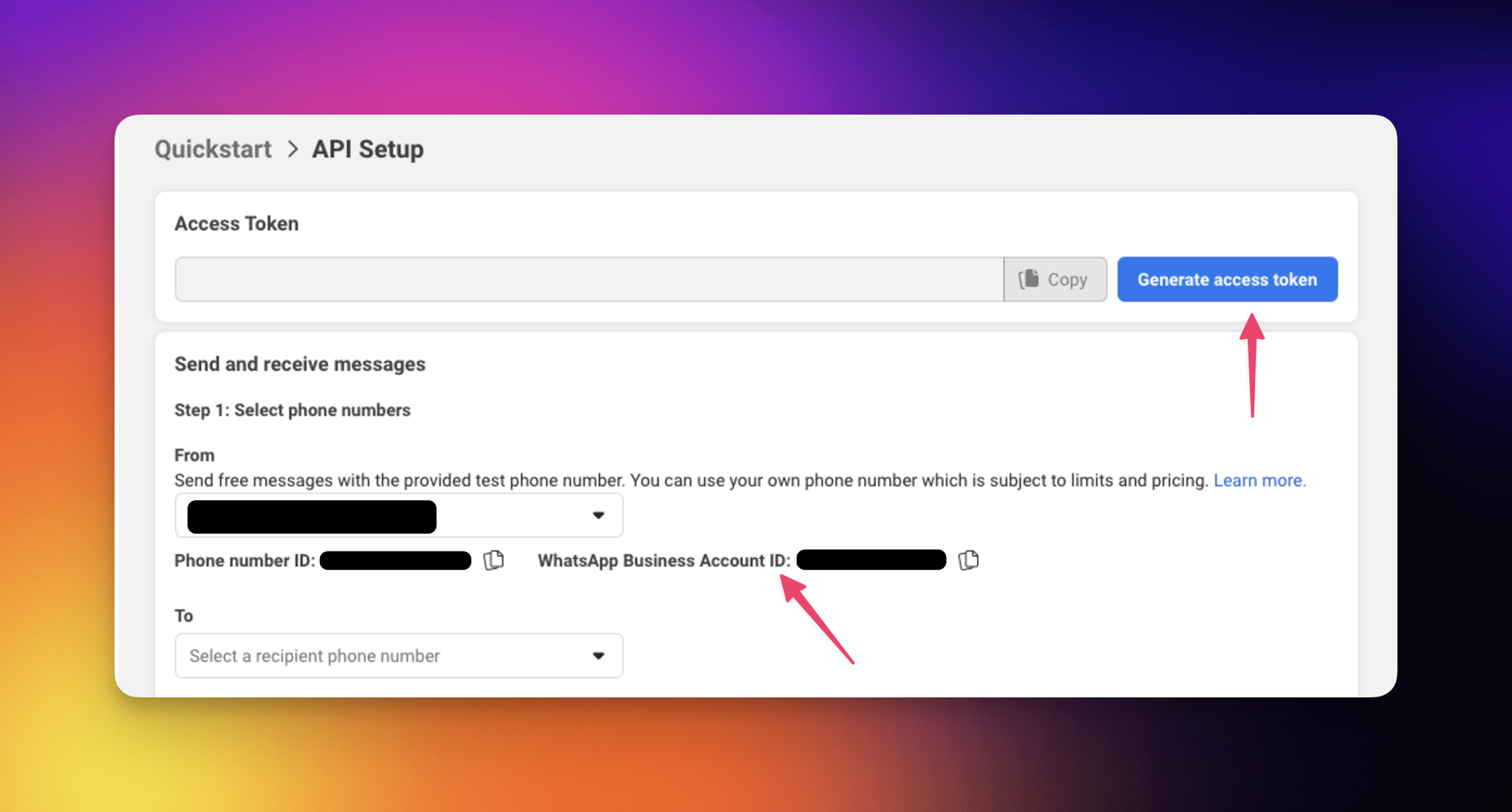
8. Click on the Generate Access Token button, this is used in the field System User Access Token.
9. The WhatsApp Business Account ID is found here too.
Build WhatsApp Automations
Use the WhatsApp Business connector in your automation flows to optimize communication management and improve social media engagement.
Note: Visit our Automation Guide to learn more.
Add WhatsApp as an Action
- Go to the Automations tab in your workspace or folder.
- Click ➕ Create automation.
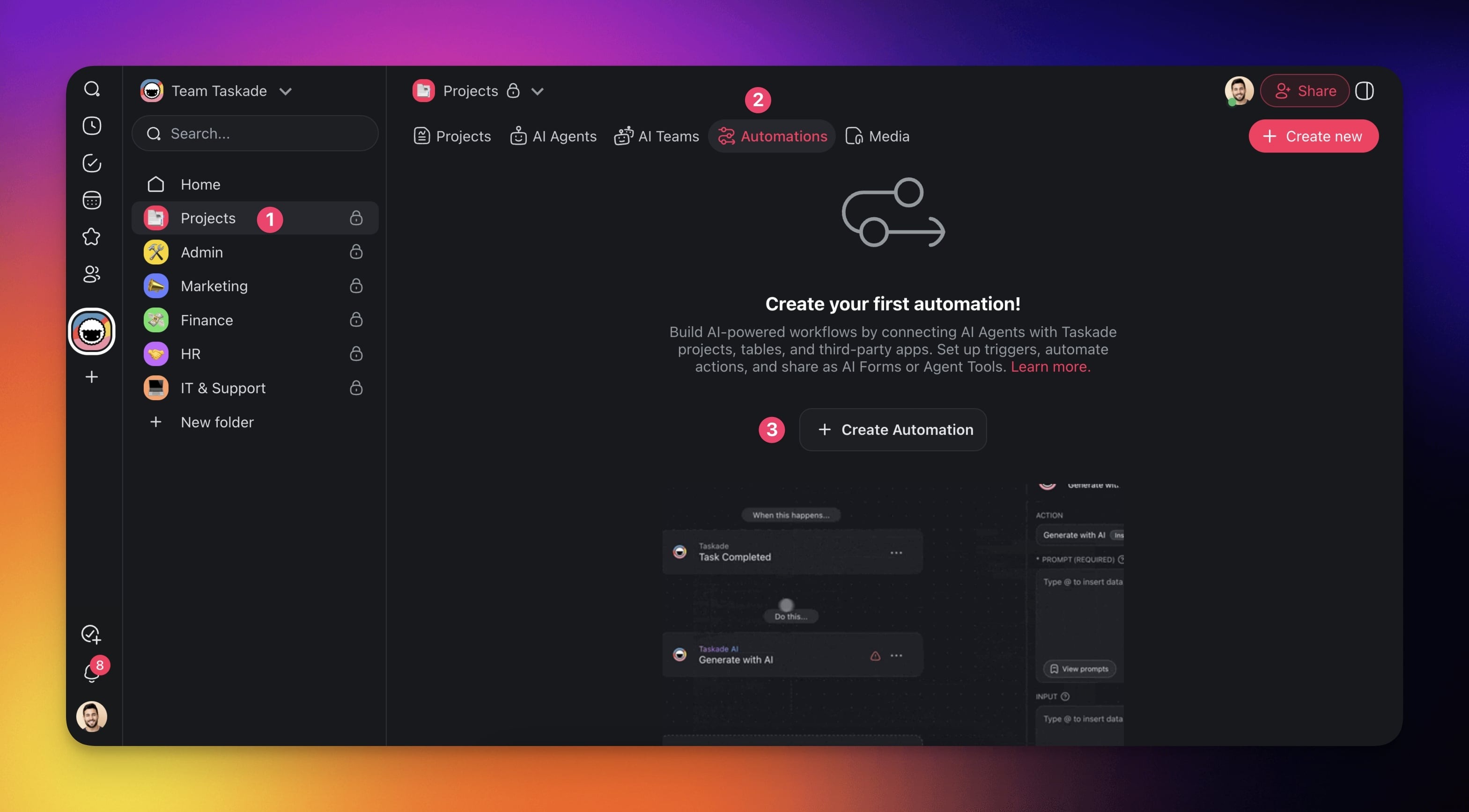
- Select the Add from scratch tile.
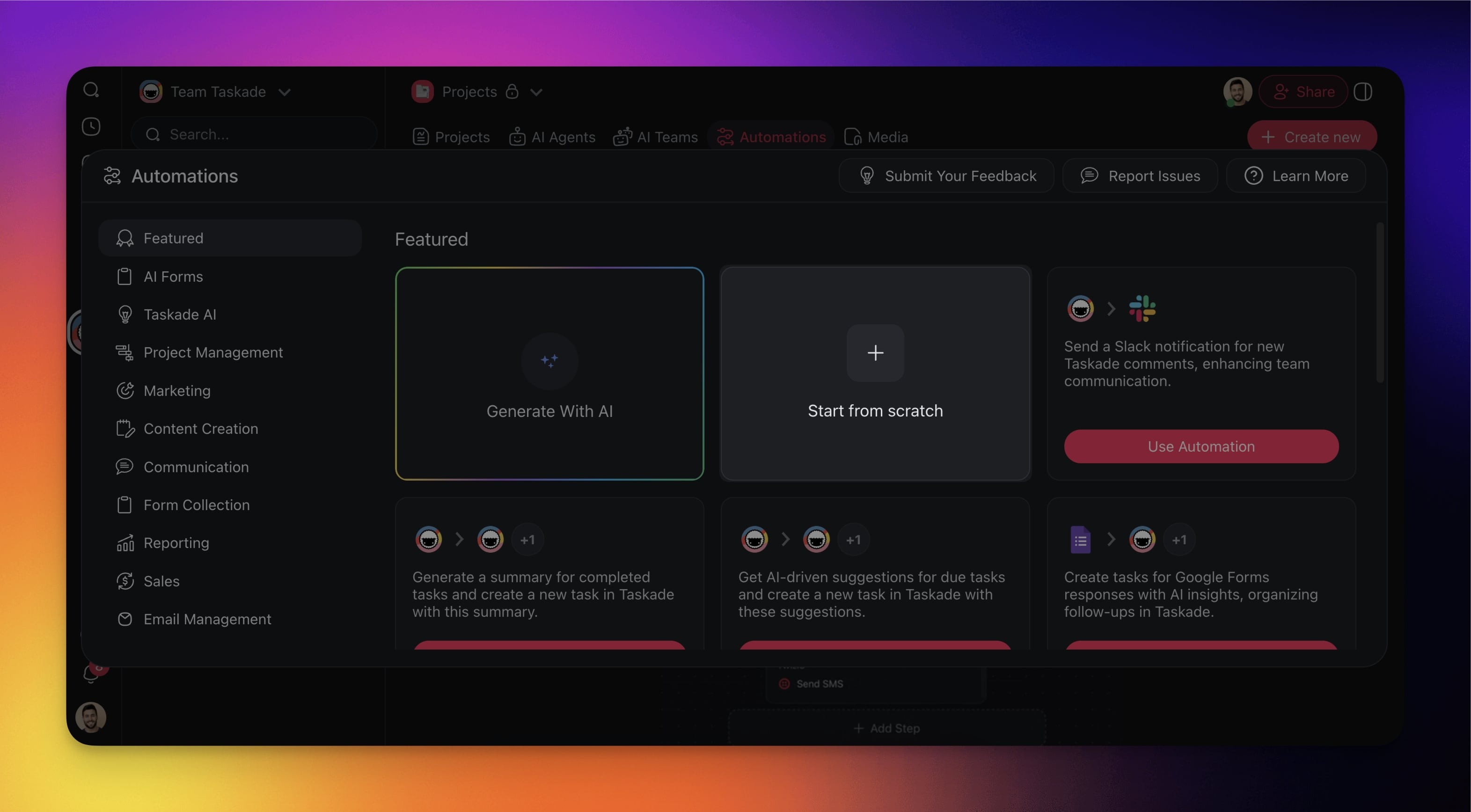
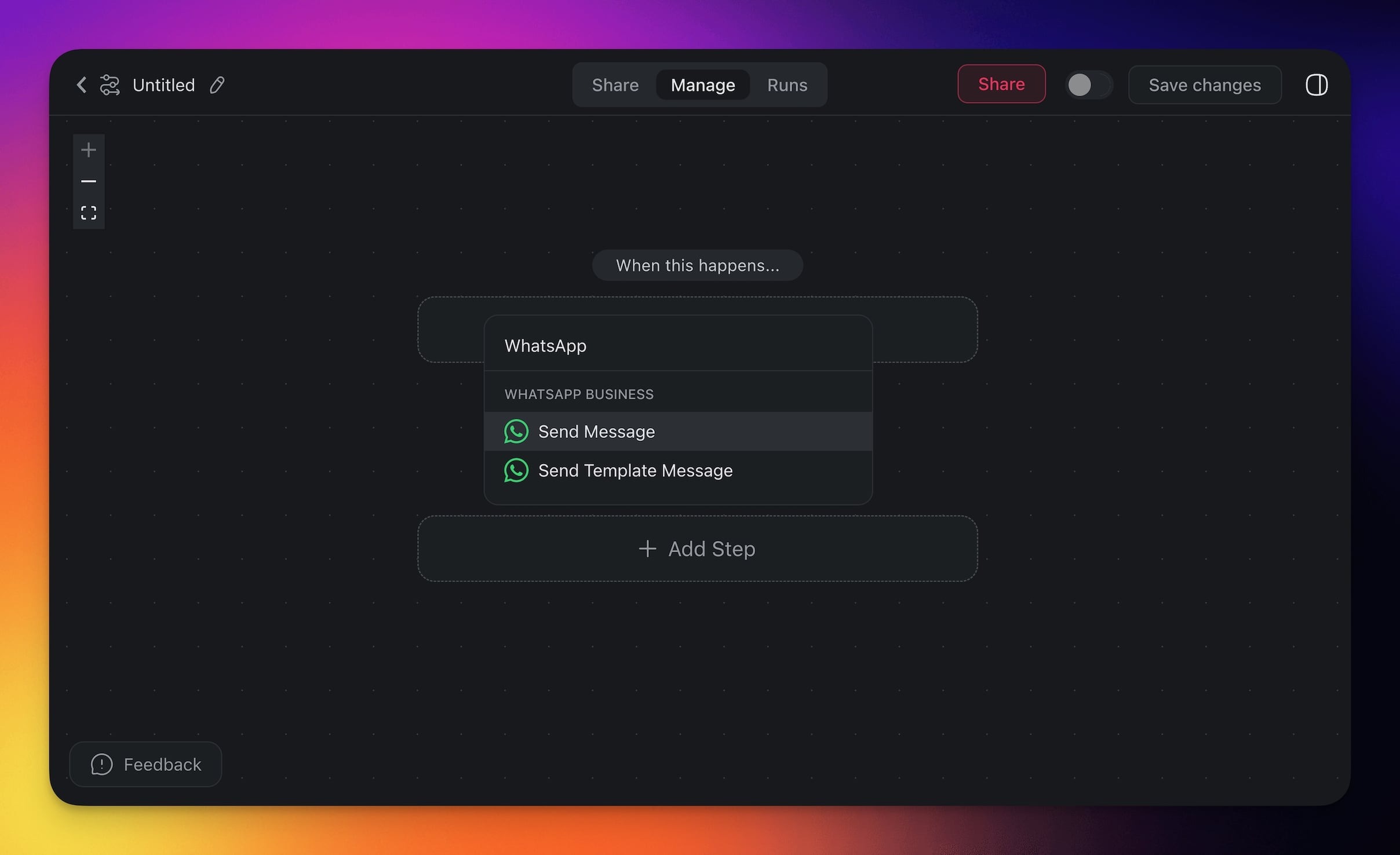
- Click ➕ Add Action and choose one of the WhatsApp Business actions from the list.
Connect your WhatsApp Business account to Taskade (see the first section of this guide).
Specify the conditions for the trigger (if applicable).
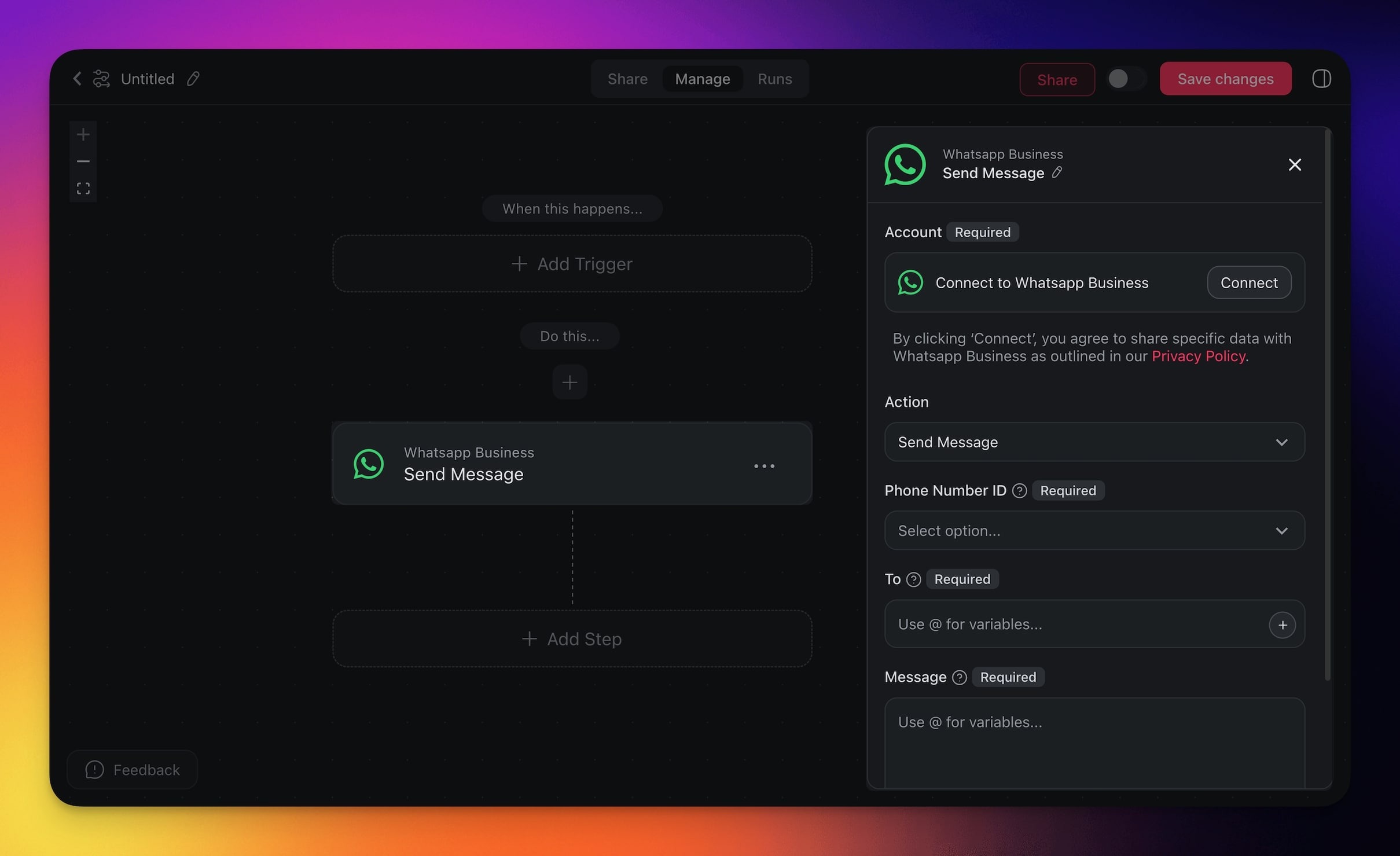
- (optional) Add more steps to the automation.
- Click Save changes in the top-right corner.
- Toggle the automation on in the top-right corner.
WhatsApp Business Actions
WhatsApp Business gives your automations 3 outbound actions: Send Message, Send Template Message, and Send Media. Send Message is for free-form text, Send Template Message is for pre-approved formats like order confirmations, and Send Media carries an image, audio, document, or video. Each one fires the moment your trigger does.
| Action | What it does |
|---|---|
| Send Message | Sends a text message to a specified contact or group on WhatsApp. |
| Send Template Message | Sends a pre-designed template message for consistent communication. |
| Send Media | Sends a media file (Image, Audio, Document, Video) to a specified contact or group on WhatsApp. |
Note: Due to a WhatsApp Business policy, if a customer has not messaged your business account first, you can only send template messages to them. Once they reply, free-form Send Message and Send Media open up for 24 hours.
WhatsApp Automation Settings
Connector options give you full control over the WhatsApp Business automation:
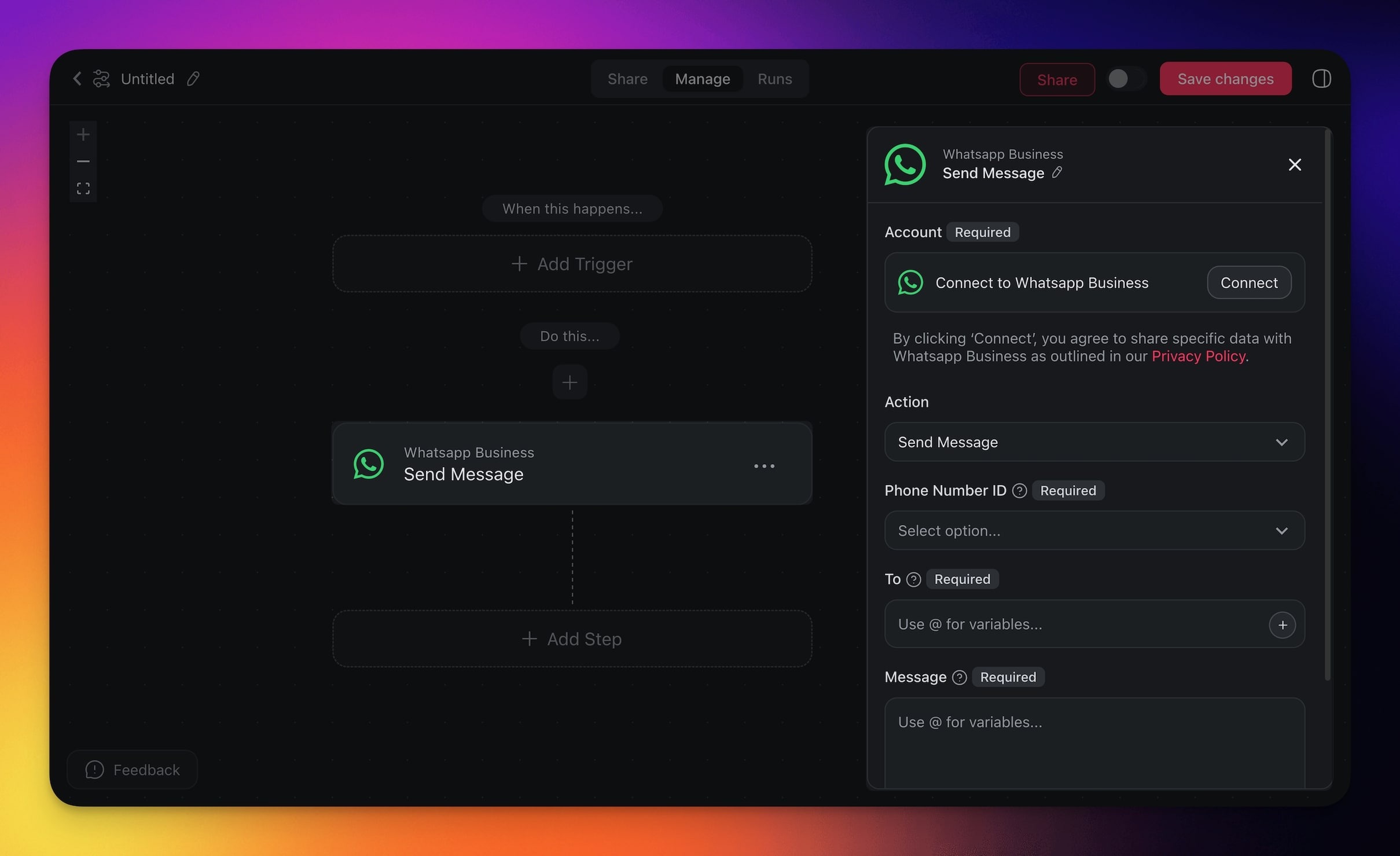
Send Message
| Field | Description |
|---|---|
| (required) Phone Number ID | Phone number ID that will be used to send the message. |
| (required) To | The recipient of the message. |
| (required) Message | The body of the message. |
Send Template Message
| Field | Description |
|---|---|
| (required) Phone Number ID | Phone number ID that will be used to send the message. |
| (required) To | The recipient of the message. |
| (required) Message | The body of the message. |
| (required) Message Template | Message template that will be used to send the message. |
Send Media
| Field | Description |
|---|---|
| (required) Phone Number ID | Phone number ID that will be used to send the message. |
| (required) To | The recipient of the message. |
| (required) Type | The type of media. (Image, Audio, Document, Video) |
| (required) Media URL | The URL of the media. |
| (optional) Caption | The caption for the media. |
| (optional) Filename | The filename for the media. |
WhatsApp Use Cases
Pick the goal that matches your business. Each row is a working automation: a trigger from one app, an optional AI step, and a WhatsApp action that delivers the message. Wire it once, and customers stay updated without you touching your phone.
| Goal | How the automation runs |
|---|---|
| Send order status updates to customers | ✅ Trigger: Row Updated in Google Sheets ➡️ Action: Find Row(s) for order info ➡️ Action: Send Template Message with status (WhatsApp) |
| Onboard new customers automatically | ✅ Trigger: New Entry in Typeform ➡️ Action: Generate with AI for welcome message ➡️ Action: Send Template Message to customer (WhatsApp) |
| Announce product launches to your audience | ✅ Trigger: New File (Google Drive) ➡️ Action: Generate with AI to summarize ➡️ Action: Send Message (WhatsApp) |
| Coordinate volunteers with shift updates | ✅ Trigger: New Row in Google Sheets (shift assigned) ➡️ Action: Generate with AI for shift instructions ➡️ Action: Send Message (WhatsApp) |
A finished onboarding automation reads top to bottom like this:
  NEW CUSTOMER ONBOARDING                    [ ON ]
  ──────────────────────────────────────────────────
  ✅  TRIGGER   New Entry in Typeform
                  └─ name, phone number, plan
        │
        ▼
  🤖  ACTION    Generate with AI
                  └─ writes a warm welcome message
        │
        ▼
  💬  ACTION    Send Template Message (WhatsApp)
                  └─ to: {{phone number}}
                  └─ delivers in seconds
  ──────────────────────────────────────────────────
Disconnect WhatsApp Business
To disconnect the WhatsApp Business integration from your Taskade account:
From Automations:
Choose the WhatsApp Business action in your automation.
Click Change in the configuration sidebar on the right.
Click the trash button 🗑️ next to the active account.
Use WhatsApp as an Agent Tool
Hand WhatsApp to a custom AI agent and it can message customers as one of its built-in tools. A support agent reads a request, drafts a reply, and sends it over WhatsApp on its own. The same 3 actions are available, no extra setup.
| Type | Capability | Description |
|---|---|---|
| 🔧 Action | Send Message | Performs the send message operation |
| 🔧 Action | Send from Template | Performs the send from template operation |
| 🔧 Action | Send Media | Performs the send media operation |
Build a Portal That Talks Back
You already keep customer details in a spreadsheet and chase them one by one in WhatsApp. In Taskade Genesis, describe that workflow in plain English and you get a live client portal: every customer record in one place, with their orders, status, and history attached as connected projects.
Picture it running. A new sign-up fills your form, and Taskade EVE files them as a record. The moment their order status changes, a WhatsApp template message goes out automatically. Your team sees the whole customer at a glance. The customer hears from you on the app they check every day, without anyone typing the same update twice.
Describe your customer workflow to Taskade Genesis →
Related guides
- How automations fire and run: Automations Overview, Triggers, Actions
- Other team-chat integrations: Slack, Discord, Telegram Bot, Microsoft Teams
- SMS counterpart for non-WhatsApp regions: Twilio
- Let an agent handle customer replies: Custom AI Agents, Tools for AI Agents
- More connectors and apps to clone: All 100+ integrations, Community Gallery